

DHCP is fine for laptops, hopeless for servers. The moment a Rocky Linux box starts running DNS, a reverse proxy, a database, or anything else that another machine has to reach by address, you need a static IP that survives reboots and never drifts. On Rocky Linux 10, AlmaLinux 10, and RHEL 10 the job belongs to NetworkManager and its CLI, nmcli. Every supported release ships it by default, the legacy network-scripts package is long gone, and ad-hoc ifconfig tweaks will not persist across reboot.
This guide walks through every practical static IP scenario readers actually hit on a Red Hat family server: a plain static IPv4 on a physical NIC, multiple addresses per profile, persistent static routes, a tagged VLAN, bond and bridge overviews, the nmtui TUI, the keyfile format that lives under /etc/NetworkManager/system-connections/, systemd-resolved integration, and a firewalld zone bound to a static source. Every block below was run on a clean Rocky Linux 10.1 VM, with real captured output. The same commands apply verbatim to AlmaLinux 10 and RHEL 10.
Verified working: April 2026 on Rocky Linux 10.1 (kernel 6.12, NetworkManager 1.54.0, nmcli 1.54.0-1.el10), SELinux enforcing. Applies identically to AlmaLinux 10 and RHEL 10.
Prerequisites
Confirm NetworkManager is the active network stack before making changes:
systemctl is-active NetworkManager
nmcli --version
nmcli general status
The service should be active and nmcli should report connectivity:
active
nmcli tool, version 1.54.0-1.el10
STATE      CONNECTIVITY  WIFI-HW  WIFI     WWAN-HW  WWAN     METERED
connected  full          missing  enabled  missing  enabled  no (guessed)
Inspect the current connection
Before changing anything, read the existing profile. Every NetworkManager-managed interface has one or more connection profiles, identified by a name and UUID. Rocky 10 cloud images typically ship a profile called cloud-init eth0 bound to eth0; bare-metal installs usually get enp1s0 or similar predictable names.
nmcli con showYou should see one profile per managed device plus the loopback:
NAME             UUID                                  TYPE      DEVICE
cloud-init eth0  1dd9a779-d327-56e1-8454-c65e2556c12c  ethernet  eth0
lo               5434ab2e-171a-4c5e-8b36-5c5c5e995621  loopback  lo
Get the full device state. This tells you whether the address came from DHCP or manual config, the current gateway, and the resolver chain:
nmcli device show eth0Relevant lines from the output:
GENERAL.DEVICE:                         eth0
GENERAL.TYPE:                           ethernet
GENERAL.HWADDR:                         BC:24:11:22:C0:1D
GENERAL.MTU:                            1500
GENERAL.STATE:                          100 (connected)
GENERAL.CONNECTION:                     cloud-init eth0
IP4.ADDRESS[1]:                         10.0.1.126/24
IP4.GATEWAY:                            10.0.1.1
IP4.ROUTE[1]:                           dst = 10.0.1.0/24, nh = 0.0.0.0, mt = 100
IP4.ROUTE[2]:                           dst = 0.0.0.0/0, nh = 10.0.1.1, mt = 100
IP4.DNS[1]:                             10.0.1.1
Apply a static IPv4 with nmcli
This is the primary method, the one you will reach for ninety percent of the time. The pattern is: set the method to manual, hand nmcli the address in CIDR form, set a gateway, set DNS servers, then bring the profile up. All changes survive reboot because nmcli writes a keyfile under /etc/NetworkManager/system-connections/ as soon as you commit.
There are two shapes to the command. If the profile already exists (the cloud-init one from the example above), modify it in place. If you are creating the first profile for a new NIC, add it from scratch. The modify path is safer because it preserves the UUID and any other tuning your image shipped.
Modify an existing profile to a static IPv4 (replace the profile name and values with yours):
nmcli con mod "cloud-init eth0" \
  ipv4.method manual \
  ipv4.addresses 10.0.1.50/24 \
  ipv4.gateway 10.0.1.1 \
  ipv4.dns "1.1.1.1 8.8.8.8" \
  ipv4.dns-search "example.internal" \
  ipv4.ignore-auto-dns yes \
  ipv6.method disabled
nmcli con down "cloud-init eth0" && nmcli con up "cloud-init eth0"
Create a brand new profile on a fresh NIC instead:
nmcli con add type ethernet ifname eth0 con-name static-eth0 \
  ipv4.method manual \
  ipv4.addresses 10.0.1.50/24 \
  ipv4.gateway 10.0.1.1 \
  ipv4.dns "1.1.1.1 8.8.8.8" \
  ipv4.dns-search "example.internal" \
  ipv6.method disabled
nmcli con up static-eth0
On a fresh dummy interface the add path prints:
Connection 'static-eth0' (5e6aeced-d86d-433d-9d52-44834843402b) successfully added.
Connection successfully activated (D-Bus active path: /org/freedesktop/NetworkManager/ActiveConnection/3)
The ipv4.ignore-auto-dns yes setting matters when the interface previously had DHCP. Without it, NetworkManager keeps appending the DHCP-supplied nameservers to /etc/resolv.conf even after you set static ones, which causes intermittent resolution against the wrong servers. Set it any time you override the default DNS chain.
SSH safety: If eth0 is the only path to the box, running nmcli con down on its profile drops you. Do the change from a serial console, the cloud provider web console, or use the dummy-interface rehearsal technique shown at the end of this guide to validate the exact command first.
Verify the new state:
nmcli -f ipv4.method,ipv4.addresses,ipv4.gateway,ipv4.dns,GENERAL.STATE con show static-eth0
ip -br addr show eth0
ip route show dev eth0
The output confirms the profile is activated with the manual address and gateway in place:
ipv4.method:                            manual
ipv4.addresses:                         10.0.1.50/24
ipv4.gateway:                           10.0.1.1
ipv4.dns:                               1.1.1.1,8.8.8.8
GENERAL.STATE:                          activated
eth0  UP  10.0.1.50/24
default via 10.0.1.1 proto static metric 100
Change the address on an existing profile
Moving a server to a different subnet is common, especially during a VLAN rework or a datacenter move. Update the address and bounce the connection:
nmcli con mod static-eth0 ipv4.addresses 10.0.2.20/24 ipv4.gateway 10.0.2.1 ipv4.dns "9.9.9.9"
nmcli con up static-eth0
On the dummy-interface rehearsal this produced:
Connection successfully activated (D-Bus active path: /org/freedesktop/NetworkManager/ActiveConnection/4)
    inet 10.0.2.20/24 brd 10.0.2.255 scope global noprefixroute dummy0
Multiple addresses on one interface
Reverse proxies, mail servers, and HA setups often need two or more IPs bound to the same NIC. nmcli uses the +ipv4.addresses syntax to append rather than replace. This differs from plain ipv4.addresses, which overwrites the list. Run the append form once per extra IP:
nmcli con mod static-eth0 +ipv4.addresses 10.0.1.51/24
nmcli con up static-eth0
ip -br addr show eth0
You get both addresses on the same interface, the second one flagged as secondary by the kernel:
eth0 UP 10.0.1.50/24 10.0.1.51/24To remove a specific address later, use -ipv4.addresses:
nmcli con mod static-eth0 -ipv4.addresses 10.0.1.51/24
nmcli con up static-eth0
Persistent static routes
Static routes are the fix when a subnet is reachable through a secondary gateway or a VPN next hop that is not the default route. The traditional ip route add command does not persist; NetworkManager’s ipv4.routes attribute does, because it gets written to the keyfile. The syntax is destination/prefix next-hop, optionally with a metric.
nmcli con mod static-eth0 +ipv4.routes "10.100.0.0/24 10.0.1.254"
nmcli con up static-eth0
ip route show dev eth0
The route shows up with proto static, which means it was installed by NetworkManager and will come back on reboot:
default via 10.0.1.1 proto static metric 100
10.0.1.0/24 proto kernel scope link src 10.0.1.50 metric 100
10.100.0.0/24 via 10.0.1.254 proto static metric 100
You can chain several routes in one command by quoting each entry separately, which is the right pattern for provisioning scripts.
Tagged VLAN on top of a static interface
Trunking with 802.1Q is how you put a single NIC on several virtual networks. NetworkManager models a VLAN as a child profile of a parent device, with its own ID, its own IP stack, and its own routing. Create the VLAN profile, assign the child address, and bring it up:
nmcli con add type vlan con-name vlan100 dev eth0 id 100 \
  ipv4.method manual ipv4.addresses 10.100.0.10/24 \
  ipv6.method disabled
nmcli con up vlan100
On the rehearsal this created a new logical interface named dummy0.100 (on a real NIC it would be eth0.100) with its own address:
Connection 'vlan100' (6a165c2f-ad1a-46cf-83cb-d20eae2bf76c) successfully added.
Connection successfully activated
dummy0.100@dummy0 UP  10.100.0.10/24
The kernel creates the sub-interface automatically. The switch port on the other end must be configured as a trunk allowing VLAN 100, otherwise the frames are dropped with an untagged-only port.
Bond interfaces with a static IP
Link aggregation combines two or more physical NICs into one logical interface. NetworkManager builds a bond by creating a bond master profile, then enslaving the physical interfaces as port profiles. The static IP lives on the bond master, not the ports. The one-shot pattern for active-backup bonding:
nmcli con add type bond con-name bond0 ifname bond0 bond.options "mode=active-backup,miimon=100" \
  ipv4.method manual ipv4.addresses 10.0.1.50/24 ipv4.gateway 10.0.1.1 \
  ipv4.dns "1.1.1.1 8.8.8.8" ipv6.method disabled
nmcli con add type ethernet con-name bond0-port1 ifname eth0 master bond0 slave-type bond
nmcli con add type ethernet con-name bond0-port2 ifname eth1 master bond0 slave-type bond
nmcli con up bond0
Swap mode=active-backup for mode=802.3ad if the upstream switch runs LACP. Verify both ports joined with cat /proc/net/bonding/bond0 after activation; the file lists the currently active slave and the MII link state for each port.
Bridge interface for virtualization hosts
KVM and libvirt guests usually need layer-2 access to the host LAN. Build a Linux bridge on Rocky 10 by creating the bridge profile, then enslaving the physical NIC. The bridge holds the host’s static IP; eth0 becomes a plain bridge port with no IP of its own.
nmcli con add type bridge con-name br0 ifname br0 \
  ipv4.method manual ipv4.addresses 10.0.1.50/24 ipv4.gateway 10.0.1.1 \
  ipv4.dns "1.1.1.1 8.8.8.8" ipv6.method disabled
nmcli con add type ethernet con-name br0-port1 ifname eth0 master br0 slave-type bridge
nmcli con up br0
After activation, brctl show br0 (from the bridge-utils package if installed) or ip link show master br0 confirms eth0 is now a bridge port. Libvirt guests can then attach to br0 for bridged networking.
nmtui for keyboard-driven setup
Not everyone wants to type long nmcli strings. The nmtui text UI is useful on install media, for quick recovery jobs, and for people more comfortable with ncurses menus than command flags. It reads and writes the same keyfiles, so anything you do in nmtui is identical to the nmcli equivalent once the dust settles.
nmtuiYou get three entries: Edit a connection, Activate a connection, Set system hostname. Edit a connection opens a list of profiles. Pick yours, tab to the IPv4 section, switch from Automatic to Manual, add an address in CIDR form, add a gateway and DNS servers, tab to OK. Back at the main menu pick Activate to cycle the profile. Same result as nmcli, no memorization required.
Keyfile format under /etc/NetworkManager
Rocky 10 stores every NetworkManager profile as a keyfile under /etc/NetworkManager/system-connections/. The old /etc/sysconfig/network-scripts/ifcfg-* format from RHEL 7 and earlier is gone. Keyfiles are INI-format, mode 0600, owned by root. You can read them for diagnostics but editing them by hand is only safe if you follow up with nmcli con reload so NetworkManager rereads the directory.
ls -la /etc/NetworkManager/system-connections/
cat /etc/NetworkManager/system-connections/static-eth0.nmconnection
The file layout mirrors the nmcli attributes, with one section per subsystem:
[connection]
id=static-eth0
uuid=5e6aeced-d86d-433d-9d52-44834843402b
type=ethernet
interface-name=eth0

[ethernet]

[ipv4]
address1=10.0.1.50/24
address2=10.0.1.51/24
dns=1.1.1.1;8.8.8.8;
dns-search=example.internal;
gateway=10.0.1.1
method=manual
route1=10.100.0.0/24,10.0.1.254

[ipv6]
method=disabled
If you ever need to ship a prebuilt static profile with a system image, drop a keyfile into this directory at build time with mode 0600. On first boot NetworkManager will pick it up automatically. This is the clean equivalent of the old ifcfg-eth0 trick.
DNS and systemd-resolved on Rocky 10
Rocky 10 does not enable systemd-resolved by default, unlike current Ubuntu and Fedora. NetworkManager writes /etc/resolv.conf directly with the nameservers you set on ipv4.dns. Confirm with:
systemctl is-active systemd-resolved
cat /etc/resolv.conf
Expected output on a stock Rocky 10 box:
inactive
# Generated by NetworkManager
search example.internal
nameserver 1.1.1.1
nameserver 8.8.8.8
If you install and enable systemd-resolved manually, NetworkManager will instead push DNS into the resolved database over D-Bus and /etc/resolv.conf becomes a symlink to /run/systemd/resolve/stub-resolv.conf, pointing at 127.0.0.53. Querying becomes resolvectl status rather than cat /etc/resolv.conf. That setup is useful when you want a split-horizon DNS with per-interface nameservers, but it is opt-in on Rocky, not the default.
Bind firewalld zones to the static source
Once a box has a predictable static IP, firewalld zones become useful rather than theoretical. A common pattern is to mark a whole management subnet as trusted while leaving everything else in the public zone. Bind the source to the zone, then reload:
firewall-cmd --zone=trusted --add-source=10.0.1.0/24 --permanent
firewall-cmd --reload
firewall-cmd --zone=trusted --list-sources
The zone now accepts everything from the management subnet, and services you expose to the public zone stay guarded by their own rules:
success
success
10.0.1.0/24
The reason this only makes sense after the static IP step: zones matched on source address are meaningless when the address is liable to change each DHCP renewal. Pairing a static IP with source-matched firewalld rules is how you harden a production Rocky 10 host in two minutes rather than writing a nftables policy from scratch. Store any shared secrets the firewall defends (VPN PSKs, bastion SSH keys) in a vault like 1Password so they never live in ~/.ssh/ plain files on the bastion itself.
Rehearse SSH-safe changes on a dummy interface
Modifying the one interface that carries your SSH session is a classic self-lockout. The safe way to test an nmcli one-liner before committing it to production is to rehearse the exact command on a dummy kernel interface. The dummy driver exists precisely for this and is part of the mainline kernel, so nothing extra to install.
modprobe dummy
ip link add dummy0 type dummy
ip link set dummy0 up
ip -br link
The new interface shows up alongside eth0 and lo:
lo       UNKNOWN  00:00:00:00:00:00
eth0     UP       bc:24:11:22:c0:1d
dummy0   UNKNOWN  32:04:d5:10:79:12
Now run the full static-IP recipe against dummy0 to prove the commands are correct before touching the real NIC:
nmcli con add type dummy ifname dummy0 con-name demo-static \
  ipv4.method manual ipv4.addresses 10.99.99.10/24 \
  ipv4.gateway 10.99.99.1 ipv4.dns "1.1.1.1 8.8.8.8" \
  ipv4.dns-search "example.internal" ipv6.method disabled
nmcli con up demo-static
If that succeeds with the output pattern shown earlier, the equivalent command on eth0 will behave the same. Tear down the rehearsal when you are done so it does not persist across reboot:
nmcli con delete demo-static
ip link delete dummy0
modprobe -r dummy
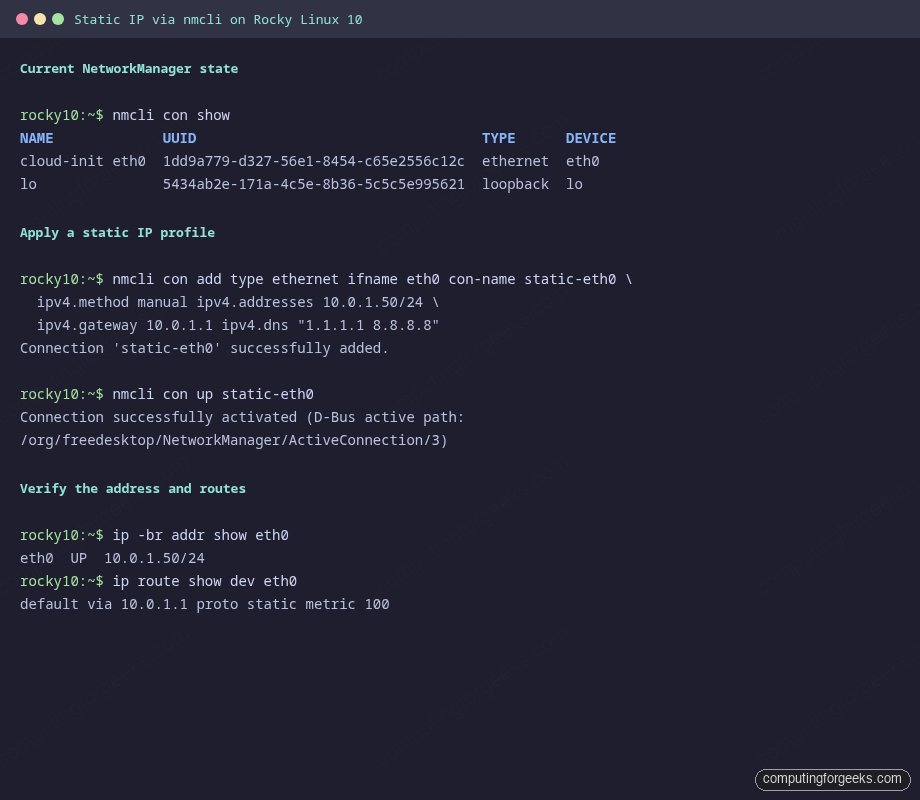
A successful rehearsal looks like this in the terminal, with the added profile, the inet binding on dummy0, and the route table matching what you would expect on a real NIC:
Production hardening for static-IP hosts
A static IP is a starting point, not a finish line. Once the address is pinned, a few extra touches convert a generic Rocky 10 box into a production-grade host. None of these are required to make the IP work, but skipping them is how hosts get compromised or silently misrouted later.
Set reverse DNS to match. If your authoritative DNS zone is in your control, add an A record and a matching PTR record for the host. Mail servers and bastion logs behave badly with a hostname that resolves forward but not backward; on cloud VPS instances the PTR is usually set via the provider dashboard rather than at the DNS level.
Pin the hostname. With a static IP you can finally commit the hostname without worrying about a DHCP lease overwriting it:
hostnamectl set-hostname web01.example.internal
cat /etc/hostname
Lock NetworkManager against DHCP hijack. On hosts where you never want DHCP, not even as a fallback, clear the autoconnect on any residual dhcp profile and disable the entire connection autoprovisioning path for that device. This also prevents cloud-init from re-racing your change on the next boot:
nmcli con mod "cloud-init eth0" connection.autoconnect no 2>/dev/null || true
touch /etc/cloud/cloud-init.disabled
Verify SELinux is still enforcing. Static IP work does not normally touch SELinux, but it is worth confirming after any networking change:
getenforceOn a stock Rocky 10 install this returns Enforcing. If it returns anything else, fix that first before shipping the host. For deeper firewall work after the IP is stable, the firewalld getting-started guide covers zones, services, and rich rules in the same RHEL family.
Legacy notes: Rocky 9, Rocky 8, and the old scripts
Everything above also applies to Rocky Linux 9 and AlmaLinux 9 with identical nmcli syntax. The difference: Rocky 9 shipped a transition-period /etc/sysconfig/network-scripts/ifcfg-eth0 layout for backwards compatibility that could be read but wrote back as keyfiles via the nm-settings-ifcfg-rh plugin. Rocky 10 dropped the ifcfg compat layer, so keyfiles are the only format on disk.
Rocky 8 and earlier still used network-scripts as a fallback. If you are migrating an old ifcfg-eth0 file to Rocky 10, do not copy it; re-apply the settings via nmcli and let NetworkManager write a fresh keyfile. The shapes of the two files are different enough that a hand-edit breaks more than it fixes. For a broader Rocky 10 onboarding, the Rocky Linux 10 post-installation guide covers hostnames, repos, and baseline hardening in one place. And the network bonding on RHEL and Rocky Linux guide has deeper coverage of bond modes and LACP tuning than the one section above.
Sibling reference: NetworkManager on Ubuntu and Debian
If you also run Ubuntu or Debian servers, the nmcli command surface is identical; the one difference is that Ubuntu ships netplan as a front-end that writes NetworkManager keyfiles (or systemd-networkd files) for you. The NetworkManager nmcli on Ubuntu and Debian walkthrough covers the Debian-family specifics and the netplan interplay. Commit the same skills once; nmcli syntax is stable across distributions.
Going further
A static IP unlocks everything else worth doing on a server. Once the address is pinned, the natural next steps depend on the role: a fresh Rocky Linux 10 install gets a proper post-install checklist, a cluster member needs its peers pinned the same way, and a bastion or jump host benefits from a dedicated management VLAN on the same nmcli profile. Set the IP, pin the hostname, wire the firewalld zones, and the rest of the hardening stack has something stable to build on.





Tks It’s helped me!
Great much welcome!
Thank for sharing.