Variables are what make Ansible playbooks reusable instead of disposable. Without them, you end up hardcoding hostnames, ports, and package names into every task, and any change means rewriting half your automation. With variables, the same playbook deploys to staging and production by swapping a single file.
This guide covers every variable type you’ll use in practice: facts gathered from remote hosts, custom variables in playbooks and files, group and host-level overrides, registered output, set_fact for runtime decisions, filters for data transformation, and the precedence rules that determine which value wins when the same variable is defined in multiple places. We test everything on Rocky Linux 10.1 and Ubuntu 24.04 with Ansible 13.5.0 (ansible-core 2.20.4). If you need the basics first, start with the Ansible playbook tutorial.
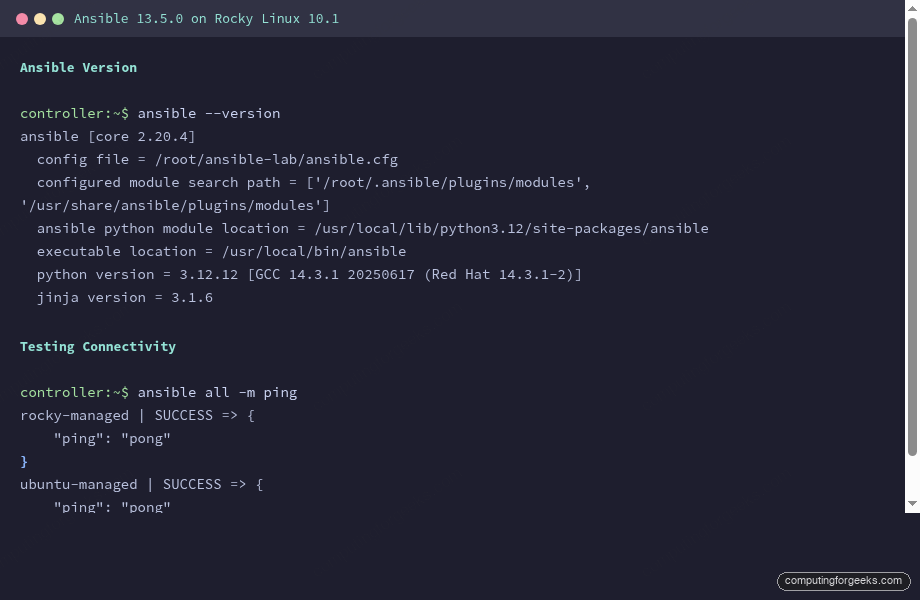
Tested April 2026 on Rocky Linux 10.1 and Ubuntu 24.04 LTS, ansible-core 2.20.4, Jinja2 3.1.6
Prerequisites
You need the following before starting:
- Ansible installed on a control node. See Install Ansible on Rocky Linux 10 and Ubuntu 24.04 if needed
- At least one managed host reachable via SSH
- Tested on: ansible-core 2.20.4, Rocky Linux 10.1 (controller + managed), Ubuntu 24.04 (managed)
- Familiarity with Ansible inventory and basic YAML syntax
The project structure we’ll build throughout this guide:
ansible-lab/
├── ansible.cfg
├── inventory.ini
├── group_vars/
│   ├── all/main.yml
│   ├── rocky/main.yml
│   └── ubuntu/main.yml
├── host_vars/
│   ├── rocky-managed/main.yml
│   └── ubuntu-managed/main.yml
├── vars/
│   └── app_config.yml
└── playbooks/
Ansible Facts: Variables Gathered from Remote Hosts
Every time a playbook runs, Ansible connects to each host and collects system information automatically. These are called facts: the OS name, IP address, memory, CPU count, kernel version, and dozens more. Facts are available as variables inside your playbook without any extra work.
Query facts for a specific host with the setup module. To filter for distribution-related facts only:
ansible rocky-managed -m setup -a "filter=ansible_distribution*"On Rocky Linux 10.1, this returns:
rocky-managed | SUCCESS => {
    "ansible_facts": {
        "ansible_distribution": "Rocky",
        "ansible_distribution_file_parsed": true,
        "ansible_distribution_file_path": "/etc/redhat-release",
        "ansible_distribution_file_variety": "RedHat",
        "ansible_distribution_major_version": "10",
        "ansible_distribution_release": "Red Quartz",
        "ansible_distribution_version": "10.1"
    },
    "changed": false
}
The same command on Ubuntu 24.04 shows different values:
ubuntu-managed | SUCCESS => {
    "ansible_facts": {
        "ansible_distribution": "Ubuntu",
        "ansible_distribution_file_path": "/etc/os-release",
        "ansible_distribution_file_variety": "Debian",
        "ansible_distribution_major_version": "24",
        "ansible_distribution_release": "noble",
        "ansible_distribution_version": "24.04"
    },
    "changed": false
}
These facts are what make cross-platform playbooks possible. You can branch logic based on ansible_distribution or ansible_os_family instead of maintaining separate playbooks for each OS.
The ansible_facts Dictionary (Recommended Syntax)
Ansible-core 2.20 now warns that direct fact injection (using ansible_memtotal_mb as a top-level variable) is deprecated and will be removed in 2.24. The recommended approach is to use the ansible_facts dictionary with the fact name stripped of the ansible_ prefix:
- name: Use ansible_facts dictionary (recommended)
  ansible.builtin.debug:
    msg: "OS: {{ ansible_facts['distribution'] }} {{ ansible_facts['distribution_version'] }} | Kernel: {{ ansible_facts['kernel'] }} | RAM: {{ ansible_facts['memtotal_mb'] }}MB"
Running this against both hosts:
ok: [rocky-managed] => {
    "msg": "OS: Rocky 10.1 | Kernel: 6.12.0-124.8.1.el10_1.x86_64 | RAM: 1769MB"
}
ok: [ubuntu-managed] => {
    "msg": "OS: Ubuntu 24.04 | Kernel: 6.8.0-101-generic | RAM: 1967MB"
}
Start using ansible_facts['key'] now. The old syntax still works in 2.20 but will break in future releases.
Custom Variables in Playbooks
The vars section at the play level is the simplest way to define custom variables. These are available to all tasks in that play.
---
- name: Test Custom Variables
  hosts: all
  vars:
    app_name: mywebapp
    app_port: 8080
    app_env: production
    allowed_ports:
      - 80
      - 443
      - 8080
    db_config:
      host: localhost
      port: 5432
      name: appdb

  tasks:
    - name: Display simple variables
      ansible.builtin.debug:
        msg: "App {{ app_name }} runs on port {{ app_port }} in {{ app_env }} mode"

    - name: Display list variable
      ansible.builtin.debug:
        msg: "Allowed ports: {{ allowed_ports | join(', ') }}"

    - name: Display dictionary variable
      ansible.builtin.debug:
        msg: "Database: {{ db_config.name }} on {{ db_config.host }}:{{ db_config.port }}"
The output confirms all three variable types resolve correctly:
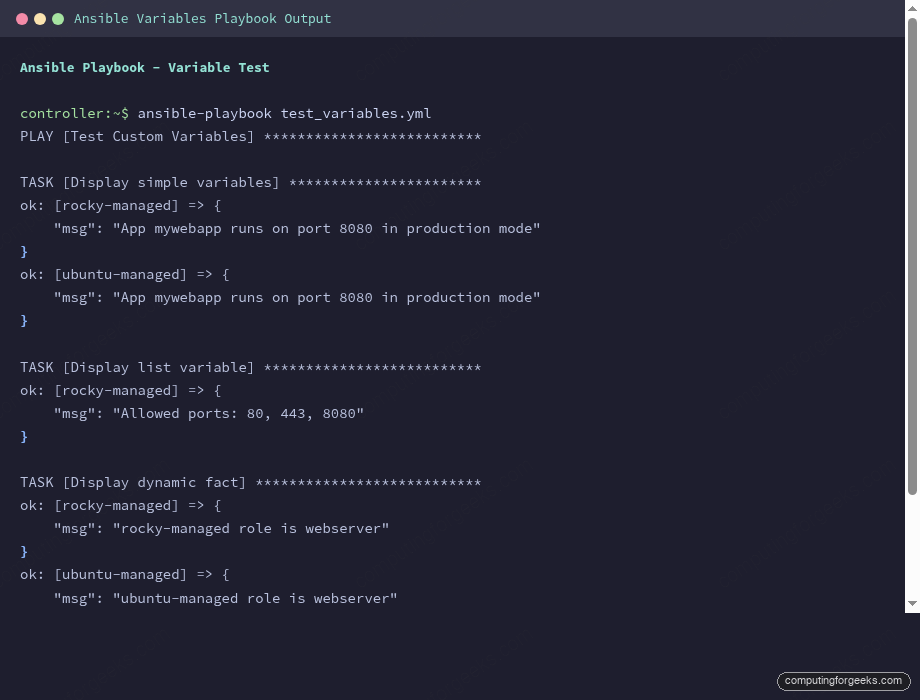
TASK [Display simple variables] ***********************
ok: [rocky-managed] => {
    "msg": "App mywebapp runs on port 8080 in production mode"
}

TASK [Display list variable] **************************
ok: [rocky-managed] => {
    "msg": "Allowed ports: 80, 443, 8080"
}

TASK [Display dictionary variable] ********************
ok: [rocky-managed] => {
    "msg": "Database: appdb on localhost:5432"
}
Dictionary values can be accessed using dot notation (db_config.name) or bracket notation (db_config['name']). Bracket notation is safer when the key name contains special characters or conflicts with Python methods.
Registered Variables: Capturing Task Output
The register keyword captures the full output of a task into a variable. This is essential for making decisions based on command results or storing values for later tasks.
    - name: Register command output
      ansible.builtin.command: uptime
      register: uptime_result
      changed_when: false

    - name: Display registered variable
      ansible.builtin.debug:
        msg: "Uptime: {{ uptime_result.stdout }}"
The registered variable is a dictionary with several useful keys:
TASK [Display registered variable] ********************
ok: [rocky-managed] => {
    "msg": "Uptime:  11:18:56 up 3 min,  2 users,  load average: 0.05, 0.19, 0.09"
}
ok: [ubuntu-managed] => {
    "msg": "Uptime:  08:18:56 up 6 min,  1 user,  load average: 0.00, 0.00, 0.00"
}
Common attributes on a registered result: .stdout (string output), .stdout_lines (output as list), .stderr (error output), .rc (return code), and .changed (boolean). The changed_when: false on the task prevents Ansible from reporting a change when the command is read-only.
set_fact: Creating Variables at Runtime
While register captures raw task output, set_fact lets you create new variables based on logic. This is useful for computing values from facts or other variables.
    - name: Set a fact dynamically
      ansible.builtin.set_fact:
        server_role: "{{ 'webserver' if inventory_hostname in groups['webservers'] else 'other' }}"

    - name: Display dynamic fact
      ansible.builtin.debug:
        msg: "{{ inventory_hostname }} role is {{ server_role }}"
Both hosts are in the webservers group, so the conditional resolves accordingly:
ok: [rocky-managed] => {
    "msg": "rocky-managed role is webserver"
}
ok: [ubuntu-managed] => {
    "msg": "ubuntu-managed role is webserver"
}
Facts created with set_fact persist for the entire play. They also have higher precedence than most other variable sources, so they can override group_vars and host_vars when needed.
group_vars and host_vars: Organizing Variables by Scope
Putting variables directly in playbooks works for small projects. For anything with more than a handful of hosts, group_vars and host_vars directories are the standard approach. Ansible loads them automatically based on inventory group membership and hostname.
group_vars/all: Variables for Every Host
Create group_vars/all/main.yml for variables that apply everywhere:
sudo vi group_vars/all/main.ymlAdd the following content:
---
ntp_server: pool.ntp.org
dns_servers:
  - 8.8.8.8
  - 8.8.4.4
timezone: UTC
Group-Specific Variables
Variables that differ by OS family go in their respective group directories. For group_vars/rocky/main.yml:
---
package_manager: dnf
firewall_service: firewalld
selinux_state: enforcing
And group_vars/ubuntu/main.yml:
---
package_manager: apt
firewall_service: ufw
selinux_state: disabled
host_vars: Per-Host Overrides
When individual hosts need unique values, create a directory matching the inventory hostname. For host_vars/rocky-managed/main.yml:
---
http_port: 8080
server_description: "Rocky Linux application server"
And host_vars/ubuntu-managed/main.yml:
---
http_port: 9090
server_description: "Ubuntu monitoring server"
Testing the Variable Hierarchy
A playbook that pulls from all three levels proves the hierarchy works as expected:
---
- name: Test Variable Precedence
  hosts: all

  tasks:
    - name: Show global variables (group_vars/all)
      ansible.builtin.debug:
        msg: "NTP: {{ ntp_server }} | DNS: {{ dns_servers | join(', ') }} | TZ: {{ timezone }}"

    - name: Show group-specific variables
      ansible.builtin.debug:
        msg: "Package manager: {{ package_manager }} | Firewall: {{ firewall_service }}"

    - name: Show host-specific variables
      ansible.builtin.debug:
        msg: "{{ inventory_hostname }}: {{ server_description }} on port {{ http_port }}"
Each host gets the right combination of global, group, and host-level values:
TASK [Show global variables (group_vars/all)] *********
ok: [rocky-managed] => {
    "msg": "NTP: pool.ntp.org | DNS: 8.8.8.8, 8.8.4.4 | TZ: UTC"
}
ok: [ubuntu-managed] => {
    "msg": "NTP: pool.ntp.org | DNS: 8.8.8.8, 8.8.4.4 | TZ: UTC"
}

TASK [Show group-specific variables] ******************
ok: [rocky-managed] => {
    "msg": "Package manager: dnf | Firewall: firewalld"
}
ok: [ubuntu-managed] => {
    "msg": "Package manager: apt | Firewall: ufw"
}

TASK [Show host-specific variables] *******************
ok: [rocky-managed] => {
    "msg": "rocky-managed: Rocky Linux application server on port 8080"
}
ok: [ubuntu-managed] => {
    "msg": "ubuntu-managed: Ubuntu monitoring server on port 9090"
}
The ntp_server value comes from group_vars/all, package_manager from the OS-specific group, and http_port from each host’s own directory. Ansible merges these automatically without any explicit include statements.
vars_files: Loading Variables from External Files
For application-specific configuration that doesn’t belong in the inventory hierarchy, vars_files loads a YAML file at the play level. Create vars/app_config.yml:
---
app_name: inventory-service
app_version: "2.5.1"
app_port: 8080
database:
  host: db01.internal
  port: 5432
  name: inventory_db
  pool_size: 25
redis:
  host: cache01.internal
  port: 6379
log_level: info
Reference it in your playbook with the vars_files directive:
---
- name: Test vars_files
  hosts: all
  vars_files:
    - vars/app_config.yml

  tasks:
    - name: Show loaded vars_files variables
      ansible.builtin.debug:
        msg: "{{ app_name }} v{{ app_version }} on port {{ app_port }}"

    - name: Show nested dictionary from vars_files
      ansible.builtin.debug:
        msg: "DB: {{ database.name }}@{{ database.host }}:{{ database.port }} (pool: {{ database.pool_size }})"
The variables load cleanly from the external file:
ok: [rocky-managed] => {
    "msg": "inventory-service v2.5.1 on port 8080"
}
ok: [ubuntu-managed] => {
    "msg": "inventory-service v2.5.1 on port 8080"
}

ok: [rocky-managed] => {
    "msg": "DB: [email protected]:5432 (pool: 25)"
}
This pattern works well for separating deployment configuration from playbook logic. Teams often keep vars/ files per environment (staging, production) and load the appropriate one at runtime.
Extra Variables: The Override Switch
Extra variables passed with -e (or --extra-vars) on the command line have the highest precedence in Ansible. They override everything: play vars, group_vars, host_vars, role defaults, even set_fact in some contexts.
---
- name: Test Extra Variables Override
  hosts: all
  vars:
    http_port: 3000
    deploy_env: staging

  tasks:
    - name: Show http_port value
      ansible.builtin.debug:
        msg: "HTTP port is {{ http_port }} (deploy env: {{ deploy_env }})"
Without extra vars, the play-level value wins over host_vars (3000 instead of 8080/9090):
ansible-playbook test_extra_vars.ymlThe output shows the play-level default:
ok: [rocky-managed] => {
    "msg": "HTTP port is 3000 (deploy env: staging)"
}
Now override both values from the command line:
ansible-playbook test_extra_vars.yml -e "http_port=443 deploy_env=production"Extra vars take priority over everything else:
ok: [rocky-managed] => {
    "msg": "HTTP port is 443 (deploy env: production)"
}
This is the mechanism CI/CD pipelines use to inject environment-specific values at deploy time. You can also pass a JSON file: -e "@deploy_vars.json".
Variable Filters: Transforming Data
Ansible uses Jinja2 filters to transform variable values inline. These are applied with the pipe (|) character and can be chained together.
String Filters
Common string operations include case conversion, whitespace trimming, and character replacement. These are useful for normalizing user input or generating config-safe identifiers:
  vars:
    username: "  John Doe  "

  tasks:
    - name: String filters
      ansible.builtin.debug:
        msg: |
          Original: "{{ username }}"
          Lower: "{{ username | lower | trim }}"
          Upper: "{{ username | upper | trim }}"
          Replace: "{{ username | trim | replace(' ', '_') | lower }}"
Filters chain left to right. trim removes whitespace, then replace swaps spaces for underscores:
ok: [rocky-managed] => {
    "msg": "Original: \"  John Doe  \"\nLower: \"john doe\"\nUpper: \"JOHN DOE\"\nReplace: \"john_doe\"\n"
}
List Filters
Lists are a natural fit for packages, ports, and any collection of items. Filters let you count, sort, slice, and join them without writing loops:
  vars:
    packages:
      - nginx
      - postgresql
      - redis
      - certbot

  tasks:
    - name: List filters
      ansible.builtin.debug:
        msg: |
          Packages: {{ packages | join(', ') }}
          Count: {{ packages | length }}
          First: {{ packages | first }}
          Last: {{ packages | last }}
          Sorted: {{ packages | sort | join(', ') }}
List manipulation is straightforward:
ok: [rocky-managed] => {
    "msg": "Packages: nginx, postgresql, redis, certbot\nCount: 4\nFirst: nginx\nLast: certbot\nSorted: certbot, nginx, postgresql, redis\n"
}
The default Filter
The default filter is one you’ll use constantly. It provides a fallback value when a variable is undefined, which prevents playbook failures:
    - name: Default filter (handling undefined variables)
      ansible.builtin.debug:
        msg: |
          Defined: {{ server_config.max_connections | default(50) }}
          Undefined: {{ missing_var | default('fallback_value') }}
          Boolean: {{ feature_flag | default(false) }}
When a variable exists, its real value is used. When it doesn’t, the default kicks in without any error:
ok: [rocky-managed] => {
    "msg": "Defined: 100\nUndefined: fallback_value\nBoolean: False\n"
}
For a deeper look at Jinja2 filters, loops, and template files, see the upcoming Ansible templating guide in the series.
Special Variables
Ansible provides several built-in “magic” variables that are always available. These give you access to inventory metadata, playbook paths, and the Ansible version itself.
---
- name: Special Variables
  hosts: all

  tasks:
    - name: Show inventory-related special variables
      ansible.builtin.debug:
        msg: "Host: {{ inventory_hostname }} | Groups: {{ group_names | join(', ') }} | All hosts: {{ groups['all'] | join(', ') }}"

    - name: Show playbook directory
      ansible.builtin.debug:
        msg: "Playbook dir: {{ playbook_dir }} | Role path: {{ role_path | default('not in a role') }}"

    - name: Show ansible version variable
      ansible.builtin.debug:
        msg: "Ansible {{ ansible_version.full }} (Python {{ ansible_facts['python_version'] }})"
The output reveals each host’s group membership and the execution context:
ok: [rocky-managed] => {
    "msg": "Host: rocky-managed | Groups: rocky, webservers | All hosts: rocky-managed, ubuntu-managed"
}
ok: [ubuntu-managed] => {
    "msg": "Host: ubuntu-managed | Groups: ubuntu, webservers | All hosts: rocky-managed, ubuntu-managed"
}

ok: [rocky-managed] => {
    "msg": "Playbook dir: /root/ansible-lab | Role path: not in a role"
}

ok: [rocky-managed] => {
    "msg": "Ansible 2.20.4 (Python 3.12.11)"
}
ok: [ubuntu-managed] => {
    "msg": "Ansible 2.20.4 (Python 3.12.3)"
}
The most commonly used special variables:
| Variable | Description |
|---|---|
inventory_hostname | The name of the host as defined in inventory |
ansible_host | The actual connection address (IP or hostname) |
group_names | List of groups this host belongs to |
groups | Dictionary of all groups and their members |
hostvars | Access variables for any host in inventory |
playbook_dir | Path to the directory containing the playbook |
ansible_version | Dictionary with Ansible version info |
role_path | Path to the current role (only inside roles) |
Variable Precedence: The Full Order
When the same variable name is defined in multiple places, Ansible follows a strict precedence order. Understanding this prevents hours of debugging “why is my variable not what I expected?”
From lowest to highest priority:
| Priority | Source | Example |
|---|---|---|
| 1 (lowest) | Command line values (-u, etc.) | ansible-playbook -u deploy |
| 2 | Role defaults (defaults/main.yml) | Intentionally easy to override |
| 3 | Inventory file variables | web01 http_port=80 in inventory |
| 4 | group_vars/all | Global defaults for all hosts |
| 5 | group_vars/groupname | OS or role-specific values |
| 6 | host_vars/hostname | Per-host overrides |
| 7 | Play vars | vars: section in playbook |
| 8 | Play vars_files | vars_files: [config.yml] |
| 9 | Play vars_prompt | Interactive input at runtime |
| 10 | Task vars | vars: on individual tasks |
| 11 | set_fact / register | Runtime computed values |
| 12 | Role vars (vars/main.yml) | Hard role values |
| 13 (highest) | Extra vars (-e) | -e "http_port=443" |
The practical takeaway: use role defaults/ for values you expect users to override (like ports and feature flags). Use role vars/ for values that should never change. And use -e in CI/CD for deployment-time overrides that trump everything.
Practical Example: Multi-OS Package Deployment
Pulling all variable types together, here’s a playbook that installs Nginx across both Rocky Linux and Ubuntu, using facts and group_vars to handle the differences automatically:
---
- name: Deploy Nginx with Variables
  hosts: webservers
  become: true
  vars:
    nginx_worker_processes: auto
    nginx_worker_connections: 1024
    server_name: app.example.com

  tasks:
    - name: Install Nginx
      ansible.builtin.package:
        name: nginx
        state: present

    - name: Get Nginx version
      ansible.builtin.command: nginx -v
      register: nginx_version
      changed_when: false

    - name: Show installed version
      ansible.builtin.debug:
        msg: "Installed: {{ nginx_version.stderr }}"

    - name: Show OS-specific package manager used
      ansible.builtin.debug:
        msg: "{{ ansible_facts['distribution'] }} used {{ package_manager }} to install nginx"
The ansible.builtin.package module automatically uses dnf on Rocky and apt on Ubuntu. The package_manager variable comes from the group_vars we set up earlier:
TASK [Install Nginx] ******************************
changed: [ubuntu-managed]
changed: [rocky-managed]

TASK [Show installed version] *********************
ok: [rocky-managed] => {
    "msg": "Installed: nginx version: nginx/1.26.3"
}
ok: [ubuntu-managed] => {
    "msg": "Installed: nginx version: nginx/1.24.0 (Ubuntu)"
}

TASK [Show OS-specific package manager used] ******
ok: [rocky-managed] => {
    "msg": "Rocky used dnf to install nginx"
}
ok: [ubuntu-managed] => {
    "msg": "Ubuntu used apt to install nginx"
}
Rocky Linux 10.1 ships Nginx 1.26.3 from its default repos, while Ubuntu 24.04 has 1.24.0. The same playbook handles both without any OS-specific conditionals. The registered nginx_version variable could be used in later tasks to apply version-specific configuration.
Variable Encryption with Ansible Vault
Sensitive variables (database passwords, API keys, certificates) should never sit in plain YAML. Ansible Vault encrypts variable files so they can be safely committed to version control. For complete coverage including vault IDs, environment separation, and CI/CD integration, see the dedicated Ansible Vault tutorial.
The quick version: encrypt any vars file with ansible-vault encrypt vars/secrets.yml, then reference it normally in your playbook. Add --ask-vault-pass when running, or store the password in a file referenced by --vault-password-file.
Common Mistakes and How to Avoid Them
Error: “‘variable_name’ is undefined”
This means Ansible cannot find the variable in any of the 13+ precedence levels. Common causes: typo in the variable name, the host isn’t in the expected group (so group_vars don’t load), or the vars_file path is wrong relative to the playbook location. Check with ansible-inventory --host hostname --yaml to see what variables Ansible resolves for a specific host.
INJECT_FACTS_AS_VARS Deprecation Warning
Starting with ansible-core 2.20, you’ll see this warning when using facts as top-level variables (e.g., ansible_memtotal_mb directly). The fix is to switch to the ansible_facts dictionary syntax: ansible_facts['memtotal_mb'] instead. This change is scheduled for ansible-core 2.24, so updating your playbooks now prevents breakage later.
Variable Precedence Confusion
When a variable isn’t the value you expect, check each source in order. The most common mistake: defining a value in host_vars but also in play vars, then wondering why the host_vars value is ignored. Play vars (priority 7) beat host_vars (priority 6). Move the value to defaults/main.yml if you want it to be overridable, or use -e for one-time overrides.
Quick Reference
| Variable Type | Where Defined | Scope | When to Use |
|---|---|---|---|
| Facts | Gathered from hosts | Per host | OS-specific logic, hardware checks |
| Play vars | vars: in playbook | Per play | Small, self-contained playbooks |
| vars_files | External YAML file | Per play | Environment configs, app settings |
| group_vars | group_vars/ directory | Per group | OS-specific, role-specific defaults |
| host_vars | host_vars/ directory | Per host | Unique per-host overrides |
| Registered | register: keyword | Per play | Capturing command output |
| set_fact | set_fact: module | Per play | Computed values at runtime |
| Extra vars | -e flag | Global | CI/CD overrides, debugging |
| Role defaults | defaults/main.yml | Per role | Values meant to be overridden |
| Role vars | vars/main.yml | Per role | Values that should not change |
For more Ansible guides, see the Ansible Automation Guide which links to every article in the series. The Ansible Cheat Sheet has quick command references, and the Ansible Roles tutorial covers how variables integrate with role-based project structures.