The Microsoft Access runtime error 2110 occurs when using the VBA code to manage the forms or controls in the database files. You can face this error while using form.SetFocus method or Control.SetFocus method. It can happen when the VBA code fails to set focus to a control or form that is not available or is not capable of receiving focus. It can also occur if the targeted form or control is not visible, enabled, or unreadable. This issue can also occur due to incorrect queries, corruption in the database file, or incorrect form/control properties. In this article, we will cover the troubleshooting methods to resolve this issue.
Methods to Resolve Access Database Error 2110
To resolve this error in MS Access, follow the methods mentioned below.
Method 1: Check the VBA Code
The MS Access runtime error 2110 can occur if there is an issue with the VBA code you’re using to access or edit forms or control. It usually appears when the control properties you’re using to focus on is not a label, or the value of Enabled or Visible is set to No in the code. You can’t focus on a control if these properties are set to No. To fix this, review and correct the issues in the code. Here are the steps:
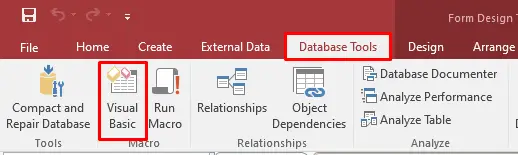
- Open the Access database, go to Database Tools and then click the Visual Basic tab.
- The Microsoft Visual Basic for Application editor is displayed.
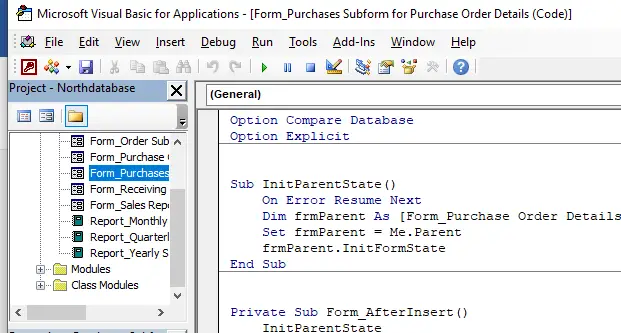
- Check the VBA code and do the following to troubleshoot the issue in the code:
- Check and ensure the control you’re trying to focus on is not a label, and the value of Set to Visible and Set to Enabled is set to Yes.
- Make sure you are using the correct syntax of objects and methods.
- Verify the names of the forms and controls you’re using.
- Check all the syntax, references, and queries in the code.
- Use Me.ControlName.SetFocus to reset focus.
- Once you’ve applied the required changes, then save the code and run it again to check if the error is fixed or not.
Method 2: Repair and Recover your Access Database
The Access database error 2110 can also occur due to corrupted database objects, like forms or controls associated with them, queries, tables, etc. Corruption in the Access database file can create inconsistencies and affect the forms.
In this case, if you have a healthy copy of the backup file, then you can restore it and replace it with the affected file. To restore the database (.ACCDB) file from backup folder,
- Go to your system’s File Explorer window.
- Search for the backup folder (where you’ve saved the .accdb file).
- Find the file and then copy it.
- Next, paste the file at the original location where the problematic database file (.accdb) is saved.
- You will see a dialog box asking to replace the existing .accdb file with the backup copy. Click OK.
If you don’t have an updated backup, you can try importing the database objects into a fresh Access database file. This will help you recover all the data from the file, including forms and queries. If this fails to recover the data or the size of corrupted database file is too large, then you can use the built-in utility – Compact and Repair – in MS Access. It can help you compact and repair damaged or corrupt .ACCDB files. This can efficiently resolve minor corruption-related issues. To use the Compact and Repair utility in Access, follow the steps given below:
- On the blank database, click on the File option, click Database Tools, and then click Compact and Repair Database.
- Click on the database you want to repair and then click Compact.
Once the repair process is completed, the application will save your repaired .accdb file at the exact location where your database file is located.
If, due to any reason, the Compact and Repair utility fails to repair the database file, then opt for a professional Access repair tool. Stellar Repair for Access is a powerful tool that can fix severely damaged or corrupted Access database (.ACCDB/.MDB) files. You can download the software’s demo version that can allow you to scan the corrupt file and preview all the recoverable data. The tool is compatible with all Windows editions, including Windows 11.
To Conclude
You can experience the runtime error 2110 in MS Access, if the application fails to move the focus to the control. It happens when the control in the form is not readable for any reason. Try the troubleshooting methods mentioned in this post to fix the issue. If corruption in the database is the cause behind the issue, then you can use Stellar Repair for Access to repair the database with 100% integrity. The tool is compatible with all MS Access versions, including MS Access 2019 and Microsoft 365.