

LibreOffice is the default office suite on Fedora. The base install delivers Writer for documents, Calc for spreadsheets, Impress for slide decks, Draw for vector graphics, Math for typeset equations, and Base for desktop databases. Fedora packages the latest upstream Document Foundation release in its own repos, so installation is one dnf line. No third-party PPAs, no AppImage juggling, no AskUbuntu-style hunts for “the latest stable”.
This guide installs LibreOffice on Fedora 44, 43, and 42 from the default repository, walks through the first-launch flow with screenshots, covers the language and dictionary add-ons most users want, points out the Flatpak alternative for users who want to ride the very latest release ahead of Fedora’s packaging cycle, and ends with the keep-updated and uninstall paths.
Prerequisites
A Fedora 44, 43, or 42 desktop with sudo access. The full LibreOffice suite is around 600 MiB on disk after install. Workstation Edition ships with a slimmed-down LibreOffice already; if you only need to swap a missing module in (Base, for example), jump to Step 3.
Step 1: Check the available version
Fedora’s repos carry the current upstream LibreOffice release for the Fedora cycle. Confirm what your repos offer before installing:
dnf info libreofficeThe output names the package version and the source RPM. Fedora 44 carries the LibreOffice 26 series at the time of writing:
Available packages
Name           : libreoffice
Version        : 26.2.3.2
Release        : 2.fc44
Architecture   : x86_64
Repository     : updates
URL            : https://www.libreoffice.org/
Step 2: Install the full LibreOffice suite
Install the meta-package, which pulls every LibreOffice module along with the dependencies it needs (Java, Firebird, PostgreSQL JDBC for Base, the Liberation font set):
sudo dnf install -y libreofficeThe transaction installs around 27 packages on a fresh Fedora 44 Cloud Edition. The headline modules end up in /usr/bin/ as soffice (the multiplexer), oowriter (Writer), oocalc (Calc), ooimpress (Impress), and so on.
Step 3: Install only the modules you need
The full meta-package is the easy path. For smaller installs (servers running a single LibreOffice tool for batch conversion, or laptops where every MiB matters), install only the modules you actually use:
sudo dnf install -y libreoffice-writer libreoffice-calc libreoffice-impressThe Document Foundation suite ships these named packages on Fedora:
| Module | Package | What it covers |
|---|---|---|
| Writer | libreoffice-writer | Word-processor (.odt, .docx, .doc) |
| Calc | libreoffice-calc | Spreadsheet (.ods, .xlsx, .xls) |
| Impress | libreoffice-impress | Slide deck (.odp, .pptx, .ppt) |
| Draw | libreoffice-draw | Vector graphics + PDF editing |
| Math | libreoffice-math | Typeset mathematical formulae |
| Base | libreoffice-base | Database front-end (Firebird, JDBC sources) |
| Headless conversion | libreoffice-headless | For server-side batch conversion (HTML, PDF) with soffice --headless |
Step 4: Add languages, dictionaries, and Help
The base install ships English UI + dictionary. Add other languages on demand. To see what is available for a language you can wildcard:
dnf search libreoffice-langpack-sw libreoffice-langpack-fr libreoffice-langpack-deInstall the langpacks you want plus the offline Help bundle for that language:
sudo dnf install -y libreoffice-langpack-sw libreoffice-help-swFor spelling, grammar, and hyphenation, Fedora packages the Hunspell dictionaries separately under hunspell-LL where LL is the language code:
sudo dnf install -y hunspell-fr hunspell-de hunspell-esStep 5: Verify the install
Check the suite reports the expected upstream version:
soffice --versionThe output names the LibreOffice release and the Document Foundation build number:
LibreOffice 26.2.3.2 620(Build:2)Step 6: Launch the Start Center
From the application menu (Office, or All Applications), click LibreOffice to open the Start Center. From a terminal, run soffice without arguments:
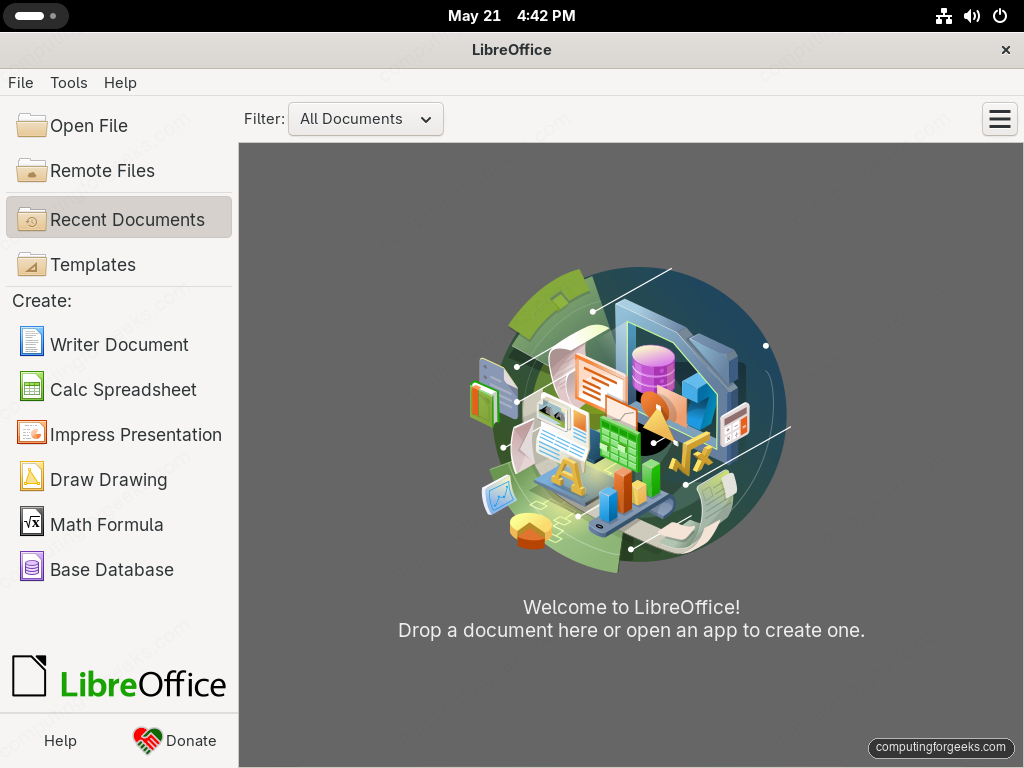
soffice &The Start Center is the hub for the suite. It lists recently opened documents, has buttons for opening files from disk or remote (WebDAV / SSH / Nextcloud) sources, and shortcuts to create new documents in each of the six modules:
Step 7: First launch of Writer
Open Writer directly from the application menu or via the wrapper script:
oowriter &On the first launch, Writer shows a Welcome wizard that walks through the three personalization choices that matter most: name and initials for document author info, the UI variant (the default classic menus-and-toolbars layout vs the newer tabbed Notebookbar), and the colour scheme (light, dark, system-matched):
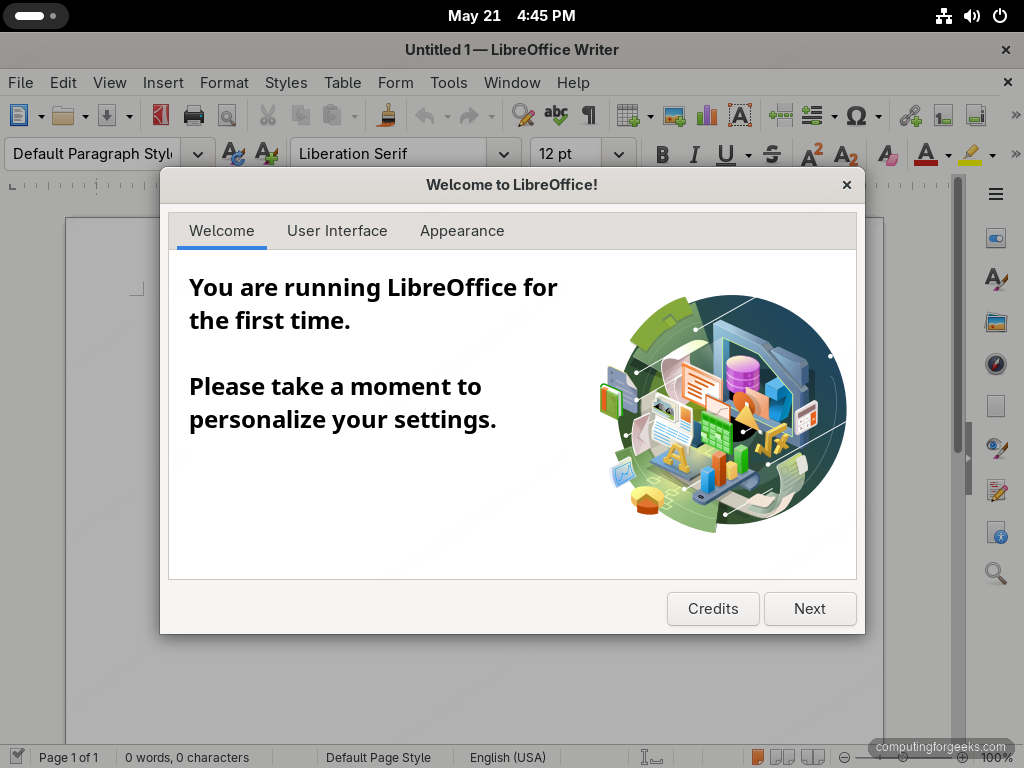
Click Next through the three tabs, set your name (so document author metadata is populated for every new file), then start typing.
Step 8: Headless batch conversion
Server-side LibreOffice is a small but valuable use case: convert .docx uploads to PDF for download, render .xlsx into HTML for preview, batch-export a folder of presentations to images. The headless mode runs without a display:
soffice --headless --convert-to pdf input.docxBulk-convert every .docx file in a directory to PDF:
soffice --headless --convert-to pdf --outdir /var/tmp/pdf-out *.docxThe same flag set supports a long list of output formats: pdf, html, txt, odt, docx, xlsx, pptx, png, jpg. Server installs typically only need the libreoffice-core + libreoffice-pyuno packages plus the modules you actually convert from.
Alternative: LibreOffice Fresh via Flatpak
The Document Foundation publishes two parallel release tracks. “Still” is the conservative track (older but more polished); “Fresh” carries the newest features at a faster cadence. Fedora’s repo follows Fresh once a release is stable. To ride the Fresh release the moment it lands (or to get the bleeding-edge release ahead of Fedora’s packaging), install via Flatpak from Flathub.
If you have not configured Flathub on Fedora yet, walk through the Flatpak setup guide first, then:
flatpak install -y flathub org.libreoffice.LibreOfficeThe Flatpak ships its own runtime so it does not collide with the RPM version. You can have both installed at once. Drawback: the Flatpak is sandboxed, so file-dialog navigation goes through the portal system (one extra click per save).
Step 9: Keep LibreOffice updated
Fedora pushes LibreOffice point releases as soon as they ship upstream. Updates ride along with normal system upgrades:
sudo dnf upgrade -y 'libreoffice*'For the Flatpak install:
flatpak update -y org.libreoffice.LibreOfficeUninstall LibreOffice
Remove the full suite with one wildcard:
sudo dnf remove -y 'libreoffice*'User-level preferences (recent documents, custom dictionaries, autocorrect rules, macros) live under ~/.config/libreoffice/. Clear them for a fresh-install state:
rm -rf ~/.config/libreoffice ~/.cache/libreofficeTroubleshooting
Microsoft Office files render with wrong fonts
LibreOffice substitutes Calibri, Cambria, and Verdana with metric-compatible open replacements (Carlito, Caladea, Liberation Sans). The result looks similar but not identical to a Windows render. To make round-trip docs match exactly, install the Microsoft TrueType core fonts (the EULA-free ones) and Microsoft’s modern font set if you have the licence:
sudo dnf install -y curl cabextract xorg-x11-font-utils fontconfig
sudo rpm -i https://downloads.sourceforge.net/project/mscorefonts2/rpms/msttcore-fonts-installer-2.6-1.noarch.rpm
Refresh the font cache so LibreOffice picks them up:
fc-cache -f -vBase opens but refuses to connect to a database
Base ships its own embedded Firebird engine plus JDBC drivers for PostgreSQL and MySQL. The latter two need their connector packages installed. For MariaDB or MySQL with the MariaDB on Fedora stack:
sudo dnf install -y mariadb-connector-javaThen in Base > Tools > Options > LibreOffice > Java, click Class Path and add the path to mariadb-java-client.jar (usually /usr/share/java/mariadb-java-client.jar).
Writer windows appears blank or solid white on a Wayland session
An OpenGL acceleration path mismatch on the Mesa stack. Disable hardware acceleration in Tools > Options > LibreOffice > View, uncheck “Use OpenGL for all rendering” and “Use anti-aliasing”. Restart LibreOffice.
Headless conversion exits with “no display”
The first soffice --headless run after install can hang while it builds the user profile. Force a profile location so it does not try to use a non-existent $HOME on a service account:
soffice --headless -env:UserInstallation=file:///var/tmp/lo-profile \
  --convert-to pdf input.docx
Useful LibreOffice commands and tips
| Command | What it does |
|---|---|
soffice | Open the Start Center |
oowriter file.odt | Open Writer with a file |
oocalc file.ods | Open Calc with a file |
ooimpress file.odp | Open Impress with a file |
soffice --convert-to pdf in.docx | Convert a Word doc to PDF |
soffice --convert-to xlsx in.csv | Convert a CSV to Excel |
soffice --convert-to png in.odp | Export every slide as a PNG image |
soffice --safe-mode | Open with all extensions disabled (debugging) |
Ctrl+S | Save |
Ctrl+Shift+S | Save As |
Ctrl+Z / Ctrl+Y | Undo / Redo |
F11 | Toggle the Styles panel |
Once the office suite is in place, paired tools that complement the workflow: Google Chrome or Brave for web research alongside your documents, VS Code on Fedora for any code you want to author next to your docs, and RPM Fusion multimedia codecs if you embed video into Impress presentations.

wget https://tdf.mirror.liquidtelecom.com/libreoffice/stable/7.5.3/rpm/x86_64/LibreOffice_7.5.3_Linux_x86-64_rpm.tar.gz
ERROR 404: not found.
Please try with the updated article.