ParrotOS ships more than 800 security tools on top of Debian, which is why penetration testers and CTF players reach for it the way others reach for Kali Linux. It is built for offensive security work, digital forensics, and privacy, but the base system is a normal Debian desktop underneath, so the install is approachable even if you have never touched a security distro.
This guide installs the Security Edition from scratch: you boot the live ISO, walk through the Calamares installer, set up the disk, and land on a working KDE Plasma desktop. Every screen here was run end to end on a fresh ParrotOS 7.3 Security Edition install in June 2026, on a UEFI virtual machine whose kernel reports 7.0.9.
Prerequisites
ParrotOS Security is heavier than a minimal server image because the toolkit and the live filesystem ship together. Size the machine accordingly:
- A 64-bit (amd64) computer or virtual machine with a quad-core CPU.
- At least 4 GB of RAM. In a virtual machine, give it 8 GB. The installer copies the entire live filesystem to disk, and a 4 GB VM can crawl or stall on that step.
- 40 GB of free disk space or more.
- A spare USB stick (8 GB or larger) for a bare-metal install, or a hypervisor such as VirtualBox, VMware, or QEMU/KVM for a virtual machine.
- Tested on: ParrotOS 7.3 Security Edition (Debian 13 base, kernel 7.0.9), installed on a UEFI virtual machine.
Download the ParrotOS ISO
Grab the image from the official download page. Parrot offers three desktop editions: Security (the full pentest toolkit), Home (a clean daily driver), and an HTB spin tuned for Hack The Box. This guide uses Security, and the amd64 ISO is roughly 8.5 GB.
Always confirm the download before you write it. Run sha256sum against the file you downloaded:
sha256sum Parrot-security-7.3_amd64.isoCompare the result against the SHA256 published on the download page. The two strings must match exactly:
fe8ec64f92d8d629b1fcae85d9fab81c87e3ff30584201e82b7c453a740cefbc Parrot-security-7.3_amd64.isoIf the two strings differ, the download is corrupt or was tampered with. Re-download it before you write anything.
Write the ISO or attach it to a VM
For a physical machine, write the ISO to a USB stick with balenaEtcher (cross-platform and hard to get wrong) or with dd if you are comfortable picking the right target device. For a virtual machine, create a new guest with 8 GB RAM, a 50 GB disk, and UEFI firmware, then attach the ISO as the boot CD. Either way, boot the target from the image to reach the Parrot boot menu.
Boot the live session
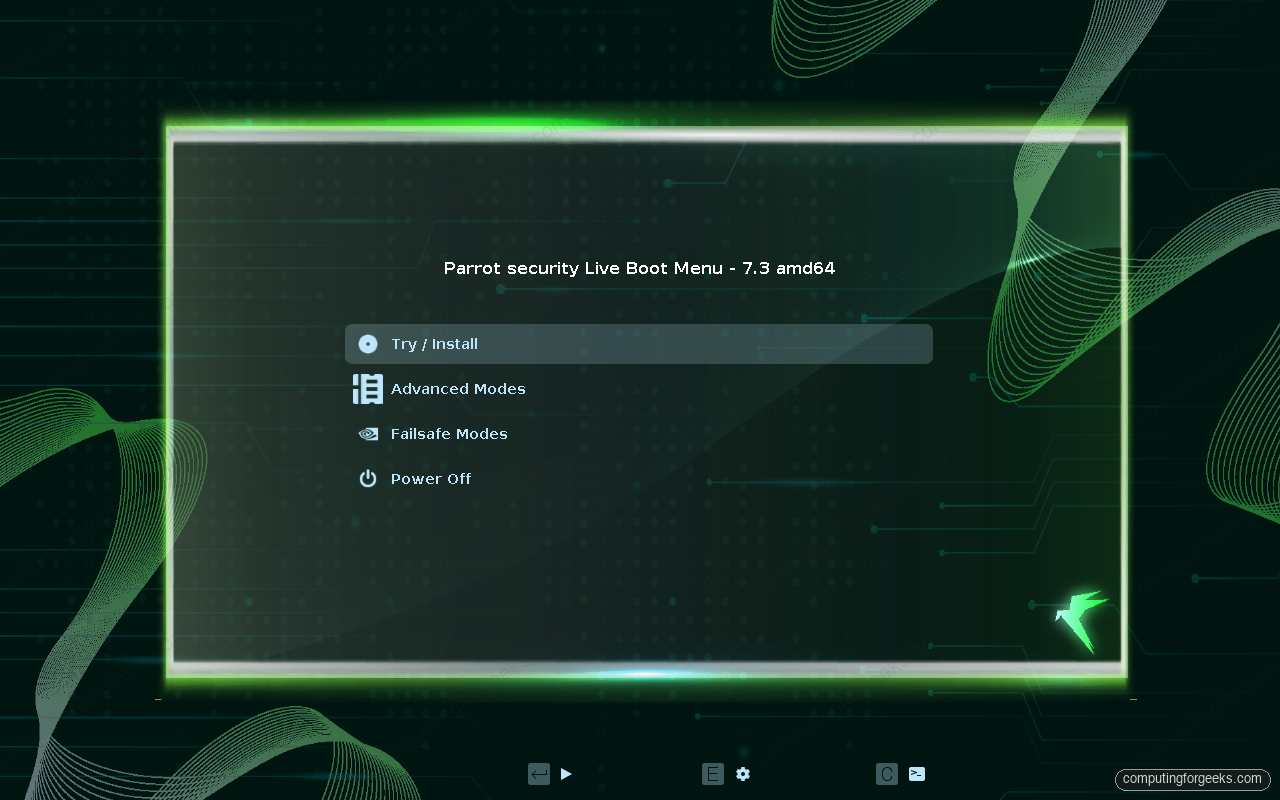
The Parrot boot menu loads first. Leave Try / Install selected and press Enter to start the live session:
After a few seconds you land on the live KDE Plasma desktop. It comes with an Install Parrot launcher in the top-left corner:
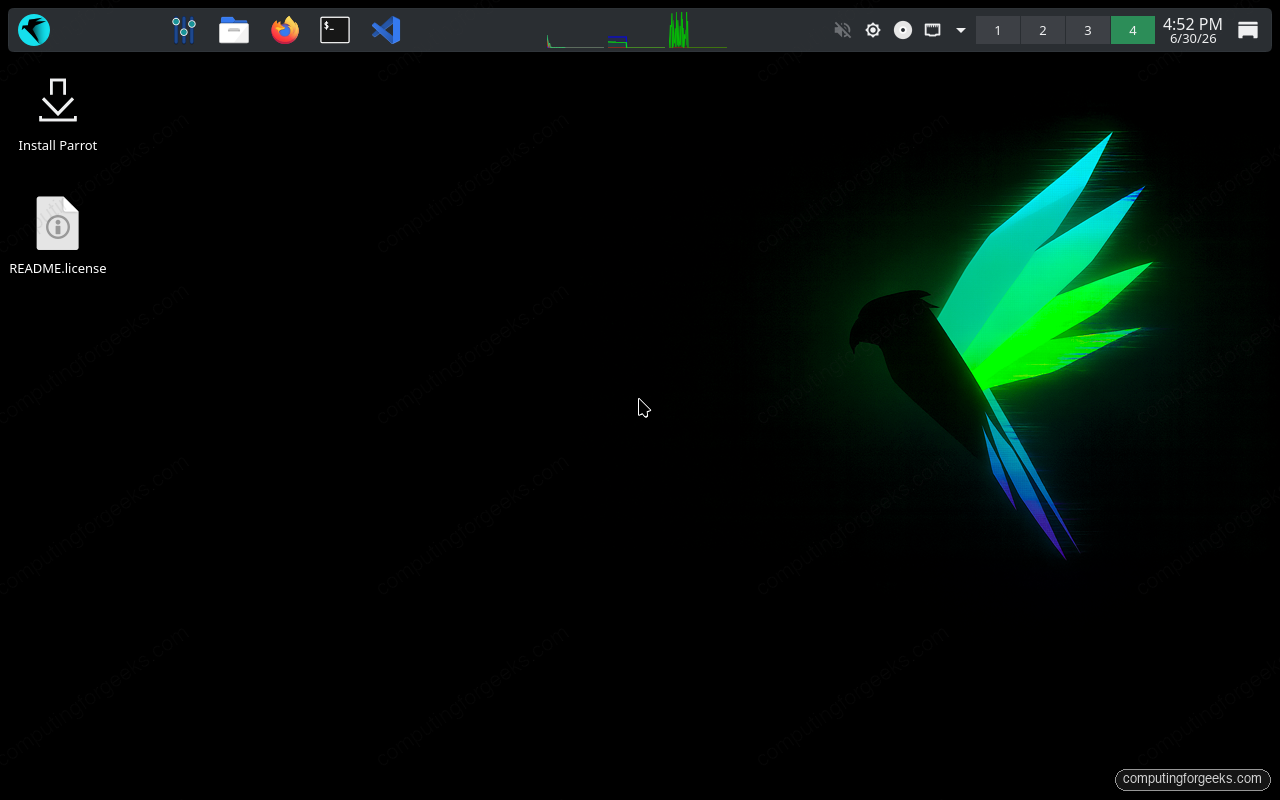
Double-click Install Parrot to launch the Calamares graphical installer.
Start the Calamares installer
Calamares opens on its welcome screen. Pick your language and click Next:
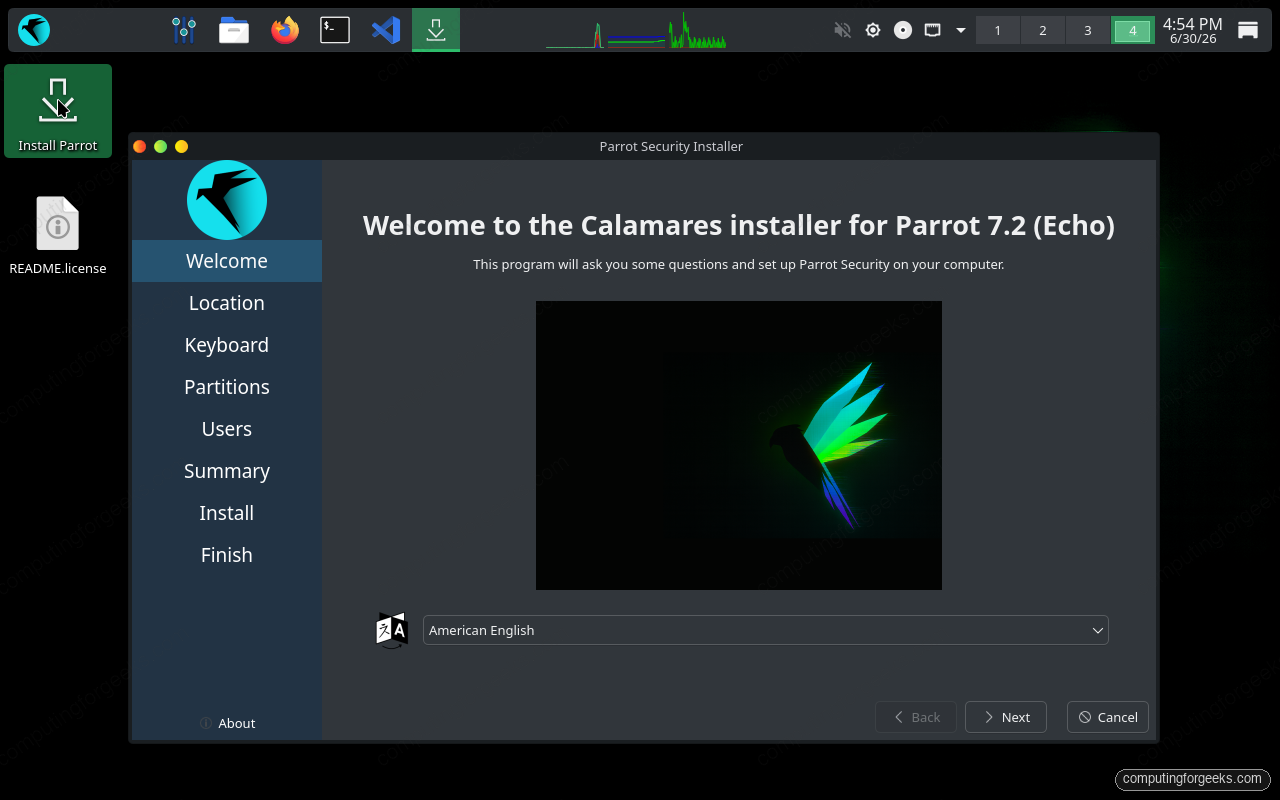
One thing to know up front: the welcome screen still carries the older 7.2 branding string. That label lags the ISO in the installer package. The boot menu and the installed system are the authoritative source for the version, and we confirm 7.3 at the end of this guide.
Set your location and keyboard
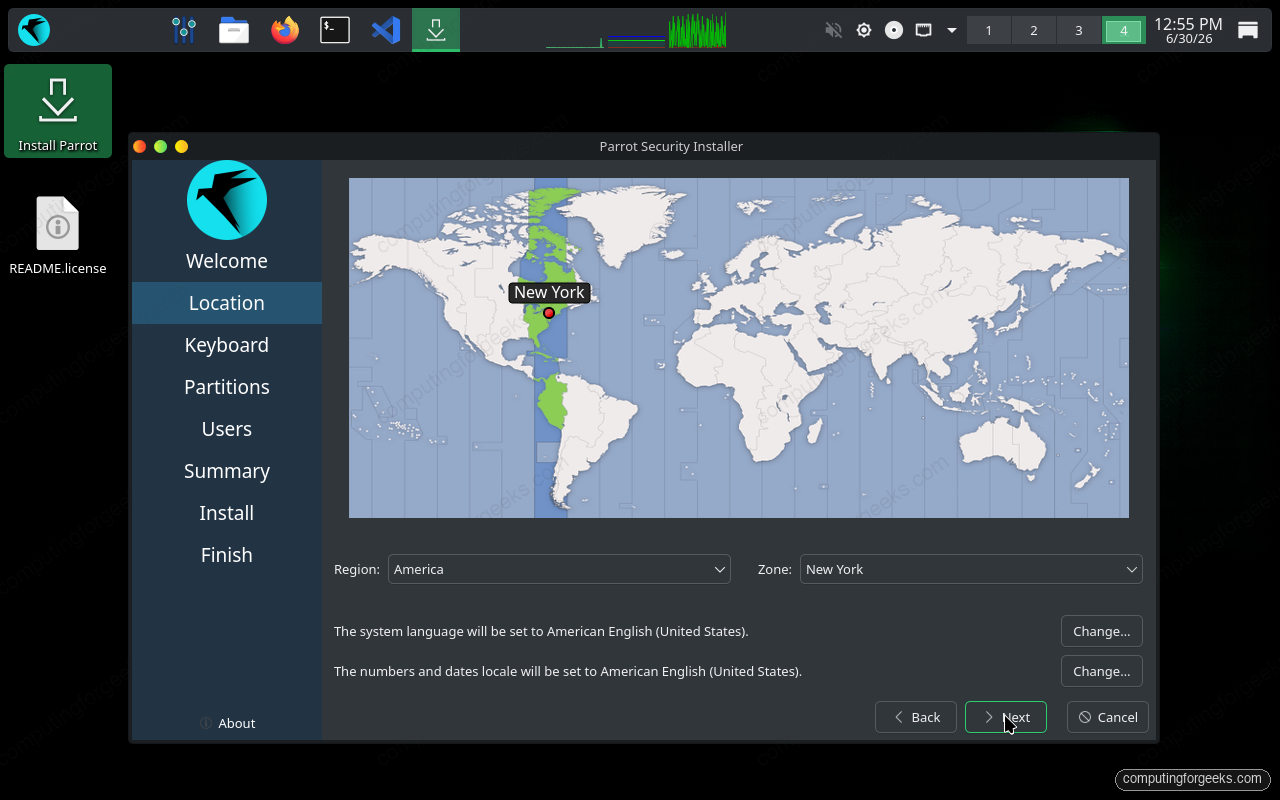
The location step sets your timezone and system locale. Click the map or pick a Region and Zone:
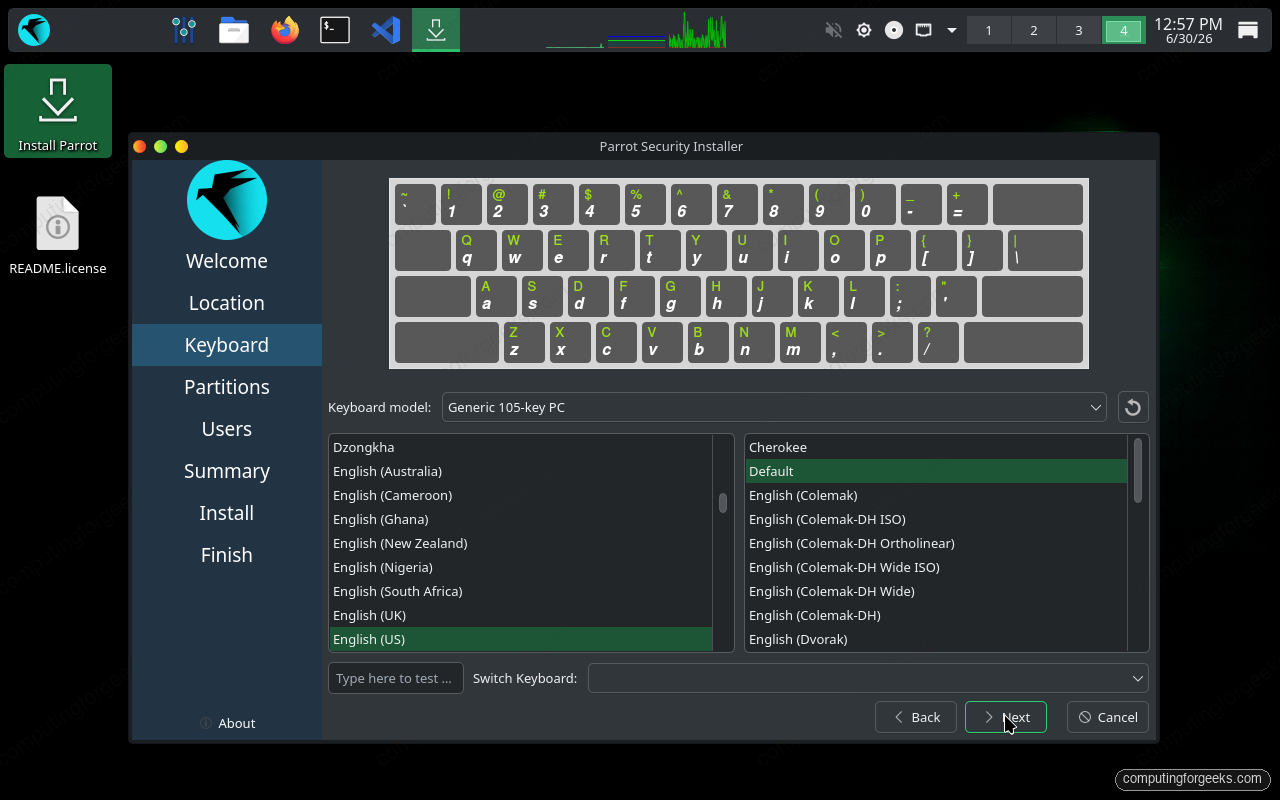
Next comes the keyboard layout. The default Generic 105-key PC with English (US) works for most keyboards, but test yours in the box at the bottom if you use a different layout:
Those first screens are harmless. The disk step is the one that can cost you data, so read it before you click.
Partition the disk
This is the step that decides whether you keep any existing data. On a blank disk you get two choices, Erase disk and Manual partitioning. On a disk that already holds an operating system, Calamares also offers Install alongside and Replace a partition for dual-boot setups. We are using a clean disk, so pick Erase disk:
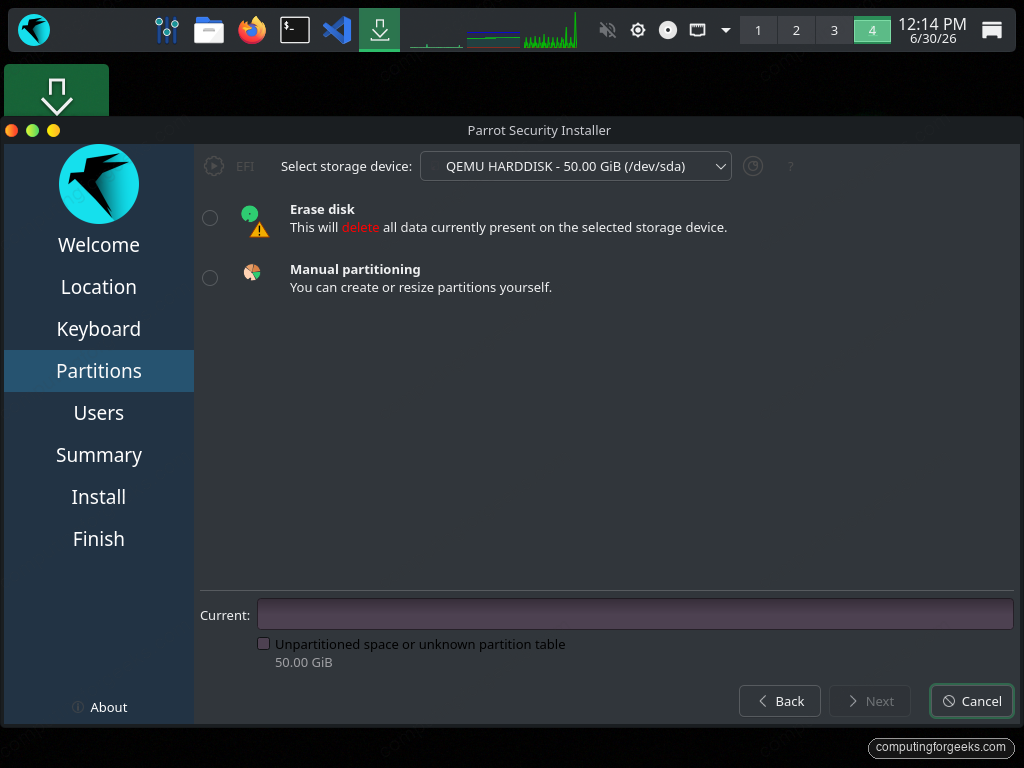
Erase disk lays down a 300 MiB FAT32 EFI partition and a Btrfs root, which is the Parrot default. The swap dropdown is set to No swap; switch it to a swap file if you want hibernation. For a laptop, tick Encrypt system to enable LUKS full-disk encryption before you continue:
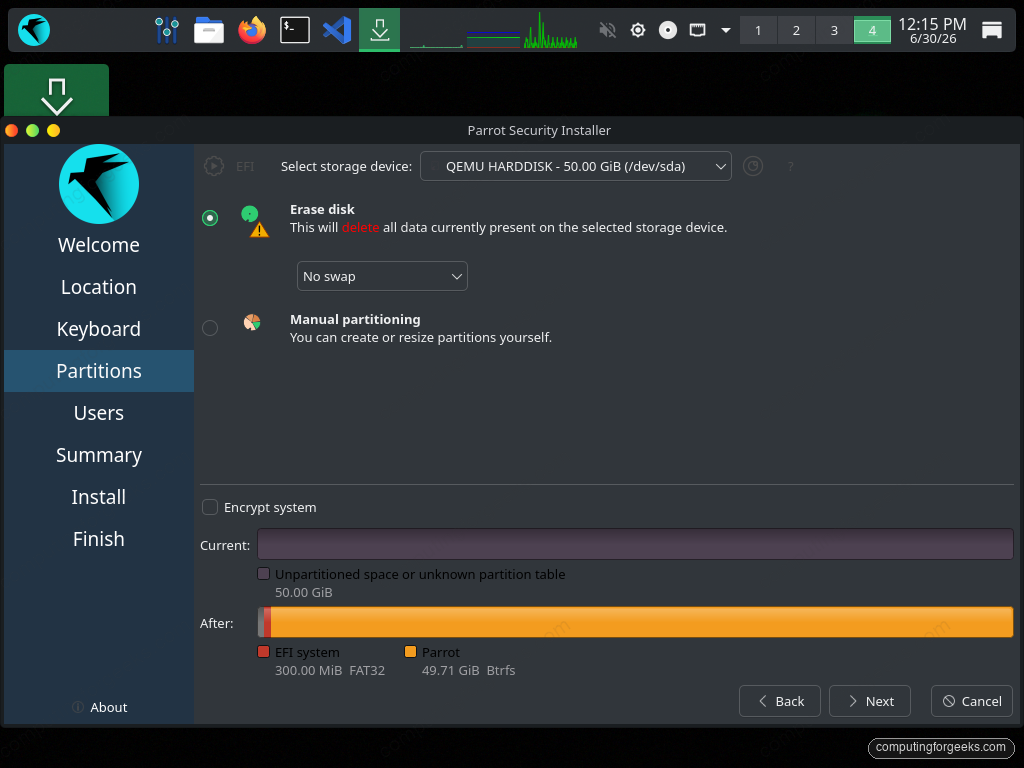
Encryption is easiest to enable here. Adding it afterward means a risky in-place conversion or a full reinstall, so decide before you continue.
Create your user account
Fill in your full name, the login name, and a name for the computer. The first account you create is added to the sudo group, so choose a strong password. We set the hostname to parrot here:
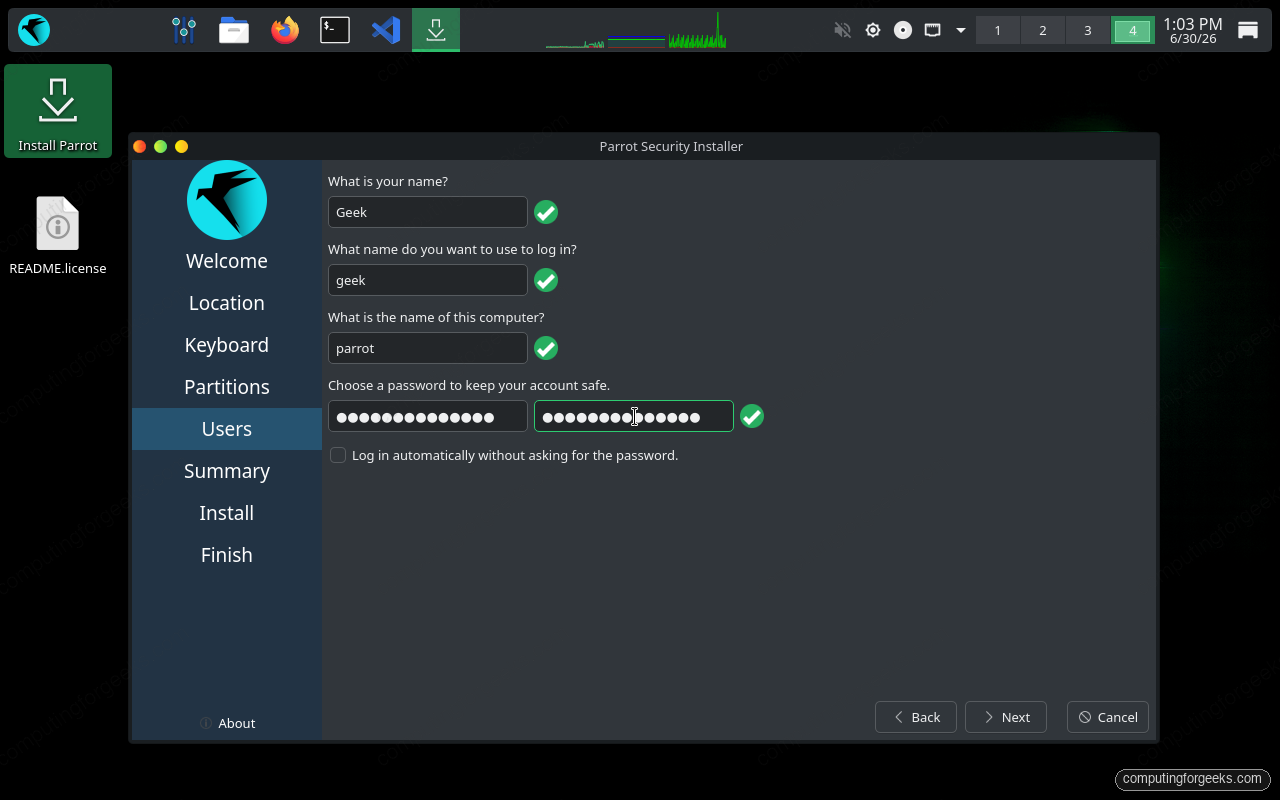
Leave automatic login off on anything portable, so a lost laptop still asks for the password.
Review and start the install
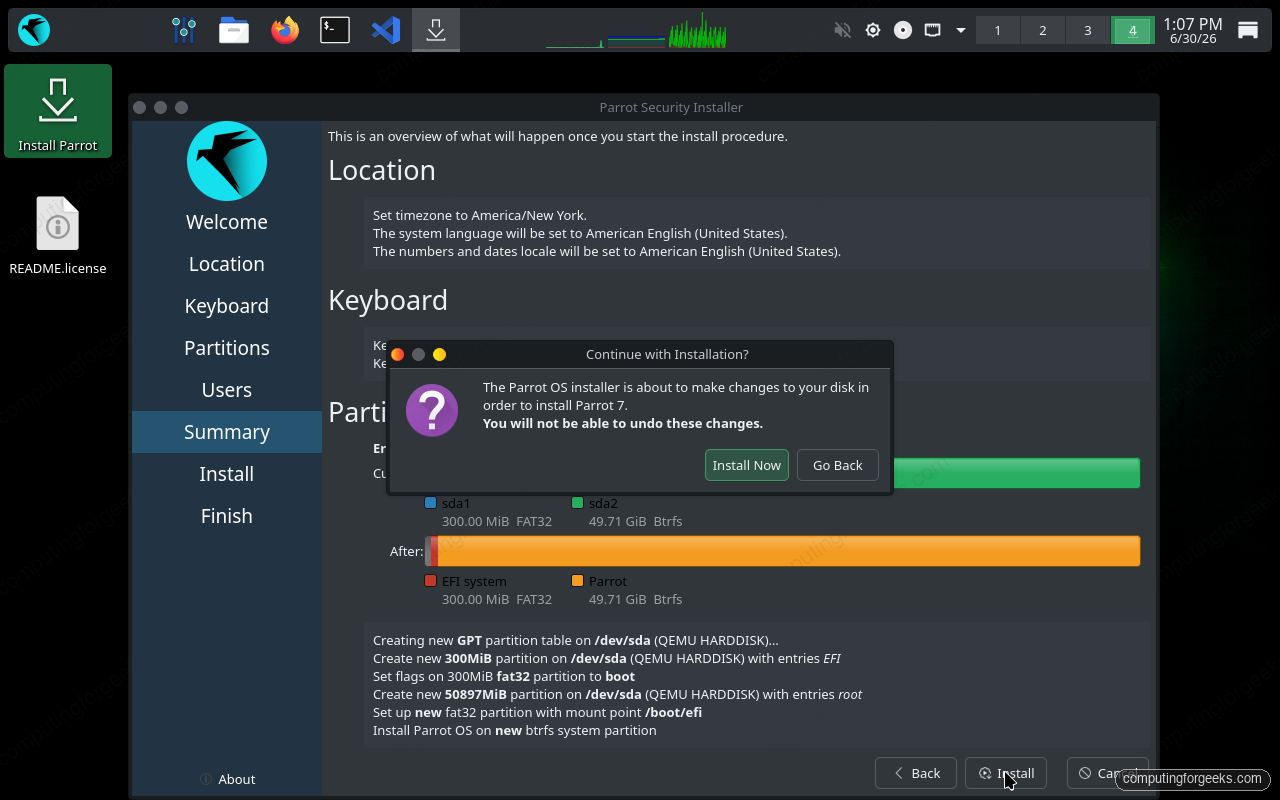
The summary screen lists every change the installer is about to make: the timezone, the keyboard, and the partition plan. Read it, because the next click writes to disk:
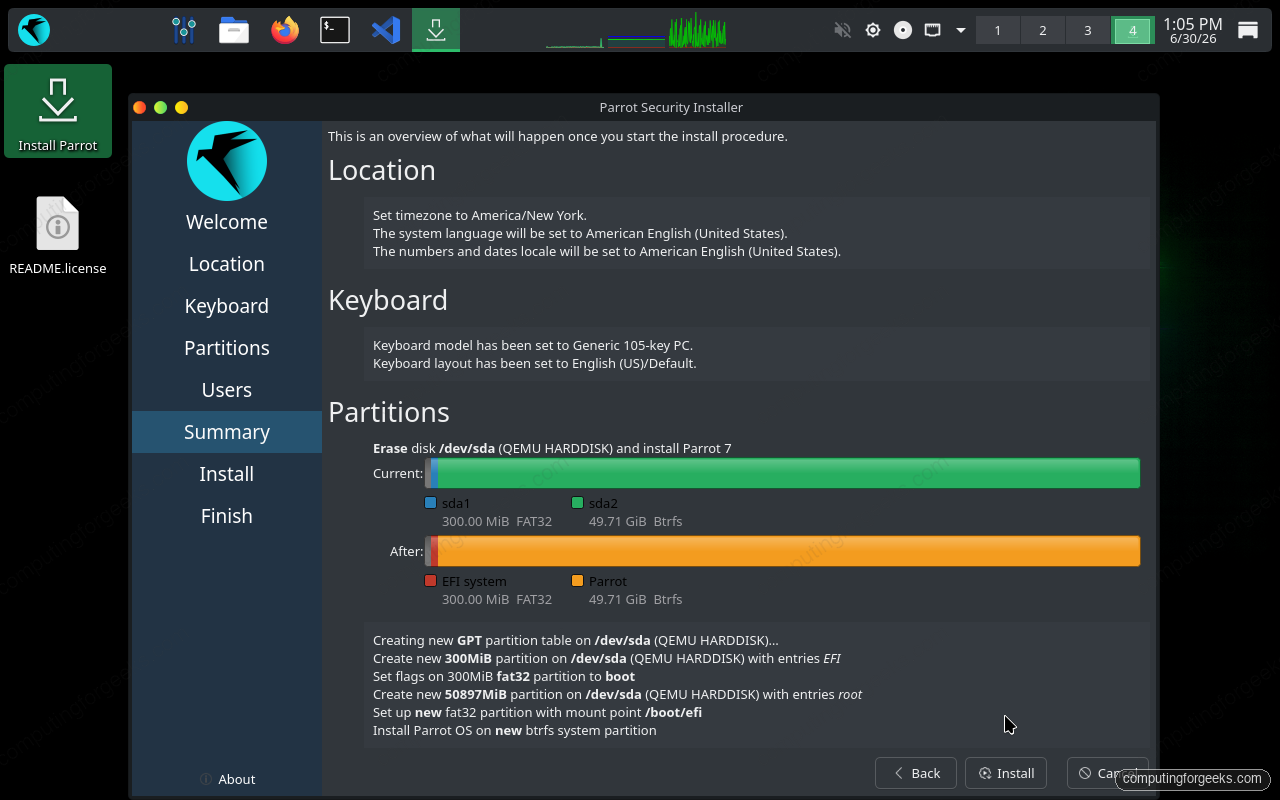
Click Install and Calamares asks you to confirm. There is no undo past this point:
Choose Install Now and the installer partitions the disk, then copies the filesystem. This copy is the slow part, and it is where an underpowered VM struggles, so be patient and let it run:
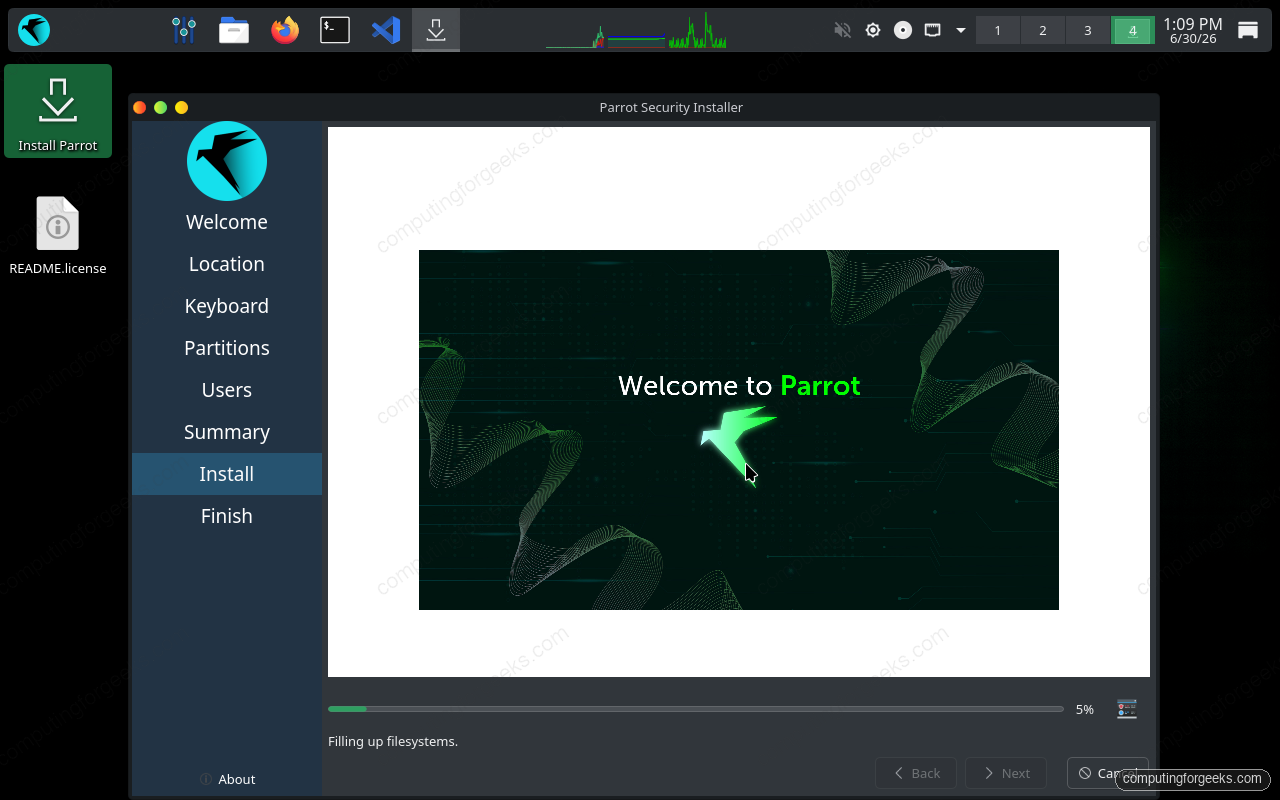
Copy time depends on the disk and the host. A few minutes is normal, and far longer usually means the virtual machine is short on memory.
Reboot into ParrotOS
When the installer reports it is done, remove the USB stick or detach the ISO so the machine boots from disk, then restart. GRUB comes up first and boots Parrot OS 7 GNU/Linux automatically:
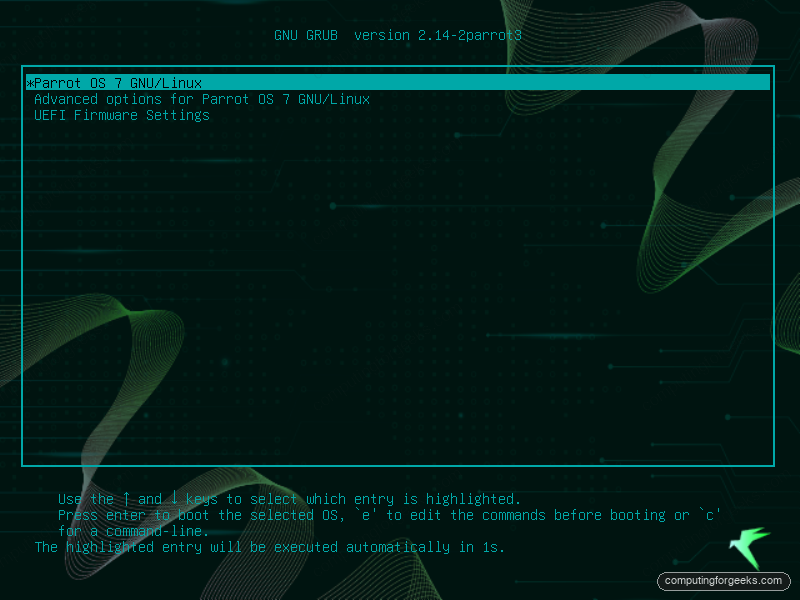
The login manager loads next. Sign in with the account you just created:
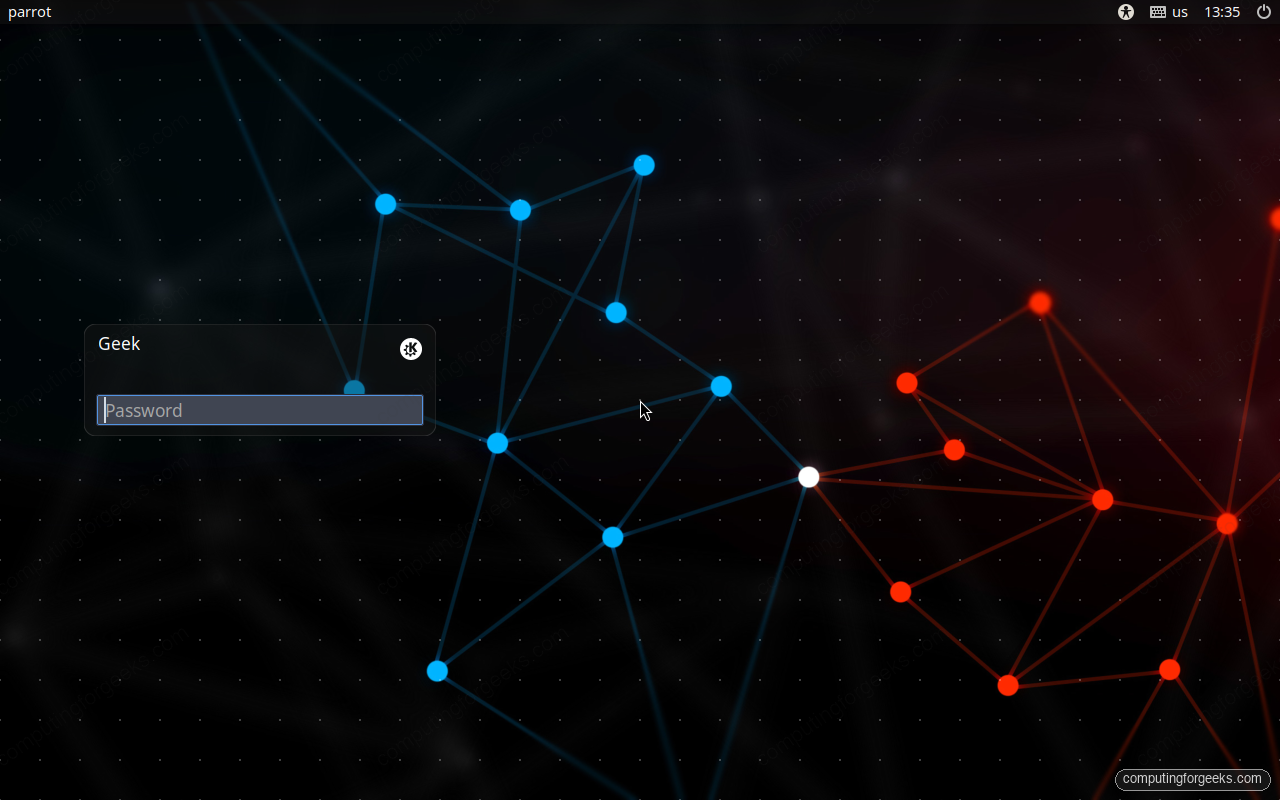
The first boot can take a little longer than later ones while the system settles in.
Verify the install
You arrive at the installed KDE Plasma desktop. The Install Parrot icon is gone now, which is the quickest sign that you are running the system on disk and not the live session:
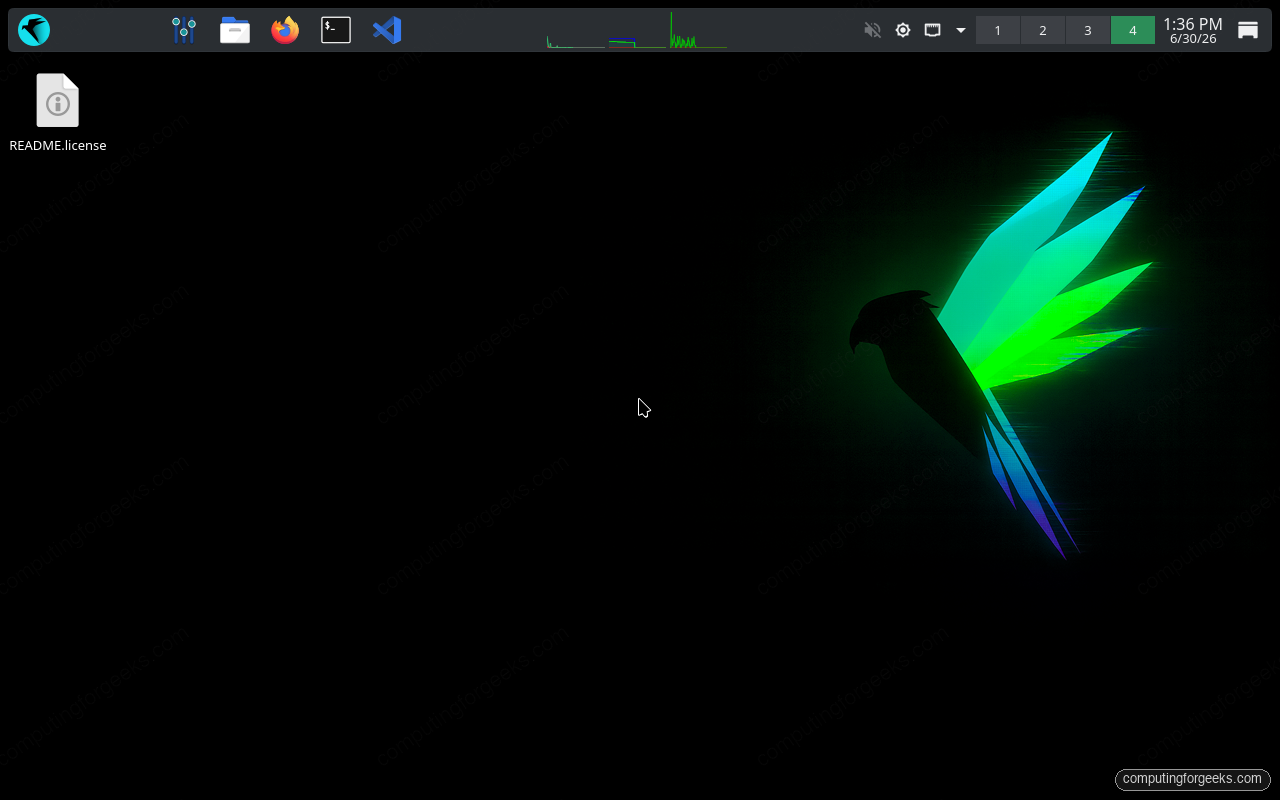
Open a terminal from the panel and confirm what you are actually running. Start with the release:
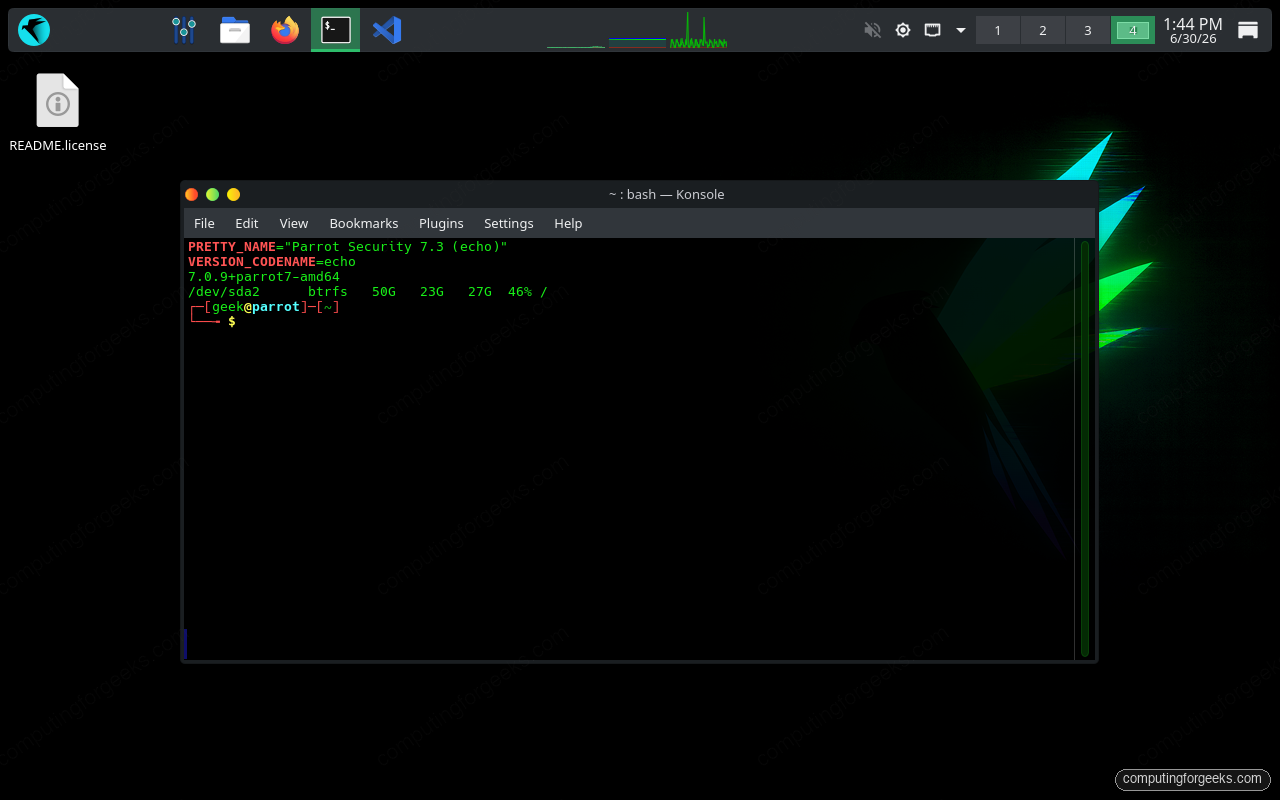
grep -E 'PRETTY_NAME|VERSION_CODENAME' /etc/os-releaseThe installed system reports 7.3, codename echo, regardless of the 7.2 label on the installer welcome screen:
PRETTY_NAME="Parrot Security 7.3 (echo)"
VERSION_CODENAME=echo
Check the kernel:
uname -rParrot 7.3 ships the Linux 7.0 line:
7.0.9+parrot7-amd64And confirm the root filesystem the installer created:
df -hT /Root sits on Btrfs, exactly as the Erase disk step set it up:
Filesystem     Type   Size  Used Avail Use% Mounted on
/dev/sda2      btrfs   50G   23G   27G  46% /
Here is the same check on the live install, prompt and all:
That is a full Parrot Security install. From here the toolkit is already on the system, so you can move straight into scanning with the Nmap network scanning guide, practice safely in a dedicated pentest lab, or work through password cracking with Hashcat and John. The same commands apply on Parrot because both distros draw from the Debian and Kali tool ecosystems.
Troubleshooting the install
The installer freezes on “Filling up filesystems”
This is almost always a memory problem in a virtual machine. ParrotOS copies the whole live filesystem to disk during that step, and a 4 GB VM can grind to a halt or stop responding entirely. Shut the VM down, raise it to 8 GB of RAM, and run the install again. On bare metal with 8 GB or more you will not see this.
The welcome screen shows a different version than you downloaded
The Calamares welcome string is baked into the installer package and lags behind the ISO, so a 7.3 image can still greet you with a 7.2 label. Ignore it. The boot menu and /etc/os-release on the installed system are accurate, which is why the verification step above matters.
The live USB will not boot
Re-run sha256sum on the download first, because a truncated or corrupt ISO is the usual culprit, then rewrite the stick. On UEFI hardware that rejects the bootloader, disable Secure Boot in firmware and try again.



![Install Kali Linux 2026.1 Step by Step [Full Guide]](https://computingforgeeks.com/wp-content/uploads/2026/03/install-kali-linux-20261-step-by-step-768x403.png "Install Kali Linux 2026.1 Step by Step [Full Guide] 18")