Unsloth Studio puts the whole fine-tune in a browser. You pick a base model, drop in a dataset, choose QLoRA, click a button, and watch the loss curve fall, no training script, no SFTTrainer boilerplate, no CUDA wrangling. It is the same Unsloth engine that powers the QLoRA fine-tuning workflow in Python, wrapped in a local web UI for people who would rather click than code.
This guide installs Unsloth Studio, fine-tunes a Llama model on a small custom DevOps dataset with no code, tests the result in the built-in chat, and exports it to GGUF for local inference. Every step below was run end to end on a single NVIDIA RTX 4090 (24 GB) with Unsloth Studio in June 2026, with the real loss numbers, VRAM, and timings captured from the run, not a brochure.
What Unsloth Studio is
Unsloth Studio is an open-source, no-code web interface for fine-tuning and running open models locally. It wraps the parts that usually live in a notebook, model loading, dataset formatting, hyperparameters, the training loop, and export, behind a clean dashboard. Under it sits the same speed work the library is known for: custom kernels that train roughly twice as fast and fit far larger models in the same VRAM.
It supports three training methods. QLoRA loads the base model in 4-bit and trains small adapter weights, which is the cheapest on memory and the right default for a single consumer GPU. LoRA keeps the base in 16-bit and trains adapters on top. Full fine-tuning updates every weight and needs the most VRAM. The whole thing runs on your own hardware, so your data and your model never leave the machine.
Prerequisites
Studio runs on Linux or Windows with an NVIDIA GPU (Apple Silicon is inference-only for now). The VRAM you need is driven by the model size and the training method, not by Studio itself:
- QLoRA on an 8B model is the light path. Our run peaked at 7.16 GB of VRAM, so a 10 to 12 GB card (RTX 3080/4070) handles 8B comfortably, and a 16 GB card gives headroom for longer context.
- LoRA on the same 8B model needs roughly 18 to 24 GB because the base stays in 16-bit.
- Full fine-tuning an 8B model wants 40 GB or more; that is data-center-GPU territory, not a laptop.
Plan disk too. The installer pulls PyTorch, an isolated Node toolchain, and a prebuilt llama.cpp, and each base model plus its exports runs several gigabytes. Budget 30 GB free before you start. The walkthrough below was tested on a single RTX 4090 (24 GB), which is a comfortable floor for QLoRA and LoRA on 8B-class models, not a hard requirement.
Install Unsloth Studio
The official installer sets up everything in one shot. It creates an isolated Python environment, installs PyTorch and Unsloth, builds the frontend, and fetches a prebuilt llama.cpp for export and local chat. Run it on the GPU machine:
curl -fsSL https://unsloth.ai/install.sh | shOn a fresh box the install takes a few minutes while PyTorch and the model tooling download. When it finishes it prints the launch command and confirms the components it set up:
frontend       built
deps           installed
gpu            NVIDIA GPU detected
llama.cpp      prebuilt installed and validated
  Unsloth Studio Installed
  launch         unsloth studio -p 8888
If you are on Ubuntu and the build complains about missing headers, install the Python development package first (sudo apt install python3-dev build-essential on Debian/Ubuntu, sudo dnf install python3-devel gcc on RHEL family). The kernels compile against those headers on the first training run.
Launch Studio and set your password
Start the server. By default it binds to localhost on port 8888, which is what you want when you are working on the same machine:
unsloth studio -p 8888It prints the URL and confirms it is up:
Starting Unsloth Studio on http://127.0.0.1:8888
[OK] Frontend loaded
Unsloth Studio is running
    http://127.0.0.1:8888
Open http://127.0.0.1:8888 in a browser. On the first launch Studio sends you to a password page to create admin credentials, after which it drops you on the chat screen. If the GPU sits on a remote host, bind every interface with unsloth studio -H 0.0.0.0 -p 8888, and add --secure to expose only an HTTPS link instead of the raw port. Do that only on a trusted network.
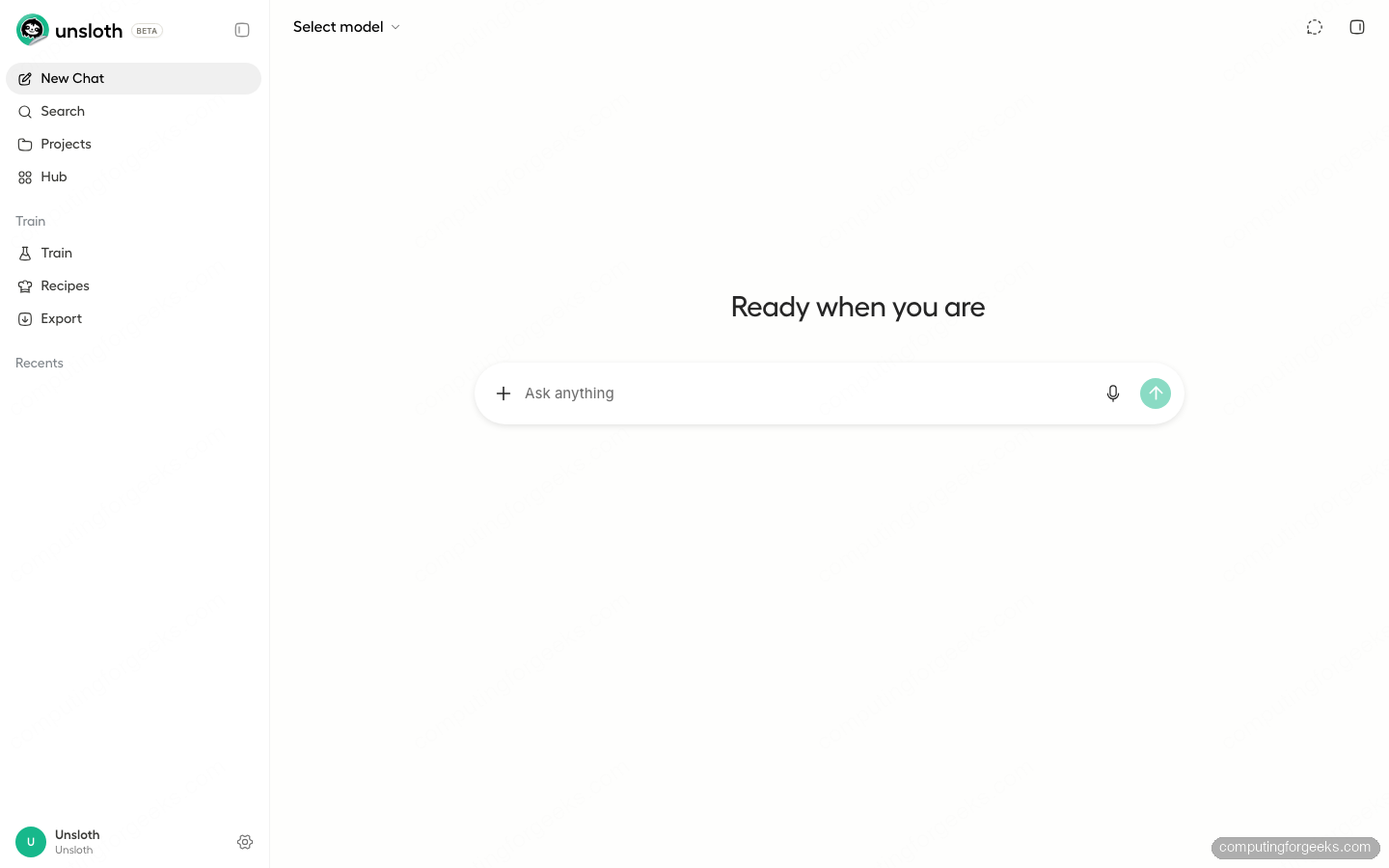
The left rail is the whole app: chat at the top, then the training tools, Train, Recipes, and Export. Click Train to open the Fine-tuning Studio.
Pick a base model and method
The Fine-tuning page is a single configure screen split into Model, Dataset, and Parameters. Start with the model. Type into the Hugging Face search box and pick a base; for a single GPU the 4-bit Unsloth builds are the fastest to load. We used unsloth/Llama-3.1-8B-Instruct-unsloth-bnb-4bit.
Leave the method on QLoRA (4-bit). That is the memory-light option, and for adapting a model’s style or teaching it a domain it is almost always what you want. Switch to LoRA or Full only when you have the VRAM and a reason to update more weights.
Load your dataset
Studio reads CSV, JSONL, JSON, and Parquet, from the Hugging Face Hub, a local file, or S3. For a chat-style fine-tune the cleanest format is one JSON object per line with a messages array, the same conversations format the Python workflow uses. Create the file:
vim cfg_devops.jsonlEach line is a full exchange with a system, user, and assistant turn. This example teaches a terse, command-first DevOps assistant:
{"messages":[{"role":"system","content":"You are the CFG DevOps assistant. Answer with the exact command first, then one short line of context. Be terse."},{"role":"user","content":"How do I list all systemd services that failed?"},{"role":"assistant","content":"systemctl --failed\n\nShows only units in a failed state with their load/active/sub status."}]}
{"messages":[{"role":"system","content":"You are the CFG DevOps assistant. Answer with the exact command first, then one short line of context. Be terse."},{"role":"user","content":"Check which process is listening on port 8080"},{"role":"assistant","content":"sudo ss -ltnp 'sport = :8080'\n\nss is the modern replacement for netstat."}]}
Fifty rows is enough to shift an 8B model’s style noticeably. In the Dataset card, switch to the Local tab and upload the file. Studio parses it and shows the row count.
Set the training parameters
The defaults are sane for a first run. The knobs that matter: Max Steps (or flip to Use Epochs) caps how long it trains, Context Length sets the max sequence length, and Learning Rate defaults to 2e-4, the standard LoRA value. The LoRA Settings panel exposes rank and the target modules if you want to tune them. For a small dataset, a few dozen steps is plenty to see the effect.
With the model, dataset, and parameters in place, the configure screen looks like this:
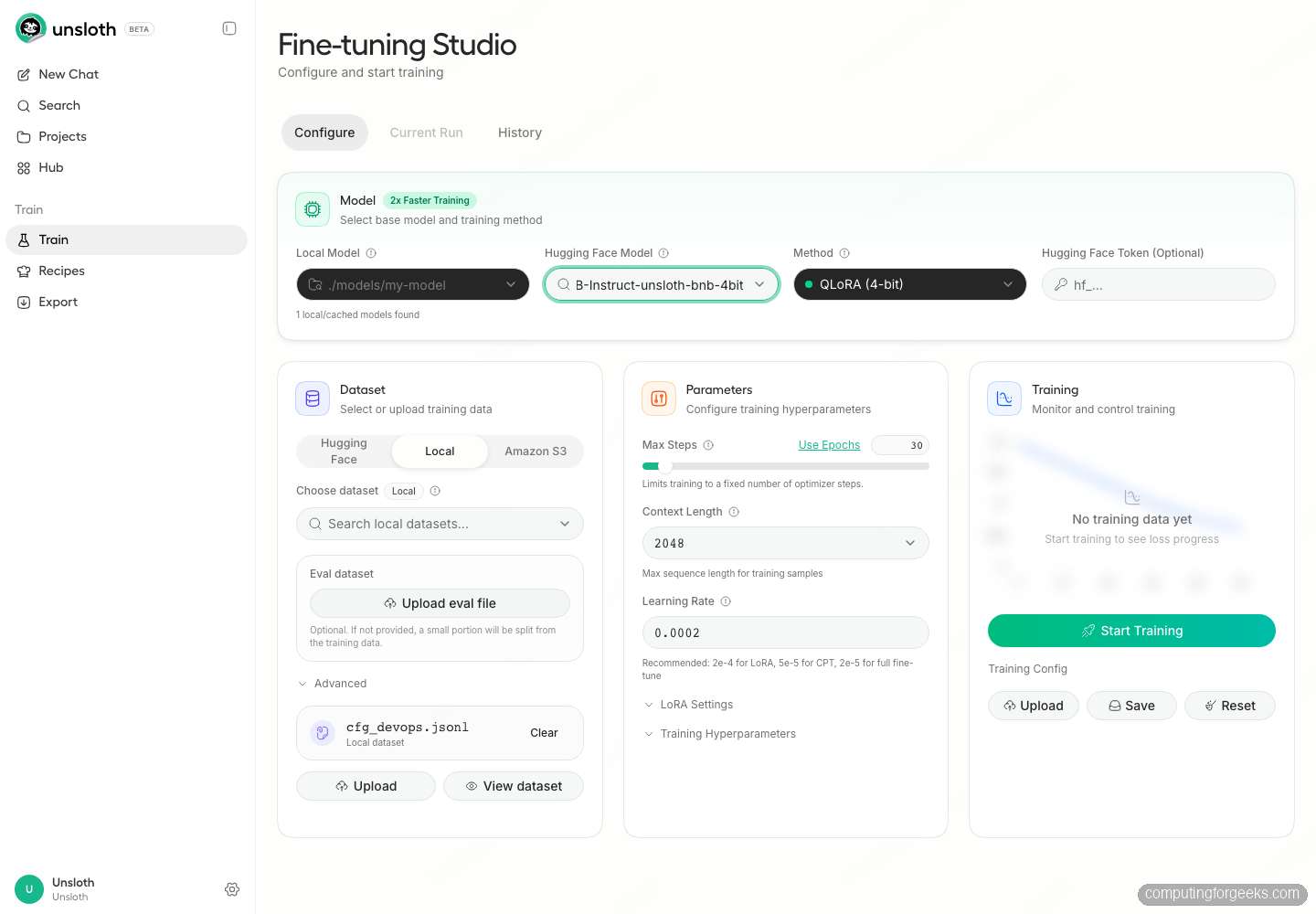
Everything you need to start a run is on one screen. No config file to hand-edit, no arguments to remember.
Start training and watch the run
Click Start Training. Studio prepares the model and dataset, then switches to the Current Run view and streams the metrics live. You get a loss chart with a smoothed line, gradient norm, learning-rate schedule, and a real-time GPU monitor for utilization, temperature, VRAM, and power.
The 8B QLoRA run finished 30 steps in 1 minute 22 seconds at 0.37 steps/s, peaking at 7.16 GB of the card’s 24 GB. The training loss fell from about 3.2 to under 1, and the saved checkpoint landed at a loss of 0.3372:
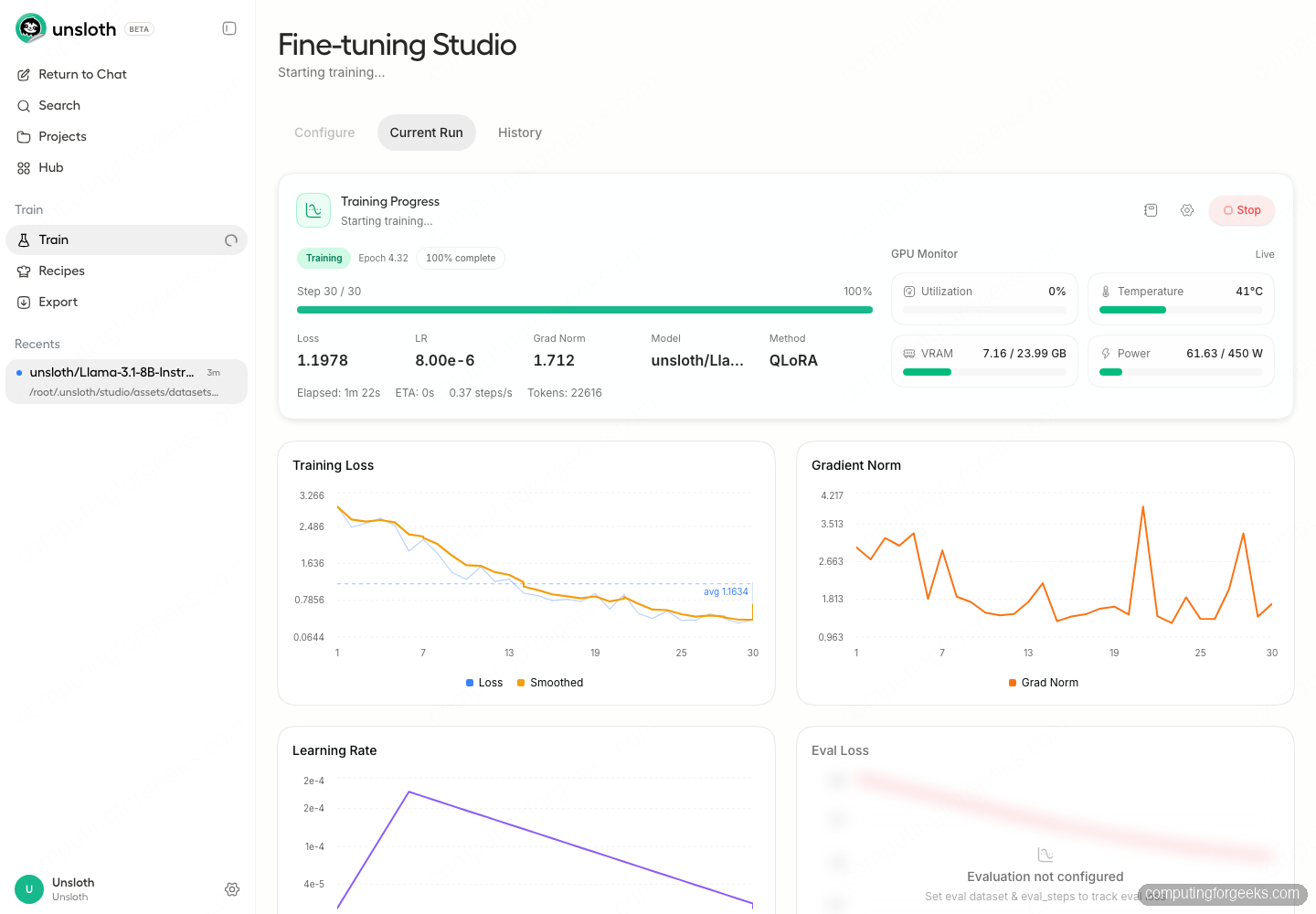
The last raw step often spikes because a 50-row set cycles through several epochs and the per-step loss is noisy. Watch the smoothed line and the saved-checkpoint loss, not the final point. When the bar hits 100% the checkpoint is written and ready to test.
Test the fine-tuned model
Go back to chat, open the model selector, and switch to the On Device tab. Your training run appears there as a LoRA model alongside the base. Select it, wait for it to load, and ask it a question from the domain you trained on.
Asked how to list failed systemd services, the fine-tuned model returns the exact command from the dataset, systemctl --failed:
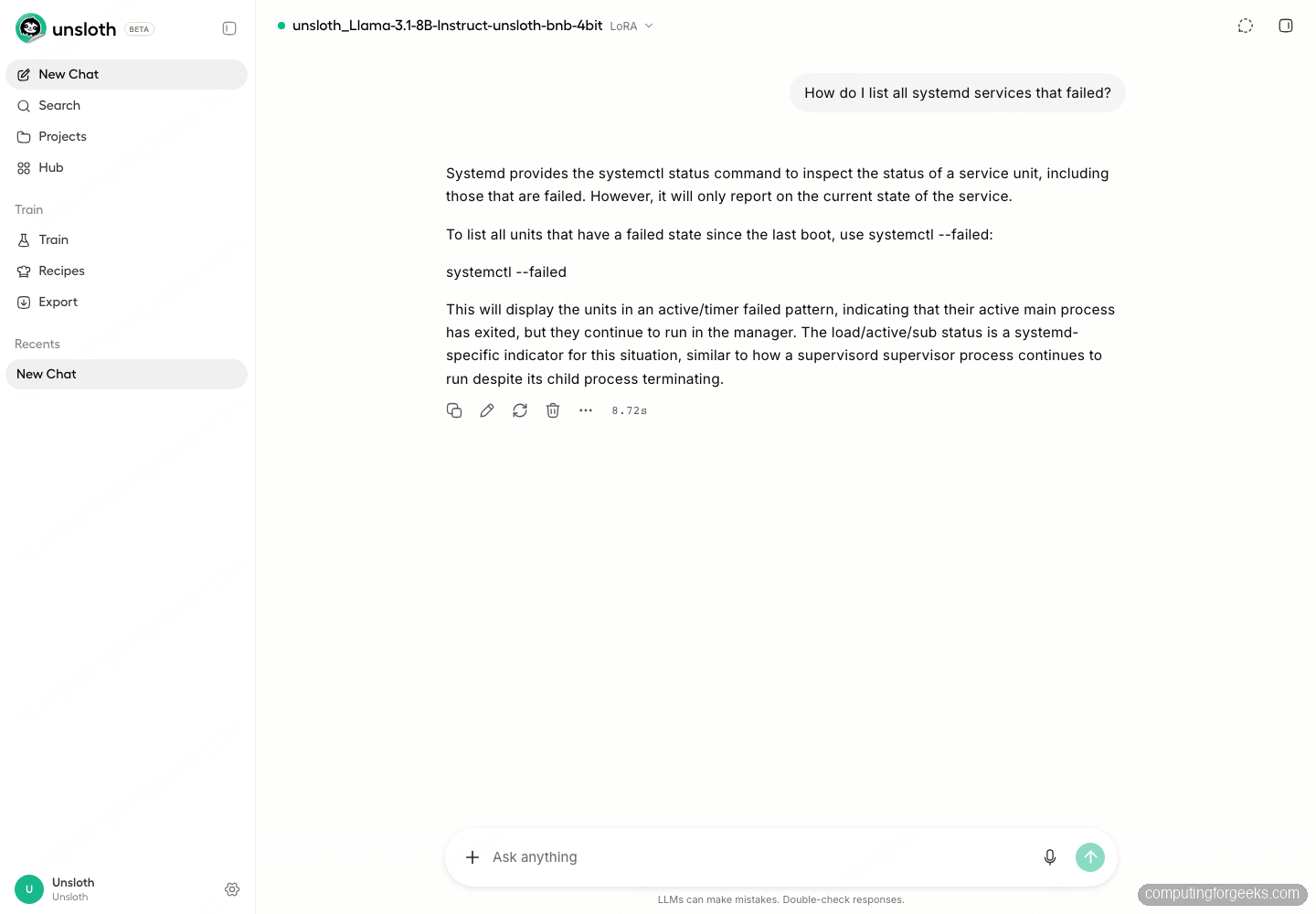
One thing that catches people out: the terse, command-first style is tied to the system prompt you trained with. Without it, an instruction-tuned 8B reverts to its chatty default and wraps the right answer in explanation. Set the same system prompt in the chat’s run settings that you used in the dataset, and the trained style snaps back. The knowledge transferred; the formatting follows the prompt.
Export for deployment
Open the Export page, set Source to Fine-tuned, and pick your training run and checkpoint. There are three export methods: a merged 16-bit model for vLLM or Transformers, the LoRA adapter on its own (about 100 MB, needs the base model), or GGUF for local runners like Ollama and llama.cpp. Choose GGUF and a quantization; Q4_K_M is the recommended balance of size and quality.
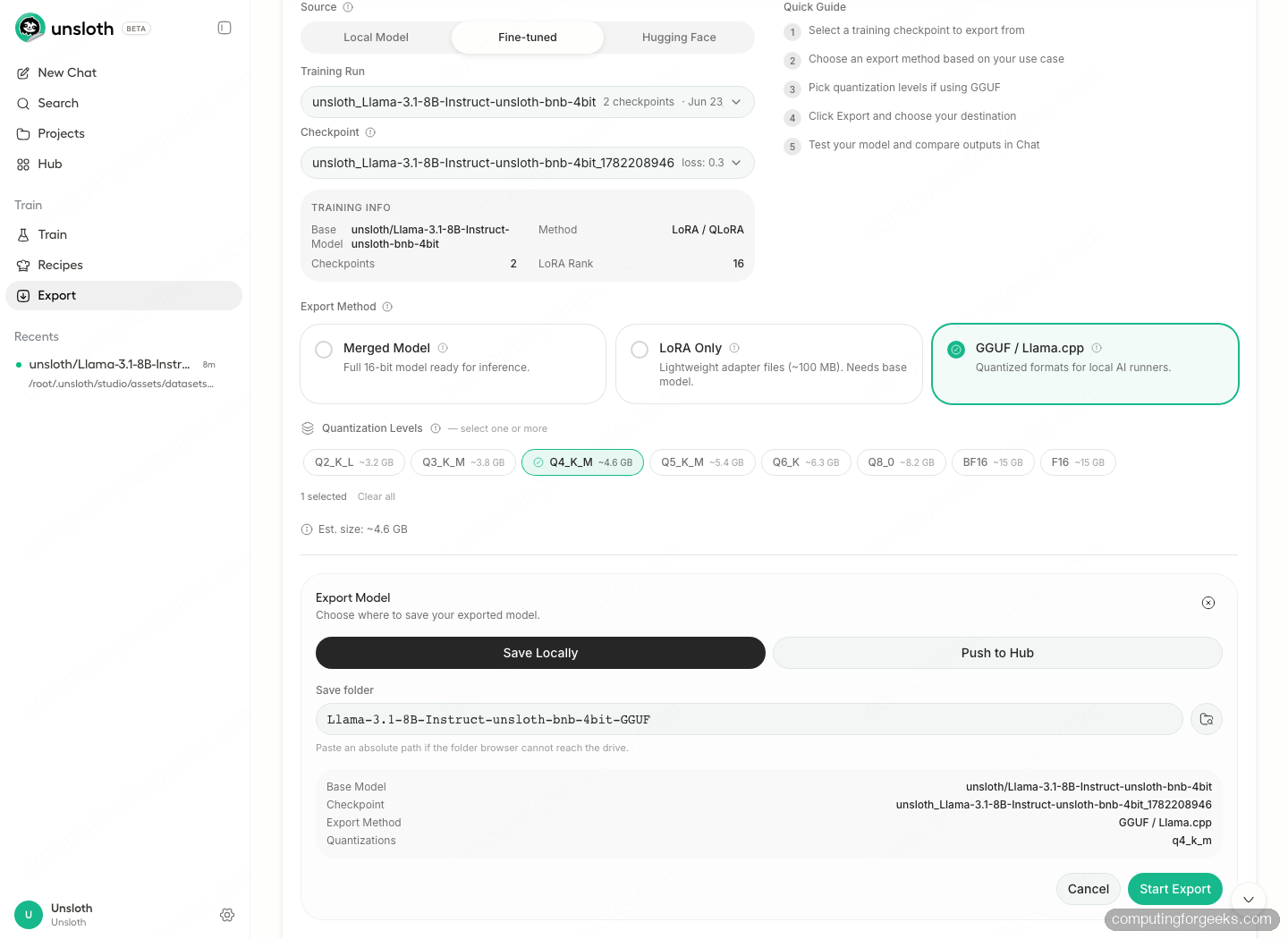
Click Export Model, choose Save Locally or Push to Hub, and start it. Studio merges the adapter, converts to GGUF, and quantizes through llama.cpp. The 8B model produced a 4.6 GB Q4_K_M file. Point any GGUF runner at it; with a small Modelfile you can load it straight into Ollama on Ubuntu:
FROM ./llama-3.1-8b-instruct.Q4_K_M.gguf
SYSTEM "You are the CFG DevOps assistant. Answer with the exact command first, then one short line of context. Be terse."
Swap the filename for whatever Studio wrote to your export folder, then register and run it. From there it behaves like any other local model, and the Ollama command reference covers day-to-day use. The same GGUF also drops into a self-hosted RAG stack if you want retrieval on top of the tuned model.
Studio or the Python workflow: which to use
Studio is the fastest way to get a real fine-tune done and to iterate on a dataset, because every choice is in front of you and the feedback is immediate. Reach for it when you are experimenting, demoing, or you simply do not want to maintain a training script.
When you need the run to be reproducible, version-controlled, wired into CI, or doing something the UI does not expose yet, like reward-based GRPO, drop down to the code path. The Unsloth QLoRA fine-tuning guide in Python covers that end to end with the same engine, and on a tight GPU budget the GPU picks for local LLM work are worth a look before you buy. Most people start in Studio and graduate to scripts only when a workflow demands it.