By the end of this you’ll know the exact command to confirm a machine’s IP address, subnet mask, default gateway, and DNS server on any of the three desktop operating systems, and how to read the output so a misconfiguration jumps out at you. The graphical network settings panels show the same information, but the command line is faster, scriptable, and the same everywhere you connect, which is why it is worth learning once.
This guide shows how to verify IP settings on Windows, macOS, and Linux with the real command output for each, a side-by-side table so you never mix up which command belongs to which OS, and what to do when an address starting with 169.254 shows up.
Captured the output below on Windows, macOS 26, and Ubuntu 24.04 in June 2026.
The four settings every device needs
Before the commands, know what you are looking for. Every device on a network needs four values configured correctly, and each one fails in its own way when it is wrong:
| Setting | What it does | What breaks if it is wrong |
|---|---|---|
| IP address | The device’s unique address on the network | No communication, or an address clash |
| Subnet mask | Splits the address into network and host parts | The device thinks local hosts are remote (or vice versa) |
| Default gateway | The router that reaches other networks | Local traffic works, but nothing off the subnet (no internet) |
| DNS server | Resolves names like example.com to addresses | Numbers work, names do not (“the internet is down”) |
Every command below is just a way to read these four values back off a running machine. The trick is knowing which command each OS uses, so we will take them one at a time.
Check IP settings on Windows
Windows uses ipconfig. On its own it prints the address, mask, and gateway, which is enough for a quick look. Add the /all switch and it prints everything: the MAC address, whether DHCP is on, the DNS servers, and the lease times.
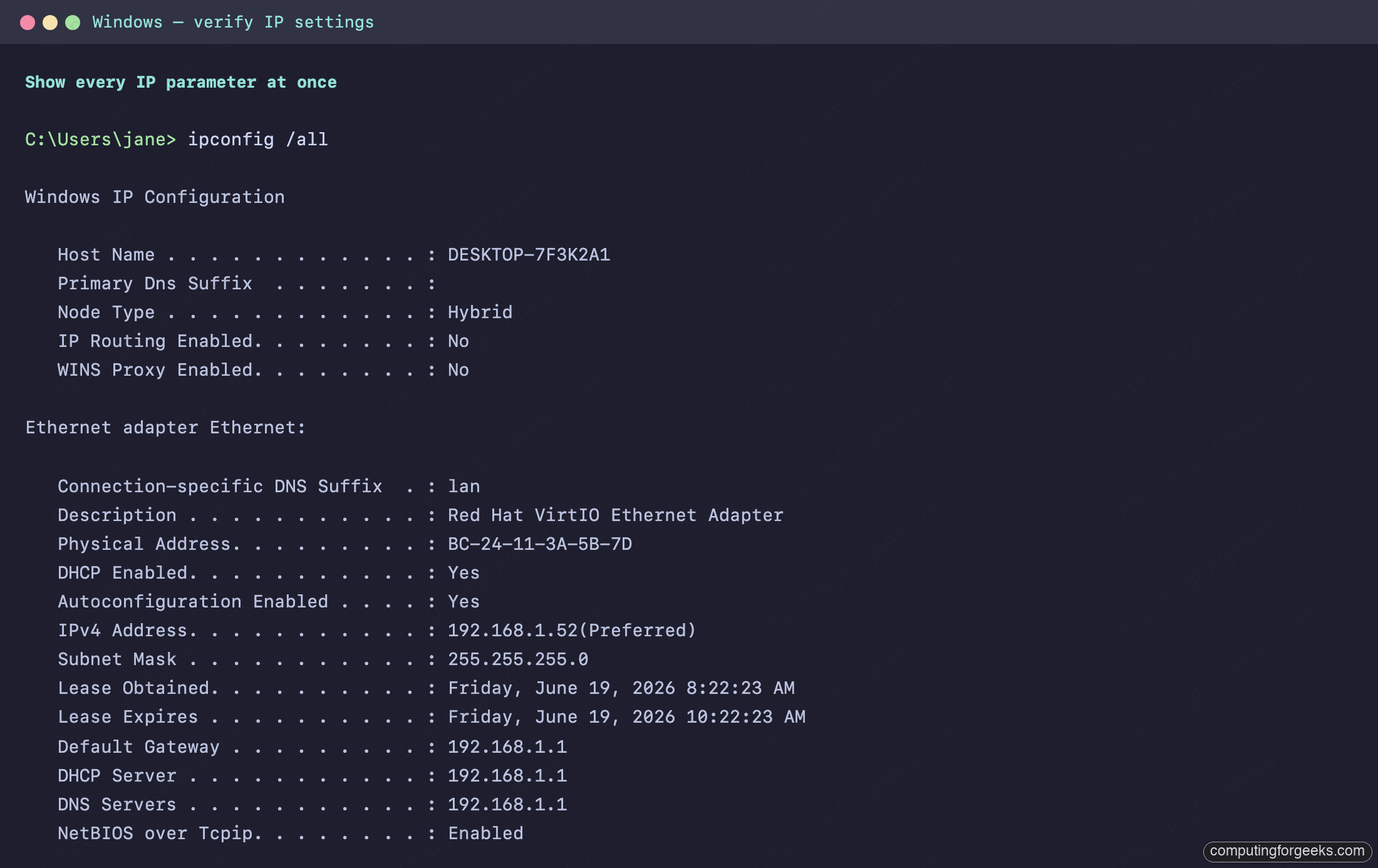
Read it top to bottom for the four values: IPv4 Address is the address, Subnet Mask is the mask, Default Gateway is the router, and DNS Servers is name resolution. The DHCP Enabled: Yes line tells you the address came from a DHCP server rather than being set by hand, and the lease times tell you when it renews. If you ever need to drop and reacquire a lease, ipconfig /release followed by ipconfig /renew does it.
Check IP settings on macOS
macOS keeps two tools side by side. The classic ifconfig still works and shows the address and MAC, but the friendlier networksetup -getinfo prints the address, mask, router, and a clean summary for a named service in one shot. For DNS, scutil --dns lists the resolvers the system is actually using.
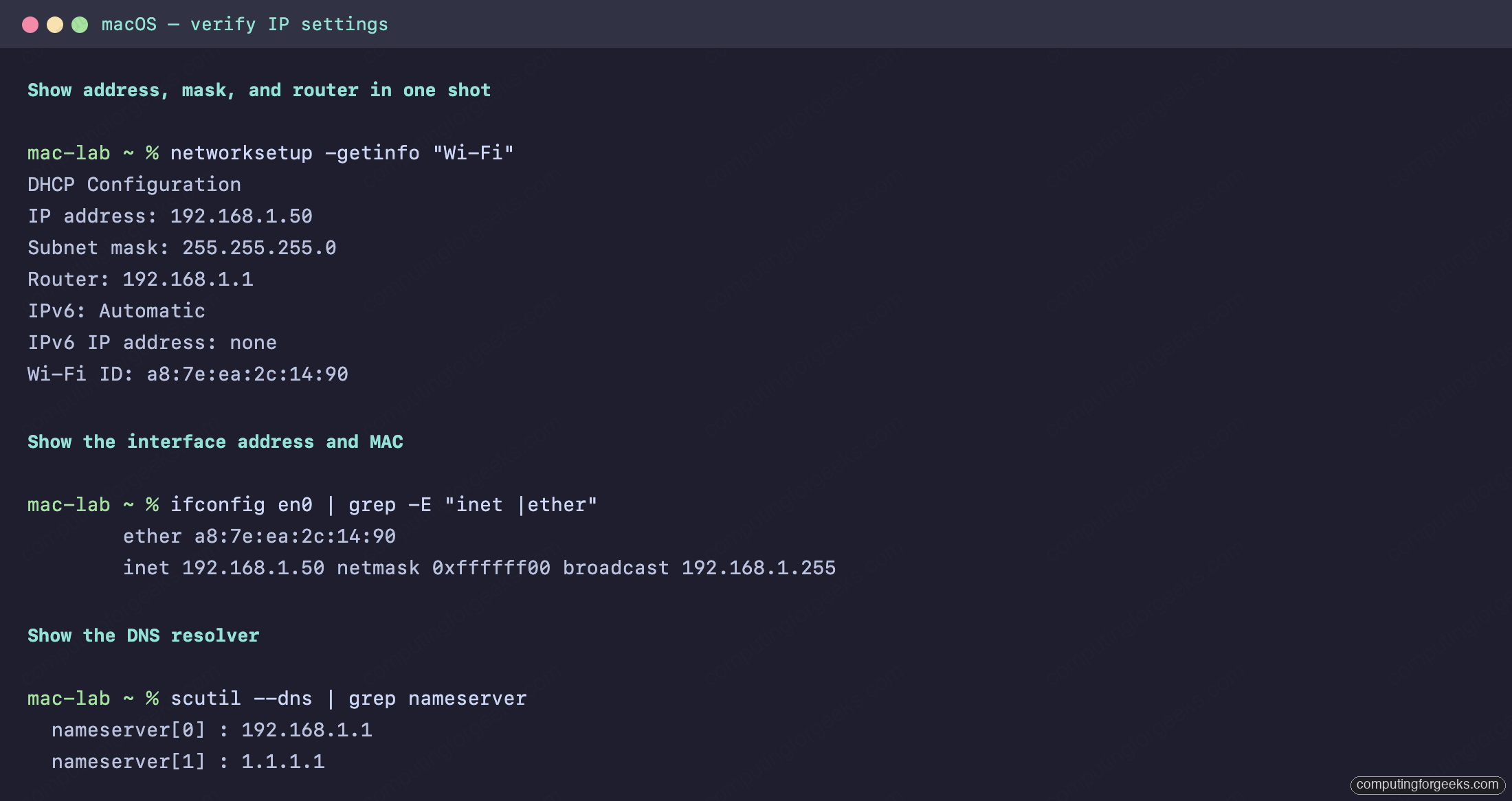
The part that trips people up on macOS is the subnet mask in ifconfig, which prints in hexadecimal (0xffffff00) rather than dotted decimal. That hex value is just 255.255.255.0 written another way, and networksetup -getinfo shows it in the familiar decimal form if you prefer. To get the service name to pass to networksetup, run networksetup -listallnetworkservices first.
Check IP settings on Linux
Modern Linux uses the ip command from iproute2. The old ifconfig is deprecated and often not installed at all. Three commands cover the four values: ip addr for the address and mask, ip route for the gateway, and resolvectl status for DNS.
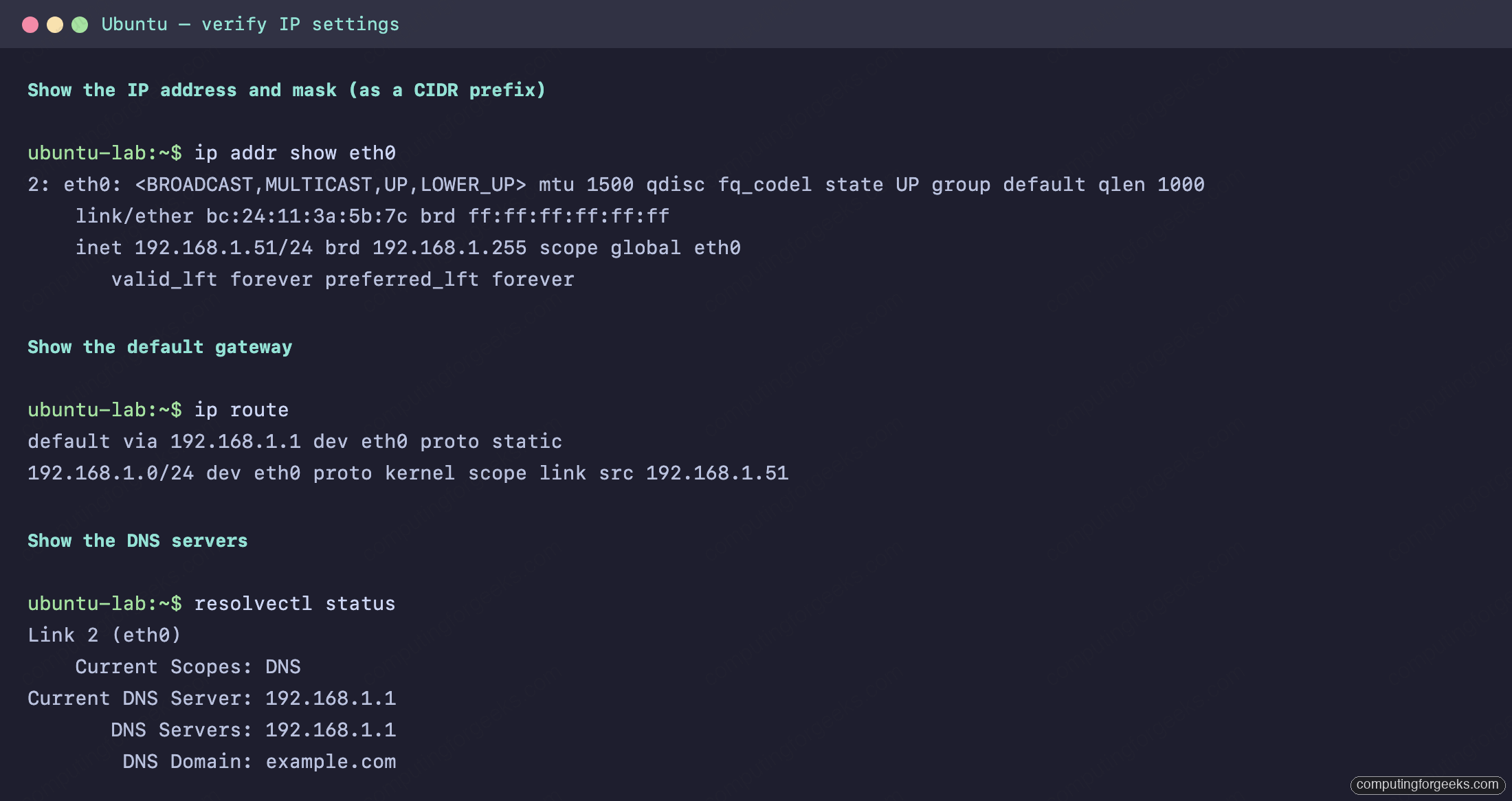
Two things look different from Windows and macOS here. The address and mask come together as a CIDR prefix, 192.168.1.51/24, where /24 is the same thing as a 255.255.255.0 mask. And the gateway is not in the address output at all; it is the default via line of ip route. On any distro, cat /etc/resolv.conf is a universal fallback for seeing the DNS servers if resolvectl is not present.
Every command, side by side
This is the table to memorise. Same task, different command per OS, so you never reach for ipconfig on a Mac or ifconfig on a modern Linux box:
| Task | Windows | macOS | Linux |
|---|---|---|---|
| Show IP + mask | ipconfig | ifconfig en0 | ip addr |
| Show everything | ipconfig /all | networksetup -getinfo "Wi-Fi" | ip addr; ip route; resolvectl status |
| Show gateway | ipconfig | netstat -rn / route -n get default | ip route |
| Show DNS | ipconfig /all | scutil --dns | resolvectl status |
| Show MAC address | ipconfig /all | ifconfig en0 | ip link |
| Renew DHCP lease | ipconfig /renew | sudo ipconfig set en0 DHCP | sudo networkctl renew eth0 |
| Flush DNS cache | ipconfig /flushdns | sudo dscacheutil -flushcache; sudo killall -HUP mDNSResponder | sudo resolvectl flush-caches |
One caveat on the Linux column: the renew command shown is for systems running systemd-networkd or netplan, which is the Ubuntu and Debian default. On a desktop managed by NetworkManager, use nmcli device reapply eth0 instead. The read commands (ip addr, ip route, resolvectl) are identical either way.
What an address starting 169.254 means
Here is the one diagnostic worth memorising. If a Windows machine shows an IPv4 address in the 169.254.x.x range, it did not get an address from DHCP. This is APIPA (Automatic Private IP Addressing): when a client sends DHCP requests and gets no answer, it assigns itself a link-local address in 169.254.0.0/16 so it can at least talk to other machines on the same wire. It cannot reach the gateway or the internet.
If you see a 169.254 address, the fix is upstream, not on the client. Check that the DHCP server is actually running, that the switch port is in the right VLAN, and that the cable and network adapter are up. On the Cisco side, a port in the wrong VLAN is a common cause, which you would confirm with the interface status counters. Once DHCP answers again, ipconfig /renew on Windows (or reconnecting the interface elsewhere) pulls a real address.
Practice verifying IP settings
Flip the cards to lock in which command belongs to which OS, then take the quiz, which includes the APIPA diagnostic and the command-matching question. For background on what each of these four values actually means, the IPv4 addressing guide covers them in depth, and the full path is the CCNA 200-301 study roadmap.
The 30-second IP check
When you sit down at an unfamiliar machine and need its network settings fast, this is the one command per OS that shows all four values at once:
- Windows:
ipconfig /all - macOS:
networksetup -getinfo "Wi-Fi"(swap “Wi-Fi” for “Ethernet” on a wired machine) - Linux:
ip addrthenip route(address and mask, then the gateway)
Run the one for the OS in front of you, read off the address, mask, gateway, and DNS, and you have confirmed in half a minute whether the machine is configured to reach the network. If any value looks wrong, you now know exactly which of the four is the problem.