A web server that answers on plain HTTP sends every password and cookie across the network in the clear. Let’s Encrypt fixes that for free: it is a certificate authority that issues the TLS certificates browsers trust, and it does so automatically over a protocol called ACME. The tool that speaks ACME on your server is certbot. This guide explains how Let’s Encrypt verifies you actually control a domain, then secures a web server with Let’s Encrypt on openSUSE Leap 16 end to end, including the case where the server is not reachable from the public internet. The behavior here was checked on Leap 16 with certbot 5.1.0 in June 2026, and the DNS path was run start to finish.
How Let’s Encrypt proves you control the domain
Before any certificate authority signs a certificate for example.com, it has to be convinced you actually run example.com. Let’s Encrypt does this with a challenge, and there are two kinds. The key insight is that the challenge type you can use depends entirely on what is reachable from the outside.
The first is the HTTP-01 challenge. certbot places a small token file on your server under /.well-known/acme-challenge/, and Let’s Encrypt fetches it over port 80. If it reads back the expected value, you have proven control. This is the default and the simplest path, and it works with any DNS provider, but it requires that Let’s Encrypt can reach your server on port 80 from the internet.
The second is the DNS-01 challenge. Instead of serving a file, certbot creates a temporary TXT record in your domain’s DNS, and Let’s Encrypt checks that record. Nothing needs to be reachable on port 80, which makes this the path for a server behind NAT, on a private LAN, or one that needs a wildcard certificate. The cost is that certbot needs API access to your DNS provider to create that record.
Install certbot on Leap 16
certbot and its web-server plugins are in the default repo-oss repository, so no extra repo is needed. For the standard HTTP-01 flow against nginx, install certbot and the nginx plugin:
sudo zypper install certbot python3-certbot-nginxConfirm the version:
certbot --versionLeap 16 ships a current release:
certbot 5.1.0With certbot in place, the quickest route to a working certificate is the nginx plugin.
Issue a certificate with the nginx plugin
This is the path most readers want. It assumes a public domain whose A record points at your server and port 80 open to the internet, which is the normal setup for a public site. The nginx plugin handles the HTTP-01 challenge, then rewrites your nginx config to serve HTTPS and redirect HTTP, all in one command. Set your domain and email, then run certbot:
export DOMAIN="www.example.com"
export EMAIL="[email protected]"
sudo certbot --nginx -d "${DOMAIN}" --non-interactive --agree-tos --redirect -m "${EMAIL}"
certbot solves the challenge, installs the certificate, and edits your server block to listen on 443. The --redirect flag adds the rule that sends plain HTTP to HTTPS. When it finishes, the site is live on TLS and nothing else is required. If you are on a different DNS provider, this still works unchanged, because HTTP-01 does not care who runs your DNS, only that port 80 is reachable.
When the server is not public: the DNS challenge
If your server sits on a private network, behind NAT with no port forwarding, or you need a wildcard certificate, HTTP-01 cannot reach it and you switch to DNS-01. certbot ships a plugin for each major DNS provider, and you pick the one that matches where your domain is hosted:
| DNS provider | Plugin package |
|---|---|
| Cloudflare | python3-certbot-dns-cloudflare |
| AWS Route 53 | python3-certbot-dns-route53 |
| DigitalOcean | python3-certbot-dns-digitalocean |
| Google Cloud DNS | python3-certbot-dns-google |
| Linode | python3-certbot-dns-linode |
The worked example below uses Cloudflare; substitute your provider’s plugin and credentials if you are on something else. Install the plugin:
sudo zypper install python3-certbot-dns-cloudflarecertbot needs an API token to create the DNS record. Create a credentials file and lock its permissions down, because it holds a secret that can edit your DNS:
sudo mkdir -p /etc/letsencrypt
echo "dns_cloudflare_api_token = YOUR_CLOUDFLARE_API_TOKEN" | sudo tee /etc/letsencrypt/cloudflare.ini
sudo chmod 600 /etc/letsencrypt/cloudflare.ini
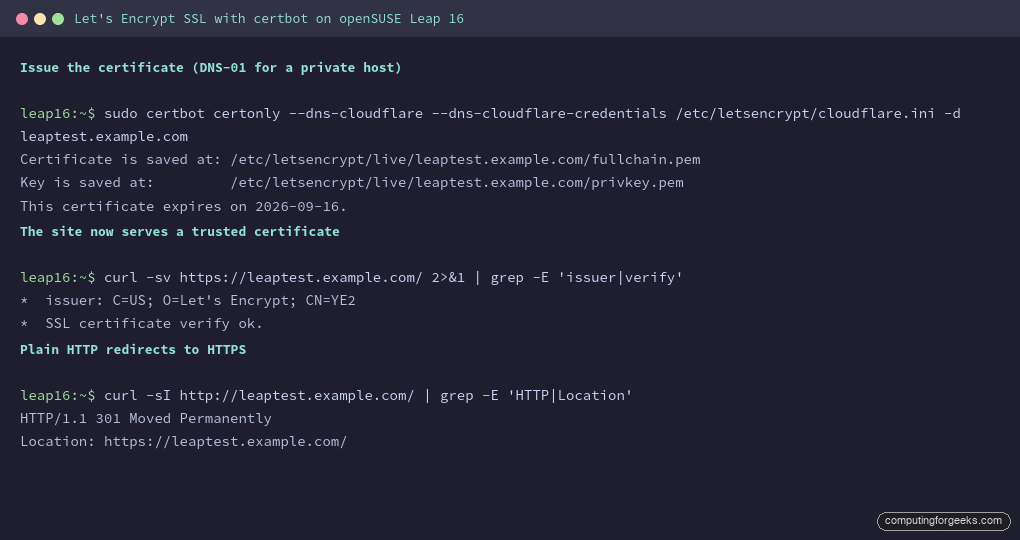
Now request the certificate. Here certbot only obtains it (certonly) rather than touching nginx, because on a private host you will wire it in by hand:
sudo certbot certonly --dns-cloudflare \
  --dns-cloudflare-credentials /etc/letsencrypt/cloudflare.ini \
  -d "${DOMAIN}" --non-interactive --agree-tos -m "${EMAIL}"
certbot creates the TXT record, waits for it to propagate, and saves the certificate and key:
Certificate is saved at: /etc/letsencrypt/live/www.example.com/fullchain.pem
Key is saved at:         /etc/letsencrypt/live/www.example.com/privkey.pem
This certificate expires on 2026-09-16.
The certificate now exists on disk, but nginx is not yet using it.
Wire the certificate into nginx
With the certificate on disk, point an nginx server block at it. This config serves the site over HTTPS and sends any plain HTTP request to the secure version. Open a new virtual host file:
sudo vim /etc/nginx/vhosts.d/www.example.com.confAdd both server blocks, the redirect on 80 and the TLS site on 443. Adjust root to your actual document root:
server {
    listen 80;
    server_name www.example.com;
    return 301 https://$host$request_uri;
}

server {
    listen 443 ssl;
    http2 on;
    server_name www.example.com;
    root /srv/www/vhosts/www.example.com;
    index index.html;

    ssl_certificate     /etc/letsencrypt/live/www.example.com/fullchain.pem;
    ssl_certificate_key /etc/letsencrypt/live/www.example.com/privkey.pem;
}
Test the configuration and reload, opening the HTTPS port in firewalld if it is not already open:
sudo nginx -t
sudo firewall-cmd --permanent --add-service=https
sudo firewall-cmd --reload
sudo systemctl reload nginx
Request the site and the certificate verifies as trusted, issued by Let’s Encrypt, with plain HTTP returning a redirect:
*  issuer: C=US; O=Let's Encrypt; CN=YE2
*  SSL certificate verify ok.
HTTP/1.1 301 Moved Permanently
Location: https://www.example.com/
That verify ok line is the whole goal: a browser will show the padlock with no warning.
One job remains, and it is the one people forget until a site breaks three months later.
Why certificates renew themselves
Let’s Encrypt certificates are valid for only 90 days. That short lifetime is deliberate: it forces automation and limits the damage if a key is ever exposed. The mechanism that handles it is a systemd timer that runs certbot once a day and renews any certificate inside its renewal window, the last third of the 90-day lifetime.
Here is the openSUSE-specific detail that catches people out: that timer is not installed by default. On Leap 16 the renewal timer lives in a separate package, and without it your certificate quietly expires after three months. Install and enable it:
sudo zypper install certbot-systemd-timer
sudo systemctl enable --now certbot-renew.timer
Confirm the timer is scheduled:
systemctl list-timers certbot-renew.timerYou can prove the whole renewal path works without waiting 60 days by running a dry run, which performs a real challenge against the staging service but throws the result away:
sudo certbot renew --dry-runcertbot runs the full challenge against the staging service and reports the result:
Congratulations, all simulated renewals succeeded:
  /etc/letsencrypt/live/www.example.com/fullchain.pem (success)
That success line means the timer will renew the certificate unattended when the time comes.
Common misconceptions
A few ideas about Let’s Encrypt trip people up, and clearing them up makes the rest make sense.
“A free certificate is less secure.” The encryption is identical. A certificate from Let’s Encrypt uses the same algorithms and key strengths as a paid one; browsers trust it exactly the same. What you pay for with a commercial CA is things like organization validation or a warranty, not stronger cryptography.
“The 90-day expiry is a hassle.” It is the point. Short lifetimes push everyone to automate renewal, which means certificates rarely lapse from a forgotten manual step, and a stolen key is useful to an attacker for weeks rather than years. Once the timer is running, you never think about it again.
“I need a public server to use Let’s Encrypt.” Only for HTTP-01. The DNS-01 challenge proves control through your DNS records, so a server on a private LAN with no inbound ports can still hold a fully trusted certificate, which is exactly what the DNS path above does. The same DNS-01 path is also the only way to get a wildcard certificate. This guide wired the certificate into nginx; if you have not set the web server up yet, start there, then come back. Once TLS is in place, the next step is usually hardening the rest of the host, which the initial server setup and hardening guide covers.