If you have installed openSUSE before, the first thing you notice with Leap 16 is that the installer looks nothing like it used to. YaST is gone from the installation process, replaced by Agama, a clean web-based installer that runs the whole setup from a single page you can drive locally or from another machine’s browser. This guide walks you through what Agama is, how its screens fit together, and the two features that make it genuinely new: installing more than one product from one image, and installing a machine remotely over the network.
None of this is harder than the old installer. It is mostly the same decisions in a friendlier layout. The screenshots below are from a real Leap 16 install run.
Walked through this on the openSUSE Leap 16 installer in June 2026.
What replaced YaST in openSUSE Leap 16
YaST was one tool that did everything: install, then administer the system afterwards. Leap 16 splits that job up. Agama handles installation, Cockpit handles day-to-day web administration after first boot, and a separate tool called Myrlyn covers graphical package management. So Agama is not a renamed YaST; it is purpose-built for one task, getting a system installed, and it does that one job well. Everything you used to do in the YaST installer has a home in Agama’s sidebar.
Install Leap 16 or Leap Micro from one image
The first screen is the clearest sign you are somewhere new. The offline installer image carries more than one product, and Agama asks which one you want to install before anything else. On the Leap 16 image that means a choice between full Leap 16.0 and openSUSE Leap Micro, the lightweight immutable variant built for containerized and virtualized workloads:
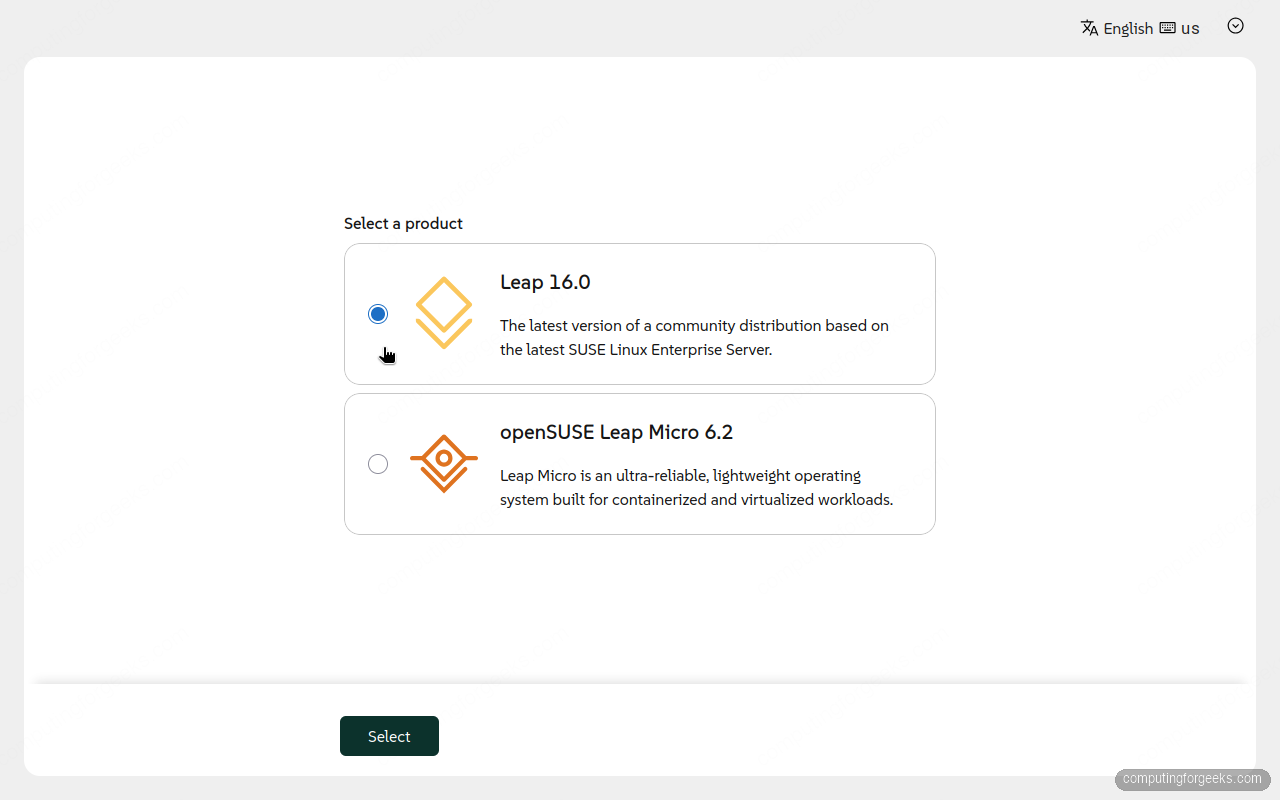
Select Leap 16.0 and click Select. Agama loads the rest of the installer configured for that product. One image, two operating systems, decided at install time rather than by downloading a different ISO.
Work through the single-page overview
This is where Agama feels most different from the old wizard. Instead of clicking Next through a dozen screens in a fixed order, you land on an Overview that summarizes every important setting at once, with a sidebar to jump into any section you want to change. The sidebar holds Hostname, Localization, Network, Storage, Software, and Authentication:
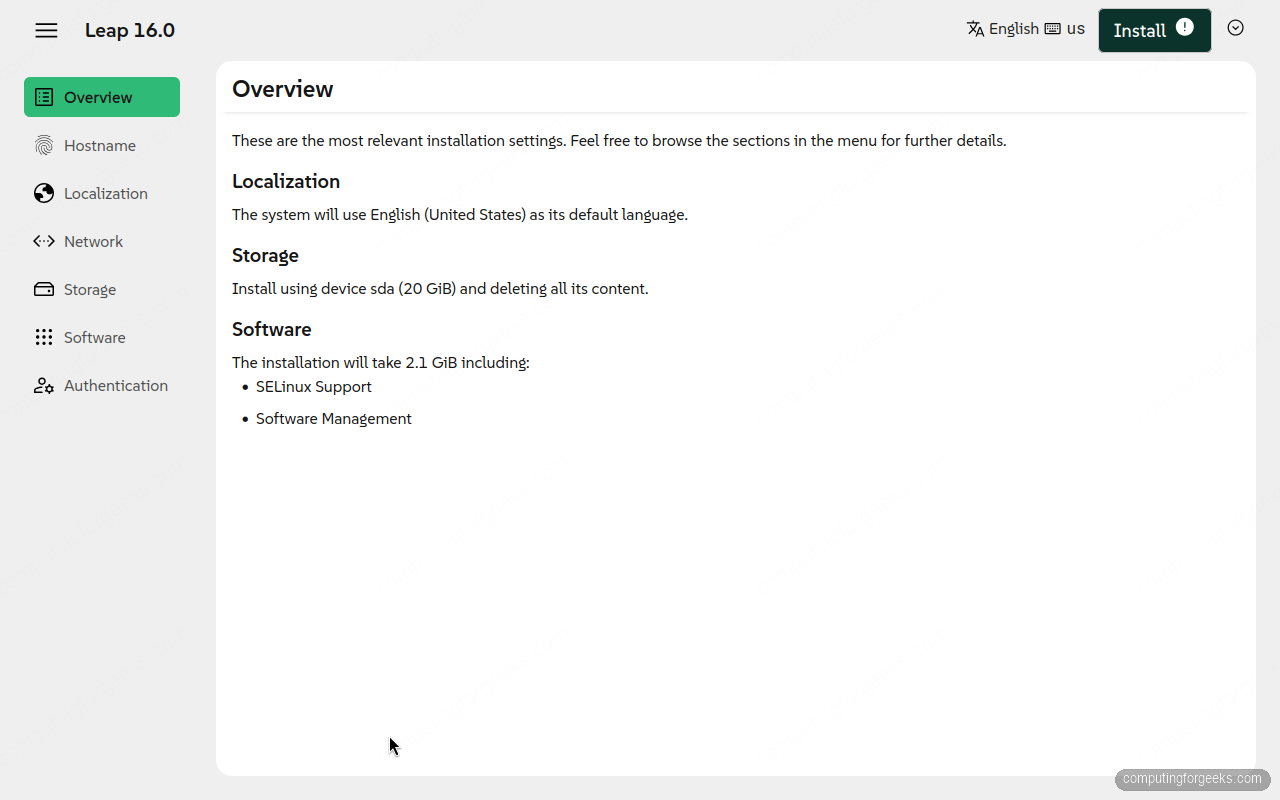
The Overview already shows sensible defaults: the language, the target disk it will use, and what the install will pull in. One detail worth noticing is that SELinux Support appears in the default software selection, which matches Leap 16 shipping SELinux in enforcing mode out of the gate. You only need to visit the sections where you want something other than the default. The one section you must visit is Authentication, where you set the root password or add an SSH key; until you do, the Install button stays blocked.
Review the storage layout
Open the Storage section and Agama shows exactly what it will do to your disk before it does it. The default for a single empty disk is a clean Btrfs root with a small EFI partition and swap, and a Result table lists every action it will take so there are no surprises:
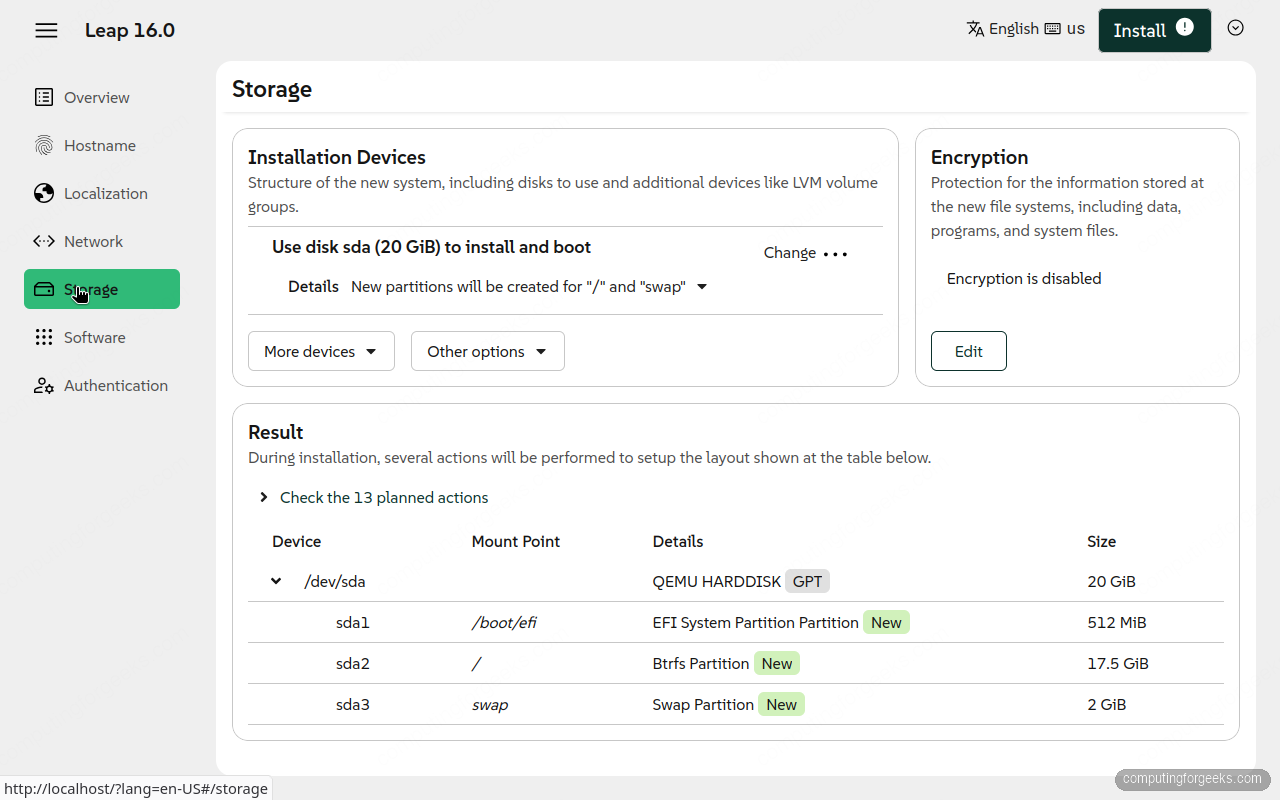
The Btrfs root is what makes the snapshot and rollback features work later. If you want full-disk encryption, the Encryption panel on the same screen turns it on with a passphrase. For most installs the default layout is exactly right, and you can move straight to the Install button.
Install remotely from your browser
Here is Agama’s standout feature. The installer you are looking at is a web application, and it is not limited to the screen in front of the machine. Agama serves the same interface over the network, so you can install a headless server from the comfort of your laptop. On the machine being installed, the console shows a URL and a one-time access password. On your own computer, open that URL in a browser over its self-signed HTTPS connection, enter the password, and you get the identical Overview, Storage, and Authentication screens you have seen here.
That changes how you provision hardware. A server with no monitor, a blade in a rack, or a VM on a remote host can all be installed from one browser tab without KVM access or a crash cart. The connection is encrypted, and the one-time password stops anyone else on the network from hijacking the session.
Automate it with a profile
Once you have clicked through Agama once, you rarely want to do it by hand again for the tenth identical server. Agama is built around an HTTP API, and the same settings you set in the browser can be captured in a JSON profile that describes the whole install: partitioning, networking, software selection, users, and the root credentials. Feed that profile to Agama at boot and the machine installs itself unattended.
The agama command-line tool drives the same API from a terminal. It can inspect or change the configuration, load a profile, start the install, and monitor progress, and it can point at a remote Agama host over its URL. For the full profile schema and the boot parameters that load it, the SUSE automated installation guide is the reference, since the same Agama powers both Leap and SUSE Linux Enterprise.
That is the whole of Agama: one image that installs more than one product, a single overview instead of a long wizard, a browser you can drive from anywhere, and a profile for when you need to repeat the same build across many machines. For a click-by-click walkthrough of a complete install, the step-by-step Leap 16 install guide covers every screen, and once the system is up, Cockpit picks up the administration half that YaST used to handle.