openSUSE Leap 16 ships Apache 2.4.66 with the prefork MPM, and the module set is driven entirely from /etc/sysconfig/apache2, not from the main httpd.conf. That single design choice is what trips up admins arriving from Debian or RHEL: editing httpd.conf to load a module does nothing here, because the SUSE helper scripts regenerate the load list from the sysconfig file. This guide shows how to install Apache on openSUSE Leap 16, open the firewall, serve content, enable modules the SUSE way, and ends with the numbers that decide how you tune it.
Every command below was run on a live Leap 16 box: a 2 vCPU, 2 GB virtual machine. The throughput and memory figures in the tuning section come from that machine, not from documentation.
Tested June 2026 on Apache 2.4.66 (openSUSE Leap 16.0).
Prerequisites
Apache’s footprint is set by the MPM and the workload, not by the binary. The prefork MPM forks one process per connection, and on the test box each worker measured at 6.9 MB resident. Multiply that by your expected concurrency to size memory: 256 simultaneous prefork workers is roughly 1.8 GB before the application behind Apache uses a byte. For a static site or a reverse proxy front end, 1 vCPU and 1 GB is enough; for a PHP application server under real load, start at 2 vCPU and 2 GB and scale memory with MaxRequestWorkers.
- An openSUSE Leap 16 server with sudo access. The reference box was 2 vCPU / 2 GB, which is a floor for following along, not a production target.
- A non-root user in the
wheelgroup. The initial server setup and hardening guide covers that groundwork. - Network access to the openSUSE CDN for
zypper.
Step 1: Install Apache from the OSS repository
Apache is packaged as apache2 in the default repositories. Installing it pulls in the prefork MPM and the utilities package:
sudo zypper refresh
sudo zypper install apache2
The control binaries land in /usr/sbin, which is not on a normal user’s PATH, so confirm the version through sudo. Note the control command on openSUSE is apachectl:
sudo apachectl -vThe build identifies itself as the SUSE flavor:
Server version: Apache/2.4.66 (Linux/SUSE)
Server built:   2026-05-13 23:29:22.000000000 +0000
Step 2: Start Apache and enable it at boot
The service unit is apache2, with httpd and apache registered as aliases. Enable and start it in one command:
sudo systemctl enable --now apache2Confirm the daemon is up. The main process reports as httpd-prefork, which names the active MPM:
systemctl status apache2 --no-pagerThe status block shows it running and processing requests:
● apache2.service - The Apache Webserver
     Loaded: loaded (/usr/lib/systemd/system/apache2.service; enabled; preset: disabled)
     Active: active (running) since Fri 2026-06-19 01:20:35 CEST
   Main PID: 7167 (httpd-prefork)
     Status: "Processing requests..."
Step 3: Open the firewall
Leap 16 runs firewalld. Add the HTTP and HTTPS services and reload:
sudo firewall-cmd --permanent --add-service=http
sudo firewall-cmd --permanent --add-service=https
sudo firewall-cmd --reload
List the active services to confirm both are allowed:
sudo firewall-cmd --list-servicesThe output includes http and https:
cockpit dhcpv6-client http https sshWith the firewall open, the server is reachable. All that remains to serve a page is content in the document root.
Step 4: Serve a page from the document root
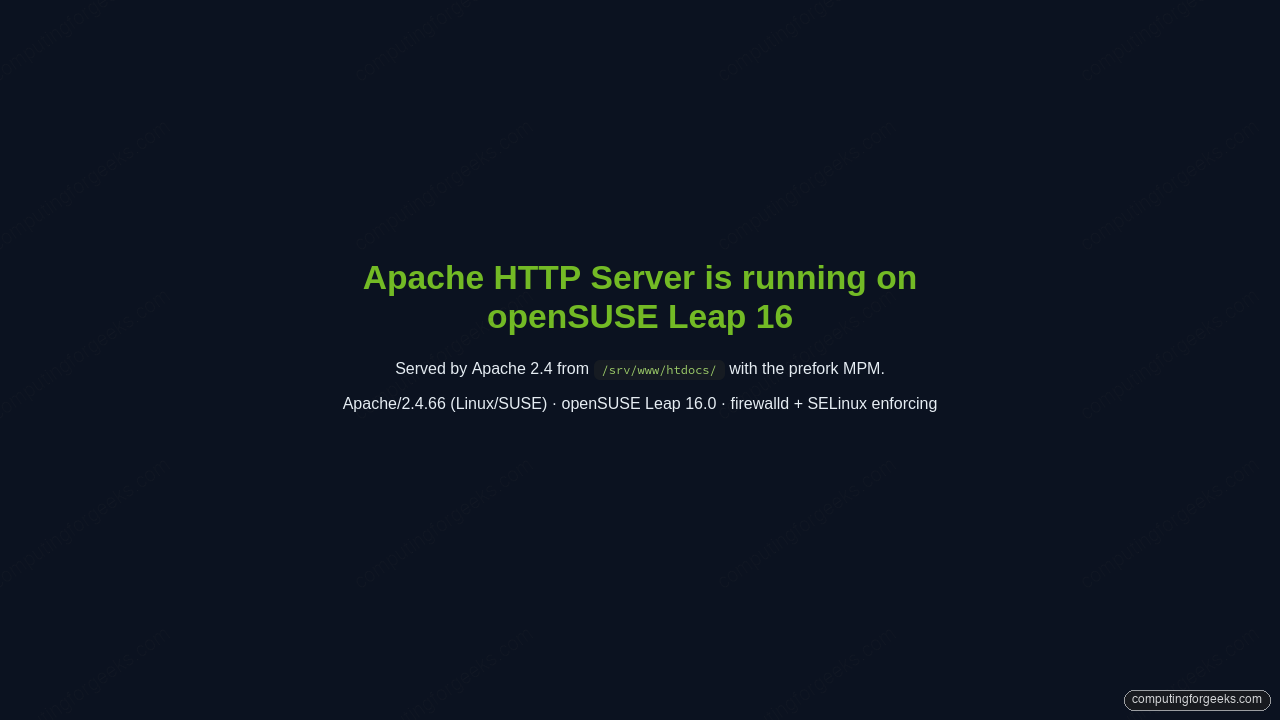
Apache’s document root on openSUSE is /srv/www/htdocs, set in /etc/apache2/default-server.conf, not the /var/www/html you may know from other distributions. Drop an index file there and Apache serves it:
echo '<h1>Apache is running on openSUSE Leap 16</h1>' | sudo tee /srv/www/htdocs/index.htmlOpen the server’s address in a browser and the page loads.
Step 5: Enable modules the SUSE way
This is the part that behaves differently from every other distribution. The list of loaded modules lives in the APACHE_MODULES variable inside /etc/sysconfig/apache2. You do not edit that file by hand; the a2enmod and a2dismod helpers edit it for you, then a restart regenerates the load directives. Enable the rewrite module:
sudo a2enmod rewrite
sudo systemctl restart apache2
Verifying that the module loaded exposes a real trap. Running httpd -M directly returns nothing useful, because the raw binary does not source the SUSE environment that defines the module paths. Use apachectl -M instead, which sources /etc/sysconfig/apache2 first:
sudo apachectl -M | grep rewriteWith the environment sourced, the module shows as loaded:
rewrite_module (shared)Step 6: Configure a name-based virtual host
Apache reads per-site configuration from /etc/apache2/vhosts.d/*.conf, pulled in by IncludeOptional /etc/apache2/vhosts.d/*.conf in the main config. The directory ships with vhost.template and vhost-ssl.template as starting points.
The site name and web root repeat across the next commands, so set them once as variables and adjust to your real domain:
export SITE_DOMAIN="site1.example.com"
export WEB_ROOT="/srv/www/vhosts/${SITE_DOMAIN}"
Create the document root and a landing page:
sudo mkdir -p "${WEB_ROOT}"
echo "<h1>${SITE_DOMAIN} on Apache / openSUSE Leap 16</h1>" | sudo tee "${WEB_ROOT}/index.html"
Open a new virtual host file:
sudo vim /etc/apache2/vhosts.d/site1.example.com.confAdd the virtual host. Keep the paths in line with the variables set above:
<VirtualHost *:80>
    ServerName site1.example.com
    ServerAlias www.site1.example.com
    DocumentRoot /srv/www/vhosts/site1.example.com

    <Directory /srv/www/vhosts/site1.example.com>
        Require all granted
        Options FollowSymLinks
        AllowOverride All
    </Directory>

    ErrorLog /var/log/apache2/site1.example.com-error.log
    CustomLog /var/log/apache2/site1.example.com-access.log combined
</VirtualHost>
Validate the syntax before restarting:
sudo apachectl configtestA clean configuration reports Syntax OK. On a fresh install it also prints one warning that confuses people:
AH00558: httpd-prefork: Could not reliably determine the server's fully qualified domain name, using localhost.localdomain. Set the 'ServerName' directive globally to suppress this message
Syntax OK
The warning is harmless, but suppress it by setting a global ServerName. Create a small drop-in:
echo "ServerName localhost" | sudo tee /etc/apache2/conf.d/servername.confRestart to apply the virtual host:
sudo systemctl restart apache2Confirm the virtual host answers for its name by sending a matching Host header:
curl -s -H "Host: ${SITE_DOMAIN}" http://127.0.0.1/Apache returns the virtual host’s page:
<h1>site1.example.com on Apache / openSUSE Leap 16</h1>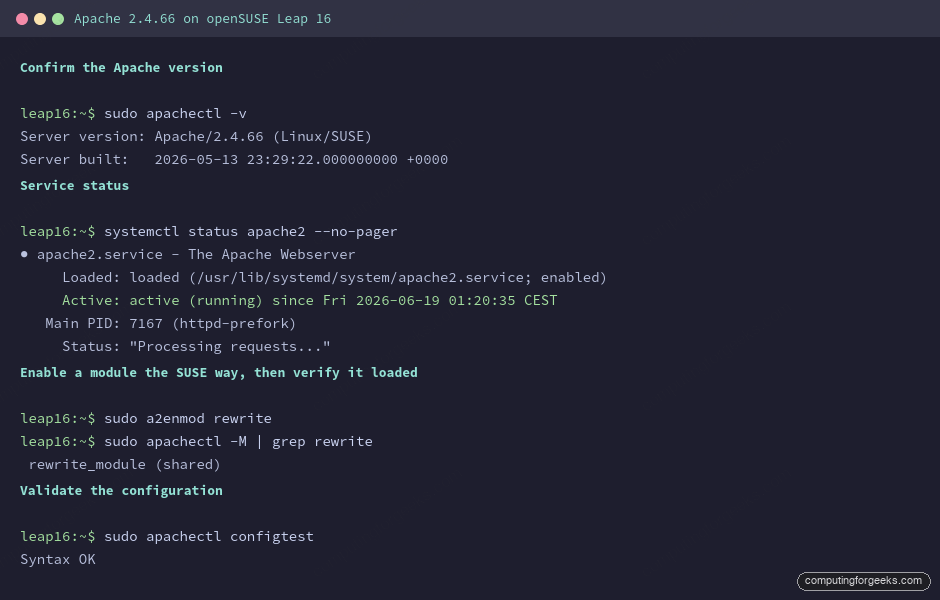
A note on SELinux
Leap 16 ships SELinux in enforcing mode, and Apache runs in the confined httpd_t domain. In practice the targeted policy shipped with Leap is far more permissive than the RHEL equivalent: getsebool -a returns an empty list, so there are none of the httpd_* toggles you would flip on Rocky or RHEL, and content under /srv/www serves without any relabeling. Keep document roots under /srv/www and SELinux stays out of the way. If a future policy update tightens this, relabel a custom path with semanage fcontext -a -t httpd_sys_content_t followed by restorecon.
Performance: the numbers that set the tuning
The default prefork MPM forks one process per connection. On the 2 vCPU test box, ab -n 5000 -c 50 against the static document root measured 11,507 requests per second with zero failed requests, a 4.3 ms mean response time, and a 10.2 MB/s transfer rate. Each prefork worker held 6.9 MB resident. Those two numbers, requests per second and memory per worker, are what you tune against.
ab -n 5000 -c 50 http://127.0.0.1/The relevant lines from the run:
Complete requests:      5000
Failed requests:        0
Requests per second:    11507.72 [#/sec] (mean)
Time per request:       4.345 [ms] (mean)
Transfer rate:          10159.16 [Kbytes/sec] received
Two levers move those figures. First, MaxRequestWorkers in /etc/apache2/server-tuning.conf caps concurrency; with prefork at 6.9 MB per worker, set it from your available RAM, not from a round number, or a traffic spike will push the box into swap. Second, the MPM itself. Prefork trades memory for stability and is the safe default for non-thread-safe modules like older PHP handlers. For high-concurrency keep-alive traffic, the event MPM holds far more idle connections per megabyte; swap it in by installing apache2-event (which replaces apache2-prefork) and restarting. Measure both on your own workload before committing, because the right MPM depends on whether your bottleneck is memory or thread safety.
With Apache serving and the MPM chosen, the next steps are usually putting it behind TLS and managing it from the browser. Cockpit exposes the service state and logs, and the post-install guide plus the zypper reference cover the surrounding setup.