A fresh openSUSE Leap 16 server is reachable over SSH the moment it boots, and straight out of the installer it still accepts password logins and lets root authenticate with a key. Before you put it on a public network, close the parts that are exposed by default.
This guide hardens a new openSUSE Leap 16 server end to end: a non-root sudo account, key-only SSH, a locked-down firewall, SELinux left enforcing, fail2ban against brute force, and automatic updates now that YaST is gone. Every step was run on a real server, and the failure modes are called out where they bite.
Tested in June 2026 on openSUSE Leap 16 with SELinux left enforcing throughout.
Prerequisites
You need a fresh openSUSE Leap 16 install with root or initial sudo access, and a second terminal you keep open while you change anything to do with SSH. Do not skip the second terminal. The failure mode is locking yourself out of a remote box with no way back in.
SELinux enforcing and an active firewalld are the Leap 16 defaults. This guide keeps both on. If you have only just finished the install, work through the general post-install steps first, then come back here to lock the server down.
Step 1: Create a non-root sudo user
Running day to day as root means every typo and every compromised process runs with full control of the box. Least privilege starts with a normal account that can escalate when it needs to. Create one and put it in the wheel group:
useradd -m -G wheel -s /bin/bash ops
passwd ops
On Leap 16 that group membership is all you need. The distribution ships a sudo policy that grants wheel members full sudo using their own password:
sudo cat /usr/etc/sudoers.d/50-wheel-auth-selfThe policy overrides the old openSUSE default that asked for the root password:
Defaults:%wheel !targetpw
%wheel ALL = (root) ALL
Note the path. Leap 16 moved vendor configuration to /usr/etc and reserves /etc for your own overrides, so the shipped sudoers files live under /usr/etc/sudoers.d/. Leave them alone and add your changes in /etc. Confirm the new account can escalate before you rely on it:
su - ops -c "sudo -v && echo sudo works"It should prompt for the account’s own password and print sudo works. From here on, use this account and stop logging in as root.
Step 2: Set up SSH key authentication
Keys replace guessable passwords with a credential that brute force cannot grind down. Generate one on your own workstation, not on the server:
ssh-keygen -t ed25519 -C "ops@workstation"Copy the public key to the new account on the server:
ssh-copy-id ops@SERVER_IPNow test the key in a separate terminal before you change a single SSH setting. Do not skip this. If the key does not work and you have already disabled passwords in the next step, you are locked out:
ssh ops@SERVER_IPIf that session opens without asking for a password, the key is in place and you can safely tighten the daemon.
Step 3: Harden the SSH daemon
openSUSE Leap 16 has no /etc/ssh/sshd_config to edit. The shipped configuration lives at /usr/etc/ssh/sshd_config and pulls in drop-ins from /etc/ssh/sshd_config.d/. Add your hardening as a drop-in there so a package update never overwrites it. Open a new file:
sudo vim /etc/ssh/sshd_config.d/99-hardening.confPut the lockdown in it:
PermitRootLogin no
PasswordAuthentication no
KbdInteractiveAuthentication no
PubkeyAuthentication yes
X11Forwarding no
MaxAuthTries 3
AllowGroups wheel
ClientAliveInterval 300
ClientAliveCountMax 2
AllowGroups wheel means only members of the wheel group can log in over SSH at all. Confirm your account is in that group, or you will lock yourself out the moment sshd reloads. Always validate the syntax and restart only if the check passes:
sudo sshd -t && sudo systemctl restart sshdGating the restart on sshd -t matters. A single typo in the drop-in stops sshd from coming back up, and on a remote box that is a lockout. Confirm the effective policy:
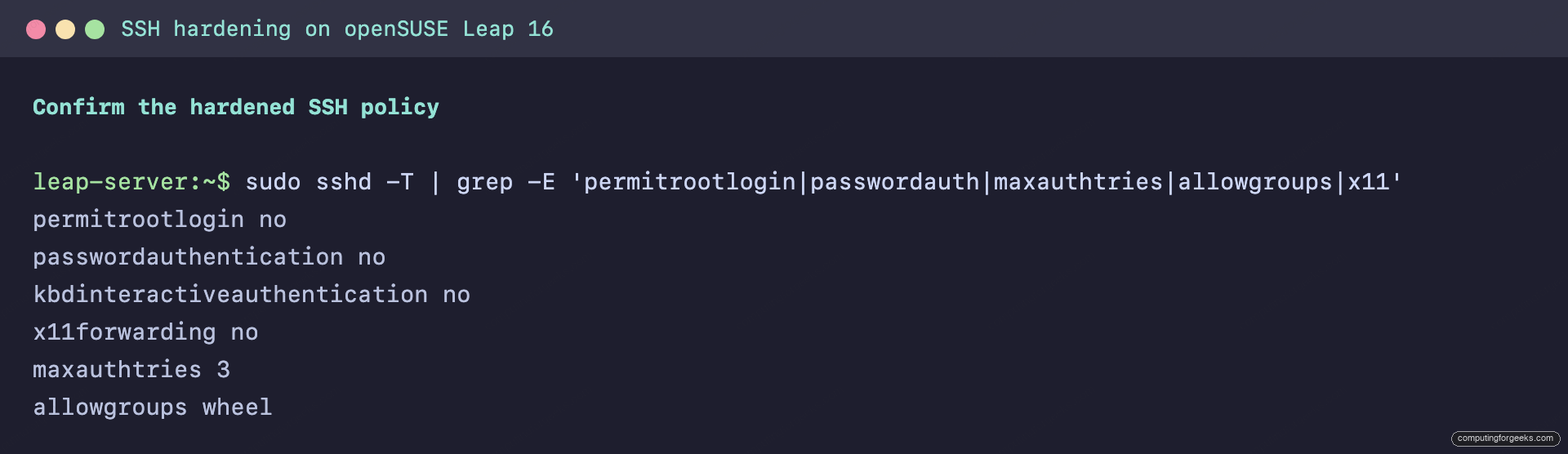
sudo sshd -T | grep -E 'permitrootlogin|passwordauth|maxauthtries|allowgroups'Root login and password authentication should both report off:
permitrootlogin no
passwordauthentication no
maxauthtries 3
allowgroups wheel
The daemon now refuses root logins and passwords outright, accepting only keys from members of the wheel group.
With the daemon locked down, the next exposed surface is the firewall.
Step 4: Lock down the firewall
firewalld runs by default in the public zone. Check what it currently allows in:
sudo firewall-cmd --list-servicesA fresh install typically exposes more than SSH:
cockpit dhcpv6-client sshThe Cockpit web console is reachable on port 9090 unless you remove it. If this box is not a management host, take it out of the zone and reload:
sudo firewall-cmd --permanent --remove-service=cockpit
sudo firewall-cmd --reload
Expose only what the server actually serves. If you administer it from a known network, go further and accept SSH only from that subnet with a rich rule, which is stricter than leaving port 22 open to the world:
sudo firewall-cmd --permanent --add-rich-rule='rule family="ipv4" source address="192.168.1.0/24" service name="ssh" accept'
sudo firewall-cmd --permanent --remove-service=ssh
sudo firewall-cmd --reload
One caution before you remove the broad ssh service: make sure your management subnet is correct, or you will cut off your own access. Test a new SSH session from inside that subnet before you log out.
Step 5: Keep SELinux enforcing
When a service misbehaves, the instinct is to run setenforce 0 and move on. Do not. SELinux enforcing is a Leap 16 default and one of the few things separating a contained compromise from a total one. Confirm it is on:
getenforce
sudo sestatus
It should report enforcing with the targeted policy loaded:
Enforcing
SELinux status:                 enabled
Current mode:                   enforcing
Loaded policy name:             targeted
When something is blocked, find out what the policy actually denied instead of switching it off. The denials land in the audit log:
sudo ausearch -m avc -ts recentRead the denial, then fix it with the right boolean or file context (often a one-line setsebool or semanage fcontext plus restorecon). Disabling SELinux to make an error disappear trades a five-minute fix for a permanently weaker server.
Step 6: Block brute force with fail2ban
AllowGroups wheel and key-only auth already shut the door on password guessing, but fail2ban cuts off the noise of repeated probes and the log spam that comes with it. Install it:
sudo zypper install fail2banConfigure a local jail so package updates never clobber your settings. Open a jail.local:
sudo vim /etc/fail2ban/jail.localRead the SSH journal and ban with firewalld so the bans use the same backend as the rest of your rules:
[DEFAULT]
backend = systemd
bantime = 1h
findtime = 10m
maxretry = 5
banaction = firewallcmd-rich-rules

[sshd]
enabled = true
Enable the service and confirm the jail is watching:
sudo systemctl enable --now fail2ban
sudo fail2ban-client status sshd
The jail reports the journal filter it matches and an empty ban list on a clean box:
Status for the jail: sshd
|- Filter
|  `- Journal matches:	_SYSTEMD_UNIT=sshd.service + _COMM=sshd
`- Actions
   `- Banned IP list:
Configuration options for tighter jails are covered in the fail2ban project documentation, and the firewalld ban backend in the firewalld documentation.
Step 7: Enable automatic updates
An unpatched server is the most common way in, and with YaST retired there is no online-update module to lean on. The replacement on Leap 16 is the os-update package, which installs a systemd timer that patches the system on a schedule. Install it:
sudo zypper install os-updateEnable the timer so updates run unattended:
sudo systemctl enable --now os-update.timerConfirm the next run is scheduled:
systemctl list-timers os-update.timerThe timer fires daily and can signal rebootmgr when a kernel update needs a restart:
NEXT                          LEFT  UNIT             ACTIVATES
Fri 2026-06-19 01:00:56 CEST  9h    os-update.timer  os-update.service
By default the timer applies every available update. To narrow it to security patches only, drop a one-line override that leaves the vendor config in /usr/share/os-update/os-update.conf untouched:
echo "UPDATE_CMD=security" | sudo tee /etc/os-update.confFor interactive patching between scheduled runs, the same updates apply through the standard zypper update commands.
Step 8: Verify time synchronization
Accurate time is a security control, not a nicety. Log timestamps have to line up across hosts for an investigation to mean anything, and certificate and token validation both depend on the clock. Leap 16 installs chrony and runs it by default; confirm it is active and tracking a source:
systemctl is-active chronyd
chronyc -n sources
A healthy server shows reachable upstream sources with a low offset, which means the clock is disciplined and your logs are trustworthy.
Post-hardening security checklist
Before you call the server done, walk this list. Every item is one command, and every one should match the result shown. If any does not, that step is not finished.
- Root SSH refused.
sudo sshd -T | grep permitrootloginreturnsno. - Passwords off.
sudo sshd -T | grep passwordauthenticationreturnsno. - Only admins can log in.
sudo sshd -T | grep allowgroupsreturnswheel. - Firewall minimal.
sudo firewall-cmd --list-servicesshows only what you serve, with nocockpit. - SELinux enforcing.
getenforcereturnsEnforcing. - Brute force watched.
sudo fail2ban-client status sshdshows the jail running. - Updates scheduled.
systemctl list-timers os-update.timershows a next run. - You are not root. You reached all of this as your
wheeluser through sudo, never by logging in as root.
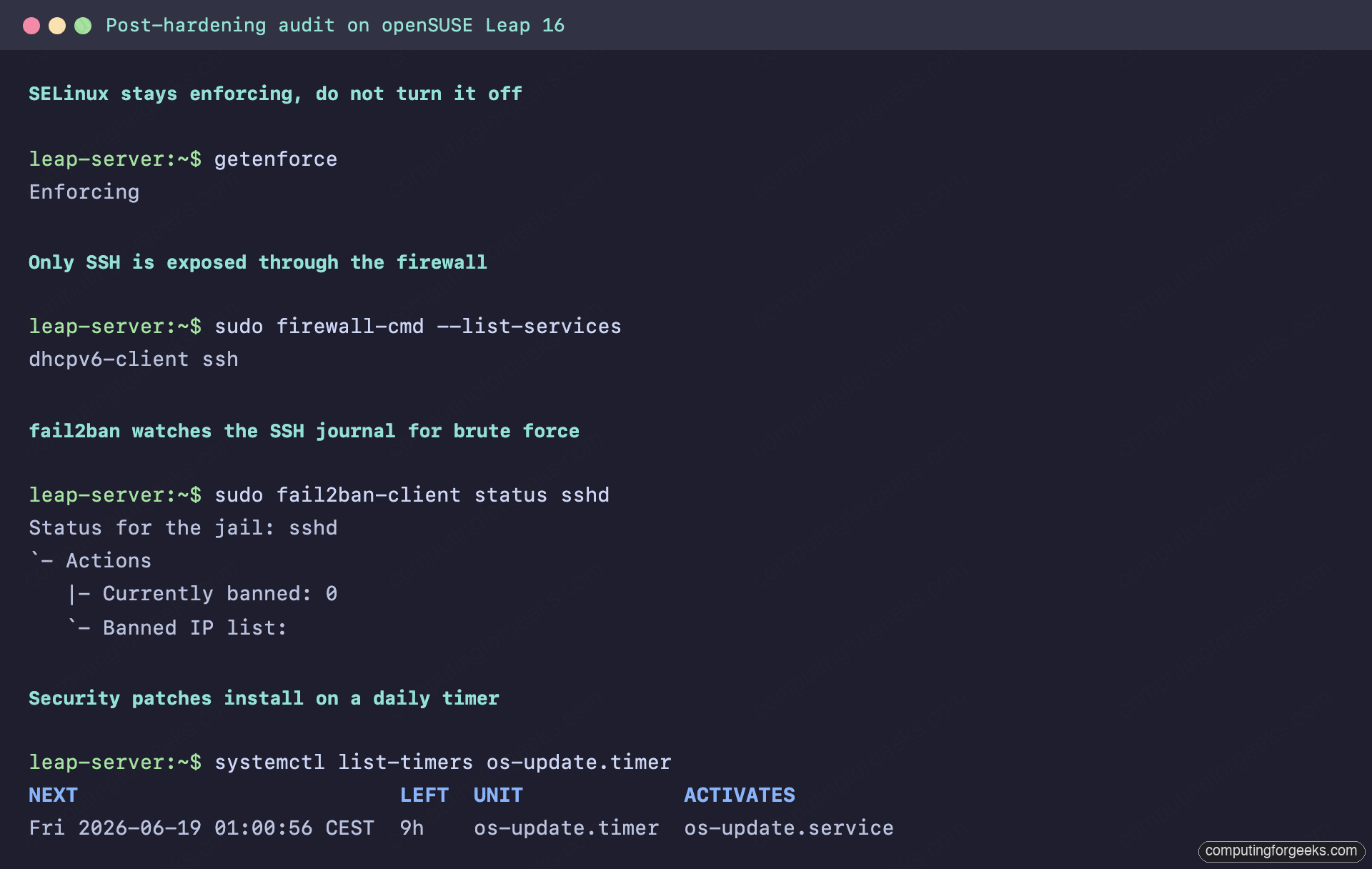
That covers the baseline every internet-facing Leap 16 server should have before it takes traffic. Layer service-specific controls on top as you add roles, and if you want a browser view of the running system to watch these controls hold, the Cockpit console reports SELinux, services, and accounts from one dashboard. SELinux being enforcing by default is one of the bigger shifts in this release, covered alongside the rest in what is new in Leap 16.


![Install Kali Linux 2026.1 Step by Step [Full Guide]](https://computingforgeeks.com/wp-content/uploads/2026/03/install-kali-linux-20261-step-by-step-768x403.png "Install Kali Linux 2026.1 Step by Step [Full Guide] 5")