Every network you have ever used is built from a small set of device types, and each one has exactly one job it is good at. A router moves traffic between networks. A switch moves traffic inside one network. A firewall decides what traffic is allowed through. An access point puts that traffic on the air. Once you can say what each device does and, just as importantly, what it cannot do, the rest of networking gets a lot easier to follow.
This guide walks through the eight core network devices you meet first: routers, Layer 2 and Layer 3 switches, next-generation firewalls and IPS, access points, wireless LAN controllers, endpoints, servers, and Power over Ethernet. For each one, the part that matters is the same three questions: what does it forward, which layer does it make its decision at, and where does the logic actually live.
Everything here was checked on Cisco IOS in a GNS3 lab in June 2026, including the real router and switch output further down.
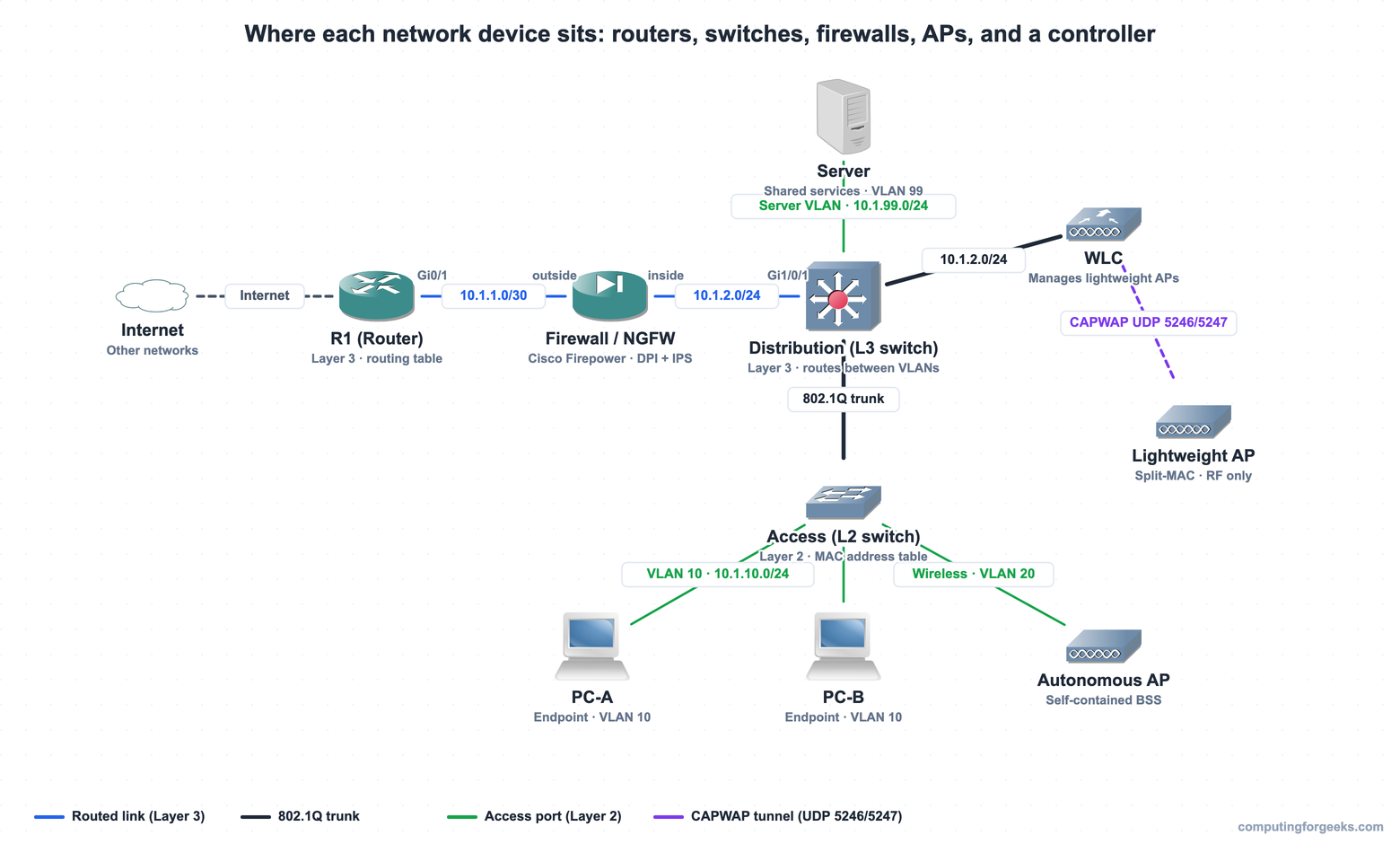
That diagram is the map for the whole article. We will come back to it at the end and walk a packet through it once every device makes sense on its own.
What a router does (and what it cannot do)
A router forwards IP packets between different networks. It keeps a routing table, and for every packet it reads the destination IP address, finds the best matching entry in that table, and sends the packet out the matching interface. Each interface on a router sits in a different network, which is why a router is the device that connects networks together. For the hosts in a network, the router is the default gateway: anything destined off the local network gets handed to the router first.
Here is the part people skip. A router makes its decision at Layer 3, using IP addresses. It does not keep a table of MAC addresses, and it will not forward traffic the way a switch does. That single distinction, IP packets versus Ethernet frames, is what separates a router from a switch. If you want the deeper version of how routers learn their paths, the guide on IP routing and routing protocols covers static routes and routing protocols in detail.
This is the routing table on a real Cisco router we configured in the lab. It has a static default route, two directly connected networks, and the local host routes IOS adds automatically:
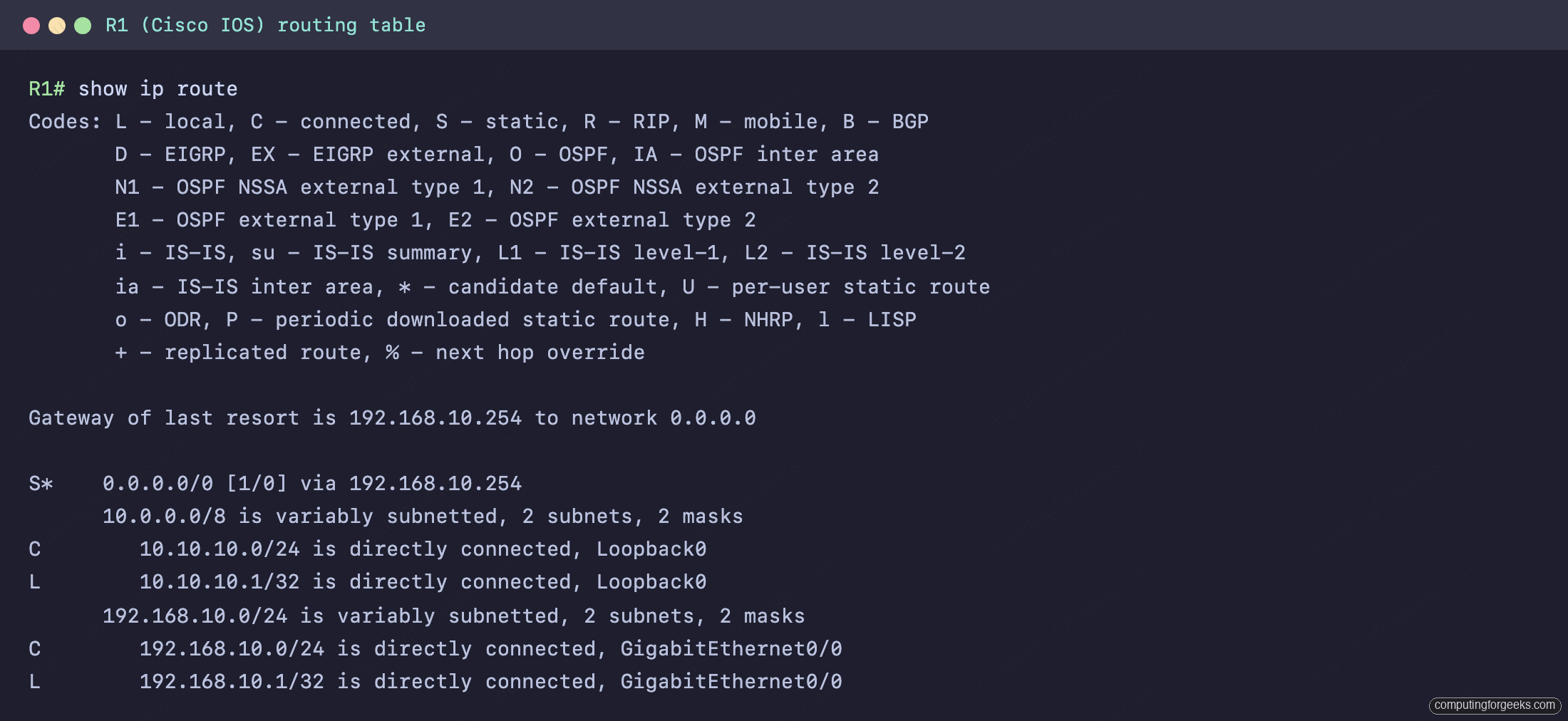
The S* line is the static default route (the gateway of last resort), the C lines are networks the router is directly attached to, and the L lines are the router’s own interface addresses. This table is the router. Take it away and the device has no idea where to send anything.
Layer 2 switches versus Layer 3 (multilayer) switches
A Layer 2 switch forwards Ethernet frames inside a single network. It learns the MAC address of every device connected to it and stores those in a MAC address table (sometimes called the CAM table). When a frame arrives, the switch reads the destination MAC and sends the frame out only the port where that MAC lives. It works per VLAN, and on its own a Layer 2 switch will not move traffic between VLANs, because moving traffic between networks is routing, and routing is a Layer 3 job.
A Layer 3 switch, also called a multilayer switch, does both. It still switches frames at Layer 2, but it can also route IP packets between VLANs once you turn on routing with the ip routing command. It routes either through a switched virtual interface (an SVI, a virtual interface for a VLAN) or through a physical port configured as a routed port. In a campus design, the distribution-layer switch is usually a Layer 3 switch doing exactly this.
| Layer 2 switch | Layer 3 (multilayer) switch | |
|---|---|---|
| Forwards | Ethernet frames | Frames and IP packets |
| Main table | MAC address table | MAC table and routing table |
| Routes between VLANs | No | Yes |
| Command to enable routing | Not applicable | ip routing |
| Typical place | Access layer | Distribution layer |
Here is the MAC address table on the Layer 2 switch in the lab. We pinged the router from the switch first so the switch would learn the router’s MAC, then asked it what it had:
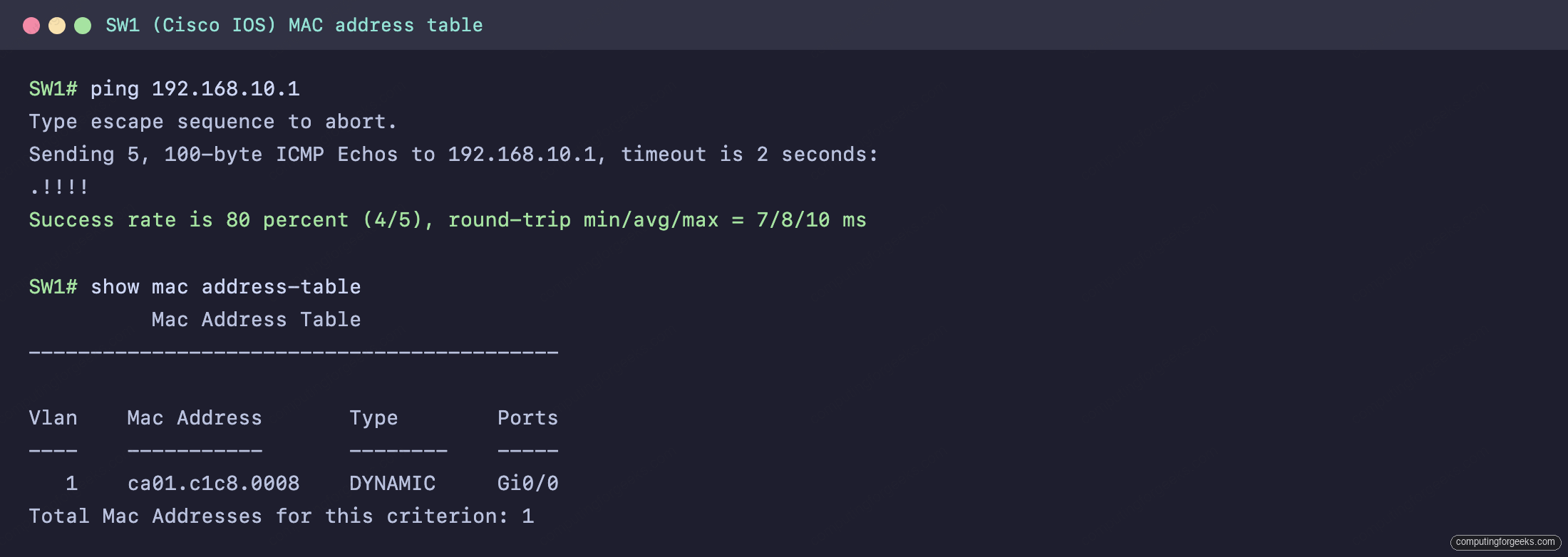
One dynamic entry, one MAC, one port, in VLAN 1. Notice what is not there: no routing table. This switch is a pure Layer 2 device, so it tracks MAC addresses and nothing about IP networks. That contrast, a routing table on the router and a MAC table on the switch, is the cleanest way to remember which device does which. If you want the addressing behind those tables, start with IPv4 addressing and then subnetting by network requirements.
Next-generation firewalls and IPS
A firewall sits at the boundary between networks and decides which traffic is allowed to pass. A traditional firewall makes that decision on packet headers: source and destination IP, port, protocol. A next-generation firewall (NGFW) adds deep packet inspection, an integrated intrusion prevention system, awareness of the actual application inside the traffic, and threat-intelligence feeds, so it can block on far more than just a port number. Cisco’s NGFW platform is Firepower.
Two terms get mixed up here. An intrusion detection system (IDS) watches traffic and raises an alert when it sees something suspicious, but it sits off to the side and does not stop the traffic. An intrusion prevention system (IPS) sits inline in the traffic path and actively blocks what it detects. Detect and warn versus detect and block: that is the whole difference.
| Device | What it inspects |
|---|---|
| Packet filter | IP addresses, ports, protocol (header only) |
| Stateful firewall | Headers plus the state of each connection |
| Next-generation firewall | All of the above plus application, content, and threat intelligence |
Access points: autonomous versus lightweight
An access point connects wireless clients to the wired network. Every AP transmits and receives 802.11 radio signals, but there are two very different ways to run one, and the difference is where the management logic lives.
An autonomous AP is self-contained. It runs its own configuration, manages its own wireless network, needs its own management IP, and usually a trunk link so it can map each wireless network to a VLAN. If you have ten autonomous APs, you configure ten APs. A lightweight AP (LAP) is the opposite. It handles only the real-time radio work: transmitting and receiving frames, and encrypting them. Everything else, client association, roaming, authentication, security policy, quality of service, is handled centrally by a wireless LAN controller. This division of labor is called split-MAC.
Two names you will see a lot: the SSID is the human-readable name of a wireless network (the one you pick from a list on your phone), while the BSSID is the radio MAC address of a specific AP serving that network. The wireless networking fundamentals behind those names, the radio bands, channels, and WPA security, are their own topic. One SSID can be served by many APs, each with its own BSSID.
| Autonomous AP | Lightweight AP | |
|---|---|---|
| Management logic | On the AP itself | On the WLC |
| Configuration | Each AP individually | Centrally, from the WLC |
| VLAN handling | Trunk link per AP | Tunneled to the WLC |
| If it loses its controller | Keeps running on its own | Depends on the WLC |
Wireless LAN controllers and CAPWAP
A wireless LAN controller (WLC) is the brain behind a fleet of lightweight APs. It centralizes RF management, AP firmware, client association and roaming, security policy, and QoS, so you manage the wireless network in one place instead of touching every AP. The controller and its APs talk to each other over a protocol called CAPWAP (Control and Provisioning of Wireless Access Points).
CAPWAP builds two tunnels between each AP and the controller. The control channel runs on UDP 5246 and is always protected with DTLS encryption. The data channel runs on UDP 5247 and can optionally be encrypted too. Because the traffic is tunneled, the AP and the WLC do not have to be on the same subnet, which is what lets you drop a lightweight AP anywhere in the building and have it find its controller. In the diagram above, that is the dashed line between the lightweight AP and the WLC.
Split-MAC is also what makes roaming smooth. When a client walks from one AP to another, the controller already holds that client’s state, so the handoff happens centrally instead of each AP having to figure it out alone.
Controllers and centralized management
A WLC is one kind of controller, but the broader idea shows up across modern networks: a central controller that programs and manages many devices at once, rather than configuring each box by hand. A network controller pushes configuration and policy out to the devices it manages, exposes REST APIs so the network can be automated, and gives you one place to see and change the whole fabric. Cisco’s current campus example is Catalyst Center. The takeaway for now is the pattern: the intelligence moves off the individual devices and into a controller, the same shift you just saw with lightweight APs and the WLC.
Endpoints and servers
Endpoints are the devices that generate and consume traffic: laptops, phones, tablets, IP cameras, and IoT gadgets. They sit at the edge of the network and have no forwarding role of their own. Servers are a specialized kind of endpoint that provide shared services to everyone else, things like DNS, DHCP, web, file storage, and authentication. They occupy the same conceptual spot as any other endpoint, but they are typically rack-mounted, always on, and parked in their own segment of the data center, as the server in the diagram sits on its own VLAN off the distribution switch.
Power over Ethernet (PoE)
Power over Ethernet lets a switch deliver electrical power to a device over the same cable that carries its data, so an IP phone, access point, or camera needs only one cable. The switch port supplying the power is the power sourcing equipment (PSE), and the device drawing it is the powered device (PD). The amount of power available depends on the standard the switch supports.
| Standard | Power at the PSE | Power at the PD | Year | Pairs used |
|---|---|---|---|---|
| 802.3af (PoE) | 15.4 W | 12.95 W | 2003 | 2 pairs |
| 802.3at (PoE+) | 30 W | 25.5 W | 2009 | 2 pairs |
| 802.3bt (PoE++) | up to 90 W | up to 71.3 W | 2018 | 4 pairs |
The IEEE standards are all active: the PSE detects and negotiates with the PD before it ever supplies power, and newer standards use LLDP to fine-tune the wattage. That negotiation is the safety net. Passive PoE, by contrast, is always on and will happily push power down the cable whether the far end can handle it or not, which is why it can damage a device that was not built for it. The standards are also backward compatible, so an older 802.3af phone plugged into a newer 802.3bt switch simply negotiates down to the power it needs.
How these devices fit together
Now walk the diagram from left to right. Traffic from the internet reaches the router, which forwards IP packets in and out of the network and acts as the gateway. Just inside the boundary, the next-generation firewall inspects that traffic and decides what is allowed through. Behind it, the distribution switch is a Layer 3 switch: it routes between the VLANs, including the server VLAN where shared services live. Below it, the access switch is a plain Layer 2 switch connecting endpoints in VLAN 10, switching their frames by MAC address.
The wireless side mirrors this. A lightweight access point puts clients on the air and tunnels their traffic over CAPWAP to the wireless LAN controller, which handles all the management while the AP just does radio. An autonomous AP, by contrast, would handle its own management and hang off the access switch on its own. Every device in that picture is doing one job, at one layer, with the logic either on the box or pulled into a controller, which is the lens to keep as you move into configuring them. How those pieces arrange into larger campus, data center, and WAN designs is the subject of network architectures. The next step is the base configuration every device needs, and the full path is laid out in the CCNA 200-301 study roadmap.
Practice the network devices
Flip through the cards to lock in what each device does, then take the quiz to check yourself on the details that are easy to mix up, like the CAPWAP ports and the PoE wattages.