Peppermint OS is what you reach for when an older laptop feels too slow for everything else, and you still want a tidy, modern desktop instead of a stripped-down shell. It boots fast, it stays out of your way, and it lets you add only the apps you actually use. This guide walks you through how to install Peppermint OS from start to finish: building the USB, running the graphical installer, and landing on a working Xfce desktop.
There are two builds to know about. The mainstream one is based on Debian stable. The newer one is based on Devuan and ships completely without systemd, which is unusual and genuinely useful if that matters to you. The install steps are almost identical, so we will follow the standard Debian build with screenshots and then cover the systemd-free option separately.
Ran through this end to end on the current Peppermint OS (Debian Trixie base, Xfce 4.20) in June 2026.
Pick the right Peppermint OS edition
Peppermint gives you a few downloads, and the names trip people up at first. The first choice is the base system. Both bases run the same Xfce desktop and look identical once installed. The only real difference is the init system underneath.
| Base | What it is | Choose it if |
|---|---|---|
| Debian (Trixie) | The standard build on Debian stable, using systemd like most Linux distributions. | You want the mainstream, best-supported Peppermint. This is the right pick for most people. |
| Devuan (Excalibur) | The same desktop with no systemd. The installer lets you choose SysVinit, OpenRC, or runit. | You specifically want a systemd-free system, or you like having a choice of init. |
Within each base you also pick a flavour. The Flagship is the standard Xfce image and the one this guide uses. Fully Loaded is the same desktop with extra applications and firmware baked in, which helps on machines with finicky Wi-Fi or graphics. Mini is a small network installer for people who want to build up from a minimal base. There is also a community GNOME Flashback build. All current images are 64-bit.
If you are weighing Peppermint against other light desktops, it sits in the same family as MX Linux and Linux Mint. Peppermint leans further toward “install almost nothing, add what you want,” which is exactly why it runs so well on modest hardware.
What you need before you start
Peppermint is light, so the bar is low. You can run it comfortably on hardware that struggles with mainstream desktops.
- A 64-bit PC. The published minimum is 1 GB of RAM and around 10 GB of disk, but 2 GB of RAM and a 20 GB SSD make for a far nicer day-to-day experience.
- A USB flash drive of 4 GB or larger. Writing the image erases it, so back up anything on it first.
- An internet connection during the install. The installer runs a final online update step, and a solid connection keeps it from timing out (more on that in troubleshooting).
- A backup of anything important on the target machine if you are not installing into a spare disk or a virtual machine.
Download the Peppermint OS ISO
Grab the image from the official Peppermint OS download page, which points to SourceForge and the OSSPlanet mirror. For the standard 64-bit Xfce build the file is named PeppermintOS-Debian-64.iso. The Devuan equivalent is PeppermintOS-devuan_64_xfce.iso. Each image ships with a SHA512 checksum next to it.
Verify the download before you write it. A half-finished or corrupted image is the most common reason an install fails for no obvious reason. On Linux or macOS, hash the file you downloaded:
sha512sum PeppermintOS-Debian-64.isoThe command prints a long hash followed by the filename:
c53e3afa583d620c331d148f96ab4f5dfee734882ce46353e86f003812de58a4e8b28ba0741eb12f2bf7902e0caf532ae7b93ef4de4f0b72c8b4fcc23cc8d0a5 PeppermintOS-Debian-64.isoCompare that value to the .sha512 file published next to the ISO. If they match, the download is good. If they differ even slightly, download it again before going any further.
Create a bootable USB drive
The easiest cross-platform way is balenaEtcher: pick the ISO, pick the USB, click Flash. On Windows, Rufus does the same job. If you keep several distros on one stick, Ventoy lets you copy the ISO straight onto a Ventoy drive and boot it without reflashing.
If you prefer the command line on Linux, first find the USB device so you write to the right disk. Plug it in, then list your disks:
lsblk -o NAME,SIZE,MODEL,MOUNTPOINTFind the entry whose size matches your stick (for example /dev/sdb, not a partition like /dev/sdb1). This is the part to get right, because the next command overwrites whatever disk you name. Write the image, replacing /dev/sdX with your actual device:
sudo dd if=PeppermintOS-Debian-64.iso of=/dev/sdX bs=4M status=progress oflag=syncWhen dd returns to the prompt, the stick is ready. Eject it cleanly so the write buffers flush.
Boot your PC from the USB drive
Leave the stick plugged in and restart the machine. As it powers on, tap the boot-menu key for your hardware. It is usually F12, F10, F9, or Esc on most laptops, and Del or F2 gets you into firmware settings if the boot menu key is hidden. Choose the USB drive from the list.
Two things trip people up here. If the USB does not appear, enter the firmware settings and turn Secure Boot off, then move USB to the top of the boot order. And if you are keeping Windows on the same machine, the firmware sometimes hides the USB until you disable “fast boot.” Once the stick boots, you land on the Peppermint boot menu. Leave the highlighted PeppermintOS Live entry selected and press Enter.
Try the live session first
Peppermint boots into a full live desktop before you commit to anything. This is the best moment to check that Wi-Fi, sound, and the touchpad all work on your hardware. A welcome window greets you with links to the documentation and a Suggested-packages tab.
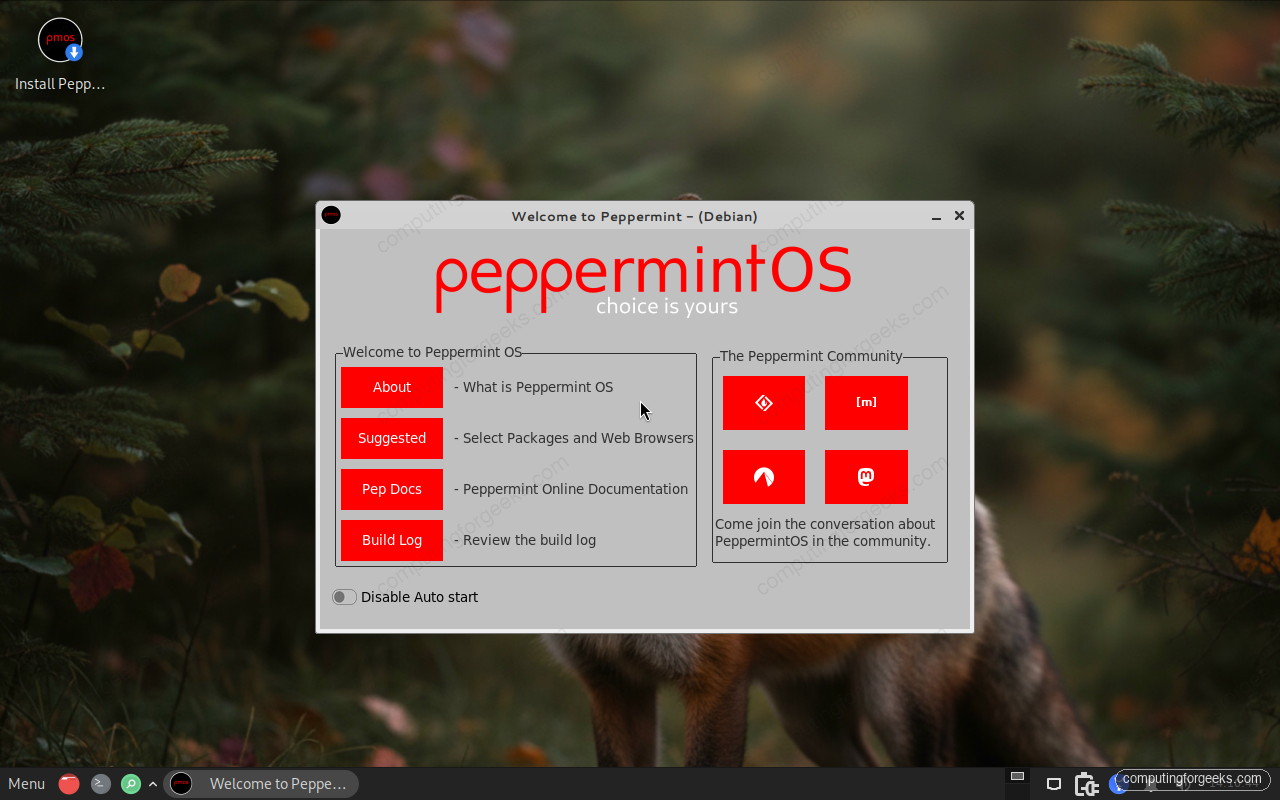
When you are happy that the basics work, double-click the Install Peppermint OS icon on the desktop to start the real installation.
Launch the Peppermint installer
Peppermint uses the Calamares installer, which is the same friendly wizard you will recognise from many Debian-based desktops. The recent builds moved it to a cleaner Qt 6 interface. The left rail shows every step you are about to go through, so you always know where you are.
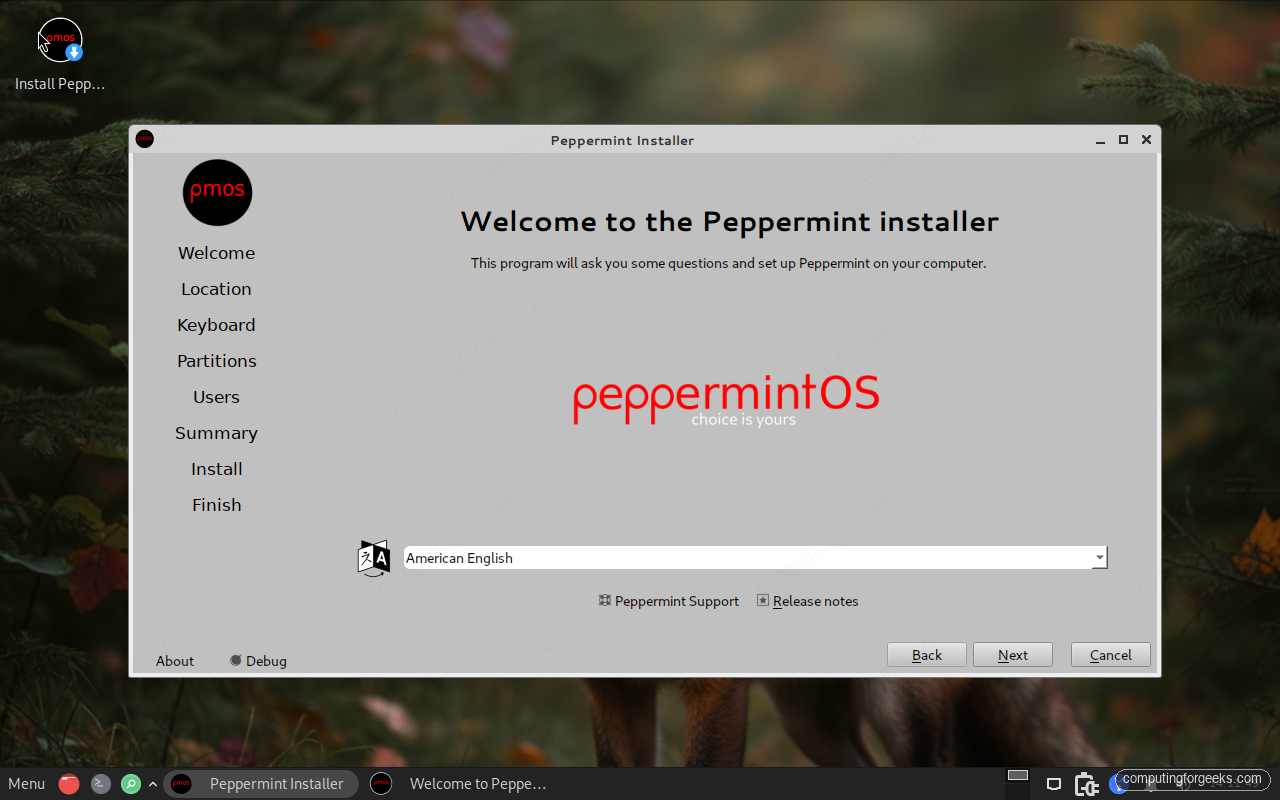
Pick your language from the dropdown and click Next.
Choose your location
Click your region on the map or set it from the Region and Zone dropdowns. This sets your time zone and the system locale in one move, so dates, times, and number formats match where you are.
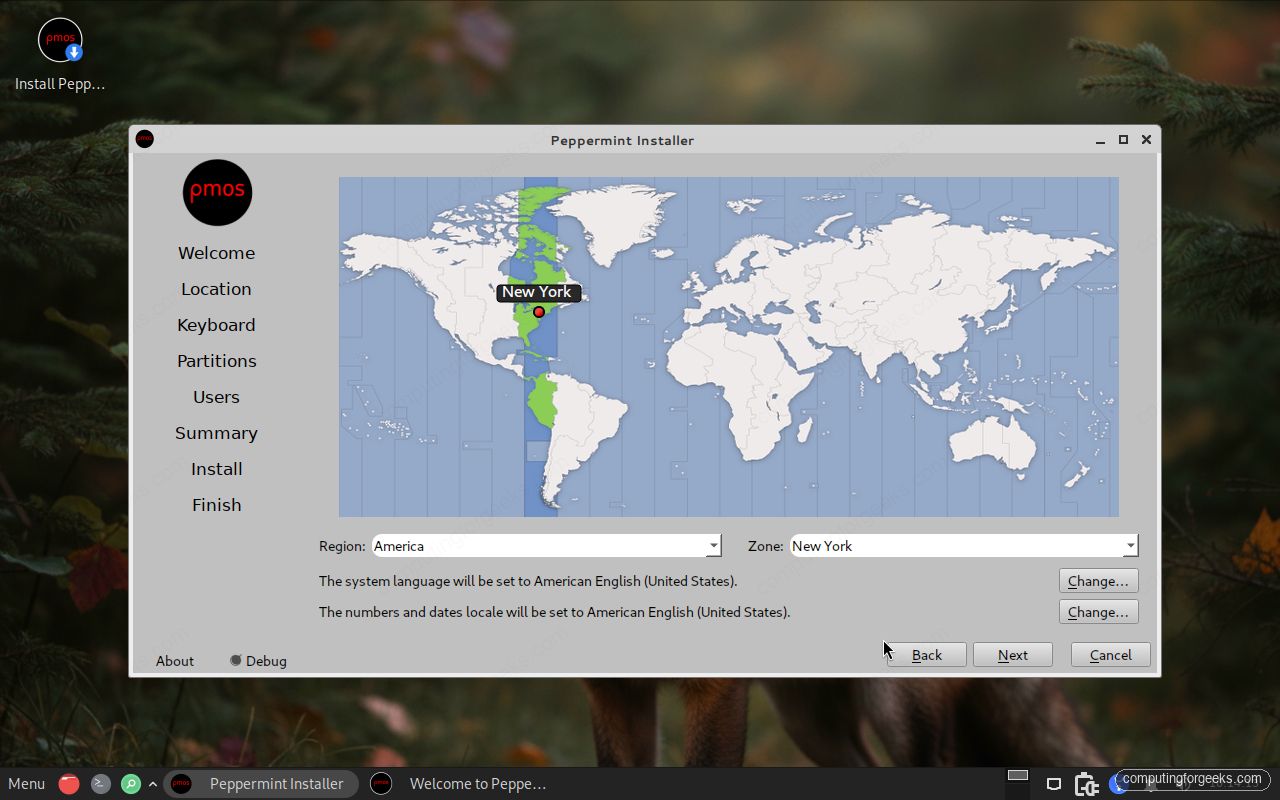
The language note under the map tells you exactly which locale will be applied. Adjust it with the Change buttons if you want a different language or number format, then continue.
Set your keyboard layout
Choose your keyboard model and layout. There is a small test box at the bottom of the screen. Type a few of the keys you actually use, like quotes, the at sign, and your currency symbol, to make sure the layout matches your physical keyboard.
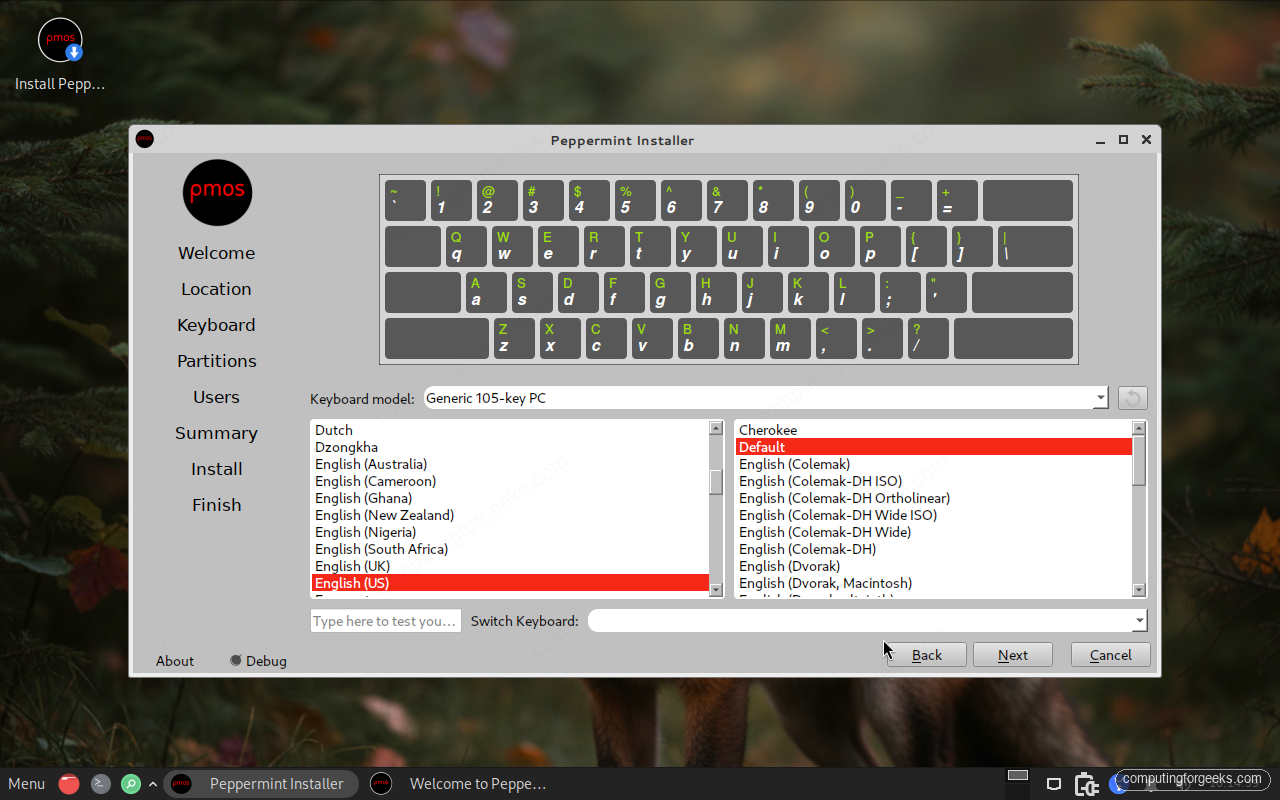
For most people the default that matches your language is correct. Click Next when the test box types what you expect.
Choose how to partition the disk
This is the step to slow down on, because it decides what happens to the disk. The installer offers two main paths.
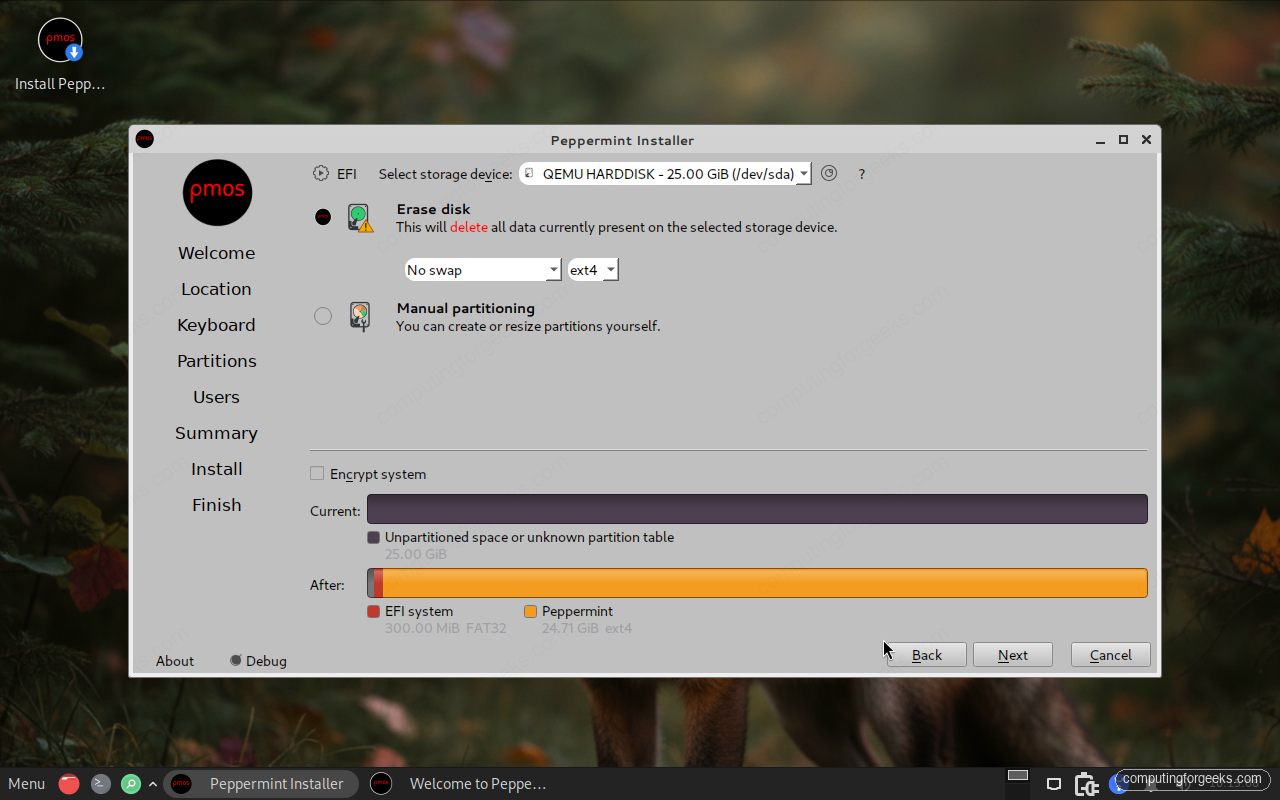
Erase disk wipes the selected drive and sets up everything automatically. That is what you want on a spare machine or a fresh virtual machine. Manual partitioning lets you create or resize partitions yourself, which is the route for dual booting alongside Windows or keeping an existing data partition. There is also an Encrypt system option if you want full-disk encryption, and a swap dropdown if you want a swap area for hibernation.
Next to the swap dropdown is the filesystem dropdown. Peppermint defaults to ext4, which is the safe, well-understood choice, and also offers btrfs, xfs, and f2fs if you have a reason to prefer one.
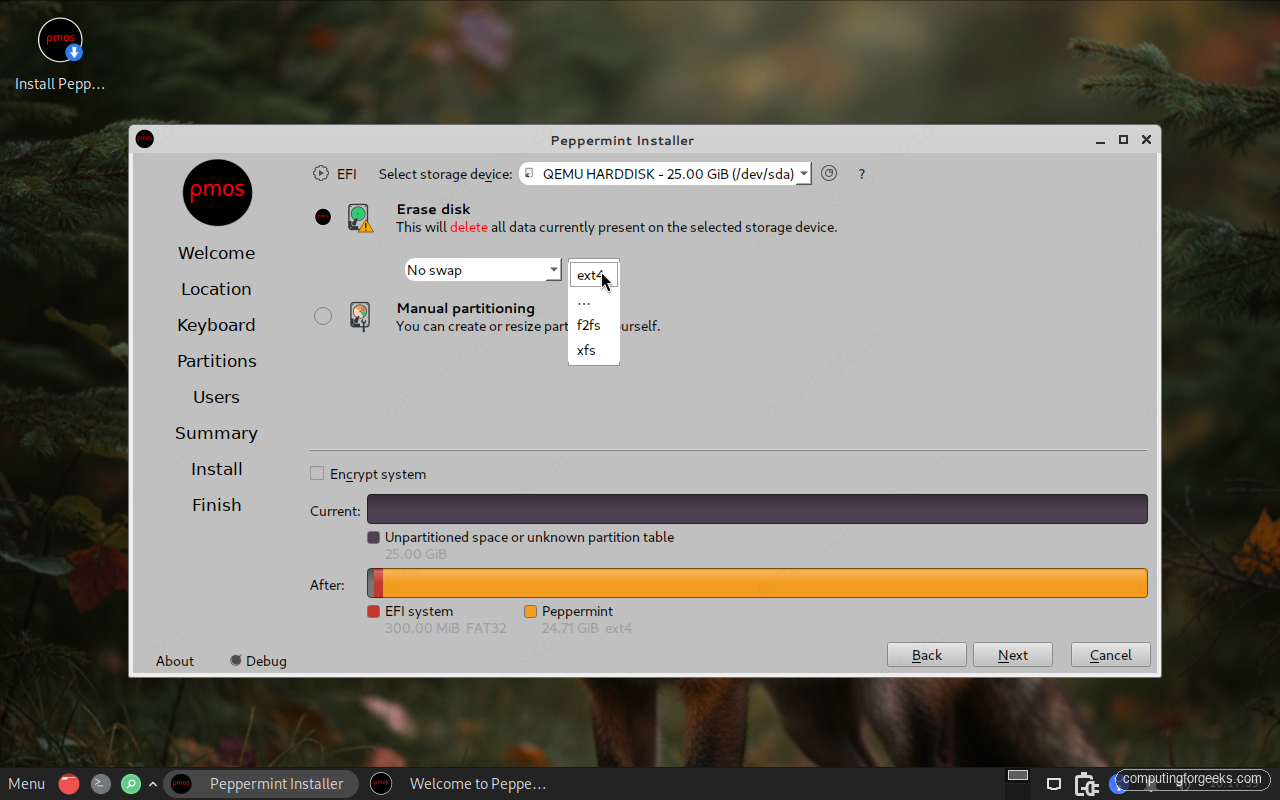
If you are not sure, leave it on ext4 and pick Erase disk. If you are keeping another operating system on the same drive, use Manual partitioning and point the installer at the free space you prepared. For a full walk-through of sharing a disk with Windows, our dual-boot guide covers the same partitioning ideas. Click Next once your layout looks right.
Create your user account
Fill in your name, the username you want to log in with, and a name for the computer. The installer fills in the login name and hostname for you as you type, so you only need to adjust them if you want something different.
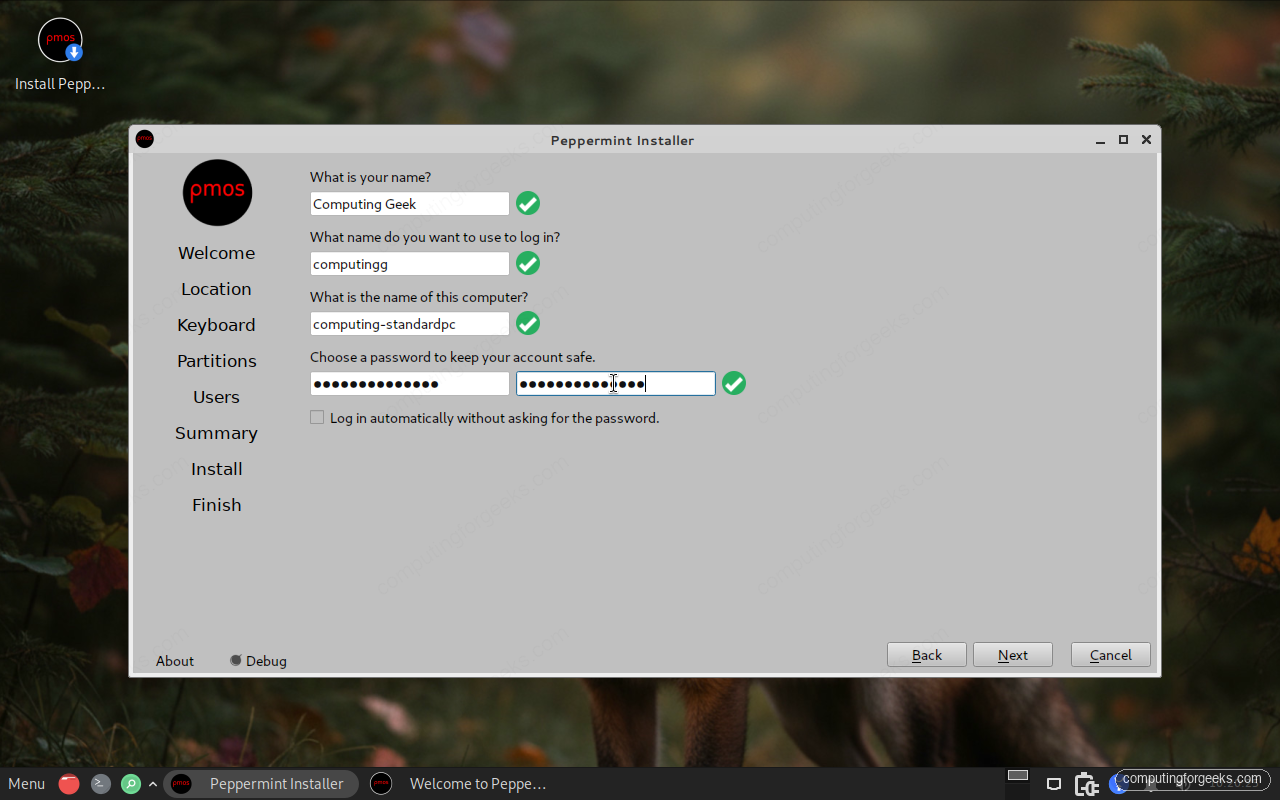
Set a strong password and type it again to confirm. A green check next to each field means you are good to go. You can tick “Log in automatically” for a personal machine, but leave it unchecked on anything you carry around. Click Next.
Review your choices and install
The summary screen lists everything the installer is about to do: the time zone, the keyboard, and exactly which partitions it will create or erase. This is your last chance to back out before anything is written, so read the partition section carefully.
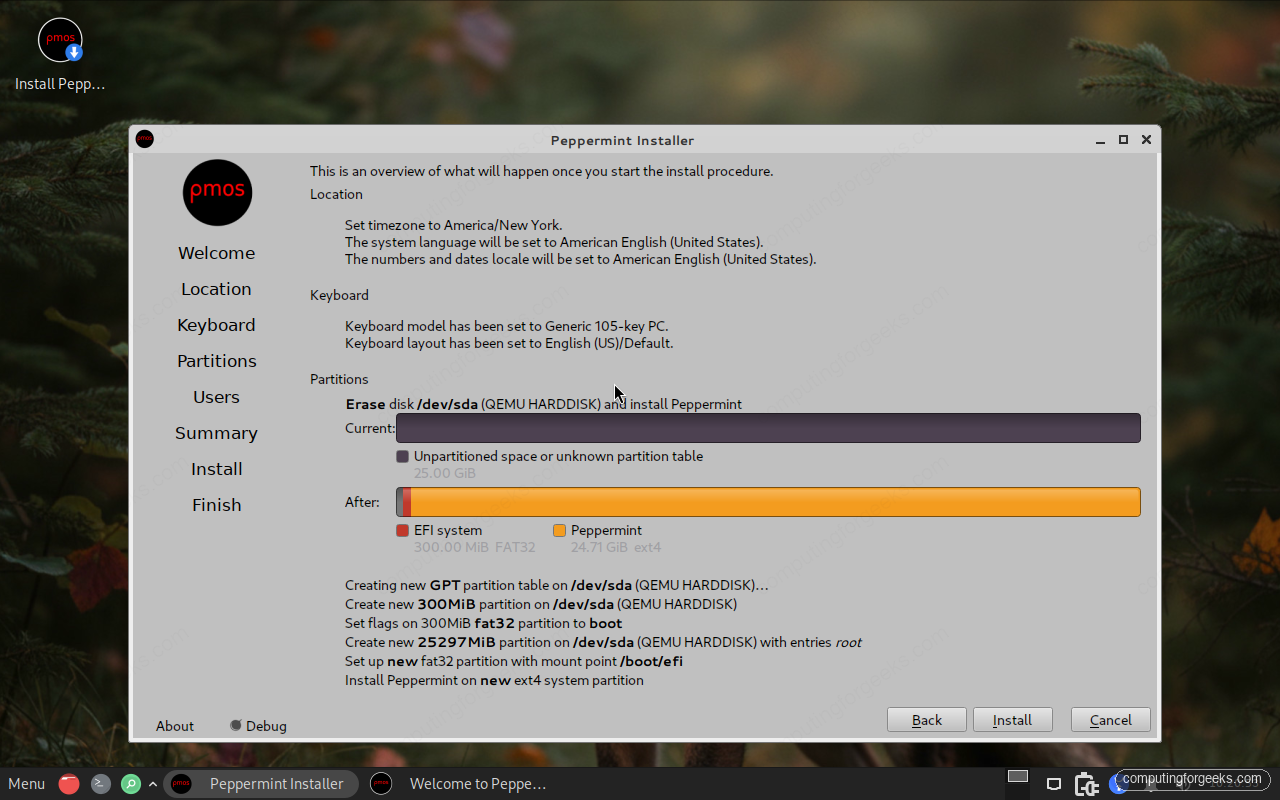
When it all looks right, click Install. Peppermint copies the system to disk, sets up the bootloader, and creates your account while a slideshow plays.
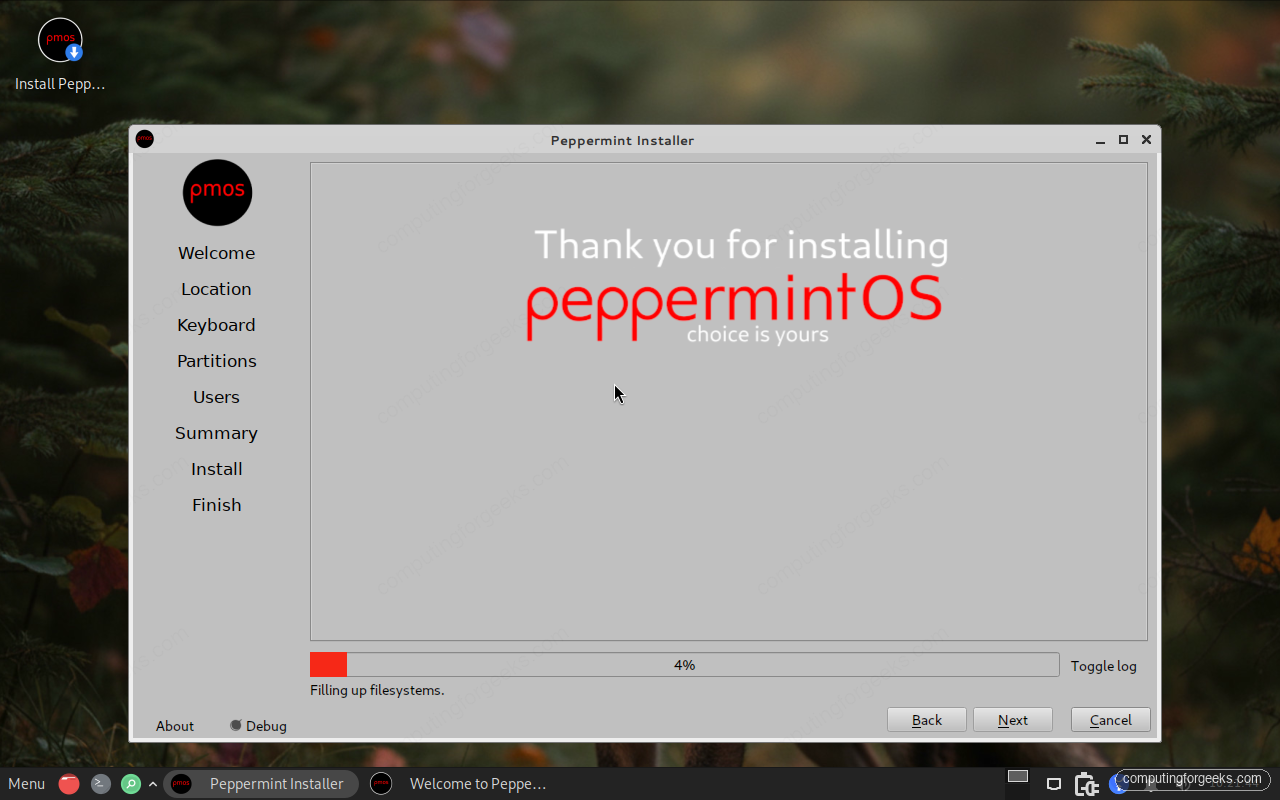
The copy itself is quick. The longest part is the final online update step, which pulls the latest packages over your connection. Give it a few minutes.
Reboot into your new system
When the installer says it is done, choose to restart. Pull the USB stick out when the screen goes black so the machine boots from its own disk instead of the installer again. After the boot menu, you reach the login screen with the username you created. Sign in, and the Xfce desktop loads.
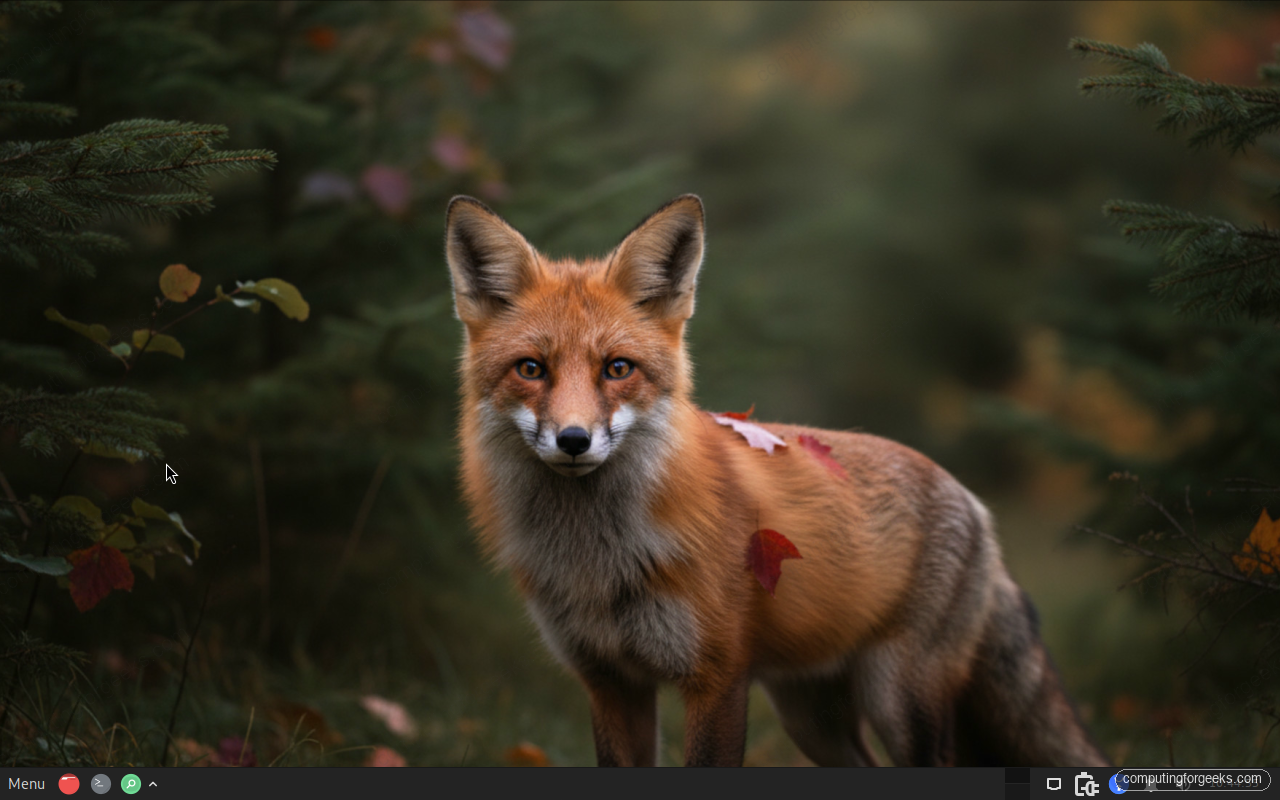
That panel at the bottom is your home base: the menu on the left, a terminal and file manager next to it, and the system tray on the right. The welcome window opens again on first login, and you can untick its auto-start box once you have looked around.
Confirm the install worked
Open a terminal from the panel and check what you are running. This is a nice habit on a fresh install, and it confirms the base, the kernel, and the desktop version in one place:
cat /etc/os-releaseThe output names Peppermint and the Debian codename it is built on, and a quick uname -rm and xfce4-session --version confirm the kernel and the Xfce release:
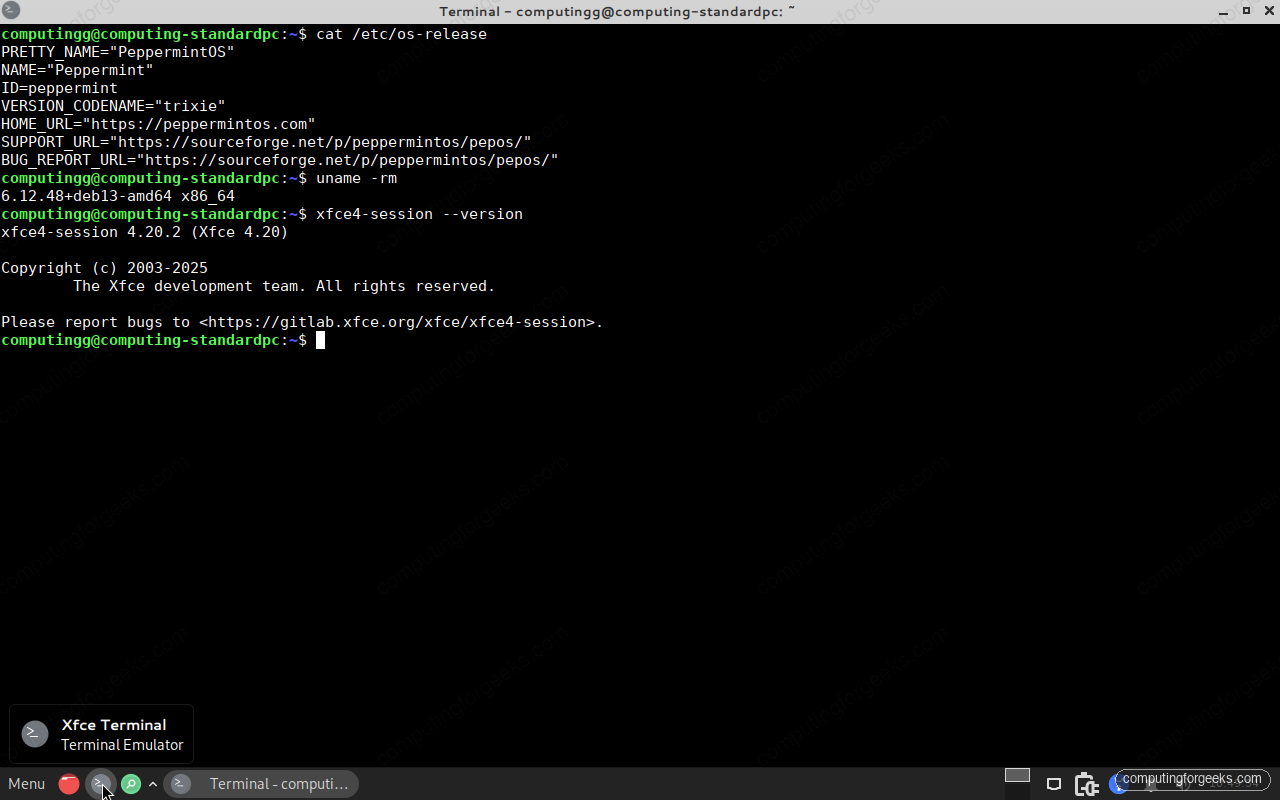
On this install that is Peppermint built on the Debian Trixie base, running the 6.12 LTS kernel and the Xfce 4.20 desktop. Your numbers will track whatever the current build ships.
Prefer no systemd? Use the Devuan edition
Here is the part that sets Peppermint apart from almost every other beginner-friendly desktop. The Devuan build, code-named Excalibur, is the same Xfce system with systemd removed entirely. It is built on Devuan, which itself is Debian Trixie minus systemd, and it carries the same kernel, the same package base, and PipeWire for audio.
The install is the same wizard you just followed, with one extra decision: the installer asks which init system you want. You get three options, and any of them works for a normal desktop.
- SysVinit is the traditional Unix-style init. It is simple and predictable, and it is the safe default if you are new to systemd-free systems.
- OpenRC is the init you may know from Alpine and Gentoo. It is dependency-aware and still very lightweight.
- runit uses small, simple service supervision and starts services in parallel, which can mean a quicker boot.
Download PeppermintOS-devuan_64_xfce.iso instead of the Debian image, write it the same way, and follow every step above. The only practical difference you will notice day to day is that there is no systemctl and a handful of apps that strictly require systemd are left out. If avoiding systemd is something you care about, this is one of the few polished desktops that gives you a real choice without making you build it yourself.
Fix the most common install problems
Most installs go cleanly, but a few snags show up often enough to plan for.
“Installation Failed: update-system failed to finish in 600 seconds”
This one looks scary and usually is not. The installer’s last step updates packages online, and on a slow or dropped connection it can blow past the 600-second limit and report a failure, even though the base system, bootloader, and your account are already on disk.
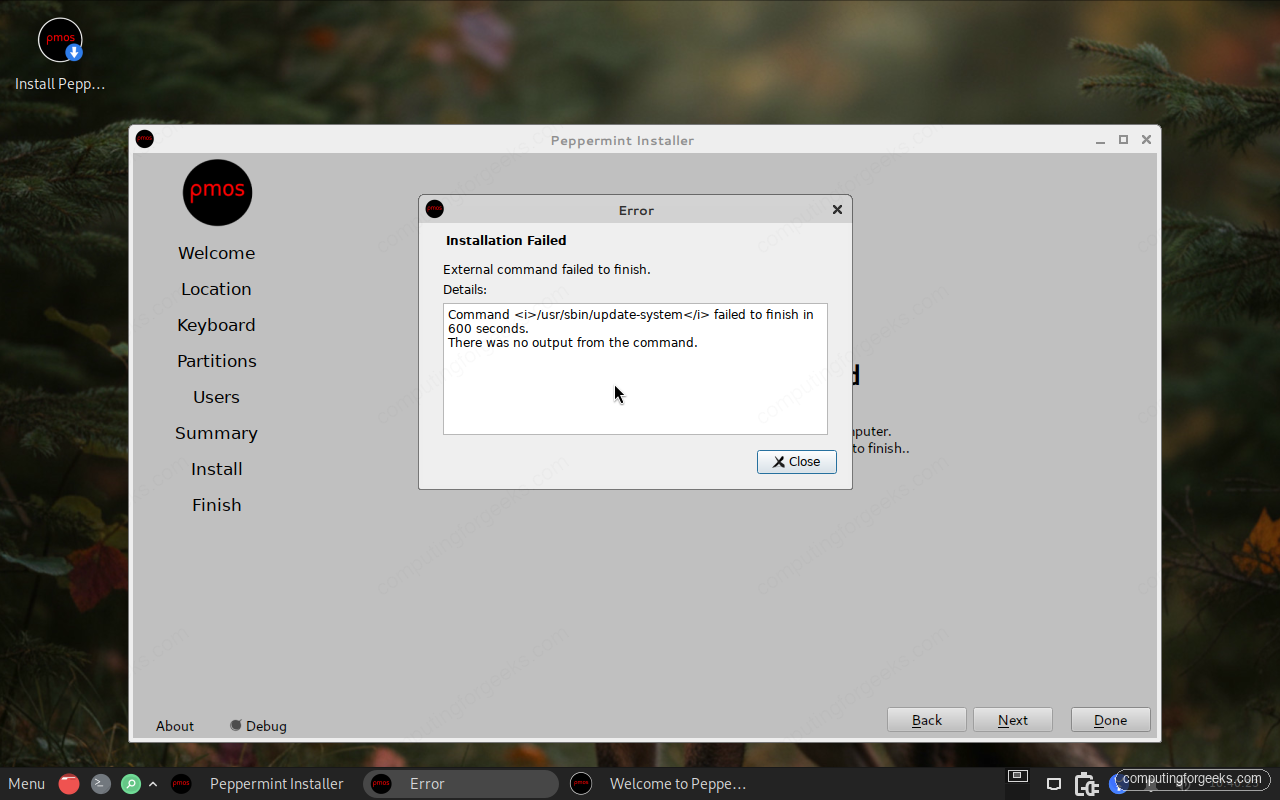
If you see it, reboot from the disk anyway. The system almost always boots straight to the login screen. Then finish the update yourself once you are logged in:
sudo apt update && sudo apt full-upgrade -yTo avoid the timeout in the first place, install over a wired connection or a strong Wi-Fi signal so that final step has room to finish.
Wi-Fi or graphics not working after install
Some laptops with Intel Wi-Fi or AMD integrated graphics need extra firmware that the slim Flagship image does not always carry. Connect by Ethernet for a moment and pull in the firmware packages:
sudo apt install firmware-linux firmware-iwlwifiIf apt cannot find those packages, enable the non-free-firmware component in your apt sources first, then run the command again. Reboot afterwards. If you already know your hardware is fussy, the Fully Loaded image bundles more firmware up front and saves you this step.
The PC will not boot from the USB
Go into the firmware settings, turn Secure Boot off, disable fast boot, and move the USB drive to the top of the boot order. If the stick still does not show, rewrite it with a different tool. balenaEtcher verifies the write, which rules out a bad flash.
A black screen instead of the live desktop
This is almost always a graphics driver clash. At the boot menu, highlight the live entry, press e to edit it, find the line starting with linux, and add nomodeset to the end of it. Press the key combination shown to boot. Once installed, updating the system usually sorts out the driver permanently.
First things to do after installing Peppermint OS
With the desktop up, a few minutes of setup makes Peppermint yours. Start by pulling in the latest updates so you are on the current packages:
sudo apt update && sudo apt full-upgrade -yThen open the welcome window’s Suggested tab. This is the heart of the Peppermint idea: instead of shipping a pile of software you will never touch, it lets you tick exactly the browser, media player, and office tools you want and pulls them in on demand. Add a browser like Firefox or Brave, the apps you use daily, and nothing else.
From there it is the usual settling-in: set your wallpaper and panel the way you like, connect your printer, and create your first backups. The same checklist we use to settle into a fresh lightweight install applies neatly here, and you now have a fast, tidy desktop that will keep an older machine useful for years.