By the end of this guide you’ll have Cine running on your Linux desktop and you’ll know your way around every panel it ships with. Cine is a young video player, started in early 2026, that wraps the mpv playback engine in a clean GTK4 interface. You get mpv’s decoding and format support without ever opening a config file or typing a command to play something.
The Cine video player is built with GTK4 and libadwaita, so it looks at home on GNOME and behaves well on any modern desktop. The interface stays out of the way: open a file, and the controls fade until you move the mouse. Underneath, it carries the parts people actually reach for, namely subtitle and audio track switching, brightness and contrast and zoom adjustments, playlists, chapters, and the ability to open a network URL straight into playback. We installed it from Flathub and ran it through all of that on a real desktop, and the steps below are what we did.
Ran through this with Cine 1.5.4 from Flathub on Linux Mint 22.3 in June 2026. The Flatpak is the same on every distro, so the steps hold whether you’re on Fedora, Ubuntu, or Arch.
What you need first
This is light. You need a Linux distribution with a desktop environment and Flatpak with the Flathub remote enabled. Most desktop distributions, including Linux Mint, ship Flatpak and Flathub already, and the install step below adds the remote if yours hasn’t. Set aside roughly 200 MB of free space, because the first install also pulls in the shared GNOME runtime that Cine builds on. After that, future apps reuse it.
You don’t need GNOME specifically. Cine is a libadwaita app, so it draws its own GNOME-style window on KDE, Cinnamon, XFCE, or anything else.
Install the Cine video player from Flathub
Flatpak is the way the project ships Cine, and it’s the path that works the same everywhere. The Flatpak ships with the codecs it needs through its runtime, so you don’t need to add anything like the extra codec repositories a native package install might ask for. Install it with one command:
flatpak install flathub io.github.diegopvlk.CineIf this is your first Flatpak app, it will also fetch the shared GNOME runtime and a couple of media extensions. That’s a one-time download. Confirm the prompts and let it finish, then check what landed:
flatpak info io.github.diegopvlk.CineThe version and the runtime it sits on print near the top:
Cine - Play your videos

          ID: io.github.diegopvlk.Cine
         Ref: app/io.github.diegopvlk.Cine/x86_64/stable
     Version: 1.5.4
     License: GPL-3.0-or-later
   Installed: 124.9 MB
     Runtime: org.gnome.Platform/x86_64/50
Launch it from your applications menu, or start it from a terminal:
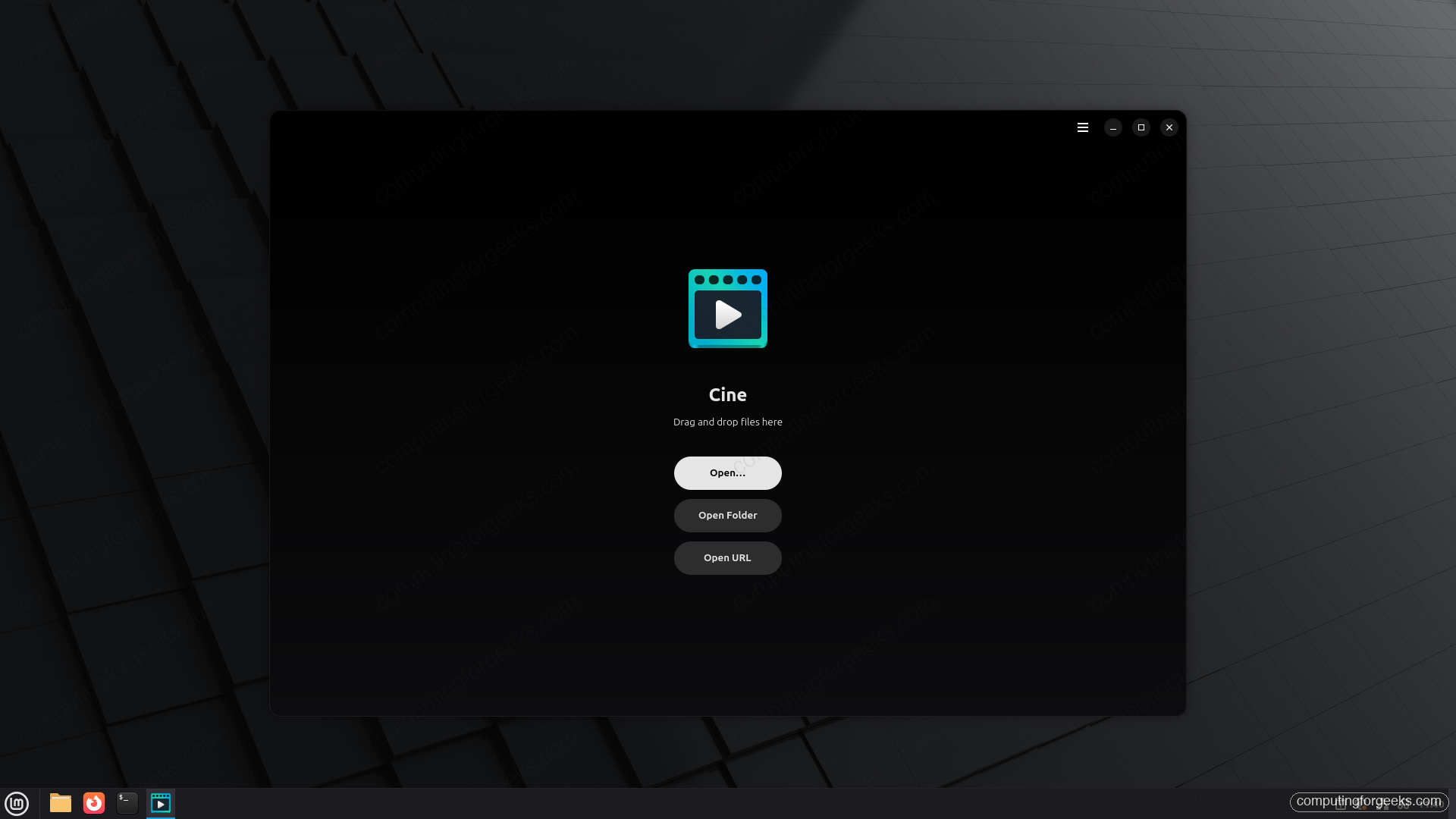
flatpak run io.github.diegopvlk.CineWith no file loaded, Cine shows its home screen: a drop target plus three buttons for Open, Open Folder, and Open URL. That last one is the bit people miss. You can paste a direct video link and let mpv stream it without downloading the file first.
That’s the install finished for most people, and you can skip ahead to playing your first video. The short section that follows is for anyone who would rather compile Cine themselves.
Build from source instead
If you’d rather build it yourself, Cine is a Python, GTK4, and libadwaita project that uses Meson and links against libmpv. The project’s own instructions are short: clone the repository, open it in GNOME Builder, and press Run, which handles the GNOME SDK and dependencies for you inside a build sandbox. For most people the Flatpak is the easier and better-supported route, so reach for a source build only if you want to hack on it.
Play your first video
Click Open, pick a file, and Cine starts playing. It reads the file’s own metadata, so the window title shows the real movie name rather than the filename. The control bar lives at the bottom and hides itself a few seconds after the pointer stops moving, which keeps the picture clean while you watch.
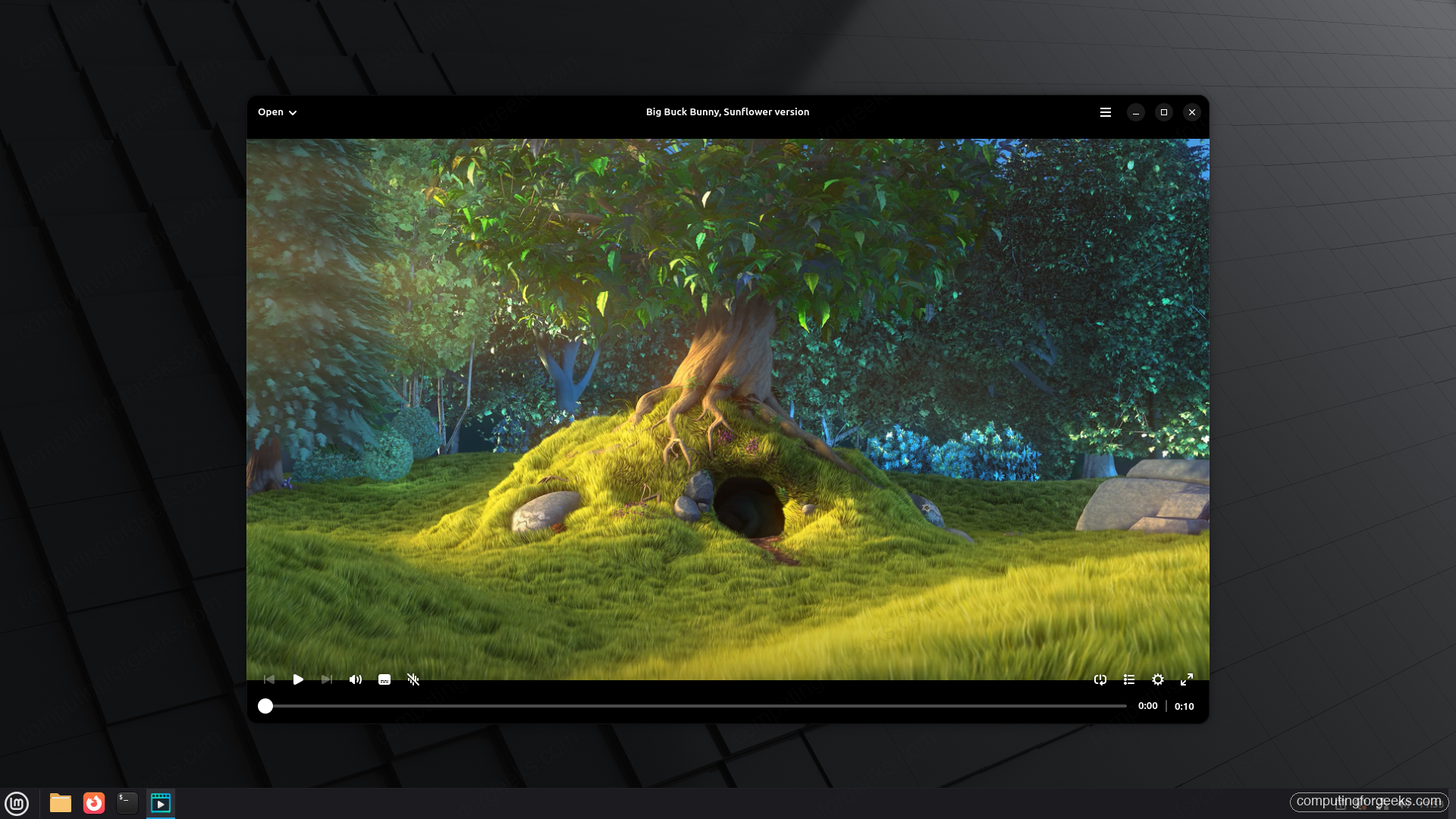
Along that bar you get the usual transport controls, a volume slider, the seek timeline, and on the right a few extras: a loop toggle, a playlist, the video options, and fullscreen. Drop a whole folder in with Open Folder and Cine builds a playlist from it, so you can move through an episode list without opening each file by hand.
Adjust the picture and audio
This is where the Cine video player goes past a basic “press play” app. The gear button on the control bar opens a side panel of live adjustments. You can change the aspect ratio and crop, rotate or flip the frame, zoom in, and tune brightness, contrast, gamma, and saturation. Two sliders next to those handle subtitle delay and audio delay, which is the fix when sound and lips drift apart. There’s a playback speed control here too, and a Reset All button to undo the lot in one click.
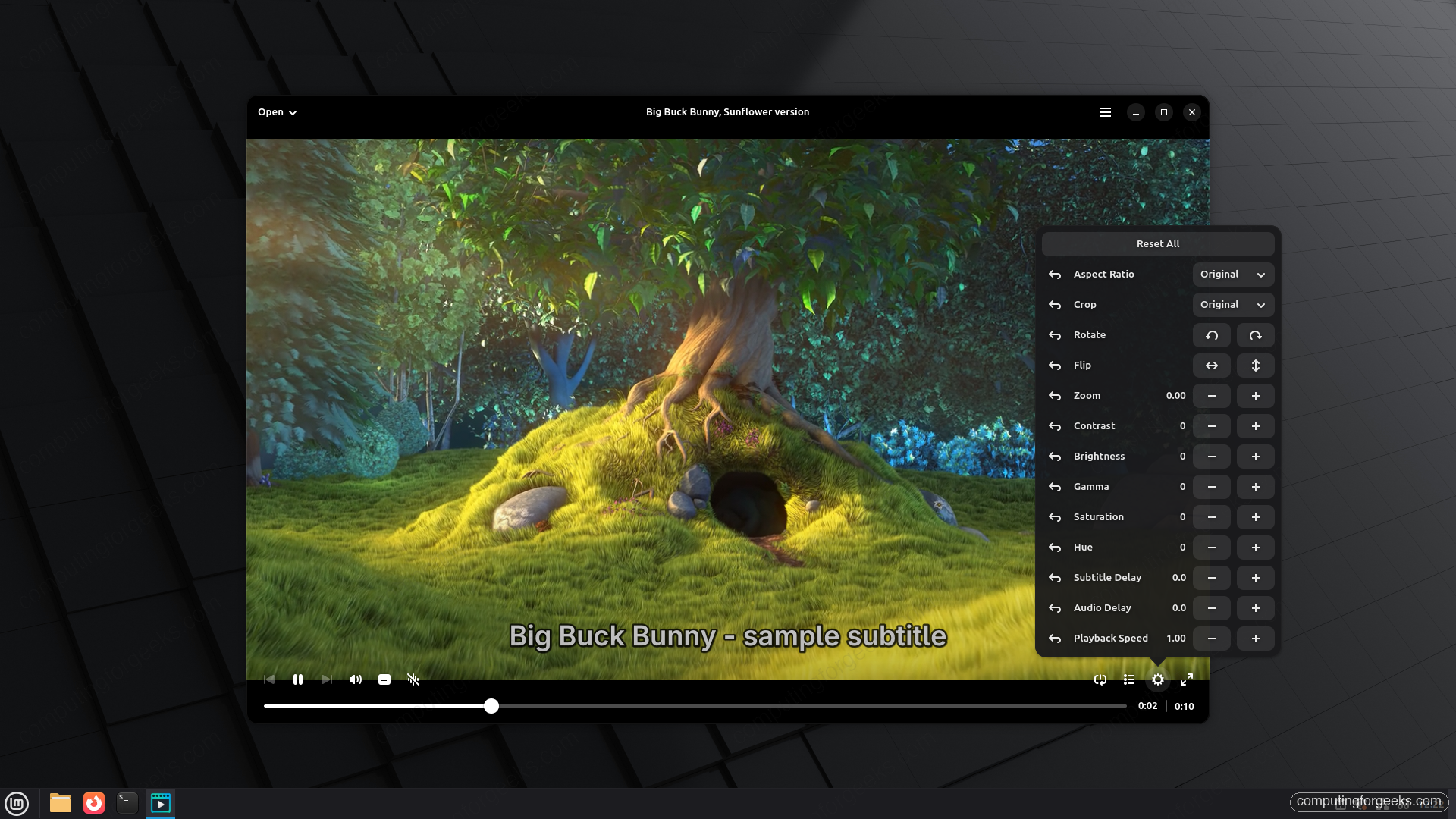
If you turn on Save Video Position on Close in Preferences, Cine remembers these adjustments along with where you stopped, so the next time you open that file it picks up exactly where you left off.
Switch subtitles and audio tracks
Cine picks up a sidecar subtitle file automatically. Drop a .srt next to the video with a matching name, and the track is loaded and ready. The subtitle button on the control bar opens a small list where you choose between None and any detected track, or load another one with Add Subtitle Track. The audio button next to it works the same way for audio streams, which matters for files that ship more than one language.
The look of the subtitles is yours to set. In Preferences you can change the subtitle color, font, scale, and background, so you’re not stuck with whatever the file defaults to. If you’ve used IINA on macOS, this part will feel familiar, because both lean on mpv for the same flexible subtitle handling.
Handy keyboard controls
You don’t have to reach for the mouse. Open the menu in the top-right corner and pick Keyboard Shortcuts to see the full list, grouped into General, Subtitles, Audio & Volume, Navigation, Display & Video, Playback, and Miscellaneous. There’s a search box at the top if you’re hunting for one in particular.
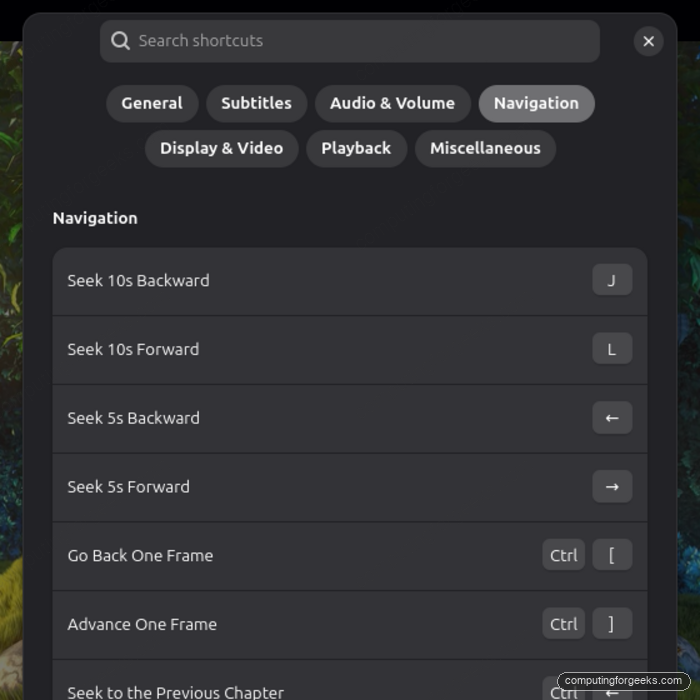
These are the ones you’ll use most. They follow mpv conventions, so they’ll feel natural if you’ve used mpv directly:
| Action | Keys |
|---|---|
| Play / pause | K, P, or Space |
| Seek 5 seconds back / forward | Left / Right |
| Seek 10 seconds back / forward | J / L |
| Step one frame back / forward | Ctrl+[ / Ctrl+] |
| Slow down / speed up playback | [ / ] |
| Reset playback speed | Backspace |
| Set or clear A-B loop points | Ctrl+L |
| Open a file | Ctrl+O |
Tune Cine in Preferences
Open the menu in the top-right and choose Preferences for the settings that change how Cine behaves day to day. A few are worth turning on right away.
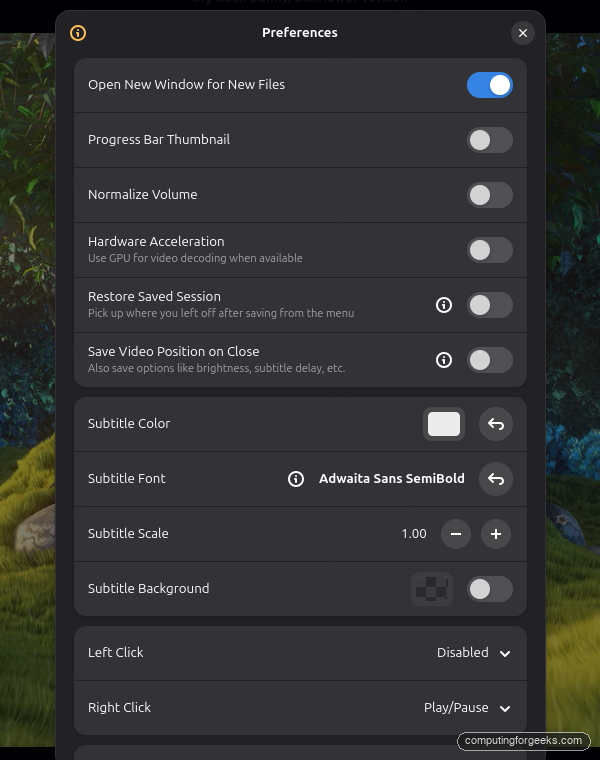
Hardware Acceleration tells mpv to use your GPU for decoding when it can, which is the setting you want on a laptop so playback doesn’t lean on the CPU and drain the battery. Normalize Volume evens out loud and quiet passages, handy for late-night viewing. Save Video Position on Close and Restore Saved Session together turn Cine into a “pick up where I left off” player across restarts. The two click-action dropdowns at the bottom let you decide what a left or right click on the video does, so you can map a single click to play/pause if that’s the habit you’re used to.
How Cine compares to Celluloid and VLC
Cine is not trying to be everything. It’s a focused player for watching local files and streams with a tidy interface, and on that ground it’s pleasant to use. Here’s where it sits next to the two players most people already have on hand.
| Cine | Celluloid | VLC | |
|---|---|---|---|
| Engine | mpv (libmpv) | mpv (libmpv) | VLC’s own |
| Toolkit | GTK4 / libadwaita | GTK / libadwaita | Qt |
| Best at | Clean local and URL playback | mpv config for power users | Anything, including odd formats and discs |
| Open a network URL | Yes | Yes | Yes |
| mpv .conf / scripts | No | Yes | Not applicable |
If you want a no-fuss player that looks good and handles the everyday stuff, Cine fits. If you live inside mpv’s config and scripts, Celluloid exposes more of that. And when you need to open a format nothing else will touch, keep VLC around as the catch-all. A player is also a different thing from a media center: if you’re after a library with artwork and a 10-foot interface, that’s where something like Kodi comes in. There’s room for all of them on a desktop, and Cine has earned its spot as the one we now open first for a quick watch.