

Kodi is the open-source media center that turns any Linux box into a home theatre frontend. It plays local files, network shares (SMB, NFS, WebDAV), online streams, and DVDs; pulls in album art and movie posters from the open metadata databases; and exposes a remote-control API that mobile apps and CEC-enabled TV remotes can drive. On Fedora, the RPM Fusion repository carries the latest Kodi release with all the codec backends and add-on infrastructure pre-wired.
This guide installs Kodi on Fedora 44, 43, and 42 via RPM Fusion, walks through the first-launch home screen with a screenshot, sets up the file source for your media library, adds the most-useful add-ons (YouTube, Tubed for ad-free, the metadata scrapers for movies and TV), enables remote control from a phone, and ends with the auto-start-on-boot path for dedicated HTPC use.
Prerequisites
A Fedora 44, 43, or 42 desktop or HTPC with sudo access. A GPU with OpenGL or OpenGL ES support: almost any Intel iGPU, AMD GPU, or NVIDIA card from the last decade works fine. Disk space for the install itself is around 200 MiB; your media library lives wherever you store it.
Step 1: Enable RPM Fusion
Kodi itself plus most of its codec backends live in the RPM Fusion repository (the community repo for content Fedora cannot ship directly). Add both the free and nonfree halves:
sudo dnf install -y \
  "https://download1.rpmfusion.org/free/fedora/rpmfusion-free-release-$(rpm -E %fedora).noarch.rpm" \
  "https://download1.rpmfusion.org/nonfree/fedora/rpmfusion-nonfree-release-$(rpm -E %fedora).noarch.rpm"
Confirm the four new repos are registered:
dnf repolist | grep -i rpmfusionFor a deeper look at RPM Fusion and the full multimedia stack on Fedora, see the RPM Fusion and multimedia codecs guide.
Step 2: Install Kodi
One dnf line pulls Kodi plus its core dependencies (the addon SDK, the binary add-ons, the AirPlay/DLNA support libraries):
sudo dnf install -y kodiThe transaction is around 16 packages on a fresh Fedora 44. Headline version:
Installing kodi-0:21.3-7.fc44.x86_64Step 3: Install the codec and PVR backends you need
The base Kodi package handles the common video and audio codecs (H.264, H.265, AAC, FLAC, MP3 via the bundled ffmpeg). For specialised use cases, install extra add-on packages from the same repos:
sudo dnf install -y \
  kodi-inputstream-adaptive \
  kodi-inputstream-rtmp \
  kodi-pvr-iptvsimple \
  kodi-pvr-hts \
  kodi-screensaver-greynetic
Pick what you actually use:
| Add-on package | What it covers |
|---|---|
kodi-inputstream-adaptive | HLS, DASH, Smooth Streaming (Netflix, YouTube, BBC iPlayer require this) |
kodi-inputstream-rtmp | RTMP streams (older Twitch-style sources) |
kodi-pvr-iptvsimple | IPTV via M3U playlists + EPG XMLTV |
kodi-pvr-hts | Tvheadend backend integration for DVB tuners |
kodi-pvr-vdr-vnsi | VDR backend for satellite/cable |
kodi-screensaver-greynetic | Optional screensaver effects |
kodi-visualization-spectrum | Music visualization |
Step 4: Verify the install
Confirm the Kodi version:
kodi --versionThe version banner names the release and the build provenance:
Kodi Media Center 21.3 (21.3.0) Git:20260223-nogitfound
Copyright (C) 2005-2025 Team Kodi - http://kodi.tv
Launch Kodi from the application menu (under Sound & Video, or sometimes Multimedia) or from a terminal:
kodi &Step 5: First launch and the home screen
On first launch, Kodi opens to the Estuary skin’s home screen. The left sidebar lists the main sections: Movies, TV shows, Music, Music videos, TV, Radio, Games, Add-ons, Pictures, Videos, Favourites. The centre tells you the library is empty and prompts you to add a file source:
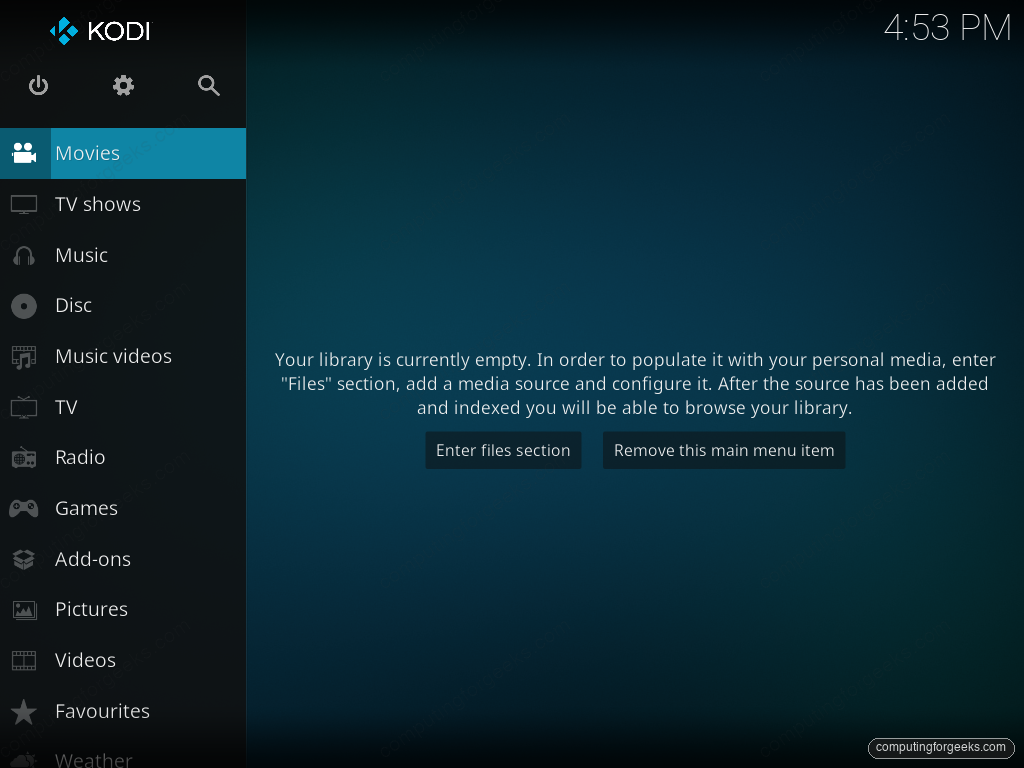
Click “Enter files section” or navigate to Videos > Files to start adding sources.
Step 6: Add a media source
Kodi mounts media from anywhere it can reach. For local files, navigate to Videos > Files > Add videos > Browse, then pick the directory. For network shares:
SMB (Samba/Windows share): Browse > Add network location > Protocol: Windows network (SMB). Enter the server name, share name, username, password.
NFS: Browse > Add network location > Protocol: Network File System (NFS). Enter the server name and export path. Kodi handles the NFS mount internally; no host-side mount needed.
HTTP/WebDAV: Browse > Add network location > Protocol: Web server directory (WebDAV). Useful for Nextcloud or any HTTP-served library.
After adding, Kodi asks what kind of content this source contains (Movies, TV shows, Music videos, None). Pick the right one so the metadata scraper kicks in with the appropriate format. For Movies, Kodi uses TheMovieDB (TMDB) by default; for TV shows, TheTVDB and TVmaze. Both are free and open.
Step 7: Install useful add-ons
Kodi’s strength is the add-on ecosystem. The official repository is the safe default; third-party repos exist but most are unmaintained or worse, malware. Stick to the official path.
From the home screen: Settings (the cog icon) > Add-ons > Install from repository > Kodi Add-on repository > Video add-ons. Useful starters:
| Add-on | What it does |
|---|---|
| YouTube | Watch YouTube inside Kodi without a browser. Needs a free API key for full features. |
| Twitch | Live streams and VODs from Twitch. |
| SoundCloud | Stream SoundCloud tracks and playlists. |
| Plex for Kodi | Use a Plex Media Server as a Kodi source. |
| Jellyfin for Kodi | Use a Jellyfin Media Server as a Kodi source (open-source Plex alternative). |
| Subliminal | Auto-download subtitles in the language you set. |
| Cinema Vision | Play movie trailers, intros, and outros around your main feature. |
Step 8: Enable remote control from a phone
Kodi exposes a JSON-RPC and HTTP control API. Enable it under Settings > Services > Control:
Turn on “Allow remote control via HTTP” (default port 8080), set a username and password, and turn on “Allow remote control from applications on this system” and “from other systems”. On the phone, install Kore (the official Team Kodi remote, free on Android and iOS) or Yatse (third-party, paid for full features). Both auto-discover Kodi on the LAN via Zeroconf and let you browse the library, control playback, and queue files from your phone.
If firewalld is active and the phone is on the same LAN, open the Kodi remote port:
sudo firewall-cmd --permanent --add-port=8080/tcp
sudo firewall-cmd --permanent --add-port=9090/tcp
sudo firewall-cmd --reload
Port 8080 is the HTTP control; 9090 is the WebSocket-based event channel that real-time remotes use for live status updates.
Step 9: Auto-start Kodi on boot (dedicated HTPC)
For an HTPC where the box exists only to run Kodi, boot straight into Kodi instead of GNOME. Create a systemd service that owns the framebuffer:
sudo vi /etc/systemd/system/kodi.serviceAdd the following unit:
[Unit]
Description=Kodi standalone
After=systemd-user-sessions.service network.target sound.target

[Service]
User=kodi
Group=kodi
Type=simple
PAMName=login
ExecStart=/usr/bin/kodi-standalone
Restart=on-abort
RestartSec=5

[Install]
WantedBy=multi-user.target
Create the kodi user and enable the service:
sudo useradd -m -G video,audio,input -s /bin/bash kodi
sudo systemctl enable --now kodi.service
The box now boots straight into Kodi on the TV. To go back to a regular desktop, sudo systemctl disable --now kodi.service.
Step 10: Keep Kodi updated
Kodi updates follow the RPM Fusion rebuild cycle. When upstream Team Kodi ships a new release, RPM Fusion’s packagers usually have it on the mirror within a few days. Updates ride along with normal system upgrades:
sudo dnf upgrade -y kodi 'kodi-*'Alternative: Kodi via Flatpak
Team Kodi publishes the official Kodi build on Flathub. The Flatpak ships its own codec set and runtime, so no RPM Fusion needed:
flatpak install -y flathub tv.kodi.KodiIf you have not configured Flathub yet, the Flatpak on Fedora guide walks through the one-time setup. The Flatpak runs sandboxed, which means file dialogs go through the portal system (one extra click to grant access to a directory the first time). For an HTPC where Kodi is everything, the RPM is the more direct option; for a desktop where Kodi is one of many apps, the Flatpak is cleaner.
Uninstall Kodi
sudo dnf remove -y kodi 'kodi-*'
rm -rf ~/.kodi ~/.cache/kodi
The last line wipes the user profile (library database, settings, installed add-ons). Skip it if you plan to reinstall and want to keep your library indexed.
Troubleshooting
Kodi launches but the window is black
Almost always an OpenGL acceleration mismatch. Force software rendering as a diagnostic:
LIBGL_ALWAYS_SOFTWARE=1 kodiIf Kodi renders, the GPU driver is the issue. On NVIDIA, install the proprietary driver from RPM Fusion. On Intel/AMD with Mesa, update mesa via dnf and reboot.
Streams play with no audio
The audio output module disagrees with your PipeWire or PulseAudio config. Settings > System > Audio > Audio output device. Try the PulseAudio output explicitly. For HDMI-attached TV audio, pick the HDMI sink.
Add-on install fails with “Failed to install dependency”
Usually a transient mirror issue. Update the add-on repository: Add-ons > cog icon > Check for updates. If the error persists, the specific dependency may have a Python 3 version mismatch (Kodi 21 uses Python 3.11). Stick to add-ons that mark themselves as compatible with Kodi 21 in the description.
Remote control from phone fails to connect
Check three things in order: (1) the HTTP control is actually enabled in Settings > Services > Control, (2) the phone is on the same LAN segment as the Kodi box, (3) firewalld is allowing 8080 and 9090. Test from the Kodi host: curl -u "USER:PASS" http://localhost:8080/jsonrpc -d '{"jsonrpc":"2.0","method":"JSONRPC.Ping","id":1}' should return a Pong.
Useful Kodi paths and shortcuts
| Path or shortcut | What it does |
|---|---|
~/.kodi/userdata/ | All user settings, library DB, add-ons |
~/.kodi/userdata/Database/ | SQLite library database |
~/.kodi/temp/kodi.log | Debug log (Settings > System > Logging > Enable debug logging) |
Space | Play / pause |
F | Fast forward |
R | Rewind |
X | Stop playback |
Tab | Toggle fullscreen |
S | Open subtitle search |
M | Open the on-screen menu during playback |
I | Show info about the current file |
0-9 | Jump to that 10% of the file |
For the full media stack on Fedora, pair Kodi with VLC for ad-hoc playback outside the library and the RPM Fusion codecs guide for the system-wide multimedia stack that other apps (Firefox, Chrome) also use. For browsing the web alongside Kodi when not in HTPC mode, install Brave or Google Chrome.

The second Google result
fosslinux.com/708/how-to-install-kodi-media-center-on-fedora-24.htm
appears to have done a bad copy and paste of this article.
Thank you very much.
Welcome!