Claude Code is sharp on its own. Point it at MCP servers and it can read your database, drive a browser, open GitHub issues, and pull current library docs without you pasting anything into the prompt. The model gains tools, and it uses them on its own.
This is a complete Claude Code MCP setup. You will add a local stdio server, add a remote HTTP server, share both with your team through a committable .mcp.json, pass tokens safely, actually use the tools once they connect, and fix the gotchas that send people to the forums. Every command here was run on a real machine, output included.
Ran every command here on Claude Code 2.1.177 (macOS and Ubuntu 24.04) in June 2026; it works end to end.
What you need
Three things, and you almost certainly have the first two:
- A working Claude Code install. If you are starting fresh, install Claude Code first.
- Node.js, because most servers launch through
npx. - A terminal sitting in the project you want to wire up.
Confirm the CLI is current before you start:
claude --versionYou want a recent 2.1.x line, since the MCP commands below changed shape over the 2.0 era:
2.1.177 (Claude Code)Current and working. Here is how the connection actually happens.
How MCP servers connect
An MCP server is a small program that exposes tools and data to the model over the Model Context Protocol. Two kinds matter in practice. A stdio server runs as a local process Claude launches itself. An HTTP server is hosted somewhere and you connect to it by URL. You add both with claude mcp add, and the only real difference is the transport.
Add a local server
Start with a filesystem server so Claude can read and write inside one directory you pick. This is stdio, the default transport, so no transport flag is needed:
claude mcp add --scope project filesystem -- npx -y @modelcontextprotocol/server-filesystem ~/projectsThe -- matters. Everything after it is the command Claude runs to start the server, kept separate from Claude’s own flags. The confirmation tells you what was registered and which file changed:
Added stdio MCP server filesystem with command: npx -y @modelcontextprotocol/server-filesystem ~/projects to project config
File modified: /home/jmutai/projects/.mcp.json
That is a working server. The next one lives on someone else’s box.
Add a remote server over HTTP
Many of the best servers are hosted, so you connect by URL and set the transport to http. Sentry is a clean example because the URL is public:
claude mcp add --scope project --transport http sentry https://mcp.sentry.dev/mcpSame confirmation pattern, this time recording an HTTP server:
Added HTTP MCP server sentry with URL: https://mcp.sentry.dev/mcp to project config
File modified: /home/jmutai/projects/.mcp.json
Three transports exist: stdio (the default), http for hosted servers, and sse. The http transport is the current Streamable HTTP standard, and the type field accepts streamable-http as an alias, so a config block you copy straight from a vendor’s docs works without edits. SSE still parses but it is deprecated, so reach for http on anything new.
Choose the right scope
Scope decides who sees the server and which file holds it. There are three, and the default trips people up.
| Scope | Stored in | Who gets it |
|---|---|---|
local (default) | ~/.claude.json | Just you, just this project |
user | ~/.claude.json | Just you, every project |
project | .mcp.json in the repo | Anyone who clones the repo |
Here is the catch. A plain claude mcp add with no scope writes to local, which lands in ~/.claude.json, not in a .mcp.json file. If you expected a committable config and got nothing in your repo, that is why. Pass --scope project (or -s project) whenever you want the server shared. Both adds above used it, so the repo now carries this:
{
  "mcpServers": {
    "filesystem": {
      "type": "stdio",
      "command": "npx",
      "args": ["-y", "@modelcontextprotocol/server-filesystem", "~/projects"],
      "env": {}
    },
    "sentry": {
      "type": "http",
      "url": "https://mcp.sentry.dev/mcp"
    }
  }
}
When the same server name exists in more than one scope, precedence runs local over project over user. So a personal local override beats the shared repo copy, which is handy when you want to point one server at a different endpoint without editing the committed file. The screenshot below shows both adds and the file they produced:
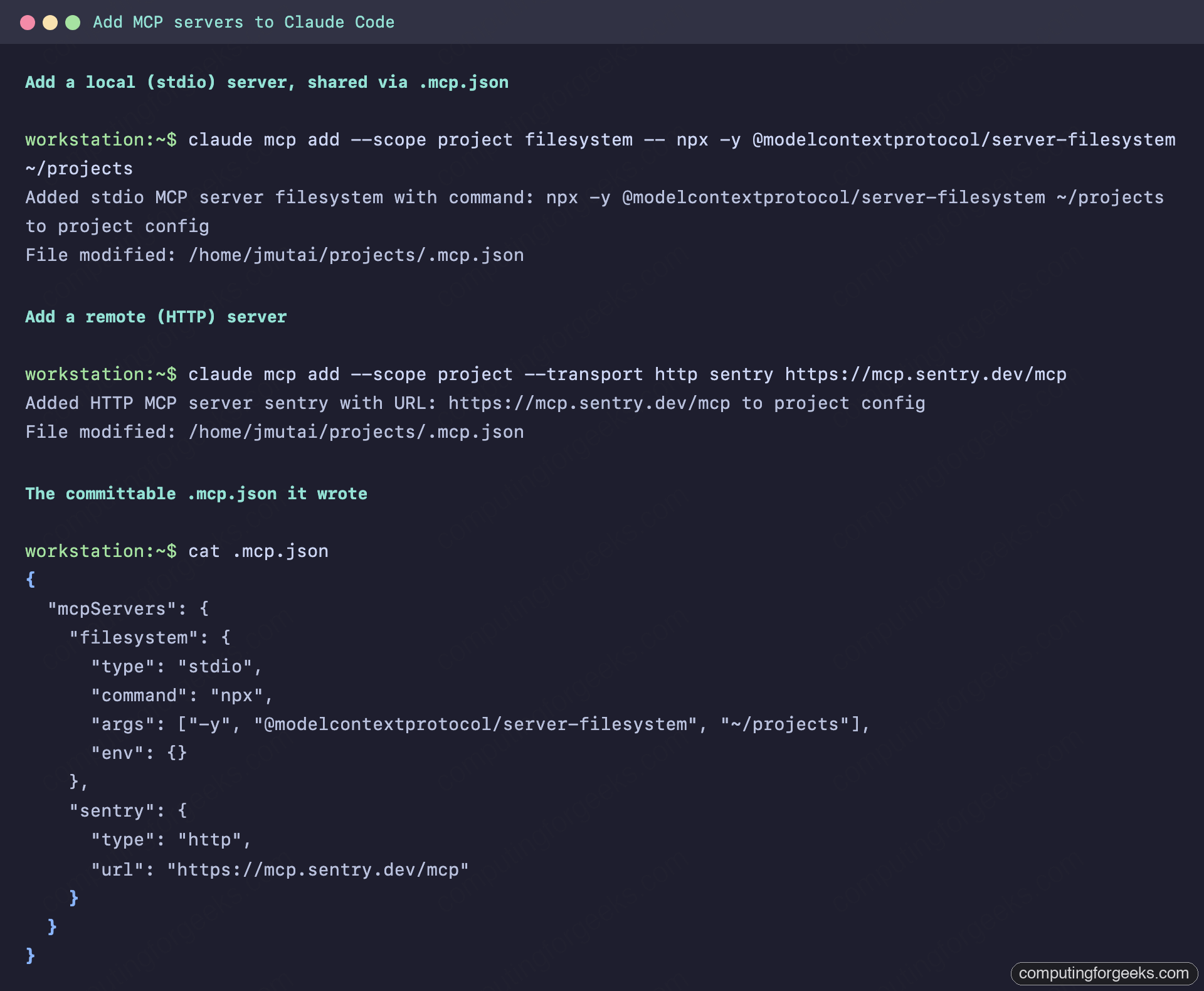
Commit that .mcp.json and every teammate gets the same servers, sitting right next to the rest of your project Claude Code config. There is one safety gate worth knowing: the first time anyone uses a project-scoped server they are prompted to approve it, and until they do it shows as pending approval and stays disconnected. That stops a malicious repo from running a server on your machine the moment you clone it. If you approve by accident or want the prompt back, reset the choices:
claude mcp reset-project-choicesWith the wiring understood, the next part is credentials.
Pass tokens and environment variables
Real servers need secrets: a GitHub token, a database URL, an API key. Two flags carry them, -e for environment variables and -H (or --header) for HTTP headers. Both are variadic, meaning they swallow every value that follows. So they must come after the name and URL, never before.
Put a flag like --header ahead of the name and the parser eats the name, leaving you with error: missing required argument 'name'. The order that works for a token-protected HTTP server:
claude mcp add --scope project --transport http github https://api.githubcopilot.com/mcp/ --header "Authorization: Bearer YOUR_GITHUB_PAT"Name and URL first, header last. The confirmation redacts the secret so it never lands in your scrollback, and it trims the trailing slash from the echoed URL even though the stored .mcp.json keeps it:
Added HTTP MCP server github with URL: https://api.githubcopilot.com/mcp
Headers: {
  "Authorization": "[REDACTED]"
}
For a stdio server that reads its config from the environment, the same rule holds. The -e pairs go after the name, before the --:
claude mcp add postgres -e DATABASE_URL=postgresql://localhost/mydb -- npx -y @modelcontextprotocol/server-postgresHardcoding secrets into a shared .mcp.json is a bad idea, so the config supports expansion. Reference an environment variable with ${VAR}, and fall back to a default with ${VAR:-default}. Expansion works in command, args, env, url, and headers:
{
  "mcpServers": {
    "github": {
      "type": "http",
      "url": "https://api.githubcopilot.com/mcp/",
      "headers": { "Authorization": "Bearer ${GITHUB_PAT}" }
    }
  }
}
Now the repo carries the shape and each developer supplies their own GITHUB_PAT.
Check and manage your servers
One command lists everything across all scopes and health-checks each one as it goes:
claude mcp listConnected servers show a check, ones still waiting on sign-in say so plainly:
Checking MCP server health...

github: https://api.githubcopilot.com/mcp/ (HTTP) - ✓ Connected
playwright: npx -y @playwright/mcp - ✓ Connected
filesystem: npx -y @modelcontextprotocol/server-filesystem ~/projects - ✓ Connected
sentry: https://mcp.sentry.dev/mcp (HTTP) - ! Needs authentication
For one server’s details, including its scope and status, use get:
claude mcp get sentryThat same status view appears when you run the list command, shown here against a live set of servers:
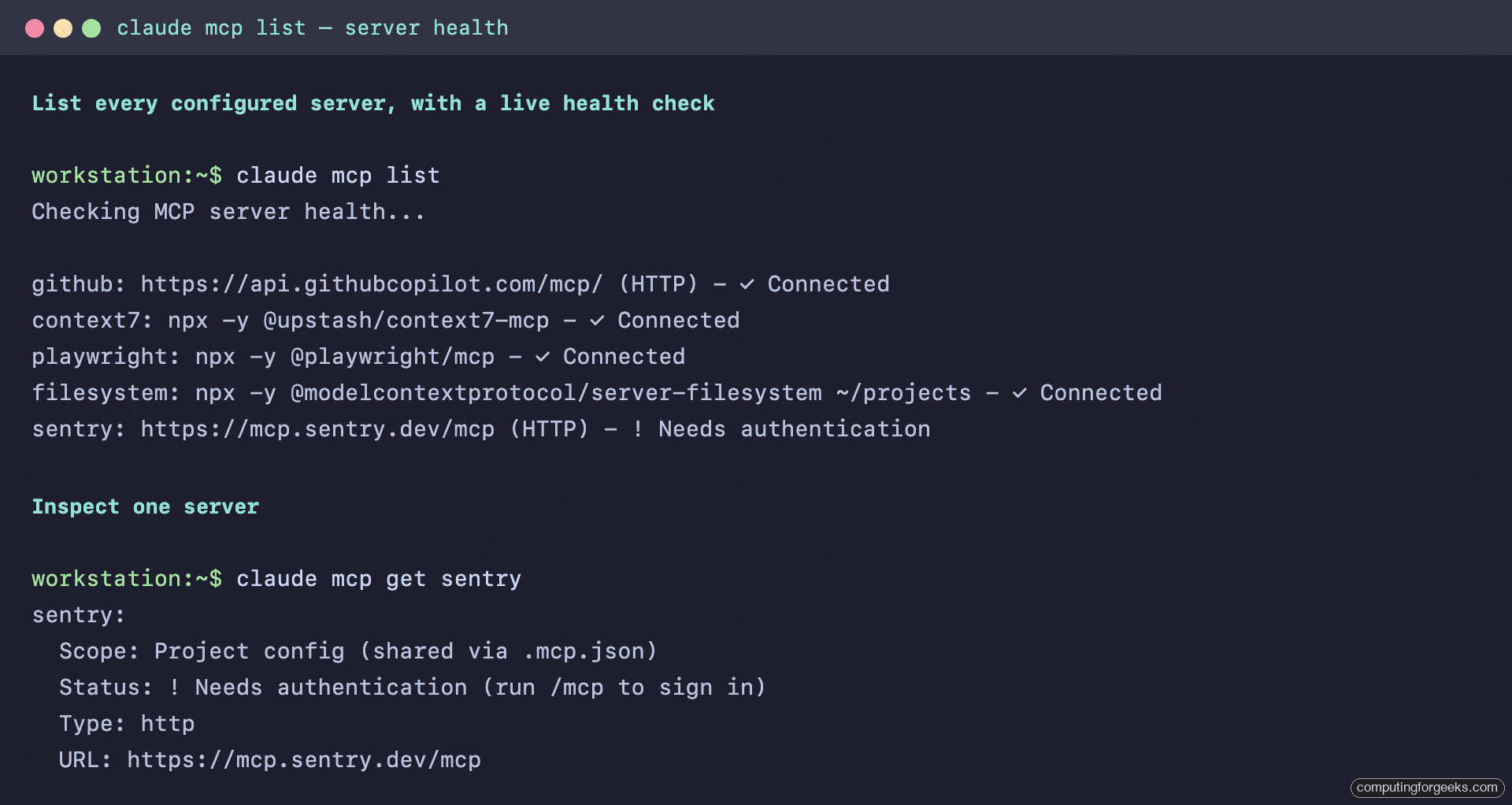
A server that says it needs authentication is waiting on you. Open the panel from inside a session:
/mcpThe panel lists every server, the tools each one exposes, and an Authenticate option for the ones that need it. Pick the server, sign in through the browser window it opens, and Claude reconnects on its own. To drop a server, name it and the scope it lives in:
claude mcp remove sentry -s projectThe server leaves the shared config and the file updates in place.
Use the tools Claude just gained
Connecting a server is half the job. Most guides stop at the green check, but a connected server gives you three concrete handles inside a session, and they are where the real speedup lives.
That same /mcp panel lists the exact tools each server exposes, so you can see what Claude can now call. Many servers also ship prompts, which surface as slash commands named after the server. Type / and they show up alongside the built-ins:
/mcp__github__list_prs
/mcp__jira__create_issue "Bug in login flow" high
Servers can also expose resources, which you pull into a prompt with an @ mention the same way you reference a file. The format is @server:protocol://resource/path:
Can you analyze @github:issue://123 and suggest a fix?The last handle is permissions. By default Claude asks before each new MCP tool call, which gets old fast for a server you trust. MCP tools are named mcp__<server>__<tool>, and you pre-approve a whole server by naming it bare. Drop this into .claude/settings.json and the GitHub server’s tools run without a prompt:
{
  "permissions": {
    "allow": ["mcp__github"]
  }
}
The wildcard form mcp__github__* does the same thing, and mcp__github__get_* narrows it to just the read tools. For a one-off session, pass --allowedTools "mcp__github" on launch instead of editing settings. One more direction worth knowing: Claude Code can run as a server itself with claude mcp serve, exposing its own tools to another MCP client like Claude Desktop or an IDE. Niche, but it is how you slot Claude Code into a larger multi-agent setup.
Best MCP servers to start with
You do not need a dozen. A handful of well-chosen servers covers most real work, and each one you add ships more tool definitions into the context window. Start here:
| Server | What it adds | Transport |
|---|---|---|
| GitHub | Issues, pull requests, code search, reviews | HTTP (hosted) |
| Playwright | Drives a real browser for testing and scraping | stdio |
| Context7 | Version-pinned docs for thousands of libraries | stdio |
| Postgres or SQLite | Query and inspect your database directly | stdio |
| Sentry | Pulls live errors and traces into the session | HTTP (hosted) |
| Sequential Thinking | Structured, step-by-step reasoning | stdio |
Three to six is plenty. Past that, the tool list grows, startup slows, and you spend context you could give the actual task. If your sessions feel heavy, the same discipline that keeps token usage down applies here: trim servers you are not using. The GitHub and database servers alone change how much Claude Code handles for DevOps work, from triaging issues to reading production schemas.
Troubleshooting the common failures
These are the four that actually send people looking for answers, with the fix for each.
The add command says error: missing required argument 'name'. A variadic flag like --header or -e ran ahead of the server name and ate it. Move every flag after the name and URL, and put the stdio command after --.
A project server is stuck on pending approval. This trips people up the first time they clone a repo with a .mcp.json. Servers from that file are disabled until you approve them, by design. Run /mcp inside a session to approve, or claude mcp reset-project-choices if you need the prompt back.
A server times out while starting. Slow stdio servers (a cold npx download, a heavy runtime) can blow the startup window. Raise it for the session, or pin a per-server limit in .mcp.json:
MCP_TIMEOUT=15000 claudeFor a per-server cap, add a "timeout" field in milliseconds to that server’s entry, which overrides the global MCP_TOOL_TIMEOUT for that one server.
Claude warns that MCP tool output exceeds 10,000 tokens. That is the warning line; the hard cap defaults to 25,000 tokens, and a chatty server (a wide database query, a giant API response) burns context you wanted for the task. Raise the ceiling when you genuinely need the data:
MAX_MCP_OUTPUT_TOKENS=50000 claudeThe gotcha here is that more output is rarely the real fix. Trimming a noisy server or narrowing the query usually beats raising the cap. When you are properly stuck, launch with claude --debug and it prints the underlying MCP server errors instead of a quiet failure.
MCP command cheat sheet
Everything you need to run, in one place:
| Task | Command |
|---|---|
| Add stdio server | claude mcp add -s project NAME -- CMD ARGS |
| Add HTTP server | claude mcp add -s project -t http NAME URL |
| Add with token | claude mcp add ... NAME URL --header "Authorization: Bearer TOKEN" |
| List and health-check | claude mcp list |
| Inspect one server | claude mcp get NAME |
| Remove a server | claude mcp remove NAME -s project |
| Authenticate or reconnect | /mcp (inside a session) |
| Run a server prompt | /mcp__SERVER__PROMPT args |
| Allow a server’s tools | --allowedTools "mcp__SERVER" or permissions.allow |
| Raise output cap | MAX_MCP_OUTPUT_TOKENS=50000 claude |
Pin this next to your Claude Code cheat sheet and you have the whole MCP surface covered. Add the servers your stack actually uses, commit the .mcp.json, and the next clone is wired up on first run.