Most self-hosted file managers want to own your data. They give you a tidy web UI on the condition that everything lives in their directory, their database, their volume. Filestash takes the opposite bet: it assumes your data is already where you want it, sitting in an S3 bucket, on an SFTP box, behind an SMB share, on an NFS export, and it hands you one interface to all of it. Nothing gets copied or migrated. Filestash is the front door, not the warehouse.
That single design choice is why it sits in a different category from tools like Nextcloud, Seafile and FileBrowser. This guide deploys Filestash with Docker, connects it to a stack of real backends (S3 and MinIO, Google Cloud Storage, SFTP, WebDAV, SMB and NFS), wires in Collabora for editing Office documents straight in the browser, and puts the whole thing behind Nginx with a valid TLS certificate. Everything here was run on Ubuntu 24.04 with the current Filestash image in June 2026, including the reverse-proxy quirks that bite people on the office-editing step.
What you need before starting
Filestash is light. The project lists 128 MB of RAM and a single core as the floor, and that holds unless you transcode video or serve thousands of users. For this build you want:
- A Linux host with Docker and the Compose plugin installed
- A domain name with an A record pointing at the server, and port 80 reachable so Let’s Encrypt can validate over HTTP (any DNS provider works, not just Cloudflare)
- The storage you intend to browse: an S3 bucket, an SFTP account, an SMB share, whatever you already run
- For in-browser Office editing: a second subdomain for the Collabora service and roughly 2 GB of free RAM
If Docker is not on the box yet, follow the Docker install steps for Ubuntu first, then come back here.
Step 1: Set reusable shell variables
The commands below reference a few values repeatedly: your Filestash hostname, the Collabora hostname, and a contact email for the certificate. Export them once so you change one block and paste the rest unchanged. These live only for the current shell session, so re-run them if you reconnect.
export FILESTASH_DOMAIN="files.example.com"
export OFFICE_DOMAIN="office.example.com"
export ADMIN_EMAIL="[email protected]"
Confirm they are set before going further:
echo "Filestash: ${FILESTASH_DOMAIN}"
echo "Office:    ${OFFICE_DOMAIN}"
Step 2: Deploy Filestash with Docker Compose
The project ships a ready Compose file. Create a working directory, pull it, and bring the stack up:
mkdir filestash && cd filestash
curl -O https://downloads.filestash.app/latest/docker-compose.yml
docker compose up -d
That file defines two services: machines/filestash listening on port 8334, and a Collabora collabora/code container that powers Office editing. Filestash stores its entire state, the embedded SQLite config, plugins, the search index and logs, in a single volume mounted at /app/data/state/. Back that one path up and you have backed up the install.
Give the containers a minute, then confirm Filestash answers locally:
curl -s -o /dev/null -w '%{http_code}\n' http://127.0.0.1:8334/A redirect code (307) is exactly right here. The root path forwards to the first-run setup screen, which is the next step.
Step 3: Claim the admin account immediately
This is the one part of Filestash you cannot put off. There is no admin password seeded through an environment variable. Instead, whoever loads /admin/setup first becomes the administrator. On a server that is even briefly reachable, that is a race you want to win. Open the page and set a strong password the moment the container is up.
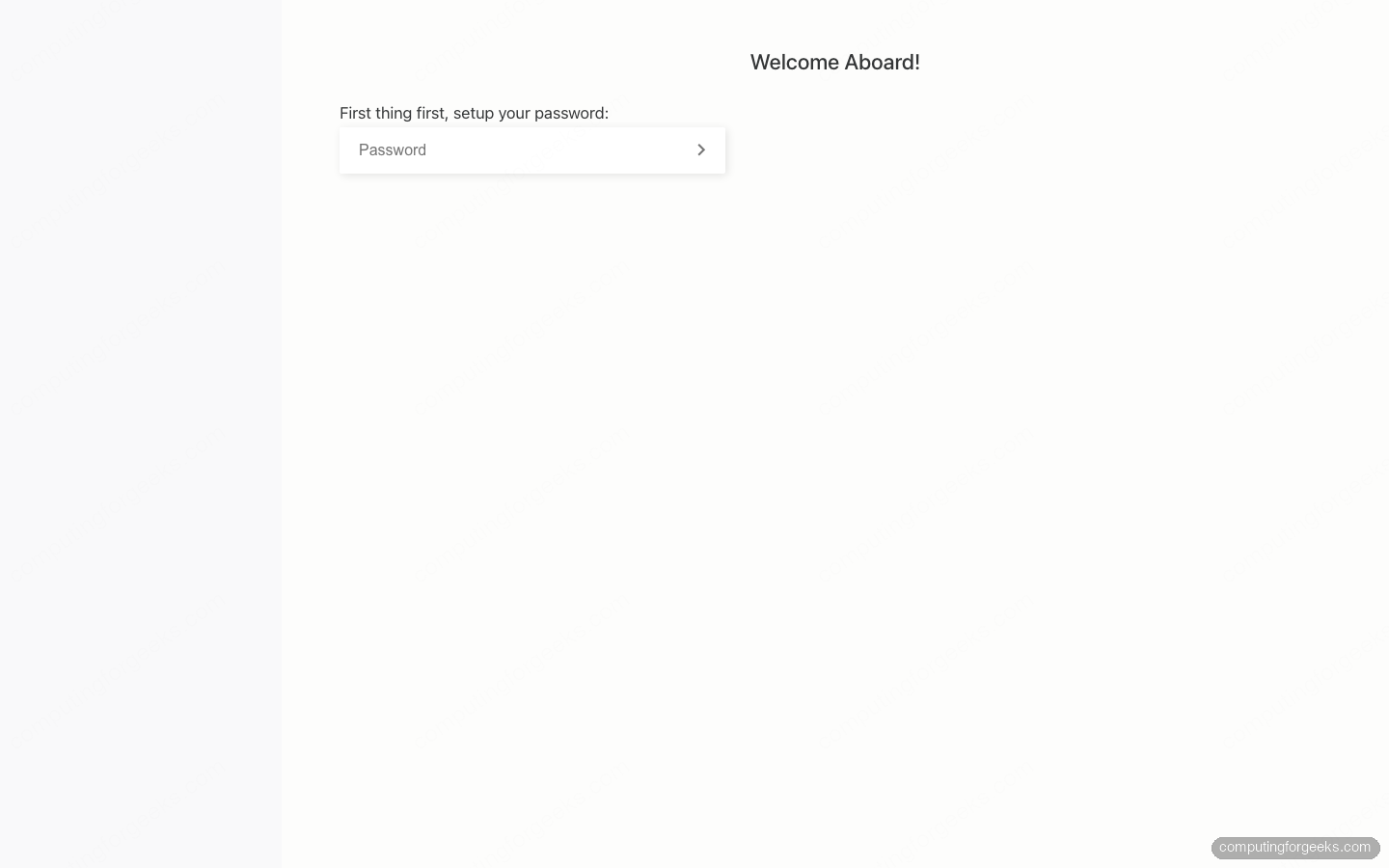
Filestash stores that password as a bcrypt hash inside its config, never in plain text. Once it is set, /admin is gated behind it and the setup page stops accepting new claims.
Step 4: Tour the admin console
Log in at /admin and the Storage Backend grid is the first thing you see. This is the clearest picture of what Filestash actually is: a wall of storage protocols it can speak, from S3, SFTP, SMB and NFS to WebDAV, Git, Dropbox, Google Drive, Backblaze and more. Click a backend to enable it; enabled ones turn blue and appear on the login page for users to pick.
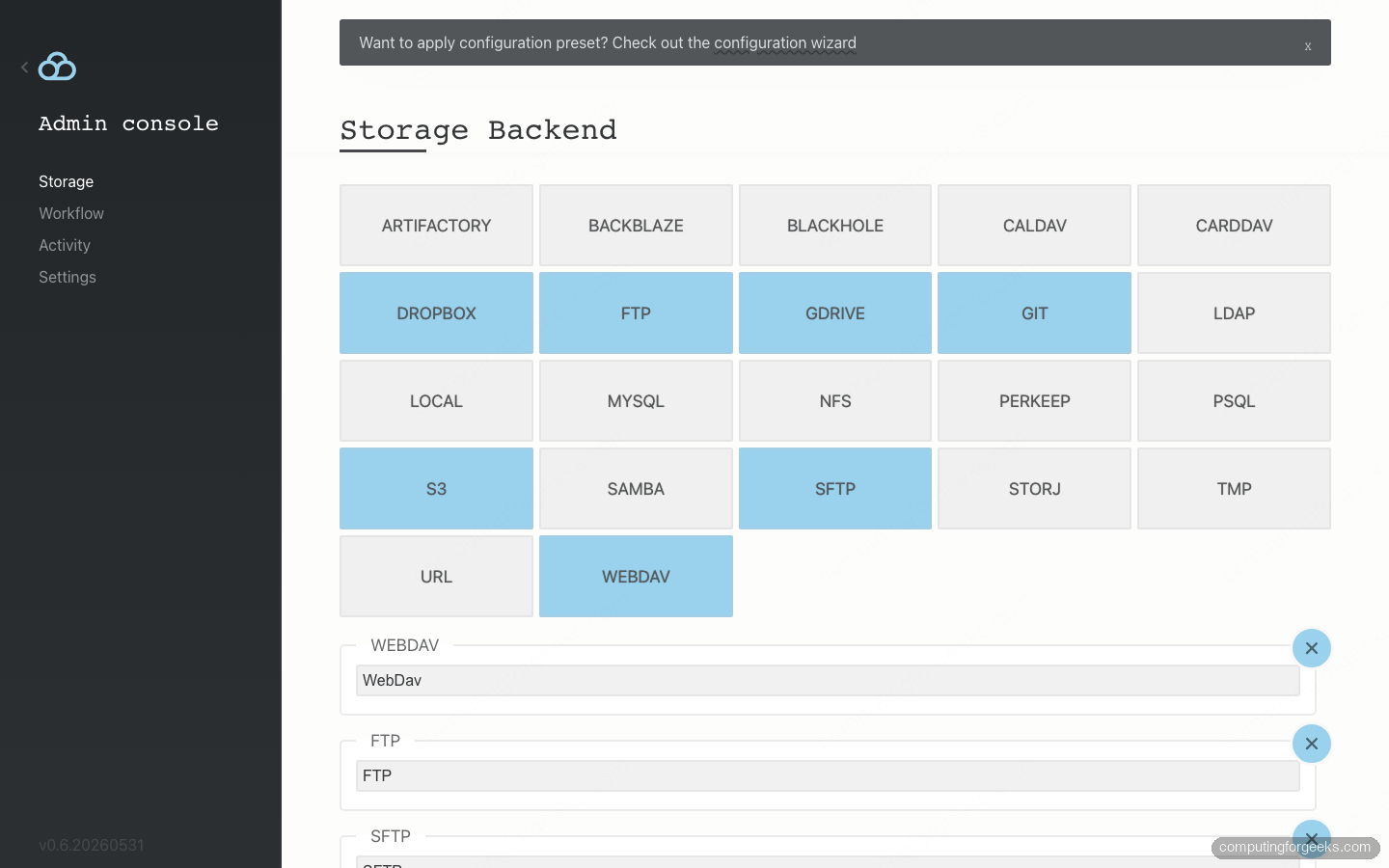
The left rail also carries Settings (host, SSL, log level, session timeouts) and an Activity log. Turn the log level up to DEBUG temporarily when you are wiring an identity provider, because it prints the exact attributes your IdP returns.
Step 5: Connect your storage backends
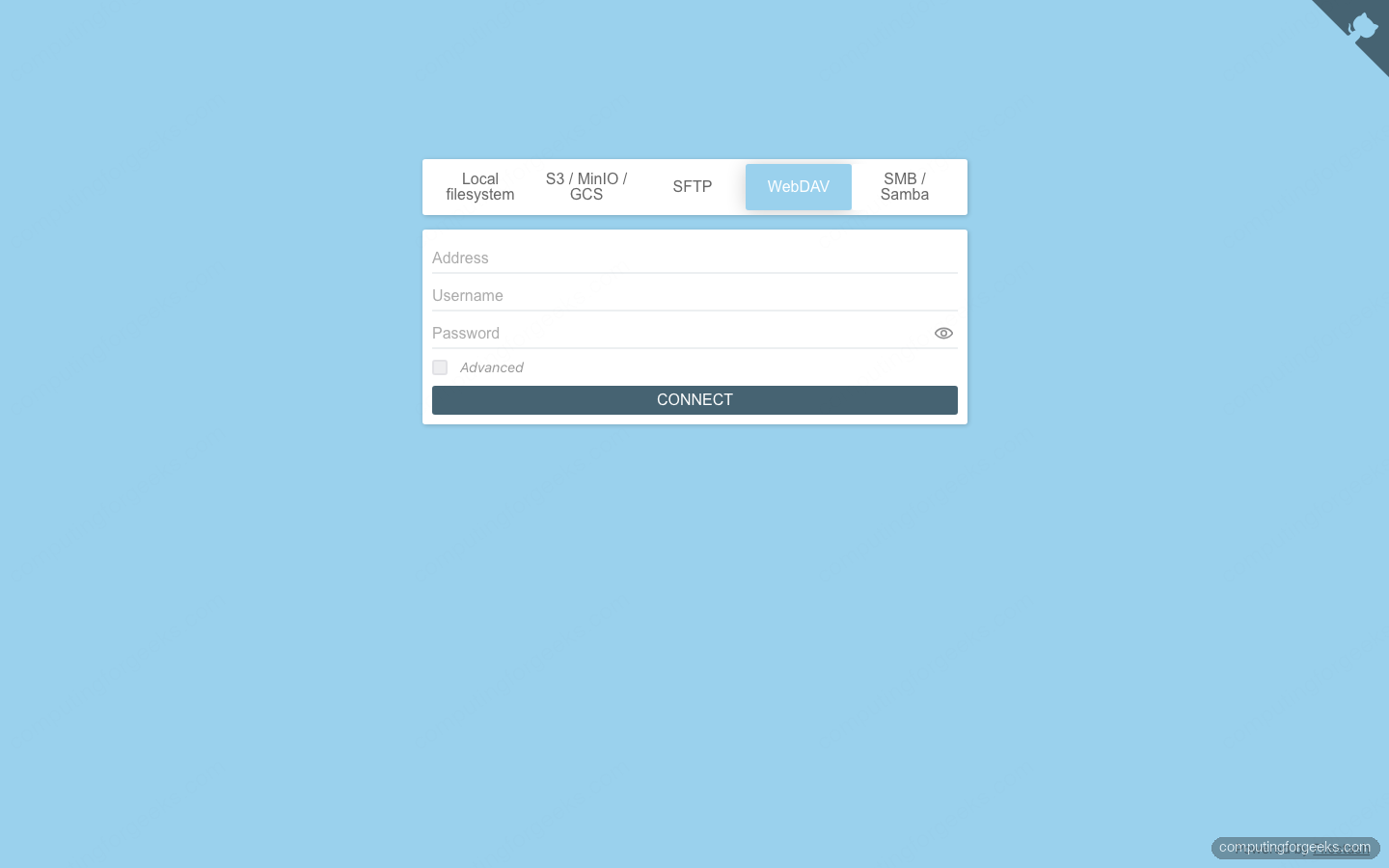
Enable the backends you care about in the admin grid, then visit the Filestash home page. Instead of a blank login box you get a tab per backend, and the form below changes to match whichever one you select. This is the everyday entry point: pick a backend, type the connection details, and you are browsing.
S3, MinIO and Google Cloud Storage
One backend covers all three. Filestash treats anything that speaks the S3 API the same way; only the endpoint and region change. The form asks for an Access Key ID and Secret Access Key up front, with Endpoint, Region and a starting Path under the Advanced toggle.
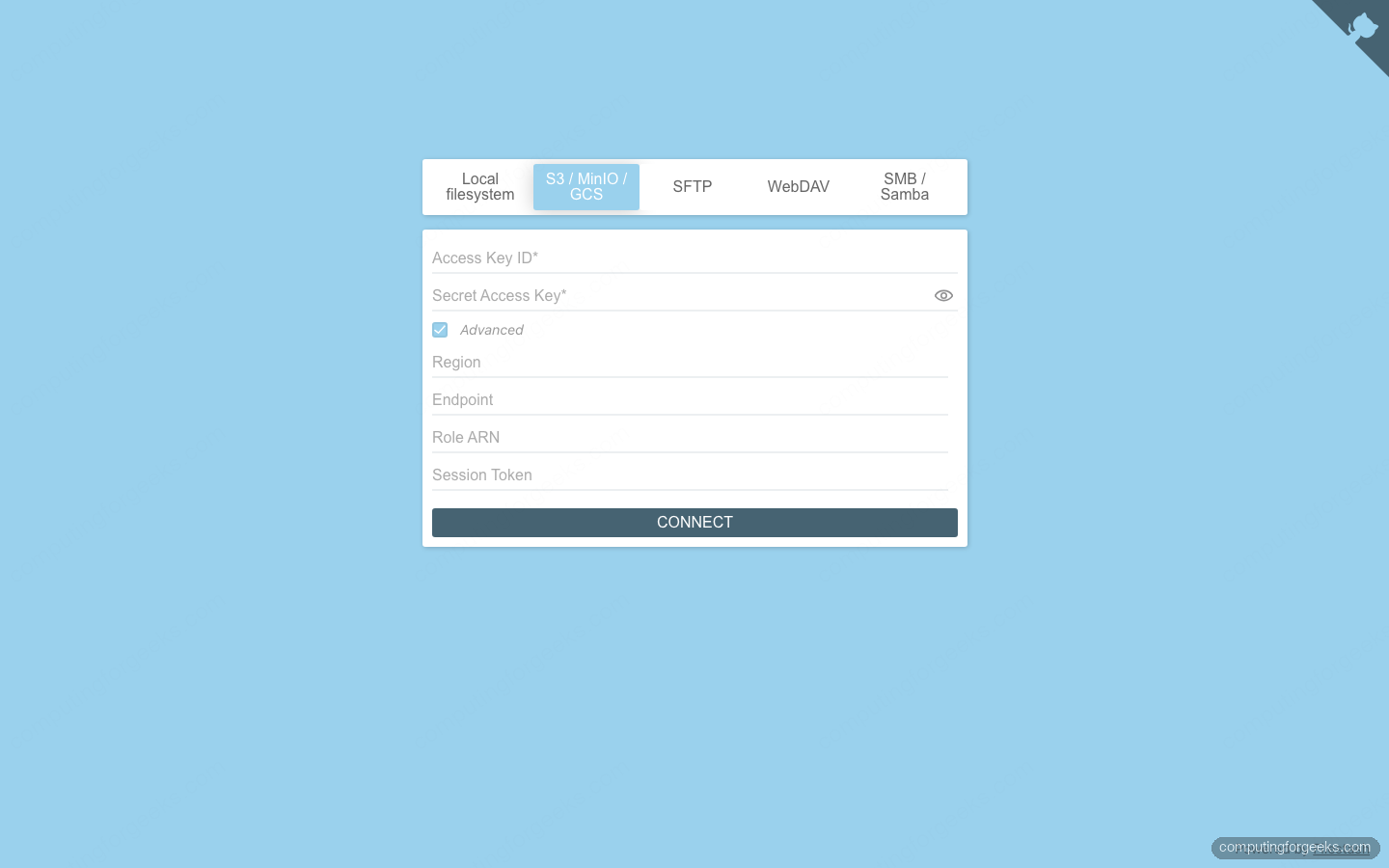
The differences between providers come down to two fields:
| Field | AWS S3 | MinIO | Google Cloud Storage |
|---|---|---|---|
| Endpoint | blank (default AWS) | http://minio-host:9000 | https://storage.googleapis.com |
| Region | e.g. eu-west-1 | us-east-1 | auto |
| Credentials | IAM access key | MinIO root user/pass | HMAC key for a service account |
Google Cloud Storage has no dedicated Filestash backend, but it exposes an S3-compatible interoperability endpoint. Generate an HMAC key for a service account and point the S3 backend at storage.googleapis.com. The same trick works for Backblaze B2, Wasabi and DigitalOcean Spaces. Once connected, MinIO browses like any other bucket store.
SFTP, WebDAV, SMB and NFS
The network-storage backends follow the shape you would expect. The fields, taken straight from the connect form, are:
- SFTP: Hostname, Port, Username, Password (or a private key and passphrase under Advanced), and an optional starting Path.
- WebDAV: the full Address such as
https://dav.example.com/, plus Username and Password. - SMB / Samba: Hostname, Username, Password, Port (445), Domain, and the Share Name.
- NFS: Hostname and the Mount Path (the export, for example
/srv/share), with UID and GID overrides under Advanced.
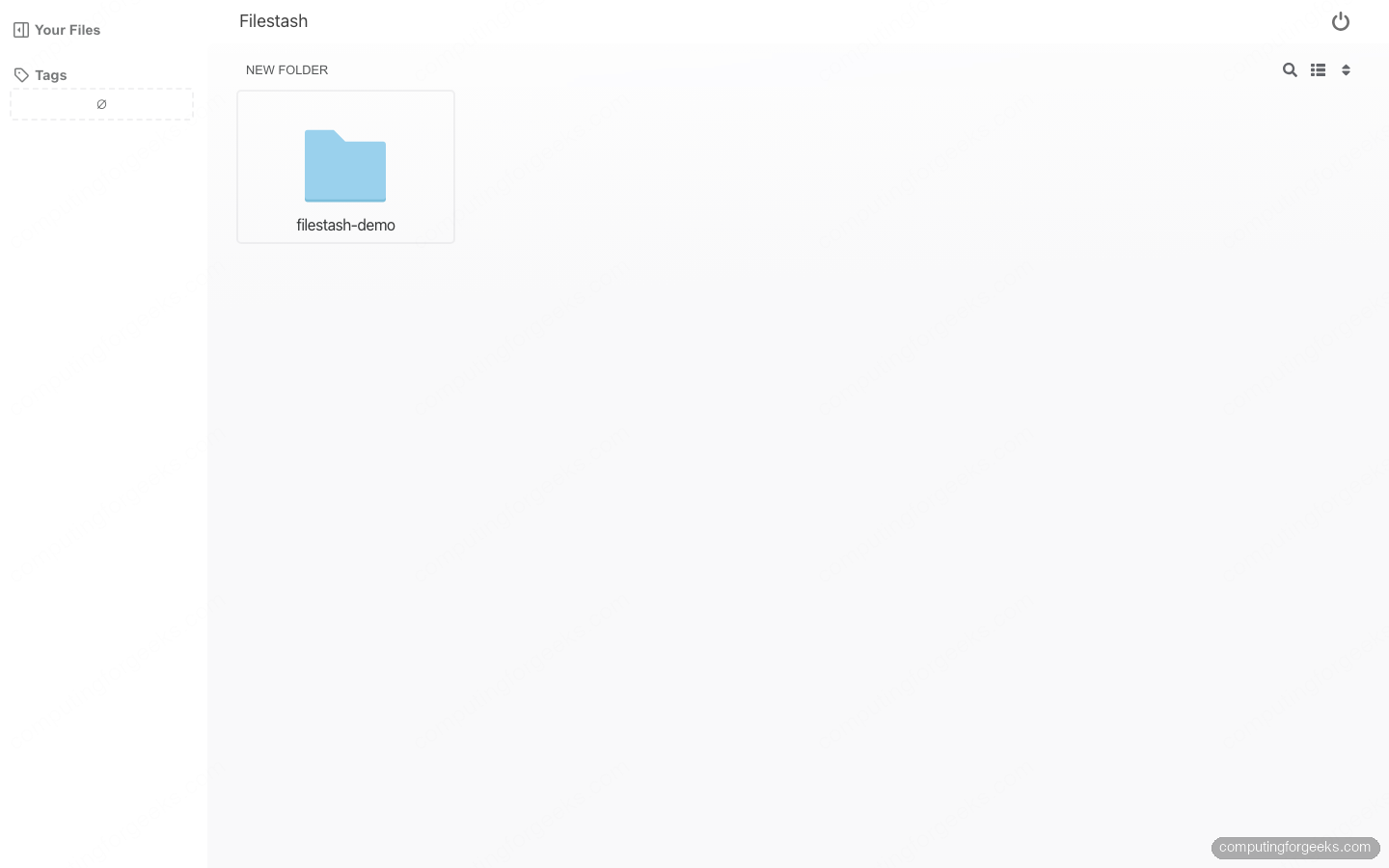
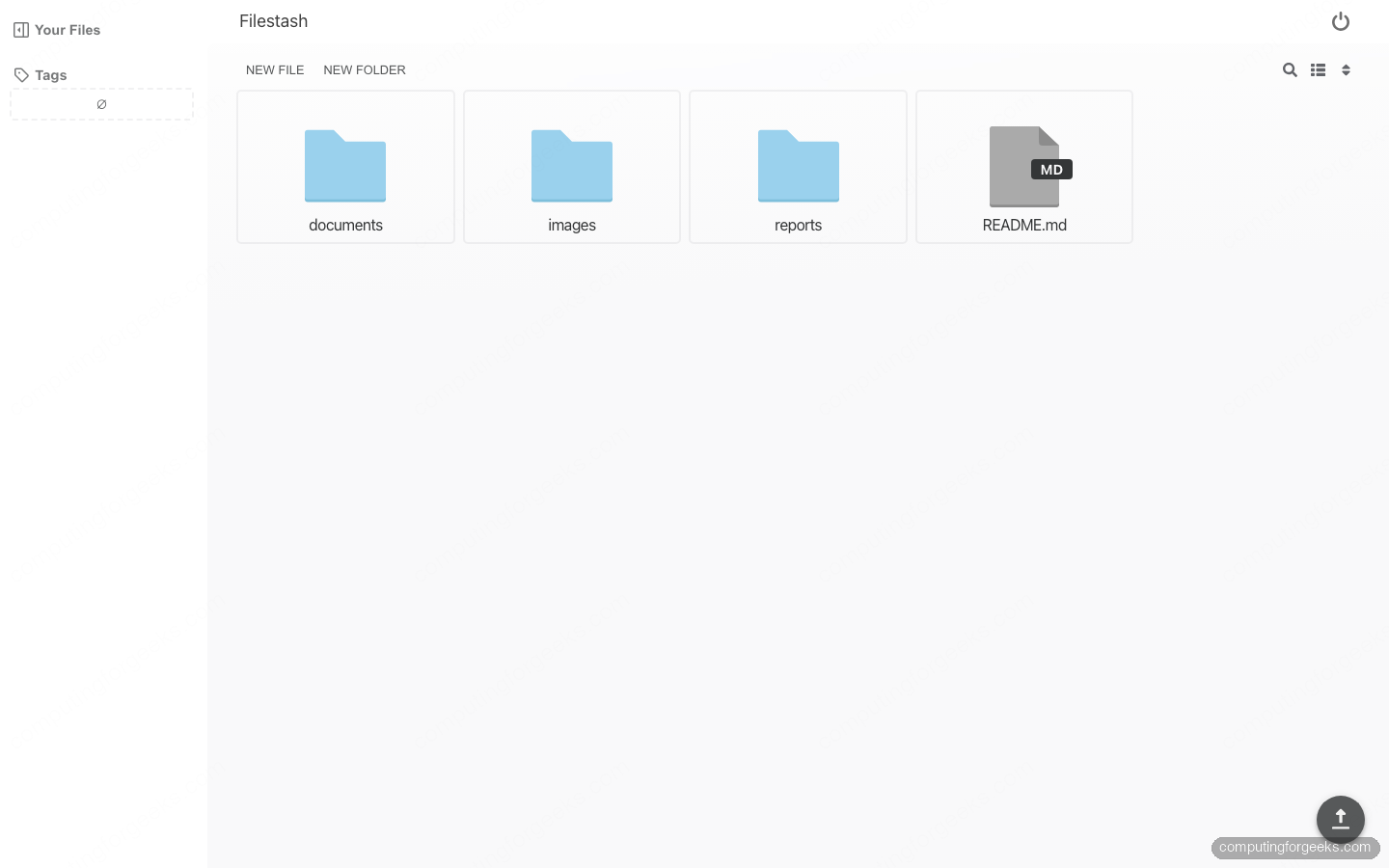
Each one lands you in the same clean file grid. Here is a WebDAV share opened straight from the login form, folders and files rendered the same regardless of where they physically live.
Local filesystem and Git
The Local backend serves a path inside the Filestash container, so bind-mount the directory you want to expose into the container first, then point the backend at it. Notice that the Local form asks for the admin password: browsing arbitrary server paths is deliberately gated to the administrator. The Git backend clones a repository (a clone URL, plus a token in the Password field for private repos) and lets you browse and commit through the web UI. Mind the Branch field, since Filestash defaults to master and most repositories now use main.
Step 6: Edit Office documents in the browser with Collabora
The Compose file you deployed already includes a Collabora Online container, so the server side is running. The work is making the browser able to reach it, and this is where most people hit a wall. Collabora has to be served on its own hostname over HTTPS, and Filestash has to be told that public URL.
Point the office variables at the Collabora service in the Compose file. The three that matter are how Filestash reaches Collabora internally, how Collabora reaches Filestash back, and the public URL the browser loads the editor from:
OFFICE_URL=http://wopi_server:9980
OFFICE_FILESTASH_URL=http://app:8334
OFFICE_REWRITE_URL=https://office.example.com
Two Collabora settings then have to be added to the container, and skipping either leaves the editor stuck on a spinner. Add them to the Collabora extra_params:
--o:ssl.termination=true
--o:net.frame_ancestors=files.example.com
The first tells Collabora that TLS is terminated upstream at Nginx, so it builds secure wss:// websocket URLs instead of plain ws:// that a browser on an HTTPS page refuses to open. The second is a Content-Security-Policy allowance: without your Filestash domain in frame_ancestors, Collabora blocks Filestash from embedding the editor and the browser logs a frame-ancestors violation. Recreate the stack after editing:
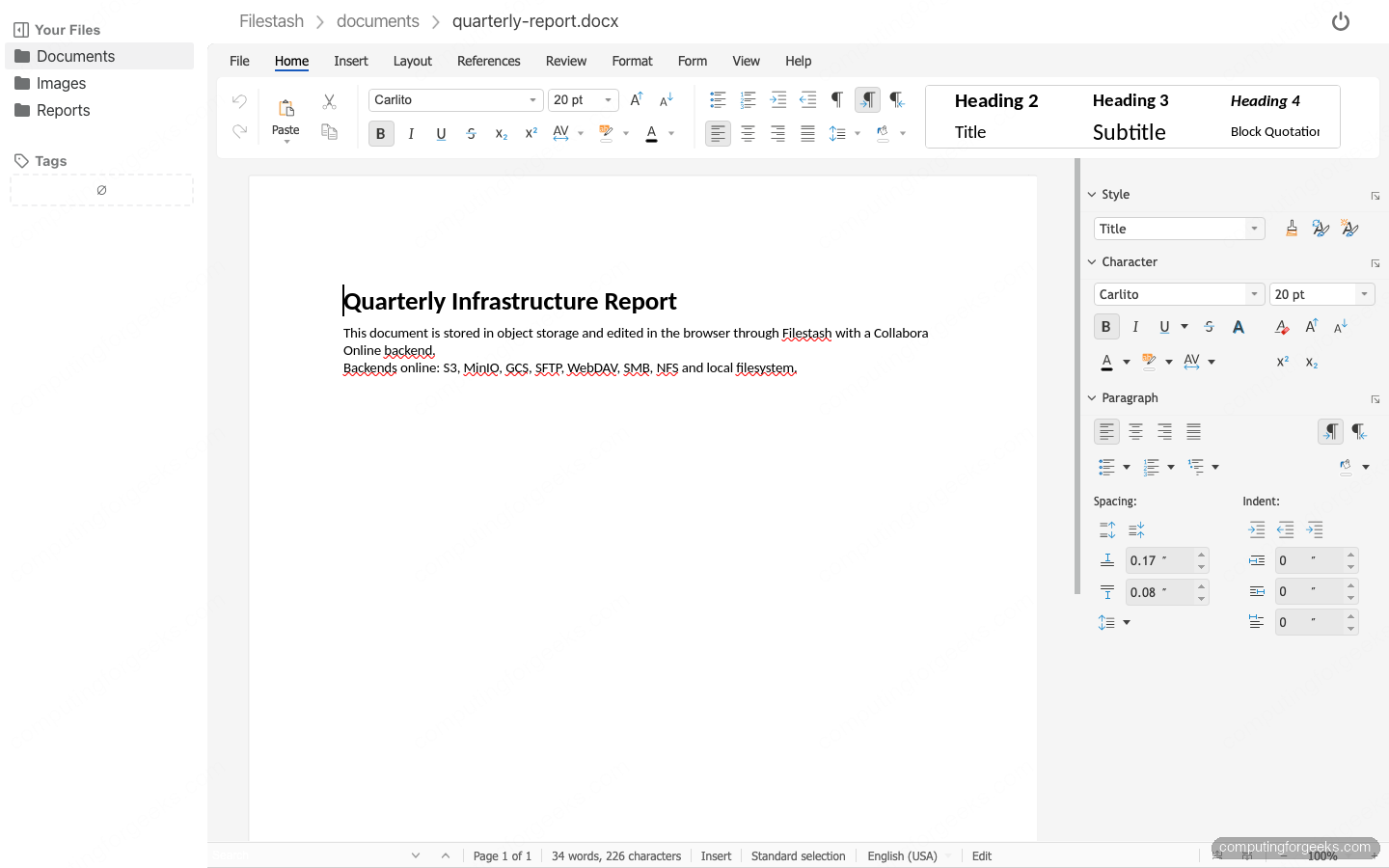
docker compose up -dWith the Nginx vhost from the next step in place, opening a .docx or spreadsheet in any connected backend loads the full Collabora editor inside Filestash, ribbon and all. The document below lives in object storage and is being edited in the browser.
Step 7: Put Filestash behind Nginx with SSL
Filestash speaks plain HTTP on 8334. Front it with Nginx, terminate TLS there, and forward websocket upgrades so uploads and previews work. Install Nginx and Certbot, then issue a certificate. The default path is the HTTP-01 challenge, which works with any DNS provider as long as port 80 is reachable:
sudo apt install -y nginx certbot python3-certbot-nginx
sudo certbot --nginx -d "${FILESTASH_DOMAIN}" -d "${OFFICE_DOMAIN}" \
  --non-interactive --agree-tos -m "${ADMIN_EMAIL}" --redirect
Then replace the Filestash server block with a reverse proxy. The websocket headers are not optional, since Filestash uses them for chunked uploads and live preview:
server {
    listen 443 ssl http2;
    server_name FILESTASH_DOMAIN_HERE;

    ssl_certificate     /etc/letsencrypt/live/FILESTASH_DOMAIN_HERE/fullchain.pem;
    ssl_certificate_key /etc/letsencrypt/live/FILESTASH_DOMAIN_HERE/privkey.pem;
    client_max_body_size 0;

    location / {
        proxy_pass http://127.0.0.1:8334;
        proxy_set_header Host              $host;
        proxy_set_header X-Forwarded-Proto $scheme;
        proxy_http_version 1.1;
        proxy_set_header Upgrade    $http_upgrade;
        proxy_set_header Connection "upgrade";
        proxy_read_timeout 3600s;
    }
}
Swap the placeholder for your real hostname in one pass, then reload:
sudo sed -i "s/FILESTASH_DOMAIN_HERE/${FILESTASH_DOMAIN}/g" /etc/nginx/sites-available/filestash.conf
sudo nginx -t && sudo systemctl reload nginx
One Filestash-specific gotcha lives here. In its Settings, set the host to the bare hostname (files.example.com, no scheme) and enable Force SSL. If you store the host with an https:// prefix, the frontend builds a broken origin like http://https://files.example.com, the page redirects to a name that cannot resolve, and you get a blank screen. Bare hostname plus Force SSL produces the correct https:// origin and the redirect loop disappears.
If the server is on a private network with no public port 80, use the DNS-01 challenge instead. Install the plugin for your DNS provider (Cloudflare, Route 53, DigitalOcean, Google Cloud DNS and RFC2136 all have one) and run certbot certonly --dns-<provider> with that provider’s credentials. The rest of the setup is identical.
Everyday use: previews, uploads and sharing
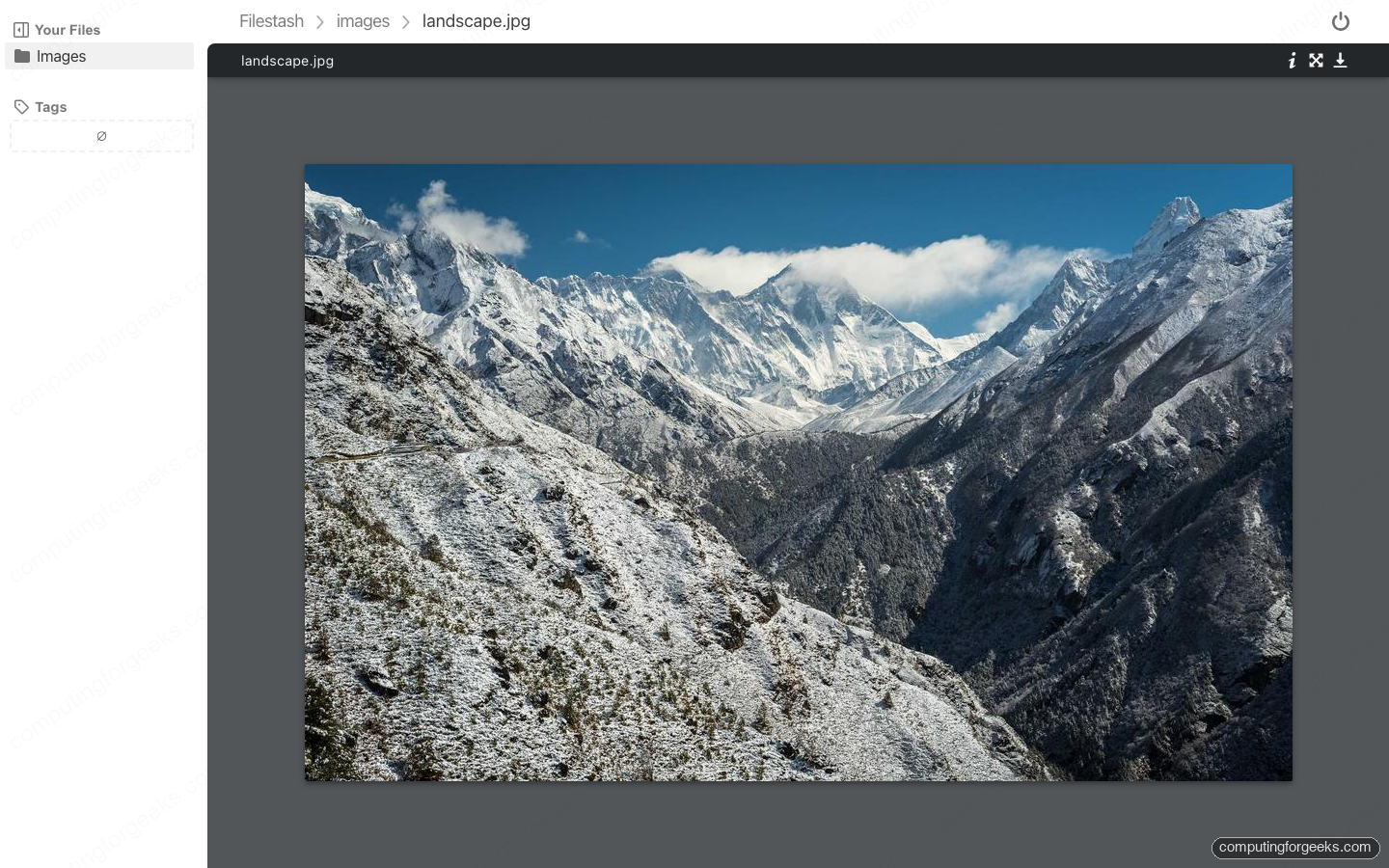
Day to day, Filestash behaves like the file explorer you already know. Images, PDFs, Markdown, video and audio preview inline without downloading, and the thumbnails render fast even against a remote S3 bucket. Click an image and it opens in a viewer over the file grid.
Uploads are drag-and-drop and chunked, which is why the websocket headers in the Nginx block matter. Right-click any file to generate a public share link with its own access level, so you can hand someone a single document out of an SFTP account they will never have credentials for. The share, the preview and the edit all happen against the original backend; Filestash never makes a second copy.
When things break
Three failures account for almost every support thread, and all three showed up while building this guide.
Blank page or a redirect to “http://https://…”
The configured host has a scheme baked in. Open Settings, set the host to the bare domain with no https://, enable Force SSL, and reload. The frontend then computes a clean origin and stops redirecting to an unresolvable name.
Office editor stuck on a spinner or “insecure WebSocket” error
This is the ssl.termination=true setting missing from Collabora. Behind a TLS-terminating proxy, Collabora has to be told the outside connection is HTTPS so it opens wss://. If instead you see a Content-Security-Policy frame-ancestors message in the browser console, add your Filestash domain to net.frame_ancestors so Collabora permits the embed.
Locked out of the admin console
If the admin password is lost, the recovery is on the server, not in the browser. The bcrypt hash lives in the config file inside the state volume under the auth section; remove that entry and the next visitor to /admin/setup can claim the account again. Treat that as a reminder to lock the page the instant you deploy.
Where Filestash earns its place
Reach for Filestash when the data already exists somewhere and you want a clean, shared way in. It does not sync to a desktop client, it does not host a contacts and calendar suite, and it will not replace Nextcloud if collaboration features are the point. What it does, better than anything in its class, is unify a pile of unrelated storage behind one fast UI with real Office editing on top. Connect it to an S3 bucket your application already writes to, an SFTP box a vendor drops files on, and an SMB share the office uses, and suddenly all three are one searchable, shareable, previewable place. For the full command reference, every backend’s connection fields, the SSO middleware options and a hardened Compose file, keep the Filestash cheat sheet open in the next tab.