

FileBrowser turns any directory on a Linux server into a clean web interface for uploading, downloading, editing, and sharing files. It is a single static Go binary with no database server and no PHP stack behind it. Point it at a folder, open a browser, and you have a working file manager in a couple of minutes.
This guide shows how to install FileBrowser on Ubuntu and Debian, run it as a hardened systemd service behind Nginx with a Let’s Encrypt certificate, and cover the parts most write-ups skip: scoped users, allow and deny access rules, expiring public share links, custom branding, and the command runner that now ships disabled for security reasons. Every command and screenshot here came off a live server, not the documentation.
One thing worth knowing up front. The original FileBrowser is in maintenance mode, meaning it still gets security and bug fixes but no new features. That makes it a stable, predictable choice for straightforward file serving. If you specifically need OIDC, LDAP, or two-factor login, the actively developed FileBrowser Quantum fork covers those. For everything a single-binary file manager should do, the original is still the quickest path there. For how it stacks up against heavier platforms, see our comparison of Cloudreve, Nextcloud, Seafile, FileBrowser and Immich.
This has been tested and verified to be working June 2026 on Ubuntu 24.04 and Debian 13, served over HTTPS behind Nginx proxy server.
Prerequisites
You need a server running Linux server with a sudo user, and a domain name with an A record pointing at the server if you want HTTPS, which you do. Port 80 must be reachable for the certificate challenge, plus 443 for the live site. The binary itself is tiny and idles at around 10 MB of memory, so even a 1 vCPU box handles it comfortably.
- A Linux server (Ubuntu 26.04/24/04/22.04 or Debian 13 / 12)
- A non-root user with
sudo - A domain with an A record on the server (any DNS provider) for the HTTPS step
- Ports 80 and 443 open in your firewall and cloud security group
Step 1: Set reusable shell variables
The whole guide uses shell variables so you edit one block and paste the rest unchanged. Export these at the top of your SSH session and swap the values for your own:
export FB_DB="/etc/filebrowser/filebrowser.db"
export FB_ROOT="/srv/filebrowser"
export FB_ADDR="127.0.0.1"
export FB_PORT="8080"
export SITE_DOMAIN="files.example.com"
export ADMIN_USER="admin"
export ADMIN_PASS="ChangeThis-To-Something-Strong"
export ADMIN_EMAIL="[email protected]"
Confirm they are set before running anything that depends on them. These values live only in the current shell, so re-export them if you reconnect or jump into a root shell:
echo "DB:     ${FB_DB}"
echo "Root:   ${FB_ROOT}"
echo "Listen: ${FB_ADDR}:${FB_PORT}"
echo "Domain: ${SITE_DOMAIN}"
Step 2: Install FileBrowser
The official installer downloads the right binary for your architecture and drops it in /usr/local/bin. It always pulls the latest stable release, so there is no version to keep current in the command:
curl -fsSL https://raw.githubusercontent.com/filebrowser/get/master/get.sh | sudo bashPrefer to inspect what you run? Download the script, read it, then execute it. You can also grab a tagged tarball straight from the releases page and drop the binary in place yourself. Either way, confirm the install:
filebrowser versionYou should see the version string printed back:
File Browser v2.63.5/a1e442efStep 3: Create the database and base configuration
FileBrowser keeps its settings and users in a single embedded database file (Bolt), not a separate database server. Create a dedicated system user to own and run the service, then the directories for the database and the folder you want to serve:
sudo useradd --system --no-create-home --shell /usr/sbin/nologin filebrowser
sudo mkdir -p /etc/filebrowser "${FB_ROOT}"
sudo chown filebrowser:filebrowser /etc/filebrowser "${FB_ROOT}"
Initialize the database as that user so ownership stays clean from the start:
sudo -u filebrowser filebrowser -d "${FB_DB}" config initNow set the core options in one shot. Binding to 127.0.0.1 keeps FileBrowser off the public network so that Nginx is the only thing facing the internet, which is exactly what you want behind a reverse proxy:
sudo -u filebrowser filebrowser -d "${FB_DB}" config set \
  --address "${FB_ADDR}" \
  --port "${FB_PORT}" \
  --root "${FB_ROOT}" \
  --branding.name "My Files"
Create your administrator account. Pick a real password (the default minimum length is 12 characters):
sudo -u filebrowser filebrowser -d "${FB_DB}" users add "${ADMIN_USER}" "${ADMIN_PASS}" --perm.adminA quick note that saves confusion later. The Bolt database allows only one process to open it at a time. Any filebrowser config or filebrowser users command run while the service is live returns Error: timeout. During this first setup the service is not running yet, so you are fine. Once it is, stop it before using the CLI, or make those changes from the web interface instead.
Step 4: Run FileBrowser as a systemd service
Running the binary by hand is fine for a quick look, but you want it to start on boot and restart on failure. Create a unit file:
sudo nano /etc/systemd/system/filebrowser.servicePaste the following. The address, port, and root all come from the database you configured above, so the command line only needs to point at the database. The hardening directives stop the service from writing anywhere except the two paths it actually needs:
[Unit]
Description=File Browser
After=network.target

[Service]
User=filebrowser
Group=filebrowser
ExecStart=/usr/local/bin/filebrowser -d /etc/filebrowser/filebrowser.db
Restart=on-failure
RestartSec=5
NoNewPrivileges=true
ProtectSystem=full
ProtectHome=true
PrivateTmp=true
ReadWritePaths=/etc/filebrowser /srv/filebrowser

[Install]
WantedBy=multi-user.target
Reload systemd, then enable and start the service so it comes up now and on every boot:
sudo systemctl daemon-reload
sudo systemctl enable --now filebrowser
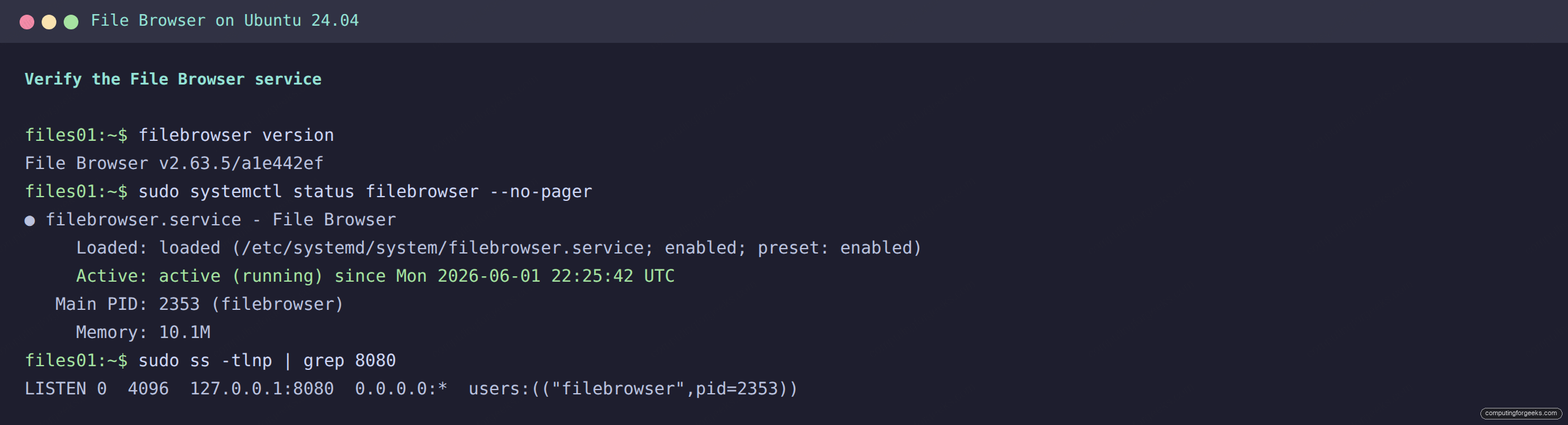
Check that it is active and listening on the loopback address only:
sudo systemctl status filebrowser --no-pager
sudo ss -tlnp | grep "${FB_PORT}"
The status output should show active (running), and the socket should be bound to 127.0.0.1, not 0.0.0.0:
Step 5: First login
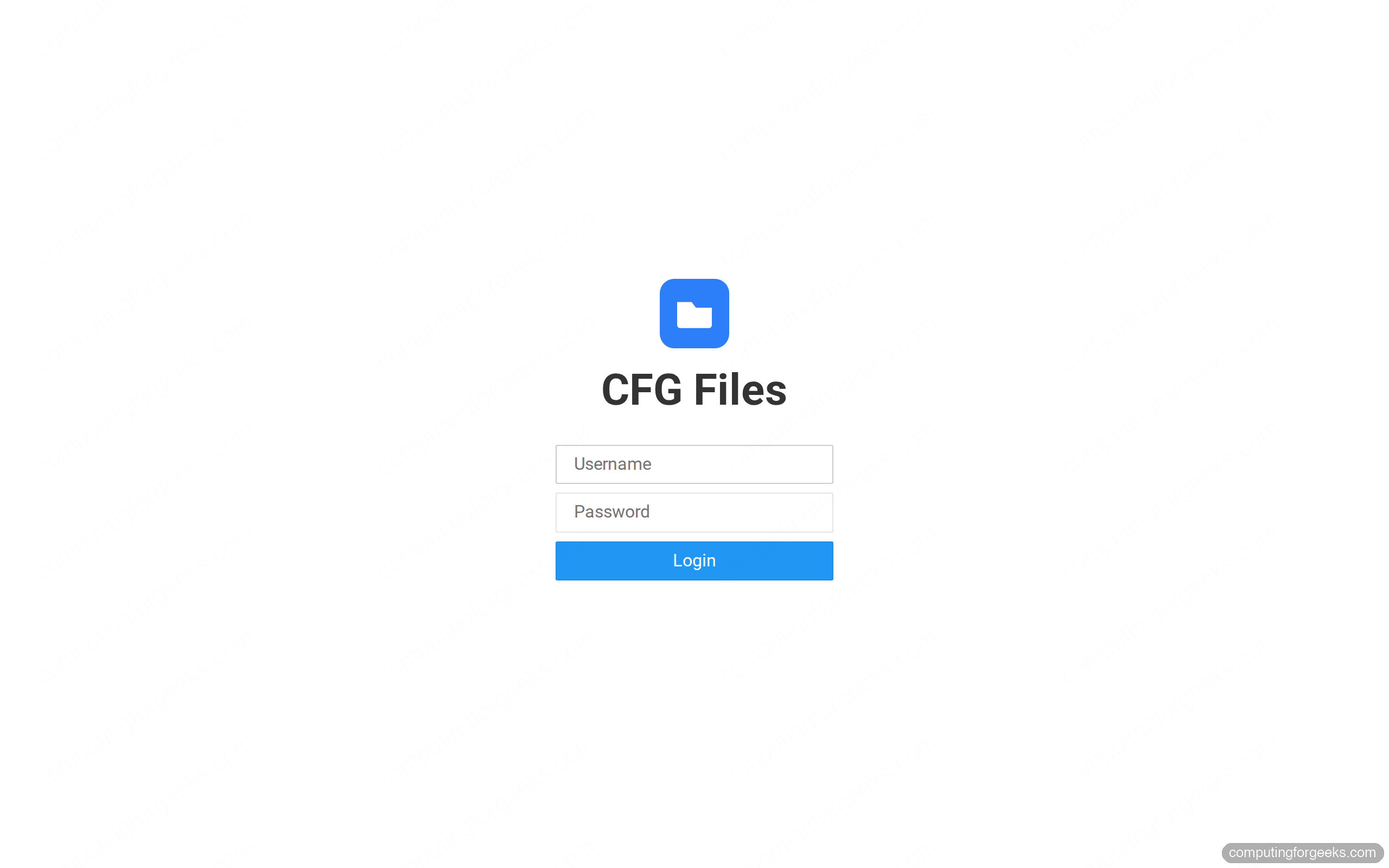
Before Nginx is in front, you can reach the interface through an SSH tunnel from your laptop, which avoids exposing the port. Run this locally, replacing the host with your server address, then browse to http://localhost:8080:
ssh -L 8080:127.0.0.1:8080 [email protected]Log in with the administrator account you created. The instance name you set with branding.name shows above the form, which is the first sign your configuration took effect:
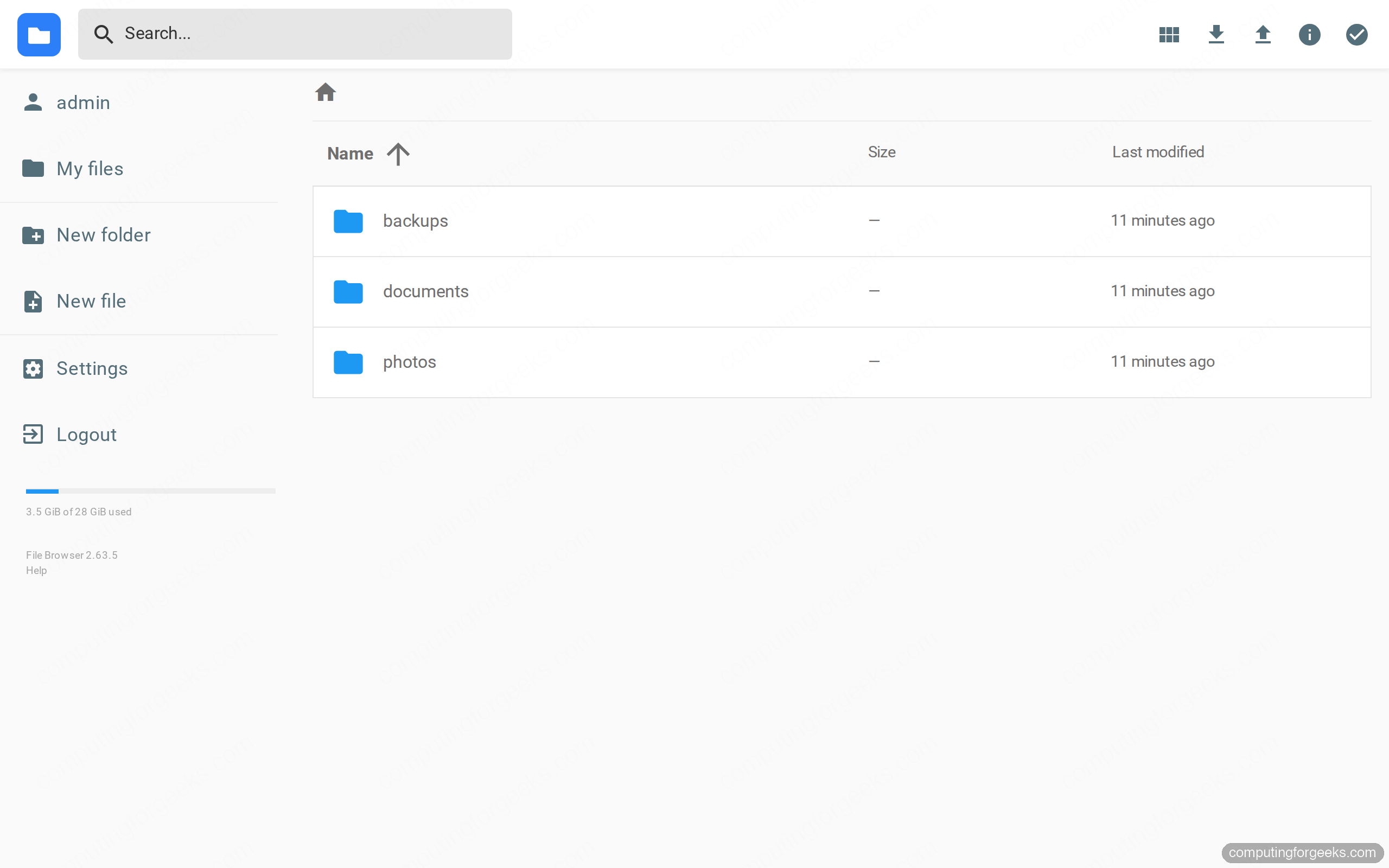
Inside, the contents of your served folder appear as a familiar file listing with size and modified columns, a sidebar for new files and folders, and a disk usage bar at the bottom. This is the whole point: a remote directory that behaves like a local file manager.
Work with files
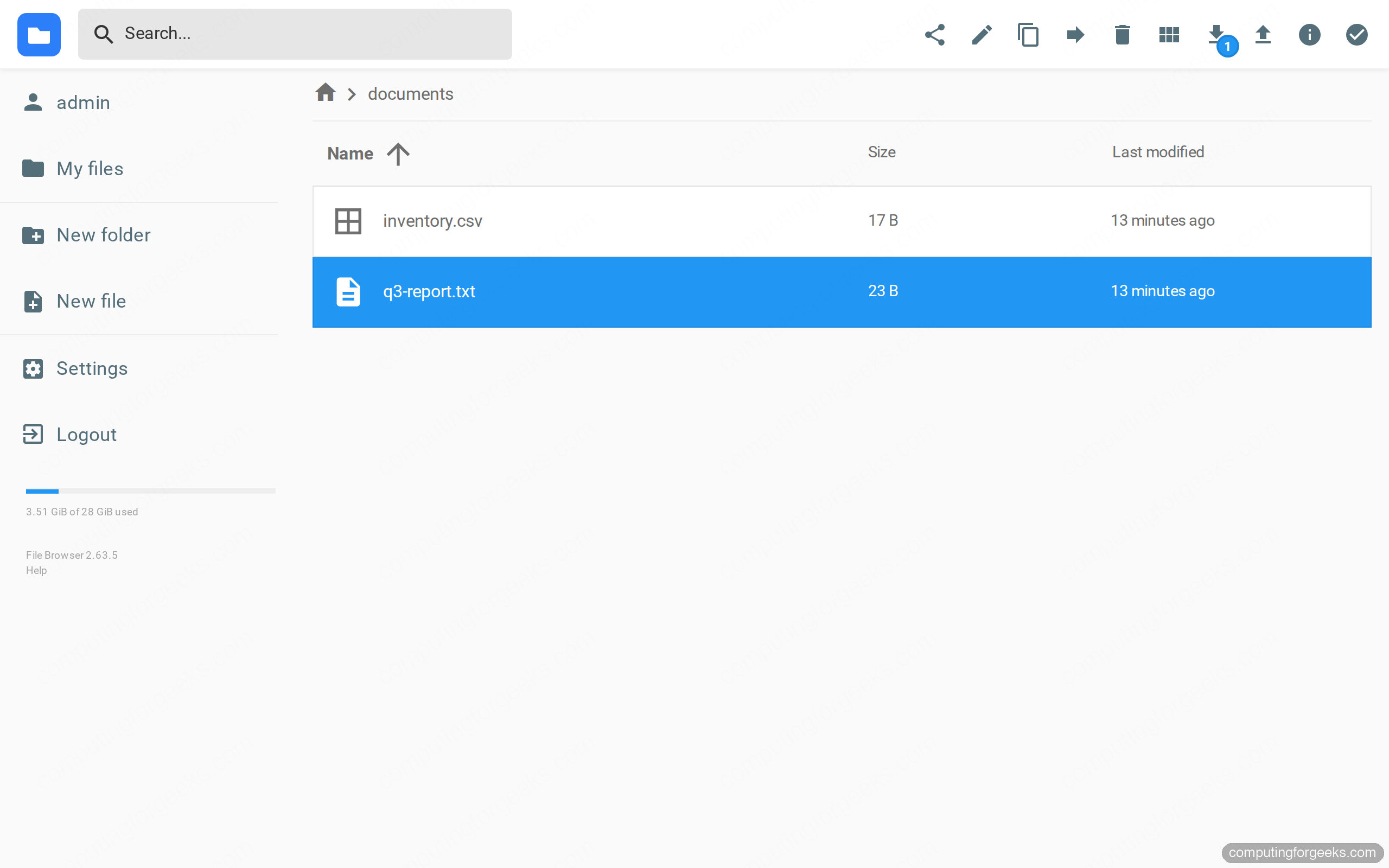
Selecting a file reveals the action toolbar in the top right: share, rename, copy, move, delete, and download. Folders can be downloaded as a zip, text and code files open in a built-in editor with syntax highlighting, and images, audio, and video preview inline. Uploads work by drag and drop or through the upload button, and large transfers resume thanks to the chunked upload protocol FileBrowser uses under the covers.
Add users and scope them to a folder
The real value of FileBrowser shows up when several people share one server but should not see each other’s files. Each user gets a scope, a path they are locked into, plus a set of permissions. Stop the service first so the CLI can open the database:
sudo systemctl stop filebrowserAdd a user confined to a subfolder, with delete turned off so they cannot remove anything:
sudo -u filebrowser filebrowser -d "${FB_DB}" users add jdoe 'StrongPass-Here' \
  --scope /documents --perm.admin=false --perm.delete=false
For a read-only account, strip every write permission and leave only download:
sudo -u filebrowser filebrowser -d "${FB_DB}" users add viewer 'StrongPass-Here' \
  --scope /photos --perm.create=false --perm.modify=false \
  --perm.rename=false --perm.delete=false --perm.share=false
List what you have, then start the service again:
sudo -u filebrowser filebrowser -d "${FB_DB}" users ls
sudo systemctl start filebrowser
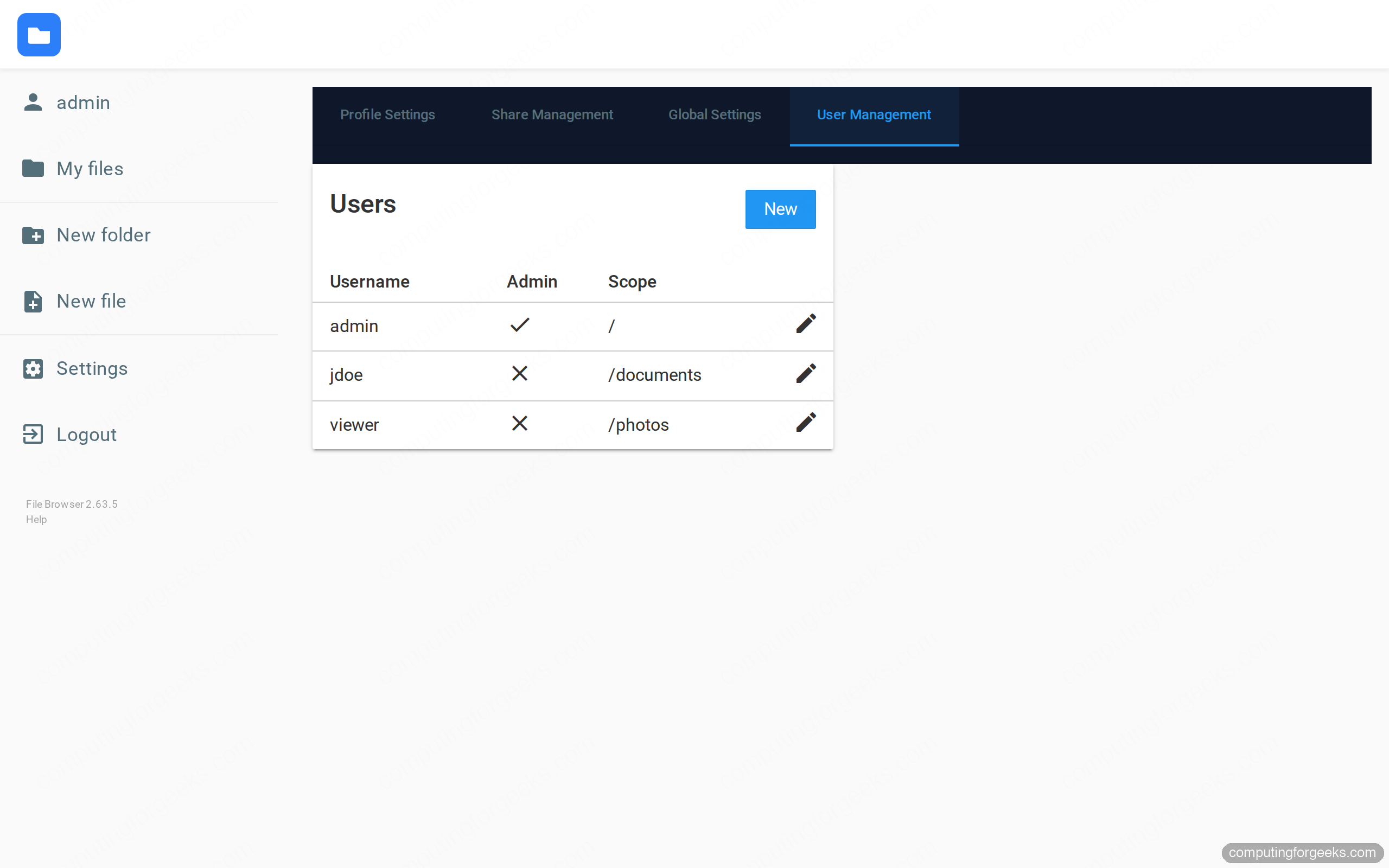
Everything you just did on the command line is also available under Settings, User Management, where admins can add, edit, and scope accounts without stopping the service. The list shows each user’s admin flag and the folder they are pinned to:
Block files with access rules
Scopes decide which folder a user sees. Rules decide which files are hidden inside it, using either a literal path or a regular expression. They apply globally by default and can be overridden per user. Two rules worth setting on almost any server hide environment files and dotfiles from the listing:
sudo systemctl stop filebrowser
sudo -u filebrowser filebrowser -d "${FB_DB}" rules add --allow=false '.*\.env$'
sudo -u filebrowser filebrowser -d "${FB_DB}" rules add --allow=false --regex '^\.'
sudo -u filebrowser filebrowser -d "${FB_DB}" rules ls
sudo systemctl start filebrowser
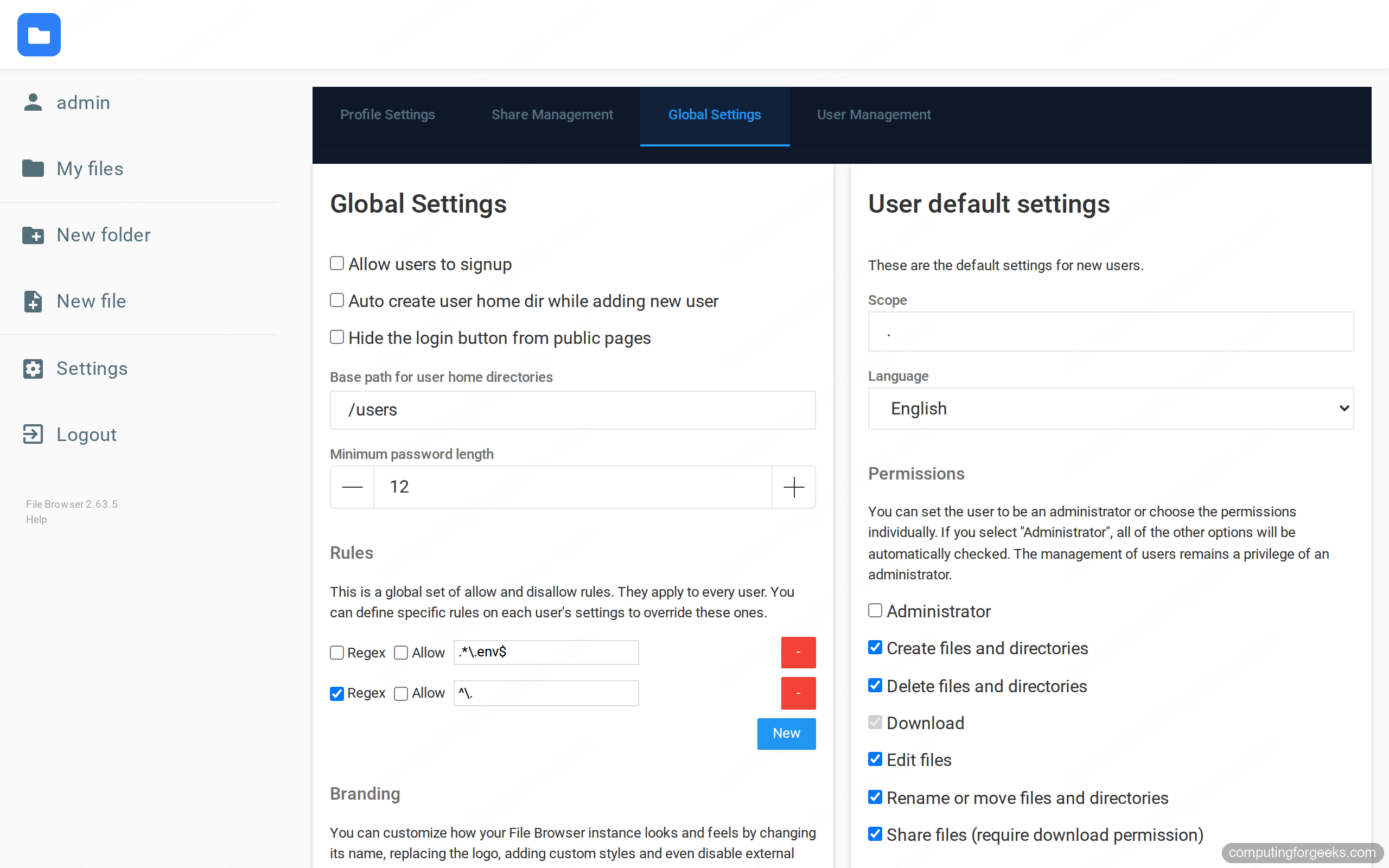
Those same rules appear under Settings, Global Settings, alongside the signup toggle, default permissions, and branding controls. This is also where you set the minimum password length and decide whether new accounts get a home folder automatically:
Share files with public links
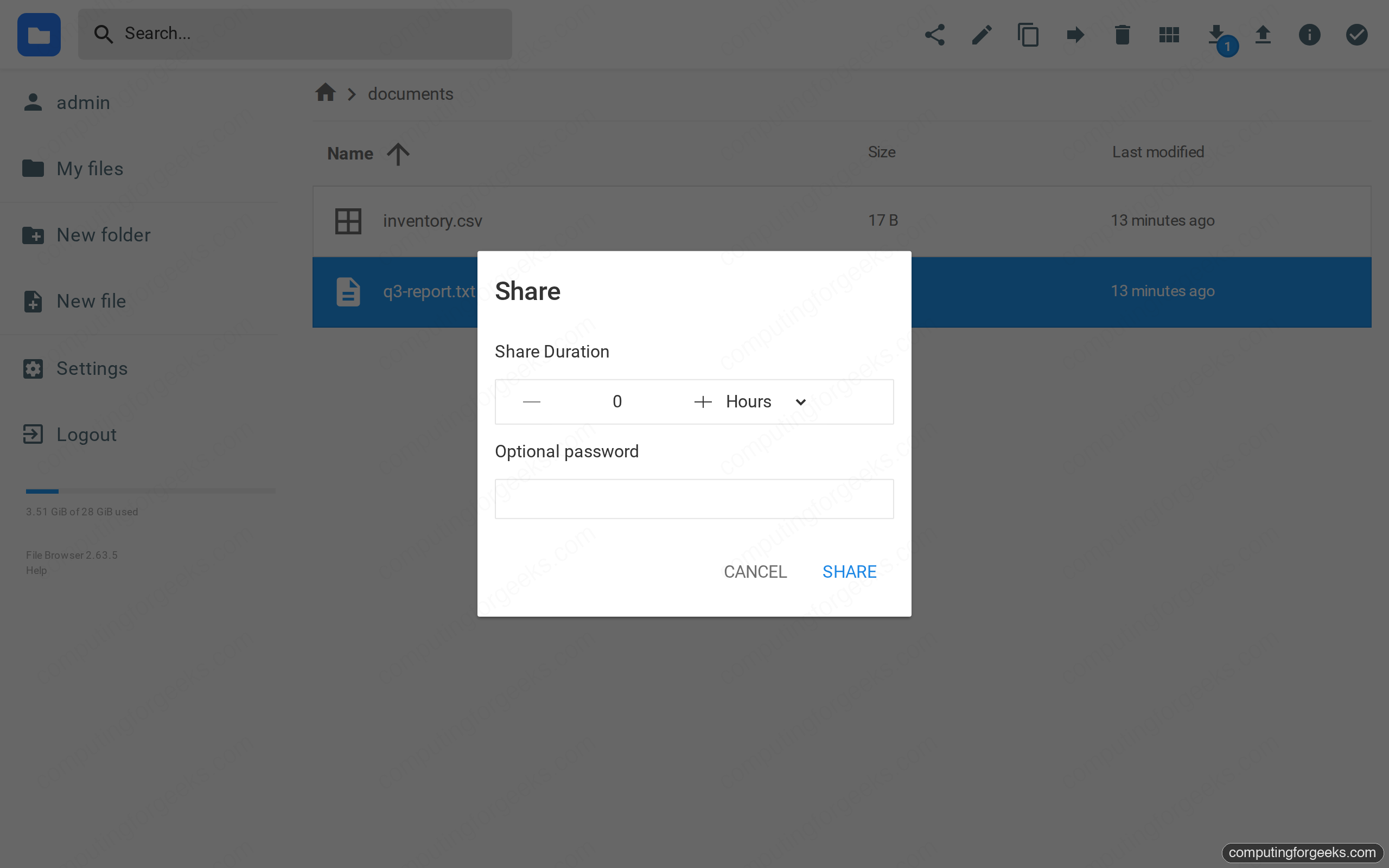
Select a file or folder and click the share icon to generate a public link that needs no account. You can set an expiry (in minutes, hours, or days) and an optional password, which is the difference between a link that leaks forever and one that dies on schedule:
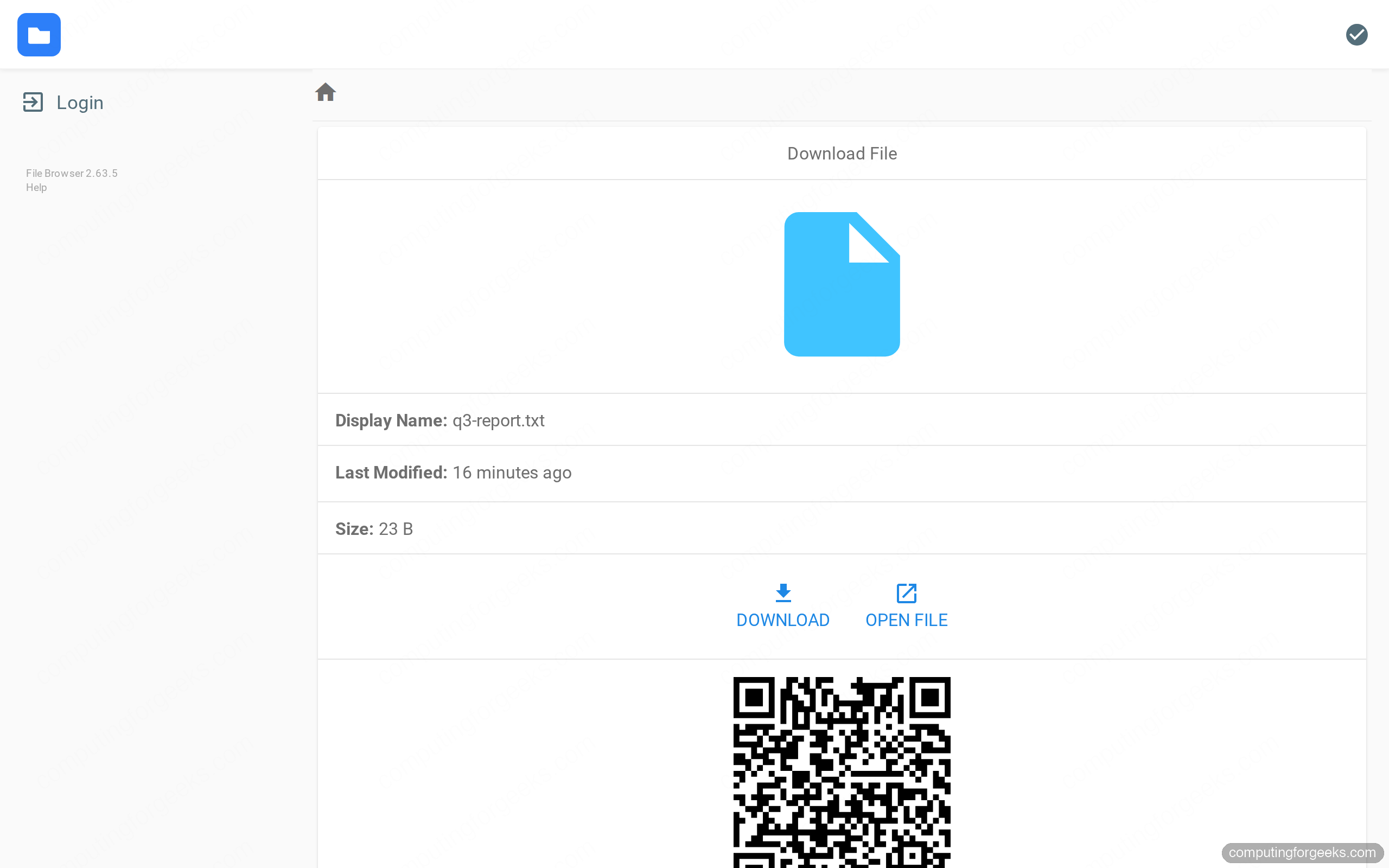
Anyone who opens the link gets a minimal download page with the file name, size, a download button, and a QR code for grabbing it on a phone. No sidebar, no login, nothing else on your server is exposed:
Every active link is listed under Settings, Share Management, where you can copy it again or revoke it. Deleting a share kills the link immediately, even if the expiry has not passed.
Brand the interface
You already set the instance name. You can go further with a custom logo, a theme color, and a stylesheet of your own. Point FileBrowser at a branding directory that holds your assets:
sudo mkdir -p /etc/filebrowser/branding/img
sudo systemctl stop filebrowser
sudo -u filebrowser filebrowser -d "${FB_DB}" config set \
  --branding.files /etc/filebrowser/branding \
  --branding.color "#2d7ff9"
sudo systemctl start filebrowser
Drop a logo.svg inside the img subfolder to replace the default mark, and a custom.css in the branding root to override colors and spacing. The branding directory must be readable by the filebrowser user, and browsers cache the old logo aggressively, so a hard refresh is sometimes needed before the new one shows.
Put FileBrowser behind Nginx with HTTPS
FileBrowser is bound to localhost, so the last piece is a reverse proxy that terminates TLS and forwards traffic to it. Make sure your domain’s A record points at the server and that port 80 is reachable, then install Nginx:
sudo apt update
sudo apt install -y nginx
Create a server block for the site:
sudo nano /etc/nginx/sites-available/filebrowserAdd the following. The client_max_body_size 0 line lifts the upload limit so large files are not rejected by the proxy, and the upgrade headers let the editor and any websocket features work. Leave the placeholder for now, it gets replaced in the next command:
server {
    listen 80;
    server_name SITE_DOMAIN_HERE;

    client_max_body_size 0;

    location / {
        proxy_pass http://127.0.0.1:8080;
        proxy_set_header Host $host;
        proxy_set_header X-Real-IP $remote_addr;
        proxy_set_header X-Forwarded-For $proxy_add_x_forwarded_for;
        proxy_set_header X-Forwarded-Proto $scheme;
        proxy_set_header Upgrade $http_upgrade;
        proxy_set_header Connection "upgrade";
    }
}
Substitute your real domain from the variable, enable the site, drop the default, and reload Nginx:
sudo sed -i "s/SITE_DOMAIN_HERE/${SITE_DOMAIN}/" /etc/nginx/sites-available/filebrowser
sudo ln -s /etc/nginx/sites-available/filebrowser /etc/nginx/sites-enabled/
sudo rm -f /etc/nginx/sites-enabled/default
sudo nginx -t
sudo systemctl reload nginx
Now issue the certificate. The Nginx plugin handles the HTTP-01 challenge, rewrites the server block for TLS, and adds the redirect from port 80 in one step:
sudo apt install -y certbot python3-certbot-nginx
sudo certbot --nginx -d "${SITE_DOMAIN}" --redirect \
  --non-interactive --agree-tos -m "${ADMIN_EMAIL}"
Confirm automatic renewal is wired up, then browse to your domain over HTTPS and log in with the padlock showing:
sudo certbot renew --dry-runIf you want to open the firewall explicitly, allow HTTP and HTTPS through UFW and you are done with the proxy. The same pattern works for any app you put behind Nginx, and it is covered in more depth in our Nginx with Let’s Encrypt walkthrough.
sudo ufw allow 'Nginx Full'No public port 80? Use a DNS challenge instead
If the server sits on a private network or behind NAT where port 80 is not reachable, swap the HTTP-01 challenge for DNS-01. Certbot has plugins for Cloudflare, Route 53, DigitalOcean, Google Cloud DNS, Linode, and more. With a Cloudflare-managed domain, install the plugin, drop an API token in a credentials file, and request the certificate over DNS:
sudo apt install -y python3-certbot-dns-cloudflare
echo "dns_cloudflare_api_token = YOUR_API_TOKEN" | sudo tee /etc/letsencrypt/cloudflare.ini
sudo chmod 600 /etc/letsencrypt/cloudflare.ini
sudo certbot certonly --dns-cloudflare \
  --dns-cloudflare-credentials /etc/letsencrypt/cloudflare.ini \
  -d "${SITE_DOMAIN}" --non-interactive --agree-tos -m "${ADMIN_EMAIL}"
Substitute your own provider’s plugin if you are not on Cloudflare, then reference the issued certificate in your Nginx ssl_certificate and ssl_certificate_key directives.
Run FileBrowser with Docker Compose instead
If you would rather run it in a container, the official image covers it. This Compose file uses the s6 variant, which respects the PUID and PGID values so files written through the UI land with the right ownership on the host. Create a project directory and a docker-compose.yml:
services:
  filebrowser:
    image: filebrowser/filebrowser:s6
    container_name: filebrowser
    restart: unless-stopped
    ports:
      - "8080:80"
    environment:
      - PUID=1000
      - PGID=1000
    volumes:
      - ./srv:/srv
      - ./database:/database
      - ./config:/config
Bring it up and check the container is healthy:
docker compose up -d
docker compose ps
On first start the container prints a randomly generated admin password to its logs, shown only once. Read it, then change it after you log in:
docker compose logs filebrowser | grep -i passwordPut the same Nginx and Let’s Encrypt setup in front of the container, pointing the proxy at 127.0.0.1:8080, and the container path is identical to the native one from the browser’s point of view.
Troubleshooting
Error: timeout when running a CLI command
This means the service already holds the database open. The Bolt store is single-writer, so the running server and a CLI command cannot touch it at the same time. Stop the service with sudo systemctl stop filebrowser, run your config or users command, then start it again. For day-to-day user changes, the web interface avoids the dance entirely.
The command runner and shell are disabled
The hook runner (commands that fire on upload, copy, rename, and so on) and the in-browser shell have shipped disabled by default since v2.33.8 because of repeated security problems. That default is correct: an exposed shell on a file manager is a remote code execution surface. If you genuinely need a hook on an internal-only instance, you re-enable execution explicitly and allowlist exactly which commands are permitted, never the whole shell. Treat it as the sharp tool it is and leave it off unless you have a specific, contained reason.
502 Bad Gateway from Nginx
Nginx is up but cannot reach FileBrowser. Confirm the service is running and that proxy_pass matches the address and port FileBrowser is bound to. If you changed the listen address in the database, restart the service and re-check ss -tlnp.
Forgotten admin password
Reset it from the CLI. Stop the service, then update the user:
sudo systemctl stop filebrowser
sudo -u filebrowser filebrowser -d "${FB_DB}" users update admin --password 'NewStrongPass'
sudo systemctl start filebrowser
Security hardening checklist
FileBrowser hands out file access over the web, so the defaults matter. Before you point real users at it, walk this list:
- Keep it bound to localhost. Let Nginx be the only public listener. A direct
0.0.0.0bind skips your TLS and proxy protections. - Always serve over HTTPS. A login form on plain HTTP ships the password in clear text. The Let’s Encrypt step above is not optional for anything internet-facing.
- Scope every non-admin user. Give each account the narrowest folder and the fewest permissions it needs. Admin is for you, not for the team.
- Leave the command runner off. If you never enable it, there is no shell to abuse.
- Rate-limit logins. Add a Fail2ban jail that watches the FileBrowser log for repeated
403responses on/api/loginand bans the source after a handful of failures. - Set sensible share expiries. Default to a duration and a password for anything sensitive, and revoke links from Share Management when they have served their purpose.
- Restrict network reach where you can. For a private file drop, keep it on the LAN or behind a WireGuard tunnel rather than the open internet.
With that in place you have a fast, single-binary file manager that you fully control, serving a real directory over HTTPS with scoped users and expiring links. If your needs grow toward team collaboration, versioning, or single sign-on, FileBrowser Quantum, Nextcloud, and Seafile pick up where the original leaves off, but for putting a folder on the web quickly and safely, this is hard to beat.
