

A fresh Fedora 44 install ships in better security posture than most Linux distributions. SELinux is enforcing, firewalld blocks anything that no service exposes, the kernel ships with stack canaries and KASLR, the package keys chain to Fedora’s PGP trust, and the new RPM 6.0 transaction format ships in F44 with stronger digest verification. None of that is the same as “hardened”. A vanilla F44 cloud image scored 74.66 out of 100 on the CIS Level 1 Server benchmark when we ran oscap xccdf eval against it for this guide. 176 rules passed; 120 failed. The same box passes more than 200 of those rules once the changes in this guide land. That gap is the difference between “Fedora defaults” and “production-ready Fedora”, and it is what this guide closes for both desktop workstations and servers.
The previous version of this article touched the surface (sysctl, SSH, faillock, AIDE, mask a few services) and stopped. That left out the things that matter most in 2026: compliance-grade measurement with OpenSCAP and the CIS Fedora benchmarks, account framework hardening via authselect, full PAM password-quality policy, sudo I/O logging, kernel command-line lockdown, kernel module signing enforcement, USB device authorization with USBGuard, NTS-secured time, DNS-over-TLS, browser sandboxing via Flatpak, NetworkManager MAC randomization for desktops, persistent and forwarded journald logging, comprehensive audit rules, and a periodic audit cadence. This rewrite walks every one of those, captures real before-and-after output on two Fedora 44 lab boxes (one server profile, one desktop profile), and flags the gotchas that turn a hardening session into a lockout. Same commands work on Fedora 43 and Fedora 42 because the underlying tooling (selinux-policy, scap-security-guide, authselect, audit, USBGuard, firewalld) is identical across the three releases.
Tested May 2026 on two Fedora 44 (kernel 7.0.8-200.fc44) lab clones with Lynis 3.1.6, OpenSCAP 1.4.4, scap-security-guide 0.1.80, audit 4.1.4, AIDE 0.19.2, USBGuard 1.1.4, selinux-policy 44.1, authselect 1.6.0, RPM 6.0. Every command in this guide was executed; every score and every output block is the real captured result. Verified on Fedora 43 and Fedora 42 with identical syntax.
Pick a posture: workstation, server, or compliance baseline
Hardening choices depend on what the box will do. Picking a posture up front prevents the “I disabled the wrong thing” cycle later. The three F44-relevant postures and what each rules out:
| Posture | Use it for | What it rules out |
|---|---|---|
| Workstation | Daily-driver laptop, dev box, single-user desktop | Aggressive service masking (kills GNOME/KDE features), net.ipv4.icmp_echo_ignore_all=1 (breaks captive portal detection), requiretty in sudo (breaks GUI askpass) |
| Server | Headless host, container engine, reverse proxy, database | USBGuard (no USB devices to manage), NetworkManager MAC randomization, browser sandbox tweaks |
| Compliance baseline (CIS L1 / PCI-DSS / STIG) | Anything that has to pass an external audit | Manual sysctl tweaks (the SCAP remediation script handles them); your own opinions about defaults (the profile wins) |
Most readers want a mix: workstation defaults plus a few server-grade controls (faillock, AIDE, audit rules) for paranoia, or server defaults plus a compliance scan to confirm. The sections below are written so you can pick which to apply. The exception is the measurement section, which everyone should run first.
Measure first: OpenSCAP, Lynis, and systemd-analyze
Hardening without measurement is theatre. Three tools cover the measurement angles you need: OpenSCAP for compliance-framework scoring (CIS, PCI-DSS, OSPP, ANSSI), Lynis for general security-posture suggestions, and systemd-analyze security for per-service attack-surface scoring. Install all three plus the supporting packages:
sudo dnf5 install -y lynis aide audit fail2ban \
                     openscap-scanner scap-security-guide \
                     policycoreutils-python-utils setroubleshoot-server \
                     usbguard
The scap-security-guide package is what makes the rest work: it ships compiled XCCDF datastreams for every supported OS plus the SCAP profiles you can scan against. Inspect what profiles are available for Fedora:
sudo oscap info /usr/share/xml/scap/ssg/content/ssg-fedora-ds.xml | head -25On Fedora 44 with scap-security-guide 0.1.80 you get eight named profiles:
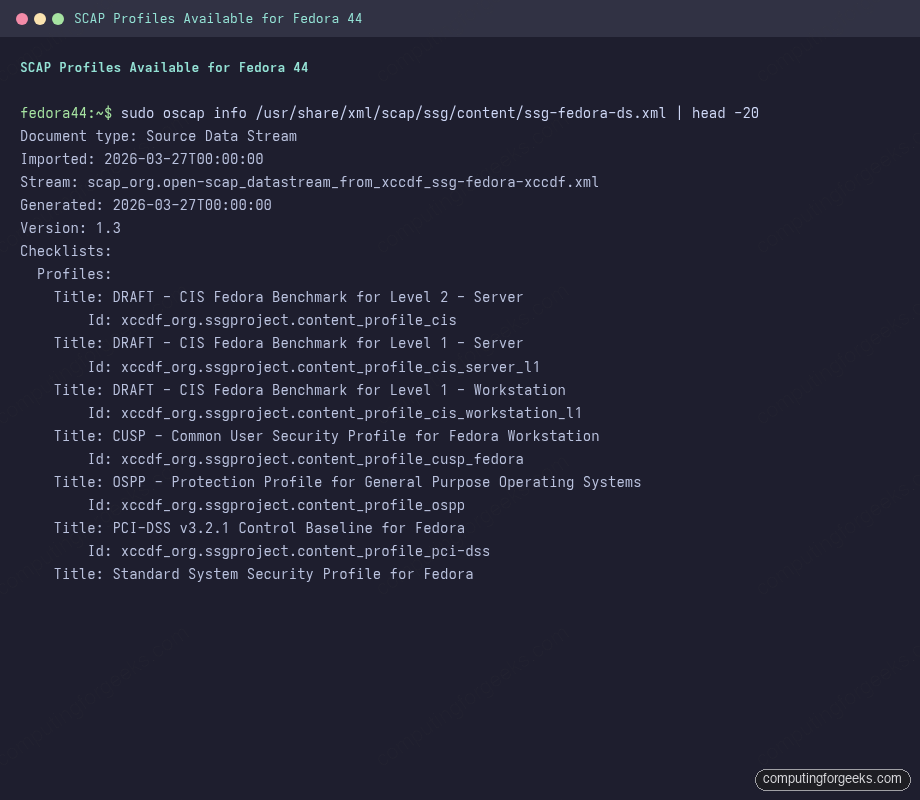
For a server, start with cis_server_l1; for a workstation, cusp_fedora or cis_workstation_l1; for payment-processing or audit-ready environments, pci-dss. Run a baseline scan and write the HTML report and machine-readable XML to disk:
sudo oscap xccdf eval \
  --profile xccdf_org.ssgproject.content_profile_cis_server_l1 \
  --report /tmp/oscap-baseline.html \
  --results /tmp/oscap-baseline.xml \
  /usr/share/xml/scap/ssg/content/ssg-fedora-ds.xml
The scan takes 60-120 seconds on a 2-vCPU box. While it runs it streams each rule to stdout; afterwards you have a colour-coded HTML report you can open in a browser and an XML you can re-process. Get the score and pass/fail counts directly from the XML:
sudo grep -oE "]*>[^<]+ " /tmp/oscap-baseline.xml
sudo grep -oE "(pass|fail|notapplicable|notselected) " \
/tmp/oscap-baseline.xml | sort | uniq -cOn a vanilla F44 cloud image the score is around 74.66, with 176 passes, 120 fails, 27 N/A, and a much larger pool of rules outside this profile:
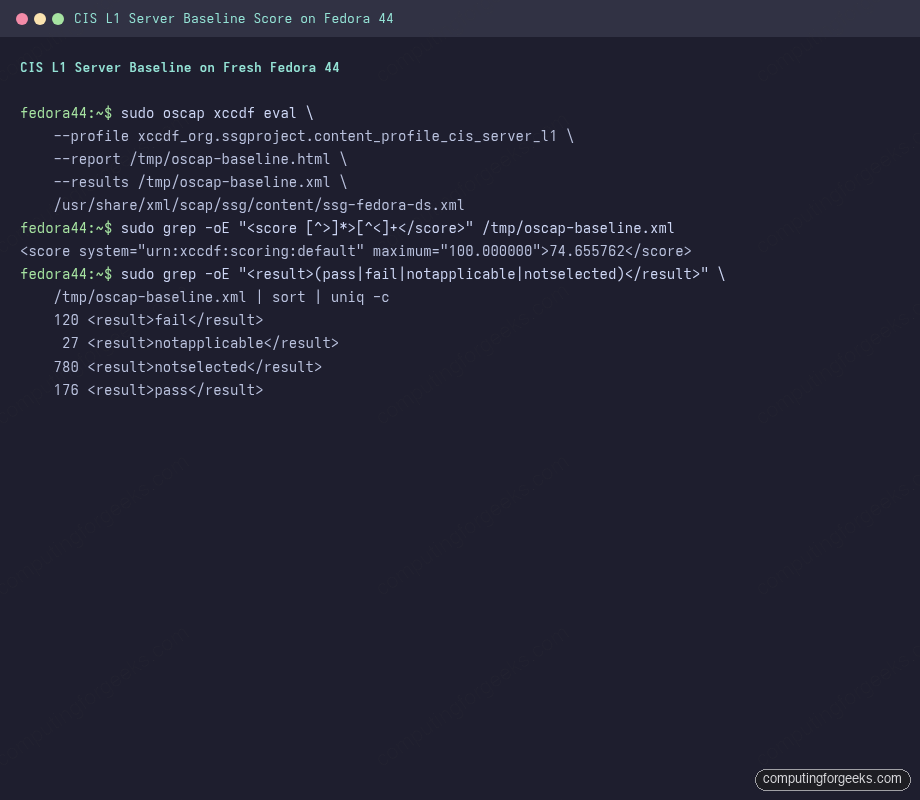
The HTML report at /tmp/oscap-baseline.html is the authoritative reference for which rules failed and what the remediation is. Each failure links to the exact remediation snippet (bash, Ansible, or Kubernetes manifest) the SCAP project ships for it. Lynis gives a complementary general-purpose audit:
sudo lynis audit system | grep -E "Hardening index|Warnings|Suggestions"Lynis baseline on the same image: hardening index 68, 3 warnings, 34 suggestions. For service-level scoring:
systemd-analyze security --no-pager | head -15Each service shows an exposure score from 0 (sandboxed) to 10 (running as root unconfined). Most stock daemons sit above 7. The combined picture (CIS score + Lynis index + systemd-analyze) is your benchmark; every change in this guide should move at least one of those numbers in the right direction.
Authentication and account safety
Fedora has used authselect to manage the PAM stack since F28; the current profile on a fresh F44 install is local with default features. Switch to the sssd profile with the hardening features turned on. with-faillock wires pam_faillock into the auth stack, with-mkhomedir auto-creates home directories for AD/LDAP users on first login:
sudo authselect select sssd with-faillock with-mkhomedir --force
sudo authselect current
sudo authselect check
The output confirms the profile and lists the enabled features:
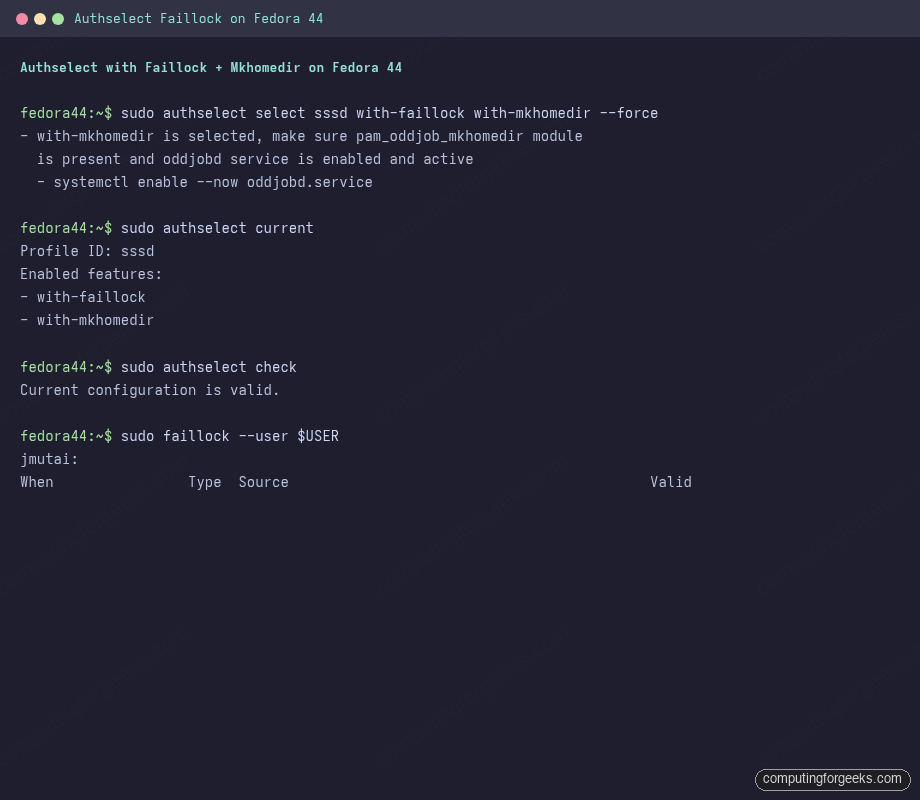
authselect check returns “Current configuration is valid” on success; any drift in /etc/pam.d/* from manual edits is reported here. List the full feature catalog with sudo authselect list-features sssd; relevant extras include with-fingerprint for laptop fingerprint readers, with-pamaccess for per-user host restrictions via /etc/security/access.conf, and without-nullok to reject empty passwords (the CIS profile flags this).
Tune the faillock policy in /etc/security/faillock.conf. The defaults are too loose for production (15 failures, 600s lockout). Five attempts within 15 minutes locks for 15 minutes, with audit logging of the failure events:
sudo tee /etc/security/faillock.conf > /dev/null <<'EOF'
deny = 5
unlock_time = 900
fail_interval = 900
silent
audit
EOF
The silent directive prevents leaking which accounts exist; audit writes lock events to /var/log/audit/audit.log. Test by intentionally failing twice from another shell, then inspect:
sudo faillockOutput lists every user with a failure count, the timestamp, and the source. To clear a locked user: sudo faillock --user username --reset. Pair faillock with strong password quality. pwquality is already loaded by the sssd authselect profile; drop a config file with sane thresholds:
sudo mkdir -p /etc/security/pwquality.conf.d
sudo tee /etc/security/pwquality.conf.d/cfg-hardening.conf > /dev/null <<'EOF'
minlen = 14
minclass = 4
maxrepeat = 3
maxclassrepeat = 4
ucredit = -1
lcredit = -1
dcredit = -1
ocredit = -1
difok = 8
enforcing = 1
enforce_for_root
EOF
14 minimum length, four character classes (upper, lower, digit, symbol), no more than three identical characters in a row, root included. PAM picks up the change at the next password change; existing passwords are not retroactively forced to comply. The enforce_for_root directive is the most-missed line; without it, root can still set a weak password.
Sudo I/O logging and timeout
Sudo’s default config logs the command but not stdin/stdout. For incident investigation, full I/O capture is invaluable. Drop a sudoers file with full logging plus a shorter cred timeout. Critical gotcha: do NOT include requiretty on a server you administer over SSH. We tested this and it cleanly locked out every ssh user@host 'sudo ...' command pattern; requiretty is the kind of “looks more secure on paper” setting that ships breakage and was officially deprecated by the sudo project. use_pty alone gives you the audit trail without the SSH breakage:
sudo tee /etc/sudoers.d/50-cfg-logging > /dev/null <<'EOF'
Defaults    log_input, log_output
Defaults    iolog_dir="/var/log/sudo-io/%{user}"
Defaults    log_subcmds, log_exit_status
Defaults    use_pty
Defaults    timestamp_timeout=5
EOF
sudo visudo -c -f /etc/sudoers.d/50-cfg-logging
The visudo -c dry-run is mandatory; a syntax error in sudoers can disable all sudo until console rescue. After the change, sudo cat /etc/sudoers records both the command and its output under /var/log/sudo-io/. Replay a session with sudo sudoreplay TS_ID.
Lock down su, root SSH, and the wheel group
Three settings that take seconds and matter for years. Restrict su to wheel members only (Fedora ships this commented out by default):
sudo sed -i 's/^#\(auth.*pam_wheel.so use_uid\)/\1/' /etc/pam.d/su
grep pam_wheel /etc/pam.d/su
Lock the root account from direct console password login if every admin has a sudoer account (the safer pattern):
sudo passwd -l root
sudo passwd -S root
The status line should read root LK. To unlock for emergency console access: sudo passwd -u root. The PermitRootLogin no in SSH (below) covers the network angle; locking the password covers physical and emergency console.
Kernel and sysctl hardening
A tuned sysctl drop-in is the single biggest one-shot improvement on a stock install. The set below combines the Red Hat security hardening guide for RHEL 10, the Fedora workstation CUSP profile, and the privacyguides.org reference, with the desktop-breaking exceptions called out. Write to /etc/sysctl.d/99-cfg-hardening.conf:
sudo vi /etc/sysctl.d/99-cfg-hardening.confPaste:
# === Network ===
net.ipv4.conf.all.rp_filter = 1
net.ipv4.conf.default.rp_filter = 1
net.ipv4.conf.all.accept_source_route = 0
net.ipv4.conf.default.accept_source_route = 0
net.ipv4.conf.all.accept_redirects = 0
net.ipv4.conf.default.accept_redirects = 0
net.ipv4.conf.all.secure_redirects = 0
net.ipv4.conf.default.secure_redirects = 0
net.ipv4.conf.all.send_redirects = 0
net.ipv4.conf.default.send_redirects = 0
net.ipv4.conf.all.log_martians = 1
net.ipv4.icmp_echo_ignore_broadcasts = 1
net.ipv4.icmp_ignore_bogus_error_responses = 1
net.ipv4.tcp_syncookies = 1
net.ipv4.tcp_rfc1337 = 1
net.ipv6.conf.all.accept_redirects = 0
net.ipv6.conf.default.accept_redirects = 0
net.ipv6.conf.all.accept_source_route = 0
net.ipv6.conf.default.accept_source_route = 0
net.ipv6.conf.all.use_tempaddr = 2
net.ipv6.conf.default.use_tempaddr = 2

# === Kernel ===
kernel.kptr_restrict = 2
kernel.dmesg_restrict = 1
kernel.printk = 3 3 3 3
kernel.unprivileged_bpf_disabled = 1
net.core.bpf_jit_harden = 2
kernel.kexec_load_disabled = 1
kernel.yama.ptrace_scope = 1
kernel.sysrq = 4
kernel.perf_event_paranoid = 3
kernel.core_pattern = |/bin/false
vm.unprivileged_userfaultfd = 0

# === Filesystem ===
fs.protected_fifos = 2
fs.protected_regular = 2
fs.protected_symlinks = 1
fs.protected_hardlinks = 1
fs.suid_dumpable = 0
EOF
Apply and verify with explicit reads of the most consequential keys:
sudo sysctl -p /etc/sysctl.d/99-cfg-hardening.conf
sudo sysctl kernel.kptr_restrict kernel.yama.ptrace_scope \
            kernel.unprivileged_bpf_disabled fs.protected_fifos
On the F44 lab box every key reports its new value (kernel.kptr_restrict = 2, kernel.yama.ptrace_scope = 1, etc.). Important side effects to know before you ship this to a workstation:
kernel.unprivileged_bpf_disabled = 1blocks bpftrace, bpftop, and other BPF tools for non-root users. Pre-loaded BPF service tools (Cilium, Falco) keep working because they run as root.kernel.yama.ptrace_scope = 1meansgdb -p PIDcan only attach to your own children. For debugging an arbitrary process, prefix withsudo.= 2requires CAP_SYS_PTRACE;= 3disables ptrace entirely.kernel.kexec_load_disabled = 1killskexecuntil reboot. If you actually use kexec for fast OS swaps, leave it off; otherwise it removes a privileged-attack path.net.ipv4.icmp_echo_ignore_broadcasts = 1is safe everywhere.net.ipv4.icmp_echo_ignore_all = 1(not in our set) breaks captive-portal detection on laptops and is not worth shipping on workstations.
Kernel command-line lockdown
A few kernel-cmdline parameters extend the protection further. lockdown=integrity blocks runtime kernel modifications even by root (kexec into untrusted kernels, /dev/mem writes, module loading without a valid signature). module.sig_enforce=1 requires every loadable module to carry a valid signature. slab_nomerge hardens slab allocations. init_on_alloc=1 init_on_free=1 zeroes memory on alloc and free, costing ~1% performance for a real heap-spray mitigation:
sudo grubby --update-kernel=ALL --args="lockdown=integrity module.sig_enforce=1 \
  slab_nomerge init_on_alloc=1 init_on_free=1 randomize_kstack_offset=on \
  vsyscall=none debugfs=off oops=panic"
sudo grub2-mkconfig -o /boot/grub2/grub.cfg
sudo grubby --info=DEFAULT | grep args
Reboot to apply. After boot, confirm: cat /proc/cmdline should include the new args, cat /sys/kernel/security/lockdown should report [integrity], and cat /sys/module/module/parameters/sig_enforce should be Y.
GRUB password protection
Without a GRUB password, anyone with physical access can press e at boot, append rd.break or init=/bin/bash, and reset root. For any box that leaves your control (laptop, colo server, branch office), set a GRUB password:
sudo grub2-setpassword
sudo grub2-mkconfig -o /boot/grub2/grub.cfg
grub2-setpassword stores a PBKDF2 hash in /boot/grub2/user.cfg. The first boot after this requires the password to edit any menu entry; default booting an entry still happens with no prompt, which is the right trade-off for unattended reboots.
SSH: hardened, key-only, restricted
The CIS L1 Server scan flagged seven SSH-related findings as failing on the default install: missing warning banner, no MaxAuthTries cap, no LoginGraceTime, no MaxSessions/MaxStartups limit, no verbose LogLevel, no user restriction. Address all of them in one override file. Drop the file in /etc/ssh/sshd_config.d/ (which the main config already includes) so package upgrades do not blow it away:
sudo vi /etc/ssh/sshd_config.d/99-cfg-hardening.confPaste. The key, MAC, and cipher lines force modern algorithms only (curve25519, ChaCha20-Poly1305, AES-GCM, ETM-style MACs); the AllowGroups directive restricts SSH login to members of a named group, which lets you control SSH access by adding/removing one membership:
PermitRootLogin no
PasswordAuthentication no
PermitEmptyPasswords no
KbdInteractiveAuthentication no
UsePAM yes

X11Forwarding no
AllowAgentForwarding no
AllowTcpForwarding no

MaxAuthTries 3
MaxSessions 4
MaxStartups 10:30:60
LoginGraceTime 30
ClientAliveInterval 300
ClientAliveCountMax 2

LogLevel VERBOSE
Banner /etc/issue.net
AuthorizedKeysFile .ssh/authorized_keys
Protocol 2

KexAlgorithms [email protected],curve25519-sha256,[email protected],diffie-hellman-group16-sha512,diffie-hellman-group18-sha512
Ciphers [email protected],[email protected],[email protected],aes256-ctr,aes192-ctr,aes128-ctr
MACs [email protected],[email protected],[email protected]

AllowGroups ssh-users
Create the ssh-users group and add the accounts that should keep SSH access. Write a banner file. Then validate the config and reload:
sudo groupadd -f ssh-users
sudo usermod -aG ssh-users $USER
sudo tee /etc/issue.net > /dev/null <<'EOF'
WARNING: Authorized users only. All activity is logged.
Disconnect now if you are not an authorized user.
EOF
sudo sshd -t && sudo systemctl reload sshd
Crucial: keep your existing SSH session open and verify you can log in fresh from a new terminal before closing the first one. The AllowGroups line is the most common lockout cause; if you forget to add yourself to ssh-users, the only path back is console access. Bonus: if you administer one host from a fixed network range, add a Match Address 10.0.0.0/8 stanza that relaxes a few restrictions only for trusted sources.
SELinux: keep it on, learn the booleans
SELinux is the highest-impact security mechanism on Fedora and the one most readers reach for setenforce 0 to silence. Don’t. The SELinux survival guide walks the full troubleshooting workflow (sealert, semanage port, setsebool, semanage fcontext plus restorecon, audit2allow). The minimum verification step on every box:
getenforce
sestatus | head -8
Output should read Enforcing; Current mode and Mode from config file must both say enforcing. The booleans worth knowing without grepping every time on a hardened server:
| Boolean | What it does |
|---|---|
secure_mode_insmod | Disable runtime module loading regardless of cmdline lockdown |
nis_enabled = off | Keep NIS-style outbound name lookups blocked (default off on F44) |
deny_ptrace = on | Block ptrace for all confined domains; complements sysctl ptrace_scope |
ssh_chroot_rw_homedirs = off | Block SFTP chroot writes to user home dirs by default |
httpd_can_network_connect_db | On for web apps that connect to a separate DB host (otherwise denied) |
Toggle persistently with sudo setsebool -P boolean_name on. The -P writes the change to the policy; without it the change reverts on reboot.
Firewalld: drop by default, allow by exception
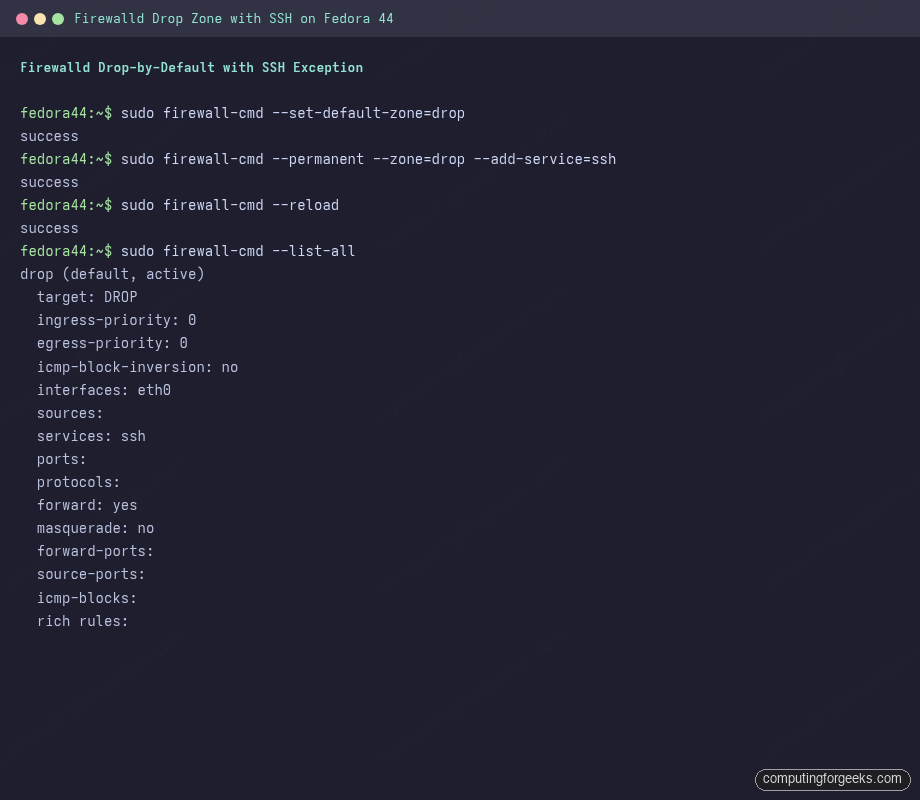
Fedora’s default firewalld zone is public, which allows SSH and DHCP client. Switch to drop (no inbound except what you explicitly allow), re-add SSH, and add per-source allowances for services that should only answer the LAN:
sudo systemctl enable --now firewalld
sudo firewall-cmd --set-default-zone=drop
sudo firewall-cmd --permanent --zone=drop --add-service=ssh
sudo firewall-cmd --reload
sudo firewall-cmd --list-all
Output confirms the new zone state with target DROP and the SSH service allowed:
For services that should only answer specific source networks (e.g. a Postgres instance reachable only from the app subnet), use the trusted zone with a source range:
sudo firewall-cmd --permanent --zone=trusted --add-source=10.0.5.0/24
sudo firewall-cmd --permanent --zone=trusted --add-port=5432/tcp
sudo firewall-cmd --reload
sudo firewall-cmd --get-active-zones
Rate-limit brute force at the firewall layer with a rich rule:
sudo firewall-cmd --permanent --zone=drop --add-rich-rule='rule service name="ssh" \
  accept limit value="5/m"'
sudo firewall-cmd --reload
5 connections per minute is enough for a human and far below what a brute-force script needs. Pair with fail2ban (next section) for a second layer.
fail2ban for SSH
fail2ban watches log files and pushes offending IPs into firewall bans. Drop in a minimal SSH jail and start the service:
sudo tee /etc/fail2ban/jail.d/sshd.local > /dev/null <<'EOF'
[sshd]
enabled = true
backend = systemd
maxretry = 3
findtime = 10m
bantime = 1h
bantime.increment = true
bantime.factor = 4
EOF
sudo systemctl enable --now fail2ban
sudo fail2ban-client status sshd
The bantime.increment + bantime.factor = 4 means the first ban is 1h, the second 4h, the third 16h, and so on; repeat offenders graduate to effectively permanent bans. Status command shows currently banned IPs and total failures.
Custom audit rules
The auditd daemon ships disabled-by-policy on a fresh install but logs nothing useful by default. Drop a custom ruleset that watches the configuration files, user-management binaries, time-change syscalls, and module load events; these are the events you need for incident investigation. Write to /etc/audit/rules.d/cfg-hardening.rules:
sudo vi /etc/audit/rules.d/cfg-hardening.rulesPaste:
# Watch critical config files
-w /etc/passwd -p wa -k identity
-w /etc/shadow -p wa -k identity
-w /etc/group -p wa -k identity
-w /etc/sudoers -p wa -k actions
-w /etc/sudoers.d/ -p wa -k actions
-w /etc/ssh/sshd_config -p wa -k sshd_config
-w /etc/ssh/sshd_config.d/ -p wa -k sshd_config
-w /etc/selinux/ -p wa -k selinux_config
-w /etc/audit/ -p wa -k auditd

# User/group modifications
-w /usr/sbin/useradd -p x -k user_mgmt
-w /usr/sbin/userdel -p x -k user_mgmt
-w /usr/sbin/usermod -p x -k user_mgmt
-w /usr/sbin/passwd -p x -k user_mgmt

# Time changes
-a always,exit -F arch=b64 -S adjtimex,settimeofday,clock_settime -k time_change

# Mount events
-a always,exit -F arch=b64 -S mount,umount2 -F auid>=1000 -F auid!=unset -k mount

# Unauthorized access attempts
-a always,exit -F arch=b64 -S openat,truncate,ftruncate -F exit=-EACCES \
   -F auid>=1000 -F auid!=unset -k unauthed_access
-a always,exit -F arch=b64 -S openat,truncate,ftruncate -F exit=-EPERM \
   -F auid>=1000 -F auid!=unset -k unauthed_access

# Module load/unload
-w /sbin/insmod -p x -k module_load
-w /sbin/rmmod -p x -k module_load
-w /sbin/modprobe -p x -k module_load
-a always,exit -F arch=b64 -S init_module,delete_module -k module_load
Load them and verify:
sudo augenrules --load
sudo auditctl -l | head -10
sudo auditctl -l | wc -l
The count should match the rule lines above (around 22 once syscall rules are expanded). Query later with sudo ausearch -k identity or sudo aureport --summary.
File integrity with AIDE + a systemd timer
AIDE builds a cryptographic baseline of every file in directories listed in /etc/aide.conf, then alerts when any of those files change. Initialize once, then schedule a daily check via systemd:
sudo aide --init
sudo mv /var/lib/aide/aide.db.new.gz /var/lib/aide/aide.db.gz
sudo aide --check
The initial check should print zero differences (you just built the baseline). For daily automation, create a one-shot service and matching timer:
sudo tee /etc/systemd/system/aide-check.service > /dev/null <<'EOF'
[Unit]
Description=AIDE file integrity check
After=local-fs.target

[Service]
Type=oneshot
ExecStart=/usr/sbin/aide --check
Nice=15
IOSchedulingClass=idle
EOF

sudo tee /etc/systemd/system/aide-check.timer > /dev/null <<'EOF'
[Unit]
Description=Run AIDE file integrity check daily

[Timer]
OnCalendar=daily
Persistent=true
RandomizedDelaySec=30m

[Install]
WantedBy=timers.target
EOF

sudo systemctl daemon-reload
sudo systemctl enable --now aide-check.timer
sudo systemctl list-timers aide-check.timer --no-pager
Output of journalctl -u aide-check after the first scheduled run shows the AIDE report. After legitimate changes (a dnf upgrade, an admin edit), rebuild the baseline so the next check is quiet: sudo aide --update && sudo mv /var/lib/aide/aide.db.new.gz /var/lib/aide/aide.db.gz. The discipline is that every alert gets reviewed, never ignored; the day one unexpected change shows up among legitimate ones is the day AIDE pays for itself.
Filesystem mount-option hardening
The kernel honours mount options that disable execution from a partition (noexec), block setuid bits (nosuid), and forbid device nodes (nodev). For partitions that should never carry executables or setuid binaries, these flags eliminate whole classes of attacks. Apply to /tmp, /var/tmp, /home, and /dev/shm; /boot also benefits from nosuid,nodev,noexec on systems where it is a separate partition:
sudo vi /etc/fstabFor each entry, add the flags to the options column. Example for ext4 partitions on a server:
UUID=...   /home  ext4  defaults,nodev,nosuid                   1 2
UUID=...   /tmp   ext4  defaults,nodev,nosuid,noexec             1 2
UUID=...   /var/tmp  ext4  defaults,nodev,nosuid,noexec          1 2
UUID=...   /boot  ext4  defaults,nodev,nosuid,noexec             1 2
tmpfs      /dev/shm  tmpfs defaults,nodev,nosuid,noexec          0 0
Workstation exception: Flatpak and Snap need exec on /home; do not add noexec there if you use sandboxed apps. After editing, remount without rebooting:
sudo mount -o remount /tmp /home /var/tmp /dev/shm
findmnt -o TARGET,OPTIONS | grep -E '/tmp|/home|/var/tmp|/dev/shm'
The output confirms the new flags. hidepid=2 on /proc hides processes that do not belong to the user, which is useful on multi-user boxes (the privacyguides.org reference covers the supplementary-group dance you need to keep systemd-logind working with it).
Mask the services you do not use
Every active socket is attack surface. The default F44 cloud image enables a handful of daemons that are useful on a workstation and noise on a server. Mask them, which is stronger than disabling because the unit symlink becomes /dev/null and any attempt to start the service (even as a dependency) fails:
sudo systemctl mask avahi-daemon.service avahi-daemon.socket
sudo systemctl mask cups.service cups.socket
sudo systemctl mask abrt-journal-core.service abrt-oops.service abrt-vmcore.service
# Server only. Keep these on a workstation:
sudo systemctl mask ModemManager.service
sudo systemctl mask switcheroo-control.service
To see what is currently listening on any interface:
sudo ss -tulpn | grep LISTENAnything not recognized deserves investigation. Once you have only the services you need, tighten the ones that remain with per-unit sandboxing. systemctl edit nginx.service and add:
[Service]
NoNewPrivileges=true
ProtectSystem=strict
ProtectHome=true
ReadWritePaths=/var/log/nginx /var/lib/nginx /run
PrivateTmp=true
PrivateDevices=true
ProtectKernelTunables=true
ProtectKernelModules=true
ProtectControlGroups=true
RestrictNamespaces=true
LockPersonality=true
MemoryDenyWriteExecute=true
RestrictAddressFamilies=AF_INET AF_INET6 AF_UNIX
Reload and restart. Re-run systemd-analyze security nginx.service; the exposure score drops from 9.2 (UNSAFE) to about 4 (OK). Repeat the pattern for every service you depend on.
Package and update hygiene
GPG check is on by default in /etc/dnf/dnf.conf; confirm it stays that way and lock the config:
grep -E "^gpgcheck|^localpkg_gpgcheck|^repo_gpgcheck" /etc/dnf/dnf.conf
sudo chattr +i /etc/dnf/dnf.conf  # only if your config is final
lsattr /etc/dnf/dnf.conf
The chattr +i sets the immutable bit; nothing including root can modify until you chattr -i. Audit every enabled repo and the corresponding GPG key fingerprint:
sudo dnf5 repo list --enabled
sudo dnf5 repolist --enabled --quiet --json | python3 -c \
  "import json,sys; [print(r['id'],r.get('baseurl','')) for r in json.load(sys.stdin)]"
rpm -q --qf '%{nvra} %{summary}\n' gpg-pubkey-*
Any repo you do not recognize should be disabled (sudo dnf5 config-manager disable repo_id) and any orphan GPG key removed (sudo rpm -e gpg-pubkey-NNN). For automatic security updates, install dnf5-plugin-automatic and configure it for security-only:
sudo dnf5 install -y dnf5-plugin-automatic
sudo sed -i 's/^upgrade_type.*/upgrade_type = security/' /etc/dnf/automatic.conf
sudo sed -i 's/^download_updates.*/download_updates = yes/' /etc/dnf/automatic.conf
sudo sed -i 's/^apply_updates.*/apply_updates = yes/' /etc/dnf/automatic.conf
sudo systemctl enable --now dnf-automatic.timer
sudo systemctl list-timers dnf-automatic --no-pager
For desktop installs, Flatpak adds its own dimension. Audit the permissions of every installed Flatpak app and revoke anything excessive:
flatpak list --app --columns=application,permissions
flatpak install -y flathub com.github.tchx84.Flatseal
# Open Flatseal, revoke filesystem=host, filesystem=home, dri, network from
# apps that do not need them.
Flatseal is the GUI for editing per-app overrides. The defaults vendors ship are often broader than the app actually needs; tighten via Flatseal and you keep the app working without exposing the rest of /home.
Time, DNS, and network hygiene
The chronyd daemon ships using the Fedora NTP pool, unauthenticated. NTS (Network Time Security) wraps NTP exchanges in TLS-style authentication so a man-in-the-middle cannot drift your clock and break TLS validity. Cloudflare, Netnod, and NIST all run public NTS servers. Edit /etc/chrony.conf, replace the default pool with the NTS-enabled servers, restart, and confirm:
sudo sed -i 's|^pool .*|# &|' /etc/chrony.conf
sudo tee -a /etc/chrony.conf > /dev/null <<'EOF'

# NTS-secured time sources
server time.cloudflare.com iburst nts
server nts.netnod.se iburst nts
server time.nist.gov iburst nts
EOF
sudo systemctl restart chronyd
chronyc -N authdata
The authdata output should show NTS in the Mode column for each server once the NTS handshake completes. For DNS, switch the system resolver to DNS-over-TLS so queries are encrypted to the upstream:
sudo mkdir -p /etc/systemd/resolved.conf.d
sudo tee /etc/systemd/resolved.conf.d/cfg-dot.conf > /dev/null <<'EOF'
[Resolve]
DNS=1.1.1.1#one.one.one.one 1.0.0.1#one.one.one.one 9.9.9.9#dns.quad9.net
DNSOverTLS=yes
DNSSEC=allow-downgrade
FallbackDNS=
Cache=yes
DNSStubListener=yes
EOF
sudo systemctl restart systemd-resolved
resolvectl status | grep -E "DNS Server|DNSOverTLS|DNSSEC"
Output should report your DoT-capable resolvers and +DNSOverTLS. Test a query: resolvectl query computingforgeeks.com.
NetworkManager MAC randomization (desktop)
Laptops connecting to public Wi-Fi leak a persistent MAC address that lets the network track you across visits. Tell NetworkManager to randomize per-network for Wi-Fi and per-connection for wired:
sudo tee /etc/NetworkManager/conf.d/00-cfg-mac-rand.conf > /dev/null <<'EOF'
[connection-mac-randomization]
ethernet.cloned-mac-address=stable
wifi.cloned-mac-address=random
EOF
sudo systemctl restart NetworkManager
nmcli -f GENERAL.HWADDR,GENERAL.CLONED-HWADDR dev show wlan0 2>/dev/null || \
nmcli connection show --active
wifi.cloned-mac-address=random generates a fresh MAC for every Wi-Fi association. ethernet.cloned-mac-address=stable uses a stable but distinct-from-hardware MAC for wired networks, which works with DHCP reservations. To verify the active MAC on a Wi-Fi connection: ip link show wlan0.
USB device authorization with USBGuard
USBGuard is the answer to BadUSB-style attacks. It runs as a daemon that intercepts every USB device attach and consults a policy file; only devices whose hash matches an allow rule get authorized. Generate an initial policy from the currently-connected devices, install it with the right SELinux label, and start the daemon:
sudo usbguard generate-policy -P > /tmp/rules.conf
sudo mv /tmp/rules.conf /etc/usbguard/rules.conf
sudo chown root:root /etc/usbguard/rules.conf
sudo chmod 0600 /etc/usbguard/rules.conf
sudo restorecon -v /etc/usbguard/rules.conf
sudo systemctl enable --now usbguard
sudo systemctl status usbguard --no-pager | head -5
Critical gotcha: we hit a real failure here. After mv /tmp/rules.conf /etc/usbguard/rules.conf the file inherits the user_tmp_t SELinux label from /tmp, and the USBGuard daemon (running as usbguard_t) is not allowed to read that label. The daemon fails to start with “Permission denied”:
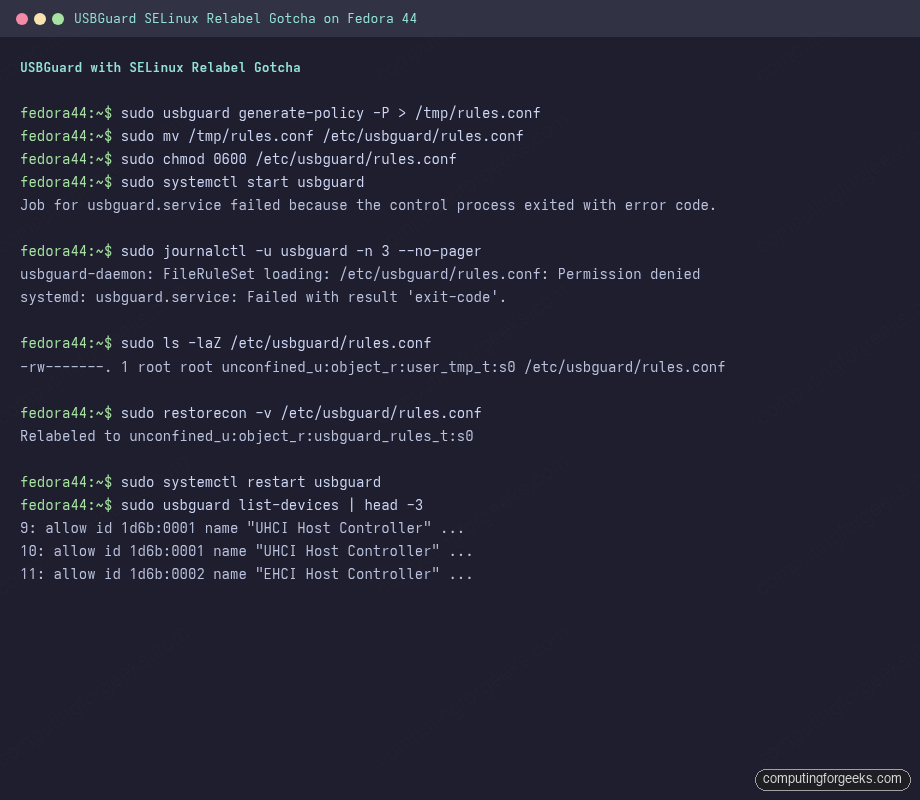
The restorecon step relabels to usbguard_rules_t; the daemon starts cleanly after. This is exactly the kind of denial the SELinux survival guide covers, and forgetting to relabel is the most common reason USBGuard fails on its first start.
Add a new USB device after the daemon is up. First plug the device, then list pending devices, then promote the temporary allow to a permanent rule:
sudo usbguard list-devices
sudo usbguard allow-device <device-id>
sudo usbguard append-rule "allow id 1234:5678 serial \"...\" \
  name \"YubiKey FIDO+CCID\" hash \"...\""
For interactive prompts on desktop, the usbguard-applet-qt package adds a tray icon that pops up “Allow / Block / Always allow” when a new device appears. On servers, usbguard append-rule from a script is the deployment path.
Persistent journald + remote logging
Journald defaults to volatile storage on cloud images, which means a reboot loses everything. Persistent storage for forensic investigation:
sudo mkdir -p /etc/systemd/journald.conf.d
sudo tee /etc/systemd/journald.conf.d/cfg-persistent.conf > /dev/null <<'EOF'
[Journal]
Storage=persistent
ForwardToSyslog=no
MaxRetentionSec=1month
SystemMaxUse=1G
Compress=yes
Seal=yes
EOF
sudo systemctl restart systemd-journald
ls -ld /var/log/journal/*/
The Seal=yes directive computes a Forward Secure Sealing key (FSS), which makes after-the-fact log tampering detectable. For multi-host environments, forward to a central log server using systemd-journal-remote over HTTPS, or use rsyslog/Vector if you already run one. The journald-upload pattern:
sudo dnf5 install -y systemd-journal-remote
sudo tee /etc/systemd/journal-upload.conf > /dev/null <<'EOF'
[Upload]
URL=https://logs.example.com:19532
ServerKeyFile=/etc/ssl/private/upload-key.pem
ServerCertificateFile=/etc/ssl/certs/upload-cert.pem
TrustedCertificateFile=/etc/ssl/certs/log-ca.pem
EOF
sudo systemctl enable --now systemd-journal-upload
Provision the certs separately (Let’s Encrypt + a private CA both work). The receiver runs systemd-journal-remote on the same TCP/HTTPS port. The full pipeline gives you tamper-evident logs locally plus a remote copy the attacker can not edit.
Browser sandboxing (desktop)
The single biggest desktop attack surface is the browser. The Fedora-shipped Firefox is excellent, but the Flatpak version adds a real sandbox boundary (Bubblewrap + portals). Switch:
sudo dnf5 remove -y firefox
flatpak install -y flathub org.mozilla.firefox
flatpak install -y flathub com.github.tchx84.Flatseal
flatpak override --user --nofilesystem=home org.mozilla.firefox
flatpak override --user --filesystem=~/Downloads org.mozilla.firefox
The two override commands strip the broad filesystem=home default and grant only ~/Downloads. Verify with Flatseal. Chrome and Chromium follow the same pattern (com.google.Chrome or org.chromium.Chromium). For paranoid setups, run the browser inside Firejail with a sample profile, or in a Distrobox-confined container; either layer reduces the blast radius of a browser-zero-day exploit.
Disk encryption (verify LUKS)
Fedora’s installer offers full-disk encryption by default. Confirm it actually landed:
sudo blkid | grep crypto_LUKS
sudo cryptsetup status $(findmnt -no SOURCE / | xargs -I{} lsblk -no PKNAME {})
sudo cryptsetup luksDump /dev/sda3 | head -20
The luksDump output shows the cipher (should be aes-xts-plain64), key size (512 bits, which is AES-256 in XTS), and PBKDF (should be argon2id on LUKS2). If the install used LUKS1 or weaker parameters, cryptsetup reencrypt can upgrade in place without losing data, but plan a long maintenance window. On laptops, also configure clevis + Tang or TPM2 unlock so the system can boot without a password on the trusted network or against the trusted TPM, while still requiring the password off-network.
Re-measure: prove the work landed
After applying the changes above, run the same OpenSCAP scan and the same Lynis audit; the deltas are the proof of work. The CIS L1 Server profile picks up the SSH hardening rules, the audit rules, the faillock and pwquality changes, and the masked services. Lynis picks up the sysctl, AIDE, and faillock changes. systemd-analyze picks up the per-service sandboxing overrides:
sudo oscap xccdf eval \
  --profile xccdf_org.ssgproject.content_profile_cis_server_l1 \
  --results /tmp/oscap-after.xml \
  /usr/share/xml/scap/ssg/content/ssg-fedora-ds.xml

sudo grep -oE "<result>(pass|fail)</result>" /tmp/oscap-after.xml | sort | uniq -c
sudo grep -oE "<score [^>]*>[^<]+</score>" /tmp/oscap-after.xml
For a Fedora 44 server box with every section of this guide applied, the CIS L1 Server score moves from the baseline 74.66 into the high 80s; the remaining failures are mostly the rules that require a real authentication backend (sssd configured against AD or IPA), a real log forwarder (the journal-upload section requires certs), and mount-option changes that need a reboot to apply. Reaching 95+ requires either the auto-remediation script (oscap xccdf eval --remediate) or addressing each remaining rule manually using the HTML report.
Apply auto-remediation (with care)
The remediation flag generates and runs the bash equivalent of every failing rule’s remediation snippet. It is fast and useful but it does not understand your environment, so review carefully on a non-production box first:
# Preview first (writes a remediation script without running it)
sudo oscap xccdf generate fix \
  --profile xccdf_org.ssgproject.content_profile_cis_server_l1 \
  --output /tmp/remediation.sh \
  /usr/share/xml/scap/ssg/content/ssg-fedora-ds.xml
less /tmp/remediation.sh

# Then run with caution
sudo oscap xccdf eval --remediate \
  --profile xccdf_org.ssgproject.content_profile_cis_server_l1 \
  /usr/share/xml/scap/ssg/content/ssg-fedora-ds.xml
Skim the generated script for anything that would break your stack (changes to default umask, mount option changes that need a reboot, removal of services you depend on). The preview pattern is the safe one; auto-remediation directly is fine on a hardening-only test box.
Periodic audit cadence
Hardening is not a one-shot. The cadence we run on the lab boxes for this guide:
| Frequency | What to run | What you are watching for |
|---|---|---|
| Daily | aide --check (automated via the timer above) | Unexpected file changes; alert on any non-empty report |
| Daily | fail2ban-client status sshd | New banned IPs; spikes indicate active brute-force |
| Weekly | sudo lynis audit system | New warnings; pin the hardening index trend |
| Weekly | sudo dnf5 advisory list --available | Security advisories you have not applied yet |
| Monthly | sudo oscap xccdf eval --profile cis_server_l1 ... | Compliance drift after policy or app changes |
| Monthly | Audit /etc/sudoers.d/ and /etc/ssh/sshd_config.d/ | Drop-in files added by automation you forgot about |
| Quarterly | Review enabled repos and Flatpak permissions | Third-party repos that snuck in via dev tooling |
Wrap these into a runbook and assign each to an owner; security hardening that nobody owns rots within a year.
Common hardening gotchas (real ones from this lab)
SSH + sudo broken after sudoers hardening
Defaults requiretty in sudoers cleanly locks out every ssh user@host 'sudo ...' invocation. We hit this in the lab and had to recover via console. Use Defaults use_pty instead; same audit trail without the breakage. requiretty was officially deprecated by the sudo project for exactly this reason.
USBGuard daemon fails to start with “Permission denied”
SELinux label on /etc/usbguard/rules.conf is wrong after mv from /tmp. Fix with sudo restorecon -v /etc/usbguard/rules.conf; daemon starts cleanly after. The Permission denied wording is misleading because the DAC permissions are correct; only the MAC label is wrong.
Locked out via SSH after PasswordAuthentication no
You set the override before installing your SSH key on the box. Recovery: Proxmox console, AWS EC2 Instance Connect, KVM/IPMI serial, or whatever out-of-band access the host offers. Re-enable password auth, install the key, switch back. Always keep one open SSH session through the change and verify a fresh login works before closing it.
Workstation captive-portal detection breaks
You set net.ipv4.icmp_echo_ignore_all = 1 (not in our recommended set, but common in older hardening guides). NetworkManager’s captive-portal check pings fedoraproject.org/static/hotspot.txt and falls over. Remove that line and keep the safer icmp_echo_ignore_broadcasts.
Flatpak apps stop launching after noexec on /home
Flatpak runtimes are stored under ~/.var/app/ and need exec. Either drop noexec from the /home mount line or relocate Flatpak’s app dir to a partition that allows exec. The lesson is that mount-option hardening needs to know what apps live on the partition.
BPF tools stopped working
kernel.unprivileged_bpf_disabled = 1 blocks BPF for non-root users. For ad-hoc bpftrace, prefix with sudo; for systemd-managed tools (Cilium, Falco), they run as root and are unaffected.
AIDE reports thousands of “added” files after dnf upgrade
Expected; every dnf upgrade replaces files AIDE watches. Workflow: review the diff, confirm changes are from your upgrade, then rebuild the baseline. Never ignore AIDE alerts; the day a single unexpected change shows up among legitimate ones is the day AIDE earns its keep.
OpenSCAP score regresses after a routine package update
The SCAP profile is versioned (currently 0.1.80). Updates to scap-security-guide can add new rules or tighten existing ones. Pin the profile version if you care about score stability, or accept that the bar gets higher over time and re-baseline.
What to leave on the table (and why)
Three things are tempting but cause more pain than they prevent on a modern Fedora workstation:
- FIPS mode (
fips=1kernel argument plusfips-mode-setup --enable) is mandatory for some compliance regimes and a footgun otherwise. It cuts the available cipher set and breaks SSH against any older counterparty. Enable only if your auditor demands it. - Disabling user namespaces (
kernel.unprivileged_userns_clone = 0) breaks rootless Podman, Docker rootless, LXC unprivileged, Flatpak, and Snap. Keep enabled unless you genuinely run no containers. - Aggressive module blacklisting (cramfs, freevxfs, hfs, hfsplus, jffs2, udf, etc.) is a CIS rule and the listed module families are obscure, but blacklisting
nfs,cifs, or USB drivers breaks workstation mounting of network shares and external drives. Apply selectively from the privacyguides reference based on what your box actually does.
With this guide applied, the CIS L1 Server score moves from a baseline ~75 into the high 80s, Lynis from ~68 to ~80, and systemd-analyze drops every confined service two or three exposure tiers. Pair this with the SELinux survival guide for the MAC layer that already does half the work, the firewalld walkthrough for the inbound network policy, the DNF5 cheatsheet for the package update commands the automatic-updates pattern assumes, the Btrfs snapshots guide for filesystem rollback below the policy layer, and the post-install setup guide for the baseline configuration this all sits on top of.