Fedora ships flatpak in the base install and turns on the Flathub remote on first boot of Workstation. Yet most users still install everything through dnf and never touch the Software Center beyond updates. That is a habit worth breaking on Fedora, because the boundary between RPM and Flatpak has shifted: GNOME Extensions Manager, Bitwarden, OBS Studio, Bottles, Lutris, and dozens of other applications are now Flathub-first and either lag or do not ship at all as RPMs.
This guide walks through the practical Flatpak workflow on a modern Fedora Workstation: confirming the remote, installing apps from the GUI and the CLI, granting and revoking sandbox permissions with flatpak override, updating, and removing apps cleanly. Every screenshot is from a freshly installed Fedora Workstation VM.
Tested May 2026 on Fedora 44 Workstation (kernel 7.0.9-202.fc44, GNOME 50.1, Flatpak 1.17.7). Package availability and CLI parity verified on Fedora 43 (Flatpak 1.16.6) and Fedora 42 (Flatpak 1.16.6).
Why Flatpak matters on modern Fedora
Three reasons stack up:
- Flathub is enabled by default. Earlier Workstation releases shipped a filtered Flathub variant. Current Fedora Workstation releases enable the full Flathub during initial setup via the Third-Party Software toggle.
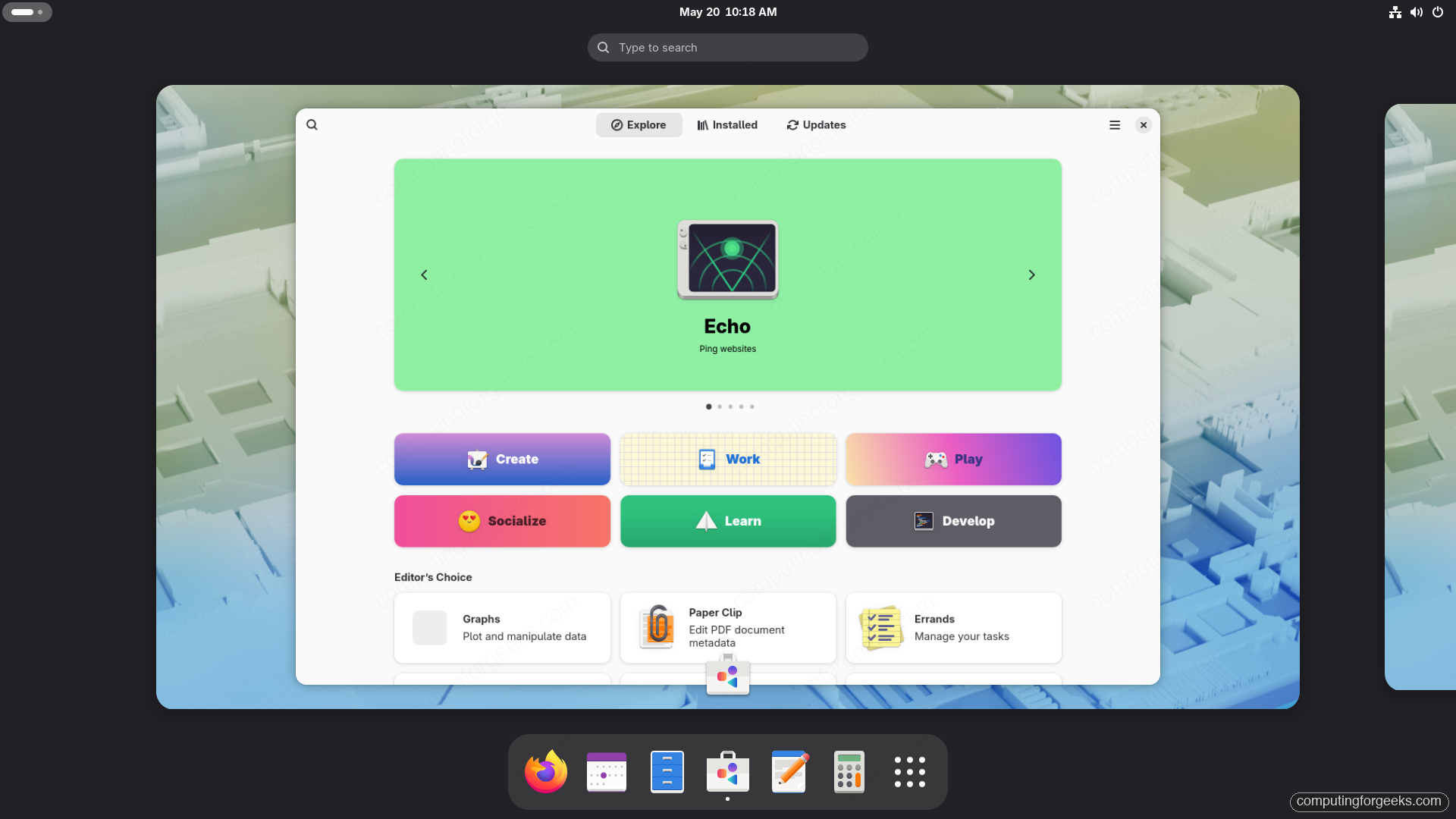
- GNOME Software 50 leads with Flatpak. Search results now surface the Flatpak build first when both an RPM and Flathub option exist. The badge under the app icon tells you which source you are about to install from.
- Sandboxing matters more on a multi-user box. A Flatpak app cannot read your
~/.sshkeys, GPG agent, or browser cookies unless it asks for those portals explicitly.dnf installgrants none of that protection.
Confirm Flatpak and the Flathub remote
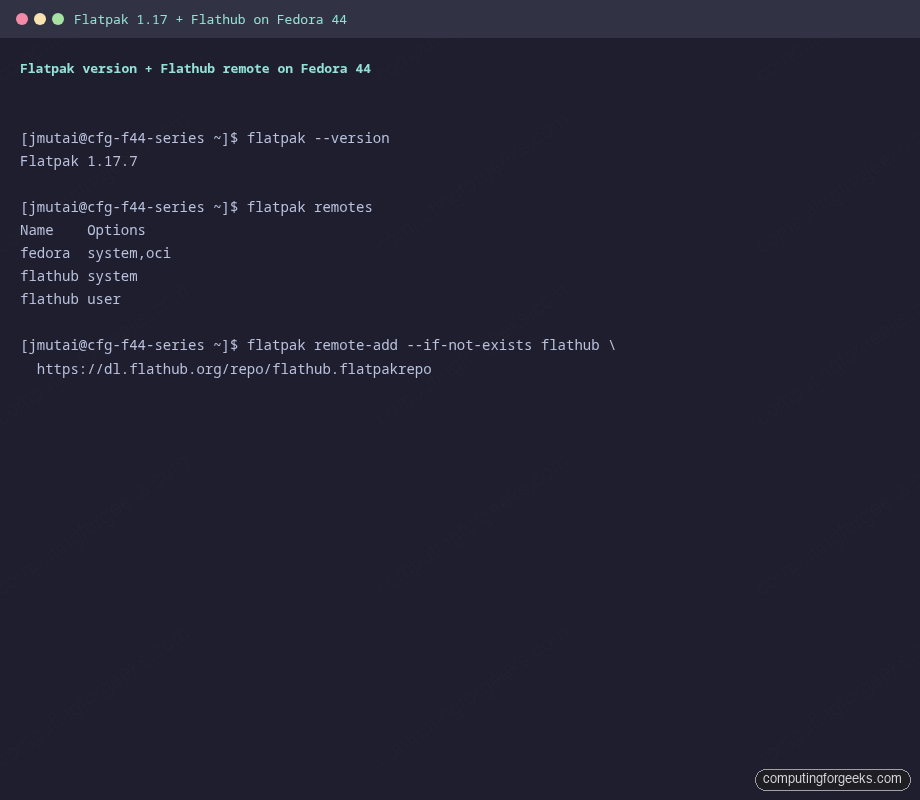
Open a terminal and check the runtime first. The cloud and Server images do not ship Flatpak, so the install path differs slightly between Workstation and Server.
flatpak --version
flatpak remotes
Sample output above. Continue with the next step.
If Flatpak is not present (Server, Minimal, or Cloud Base):
sudo dnf install -y flatpakIf the flathub remote is missing or filtered, add or replace it with the full repo:
sudo flatpak remote-modify --no-filter --enable flathub 2>/dev/null
sudo flatpak remote-add --if-not-exists flathub \
  https://dl.flathub.org/repo/flathub.flatpakrepo
The Workstation image enables this automatically when you accept the Third-Party Software prompt at first boot. If you skipped that, run the fedora-third-party helper:
sudo dnf install -y fedora-third-party
sudo fedora-third-party enable
System remote vs user remote
Flatpak supports two installation scopes:
- System install (
sudo flatpak install ...or no--user): apps live under/var/lib/flatpak, shared across all users on the machine. Requires theorg.freedesktop.Flatpak.app-installPolkit prompt or sudo. - User install (
flatpak install --user ...): apps live under~/.local/share/flatpak, only your account sees them. No password prompt. Disk usage counts against your home quota if your storage layout has one.
For a single-user workstation either choice is fine; for a shared lab or family machine, system installs avoid duplicating the GNOME and Freedesktop platforms per user (those runtimes weigh in around 350 MB each).
Install a Flatpak app from the GUI
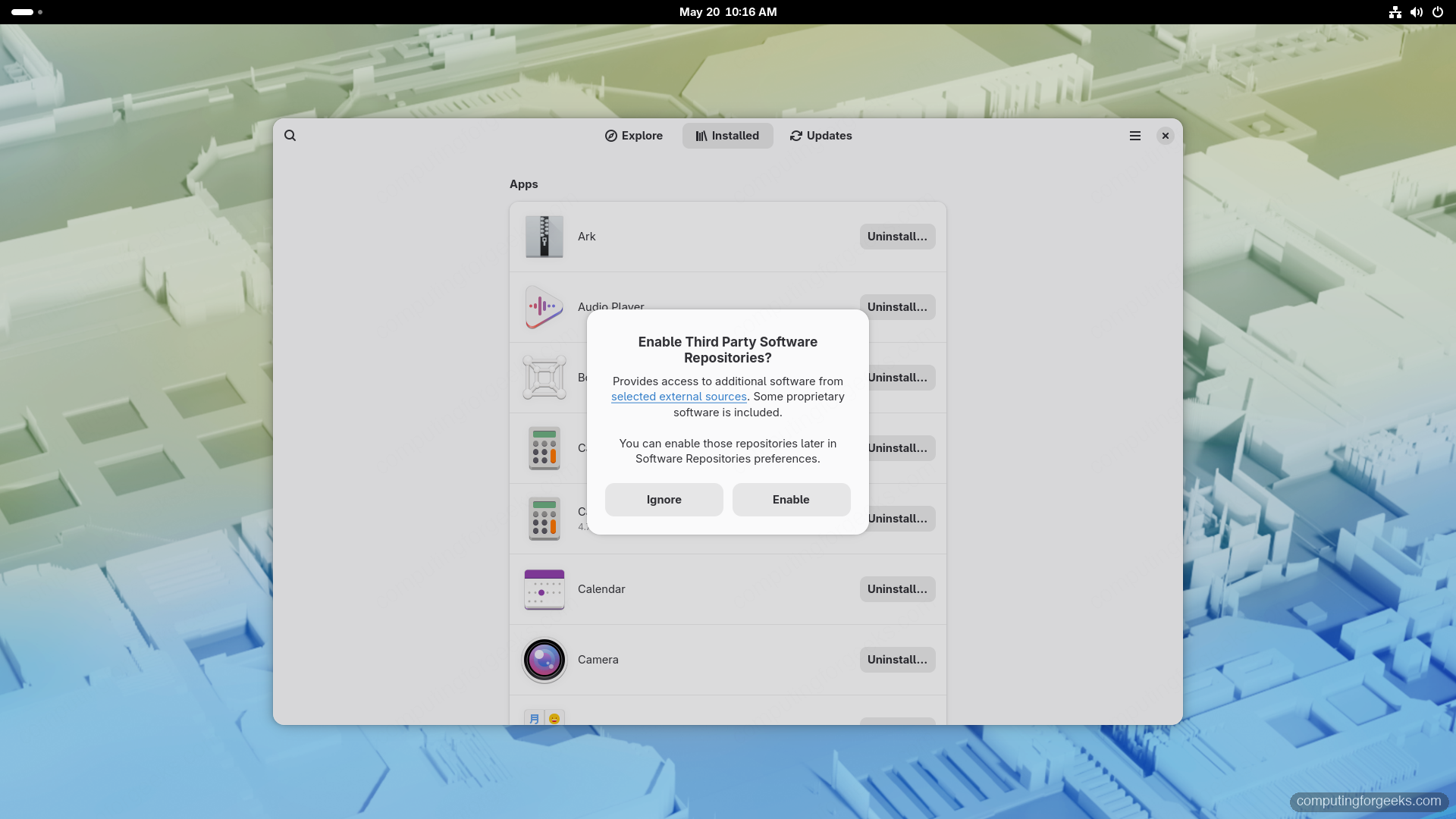
Open Software from the Activities overview. The first launch shows an enable-banner for Third-Party repositories. Click Ignore if you already enabled the toggle during installation. The Explore tab lists curated picks across the Create, Work, Play, Socialize, Learn, and Develop categories. Search for any application name in the top bar.
The Installed tab shows everything you have, with the source badge (rpm or flathub) next to each entry:
Install a Flatpak app from the command line
The CLI is faster once you know an app ID. The pattern is always flatpak install <remote> <application-id>. Application IDs use reverse domain notation (org.gnome.Calculator, com.bitwarden.desktop, org.signal.Signal). Search with flatpak search <term> when in doubt:
flatpak search bitwarden
flatpak install --user flathub org.gnome.Calculator
Sample output above. Continue with the next step.
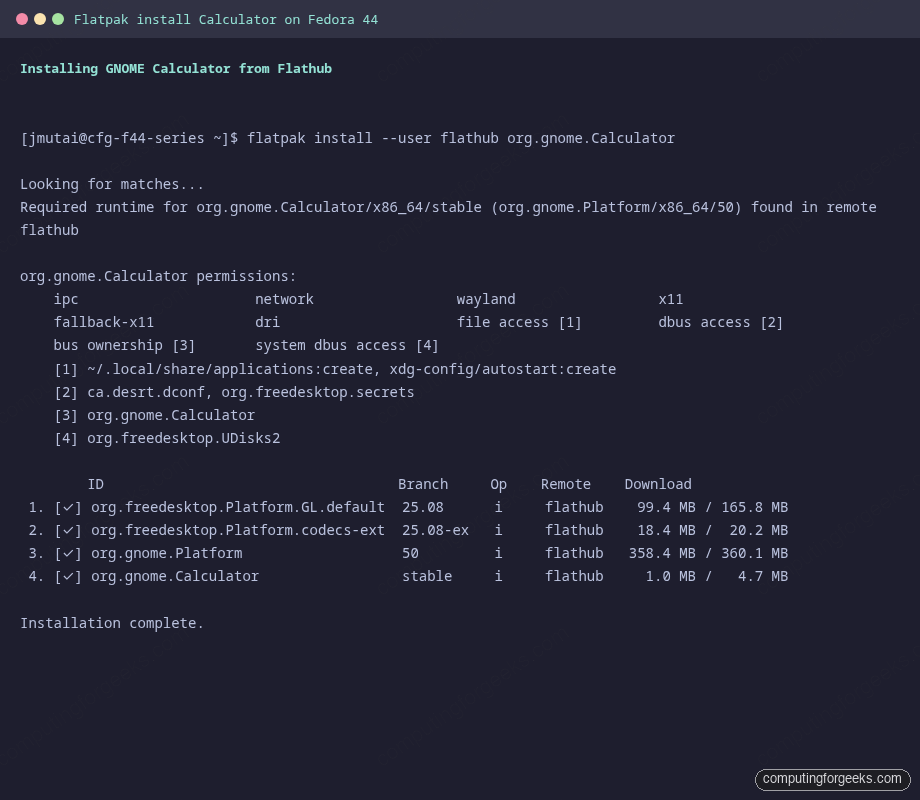
Flatpak shows the permission list before downloading and prompts for confirmation. Notice org.gnome.Platform/x86_64/50 arriving alongside the app: that is the shared GNOME runtime, downloaded once and reused by every GNOME Flatpak on the system.
List, inspect, and run installed apps
Run the commands below.
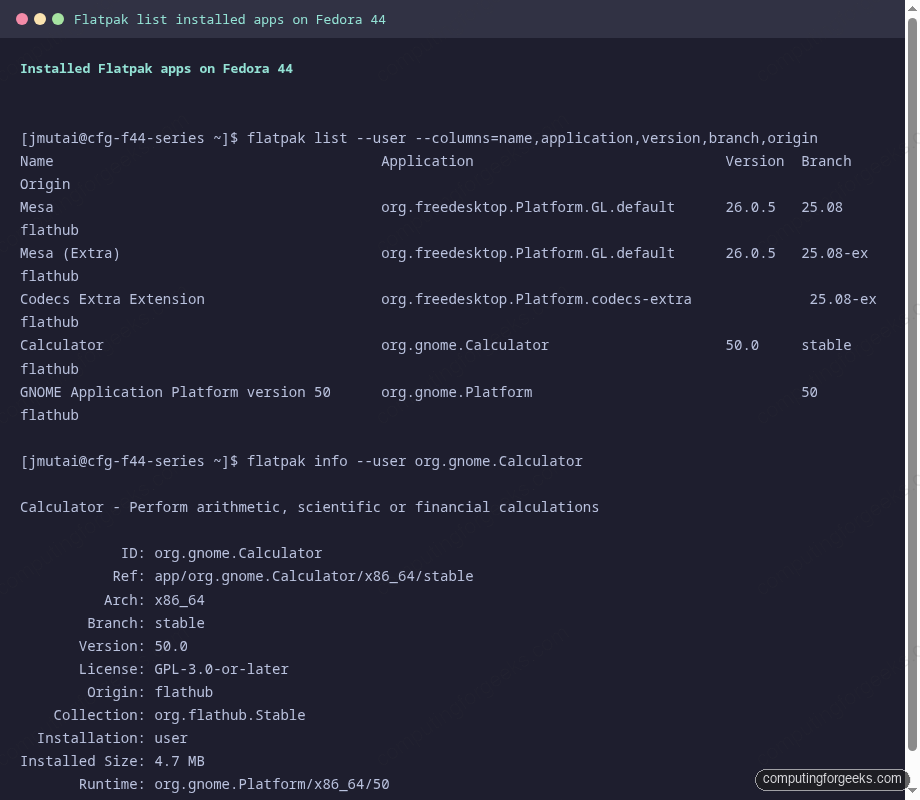
flatpak list --user --columns=name,application,version,branch,origin
flatpak info --user org.gnome.Calculator
Sample output above. Continue with the next step.
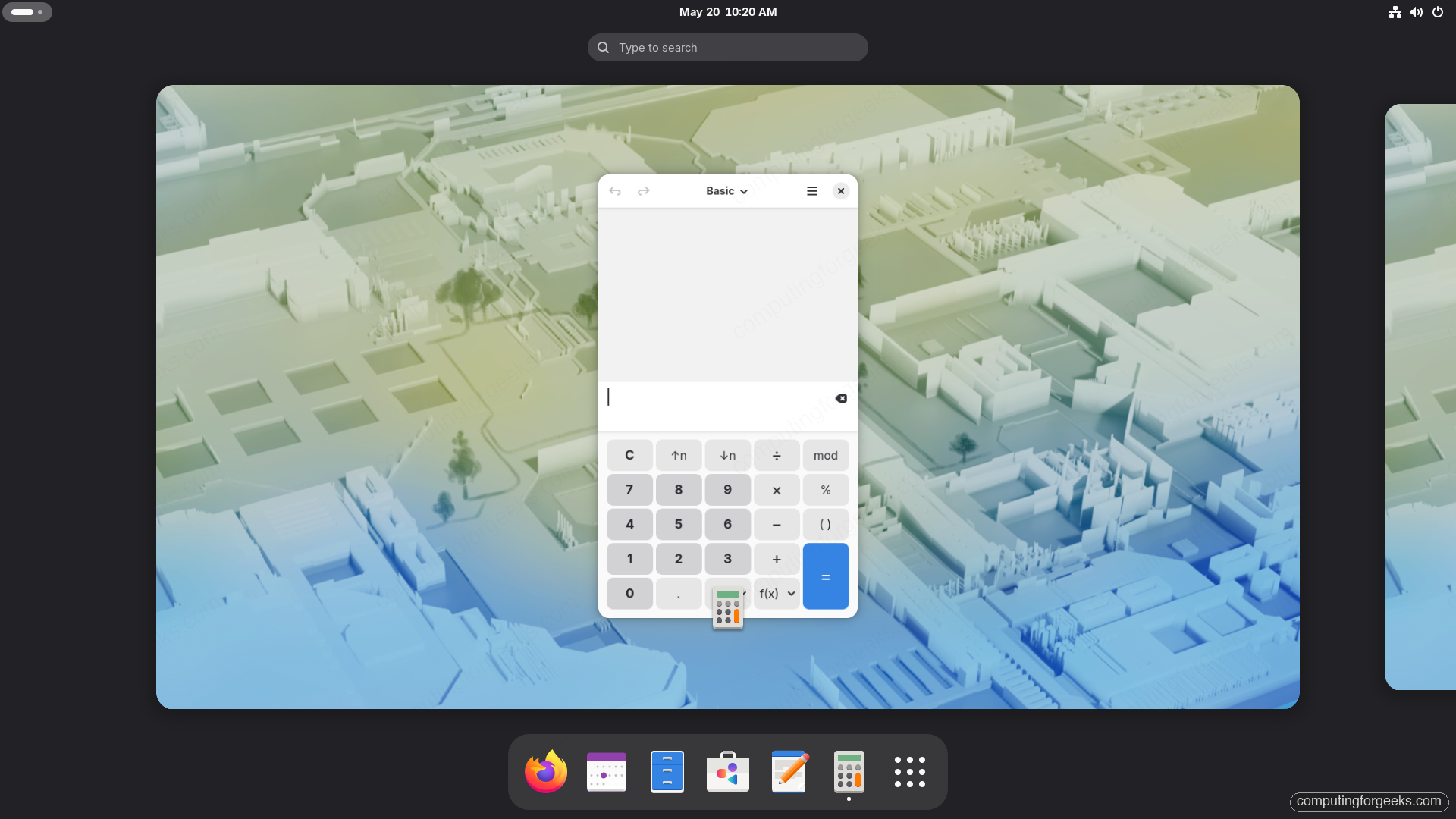
Launch from the Activities overview as you would any other app. From the terminal:
flatpak run org.gnome.CalculatorSample output above. Continue with the next step.
Sandbox permissions with flatpak override
Every Flatpak ships with a baseline permission set declared by the maintainer. You override per-app at install time or any later moment. The common adjustments:
# Show the current permissions
flatpak info --show-permissions org.gnome.Calculator

# Grant read access to a folder
flatpak override --user --filesystem=~/Documents org.gnome.Calculator

# Revoke network access from a specific app
flatpak override --user --unshare=network com.example.SomeApp

# Wipe all overrides for an app
flatpak override --user --reset org.gnome.Calculator
For the GUI workflow, the Flatseal Flatpak gives you a friendly editor over the same overrides. Install it once and use it whenever an app refuses to open a folder or print:
flatpak install --user flathub com.github.tchx84.FlatsealUpdates and removal
GNOME Software updates Flatpaks together with system RPMs every time you click Updates. From the terminal:
flatpak update --user
flatpak uninstall --user org.gnome.Calculator
flatpak uninstall --user --unused
--unused is the one to remember: it reclaims runtimes (those 350 MB platforms) that no installed app still depends on. Run it after every batch removal.
Useful Flatpak picks for Fedora Workstation
A starter set that runs cleanly on current Fedora releases in the lab:
- Extension Manager (
com.mattjakeman.ExtensionManager): the GNOME Extensions store, now the recommended way to install and update Shell extensions, since the old extensions.gnome.org browser integration retired. - Flatseal (
com.github.tchx84.Flatseal): permission editor for every installed Flatpak. - Bitwarden (
com.bitwarden.desktop): official desktop password manager, lags as RPM. - Bottles (
com.usebottles.bottles): Wine prefix manager with sensible defaults for Windows app and game compatibility. - OBS Studio (
com.obsproject.Studio): Flathub build ships current upstream plus VAAPI and NVENC plugins behind one install. - Signal (
org.signal.Signal): official Signal Desktop, no RPM exists. - Spotify (
com.spotify.Client): official Spotify, no RPM, no Snap on Fedora.
Troubleshooting
error: Failed to install <runtime>: Flatpak system operation Deploy not allowed for user
Triggered when an SSH session tries a system install. The Polkit prompt for org.freedesktop.Flatpak.app-install has no graphical context to render. Either install with --user from the SSH session, or open a terminal inside the GNOME session.
Flatpak app cannot open files in /tmp or external drives
Filesystem access is portal-based by default. Grant the path with flatpak override --user --filesystem=<path> <app-id>. For external drives the magic token is --filesystem=host-os (read-only) or --filesystem=host (read-write, equivalent to dropping sandboxing for files).
Flatpak app uses old GTK theme
GTK themes inside a Flatpak come from the runtime, not your host. For a globally consistent look install the theme as a Flatpak override:
flatpak install --user flathub org.gtk.Gtk3theme.adw-gtk3-dark
flatpak override --user --env=GTK_THEME=adw-gtk3-dark
Where Flatpak fits next to RPM and Toolbox
On Fedora, lean on each tool for its strength:
- RPM with
dnffor system services, kernels, daemons, libraries you build against, and tooling that needs root. - Flatpak from Flathub for end-user GUI apps where the upstream wants to ship the latest build directly, and for proprietary apps that have no RPM.
- Toolbox or Distrobox for developer environments. The companion post-install guide in this series covers when to pick which.
The full series Prev/Next nav at the bottom of this page lists the other entries in this series. Start with the install guide if you are setting up a fresh machine, or jump to the RPM Fusion and multimedia codecs guide once Flatpak is in place.