

Fresh Fedora 44 installs are deliberately codec-light. The base repos do not ship H.264, H.265, AAC, or proprietary firmware blobs because of patent and licensing terms that Fedora cannot honor. Play a stock .mp4 in Videos or open an MKV in mpv on a clean install and you get audio with no picture, or a “missing decoder” dialog. Fix it by enabling RPM Fusion and swapping in the full ffmpeg build that ships with all codecs compiled in.
This is also the prerequisite for the upcoming NVIDIA driver and Steam gaming guides in this series, both of which pull packages from RPM Fusion nonfree. Get this step right once and the rest of the Fedora ecosystem opens up.
Tested May 2026 on Fedora 44 Workstation (kernel 7.0.8-200.fc44, dnf5 5.4.2.0), repositories from rpmfusion.org as of May 19, 2026
What RPM Fusion is and why it exists
RPM Fusion is the long-running community repository that fills the gap between what Fedora ships and what most desktop users actually need. It has two halves:
- rpmfusion-free: software that is open source but is excluded from Fedora’s main repos because of patent or licensing concerns (full
ffmpeg,libdvdcss,x264,HandBrake, mpv with codec support, etc.). Note that VLC and the LAME MP3 encoder now ship in the main Fedora repos, so they are not pulled from RPM Fusion on Fedora 44. - rpmfusion-nonfree: redistributable closed-source software (NVIDIA drivers via akmod, Steam, Discord, the proprietary firmware Fedora cannot ship, hardware-accelerated codec drivers like
intel-media-driver). Microsoft Edge is not in RPM Fusion; install it from the Microsoft RPM repo separately.
The repository is maintained by the same set of packagers who work on Fedora itself, and packages follow Fedora’s quality standards. On Fedora 44 the RPM Fusion release packages enable the right repos for Fedora 44 automatically by reading %fedora from /etc/os-release.
Step 1: Make sure the system is fully updated
Before touching the repo layer, pull all pending updates so you do not race against a partial transaction:
sudo dnf upgrade --refreshReboot if the kernel changed:
sudo systemctl rebootStep 2: Enable RPM Fusion free and nonfree
The recommended approach is to install the two release packages directly from rpmfusion.org. The $(rpm -E %fedora) expansion makes the URL detect your Fedora release automatically, so the same one-liner works on Fedora 44, 45, and later:
sudo dnf install \
  https://mirrors.rpmfusion.org/free/fedora/rpmfusion-free-release-$(rpm -E %fedora).noarch.rpm \
  https://mirrors.rpmfusion.org/nonfree/fedora/rpmfusion-nonfree-release-$(rpm -E %fedora).noarch.rpm
You should see real output similar to this:
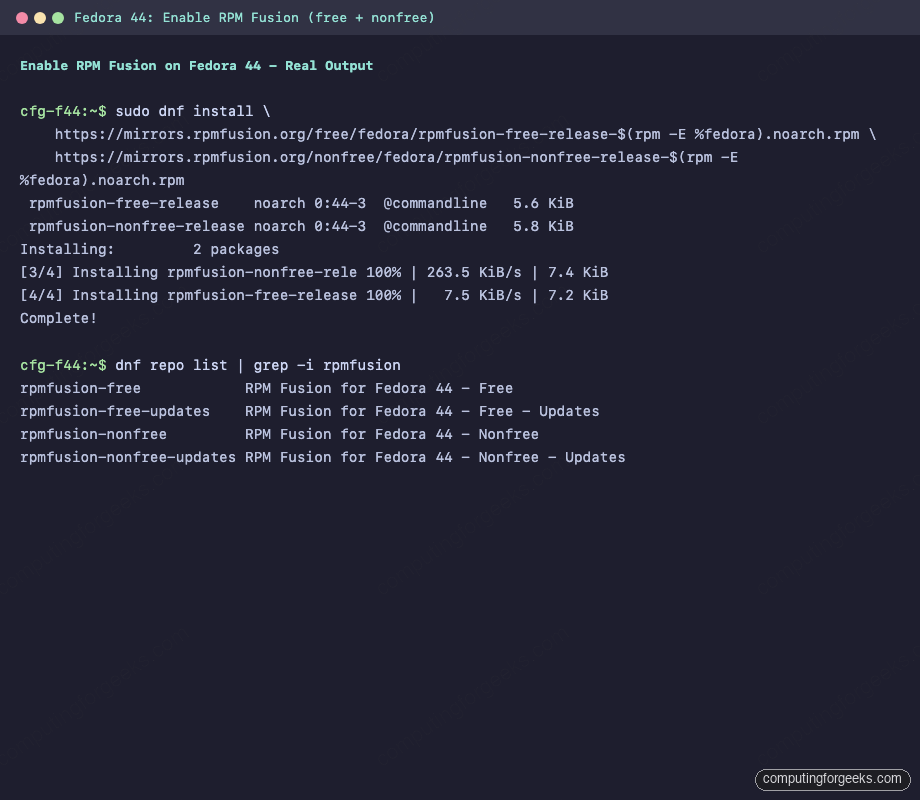
Accept the GPG keys when prompted. Each is signed by the RPM Fusion maintainers and is the same key set used for the previous several Fedora releases.
Confirm both repositories landed:
dnf repo list | grep -i rpmfusionYou want four entries (the main repo and an updates repo for each of free and nonfree).
Step 3: Install AppStream metadata
GNOME Software and KDE Discover render the RPM Fusion packages they can see, but only if AppStream metadata is installed. Pull both metadata bundles:
sudo dnf install rpmfusion-free-appstream-data rpmfusion-nonfree-appstream-dataAfter this, packages like VLC, OBS Studio, and Steam show up in GNOME Software with screenshots and full descriptions, instead of being CLI-only.
Step 4: Enable Cisco OpenH264 for Firefox and WebRTC
Fedora ships a Cisco-funded OpenH264 build separately from RPM Fusion because Cisco pays the H.264 royalty per-distribution. The package itself is in a Fedora-managed repo that is disabled by default. Turn it on with the dnf5 config-manager:
sudo dnf config-manager setopt fedora-cisco-openh264.enabled=1Then install the OpenH264 codec plus the GStreamer and Mozilla plugins that load it:
sudo dnf install openh264 gstreamer1-plugin-openh264 mozilla-openh264Firefox will now play H.264 WebRTC calls (Jitsi, Google Meet fallback path). If you also want full ffmpeg support for everything else, continue to Step 5.
Step 5: Swap ffmpeg-free for full ffmpeg
This is the single most important swap on the system. ffmpeg-free is the codec-light build Fedora ships by default. ffmpeg (from RPM Fusion free) is compiled with H.264, H.265, AAC, and the full encoder set. The --allowerasing flag tells dnf5 to remove conflicting packages:
sudo dnf swap ffmpeg-free ffmpeg --allowerasingReal output:
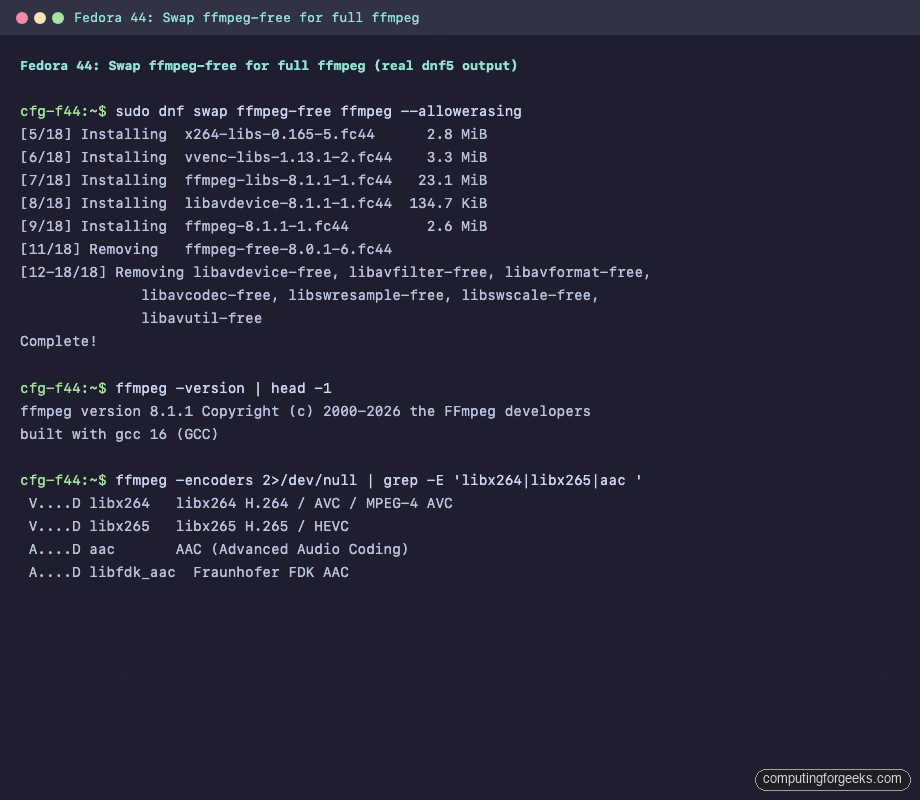
After the swap, ffmpeg -encoders should list libx264, libx265, and the AAC encoders. Verify:
ffmpeg -encoders 2>/dev/null | grep -E 'x264|x265|aac'Step 6: Install the multimedia group
RPM Fusion ships a curated “multimedia” group that pulls in every GStreamer plugin the desktop needs to decode anything you can throw at it (matroska, AV1, dolby, dts, etc.). The --setopt flag avoids the weak-deps avalanche that would otherwise pull in unrelated apps, and the exclude prevents PackageKit from quietly downgrading after the transaction:
sudo dnf update @multimedia \
  --setopt="install_weak_deps=False" \
  --exclude=PackageKit-gstreamer-plugin
This is also the recommended RPM Fusion command for upgrading the multimedia stack on subsequent runs, so you can re-run it after major version bumps.
Step 7: Install the sound-and-video group plus lame
The base Fedora “sound-and-video” group brings in a sensible default set of player and editor apps (Audacity, Sound Recorder, Cheese, Rhythmbox-friendly plugins). LAME is now in the main Fedora repos, so a single install pulls everything needed for MP3 encoding alongside the desktop media tools:
sudo dnf group install sound-and-video
sudo dnf install lame\* --exclude=lame-devel
After this, MP3 encoding works in Audacity, in Rhythmbox, and in any GStreamer-based recording app.
Step 8: Hardware video acceleration (VA-API)
Modern Intel and AMD GPUs decode H.264, H.265, and AV1 in hardware via VA-API. Enabling it offloads playback CPU to near zero and meaningfully improves battery life on laptops. The packages differ by GPU vendor.
Intel integrated graphics (8th-gen and newer)
Install the VA-API user-space libraries and swap to the modern Intel media driver:
sudo dnf install ffmpeg-libs libva libva-utils
sudo dnf swap libva-intel-media-driver intel-media-driver --allowerasing
Verify with vainfo:
vainfo | head -20AMD Radeon (RX 400 series and newer)
The freeworld variant pulls codec-licensed VA-API entry points that are stripped from Fedora’s base mesa build. On Fedora 44, RPM Fusion ships this as a direct install (the legacy mesa-va-drivers source package is gone; only the freeworld variant exists):
sudo dnf install -y mesa-va-drivers-freeworldVDPAU is effectively legacy on modern AMD; Mesa drives accelerated playback through VA-API on Radeon, so a separate VDPAU swap is not needed on Fedora 44.
NVIDIA discrete
NVIDIA needs the proprietary driver and the NVIDIA VAAPI bridge. That is a separate guide because of Secure Boot signing and the akmod kernel-module workflow. For now, the multimedia codecs from Steps 5 and 6 work via CPU; GPU offload is the optimization layered on top. NVIDIA driver and CUDA setup are covered in the next article in this series.
Step 9: Verify a real playback
Quickest end-to-end verification: pull a Big Buck Bunny sample and play it with the default video player:
cd ~/Videos 2>/dev/null || cd /tmp
curl -L -o sample.mp4 \
ffprobe sample.mp4 2>&1 | grep -E 'Video|Audio'
ffplay sample.mp4 # or: vlc sample.mp4You should see H.264 video and AAC audio detected in ffprobe, and the playback should run without any “missing decoder” prompts.
Troubleshooting
Error: “GPG check FAILED” during RPM Fusion install
This usually means dnf imported the GPG key but did not yet trust it. Confirm the key fingerprint matches the one published on the RPM Fusion keys page and accept it. As a sanity check, list installed RPM Fusion keys:
rpm -qa gpg-pubkey* | xargs -I{} rpm -qi {} | grep -B 4 -i rpmfusionError: “Failed component dependency check” after ffmpeg swap
Some apps installed pre-swap link against libavcodec-free. After the swap, run a generic dnf upgrade to let dnf5 reconcile linkages. If a particular app still complains, reinstall it after the swap:
sudo dnf reinstall obs-studio mpv vlc 2>/dev/null“libavcodec-freeworld” mentioned in old guides
You no longer need it on Fedora 44 when you use the full ffmpeg swap from Step 5. libavcodec-freeworld only complements ffmpeg-free; once you replace ffmpeg-free with ffmpeg, freeworld is redundant. Older guides that recommend it predate the upstream RPM Fusion docs change.
What this enables
After these eight steps the typical desktop pain points go away. Browser HTML5 video plays without prompts. Discord and Slack screen-sharing works. mpv, VLC, and the GNOME Videos app play every codec they encounter. OBS Studio records H.264 / H.265 directly. Steam, Lutris, and other RPM Fusion nonfree packages are now one dnf install away.
Next in the series: NVIDIA driver setup on Fedora 44 with Secure Boot, and full-stack gaming on Fedora 44 (Steam, Lutris, Heroic, with NTSYNC kernel-module verification). For the bigger picture of what changed in this release, see what is new in Fedora 44. If you are coming from a previous release, the Fedora 43 to 44 upgrade guide and the step-by-step Fedora 44 install walk through getting to this point.


I appreciate the guide. It helped me where Claude and Gemini couldn’t.
Glad it helped. RPM Fusion plus the codec swap is the one step a fresh Fedora install always needs and never ships with by default.