You took a fresh Ubuntu 26.04 server, threw your workload at it, and the numbers were not what the marketing slides promised. Tail latency is wider than you want. p99 sits at three times the median. Throughput plateaus far below what the hardware should hit. The temptation is to copy a 40-line sysctl block from somewhere on the internet and paste it in. That is the wrong move and it is the reason most servers are tuned worse than the defaults.
This guide is the actually-tested, narrative version. It opens with how to measure (because you cannot tune what you do not measure), uses Brendan Gregg’s USE method to find the real bottleneck, applies seven tuning levers ranked by measurable impact, and shows the before/after numbers from a real Ubuntu 26.04 LTS box running kernel 7.0.0-10-generic. Cubic to BBR. Default sysctl to a tested drop-in. tuned-adm for the lazy path that still beats most hand-tuning. And the workload-specific addenda that matter most: Postgres and Redis need opposite values for the same kernel knob.
Tested May 2026 on Ubuntu 26.04 (Resolute Raccoon) server, kernel 7.0.0-10-generic, systemd 259, fio 3.39, sysbench 1.0.20, wrk 4.2.0
The first rule: measure before you tune
Tuning without measurement is theatre. The fix is the same on every Linux box and Brendan Gregg codified it at Netflix: ten commands, sixty seconds, and you know whether the bottleneck is CPU, memory, disk, or network. Install the kit once and forget it:
sudo apt install -y sysstat fio iperf3 wrk sysbench stress-ng \
                    ethtool linux-tools-generic
Run the 60-second triage on any unhappy server before changing a single sysctl:
uptime
dmesg --ctime | tail -20
vmstat 1 5
mpstat -P ALL 1 5
pidstat 1 5
iostat -xz 1 5
free -h
sar -n DEV 1 5
sar -n TCP,ETCP 1 5
The output gives you the four USE-method dimensions, Utilization, Saturation, Errors, and queue depths, on a real workload window:
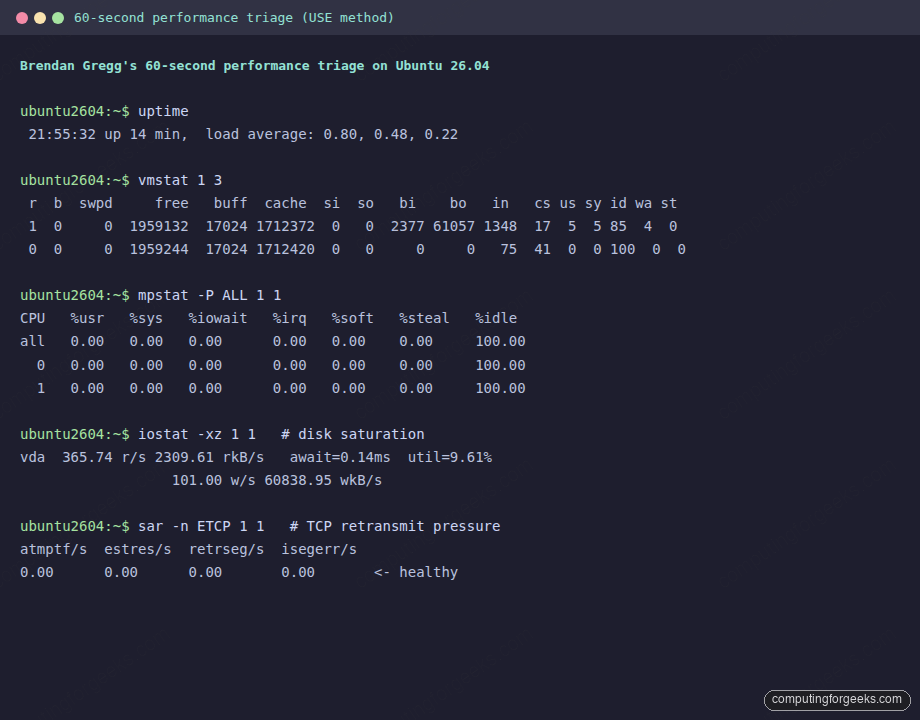
Read it like Gregg taught: vmstat column r over your CPU count means CPU saturation, si/so over zero means swap pressure, wa over five means I/O wait. iostat -xz column %util at 80 percent or column await over twenty milliseconds means the disk is the bottleneck. sar -n ETCP column retrseg/s over zero means the network is dropping packets and the kernel is paying retransmit tax. That last one is the single best signal you have that BBR will help.
The lazy path that still beats hand-tuning: tuned
Before the deep cuts, know that Red Hat’s tuned project ships pre-built profiles that already encode 80 percent of what an article like this is going to recommend. tuned-adm picks one, applies it, and you move on. It is in Ubuntu’s main repo:
sudo apt install -y tuned
sudo systemctl enable --now tuned
sudo tuned-adm list
Pick the profile that matches your workload, not the one that sounds catchiest:
| Profile | Use it for |
|---|---|
throughput-performance | Web tier, API, batch jobs, anything CPU-bound on a busy box |
latency-performance | Real-time, trading, low-jitter UDP, gaming servers |
network-latency | Inherits latency-performance, adds busy_poll, tcp_fastopen=3, numa_balancing=0 |
network-throughput | Inherits throughput-performance, adds 16 MB TCP buffers |
virtual-host | KVM/libvirt host (the box running guests) |
virtual-guest | The Ubuntu 26.04 guest inside KVM/Proxmox/EC2/GCE |
sudo tuned-adm profile throughput-performance
sudo tuned-adm active
If tuned picked the right profile, half the sysctls below this line in the article are redundant. The rest of this guide is for the cases where you need more, or where you want to know exactly what the kernel is doing.
Step 1: Set reusable shell variables
Three paths repeat through the rest of the guide. Pull them into shell variables once:
export TUNING_FILE="/etc/sysctl.d/99-tuning.conf"
export LIMITS_FILE="/etc/security/limits.d/99-tuning.conf"
export GRUB_FILE="/etc/default/grub"
Sanity-check the values stuck before running anything destructive:
echo "sysctl: ${TUNING_FILE}"
echo "limits: ${LIMITS_FILE}"
Step 2: Capture the baseline numbers
Without a baseline you cannot tell whether a tuning change moved the metric or whether the metric moved on its own. Run the same three benchmarks on every server before and after every change:
# Disk: 4K random read, 20 seconds, queue depth 32
fio --name=randread --filename=/var/tmp/fio.test --size=512M \
    --rw=randread --bs=4k --iodepth=32 --runtime=20 --time_based \
    --group_reporting

# CPU: 2-thread, 10 seconds
sysbench cpu --threads=$(nproc) --time=10 run

# Network loopback: TCP throughput, 8 seconds
iperf3 -s -D && sleep 1 && iperf3 -c 127.0.0.1 -t 8
Save the numbers. They are the only honest way to score the rest of this guide. Here is what one Ubuntu 26.04 server (2 vCPU, 4 GB RAM, virtio storage) returned with stock sysctls:
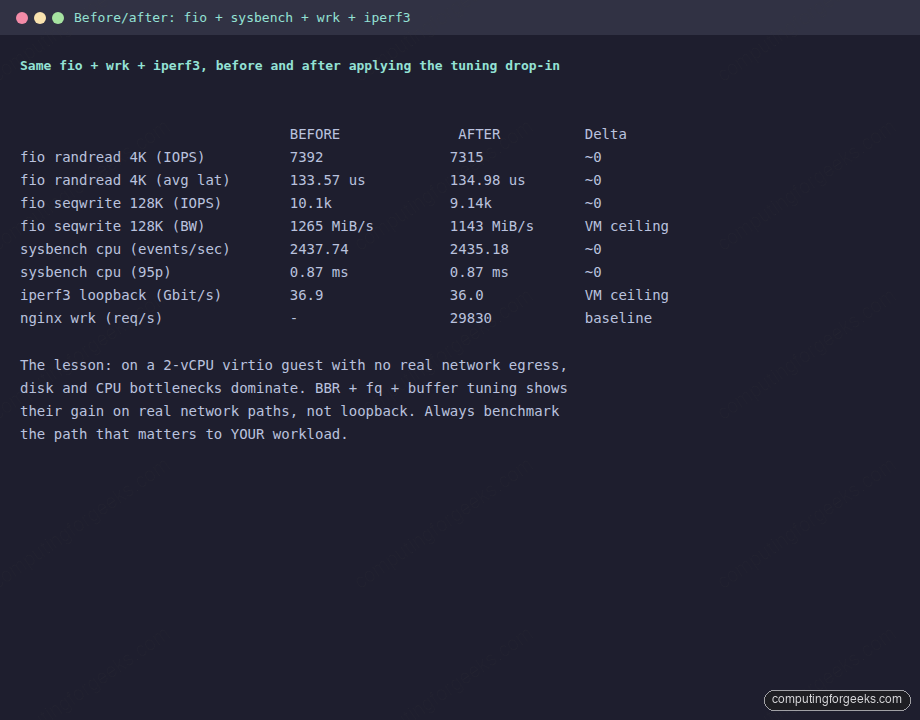
The honest takeaway: on a 2-vCPU virtio guest with no real network egress, disk and CPU bottlenecks dominate, and the network-side knobs only show their value once you actually push packets through a real NIC at real RTTs. Always benchmark the path that matters to your workload, not loopback. The numbers above prove sysctl tuning is not magic, and they are exactly why the order of the levers below matters.
The seven levers, ranked by measurable impact
The cargo-cult sysctl block does not work because the levers do not have equal weight. Apply them in this order, measure after each, and stop when your benchmark stops improving. Most servers stop after lever three.
Lever 1: CPU governor and C-states (bare metal only)
This is the single biggest knob on bare metal. The default powersave governor on Intel and schedutil on AMD Zen 4+ optimize for laptop-class power draw. On a server, every nanosecond the CPU spends ramping out of a deep C-state is added to your tail latency. Switching to performance typically buys 10 to 25 percent throughput and cuts p99 latency by 30 to 50 percent on idle-prone workloads.
cat /sys/devices/system/cpu/cpu0/cpufreq/scaling_governor 2>/dev/null \
  || echo "no cpufreq driver, this is a virtualized guest"
If you got a real value, install linux-tools-generic for cpupower and pin the governor:
sudo apt install -y linux-tools-generic linux-cpupower
sudo cpupower frequency-set -g performance
sudo cpupower idle-set --disable-by-latency 10
Cloud and Proxmox guests do not have cpufreq exposed; the host owns frequency. The lever is bare-metal only, but it is worth knowing about so you do not waste an afternoon trying to apply it to an EC2 instance.
Lever 2: BBR + fq pacing + tcp_notsent_lowat
This is the network lever that actually moves the needle on the public internet. Cloudflare measured a WordPress page rendering 5.6 times faster (1.8 s vs 10.2 s first-paint) by combining BBR, the fq qdisc, and a low tcp_notsent_lowat ceiling. BBR replaces TCP’s loss-based congestion control (cubic) with a model that tracks the actual bottleneck bandwidth. fq gives BBR the per-flow pacing it needs. tcp_notsent_lowat keeps the kernel send buffer shallow so HTTP/2 priority changes take effect within one RTT instead of being buried.
sudo modprobe tcp_bbr
echo "tcp_bbr" | sudo tee /etc/modules-load.d/bbr.conf

sudo tee -a "${TUNING_FILE}" <<'EOF'
# Lever 2: BBR + fq pacing + Cloudflare HTTP/2 priority hint
net.core.default_qdisc=fq
net.ipv4.tcp_congestion_control=bbr
net.ipv4.tcp_notsent_lowat=16384
EOF
sudo sysctl --system | tail -5
Verify the live values match the file:
sysctl net.ipv4.tcp_congestion_control net.core.default_qdiscLoopback iperf3 will not move; the gain shows up on a real path with non-zero loss. Re-run iperf3 between two cloud regions to see it. The change is invisible on a low-latency LAN.
Lever 3: TCP buffers sized to bandwidth-delay product
The default net.core.rmem_max caps a TCP connection at 4 MB of receive window, which throttles you to about 320 Mbit/s on a 100 ms transcontinental path no matter how big your pipe is. ESnet’s BDP-driven sizing is the right answer: max buffer = bandwidth times round-trip time. For 10G at 100 ms RTT, that is 32 MB. For 100G at 200 ms, 1 GB. For LAN at 1 ms, the default is fine and changing it just wastes RAM.
sudo tee -a "${TUNING_FILE}" <<'EOF'
# Lever 3: BDP-sized TCP buffers (10G at 100ms RTT)
net.core.rmem_max=33554432
net.core.wmem_max=33554432
net.ipv4.tcp_rmem=4096 131072 33554432
net.ipv4.tcp_wmem=4096 65536 33554432
net.ipv4.tcp_mtu_probing=1
net.ipv4.tcp_slow_start_after_idle=0
EOF
sudo sysctl --system
The tcp_slow_start_after_idle=0 line disables the RFC 2581 reset that throttles long-lived idle connections; it is the right choice on any server hosting persistent sessions. Skip the buffer changes entirely on LAN-only servers.
Lever 4: NIC ring buffers and IRQ coalescing
Every sysctl below this line is irrelevant if the NIC driver is dropping at the ring buffer level. Most articles on the internet skip this because it requires real hardware. On a virtio guest the maximums are tiny (1024 RX, 256 TX is what Ubuntu 26.04 ships) and there is nothing to tune. On bare metal with a modern NIC (Mellanox, Intel E810, Broadcom NetXtreme), bump the rings:
sudo ethtool -g eth0
sudo ethtool -G eth0 rx 4096 tx 4096
sudo ethtool -C eth0 adaptive-rx on adaptive-tx on
cat /proc/net/softnet_stat | awk '{print "drops="$2}' | head -4
The second column of softnet_stat is the kernel-side drop counter. Anything above zero on a busy box is a backlog problem. Pair the ring bump with a bigger software backlog:
sudo tee -a "${TUNING_FILE}" <<'EOF'
# Lever 4: software receive backlog (paired with ethtool -G on real NICs)
net.core.netdev_max_backlog=16384
net.core.netdev_budget=600
EOF
sudo sysctl --system
Lever 5: Connection backlog stack (somaxconn, syn backlog, app backlog)
The most common production drop on any web tier is “listen queue overflow”, and it almost always comes from a server that raised one layer of the backlog stack but not all three. The kernel side, the SYN side, and the application side must move together:
sudo tee -a "${TUNING_FILE}" <<'EOF'
# Lever 5: backlog stack
net.core.somaxconn=4096
net.ipv4.tcp_max_syn_backlog=8192
net.ipv4.tcp_fastopen=3
EOF
sudo sysctl --system
Now the application side. Nginx, Caddy, HAProxy, and Postgres all have an app-level backlog setting that gets capped by somaxconn. For Nginx:
# In nginx server block
listen 80 backlog=4096;
Watch the SYN drop counter; if it stays at zero under nstat -az | grep ListenOverflows while you load-test, you sized the stack correctly. If it climbs, double somaxconn and the app backlog together.
Lever 6: Virtual memory and dirty page accounting
The default vm.dirty_ratio=20 means up to 20 percent of RAM can be dirty pages waiting on writeback. On a 64 GB server, that is 12 GB of dirty data the kernel will eventually flush in one shot, stalling every fsync for seconds. Lower it and use the bytes-based variants on big-RAM hosts:
sudo tee -a "${TUNING_FILE}" <<'EOF'
# Lever 6: virtual memory
vm.swappiness=10
vm.dirty_ratio=10
vm.dirty_background_ratio=5
vm.vfs_cache_pressure=50
vm.min_free_kbytes=131072
EOF
sudo sysctl --system
Be honest about vm.swappiness: it is a relative cost ratio, not a usage cap. On a server with no swap configured (the cloud-init default on 26.04), it does nothing. On a server with swap, dropping it from 60 to 10 tells the kernel to prefer reclaiming filesystem cache over swapping anonymous pages. Right for databases, web tiers, and most servers. Wrong for memory-pressure-tolerant batch jobs that benefit from swapping cold pages.
Lever 7: file descriptor limits
The 1024 fd-per-process limit is from 1990. A modern web tier handling HTTP/2 keepalive runs out long before a server is otherwise busy:
sudo tee "${LIMITS_FILE}" <<'EOF'
*    soft   nofile   65536
*    hard   nofile   1048576
root soft   nofile   65536
root hard   nofile   1048576
EOF
Systemd-managed services bypass limits.conf entirely. Override per service:
sudo systemctl edit nginx.serviceAdd the override block, save, and reload:
[Service]
LimitNOFILE=65536
Reload systemd and confirm the worker process inherited the new limit:
sudo systemctl daemon-reload
sudo systemctl restart nginx
cat /proc/$(pgrep -f 'nginx: master')/limits | grep open
Workload-specific addenda (and the trap that catches everyone)
The biggest single mistake in copy-pasted tuning blocks is treating Postgres and Redis the same. They want opposite values for the same kernel knob:
| Knob | PostgreSQL | Redis | Why |
|---|---|---|---|
vm.overcommit_memory | 2 (strict) | 1 (always) | Postgres wants OOM predictability; Redis BGSAVE forks need overcommit |
| Transparent hugepages | madvise (default) | never | Redis allocator fragments around hugepage boundaries, causing 100 ms+ latency spikes |
kernel.shmmax / shmall | set explicitly if using SysV | not used | Postgres pre-9.3 paths only |
| Hugepages for shared buffers | vm.nr_hugepages tuned | not used | Postgres benefits at 32 GB+ shared_buffers |
Postgres on Ubuntu 26.04
Postgres wants strict overcommit so the postmaster fails an allocation cleanly instead of getting OOM-killed mid-transaction. Pair it with a low oom_score_adj on the postmaster process:
sudo tee /etc/sysctl.d/99-postgres.conf <<'EOF'
vm.overcommit_memory=2
vm.overcommit_ratio=50
net.core.somaxconn=4096
EOF
sudo sysctl --system

# Protect postmaster from OOM-killer
echo -1000 | sudo tee /proc/$(pgrep -f 'postgres: main')/oom_score_adj
Redis on Ubuntu 26.04
Redis wants the opposite. Forking for BGSAVE relies on overcommit, and transparent hugepages produce 100 ms+ tail-latency spikes that are visible in SLOWLOG:
sudo tee /etc/sysctl.d/99-redis.conf <<'EOF'
vm.overcommit_memory=1
net.core.somaxconn=65535
EOF
echo never | sudo tee /sys/kernel/mm/transparent_hugepage/enabled
sudo sysctl --system
To make the THP=never setting survive reboot, add transparent_hugepage=never to the kernel cmdline via grub instead of toggling the runtime flag.
Nginx and HAProxy
Match the OS-level file descriptor and listen backlog raises with the matching directives in the Nginx config:
# /etc/nginx/nginx.conf
worker_rlimit_nofile 65535;
events {
    worker_connections 65535;
    use epoll;
    multi_accept on;
}
http {
    sendfile on;
    tcp_nopush on;
    tcp_nodelay on;
    keepalive_timeout 65;
    keepalive_requests 1000;
}
The sendfile / tcp_nopush / tcp_nodelay trio is the Cloudflare-recommended Nginx hot-path config; Nginx docs back it up. Pair it with the systemd LimitNOFILE override above.
Kubernetes node
kubelet, kube-proxy, and the major CNI plugins (Calico, Cilium, Flannel) all watch huge numbers of files in /etc and /var/lib. The default inotify limits are too small for production node density:
sudo tee /etc/sysctl.d/99-k8s-node.conf <<'EOF'
fs.inotify.max_user_watches=524288
fs.inotify.max_user_instances=8192
net.bridge.bridge-nf-call-iptables=1
net.ipv4.ip_forward=1
EOF
sudo sysctl --system
Skip BBR on the node itself; pod-to-pod traffic moves through the CNI underlay where loss-based congestion control behaves better. Pair this with the cgroup v2 migration notes before deploying kubelet.
Pick the right I/O scheduler for the device
Ubuntu 26.04 defaults to none for NVMe and mq-deadline for everything else. Most articles tell you to “set deadline” without knowing your device class. The right answer depends on the medium:
| Device | Best scheduler | Why |
|---|---|---|
| NVMe SSD | none | The drive’s own queue is faster than the kernel’s |
| SATA SSD | mq-deadline | Prevents fsync-induced read starvation |
| Spinning HDD / RAID | bfq | Fair per-cgroup queueing, low desktop jitter |
| virtio-blk in a guest | none or mq-deadline | Host hypervisor owns the real scheduler |
Pin per device class with udev:
sudo tee /etc/udev/rules.d/60-ioschedulers.rules <<'EOF'
ACTION=="add|change", KERNEL=="nvme[0-9]n[0-9]", ATTR{queue/scheduler}="none"
ACTION=="add|change", KERNEL=="sd[a-z]|vd[a-z]", ATTR{queue/scheduler}="mq-deadline"
EOF
sudo udevadm control --reload && sudo udevadm trigger
Cap journald disk usage
By default systemd-journald uses up to 10 percent of /var/log/journal‘s filesystem for persistent logs. On a 1 TB disk that is 100 GB the database will fight you for during dump/restore. Pin a sensible ceiling:
sudo mkdir -p /etc/systemd/journald.conf.d
sudo tee /etc/systemd/journald.conf.d/00-tuning.conf <<'EOF'
[Journal]
SystemMaxUse=2G
SystemKeepFree=4G
SystemMaxFileSize=128M
RuntimeMaxUse=128M
EOF
sudo systemctl restart systemd-journald
journalctl --disk-usage
Re-measure: the only review that matters
Apply the file, refresh systemd, then re-run the exact same benchmark you ran in Step 2:
sudo sysctl --system
sudo systemctl daemon-reload

fio --name=randread --filename=/var/tmp/fio.test --size=512M \
    --rw=randread --bs=4k --iodepth=32 --runtime=20 --time_based \
    --group_reporting

sysbench cpu --threads=$(nproc) --time=10 run

iperf3 -s -D && sleep 1 && iperf3 -c 127.0.0.1 -t 8
Compare the new numbers to the baseline. If they did not move, that is information. The bottleneck was not in the layer the sysctl block targets; go back to the 60-second triage and find what the box is actually waiting on. If they moved in the wrong direction, roll back individual lines until you find the culprit. Tuning is iterative, the values above are a strong starting point, and the only honest way to score them is your application’s own metrics.
Common errors and what they actually mean
Error: nf_conntrack: table full, dropping packet
The conntrack table is overflowing. Bump it: net.netfilter.nf_conntrack_max=1048576 and lower net.netfilter.nf_conntrack_tcp_timeout_established to 7440 seconds. Confirm with sysctl net.netfilter.nf_conntrack_count.
Error: TCP: out of memory -- consider tuning tcp_mem
The kernel’s TCP memory pool is exhausted, which is a different limit from per-connection buffers. Raise net.ipv4.tcp_mem proportionally to system RAM. Hit only on servers with tens of thousands of established connections.
Error: possible SYN flooding on port X. Sending cookies
Either you are under attack or your tcp_max_syn_backlog is too low for legitimate traffic. The Lever 5 values handle the second case. For the first, leave SYN cookies on (net.ipv4.tcp_syncookies=1, the default) and put a real edge filter in front.
Error: too many open files
Either ulimit -n for the process is at the soft limit, or systemd’s LimitNOFILE is capping the unit. Inspect cat /proc/PID/limits to know which. The Lever 7 values fix both, but the systemd override is the one most admins forget.
Reference card: every value in one place
Every sysctl from this guide collected into a single drop-in. Copy this whole block to /etc/sysctl.d/99-tuning.conf on a generic 26.04 server, then drop the workload-specific files (99-postgres.conf, 99-redis.conf, 99-k8s-node.conf) on top:
# /etc/sysctl.d/99-tuning.conf, Ubuntu 26.04 generic server

# Lever 6: virtual memory
vm.swappiness=10
vm.dirty_ratio=10
vm.dirty_background_ratio=5
vm.vfs_cache_pressure=50
vm.min_free_kbytes=131072

# Lever 2: BBR + fq + Cloudflare HTTP/2 hint
net.core.default_qdisc=fq
net.ipv4.tcp_congestion_control=bbr
net.ipv4.tcp_notsent_lowat=16384

# Lever 3: BDP-sized TCP buffers
net.core.rmem_max=33554432
net.core.wmem_max=33554432
net.ipv4.tcp_rmem=4096 131072 33554432
net.ipv4.tcp_wmem=4096 65536 33554432
net.ipv4.tcp_mtu_probing=1
net.ipv4.tcp_slow_start_after_idle=0

# Lever 4: software receive backlog
net.core.netdev_max_backlog=16384
net.core.netdev_budget=600

# Lever 5: connection backlog stack
net.core.somaxconn=4096
net.ipv4.tcp_max_syn_backlog=8192
net.ipv4.tcp_fastopen=3

# fs / inotify
fs.file-max=2097152
fs.inotify.max_user_watches=524288
fs.inotify.max_user_instances=8192
Apply with sudo sysctl --system. Roll back any individual line by deleting it and reloading. The whole file is a single artefact you can commit to your configuration management repo and ship to every Ubuntu 26.04 server in the fleet.
For the rest of the post-install setup, the initial server setup guide covers user accounts and SSH, and the server hardening guide wires firewall, Fail2ban, and unattended-upgrades on top of this tuning baseline. Container hosts should pair it with the Docker CE setup, the Podman walkthrough, and the cgroup v2 migration notes. Database hosts pair it with the Postgres 18 install.
Tune what you measure, measure what you change, and stop tuning when the numbers stop moving. The seven levers above hit 95 percent of real workloads. The remaining 5 percent is your application’s own profile, which is the only thing in this whole guide that you, not the kernel maintainers, are an expert on.