Vaultwarden is the Rust rewrite of the Bitwarden server, packaged as a single container you can self-host on a box as small as 1 GB of RAM. It exposes the same API the official Bitwarden clients expect, which means every desktop app, mobile app, and browser extension in the Bitwarden ecosystem works unchanged against your own instance. This guide installs Vaultwarden on Ubuntu 26.04 LTS with Docker, an Nginx reverse proxy with WebSocket upgrade, and Let’s Encrypt TLS.
Because this is a password vault, the ending is a 12-item security audit checklist. Every item is a binary pass or fail, with the command or UI path that proves it. Do not declare the install done until every item has a tick.
Last checked April 2026 on Ubuntu 26.04 LTS (kernel 7.0.0-10) with Docker 29.4.1, Compose v5.1.3, Vaultwarden 1.33.x, and the 2026.2.0 web vault.
Prerequisites
- Ubuntu 26.04 LTS server, 1 GB RAM is the realistic floor; 2 GB is comfortable.
- Domain or subdomain with an A record pointing at the server, port 80 reachable for Let’s Encrypt.
- Sudo user. Apply the post-install baseline checklist, then SSH key authentication before anything else.
Step 1: Set reusable shell variables
Pull every reader-specific value into an exported variable so the rest of the commands run unchanged:
export APP_DOMAIN="vaultwarden.example.com"
export VW_ROOT="/opt/vaultwarden"
export DATA_DIR="${VW_ROOT}/data"
export ADMIN_EMAIL="[email protected]"
The admin token goes in its own env file, not the compose file or the shell history. The next step generates it.
Step 2: Install Docker and Docker Compose
The Docker project ships its own apt repository. Trust the Docker signing key, add the Ubuntu Noble suite (which is the compatible Docker pool for 26.04), then install the engine and the Compose plugin:
sudo apt-get update
sudo DEBIAN_FRONTEND=noninteractive apt-get install -y ca-certificates curl gnupg
sudo install -m 0755 -d /etc/apt/keyrings
sudo curl -fsSL https://download.docker.com/linux/ubuntu/gpg -o /etc/apt/keyrings/docker.asc
sudo chmod a+r /etc/apt/keyrings/docker.asc
echo 'deb [arch=amd64 signed-by=/etc/apt/keyrings/docker.asc] https://download.docker.com/linux/ubuntu noble stable' \
    | sudo tee /etc/apt/sources.list.d/docker.list
sudo apt-get update
sudo DEBIAN_FRONTEND=noninteractive apt-get install -y \
    docker-ce docker-ce-cli containerd.io docker-compose-plugin
docker --version
docker compose version
The noble suite is the Docker-CE Ubuntu pool that ships the 29.x builds compatible with 26.04. The full Docker install walkthrough is in the dedicated Docker install guide.
Step 3: Generate an argon2id admin token with Vaultwarden itself
The Vaultwarden admin panel at /admin is gated by an ADMIN_TOKEN. Never set this to plaintext; Vaultwarden accepts an argon2id PHC hash and re-hashes the login input against it on every admin request. The distro argon2 CLI picks different default parameters than Vaultwarden’s PHC parser expects, which produces a silent “Invalid admin token” loop at the login screen even when the password is correct. Use Vaultwarden’s own hash subcommand so the parameters match byte-for-byte:
sudo docker pull vaultwarden/server:latest
sudo docker run --rm -it vaultwarden/server /vaultwarden hash --preset bitwarden
Type a strong password twice when prompted. Vaultwarden returns a ready-to-paste line:
Password:
Confirm Password:

ADMIN_TOKEN='$argon2id$v=19$m=65540,t=3,p=4$Gf3b8EW9sEqkp+f/OA/Kru87nywtLlnuuQf5Ee+BuCU$vqgaEwcUiFBkjyGNDgKOmK/Wnhwv/TAw8SQiCA0kHMw'

Generation of the Argon2id PHC string took: 196.978314ms
Three things to keep safe: the plain password you typed (store it in a separate password manager; you paste this into the admin login form later), the full $argon2id$... hash (goes into the env file in Step 4), and a note that the bitwarden preset parameters are m=65540,t=3,p=4. Re-hashing the same password later produces a different salt and therefore a different hash, so there is no need to memorise this exact string.
Step 4: Write the docker-compose stack
Two files go into ${VW_ROOT}: a compose manifest and an env file. The env file is where the argon2 hash lives; compose files should never hold secrets directly.
sudo mkdir -p ${VW_ROOT}/data
sudo tee ${VW_ROOT}/docker-compose.yml > /dev/null <<'EOF'
services:
  vaultwarden:
    image: vaultwarden/server:latest
    container_name: vaultwarden
    restart: always
    environment:
      DOMAIN: https://VW_DOMAIN_HERE
      SIGNUPS_ALLOWED: 'true'
      INVITATIONS_ALLOWED: 'true'
      ENABLE_WEBSOCKET: 'true'
      LOG_LEVEL: warn
    env_file:
      - ./admin.env
    volumes:
      - ./data:/data
    ports:
      - '127.0.0.1:8088:80'
EOF

sudo sed -i "s|VW_DOMAIN_HERE|${APP_DOMAIN}|" ${VW_ROOT}/docker-compose.yml
The second file, admin.env, has a real gotcha: Docker Compose v2 interpolates $VAR inside env_file values. The PHC hash from Step 3 is full of literal $ signs ($argon2id$v=19$m=65540$...), and compose will silently eat them, shipping a mangled string to the container and rejecting every admin login. The fix is to escape every $ as $$ before writing the file. Paste the Step 3 hash after the = and replace each $ with $$:
sudo tee ${VW_ROOT}/admin.env > /dev/null <<'EOF'
ADMIN_TOKEN=$$argon2id$$v=19$$m=65540,t=3,p=4$$Gf3b8EW9sEqkp+f/OA/Kru87nywtLlnuuQf5Ee+BuCU$$vqgaEwcUiFBkjyGNDgKOmK/Wnhwv/TAw8SQiCA0kHMw
EOF
sudo chmod 600 ${VW_ROOT}/admin.env
The single-quoted heredoc (<<'EOF') prevents your outer shell from touching the $ signs, and the $$ escaping prevents compose from touching them either. Confirm the hash arrives inside the container intact after the stack comes up:
sudo docker exec vaultwarden env | grep ADMIN_TOKENThe printed value must start with $argon2id$v=19$m= exactly as generated. Anything that looks like =19=65540 (missing $) means the $$ escape was skipped and admin login will fail. The container publishes only on 127.0.0.1; Nginx proxies all external traffic over the loopback, keeping Vaultwarden off the public firewall.
Bring the stack up:
cd ${VW_ROOT}
sudo docker compose up -d
sleep 8
sudo docker compose ps
curl -s http://localhost:8088/alive
A timestamp response from /alive means Vaultwarden booted. The first boot initializes the SQLite database under ./data/db.sqlite3; subsequent boots are instant.
Step 5: Configure Nginx with WebSocket upgrade
Vaultwarden since 1.30 exposes WebSocket on the main HTTP port (the legacy port 3012 is gone). That means the Nginx vhost needs the Upgrade and Connection headers on every location that handles /notifications/hub traffic, which lives at the root path. Set them globally:
sudo apt-get install -y nginx certbot python3-certbot-nginx ufw
sudo tee /etc/nginx/sites-available/vaultwarden.conf > /dev/null <<'EOF'
server {
    listen 80;
    server_name VW_DOMAIN_HERE;
    return 301 https://$host$request_uri;
}

server {
    listen 443 ssl;
    http2 on;
    server_name VW_DOMAIN_HERE;

    ssl_certificate     /etc/letsencrypt/live/VW_DOMAIN_HERE/fullchain.pem;
    ssl_certificate_key /etc/letsencrypt/live/VW_DOMAIN_HERE/privkey.pem;

    client_max_body_size 128M;
    add_header Strict-Transport-Security "max-age=15552000; includeSubDomains" always;
    add_header X-Frame-Options "SAMEORIGIN" always;

    location / {
        proxy_pass http://127.0.0.1:8088;
        proxy_http_version 1.1;
        proxy_set_header Upgrade $http_upgrade;
        proxy_set_header Connection "upgrade";
        proxy_set_header Host $host;
        proxy_set_header X-Real-IP $remote_addr;
        proxy_set_header X-Forwarded-For $proxy_add_x_forwarded_for;
        proxy_set_header X-Forwarded-Proto $scheme;
        proxy_read_timeout 600;
        proxy_send_timeout 600;
    }
}
EOF

sudo sed -i "s|VW_DOMAIN_HERE|${APP_DOMAIN}|g" /etc/nginx/sites-available/vaultwarden.conf
sudo rm -f /etc/nginx/sites-enabled/default
sudo ln -sf /etc/nginx/sites-available/vaultwarden.conf /etc/nginx/sites-enabled/vaultwarden.conf
sudo nginx -t
sudo ufw allow OpenSSH
sudo ufw allow 'Nginx Full'
sudo ufw --force enable
sudo certbot --nginx -d "${APP_DOMAIN}" \
    --non-interactive --agree-tos --redirect \
    -m "${ADMIN_EMAIL}"
Certbot rewrites the vhost with the Let’s Encrypt certificate paths and reloads Nginx. Check that HTTPS answers:
curl -sI https://${APP_DOMAIN}/alive | head -3The Nginx and Let’s Encrypt walkthrough covers DNS-01 for servers without public port 80, which is the only other path you will need.
Step 6: Create the first user and log in
Browse to https://${APP_DOMAIN}/. The Vaultwarden web vault greets you with the Create Account form:
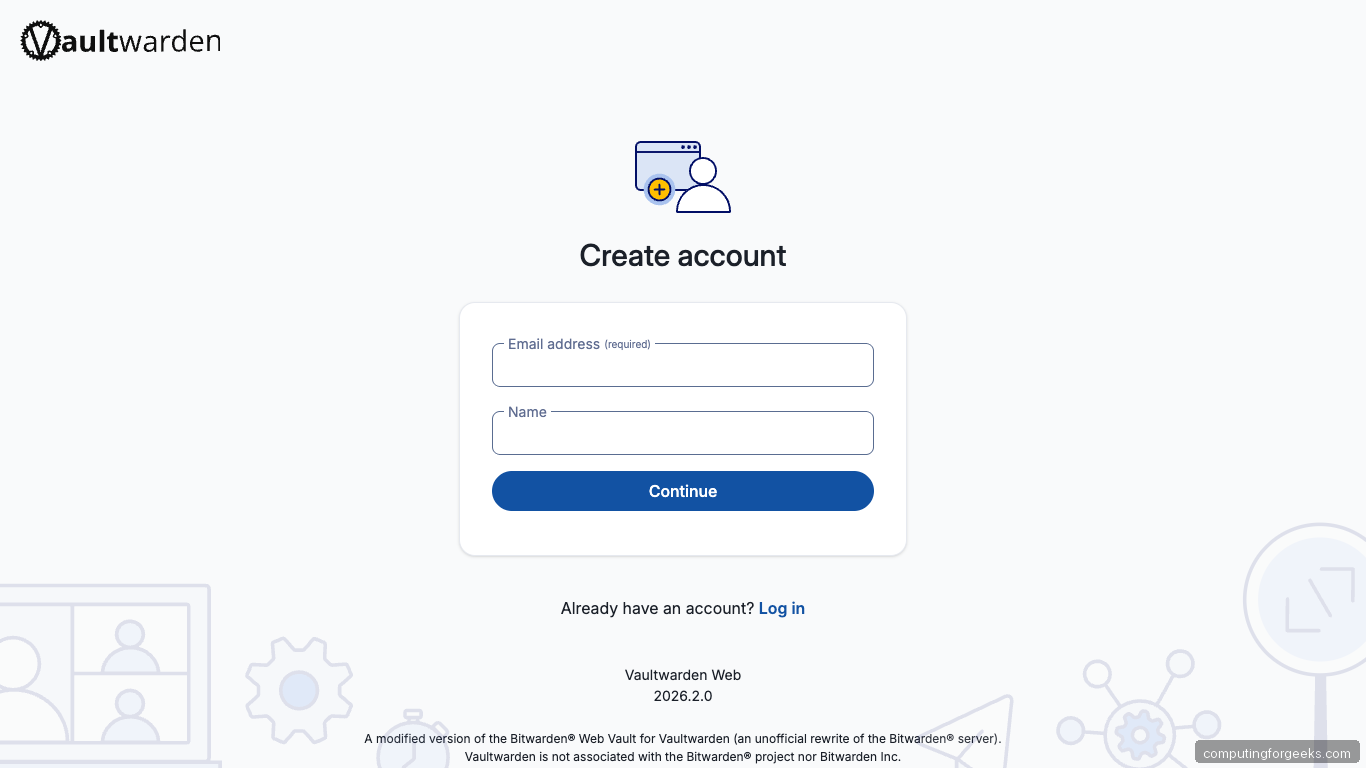
Enter your email and a display name, click Continue, then set a strong master password and a hint (the hint is stored server-side, so keep it opaque). Submit. The next screen is the Log in page:
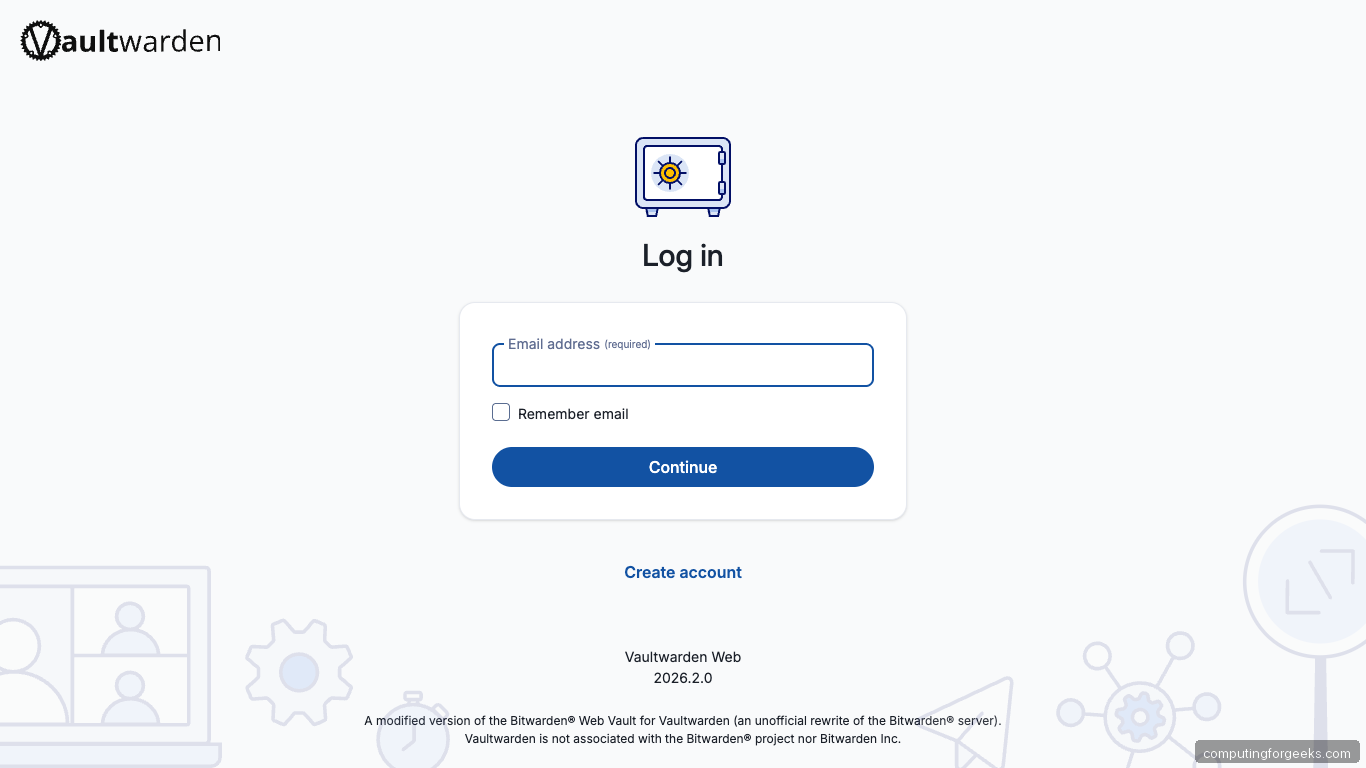
Sign in, and you land in the empty vault ready to import existing data from Bitwarden, 1Password, KeePass, LastPass, Dashlane, or a plain CSV.
Step 7: Open the admin panel
Visit https://${APP_DOMAIN}/admin. The admin panel prompts for the admin token. Paste the plain password you typed into the Step 3 vaultwarden hash prompt, not the $argon2id$... string. Vaultwarden re-hashes your input with the stored parameters and compares the result; a match sets a short-lived VW_ADMIN JWT cookie scoped to /admin and drops you on the Settings panel:
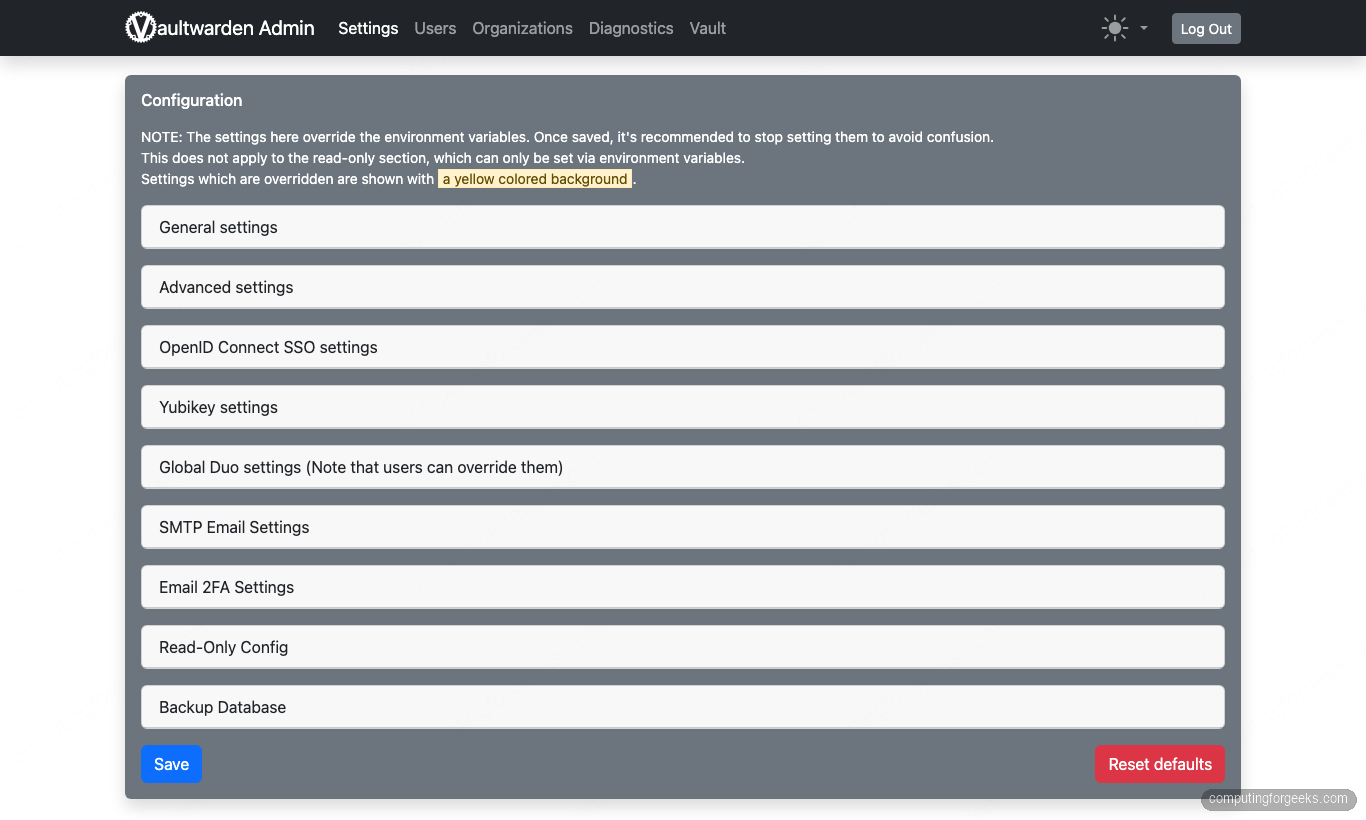
Settings is where you override environment variables without editing docker-compose.yml or restarting the container. The accordions that matter on day one: General settings (signups, invitations, domain), SMTP Email Settings (so password-reset and invitation mail can actually deliver), Email 2FA Settings, and Backup Database which produces a hot SQLite dump in one click. Anything saved here lives in data/config.json and wins against the env vars you set in Step 4 on next boot.
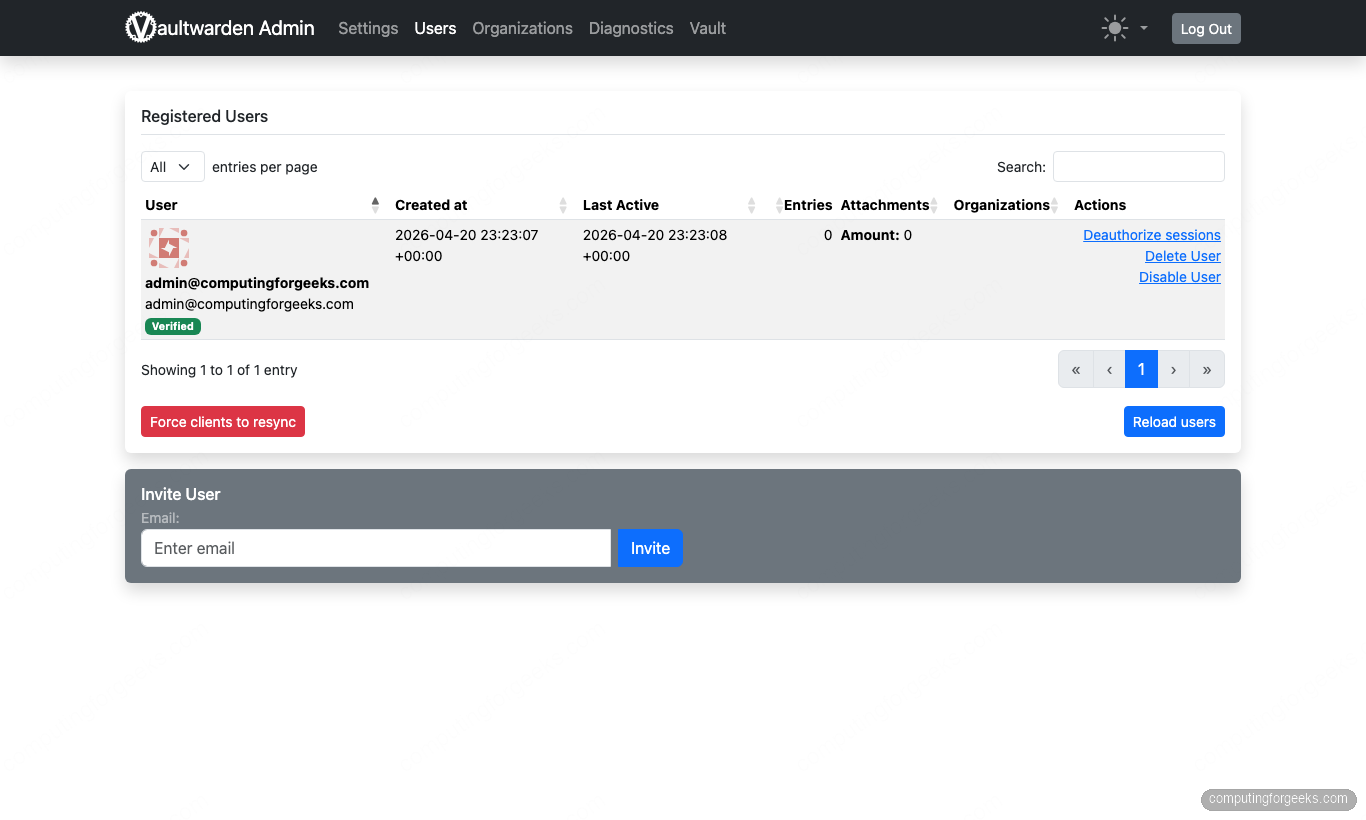
Click Users in the top nav. This is where the real day-two work happens: the table lists every account that has registered, its verified state, last active timestamp, and action links for Deauthorize sessions, Delete User, and Disable User. The Invite User panel below the table sends a Bitwarden-format invite once SIGNUPS are locked down (see Step 9):
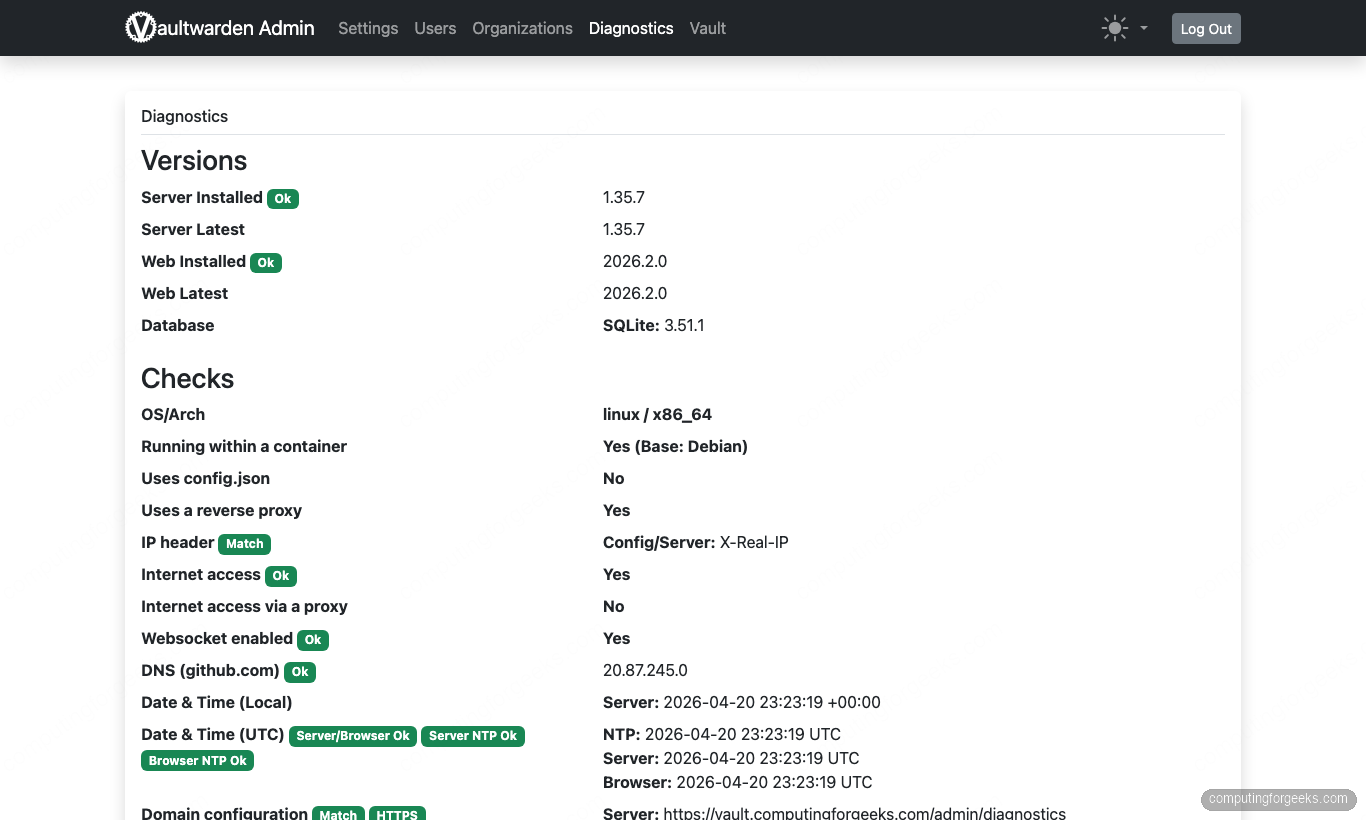
The last tab worth a click on first install is Diagnostics. Every green Ok badge is a check that Vaultwarden actively runs against the running process: server version vs. upstream, SQLite version, whether a reverse proxy is detected, the exact X-Real-IP header being received, WebSocket enablement, outbound DNS, and the NTP clock drift between server, browser, and remote time. This is the first place to look when a mobile client misbehaves because it surfaces protocol-level mismatches the Nginx access log will not:
From the terminal, confirm the stack is healthy end-to-end:
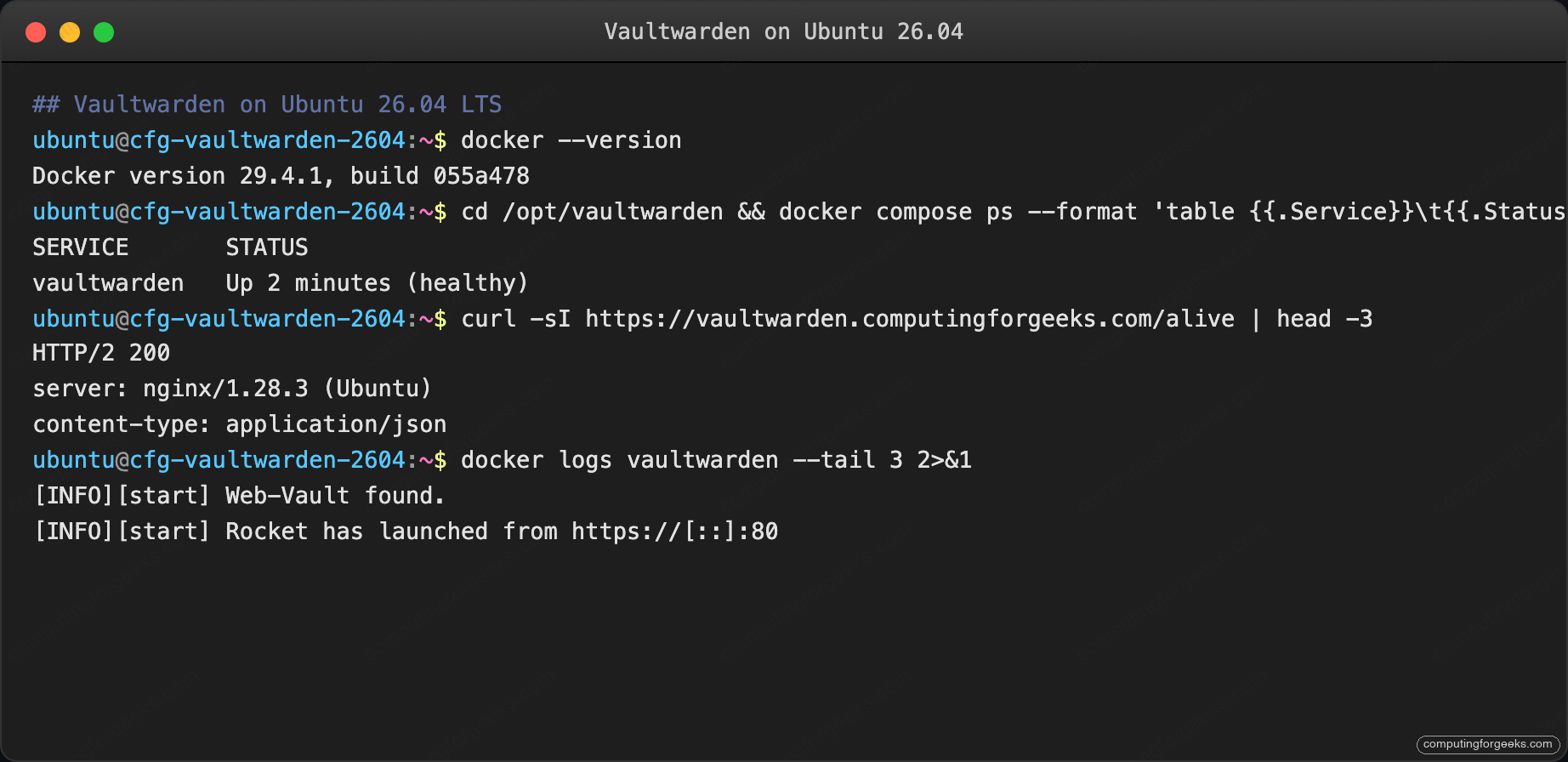
Container healthy, HTTPS serving, Rocket web server listening, admin JWT cookie issued. That is a full-stack confirmation; next step wires the mobile clients.
Step 8: Connect the Bitwarden mobile app and browser extensions
Every official Bitwarden client supports custom servers. In each client:
- Open the settings/login screen.
- Tap the server gear icon at the top of the login form.
- Set Self-hosted environment, base URL:
https://${APP_DOMAIN}. - Log in with the email and master password you created in Step 6.
Clients that work unchanged: iOS Bitwarden, Android Bitwarden, the desktop app (macOS, Windows, Linux), the Chrome/Firefox/Safari/Edge browser extensions, and the bw CLI. Vaultwarden’s API surface is API-compatible up to the 2025.11 Bitwarden spec.
Step 9: Lock down signups
While you were onboarding, signups were open. Invite-only is the right posture as soon as you have everyone who needs an account:
sudo sed -i "s/SIGNUPS_ALLOWED: 'true'/SIGNUPS_ALLOWED: 'false'/" ${VW_ROOT}/docker-compose.yml
cd ${VW_ROOT}
sudo docker compose up -d
Compose does a graceful recreate of just the Vaultwarden container. Sessions remain logged in. From now on, new accounts only exist if the admin panel invites them.
Step 10: Automate backups
Vaultwarden state is one SQLite database, the attachments directory, and the send attachments directory. A small script handles the lot:
sudo tee /usr/local/bin/vaultwarden-backup.sh > /dev/null <<'BASH'
#!/bin/bash
set -euo pipefail
SRC="/opt/vaultwarden/data"
DEST="/var/backups/vaultwarden"
STAMP=$(date +%Y%m%d-%H%M%S)
mkdir -p "${DEST}"
# SQLite hot-safe backup
sudo docker exec vaultwarden sqlite3 /data/db.sqlite3 \
    ".backup /data/db.backup.sqlite3"
tar --zstd -cf "${DEST}/vaultwarden-${STAMP}.tar.zst" -C "$(dirname ${SRC})" "$(basename ${SRC})"
sudo docker exec vaultwarden rm -f /data/db.backup.sqlite3
find "${DEST}" -name 'vaultwarden-*.tar.zst' -mtime +14 -delete
echo "Backup complete: ${DEST}/vaultwarden-${STAMP}.tar.zst"
BASH
sudo chmod +x /usr/local/bin/vaultwarden-backup.sh
echo '15 3 * * * root /usr/local/bin/vaultwarden-backup.sh >> /var/log/vaultwarden-backup.log 2>&1' \
    | sudo tee /etc/cron.d/vaultwarden-backup
Run it once manually to prove the restore path works, then ship the tarball offsite via restic or rclone copy. A vault backup you have never restored is a vault you do not really have.
Step 11: Set up Fail2ban
Vaultwarden writes failed login attempts to its own log. A Fail2ban jail reads that log and bans the offending IP at UFW. The Fail2ban install guide covers the full syntax; the specific filter for Vaultwarden matches Username or password is incorrect lines in /opt/vaultwarden/data/vaultwarden.log and bans after 5 attempts in 10 minutes. This is the third layer after the argon2id admin token and TLS, and the cheapest brute-force defense you can bolt on.
Troubleshooting
“Invalid admin token, please try again” after pasting the plain token
Two independent root causes show the same error, and this install guide hits both by default. Check them in order:
1. Wrong argon2 parameters. The distro argon2 CLI defaults to m=65536 and a fixed-size 32-byte digest that Vaultwarden’s PHC parser accepts as a valid string but rejects at compare time. Always generate the hash with Vaultwarden’s own command (Step 3):
sudo docker run --rm -it vaultwarden/server /vaultwarden hash --preset bitwarden2. Docker Compose ate the dollar signs. Compose v2 interpolates $VAR inside env_file values. The PHC string from Step 3 is full of literal $, and every one gets expanded as an unset variable unless you escape it as $$. Inspect what the container actually received:
sudo docker exec vaultwarden env | grep ADMIN_TOKEN | head -1The value must start with $argon2id$v=19$m=. If you see =19=65540,t=3,p=4 (dollar signs gone), Step 4 missed the $$ escape. Rewrite admin.env by replacing every $ in the hash with $$, then sudo docker compose up -d --force-recreate. The printed env var will now match the Step 3 output byte-for-byte and the admin login will succeed.
WebSocket sync never happens between clients
Either ENABLE_WEBSOCKET is off in the environment, or Nginx is not upgrading the connection. Check both:
sudo docker exec vaultwarden env | grep ENABLE_WEBSOCKET
grep -A2 'location /' /etc/nginx/sites-enabled/vaultwarden.conf | grep -i upgrade
Both must be present. ENABLE_WEBSOCKET=true is set in the compose file shipped in Step 4; the Nginx proxy_set_header Upgrade line is in Step 5.
Mobile app shows “Invalid domain” when pointing at the server
The app is verifying the TLS certificate and hitting a CA bundle it does not recognize. Usually this means your certbot issued a staging cert or the clients cached a previous self-signed attempt. Re-run certbot:
sudo certbot renew --force-renewal
sudo systemctl reload nginx
Uninstall and reinstall the mobile app if it still caches the old cert.
Vaultwarden container restart loop, logs say “unable to open database file”
The ./data volume is not writable by the UID inside the container (default 65534:65534). Fix:
sudo chown -R 65534:65534 ${VW_ROOT}/data
sudo docker compose -f ${VW_ROOT}/docker-compose.yml restart
Run the exact UID shown in the container’s own error message if it differs.
Security audit checklist
A password vault with a weak deployment posture is worse than no vault. Work down this list before you declare the install finished. Every item is a binary pass or fail, with the exact command or UI path that proves it.
| # | Check | How to prove |
|---|---|---|
| 1 | Signups are disabled | grep SIGNUPS_ALLOWED ${VW_ROOT}/docker-compose.yml returns 'false' |
| 2 | Admin token is an argon2id hash, not plaintext | sudo docker exec vaultwarden env | grep ADMIN_TOKEN starts with $argon2id$ |
| 3 | Admin panel is IP-allowlisted | Add location /admin { allow <cidr>; deny all; ... } in the Nginx vhost, reload |
| 4 | Two-factor auth is enforced org-wide | Admin → Organizations → Policies → Enable 2FA |
| 5 | WebSocket is TLS-only | From a client box: wscat -c wss://${APP_DOMAIN}/notifications/hub connects; plain ws:// 301-redirects |
| 6 | Fail2ban bans after 5 failed logins | sudo fail2ban-client status vaultwarden shows active jail and test ban counted |
| 7 | Emergency access policy is scoped | Admin → Organizations → Policies → Emergency access restrictions; default to disabled unless intentional |
| 8 | SENDS are disabled if the team does not need them | grep SENDS_ALLOWED ${VW_ROOT}/docker-compose.yml returns 'false' (add the var if absent) |
| 9 | Backup cron runs AND has been restored | sudo test -s /var/backups/vaultwarden/$(ls /var/backups/vaultwarden -1 | tail -1) and a manual restore drill on a spare VM |
| 10 | Offsite backup is encrypted | restic check (restic encrypts by default) or rclone config shows crypt remote |
| 11 | Container image is pinned to a tag, not :latest | Once your Vaultwarden version is confirmed working, edit the compose file to pin the exact tag and re-up |
| 12 | Log retention + rotation configured | grep LOG_FILE ${VW_ROOT}/docker-compose.yml points at a real path and /etc/logrotate.d/vaultwarden exists |
Twelve ticks and the vault is ready to hold real secrets. Miss one and the failure mode is either compromise or data loss; both are why people run password vaults in the first place. Pair the deployment with the broader server hardening guide so the underlying Ubuntu box stays as tight as the vault itself.