

MediaWiki is the engine behind Wikipedia, and it remains the safest choice for any team that wants an internal knowledge base, a fan wiki, or a public reference site. It runs on PHP, stores everything in MariaDB, and plays well with standard LAMP infrastructure. This guide installs MediaWiki on Ubuntu 26.04 LTS with Apache, PHP 8.5, and MariaDB, then hardens it with Let’s Encrypt, pretty URLs, and the extensions most deployments eventually reach for.
The ending is an annotated LocalSettings.php reference. That config file is where new MediaWiki operators spend most of their frustrated hours, so every key we set on the test box is explained in context, and five settings we deliberately left alone are called out as well.
Tested April 2026 on Ubuntu 26.04 LTS (kernel 7.0.0-10) with MediaWiki 1.45.3 LTS, Apache 2.4.66, PHP 8.5.4, MariaDB 11.8.6, and Certbot 4.0.0.
Prerequisites
- Ubuntu 26.04 LTS server, 1 vCPU and 2 GB RAM minimum for small wikis. Popular wikis want 4 GB and Memcached/Redis.
- Domain or subdomain, port 80 reachable for Let’s Encrypt.
- Sudo user. Finish the post-install baseline checklist first.
- A Git or command-line client on your workstation for uploading extensions later.
Step 1: Set reusable shell variables
Export the values once and the rest of the commands run unchanged:
export APP_DOMAIN="wiki.example.com"
export WEBROOT="/var/www/mediawiki"
export DB_NAME="mediawiki"
export DB_USER="mw_user"
export DB_PASS="ChangeMe_Strong_DbPass_2026"
export WIKI_NAME="Example Wiki"
export ADMIN_USER="admin"
export ADMIN_PASS="ChangeMe_Strong_AdminPass_2026"
export ADMIN_EMAIL="[email protected]"
Confirm before running anything destructive:
echo "Domain: ${APP_DOMAIN}"
echo "DB:     ${DB_NAME} / ${DB_USER}"
echo "Admin:  ${ADMIN_USER} / ${ADMIN_EMAIL}"
The exports only survive the current shell. Re-run them after any reconnect.
Step 2: Install the LAMP stack and Composer
Ubuntu 26.04 ships a full LAMP set in the default repositories. One apt command pulls Apache, the PHP 8.5 extensions MediaWiki needs, MariaDB, Composer, and certbot:
sudo apt-get update
sudo DEBIAN_FRONTEND=noninteractive apt-get install -y \
    apache2 libapache2-mod-php \
    php php-mysql php-xml php-curl php-gd php-gmp \
    php8.5-mbstring php8.5-intl php8.5-bcmath php8.5-apcu php8.5-gettext \
    mariadb-server mariadb-client \
    certbot python3-certbot-apache \
    composer wget unzip ufw
The LAMP-wide pattern is also covered in the full LAMP install guide if you want to reuse this machine for more than MediaWiki.
Enable the services and confirm the versions:
sudo systemctl enable --now apache2 mariadb
apache2 -v | head -1
php -v | head -1
mariadb --version
Expected on 26.04:
Server version: Apache/2.4.66 (Ubuntu)
PHP 8.5.4 (cli) (built: Apr  1 2026 09:36:11) (NTS)
mariadb from 11.8.6-MariaDB, client 15.2
PHP 8.5 is the current stable PHP on 26.04 and is fully supported by MediaWiki 1.45. The only wrinkle is a small set of third-party extensions that still emit PHP deprecation warnings; we silence those in LocalSettings.php below.
Step 3: Create the MediaWiki database
Use utf8mb4 so emoji and 4-byte Unicode in article titles work properly. MediaWiki writes everything in that charset by default on 1.45+:
sudo mariadb <<SQL
CREATE DATABASE ${DB_NAME} DEFAULT CHARACTER SET utf8mb4 COLLATE utf8mb4_unicode_ci;
CREATE USER '${DB_USER}'@'localhost' IDENTIFIED BY '${DB_PASS}';
GRANT ALL PRIVILEGES ON ${DB_NAME}.* TO '${DB_USER}'@'localhost';
FLUSH PRIVILEGES;
SQL
Confirm the database and user:
sudo mariadb -e "SHOW DATABASES;"
sudo mariadb -e "SELECT User,Host FROM mysql.user WHERE User='${DB_USER}';"
For MariaDB administration beyond this install, see the MariaDB install and tuning guide.
Step 4: Download and extract MediaWiki
Wikimedia publishes signed tarballs at releases.wikimedia.org. The 1.45 series is the current LTS as of April 2026; grab the latest patch:
cd /tmp
MW_FILE=$(curl -sL https://releases.wikimedia.org/mediawiki/1.45/ \
    | grep -oE 'mediawiki-1\.45\.[0-9]+\.tar\.gz' | sort -V | tail -1)
echo "Downloading ${MW_FILE}"
wget -q "https://releases.wikimedia.org/mediawiki/1.45/${MW_FILE}"
tar -xzf "${MW_FILE}"
Move the extracted directory to the webroot and fix ownership:
sudo mv mediawiki-1.45.* ${WEBROOT}
sudo chown -R www-data:www-data ${WEBROOT}
The webroot is now the extracted MediaWiki tree owned by www-data. Apache will read and execute PHP from here once the vhost points at it.
Step 5: Configure the Apache vhost
Write the vhost with a literal placeholder, then substitute your domain. Nginx-style variable interpolation does not work inside Apache config files, hence the sed step below.
sudo tee /etc/apache2/sites-available/mediawiki.conf > /dev/null <<'EOF'
<VirtualHost *:80>
    ServerName MW_DOMAIN_HERE
    Redirect permanent / https://MW_DOMAIN_HERE/
</VirtualHost>

<VirtualHost *:443>
    ServerName MW_DOMAIN_HERE
    DocumentRoot /var/www/mediawiki

    SSLEngine on
    SSLCertificateFile /etc/letsencrypt/live/MW_DOMAIN_HERE/fullchain.pem
    SSLCertificateKeyFile /etc/letsencrypt/live/MW_DOMAIN_HERE/privkey.pem

    <Directory /var/www/mediawiki>
        Options FollowSymLinks
        AllowOverride All
        Require all granted
    </Directory>

    ErrorLog ${APACHE_LOG_DIR}/mediawiki-error.log
    CustomLog ${APACHE_LOG_DIR}/mediawiki-access.log combined
</VirtualHost>
EOF
Substitute, enable the site, turn on the modules MediaWiki needs, and drop the default:
sudo sed -i "s/MW_DOMAIN_HERE/${APP_DOMAIN}/g" /etc/apache2/sites-available/mediawiki.conf
sudo a2enmod ssl rewrite headers
sudo a2dissite 000-default
sudo a2ensite mediawiki
sudo systemctl reload apache2
Apache now answers for the MediaWiki vhost on port 80 and 443. The certificate paths referenced in the vhost do not exist yet; certbot will populate them in the next step.
Step 6: Open the firewall and issue the TLS certificate
Turn UFW on, permit SSH and Apache, then request a Let’s Encrypt certificate through the Apache plugin:
sudo ufw allow OpenSSH
sudo ufw allow 'Apache Full'
sudo ufw --force enable

sudo certbot --apache -d "${APP_DOMAIN}" \
    --non-interactive --agree-tos --redirect \
    -m "${ADMIN_EMAIL}"
If the server is on a private LAN without public port 80, use a DNS-01 plugin instead. The Nginx and Let’s Encrypt walkthrough covers both challenge types and lists the per-provider plugin names.
Step 7: Run the web installer
Open https://${APP_DOMAIN}/. MediaWiki detects the missing LocalSettings.php and redirects to /mw-config/:
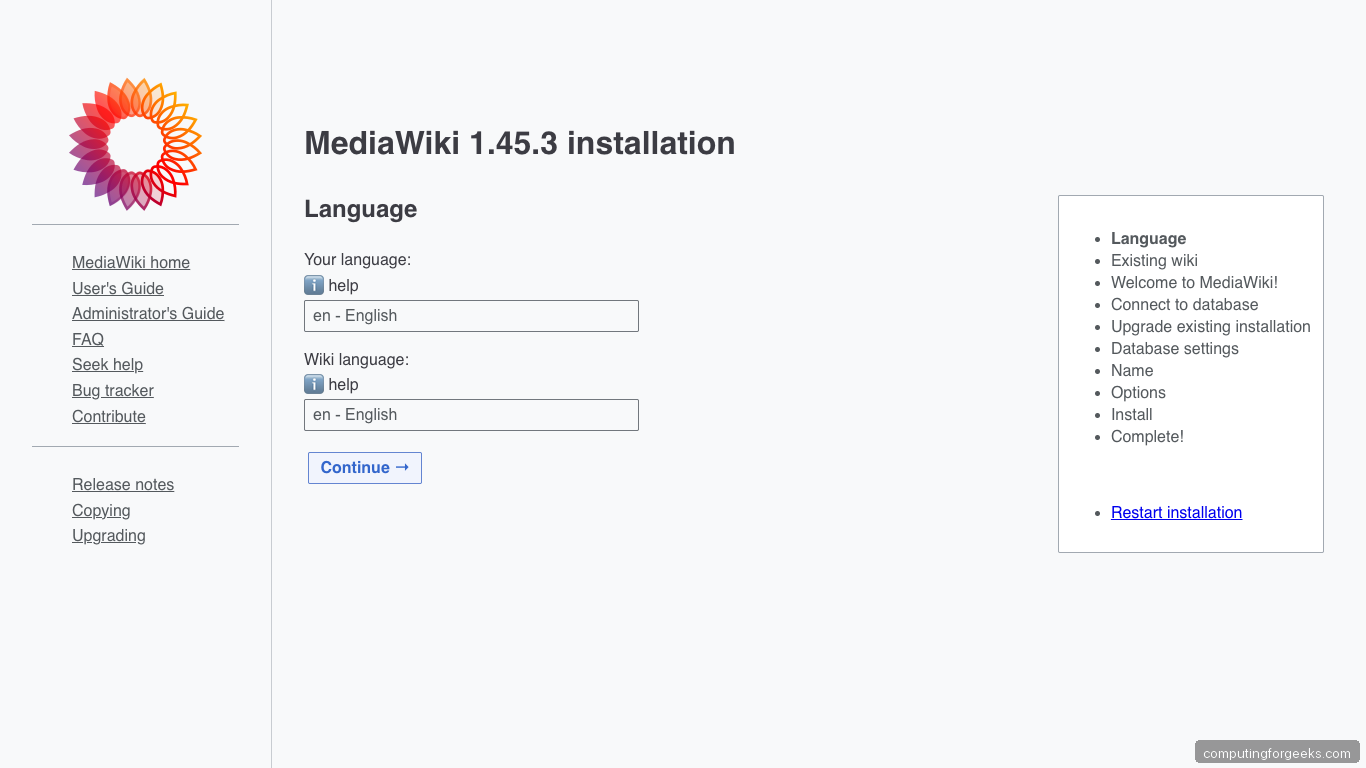
Click through the language, pre-flight checks, and database screens. Enter the values you exported in Step 1 when prompted. The installer writes a LocalSettings.php file to /tmp on the server and prompts you to download it; save that file and move it into ${WEBROOT}/LocalSettings.php.
If you prefer a scripted, reproducible install (useful for automation and rebuilds), skip the browser and run the CLI installer instead:
cd ${WEBROOT}
sudo -u www-data php maintenance/install.php \
    --dbtype=mysql \
    --dbserver=localhost \
    --dbname="${DB_NAME}" \
    --dbuser="${DB_USER}" \
    --dbpass="${DB_PASS}" \
    --scriptpath='' \
    --server="https://${APP_DOMAIN}" \
    --pass="${ADMIN_PASS}" \
    "${WIKI_NAME}" "${ADMIN_USER}"
Expected last line of a successful run is MediaWiki has been successfully installed. The command writes LocalSettings.php directly into the webroot; set tight permissions and remove the installer so nobody can rerun it:
sudo chown www-data:www-data ${WEBROOT}/LocalSettings.php
sudo chmod 640 ${WEBROOT}/LocalSettings.php
sudo rm -rf ${WEBROOT}/mw-config
Removing mw-config closes the installer entirely. A wiki that leaves the installer reachable is one misconfigured permission away from letting a stranger overwrite your database credentials.
Step 8: Turn on pretty URLs
MediaWiki defaults to /index.php?title=Foo. The /wiki/Foo style readers expect needs an .htaccess rewrite plus $wgArticlePath in LocalSettings.php.
sudo tee ${WEBROOT}/.htaccess > /dev/null <<'EOF'
RewriteEngine On
RewriteRule ^/?wiki(/.*)?$ %{DOCUMENT_ROOT}/index.php [L]
RewriteCond %{REQUEST_FILENAME} !-f
RewriteCond %{REQUEST_FILENAME} !-d
RewriteRule ^(.*)$ %{DOCUMENT_ROOT}/index.php [L]
EOF
sudo chown www-data:www-data ${WEBROOT}/.htaccess
Append the article path config to LocalSettings.php:
echo '$wgArticlePath = "/wiki/$1";' | sudo tee -a ${WEBROOT}/LocalSettings.php
echo '$wgUsePathInfo = true;' | sudo tee -a ${WEBROOT}/LocalSettings.php
sudo systemctl reload apache2
Verify the short URL now resolves:
curl -sI https://${APP_DOMAIN}/wiki/Main_Page | head -3A HTTP/1.1 200 OK on the /wiki/Main_Page path confirms both Apache rewrites and MediaWiki’s internal routing are wired up.
Step 9: Log in and verify
Browse to https://${APP_DOMAIN}/wiki/Main_Page. The freshly-installed wiki shows the default Main Page, the Vector 2022 skin, and a login link:

Log in with the admin account. Open the Main Page in edit mode to see the wiki source editor:
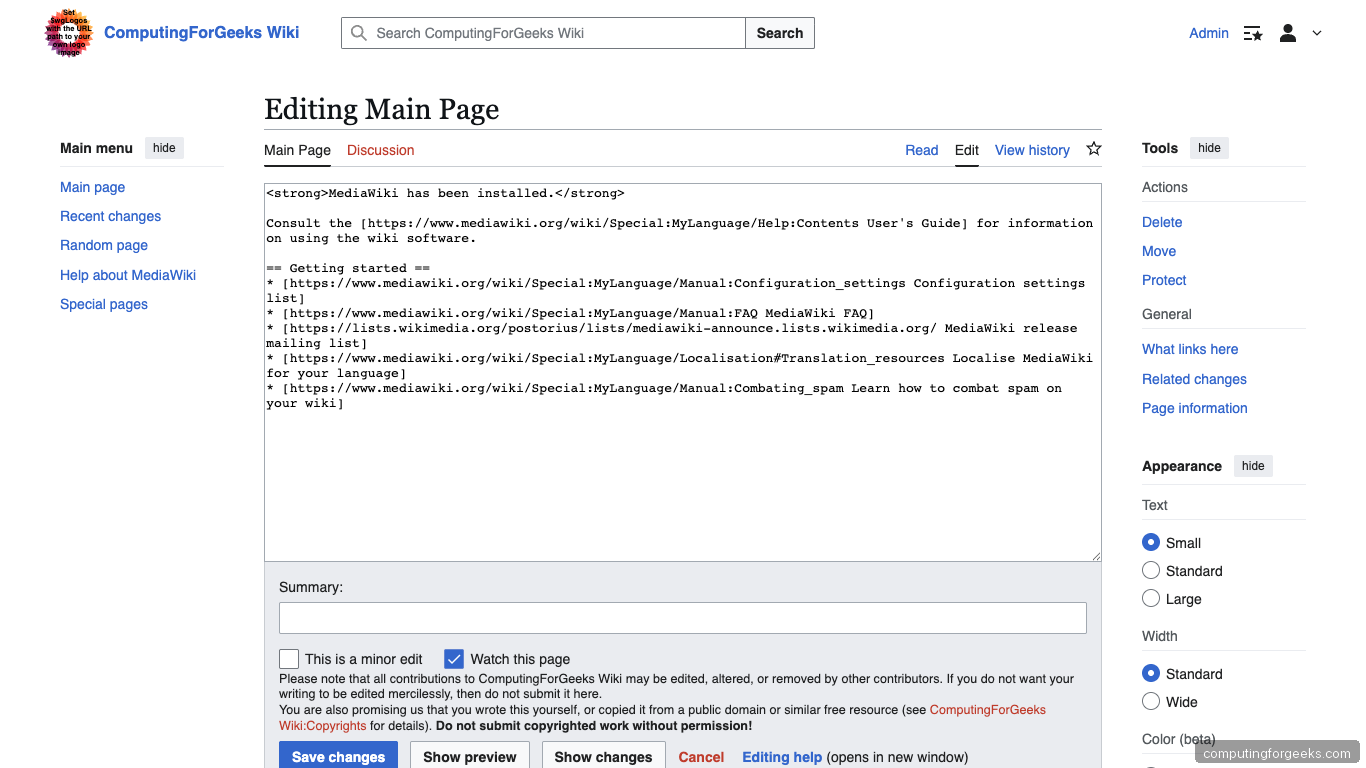
The Special:SpecialPages page lists every administrative and maintenance interface MediaWiki exposes out of the install:
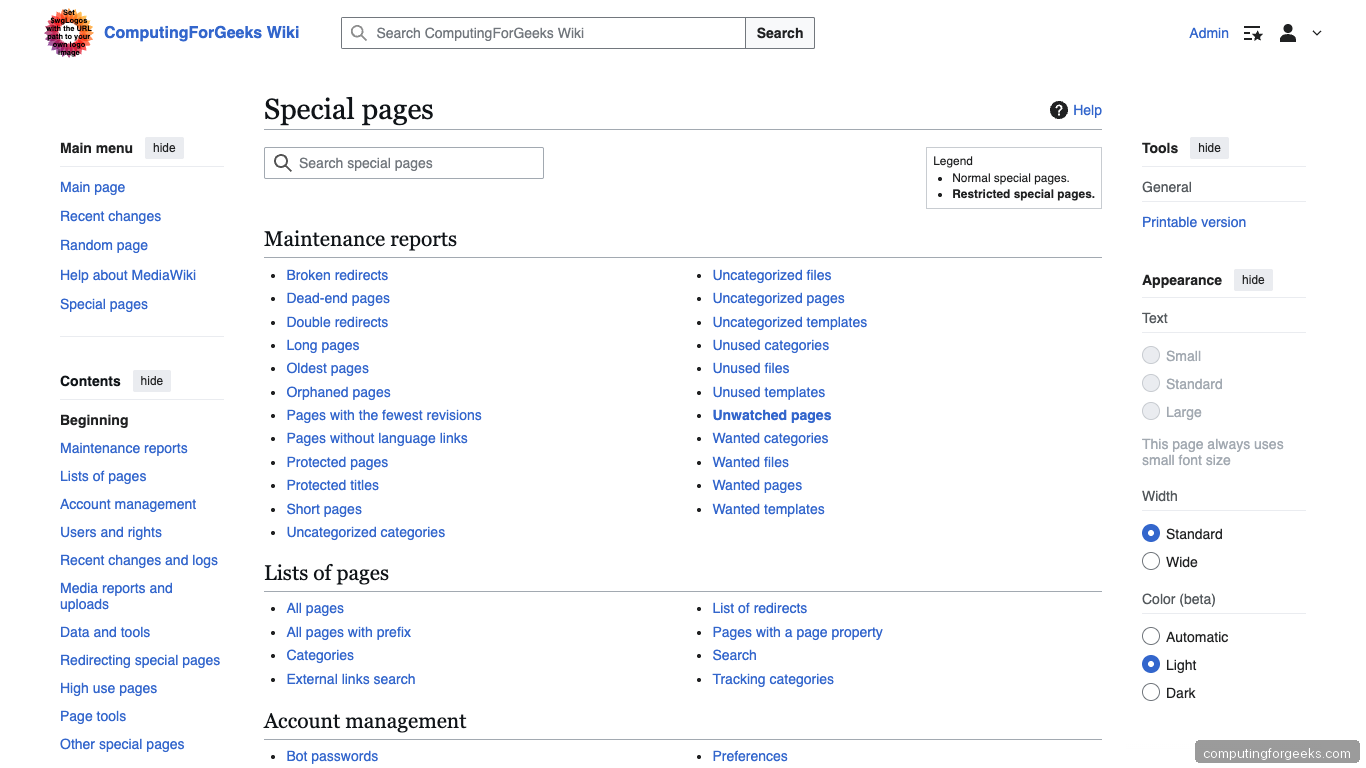
Back on the terminal, confirm the version and stats:
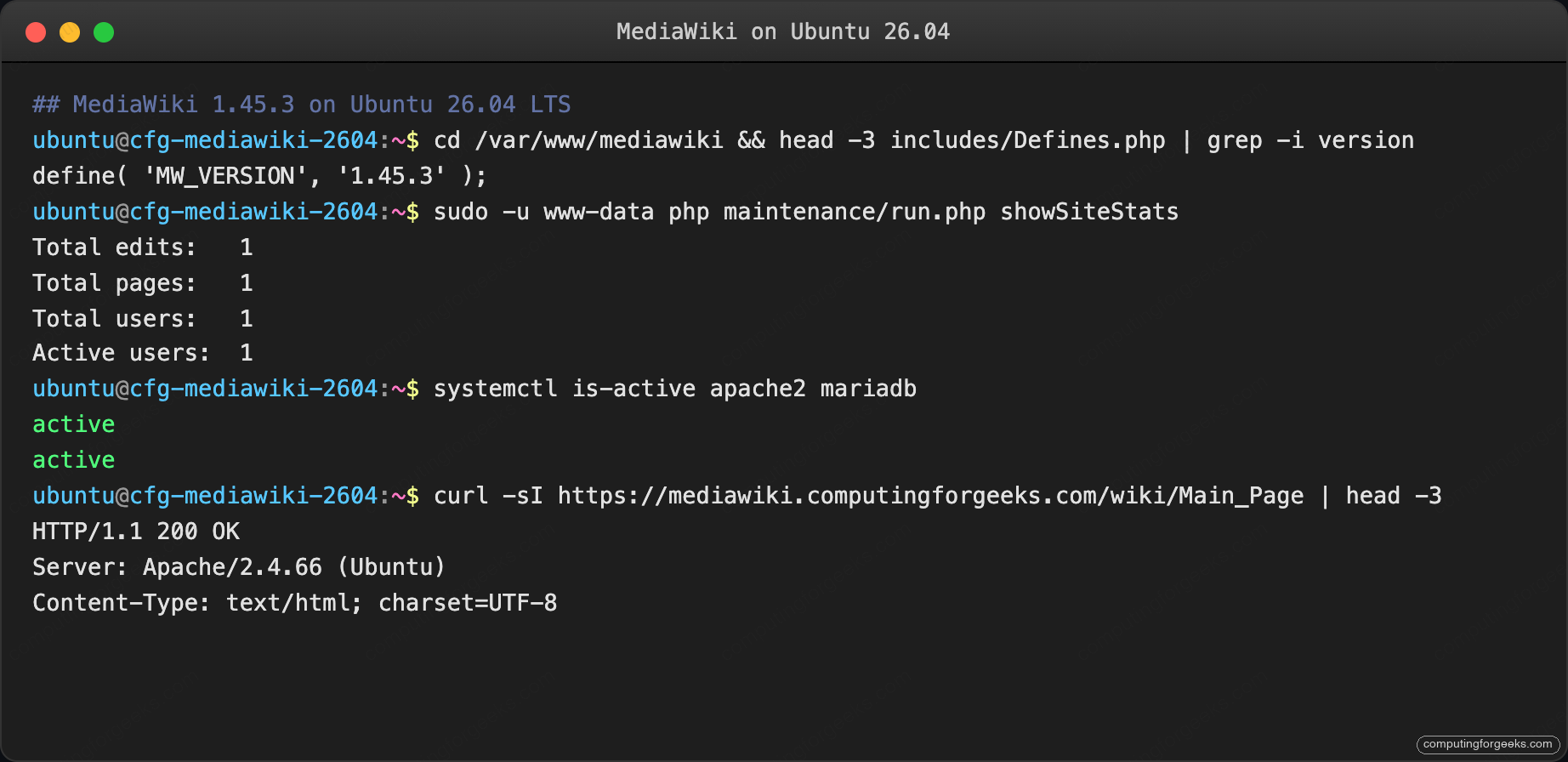
Apache, MariaDB, PHP 8.5, and MediaWiki 1.45.3 all answer. The wiki is ready for content.
Step 10: Enable uploads and install an extension
Image and file uploads are disabled by default. Turn them on in LocalSettings.php:
echo '$wgEnableUploads = true;' | sudo tee -a ${WEBROOT}/LocalSettings.php
echo '$wgUseImageMagick = true;' | sudo tee -a ${WEBROOT}/LocalSettings.php
echo '$wgImageMagickConvertCommand = "/usr/bin/convert";' | sudo tee -a ${WEBROOT}/LocalSettings.php
Install ImageMagick if it is missing:
sudo apt-get install -y imagemagickExtensions live under ${WEBROOT}/extensions/. Installing the popular VisualEditor or CategoryTree extension is one git clone plus a wfLoadExtension line:
cd ${WEBROOT}/extensions
sudo -u www-data git clone --depth=1 --branch REL1_45 \
    https://gerrit.wikimedia.org/r/mediawiki/extensions/CategoryTree
echo 'wfLoadExtension( "CategoryTree" );' | sudo tee -a ${WEBROOT}/LocalSettings.php
cd ${WEBROOT}
sudo -u www-data php maintenance/run.php update --quick
Branch names follow the MediaWiki release tag, so on 1.45 the branch is REL1_45.
Step 11: Schedule a nightly backup
MediaWiki state splits across the database, the images/ directory, and LocalSettings.php. A scripted nightly dump hits all three:
sudo tee /usr/local/bin/mediawiki-backup.sh > /dev/null <<'BASH'
#!/bin/bash
set -euo pipefail
WEBROOT="/var/www/mediawiki"
DEST="/var/backups/mediawiki"
STAMP=$(date +%Y%m%d-%H%M%S)
mkdir -p "${DEST}"
mariadb-dump --single-transaction --routines --triggers mediawiki \
    | zstd -19 -o "${DEST}/mediawiki-${STAMP}.sql.zst"
tar --zstd -cf "${DEST}/images-${STAMP}.tar.zst" -C "${WEBROOT}" images
cp "${WEBROOT}/LocalSettings.php" "${DEST}/LocalSettings-${STAMP}.php"
find "${DEST}" -mtime +14 -type f -delete
echo "Backup complete: ${DEST}"
BASH
sudo chmod +x /usr/local/bin/mediawiki-backup.sh
echo '30 2 * * * root /usr/local/bin/mediawiki-backup.sh >> /var/log/mediawiki-backup.log 2>&1' \
    | sudo tee /etc/cron.d/mediawiki-backup
Pair this with offsite replication via the server hardening guide and Fail2ban watching the MediaWiki login log for brute-force attempts.
Troubleshooting
“LocalSettings.php not found” after CLI install
The installer writes the file into the webroot, but a permission error will silently skip it. Check:
sudo ls -la /var/www/mediawiki/LocalSettings.php
sudo -u www-data touch /var/www/mediawiki/LocalSettings.php && echo "writable"
If the touch fails, chown www-data:www-data on the webroot and rerun the installer.
Short URLs return 404 Not Found
Apache’s mod_rewrite needs to be enabled and the .htaccess file must be readable. Confirm:
sudo apache2ctl -M | grep rewrite
sudo ls -la /var/www/mediawiki/.htaccess
If rewrite_module is missing, sudo a2enmod rewrite then reload. If the .htaccess file is there but ignored, make sure the vhost block has AllowOverride All inside the <Directory> stanza.
Deprecation warnings in the admin overview under PHP 8.5
MediaWiki 1.45 is tested against PHP 8.1 to 8.4 upstream; a handful of third-party extensions still emit #[Deprecated] warnings under 8.5. Silence them at the log level rather than at display:
echo '$wgShowExceptionDetails = false;' | sudo tee -a /var/www/mediawiki/LocalSettings.php
echo 'error_reporting(E_ALL & ~E_DEPRECATED);' | sudo tee -a /var/www/mediawiki/LocalSettings.php
Upstream fixes land in 1.45.x patch releases. Update by swapping the tarball and rerunning maintenance/run.php update.
“Internal error: The database returned a syntax error” on first upload
ImageMagick is not installed or $wgImageMagickConvertCommand points at the wrong path. Confirm:
which convert
sudo apt-get install -y imagemagick
Re-uploading the file after ImageMagick lands should succeed; MediaWiki renders thumbnails on the fly using convert.
Annotated LocalSettings.php reference
Below is the LocalSettings.php block the test box ended up running. Every non-trivial directive carries a one-line why comment. Five settings we deliberately left alone and the reason follow afterwards.
<?php
// Protect against web entry
if ( !defined( 'MEDIAWIKI' ) ) { exit; }

// ---- Identity ----
$wgSitename      = "Example Wiki";              // Shown in the top bar and RSS feeds
$wgMetaNamespace = "Example_Wiki";              // Used for the project namespace prefix

// ---- URLs ----
$wgServer        = "https://wiki.example.com";  // No trailing slash, must match certbot SAN
$wgScriptPath    = "";                          // MediaWiki lives at the webroot
$wgArticlePath   = "/wiki/$1";                  // Pretty URLs; rewrite rule is in .htaccess
$wgUsePathInfo   = true;                        // Lets /wiki/Foo work without query strings
$wgResourceBasePath = $wgScriptPath;

// ---- Database ----
$wgDBtype     = "mysql";
$wgDBserver   = "localhost";
$wgDBname     = "mediawiki";
$wgDBuser     = "mw_user";
$wgDBpassword = "ChangeMe_Strong_DbPass_2026"; // Same password you set in Step 3
$wgDBprefix   = "";                            // No prefix; one DB per wiki
$wgDBTableOptions = "ENGINE=InnoDB, DEFAULT CHARSET=utf8mb4";

// ---- Permissions ----
$wgGroupPermissions['*']['createaccount'] = false;  // Admin-invite only; flip back to true for public wikis
$wgGroupPermissions['*']['edit']          = false;  // Read-only for anons; stops drive-by spam
$wgEmailConfirmToEdit                     = true;   // Requires verified email before any edit

// ---- Uploads ----
$wgEnableUploads            = true;
$wgFileExtensions           = array( 'png','jpg','jpeg','gif','svg','pdf','webp' );
$wgUseImageMagick           = true;
$wgImageMagickConvertCommand = "/usr/bin/convert";
$wgMaxUploadSize            = 100 * 1024 * 1024;  // 100 MB; raise if you host video

// ---- Caching ----
$wgMainCacheType    = CACHE_ACCEL;    // Use APCu; we installed php8.5-apcu for this
$wgMemCachedServers = array();        // Add "127.0.0.1:11211" once Memcached is running
$wgCacheDirectory   = "$IP/cache";    // File cache fallback

// ---- Email ----
$wgEnableEmail       = true;
$wgEmergencyContact  = "[email protected]";
$wgPasswordSender    = "[email protected]";
$wgSMTP = array(
    'host'     => 'smtp.example.com',
    'port'     => 587,
    'auth'     => true,
    'username' => '[email protected]',
    'password' => 'ChangeMe_Strong_SmtpPass',
    'IDHost'   => 'example.com',
);

// ---- Secrets ----
$wgSecretKey = "your-long-random-secret-from-installer";
$wgAuthenticationTokenVersion = "1";

// ---- Skin ----
wfLoadSkin( 'Vector' );
$wgDefaultSkin = 'vector-2022';

// ---- Extensions we run ----
wfLoadExtension( 'CategoryTree' );    // Collapsible category trees
wfLoadExtension( 'ParserFunctions' ); // #if, #switch, time formatting
wfLoadExtension( 'Cite' );            // Reference footnotes
wfLoadExtension( 'SyntaxHighlight_GeSHi' ); // Pygments-backed code highlighting
wfLoadExtension( 'Gadgets' );         // Per-user JavaScript hooks

// ---- Deprecation noise silencer (PHP 8.5 on 1.45) ----
error_reporting( E_ALL & ~E_DEPRECATED );
That block is the whole production file. Copy it, swap in your own domain, passwords, and secret key, and the wiki boots into the same state we tested.
Five settings we deliberately left alone
$wgLogo: default Vector logo is fine for an install walkthrough. Set this only when you have a real brand asset at 135×135 (standard), 270×270 (retina), and SVG (wordmark).$wgLanguageCode: defaultenmatches most new installs. Change only if your wiki is non-English; mixing languages here breaks namespace translations.$wgReadOnly: do not set this in a working file. It is for controlled maintenance windows, and leaving a stray$wgReadOnlyin place has taken down real wikis for days.$wgDebugLogFile: tempting to turn on for diagnostics, but it writes every request to disk and grows without rotation. Use$wgDebugToolbar = true;in a staging copy instead.$wgUseFileCache: conflicts with$wgCacheDirectory-based object cache in subtle ways. Run APCu or Memcached instead. The file cache is from a different MediaWiki era and rarely wins on modern hardware.
Every installed MediaWiki starts from this file. Once the wiki has real traffic, revisit $wgMainCacheType to move from APCu to Memcached or Redis, enable $wgMiserMode = true to skip the heaviest query paths, and add $wgJobRunRate tuning so job-queue work does not eat your request threads.





