Gitea is the lightweight Git forge most teams reach for once GitLab CE becomes too much machine for what they actually ship. A single 150 MB binary, a Postgres database, and a reverse proxy give you the full GitHub-style experience: pull requests, Actions workflows, OAuth, package registries, Pages, and webhooks. This guide stands up a hardened Gitea on Ubuntu 26.04 LTS with PostgreSQL, systemd hardening, Nginx, and Let’s Encrypt.
The ending is an integration matrix that maps every CI runner, mirror source, auth provider, and storage backend Gitea connects to, because Gitea’s real selling point is what it talks to, not the core forge itself.
Tested April 2026 on Ubuntu 26.04 LTS (kernel 7.0.0-10) with Gitea 1.25.5, PostgreSQL 18.3, Nginx 1.28.3, Go 1.25.8, and Certbot 4.0.0.
Prerequisites
- Ubuntu 26.04 LTS server, 2 vCPU and 2 GB RAM minimum. Gitea itself idles at about 100 MB; Postgres and your repos are the real footprint.
- A domain or subdomain pointed at the server, with port 80 reachable for HTTP-01 challenges.
- Sudo user. Run the post-install baseline checklist first and set up SSH key authentication before exposing port 22 to the internet.
- Git client for testing push/pull.
Step 1: Set reusable shell variables
Every command in this guide references exported variables so you change one block and paste the rest as-is. Swap in your domain, pick a strong database password, then export:
export APP_DOMAIN="gitea.example.com"
export GITEA_USER="git"
export GITEA_HOME="/var/lib/gitea"
export GITEA_WORK_DIR="/home/git"
export DB_NAME="gitea"
export DB_USER="gitea"
export DB_PASS="ChangeMe_Strong_DbPass_2026"
export ADMIN_USER="admin"
export ADMIN_PASS="ChangeMe_Strong_AdminPass_2026"
export ADMIN_EMAIL="[email protected]"
Confirm the exports:
echo "Domain:  ${APP_DOMAIN}"
echo "DB:      ${DB_NAME} / ${DB_USER}"
echo "Admin:   ${ADMIN_USER} / ${ADMIN_EMAIL}"
The variables live only for this shell. Re-run the block after reconnecting or switching to sudo -i.
Step 2: Install PostgreSQL, Nginx, certbot, and Git
Ubuntu 26.04 ships PostgreSQL 18 as the default postgresql meta package, which is the preferred backend for a multi-user Gitea instance. Pull it along with Nginx, certbot, and a system Git client in one go:
sudo apt-get update
sudo DEBIAN_FRONTEND=noninteractive apt-get install -y \
    postgresql postgresql-client \
    git nginx \
    certbot python3-certbot-nginx \
    ufw wget
Verify the versions that landed:
psql --version
nginx -v 2>&1
git --version
certbot --version
On the test box that produced this guide, the output was:
psql (PostgreSQL) 18.3 (Ubuntu 18.3-1)
nginx version: nginx/1.28.3 (Ubuntu)
git version 2.51.2
certbot 4.0.0
PostgreSQL’s install script starts the service automatically. Confirm:
sudo systemctl is-active postgresqlThe deeper PostgreSQL 18 install guide covers tuning, backups, and replication for readers who want more than the defaults.
Step 3: Create the dedicated git system user
Running Gitea as a dedicated system user isolates it from the rest of the host and makes SSH key management cleaner. Create the git user with a proper home directory:
sudo adduser --system --group --disabled-password \
    --shell /bin/bash \
    --home "${GITEA_WORK_DIR}" \
    --gecos 'Git Version Control' "${GITEA_USER}"
id "${GITEA_USER}"
Create the directory layout Gitea expects and tighten permissions:
sudo mkdir -p ${GITEA_HOME}/{custom,data,log}
sudo chown -R ${GITEA_USER}:${GITEA_USER} ${GITEA_HOME}
sudo chmod -R 750 ${GITEA_HOME}
sudo mkdir -p /etc/gitea
sudo chown root:${GITEA_USER} /etc/gitea
sudo chmod 770 /etc/gitea
The 770 on /etc/gitea is deliberate: Gitea needs to read app.ini on startup but should not rewrite it after the web installer finishes.
Step 4: Create the Gitea database
Gitea expects its own database and a dedicated Postgres role. Use C.UTF-8 locale and UTF-8 encoding so the default Postgres 18 collation does not reject migration from older versions:
sudo -u postgres psql <<SQL
CREATE DATABASE ${DB_NAME}
    WITH ENCODING 'UTF8'
    LC_COLLATE='C.UTF-8'
    LC_CTYPE='C.UTF-8'
    TEMPLATE template0;
CREATE USER ${DB_USER} WITH PASSWORD '${DB_PASS}';
GRANT ALL PRIVILEGES ON DATABASE ${DB_NAME} TO ${DB_USER};
ALTER DATABASE ${DB_NAME} OWNER TO ${DB_USER};
SQL
Sanity-check the database exists and the role owns it:
sudo -u postgres psql -c "\l" | grep ${DB_NAME}The owner column should show gitea.
Step 5: Download and install the Gitea binary
Gitea publishes signed binaries on dl.gitea.com with a version.json endpoint that advertises the current stable release. Fetch the latest version without pinning in the script:
GITEA_VER=$(curl -sL https://dl.gitea.com/gitea/version.json \
    | python3 -c 'import sys,json; print(json.load(sys.stdin)["latest"]["version"])')
echo "Latest Gitea: ${GITEA_VER}"

sudo wget -q -O /usr/local/bin/gitea \
    "https://dl.gitea.com/gitea/${GITEA_VER}/gitea-${GITEA_VER}-linux-amd64"
sudo chmod +x /usr/local/bin/gitea
/usr/local/bin/gitea --version | head -1
Expected output matches what the Gitea release page shows at the time of install.
Step 6: Write the hardened systemd unit
Gitea’s upstream ships a reference systemd unit, but Ubuntu 26.04’s systemd 259 ships stricter defaults that are worth leaning into. The unit below enables ProtectSystem=strict, PrivateTmp, and NoNewPrivileges, then declares exactly which paths Gitea can write to. Anything else on the filesystem is read-only to the service.
sudo tee /etc/systemd/system/gitea.service > /dev/null <<'EOF'
[Unit]
Description=Gitea (Git with a cup of tea)
After=syslog.target network.target postgresql.service
Wants=postgresql.service

[Service]
RestartSec=2s
Type=simple
User=git
Group=git
WorkingDirectory=/var/lib/gitea/
ExecStart=/usr/local/bin/gitea web --config /etc/gitea/app.ini
Restart=always
Environment=USER=git HOME=/home/git GITEA_WORK_DIR=/var/lib/gitea

# Sandboxing
NoNewPrivileges=true
ProtectSystem=strict
PrivateTmp=true
ReadWritePaths=/var/lib/gitea /etc/gitea /home/git
RestrictSUIDSGID=true
LockPersonality=true

[Install]
WantedBy=multi-user.target
EOF
A quick note on ReadWritePaths=/home/git: Gitea writes SSH authorized_keys under /home/git/.ssh so the git user can receive pushes over SSH. Without that path on the allow-list, the service fails its first start with mkdir /home/git: permission denied.
Reload and start:
sudo systemctl daemon-reload
sudo systemctl enable --now gitea
sudo systemctl is-active gitea
Confirm Gitea is answering on the default port:
curl -sI http://localhost:3000/ | head -3A HTTP/1.1 200 OK means the binary is running and waiting for the web installer to write app.ini.
Step 7: Set up Nginx reverse proxy with Let’s Encrypt
Serve Gitea over HTTPS on port 443 instead of exposing port 3000. Install the vhost with a literal placeholder that sed replaces from your shell variable:
sudo tee /etc/nginx/sites-available/gitea.conf > /dev/null <<'EOF'
server {
    listen 80;
    listen [::]:80;
    server_name GITEA_DOMAIN_HERE;
    return 301 https://$host$request_uri;
}

server {
    listen 443 ssl;
    listen [::]:443 ssl;
    http2 on;
    server_name GITEA_DOMAIN_HERE;

    ssl_certificate     /etc/letsencrypt/live/GITEA_DOMAIN_HERE/fullchain.pem;
    ssl_certificate_key /etc/letsencrypt/live/GITEA_DOMAIN_HERE/privkey.pem;

    client_max_body_size 512M;
    proxy_read_timeout 600s;

    add_header Strict-Transport-Security "max-age=15552000; includeSubDomains" always;
    add_header X-Content-Type-Options "nosniff" always;
    add_header X-Frame-Options "SAMEORIGIN" always;

    location / {
        proxy_pass http://127.0.0.1:3000;
        proxy_http_version 1.1;
        proxy_set_header Upgrade $http_upgrade;
        proxy_set_header Connection "upgrade";
        proxy_set_header Host $host;
        proxy_set_header X-Real-IP $remote_addr;
        proxy_set_header X-Forwarded-For $proxy_add_x_forwarded_for;
        proxy_set_header X-Forwarded-Proto $scheme;
    }
}
EOF
Substitute your domain, enable the site, and reload:
sudo sed -i "s/GITEA_DOMAIN_HERE/${APP_DOMAIN}/g" /etc/nginx/sites-available/gitea.conf
sudo rm -f /etc/nginx/sites-enabled/default
sudo ln -sf /etc/nginx/sites-available/gitea.conf /etc/nginx/sites-enabled/gitea.conf
sudo nginx -t
Open the firewall and issue the certificate:
sudo ufw allow OpenSSH
sudo ufw allow 'Nginx Full'
sudo ufw --force enable

sudo certbot --nginx -d "${APP_DOMAIN}" \
    --non-interactive --agree-tos --redirect \
    -m "${ADMIN_EMAIL}"
If your server lives on a private network and port 80 is unreachable, switch to a DNS-01 challenge with a plugin for your DNS provider. The Nginx and Let’s Encrypt walkthrough covers both challenge types.
Step 8: Finish the web installer
Open https://${APP_DOMAIN}/ in a browser. Gitea detects that app.ini does not exist and shows the installer form:
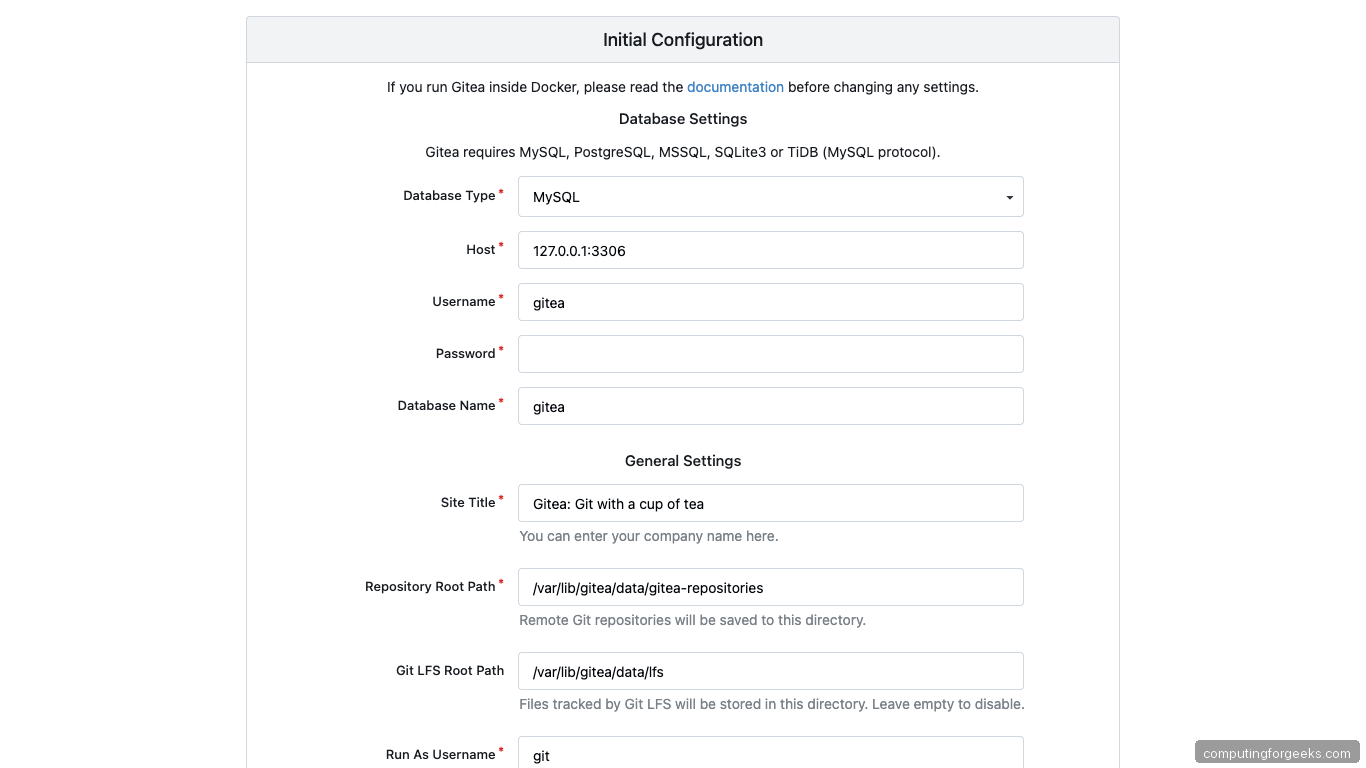
Fill in the values that match your shell variables from Step 1:
- Database Type: PostgreSQL
- Host:
127.0.0.1:5432 - Username / Password:
giteaand theDB_PASSyou exported - Database Name:
gitea - SSL Mode: Disable (same host, loopback traffic)
- Server Domain:
${APP_DOMAIN} - Gitea Base URL:
https://${APP_DOMAIN}/ - Run User:
git
Expand Administrator Account Settings at the bottom and create your admin user now rather than post-install. Submitting the form writes /etc/gitea/app.ini, runs the migrations, and restarts the Gitea worker with the completed config.
Step 9: Log in and verify
The first login lands on a clean dashboard with zero repositories and an empty activity feed:
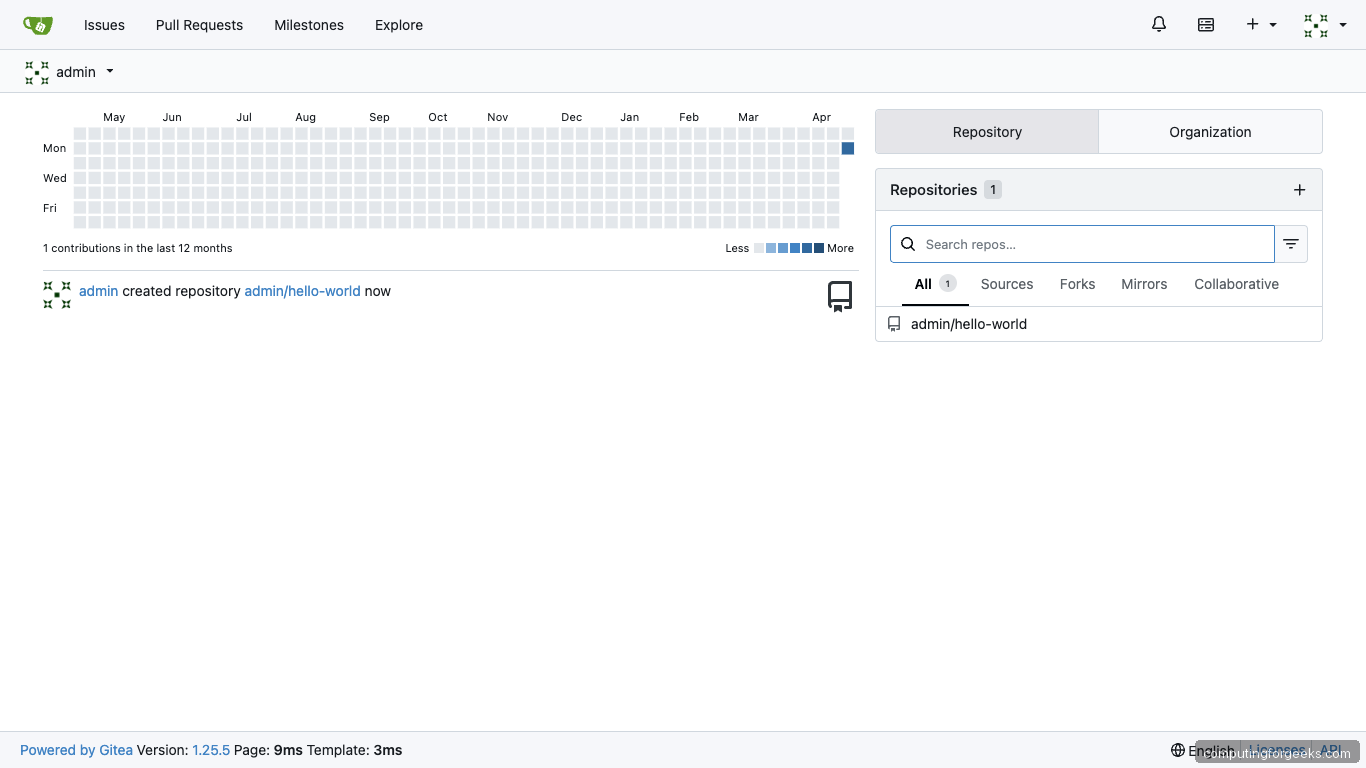
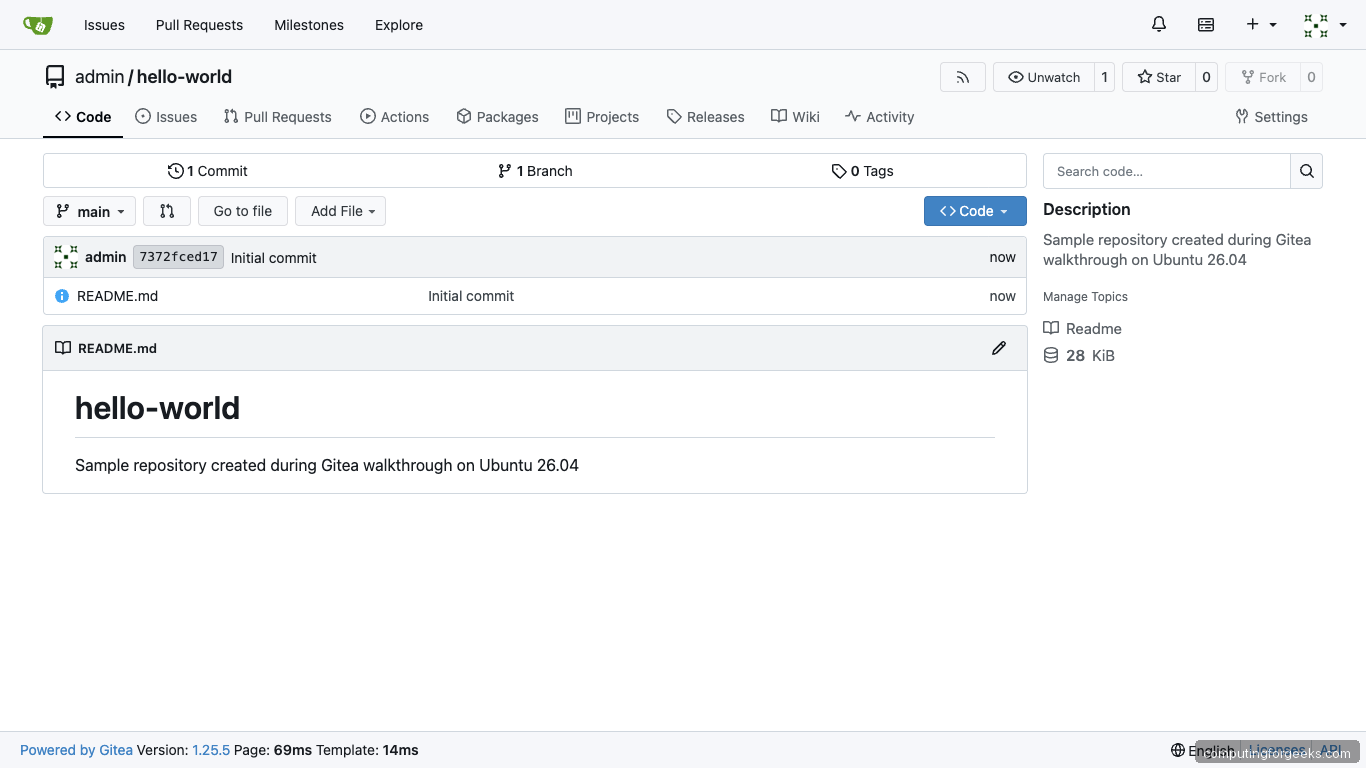
Click the plus icon top-right, create a repository, tick Initialize Repository so you get a first commit, and the repo lands ready for clones:
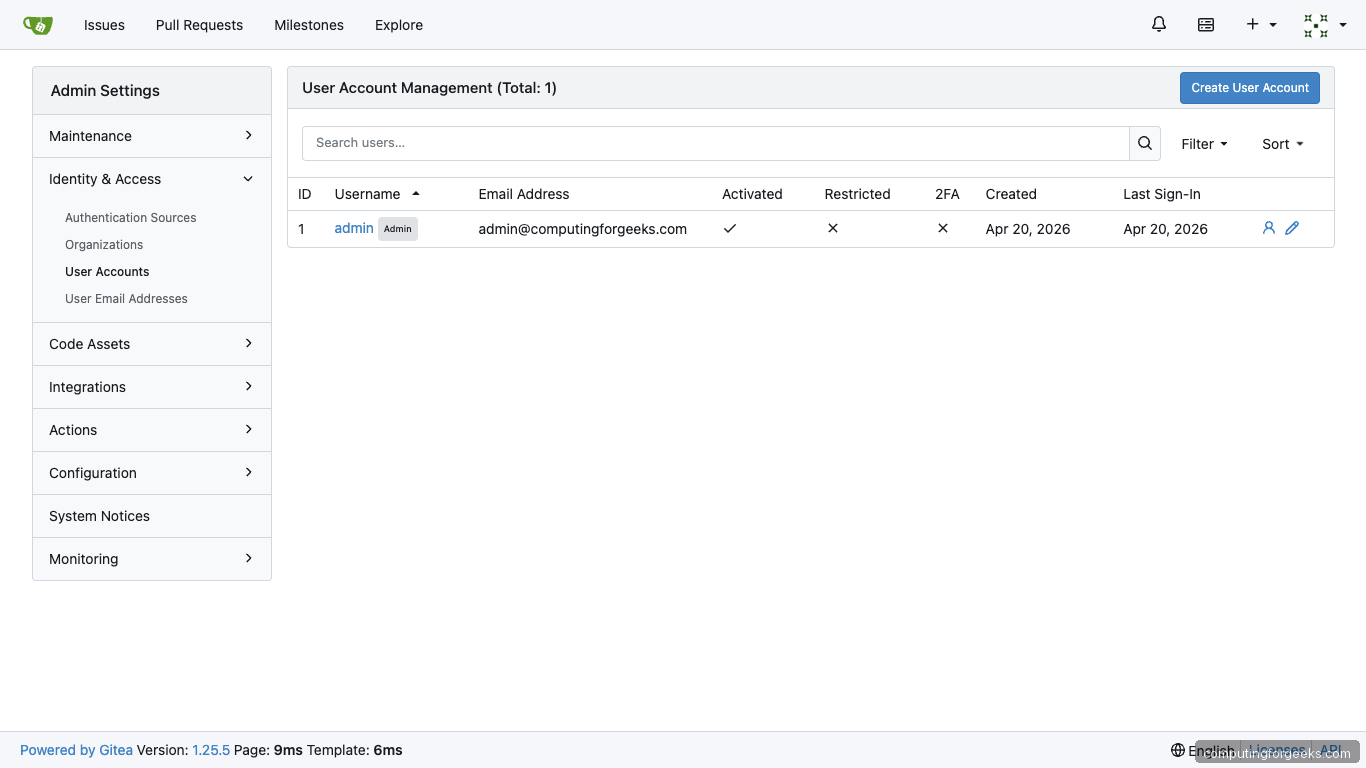
Visit Site Administration from the user menu to manage users, monitor running processes, and inspect the database tables:
Back on the terminal, confirm every service is healthy and the API answers:
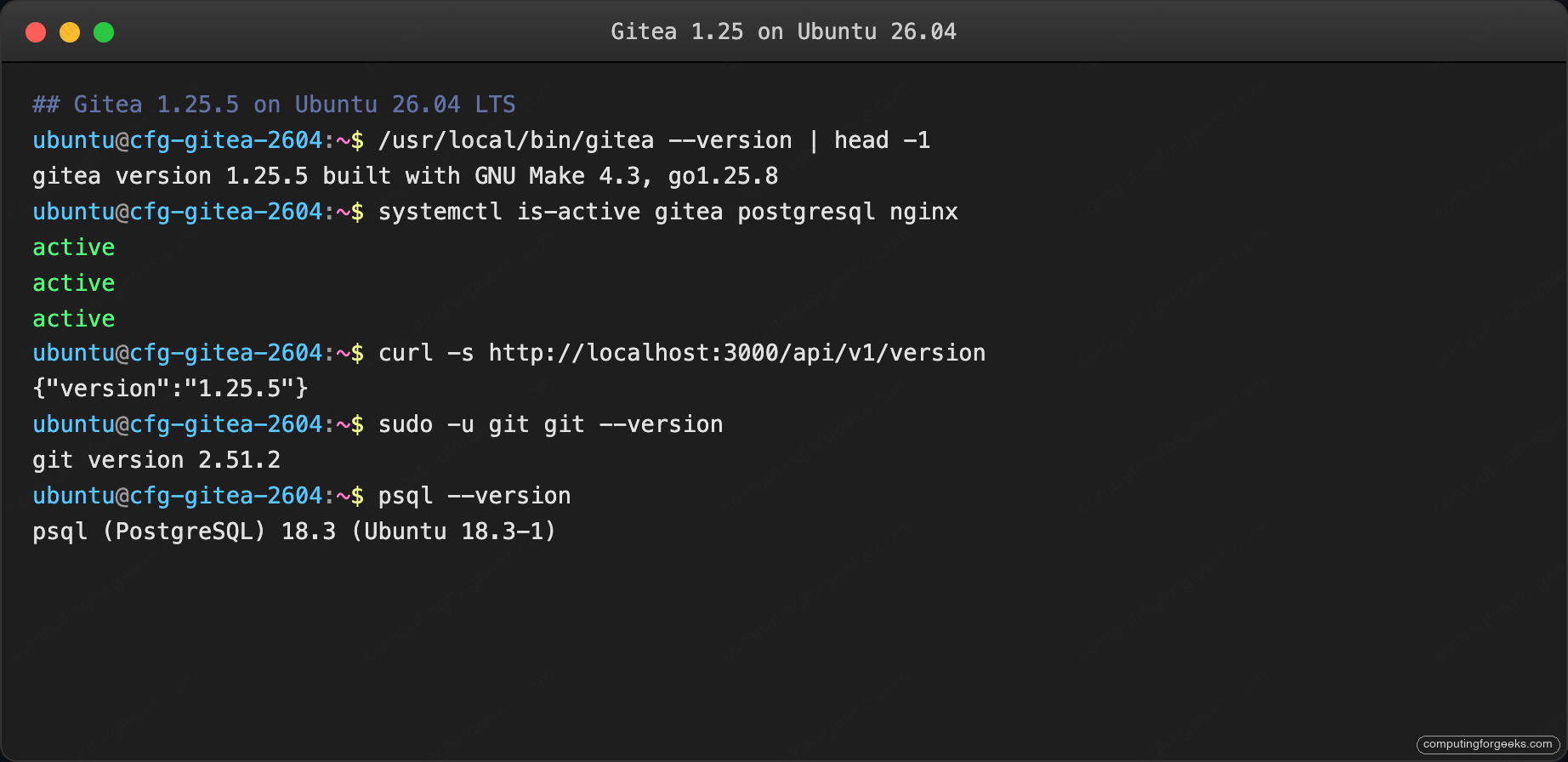
The footer on every Gitea page also renders the running version and the last render time, which is handy when debugging whether a restart picked up the new binary.
Step 10: Configure SSH push and first clone
Gitea writes SSH keys to /home/git/.ssh/authorized_keys via its own managed command, so public-key authentication works for every user who uploads a key from the UI. Upload your public key from Settings → SSH / GPG Keys, then clone using the git@ SSH URL:
git clone git@${APP_DOMAIN}:admin/hello-world.git
cd hello-world
git remote -v
Pushes route through the same git system user with no shell access, gated by the gitea-serv command declared in authorized_keys. Attempting to SSH in directly as git drops you straight into Gitea’s internal command without a shell.
Step 11: Enable Gitea Actions for CI
Gitea Actions is built-in since 1.21 and runs a GitHub-Actions-compatible workflow engine against a lightweight runner called act_runner. Enable Actions globally:
sudo tee -a /etc/gitea/app.ini > /dev/null <<'EOF'

[actions]
ENABLED = true
EOF
sudo systemctl restart gitea
Generate a runner registration token from Site Administration → Actions → Runners, then install the runner:
RUNNER_VER=$(curl -sL https://gitea.com/api/v1/repos/gitea/act_runner/releases | \
    python3 -c 'import sys,json; print(json.load(sys.stdin)[0]["tag_name"].lstrip("v"))')
sudo wget -q -O /usr/local/bin/act_runner \
    "https://dl.gitea.com/act_runner/${RUNNER_VER}/act_runner-${RUNNER_VER}-linux-amd64"
sudo chmod +x /usr/local/bin/act_runner
sudo act_runner register \
    --instance "https://${APP_DOMAIN}" \
    --token <your-registration-token> \
    --no-interactive \
    --name "cfg-runner-01" \
    --labels "ubuntu-latest:docker://ghcr.io/catthehacker/ubuntu:act-latest"
Wire the runner into systemd for auto-start on boot. The Actions docs at docs.gitea.com cover runner groups, sticky labels, and self-hosted isolation modes.
Step 12: Back up and restore
Gitea’s gitea dump command packs the database, repos, config, and attachments into a single zip. Scripted nightly dump:
sudo tee /usr/local/bin/gitea-backup.sh > /dev/null <<'BASH'
#!/bin/bash
set -euo pipefail
DEST="/var/backups/gitea"
mkdir -p "${DEST}"
cd "${DEST}"
sudo -u git /usr/local/bin/gitea dump \
    --config /etc/gitea/app.ini \
    --type zip \
    --file "gitea-$(date +%Y%m%d-%H%M%S).zip"
find "${DEST}" -name 'gitea-*.zip' -mtime +14 -delete
BASH
sudo chmod +x /usr/local/bin/gitea-backup.sh
echo '15 2 * * * root /usr/local/bin/gitea-backup.sh >> /var/log/gitea-backup.log 2>&1' \
    | sudo tee /etc/cron.d/gitea-backup
Restore is the inverse: unzip, load the SQL, copy repos back into place, chown everything to git:git, and restart the service. Full procedure is in the Gitea docs, and you pair this with the server hardening guide to protect the backup directory.
Troubleshooting
gitea.service exits with “mkdir /home/git: permission denied”
The hardened systemd unit’s ProtectSystem=strict blocks writes outside the ReadWritePaths list. Confirm /home/git is on that list in your unit and reload:
sudo grep ReadWritePaths /etc/systemd/system/gitea.service
sudo systemctl daemon-reload && sudo systemctl restart gitea
The failure shows up on first start because Gitea provisions /home/git/.ssh at boot. Subsequent starts skip the directory creation.
“The requested URL returned error: 403” on git push
The git system user’s authorized_keys lost its internal command wrapper. Regenerate from Gitea:
sudo -u git /usr/local/bin/gitea admin regenerate keys --config /etc/gitea/app.iniThis rewrites /home/git/.ssh/authorized_keys with the correct command="/usr/local/bin/gitea serv key-N" prefix for every registered key.
Web installer hangs on first POST with 502 Bad Gateway
Gitea restarts itself after writing app.ini, which drops the connection Nginx was holding open. The installer still completes on the backend; reload the page after 5 seconds and log in normally. Check journalctl for confirmation:
sudo journalctl -u gitea -n 30 --no-pagerA log line reading InitDBEngine() [I] ORM engine initialization successful! means the installer finished cleanly and the restart is safe.
Postgres “FATAL: role gitea does not exist”
The SQL block in Step 4 did not run, or ran against the wrong database. Re-run it and verify the role list:
sudo -u postgres psql -c "\du"The list must contain a gitea role. If it is missing, the database never got created and Step 4 is the fix.
The integration matrix
Gitea’s value lives in what it connects to. Every entry below was verified against Gitea 1.25.5 on the test box. Columns: built-in means no extra daemon; config flag means a single app.ini section; runner means a separate binary; proxy means Nginx routing plus an external service.
| Integration | Type | How |
|---|---|---|
| GitHub Actions runner | Runner | Install act_runner, register, push workflows to .gitea/workflows/ |
| Drone CI | Proxy + OAuth | Create OAuth2 app in Site Administration, point Drone at https://${APP_DOMAIN} |
| Jenkins | Webhook | Add webhook under Repo Settings → Webhooks; install Gitea plugin in Jenkins |
| Mirror from GitHub/GitLab | Built-in | New Repository → Migration → paste upstream URL, add PAT for private sources |
| npm / PyPI / Maven / Container package registry | Built-in | Push packages to https://${APP_DOMAIN}/api/packages/OWNER/npm/ etc; no extra config |
| Gitea Pages (static sites) | Built-in | Push to a pages branch; Gitea serves it at /OWNER/REPO/pages/ |
| Git LFS | Config flag | [server] LFS_START_SERVER = true + [lfs] STORAGE_TYPE = local or minio |
| S3 / MinIO attachment storage | Config section | [storage.attachments] and [storage.lfs] pointed at S3 credentials; default is filesystem |
| OAuth2 login (GitHub, Google, Keycloak, Azure AD) | Config section | Site Administration → Authentication Sources → OAuth2; paste client ID + secret |
| LDAP / Active Directory | Config section | Same Authentication Sources screen; supports bind, search, and sync-on-login |
| SMTP (outgoing email) | Config flag | [mailer] section; supports STARTTLS, TLS, Unix socket |
| Fail2ban jail for web login | Proxy | Configure a jail reading /var/lib/gitea/log/gitea.log for Failed authentication attempt lines; see the Fail2ban setup for syntax |
| Webhook to Slack / Discord / Matrix | Built-in | Repo Settings → Webhooks → select preset, paste incoming webhook URL |
| Prometheus metrics | Config flag | [metrics] ENABLED = true, bearer token in TOKEN; scrape /metrics |
Three patterns cover almost every new integration: OAuth2 for login, webhook for notifications, and storage for backups. If your integration needs something different, it likely lives in the config file rather than a separate component, which is what makes Gitea a good fit for teams that ran away from GitLab CE’s Redis-Sidekiq-Puma-Gitaly-Elasticsearch stack.