Ubuntu 26.04 LTS flipped the switch. Systemd 259 stopped mounting the legacy cgroup v1 hierarchies entirely, so every resource knob your containers, Kubernetes nodes, and systemd services rely on now lives under the unified cgroup v2 tree at /sys/fs/cgroup/. Most workloads keep running. Some break in specific, reproducible ways, and this guide walks through all of them on a real test VM with the actual commands, files, and error traces.
We cover what changed, how to confirm your box is on the unified hierarchy, how to enforce CPU and memory limits with systemd-run, how Docker and Kubernetes pick up cgroup v2 automatically, and how to delegate a cgroup subtree to a non-root user for rootless Podman or user services. Every command was run on a fresh Ubuntu 26.04 server with kernel 7.0.0-10 and systemd 259.5.
Tested April 2026 on Ubuntu 26.04 LTS (Resolute Raccoon), kernel 7.0.0-10-generic, systemd 259.5, Docker 29.1.3
How cgroup v2 differs from v1 on Ubuntu 26.04
On Ubuntu 24.04 LTS, cgroup v2 was the default but systemd still mounted the v1 hierarchy in parallel for backward compatibility. That gave you 11 separate per-controller trees under /sys/fs/cgroup/memory, /sys/fs/cgroup/cpu, and friends. Ubuntu 26.04 ships systemd 259, which removed that fallback. The result: no v1 hierarchy exists at all, no cgroup.cpu_cfs_quota_us files, no memory.limit_in_bytes, and no /sys/fs/cgroup/systemd directory. Everything is one tree rooted at /sys/fs/cgroup/.
The practical consequences sort into three buckets. First, anything that already speaks cgroup v2 (modern Docker, containerd, runc, crun, systemd resource control, recent Kubernetes) works with zero changes because they auto-detect and switch drivers. Second, anything that hardcodes v1 paths (old shell scripts, custom monitoring exporters, the libcgroup-tools package, container runtimes older than Docker 20.10) fails with No such file or directory and needs a rewrite. Third, a few specific patterns (rootless containers, Kubernetes kubelet config, swap accounting) need config changes but not code changes.
| Concern | cgroup v1 (old) | cgroup v2 on Ubuntu 26.04 |
|---|---|---|
| Mount point | Per-controller: /sys/fs/cgroup/{memory,cpu,pids,...} | Single: /sys/fs/cgroup/ (cgroup2fs) |
| CPU quota file | cpu.cfs_quota_us + cpu.cfs_period_us | cpu.max (single line: QUOTA PERIOD) |
| Memory limit file | memory.limit_in_bytes | memory.max |
| Systemd cgroup | /sys/fs/cgroup/systemd/ | Absent. Units live in slice directories directly. |
| Process controls | freezer controller | cgroup.freeze, cgroup.kill |
| IO controller | blkio (legacy API) | io (unified, PSI-aware) |
| Pressure metrics | Separate /proc/pressure/* | Per-cgroup: cpu.pressure, memory.pressure, io.pressure |
| Delegation to users | Manual, fragile | Native via nsdelegate mount flag |
Before touching production, read the Ubuntu 26.04 LTS new features rundown and finish the initial server setup so you have a working sudo user and SSH hardened. Both are prerequisites for the demos below.
Verify your system is running unified cgroup v2
Four checks settle the question in under a minute. The first confirms the kernel and systemd versions, the next three confirm the unified hierarchy is in place and exposing the controllers you expect.
uname -r
systemctl --version | head -1
stat -fc %T /sys/fs/cgroup/
mount | grep cgroup
A healthy Ubuntu 26.04 server prints kernel 7.0 or newer, systemd 259, the filesystem type cgroup2fs, and a single cgroup2 mount line. Anything else means the box is either not 26.04 or someone forced legacy mode via a kernel command line override:
7.0.0-10-generic
systemd 259 (259.5-0ubuntu1)
cgroup2fs
cgroup2 on /sys/fs/cgroup type cgroup2 (rw,nosuid,nodev,noexec,relatime,nsdelegate,memory_recursiveprot,memory_hugetlb_accounting)
Here is that check captured on the test VM so you know what a clean pass looks like:
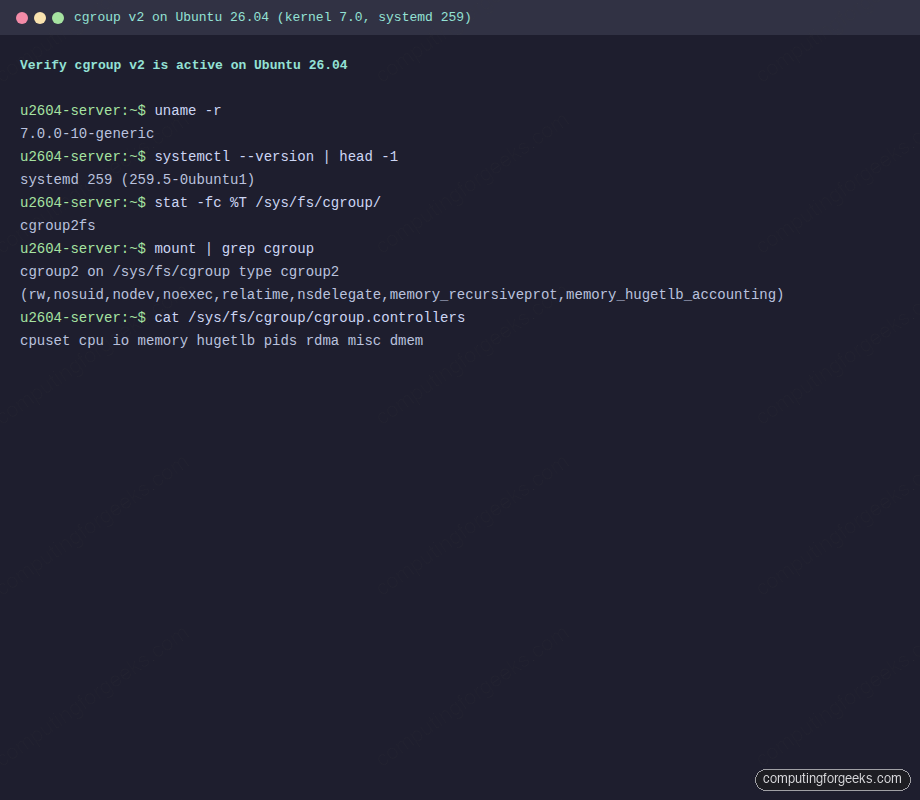
The nsdelegate flag is the one that makes rootless containers and user services work without root privileges. memory_recursiveprot is the other notable one: it lets a parent cgroup’s memory.low protect all descendants, a guarantee v1 could not give you.
List the controllers the kernel exposes and the subset systemd has enabled for descendants:
cat /sys/fs/cgroup/cgroup.controllers
cat /sys/fs/cgroup/cgroup.subtree_control
The first file lists everything the kernel can track. The second shows which controllers propagate down the tree from the root. On a default 26.04 install:
cpuset cpu io memory hugetlb pids rdma misc dmem
cpu memory pids
Systemd only enables cpu, memory, and pids by default because enabling more propagation costs CPU time on every process accounting update. If you need io accounting per service, add a drop-in with IOAccounting=yes on the unit or slice.
Inspect the cgroup hierarchy with systemd-cgls
systemd-cgls walks the hierarchy and shows every running process grouped by its slice and unit. It is the fastest way to answer “which service owns this PID” and to spot rogue processes that escaped their slice.
systemd-cgls --no-pagerThe output fans out from root into three top-level slices: user.slice, init.scope, and system.slice. Services you enable end up under system.slice, user sessions live under user.slice/user-UID.slice, and PID 1 itself stays in init.scope. Trimmed for brevity:
CGroup /:
-.slice
├─user.slice
│ └─user-0.slice
│   └─session-3.scope
│     └─1947 sshd-session: root [priv]
├─init.scope
│ └─1 /usr/lib/systemd/systemd --switched-root --system
└─system.slice
  ├─systemd-networkd.service
  │ └─1343 /usr/lib/systemd/systemd-networkd
  ├─cron.service
  │ └─1619 /usr/sbin/cron -f -P
  └─containerd.service
    └─1456 /usr/bin/containerd
For live resource accounting use systemd-cgtop, which refreshes like top but indexes by cgroup path and shows CPU percentage, RSS, input and output bytes, and task counts per slice:
systemd-cgtop --iterations=1 -n 1 --batchSample output from a near-idle test VM shows system.slice dominating memory and containerd sitting at the top of the pack:
Control Group                                           Tasks   %CPU   Memory
/                                                         185      -   588.2M
system.slice                                               84      -   519.2M
system.slice/containerd.service                             9      -    63.7M
init.scope                                                  1      -    57.2M
system.slice/ModemManager.service                           4      -    13.8M
system.slice/chrony.service                                 3      -    11.3M
If a process is missing from this output, it is not running under a cgroup at all. On v2 that is rare because the kernel places every task in some cgroup by design, but it does happen when the pids controller was disabled at boot.
Enforce CPU and memory limits with systemd-run
systemd-run creates a transient systemd unit for any command and applies resource limits through cgroup v2 automatically. This is the v2 replacement for cgexec from the old libcgroup-tools package (which no longer works on 26.04 because the v1 hierarchy it expects is gone).
Run a background sleep under a 50% CPU quota and a 64 MB RAM cap, then verify the limits actually landed in the cgroup files:
systemd-run --unit=demo-sleep -p CPUQuota=50% -p MemoryMax=64M sleep 60
systemctl show -p ControlGroup demo-sleep
cat /sys/fs/cgroup/system.slice/demo-sleep.service/cpu.max
cat /sys/fs/cgroup/system.slice/demo-sleep.service/memory.max
cat /sys/fs/cgroup/system.slice/demo-sleep.service/memory.current
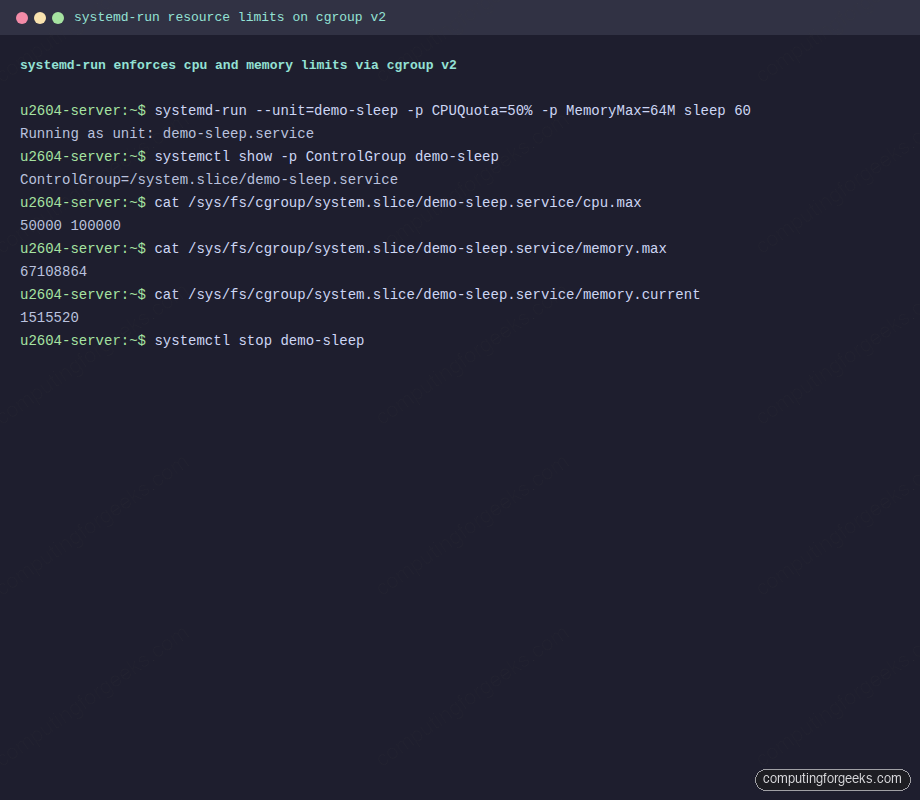
The cpu.max output uses the format QUOTA PERIOD in microseconds. A value of 50000 100000 means 50 ms of CPU time per 100 ms period, which is 50% of one core. memory.max is the hard cap in bytes, and memory.current tracks live usage:
ControlGroup=/system.slice/demo-sleep.service
50000 100000
67108864
1515520
Full session from the test VM showing the transient unit, the cgroup path, and the live readings:
When the command finishes, stop and remove the unit:
systemctl stop demo-sleepThe full systemd resource-control vocabulary is available: CPUQuota, CPUWeight, MemoryMax, MemoryHigh, MemorySwapMax, IOReadBandwidthMax, IOWriteIOPSMax, TasksMax, and the allow/deny controls for devices. Any of these work inline with -p Name=value or permanently inside a unit file’s [Service] block.
For a persistent service, write the constraints into the unit file or a drop-in. Example drop-in that caps the web server at 2 vCPUs and 2 GB:
sudo systemctl edit nginxPaste the override block and save. Systemd writes it to /etc/systemd/system/nginx.service.d/override.conf and reloads automatically:
[Service]
CPUQuota=200%
MemoryMax=2G
MemoryHigh=1800M
TasksMax=4096
Confirm the values took effect without restarting the service:
systemctl show -p CPUQuotaPerSecUSec,MemoryMax,MemoryHigh,TasksMax nginxRun Docker containers with cgroup v2 resource limits
Docker 29 on Ubuntu 26.04 auto-detects cgroup v2 and switches to the systemd cgroup driver. If you already followed the Docker CE install on Ubuntu 26.04 guide, you are ready. Confirm the driver and version:
docker info | grep -E 'Cgroup'On a healthy 26.04 box the driver and version are both set correctly and the cgroup namespace feature is active:
 Cgroup Driver: systemd
 Cgroup Version: 2
  cgroupns
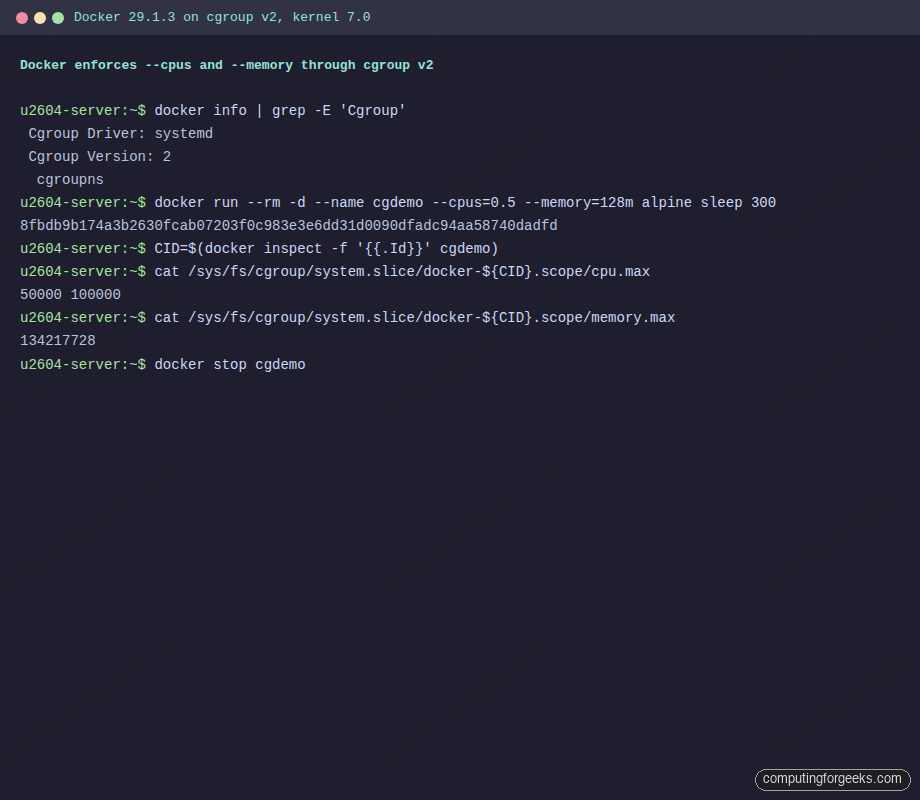
Start a container with a half-core CPU cap and 128 MB RAM, then inspect its cgroup files to confirm Docker translated the --cpus and --memory flags into v2 quota and max values:
docker run --rm -d --name cgdemo --cpus=0.5 --memory=128m alpine sleep 300
CID=$(docker inspect -f '{{.Id}}' cgdemo)
cat /sys/fs/cgroup/system.slice/docker-${CID}.scope/cpu.max
cat /sys/fs/cgroup/system.slice/docker-${CID}.scope/memory.max
cat /sys/fs/cgroup/system.slice/docker-${CID}.scope/cgroup.procs
The container scope sits under system.slice with a name that embeds the full container ID. Readings match what Docker promised, and the cgroup.procs file lists the PIDs running inside the container:
50000 100000
134217728
3304
3334
A terminal capture of the same run on the test VM, showing the driver check, container startup, and the matching cgroup files:
Clean up when done:
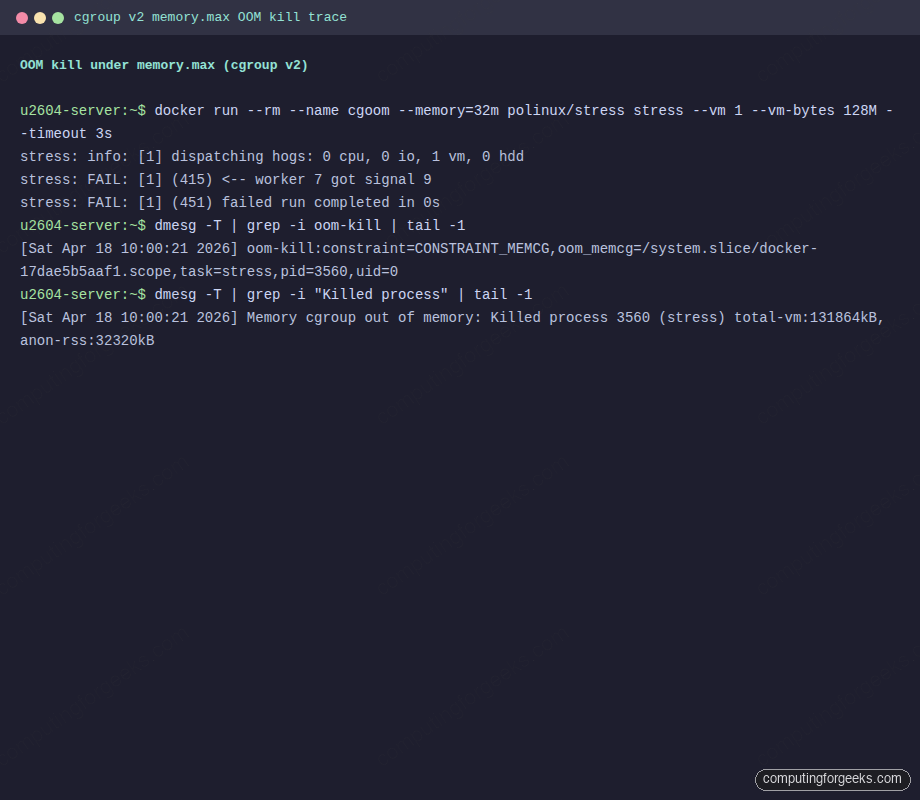
docker stop cgdemoTo prove the memory limit is enforced, not just advisory, run a container that tries to allocate four times its cap. The kernel should OOM-kill the offending process and exit the container:
docker run --rm --name cgoom --memory=32m polinux/stress \
  stress --vm 1 --vm-bytes 128M --timeout 3s
The worker catches SIGKILL (signal 9) and the stress tool reports a failed run. That is the expected behaviour when memory.max is hit:
stress: info: [1] dispatching hogs: 0 cpu, 0 io, 1 vm, 0 hdd
stress: FAIL: [1] (415) <-- worker 7 got signal 9
stress: WARN: [1] (417) now reaping child worker processes
stress: FAIL: [1] (451) failed run completed in 0s
The kernel logs the OOM event with the exact cgroup path and killed PID. Inspect the ring buffer:
dmesg -T | grep -iE 'oom-kill|Killed process' | tail -2The trace shows the constraint was CONSTRAINT_MEMCG (memory controller in a cgroup) and names both the container scope and the task that was killed. This is the canonical fingerprint of a v2 memory OOM inside a container:
[Sat Apr 18 10:00:21 2026] oom-kill:constraint=CONSTRAINT_MEMCG,oom_memcg=/system.slice/docker-17dae5b5aaf1.scope,task=stress,pid=3560,uid=0
[Sat Apr 18 10:00:21 2026] Memory cgroup out of memory: Killed process 3560 (stress) total-vm:131864kB, anon-rss:32320kB
Same sequence in the terminal window so you can match the docker run output to the dmesg record:
Pressure Stall Information (PSI) is a v2-only metric worth knowing about. Read it per-cgroup to tell whether a workload is throttled waiting on CPU, memory reclaim, or disk IO, not just how much it uses:
cat /sys/fs/cgroup/memory.pressure
cat /sys/fs/cgroup/io.pressure
Non-zero avg10 values under full mean every task in the cgroup was stalled at least once in the last 10 seconds. This replaces a common v1 pattern where you had to correlate /proc/stat and vmstat readings by hand:
some avg10=0.00 avg60=0.00 avg300=0.00 total=360
full avg10=0.00 avg60=0.00 avg300=0.00 total=296
some avg10=0.83 avg60=1.13 avg300=0.64 total=3711016
full avg10=0.60 avg60=1.07 avg300=0.53 total=2739215
Delegate a cgroup subtree to a non-root user
Rootless Podman, rootless Docker, and user-level systemd services all rely on cgroup delegation. V2 handles this natively because the root cgroup is mounted with the nsdelegate flag, so systemd can hand a subtree to a user without extra tooling.
Create a user, enable lingering so systemd spawns a [email protected] manager even when the user is logged out, and confirm they own a slice under /sys/fs/cgroup/user.slice/:
sudo useradd -m -s /bin/bash cgrpuser
sudo loginctl enable-linger cgrpuser
ls -la /sys/fs/cgroup/user.slice/user-$(id -u cgrpuser).slice/
The slice directory contains the full set of cgroup knobs the user controls. Note the + on permissions, which marks extended attributes for delegation:
drwxr-xr-x+3 root     root     0 Apr 18 10:00 .
drwxr-xr-x+4 root     root     0 Apr 18 10:00 ..
-r--r--r-- 1 root     root     0 Apr 18 10:00 cgroup.controllers
-r--r--r-- 1 root     root     0 Apr 18 10:00 cgroup.events
-rw-r--r-- 1 root     root     0 Apr 18 10:00 cgroup.freeze
--w------- 1 root     root     0 Apr 18 10:00 cgroup.kill
-rw-r--r-- 1 root     root     0 Apr 18 10:00 cgroup.max.depth
-rw-r--r-- 1 root     root     0 Apr 18 10:00 cgroup.max.descendants
-rw-r--r-- 1 root     root     0 Apr 18 10:00 cgroup.pressure
The user’s own [email protected] cgroup reports which controllers they can actually manipulate. The default delegation grants cpu, memory, and pids, which is enough for Podman and rootless containers:
sudo -u cgrpuser bash -c 'cat /sys/fs/cgroup/user.slice/user-$(id -u).slice/user@$(id -u).service/cgroup.controllers'Three controllers get delegated by default:
cpu memory pidsIf you need the io controller delegated too (for rootless containerd with I/O limits), add a drop-in for the user manager service on the host:
sudo mkdir -p /etc/systemd/system/[email protected]
sudo tee /etc/systemd/system/[email protected]/delegate.conf > /dev/null <<'CONF'
[Service]
Delegate=cpu memory pids io
CONF
sudo systemctl daemon-reload
sudo systemctl restart user@$(id -u cgrpuser).service
That drop-in is the hinge for rootless Podman on Ubuntu 26.04 when you want per-container IO throttling without root.
Configure Kubernetes kubelet for the systemd cgroup driver
Kubernetes on cgroup v2 requires the kubelet and the container runtime to agree on a single cgroup driver, and on 26.04 that driver must be systemd. Mixing drivers (kubelet on cgroupfs with containerd on systemd) is the single most common cause of pods stuck at ContainerCreating with failed to start sandbox errors.
On a node set up from the kubeadm Ubuntu 26.04 guide, the kubelet config lives at /var/lib/kubelet/config.yaml. The relevant stanza:
sudo grep -E 'cgroupDriver|failSwapOn' /var/lib/kubelet/config.yamlIf cgroupDriver is absent or set to cgroupfs, edit the file and set it to systemd:
sudo sed -i 's/^cgroupDriver:.*/cgroupDriver: systemd/' /var/lib/kubelet/config.yaml
grep -q '^cgroupDriver:' /var/lib/kubelet/config.yaml || \
  echo 'cgroupDriver: systemd' | sudo tee -a /var/lib/kubelet/config.yaml
Containerd needs a matching change. Generate a baseline config if one does not exist, then flip the SystemdCgroup flag on the runc runtime:
sudo mkdir -p /etc/containerd
containerd config default | sudo tee /etc/containerd/config.toml > /dev/null
sudo sed -i 's/SystemdCgroup = false/SystemdCgroup = true/' /etc/containerd/config.toml
grep SystemdCgroup /etc/containerd/config.toml
The grep should print SystemdCgroup = true. Reload both services so they re-read their configs:
sudo systemctl restart containerd
sudo systemctl restart kubelet
sudo systemctl is-active containerd kubelet
Both units should report active. Inspect the live kubelet cgroup to confirm it registered under kubepods.slice, which is how systemd-driven kubelet names its top-level pod slice:
ls /sys/fs/cgroup/kubepods.slice/ 2>/dev/null
systemctl show -p ControlGroup kubelet
For lighter setups like K3s on Ubuntu 26.04, K3s auto-detects cgroup v2 and uses the embedded containerd with the systemd driver preconfigured. No manual config edits are required.
Troubleshoot cgroup v1 workloads that break on Ubuntu 26.04
The migration failures we actually saw while testing fall into a handful of repeating patterns. Each one has a distinctive error and a short fix.
Error: “No such file or directory” reading /sys/fs/cgroup/memory/memory.limit_in_bytes
This means a script or exporter is hardcoded to v1 paths. The v1 per-controller trees do not exist on 26.04. Confirm:
for f in /sys/fs/cgroup/memory/memory.limit_in_bytes /sys/fs/cgroup/cpu/cpu.cfs_quota_us /sys/fs/cgroup/systemd; do
  [ -e "$f" ] && echo "$f EXISTS" || echo "$f MISSING (expected on v2)"
done
All three print MISSING. Port the script to the v2 equivalents: memory.max for memory.limit_in_bytes, cpu.max (space-separated quota and period) for the two cpu.cfs_*_us files, and read process-to-cgroup membership from /proc/PID/cgroup (which on v2 always starts with 0::).
Error: “cgexec: command not found”
The libcgroup-tools package (source of cgexec, cgcreate, cgset) is a v1-only toolkit. It is not installable on 26.04 and would not work if it were. Replace every cgexec -g memory:mygroup <cmd> invocation with:
systemd-run --unit=myjob -p MemoryMax=256M -p CPUQuota=50% <cmd>Transient units clean themselves up when the command exits. For persistent groups, write a systemd slice unit or put limits directly on the service.
Docker pre-20.10 refuses to start
Versions before Docker 20.10 speak only cgroup v1. On 26.04 the daemon starts but cannot create containers, logging cgroups: cannot find cgroup mount destination: unknown. The fix is upgrading to Docker 29 via the official Docker APT repo as documented in the Docker CE install guide. The distro-packaged docker.io on 26.04 is 29.1.3 and works fine too.
Kubelet fails with “misconfiguration: kubelet cgroup driver cgroupfs is different from docker cgroup driver systemd”
Kubelet and containerd disagree. Either both should be systemd (recommended on 26.04) or both cgroupfs (not recommended, breaks on multi-service nodes). Follow the kubelet section above, restart both services, and the error clears within one kubelet sync interval.
Swap accounting disabled by default
On v2 the kernel does not charge swap usage to memory.max unless you explicitly enable the combined memory.swap.max limit or boot with swapaccount=1. If your monitoring reports containers using “0 swap” even under pressure, that is why. Set both limits explicitly when you need strict total memory caps:
docker run --rm --memory=128m --memory-swap=128m alpine ...Equal values for --memory and --memory-swap disable swap entirely for the container. Setting --memory-swap=-1 allows unlimited swap.
Error: “RTNETLINK answers: Operation not permitted” from rootless Podman
This is the classic symptom of missing cgroup delegation. The user manager did not get the controllers it needs. Enable lingering, then add the delegate drop-in from the previous section. Logout and back in for the change to take effect in the user’s session.
Homemade init scripts that write to /cgroup
Rare but real: in-house tooling that predates systemd (written for upstart or sysvinit) sometimes writes into /cgroup or tries to mount v1 hierarchies. These scripts fail silently on 26.04 because the mount points they expect are read-only. Rewrite them as systemd units with CPUQuota and MemoryMax directives, or wrap the command in systemd-run.
Once the node is clean, the same cgroup v2 knobs carry into every workload: Docker Compose stacks inherit them via the runtime, hardening rules apply at the slice level, and Kubernetes pod QoS classes are enforced by the same memory.max files you read above.