

Every internet-facing Ubuntu server takes a constant beating from SSH brute force, WordPress login spray, and bot scanners. A default sshd_config with password auth will see thousands of failed attempts within hours of booting on a public IP. Fail2ban sits on top of your services, reads their logs, and drops repeat offenders at the firewall without you touching a thing.
This guide walks through a working Fail2ban setup on Ubuntu 26.04 LTS: installation, the jail.local discipline, SSH and Nginx jails, the nftables backend that ships by default on 26.04, a real ban captured from a VM during testing, and the daily commands you actually use to inspect, unban, whitelist, and write custom filters. For a broader server baseline, pair this with the Ubuntu 26.04 initial server setup guide and the Ubuntu 26.04 hardening checklist.
Tested April 2026 on Ubuntu 26.04 LTS with Fail2ban 1.1.0 and nftables 1.1.6
What Fail2ban actually does
Fail2ban is a log-driven IPS. It tails a log source (journald on modern Ubuntu, or flat files like /var/log/nginx/error.log), runs each entry through a regex filter, and when a single IP trips the maxretry threshold inside the findtime window, an action fires. The default action on Ubuntu 26.04 is an nftables rule that drops the offender for bantime, then quietly removes the rule when the ban expires.
It is not a WAF. It cannot inspect payloads or stop slow-and-low attacks that stay under the rate limit. What it does beautifully is turn the noisy 90% of drive-by brute force into zero inbound packets, which keeps your auth logs readable and your fail2ban-server process busier than your SSH daemon.
Prerequisites
- Ubuntu 26.04 LTS server with a sudo-capable user
- SSH access and a working firewall (ufw or nftables). If ufw is new to you, see configuring UFW on Ubuntu 26.04
- Tested on: Fail2ban 1.1.0-9, nftables 1.1.6-1, systemd journald (default)
Install Fail2ban
Fail2ban is in the main Ubuntu archive, so no third-party repo. Refresh the index and install the package:
sudo apt update
sudo apt install -y fail2ban
The package enables and starts the service automatically. Confirm both, and grab the version:
sudo systemctl is-active fail2ban
fail2ban-client --version
You should see active and Fail2Ban v1.1.0 on 26.04. Out of the box, only the sshd jail is enabled with mostly sensible defaults. The rest of this guide turns that default into something tuned, observable, and extensible.
jail.local vs jail.conf
Never edit /etc/fail2ban/jail.conf. That file ships with the package and gets overwritten on upgrade. All local changes go into /etc/fail2ban/jail.local, which Fail2ban merges on top of jail.conf at load. Same rule applies to filters and actions: copy into filter.d/*.local or action.d/*.local rather than editing the .conf originals.
Create the local override file:
sudo nano /etc/fail2ban/jail.localPaste in the configuration below. This is the exact file used on the test VM, with a 1-hour ban, a 10-minute window, systemd as the log source, and nftables as the ban action.
[DEFAULT]
bantime  = 1h
findtime = 10m
maxretry = 5
backend  = systemd
banaction          = nftables[type=multiport]
banaction_allports = nftables[type=allports]
ignoreip = 127.0.0.1/8 ::1 10.0.1.0/24

[sshd]
enabled  = true
port     = ssh
mode     = normal
maxretry = 3

[nginx-http-auth]
enabled = true
port    = http,https
logpath = /var/log/nginx/error.log

[nginx-botsearch]
enabled = true
port    = http,https
logpath = /var/log/nginx/access.log
A few notes on the values that matter. bantime = 1h is short on purpose: a first offense is usually a scanner, not a targeted attacker, so a short ban clears the nftables set quickly. For repeat offenders, switch to recidive (covered later) which applies a longer ban on top. maxretry = 3 inside the [sshd] block overrides the default of 5 because SSH brute force rarely deserves more than 3 chances.
The ignoreip line keeps your jump host, office IPs, and monitoring sources out of the ban list. Always include 127.0.0.1/8 and ::1, because local processes occasionally trigger filters and self-banning a production host is a bad day.
Validate the config, then reload:
sudo fail2ban-client -t
sudo systemctl reload fail2ban
The -t test flag catches typos and missing filters before they break the running daemon. If it returns OK: configuration test is successful, the reload is safe.
The nftables backend on Ubuntu 26.04
Ubuntu 26.04 uses nftables as the kernel packet filter, and Fail2ban’s nftables action integrates with it natively. You do not need iptables-nft shims and you do not need to disable ufw (which itself drives nftables under the hood). After Fail2ban bans an IP, inspect what it did to the ruleset:
sudo nft list ruleset | head -30You should see a dedicated table with a set of banned addresses and a chain that rejects traffic from the set:
table inet f2b-table {
	set addr-set-sshd {
		type ipv4_addr
		elements = { 10.0.1.99, 198.51.100.17,
			     203.0.113.88 }
	}

	chain f2b-chain {
		type filter hook input priority filter - 1; policy accept;
		tcp dport 22 ip saddr @addr-set-sshd reject with icmp port-unreachable
	}
}
Two things worth knowing. The chain priority is filter - 1, which means it fires before ufw’s filter chain, so banned IPs get dropped before any application logic sees them. And the action is a named nftables set, so adding or removing an IP during a ban or unban is a single atomic set update, not a full ruleset reload.
Trigger a real ban and verify
A configuration only matters if it works. From a throwaway host (a second VM, a shell on your laptop, anything you will not accidentally lock yourself out from), hammer SSH with the wrong password six times:
for i in $(seq 1 6); do
  sshpass -p wrongpass ssh -o StrictHostKeyChecking=no \
    -o PreferredAuthentications=password -o PubkeyAuthentication=no \
    [email protected] true 2>/dev/null
  echo "attempt $i done"
done
On the server, check the SSH jail status:
sudo fail2ban-client status
sudo fail2ban-client status sshd
The attacker’s IP should appear in the banned list:
Status for the jail: sshd
|- Filter
|  |- Currently failed:	0
|  |- Total failed:	0
|  `- Journal matches:	_SYSTEMD_UNIT=ssh.service + _COMM=sshd
`- Actions
   |- Currently banned:	3
   |- Total banned:	4
   `- Banned IP list:	10.0.1.99 198.51.100.17 203.0.113.88
Three IPs currently banned, four total bans since the jail started. The difference means one earlier ban has already expired and the IP was auto-released. Here is the same output captured directly from the test VM:
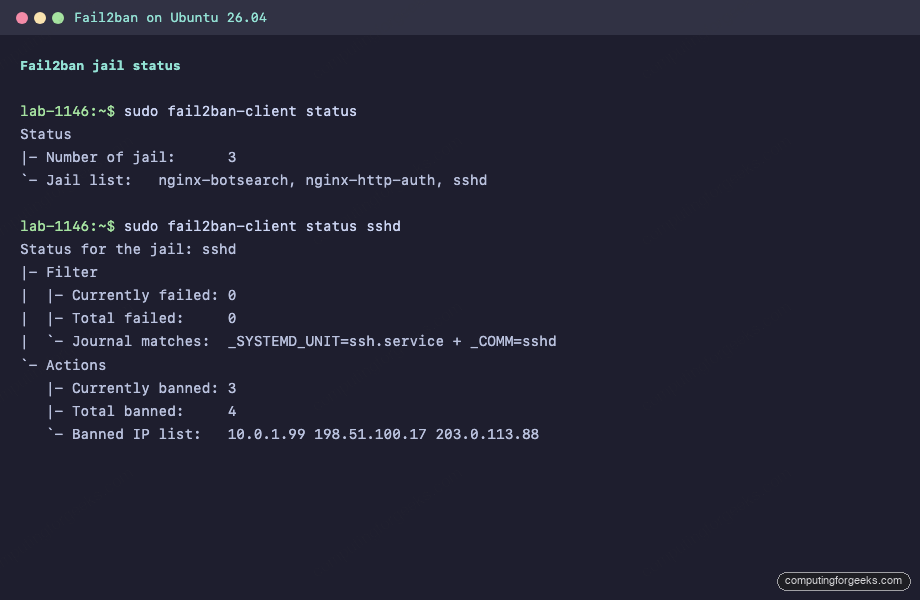
From the attacker side, the next SSH attempt now fails at the TCP layer rather than the auth layer. Compare ssh: connect to host 10.0.1.50 port 22: Connection refused (banned) with Permission denied (publickey,password) (not banned). That connect-refused is nftables doing its job.
Inspect service health
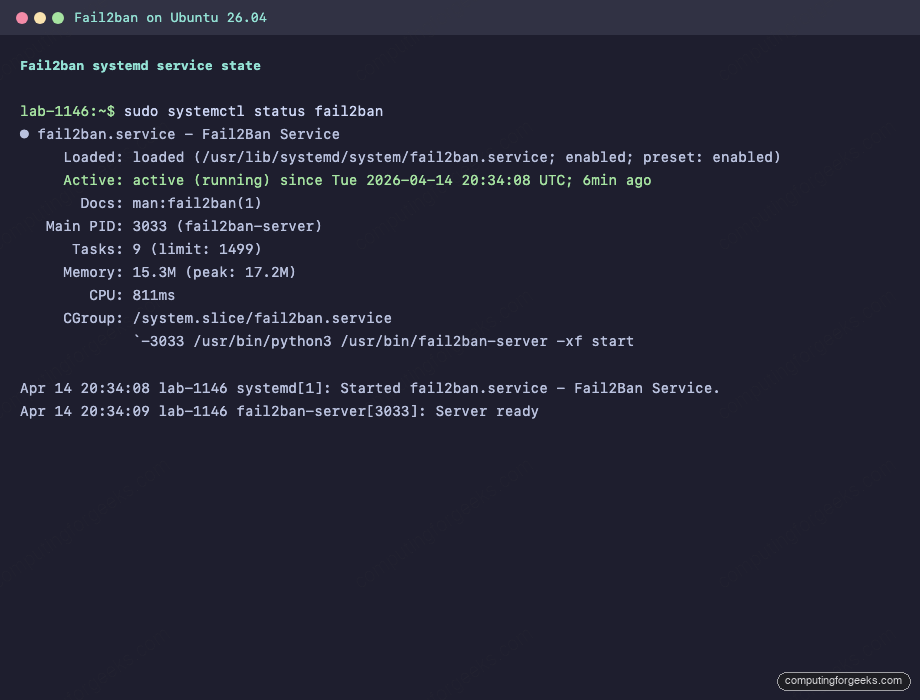
Before trusting Fail2ban in production, confirm the service is running cleanly and the Python server did not crash on startup:
sudo systemctl status fail2banYou want active (running) with a recent Server ready line. The test VM:
Day-to-day commands
These are the ones worth memorizing. They cover 95% of what you will do with Fail2ban after the initial setup.
List all active jails:
sudo fail2ban-client statusShow counters and banned IPs for a specific jail:
sudo fail2ban-client status sshdManually ban an IP without waiting for it to trip a filter:
sudo fail2ban-client set sshd banip 203.0.113.42Unban an IP (the most common reason you SSH into the server is because a colleague locked themselves out):
sudo fail2ban-client set sshd unbanip 10.0.1.99Unban across every jail in one shot:
sudo fail2ban-client unban 10.0.1.99Reload configuration after editing jail.local without restarting the server process (no in-flight bans are lost):
sudo fail2ban-client reloadShow jail-level config at runtime (useful when your jail.local and the running daemon disagree):
sudo fail2ban-client get sshd bantime
sudo fail2ban-client get sshd maxretry
Whitelist your own IPs
Getting locked out of your own server is a rite of passage. Prevent it by whitelisting through ignoreip in the [DEFAULT] block. Space-separated CIDR ranges, IPs, or hostnames all work:
ignoreip = 127.0.0.1/8 ::1 10.0.1.0/24 198.51.100.42 office.example.comIf you run a VPN like WireGuard on Ubuntu 26.04, add the VPN CIDR here so your tunneled clients never trip the filters. Reload after editing:
sudo fail2ban-client reloadWrite a custom jail and filter
The stock filters cover most use cases, but eventually you need to ban on something specific: a WordPress login, a custom API endpoint, a webhook that should never see 20 requests per second. The pattern is always two files: a filter that defines the regex, and a jail that enables it.
Create the filter. This one matches failed WordPress login attempts in the Nginx access log:
sudo nano /etc/fail2ban/filter.d/wordpress-login.confAdd the filter definition:
[Definition]
failregex = ^<HOST> .* "POST /wp-login.php HTTP/.*" 200
            ^<HOST> .* "POST /xmlrpc.php HTTP/.*" 200
ignoreregex =
The <HOST> macro expands to a pattern that captures the client IP. A 200 on wp-login.php means the login form was submitted, not necessarily that it succeeded. For stricter matching, combine with a filter that parses the WordPress error log, but the access-log filter is a good first layer.
Test the filter against a real log before enabling it. This is the single most useful Fail2ban debugging command:
sudo fail2ban-regex /var/log/nginx/access.log /etc/fail2ban/filter.d/wordpress-login.confThe output shows how many lines matched and how many the regex rejected. If matches are zero but you know bad traffic exists in the log, the regex is wrong. Iterate until the count looks right, then enable the jail in jail.local:
[wordpress-login]
enabled  = true
port     = http,https
filter   = wordpress-login
logpath  = /var/log/nginx/access.log
maxretry = 5
findtime = 5m
bantime  = 2h
Reload and confirm the jail is live:
sudo fail2ban-client reload
sudo fail2ban-client status
Recidive: ban repeat offenders for longer
The recidive jail watches Fail2ban’s own log and re-bans IPs that keep getting banned. It is the single best addition after the basics. Add this block to jail.local:
[recidive]
enabled  = true
logpath  = /var/log/fail2ban.log
bantime  = 1w
findtime = 1d
maxretry = 3
Three regular bans within 24 hours trigger a week-long ban across all ports. That is usually enough to make a persistent botnet move on.
Logging
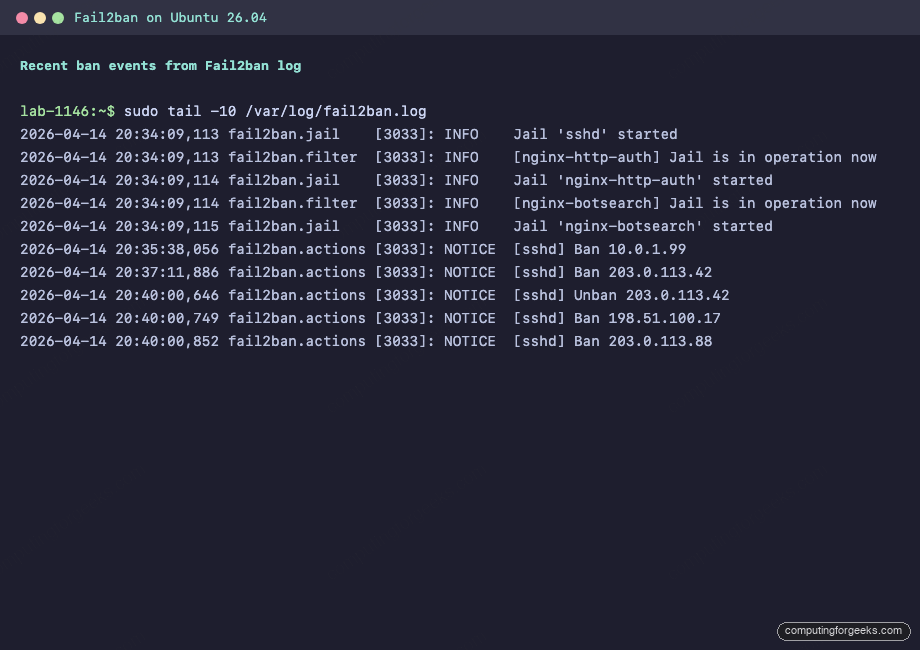
Fail2ban writes to /var/log/fail2ban.log by default. Every ban, unban, jail start, and error lands there:
sudo tail -f /var/log/fail2ban.logThe service also publishes to systemd journald, which is handy if you centralize logs:
sudo journalctl -u fail2ban -n 20 --no-pagerJournal output from the test VM after a reload cycle:
If you ship logs to Prometheus or Grafana, use the Fail2ban exporter to expose bans as metrics. A graph of bans per hour by jail becomes an early warning when attack patterns shift.
Email alerts
Fail2ban can email on every ban. The wiring is: install a mail transfer agent, then tell Fail2ban to use the combined action that fires both an nftables ban and a sendmail notification.
sudo apt install -y postfix mailutilsWhen the Postfix installer asks for configuration, pick Internet Site and set the mail name to your server’s FQDN. Then edit jail.local and add these lines to [DEFAULT]:
destemail = [email protected]
sender    = [email protected]
action    = %(action_mwl)s
The action_mwl action bans, emails, and attaches the offending log lines plus a WHOIS lookup. It is noisy on a busy server, so you may prefer action_mw (ban + email, no WHOIS) or scope the alerts to a specific jail instead of [DEFAULT].
Common errors
ERROR: NOK: (‘No such file or directory’ ‘/var/log/nginx/error.log’)
You enabled the nginx-http-auth jail before installing Nginx, or Nginx has not been started yet and the log file does not exist. Either install and start Nginx (see installing Nginx with Let’s Encrypt on Ubuntu 26.04) or disable the jail until the service is in place. Empty log files are fine; missing ones break jail startup.
ERROR: Jail ‘sshd’ already banned this ip
Harmless. You ran fail2ban-client set sshd banip on an IP that was already in the set. Fail2ban refuses to double-ban. To extend a ban, unban first, then re-ban.
WARNING Determined family ‘inet6’ is empty
Shows up on IPv4-only hosts when Fail2ban initializes the IPv6 set. Cosmetic. If the warning is noisy in your logs, set allowipv6 = false under [DEFAULT].
Production hardening
A few patterns that separate a working install from a hardened one.
Raise bantime on [sshd] to 24 hours or longer in production. A one-hour SSH ban barely slows a determined brute-forcer; a 24-hour ban combined with recidive makes the cost too high for most attackers to continue.
Keep your ignoreip list in source control. Drift between hosts is a nightmare to debug, and an accidental self-ban on a production host during a maintenance window is the kind of incident nobody wants to explain.
Pair Fail2ban with SSH key-only auth. Disable PasswordAuthentication in sshd_config and Fail2ban’s SSH jail goes from a critical defense to a belt-and-suspenders layer. The Ubuntu 26.04 hardening guide covers the full SSH lockdown.
For public-facing servers behind Cloudflare, enable Cloudflare’s real-IP header in Nginx and adjust the filter to read the real client IP rather than Cloudflare’s proxy range. Banning Cloudflare IPs is how you accidentally take your site offline.
Finally, if you need behavior-based detection, cloud-shared blocklists, or an API-driven ban plane, look at CrowdSec as a complement rather than a replacement. Fail2ban remains the simplest, lightest-weight option for per-host log-driven banning, and on a 26.04 server with a handful of jails it uses about 15 MB of RAM and negligible CPU. That budget is hard to beat.
Uninstall
If you need to remove Fail2ban cleanly:
sudo systemctl stop fail2ban
sudo apt purge -y fail2ban
sudo rm -rf /etc/fail2ban
The nftables f2b-table is torn down on service stop, so no stray rules are left behind. Verify with sudo nft list ruleset.