Some monitoring stacks make you pick between feature-rich and heavy. Prometheus plus Alertmanager plus Grafana is amazing, but it is overkill when all you want is a quick “is the website up” check for a handful of services. Uptime Kuma fills that gap. Self-hosted, single container, clean UI, and notifications to pretty much anywhere you already live (Telegram, Slack, Discord, email, Gotify, Matrix, you name it).
This guide walks through a production-style deployment of Uptime Kuma on Ubuntu 26.04 LTS. We run the app in Docker, front it with an Nginx reverse proxy, and secure it with a Let’s Encrypt certificate issued via the Cloudflare DNS-01 challenge. By the end you will have HTTPS monitors, a ping check, a keyword monitor, and a public status page your stakeholders can bookmark.
Tested April 2026 on Ubuntu 26.04 LTS with Uptime Kuma 1.23.17, Docker 29.4.0, and Nginx 1.28.3
Prerequisites
- Ubuntu 26.04 LTS server with root or sudo access (a fresh install is fine)
- 1 GB RAM minimum, 5 GB free disk, any CPU from the last decade
- A domain name you control with DNS managed at Cloudflare (we use
kuma.example.comas the placeholder) - TCP ports 80 and 443 reachable on the server for Nginx
- A Cloudflare API token with
Zone.DNS:Editscope for the DNS-01 challenge
If you are starting from a blank VM, run through the Ubuntu 26.04 initial server setup first to create a non-root user, enable the firewall, and set the timezone. The rest of this guide assumes those basics are done.
Step 1: Install Docker Engine
Uptime Kuma ships as a container, so Docker is the only runtime dependency. The official convenience script handles repo setup, GPG keys, and service activation in one shot.
curl -fsSL https://get.docker.com | sudo shOnce the script finishes, confirm the daemon is running and the compose plugin is available:
docker --version
docker compose version
You should see output similar to this:
Docker version 29.4.0, build 9d7ad9f
Docker Compose version v5.1.2
For a deeper walkthrough including non-root user setup, rootless mode, and post-install hardening, see our companion guide on installing Docker CE on Ubuntu 26.04.
Step 2: Deploy the Uptime Kuma container
We pin to the 1 major tag so minor releases auto-upgrade but breaking 2.x changes do not land unannounced. The container binds to 127.0.0.1 only, because Nginx will be the public-facing listener. Exposing 3001 on the host interface would let anyone on the network skip TLS entirely.
sudo mkdir -p /opt/uptime-kuma
sudo vi /opt/uptime-kuma/docker-compose.yml
Paste in the following compose definition:
services:
  uptime-kuma:
    image: louislam/uptime-kuma:1
    container_name: uptime-kuma
    restart: unless-stopped
    ports:
      - "127.0.0.1:3001:3001"
    volumes:
      - kuma-data:/app/data
volumes:
  kuma-data:
Bring the stack up in the background:
cd /opt/uptime-kuma
sudo docker compose up -d
Give the container 20 seconds to pull and initialize, then confirm it reports healthy:
sudo docker ps --format "table {{.Names}}\t{{.Image}}\t{{.Status}}\t{{.Ports}}"The status column should say Up N seconds (healthy) and the port binding should list 127.0.0.1:3001->3001/tcp:
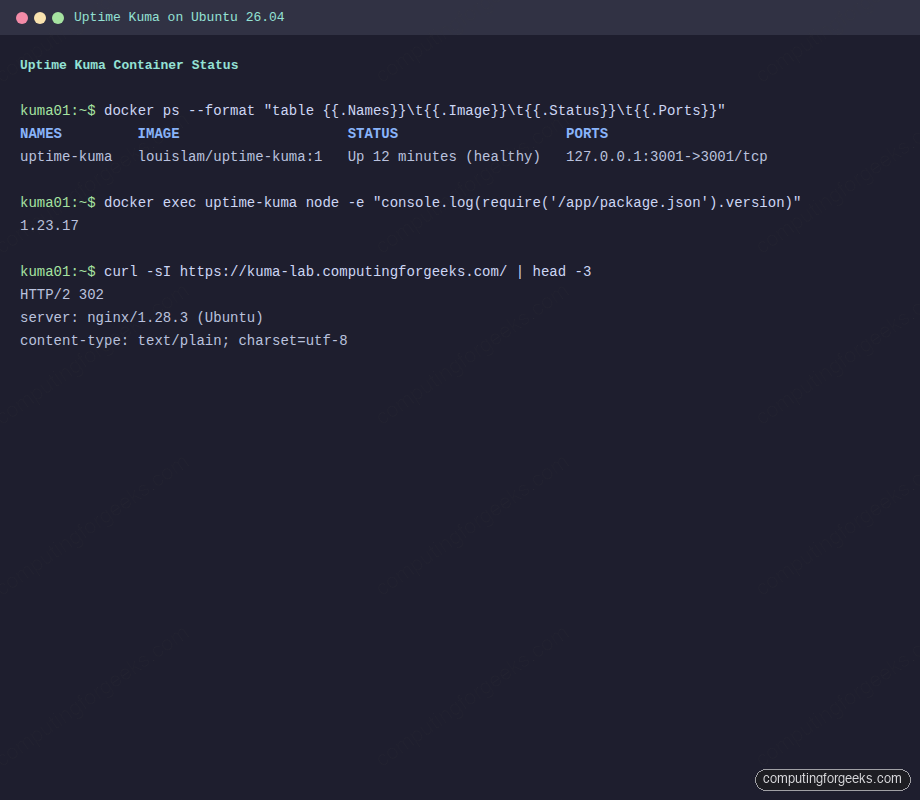
If the container keeps restarting, check sudo docker logs uptime-kuma for the real error. Most failures trace back to a read-only volume mount or SQLite write permissions on the mapped directory.
Step 3: Configure Nginx reverse proxy with Let’s Encrypt
Uptime Kuma speaks plain HTTP on 3001 and leans on WebSockets for live updates. Nginx terminates TLS, forwards to the container, and upgrades connections for /socket.io/ without extra tuning.
Install Nginx, Certbot, and the Cloudflare DNS plugin:
sudo apt update
sudo apt install -y nginx certbot python3-certbot-dns-cloudflare
Store the Cloudflare API token in a credentials file with locked-down permissions. The file lives outside any world-readable path and is only used by Certbot:
echo "dns_cloudflare_api_token = your-cloudflare-api-token" | sudo tee /etc/letsencrypt/cloudflare.ini
sudo chmod 600 /etc/letsencrypt/cloudflare.ini
Request the certificate. DNS-01 validation means you do not need port 80 open to the internet during issuance, which is handy for servers behind a firewall or on a private network:
sudo certbot certonly --dns-cloudflare \
  --dns-cloudflare-credentials /etc/letsencrypt/cloudflare.ini \
  -d kuma.example.com \
  --non-interactive --agree-tos -m [email protected]
On success, Certbot prints the cert and key paths:
Successfully received certificate.
Certificate is saved at: /etc/letsencrypt/live/kuma.example.com/fullchain.pem
Key is saved at:         /etc/letsencrypt/live/kuma.example.com/privkey.pem
This certificate expires on 2026-07-13.
Open the site config:
sudo vi /etc/nginx/sites-available/uptime-kumaPaste the following, adjusting the server_name to match your domain:
server {
    listen 80;
    server_name kuma.example.com;
    return 301 https://$host$request_uri;
}

server {
    listen 443 ssl;
    http2 on;
    server_name kuma.example.com;

    ssl_certificate /etc/letsencrypt/live/kuma.example.com/fullchain.pem;
    ssl_certificate_key /etc/letsencrypt/live/kuma.example.com/privkey.pem;
    ssl_protocols TLSv1.2 TLSv1.3;

    location / {
        proxy_pass http://127.0.0.1:3001;
        proxy_http_version 1.1;
        proxy_set_header Upgrade $http_upgrade;
        proxy_set_header Connection "upgrade";
        proxy_set_header Host $host;
        proxy_set_header X-Real-IP $remote_addr;
        proxy_set_header X-Forwarded-For $proxy_add_x_forwarded_for;
        proxy_set_header X-Forwarded-Proto $scheme;
        proxy_read_timeout 86400;
    }
}
The Upgrade and Connection "upgrade" headers are what make live ping charts work. Without them the dashboard falls back to polling every 30 seconds and the UI feels sluggish.
Enable the site, drop the default, test the config, and reload:
sudo ln -sf /etc/nginx/sites-available/uptime-kuma /etc/nginx/sites-enabled/uptime-kuma
sudo rm -f /etc/nginx/sites-enabled/default
sudo nginx -t
sudo systemctl reload nginx
Open ports 80 and 443 in UFW if the firewall is active:
sudo ufw allow 80/tcp
sudo ufw allow 443/tcp
sudo ufw reload
Verify the reverse proxy from your workstation. The first request to / redirects to /dashboard with a 302, which is exactly what we want:
curl -sI https://kuma.example.com/ | head -3Expected response:
HTTP/2 302
server: nginx/1.28.3 (Ubuntu)
content-type: text/plain; charset=utf-8
Our Nginx with Let’s Encrypt guide covers HTTP-01 validation, OCSP stapling, and an A+ SSL Labs configuration if you want to harden this further.
Step 4: First-run admin account
Browse to https://kuma.example.com. On the first visit you land on the setup wizard. Pick a username, a password you will not forget, and confirm it. There is no password recovery flow built in, so whatever you set here is what you live with until the next container rebuild.
After submitting, Uptime Kuma drops you on the dashboard. That is the entire first-run setup. No database migrations, no email verification, no tenant wizards.
Step 5: Add your first monitors
Click Add New Monitor in the top-left corner. Uptime Kuma supports 20+ monitor types. The ones worth knowing from day one:
- HTTP(s) – follows redirects, checks status codes, and measures response time. Good default for any public URL.
- HTTP(s) – Keyword – same as HTTP(s) but also confirms a specific string appears in the response body. Catches “200 OK with a broken app” situations.
- Ping – ICMP echo. Useful for servers and network devices where HTTP is not exposed.
- TCP Port – confirms a port accepts connections. Handy for databases, mail servers, and custom daemons.
- DNS – resolves a hostname through a chosen resolver and validates the answer. Great for spotting hijacked records.
For this walkthrough we added four monitors: an HTTPS check against google.com, another against api.github.com, a ping to 1.1.1.1, and a keyword monitor that confirms the string “Ubuntu” appears on ubuntu.com. The add-monitor form looks like this:
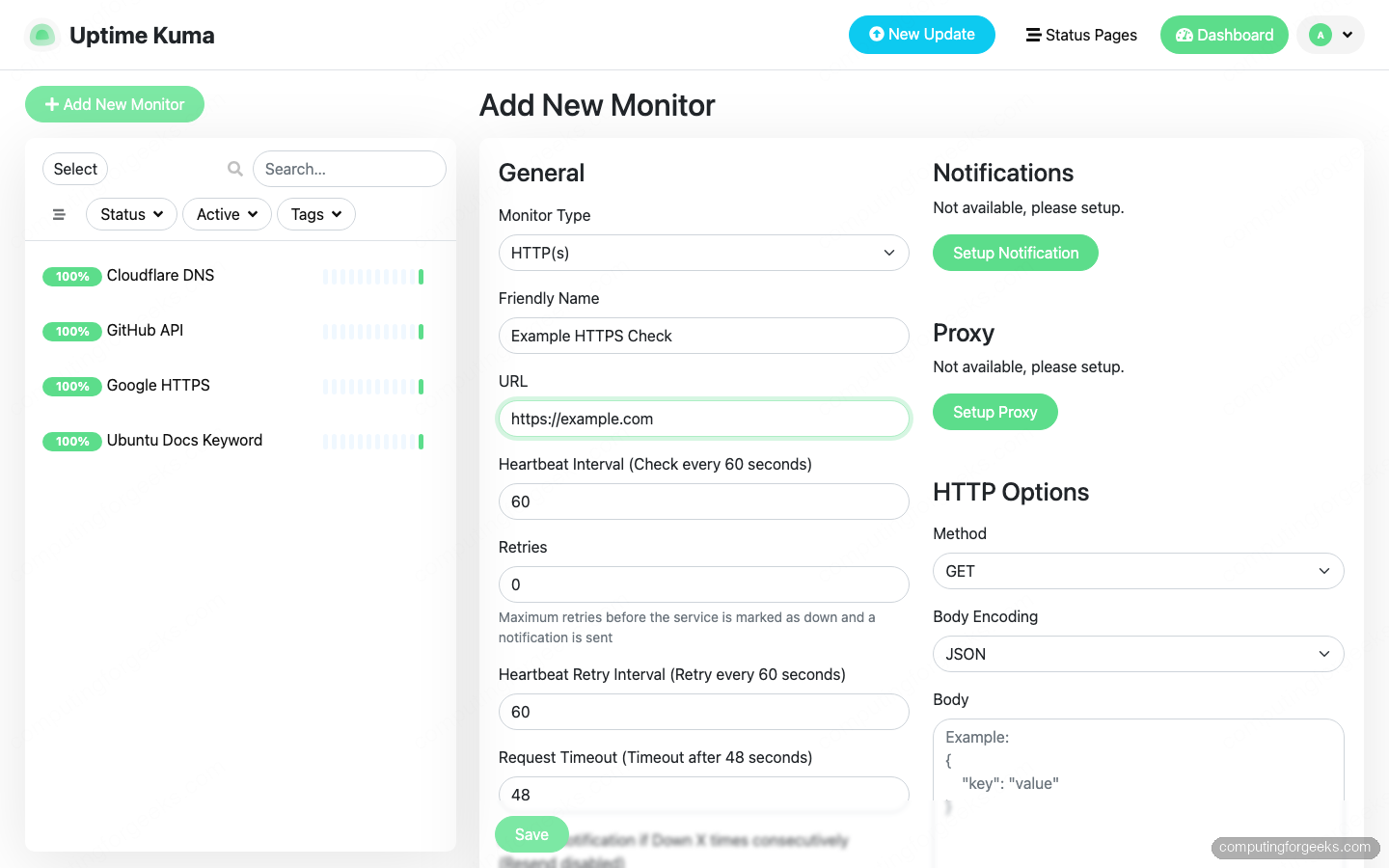
Intervals default to 60 seconds, which is fine for a lab. Production deployments usually bump critical services to 20-30 seconds and everything else to 5 minutes to keep the SQLite database lean.
After a minute or two every monitor reports green on the dashboard:
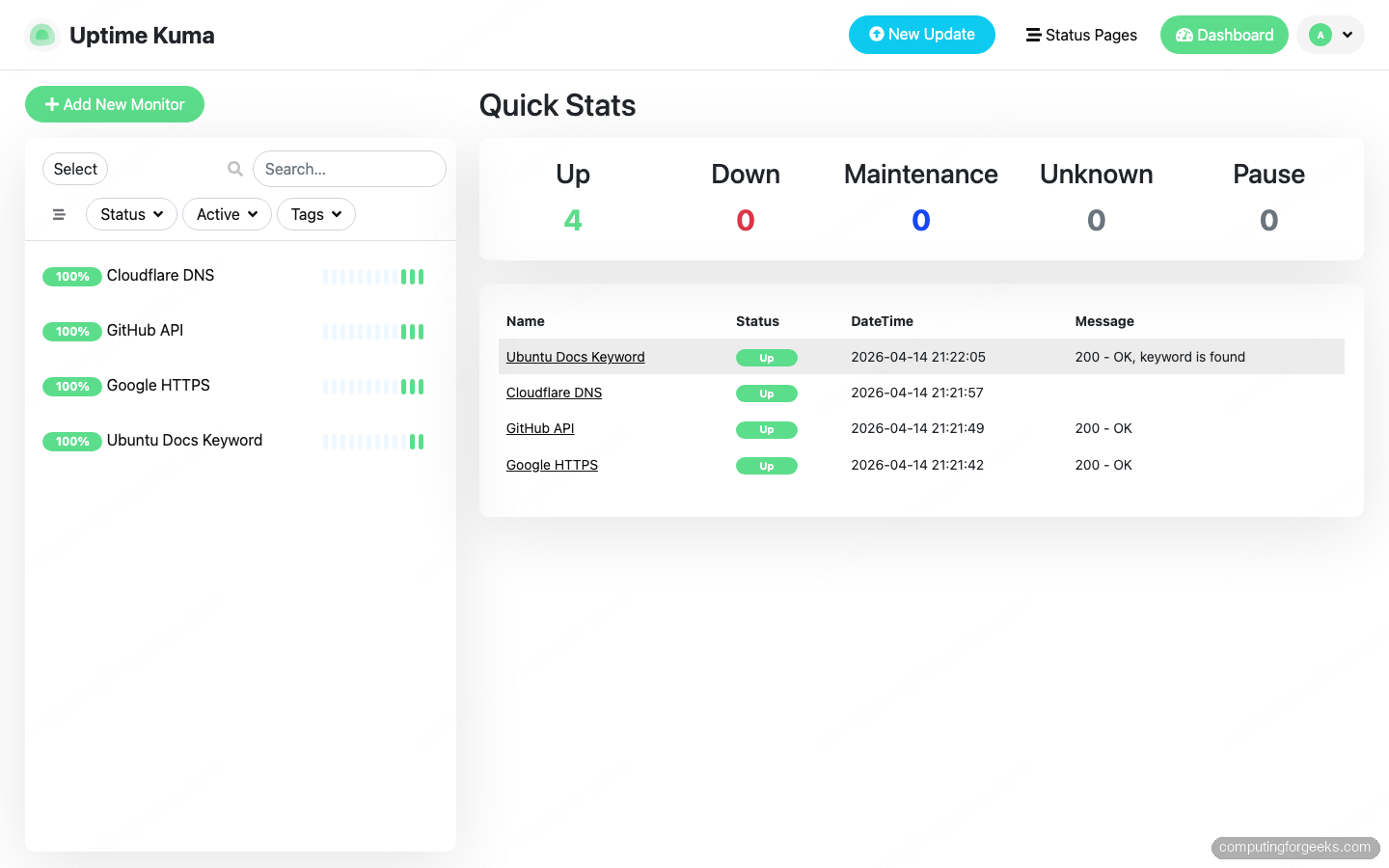
The colored bars under each monitor in the detail view show the last 30 checks. Red gaps are outages, yellow is pending, green is up. Hovering surfaces the response time and status code for that specific check.
Step 6: Publish a public status page
Status pages are what you give non-technical stakeholders so they stop emailing you at 3 AM asking “is the site down?”. Open the Status Pages menu in the top bar and click New Status Page.
Set a friendly name (for example Public Services) and a URL slug (for example public). Click Next and you land in edit mode. Use the Add a monitor picker to attach each service you want exposed, then click Save.
The rendered page lives at https://kuma.example.com/status/public. Anyone with the link sees it, no login required:
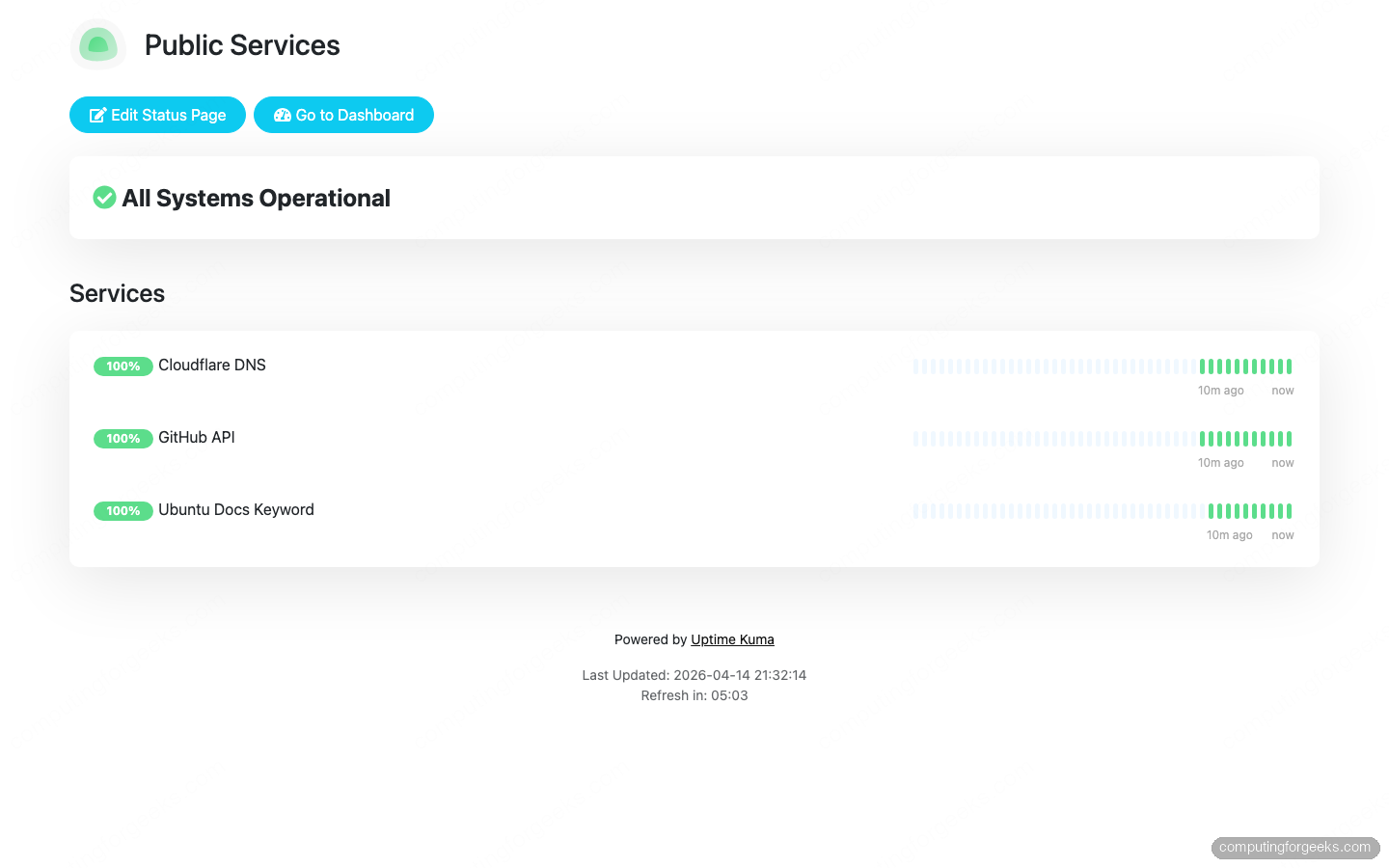
Uptime Kuma serves the status page as static-ish HTML with a polling interval, so it survives traffic spikes without hammering the backend. You can enable incident banners from the same edit view when something breaks, and resolve them when it is fixed. Readers get an audit trail without you writing a post-mortem email.
Step 7: Wire up notification channels
A dashboard nobody looks at is useless. Notifications are where Uptime Kuma earns its keep. Click your username in the top-right, pick Settings, then Notifications, and finally Setup Notification.
The common channels worth configuring on day one:
- Telegram: create a bot with @BotFather, grab the token, DM the bot once, then paste the token and your chat ID. Easiest mobile alert path.
- Slack: create an Incoming Webhook in your Slack workspace, paste the URL, pick a channel. Works with Slack-compatible tools like Mattermost too.
- Email (SMTP): point at Postfix locally or an external relay like Amazon SES. Useful as a backup channel when Slack and Telegram both go down.
- Gotify: self-hosted push notifications. Pair it with the Gotify Android app for a zero-cost alternative to Telegram.
After creating a notification entry, tick Default enabled so every new monitor picks it up automatically. Then hit Test to send a sample alert right now. If the test fails, the error shows up immediately with the SMTP or API response that was returned.
For each existing monitor, open its edit view and enable the notification under Notifications. Uptime Kuma fires alerts when state changes, not on every check, so your phone will not buzz every minute.
Production hardening
The setup above is enough for a homelab or a small team. Before you point paying customers at it, tighten a few things.
Back up the data volume. Everything Uptime Kuma knows lives in /app/data/kuma.db inside the named volume. A nightly snapshot handles catastrophic failure:
sudo docker run --rm \
  -v uptime-kuma_kuma-data:/data \
  -v /var/backups/kuma:/backup \
  alpine \
  tar czf /backup/kuma-$(date +%F).tar.gz -C /data .
Schedule that with a systemd timer or cron, then ship the tarballs off-box (S3, Restic to Backblaze B2, rsync to another server, your call).
Rotate the admin password quarterly. Click your username, Settings, Security, Change Password. While you are there, enable two-factor authentication. Uptime Kuma supports TOTP with any authenticator app.
Restrict Nginx to trusted sources for /dashboard. If only your team uses the management UI, add an allow/deny block at the Nginx level. Keep /status/* public but gate the rest:
location /dashboard {
    allow 203.0.113.0/24;
    deny all;
    proxy_pass http://127.0.0.1:3001;
    # (include the same proxy_set_header lines as before)
}
Watch the SQLite file size. Every check writes a heartbeat row. At 20-second intervals across 50 monitors, the database crosses 1 GB in about three months. Uptime Kuma has a Clear Data button under each monitor to prune history older than a chosen age. Set it once and forget it.
Feed the checks somewhere persistent. Uptime Kuma ships a Prometheus metrics endpoint at /metrics (Basic-auth protected with your admin credentials). Scrape it from your existing Prometheus server and build long-term dashboards in Grafana if you already run that stack. If you prefer a single pane of glass instead, tools like Zabbix or Netdata cover host and service monitoring in one package.
That is the whole deployment. One container, a reverse proxy, a real certificate, and a few monitors. If you ever outgrow it, the exported JSON backup from Settings, Backup moves every monitor and notification channel to a bigger box in under a minute.