

Managing Kubernetes clusters through the command line works fine for small environments, but as clusters grow in size and complexity, a visual interface becomes essential for day-to-day operations. Kubernetes UI management tools give teams a graphical way to monitor workloads, troubleshoot failing pods, manage RBAC, and deploy applications without memorizing every kubectl flag.
This guide ranks the best Kubernetes dashboard and UI management tools available in 2026. Each tool is evaluated on its feature set, installation process, target audience, and how it fits into real production workflows. Whether you run a single dev cluster or manage dozens of production environments across cloud providers, there is a tool here for your team. I refreshed this list in July 2026 to match where each project stands today, including the retirement of the official Kubernetes Dashboard, the shift from OpenLens to FreeLens, and newer entrants like Radar.
Prerequisites
- A running Kubernetes cluster (any distribution – EKS, AKS, GKE, k3s, kubeadm, etc.)
kubectlinstalled and configured with a valid kubeconfighelmv3 installed (for tools that support Helm-based deployment)- Cluster admin access for most dashboard installations
- A desktop machine running macOS, Linux, or Windows (for desktop-based tools)
Kubernetes UI Tools Comparison Table
Before diving into each tool, here is a side-by-side comparison of all eleven Kubernetes UI management tools covered in this guide.
| Tool | Type | Multi-Cluster | RBAC Support | Helm Integration | License | Best For |
|---|---|---|---|---|---|---|
| Kubernetes Dashboard | Web UI | No | Yes | No | Apache 2.0 | Archived in 2026, use Headlamp |
| Lens Desktop | Desktop App | Yes | Yes | Yes | Proprietary (Free tier) | Daily dev/ops workflow |
| K9s | Terminal UI | Yes (context switch) | Yes | No | Apache 2.0 | Terminal power users |
| Headlamp | Web UI / Desktop | Yes | Yes | Yes (plugin) | Apache 2.0 | Extensible platform teams |
| Portainer | Web UI | Yes | Yes | Yes | Freemium (CE/BE) | Mixed Docker + K8s |
| Rancher | Web UI | Yes | Yes | Yes | Apache 2.0 | Enterprise fleet management |
| Kubeapps | Web UI | Yes | Yes | Yes | Apache 2.0 | App catalog / Helm store |
| FreeLens | Desktop App | Yes | Yes | Yes (extension) | MIT | Free, maintained Lens alternative |
| Meshery | Web UI | Yes | Yes | Yes | Apache 2.0 | Service mesh + infra mgmt |
| Skooner | Web UI | No | Yes | No | Apache 2.0 | Lightweight read-heavy use |
| Radar | Web UI / local binary | Yes | Yes | Yes | Apache 2.0 | Live topology + AI/MCP workflows |
1. Kubernetes Dashboard – The Official Web UI
Kubernetes Dashboard was the official web-based UI maintained by the Kubernetes project for years. It provides a general-purpose view of cluster resources: create and manage workloads, view pod logs, exec into containers, and monitor resource consumption. The important 2026 change is that the project was archived and retired on January 21, 2026, moved to the kubernetes-retired GitHub organization, and now receives no security patches, bug fixes, or releases. Kubernetes SIG UI officially recommends Headlamp as the successor. The steps below still work on existing clusters, but for anything new, install Headlamp (number 4 below) instead.
Key Features
- View and manage all standard Kubernetes resources (Deployments, Services, ConfigMaps, Secrets, etc.)
- Real-time pod log streaming and container exec
- Resource creation through YAML editor or forms
- Namespace-scoped views with RBAC enforcement
- CPU and memory usage metrics (requires metrics-server)
- Token-based and kubeconfig authentication
Installation
Deploy the Kubernetes Dashboard using Helm.
helm repo add kubernetes-dashboard https://kubernetes.github.io/dashboard/
helm repo update
Install the dashboard into its own namespace.
$ helm upgrade --install kubernetes-dashboard kubernetes-dashboard/kubernetes-dashboard \
  --create-namespace \
  --namespace kubernetes-dashboard
After installation, create a service account and bind it to the cluster-admin role for access. There is a detailed walkthrough on creating a Kubernetes admin user for dashboard access.
kubectl -n kubernetes-dashboard port-forward svc/kubernetes-dashboard-kong-proxy 8443:443Access the dashboard at https://localhost:8443 in your browser.
Pros and Cons
Pros: Official project, no vendor lock-in, works with any Kubernetes distribution, lightweight, good RBAC integration.
Cons: The project is archived and unmaintained as of 2026, single-cluster only, limited multi-tenancy features, no built-in Helm management, basic visualization compared to actively developed tools.
Best for: Existing deployments that already rely on it. For new clusters, use Headlamp, which SIG UI recommends as the direct successor.
2. Lens Desktop – Full-Featured Kubernetes IDE
Lens Desktop is a standalone desktop application built on Electron that acts as a full Kubernetes IDE. It connects to multiple clusters through kubeconfig contexts and provides deep visibility into workloads, logs, events, and resource usage. Lens is maintained by Mirantis and has become one of the most popular Kubernetes management tools worldwide.
Key Features
- Multi-cluster management from a single window
- Built-in Prometheus metrics and real-time resource monitoring
- Integrated terminal with kubectl context pre-configured
- Helm chart management – install, upgrade, and rollback charts
- Extension system for custom functionality
- Container image vulnerability scanning
- Works with EKS, AKS, GKE, k3s, OpenShift, and any standard cluster
Installation
Download Lens Desktop from k8slens.dev for macOS, Linux, or Windows. On macOS with Homebrew, install it with one command.
brew install --cask lensOn Linux, download the AppImage or .deb/.rpm package from the releases page. For a detailed setup guide, see how to install Lens Kubernetes Dashboard.
Once installed, add your clusters by importing kubeconfig files. Lens auto-detects contexts from ~/.kube/config.
Pros and Cons
Pros: Excellent multi-cluster UX, built-in metrics, Helm support, active development, extension ecosystem, works offline.
Cons: Free tier has limitations (Lens Pro required for team features), Electron-based so memory usage can be high, proprietary license since the Mirantis acquisition. The free, open-source continuation is now FreeLens (number 8 below).
Best for: Individual developers and DevOps engineers who work across multiple clusters daily and want a rich desktop experience.
3. K9s – Terminal UI for Kubernetes Power Users
K9s is a terminal-based UI that provides a curses-style interface for interacting with Kubernetes clusters. It runs entirely in the terminal, making it fast and lightweight. K9s is designed for operators who already know Kubernetes well and want to speed up their workflow without leaving the command line.
Key Features
- Real-time cluster monitoring with auto-refresh
- Keyboard-driven navigation – view pods, deployments, services, nodes with single keystrokes
- Built-in log viewer with filtering and since-time options
- Shell exec into any container directly
- Port-forwarding from within the UI
- Resource YAML editing and applying in place
- Plugin system for custom commands
- Benchmarking HTTP endpoints within pods
Installation
Install K9s using your system package manager.
## macOS
$ brew install derailed/k9s/k9s

## Linux (Snap)
$ sudo snap install k9s --devmode

## Linux (binary download)
$ curl -sS https://webi.sh/k9s | sh
Launch K9s by running k9s in your terminal. It reads your current kubeconfig context automatically. Switch contexts with :ctx and namespaces with :ns.
Pros and Cons
Pros: Extremely fast, low resource usage, runs over SSH sessions, muscle-memory friendly hotkeys, fully open source, no browser or desktop needed.
Cons: Steep learning curve for hotkeys, no graphical dashboards or charts, no multi-cluster side-by-side view, limited for team use.
Best for: SREs and platform engineers who live in the terminal and want the fastest possible way to navigate and troubleshoot clusters.
4. Headlamp – Extensible Kubernetes Web UI
Headlamp is a modern, extensible Kubernetes dashboard originally created by Kinvolk (now part of Microsoft). It is designed as a platform that teams can customize through a plugin system. Headlamp runs as a web application in-cluster or as a standalone desktop app.
Key Features
- Plugin architecture – add custom views, sidebar items, and actions
- Multi-cluster support with context switching
- Full CRUD operations on all Kubernetes resources
- Real-time resource monitoring charts
- Responsive UI that works on mobile devices
- OpenID Connect (OIDC) authentication support
- Inline API documentation for each resource field
- Available as desktop app (Electron) or in-cluster deployment
Installation
Deploy Headlamp in-cluster using Helm.
helm repo add headlamp https://headlamp-k8s.github.io/headlamp/
helm repo update
Install Headlamp into the headlamp namespace.
$ helm install headlamp headlamp/headlamp \
  --create-namespace \
  --namespace headlamp
Access it through port-forwarding.
kubectl -n headlamp port-forward svc/headlamp 8080:80For the desktop version, download the installer from the Headlamp GitHub releases page. Packages are available for macOS, Linux, and Windows.
Pros and Cons
Pros: Highly extensible plugin system, CNCF sandbox project, responsive design, clean modern UI, supports both in-cluster and desktop modes, fully open source.
Cons: Smaller community than Lens or Rancher, plugin ecosystem is still growing, fewer out-of-the-box integrations than commercial alternatives.
Best for: Platform teams that want to build a customized internal Kubernetes portal using the plugin system.
5. Portainer – Multi-Platform Container Management
Portainer is a container management platform that supports Docker, Docker Swarm, and Kubernetes from a single web interface. The Kubernetes support in Portainer makes it a strong choice for teams that manage mixed container environments. Portainer comes in a free Community Edition (CE) and a paid Business Edition (BE) with additional features.
Key Features
- Unified management of Docker, Swarm, and Kubernetes environments
- Application deployment from Helm charts, Kubernetes manifests, or docker-compose files
- Built-in RBAC with team-based access control
- GitOps-style automated deployments from Git repositories
- Resource pool management for namespace quotas
- Ingress controller management and service exposure
- CPU and memory monitoring per workload
- Multi-cluster management (Business Edition)
Installation
Deploy Portainer CE on Kubernetes using Helm.
helm repo add portainer https://portainer.github.io/k8s/
helm repo update
Install Portainer with a NodePort service for access.
$ helm upgrade --install portainer portainer/portainer \
  --create-namespace \
  --namespace portainer \
  --set service.type=NodePort \
  --set service.nodePort=30777
Access Portainer at https://NODE_IP:30777 and create the initial admin account on first login.
Pros and Cons
Pros: Manages Docker and Kubernetes from one UI, beginner-friendly interface, strong RBAC, GitOps support, active development, large community.
Cons: Advanced multi-cluster features require Business Edition license, UI can feel cluttered with many environments, Kubernetes-native features lag behind dedicated K8s tools.
Best for: Organizations that run both Docker standalone and Kubernetes and want a single management pane for all container workloads.
6. Rancher – Enterprise Kubernetes Fleet Management
Rancher by SUSE is a full-featured Kubernetes management platform designed for enterprise-scale operations. It can provision new clusters across bare metal, VMware, AWS, Azure, and GCP, and manage hundreds of existing clusters from a single control plane. Rancher is the go-to tool for organizations managing a large fleet of Kubernetes clusters. If you already deploy clusters using Rancher RKE, the Rancher UI is a natural fit.
Key Features
- Cluster provisioning on any infrastructure (cloud, on-prem, edge)
- Fleet management for hundreds of clusters with GitOps (Rancher Fleet)
- Centralized authentication with LDAP, SAML, and Active Directory
- Built-in monitoring stack (Prometheus + Grafana)
- Application catalog with Helm chart repository
- CIS benchmark security scanning
- Backup and restore for cluster state
- Multi-tenancy with project-based isolation
Installation
Install Rancher on an existing Kubernetes cluster using Helm. First, add the required repositories.
helm repo add rancher-stable https://releases.rancher.com/server-charts/stable
helm repo add jetstack https://charts.jetstack.io
helm repo update
Install cert-manager, which Rancher requires for TLS certificate management.
$ helm install cert-manager jetstack/cert-manager \
  --namespace cert-manager \
  --create-namespace \
  --set crds.enabled=true
Deploy Rancher into the cattle-system namespace.
$ helm install rancher rancher-stable/rancher \
  --namespace cattle-system \
  --create-namespace \
  --set hostname=rancher.example.com \
  --set bootstrapPassword=admin
Access Rancher at https://rancher.example.com and set the admin password on first login.
Pros and Cons
Pros: Full lifecycle cluster management, fleet-scale operations, built-in monitoring and security scanning, strong enterprise auth, fully open source, backed by SUSE.
Cons: Heavy resource footprint, complex installation, overkill for single-cluster setups, learning curve for all features.
Best for: Enterprise platform teams managing multiple clusters across environments who need provisioning, monitoring, security, and GitOps in one platform.
7. Kubeapps – Application Catalog for Kubernetes
Kubeapps is a web-based application dashboard for Kubernetes that focuses on Helm chart discovery, deployment, and lifecycle management. Originally built by Bitnami (now VMware Tanzu), Kubeapps gives teams a self-service portal where developers can browse and deploy applications from curated Helm repositories without needing deep Kubernetes knowledge. Teams that use Helm for chart management will find Kubeapps to be a natural upgrade.
Key Features
- Browse and deploy Helm charts from multiple repositories
- Upgrade and rollback deployed Helm releases
- Support for Carvel packages and Flux HelmReleases
- Multi-cluster application deployment
- RBAC-based access control per namespace
- Custom app repositories (private Helm repos, OCI registries)
- Kubernetes-native OIDC authentication
Installation
Deploy Kubeapps using Helm.
helm repo add bitnami https://charts.bitnami.com/bitnami
helm repo update
Install Kubeapps in its own namespace.
$ helm install kubeapps bitnami/kubeapps \
  --create-namespace \
  --namespace kubeapps
Access the dashboard with port-forwarding.
kubectl -n kubeapps port-forward svc/kubeapps 8080:80Open http://localhost:8080 and authenticate with a Kubernetes service account token.
Pros and Cons
Pros: Excellent Helm chart browsing experience, self-service developer portal, multi-cluster, supports multiple packaging formats, fully open source.
Cons: Focused on app deployment only (not general cluster management), requires Helm knowledge to configure, limited monitoring features.
Best for: Teams that want a developer self-service portal for deploying applications from Helm charts without giving everyone kubectl access.
8. FreeLens – Maintained Free Fork of Lens
FreeLens is the actively maintained, open-source desktop client that carries on where OpenLens left off. When Mirantis made Lens proprietary, the community rallied around OpenLens, but that project stopped shipping updates and is now legacy. FreeLens forked the open-source Lens codebase and kept going. It is MIT licensed, ships regular releases (roughly monthly), and gives you the classic Lens workflow with no subscription and no license nags.
Key Features
- Multi-cluster management with kubeconfig context switching
- Workload management – pods, deployments, statefulsets, daemonsets
- Pod log streaming and container shell access
- Resource editing with YAML editor
- Extension support for additional functionality
- Helm release management (via extension)
- MIT licensed and fully free for any use, with active monthly releases
Installation
Install FreeLens using Homebrew on macOS.
brew install --cask freelensOn Linux, install the Snap with snap install freelens --classic, use the Flatpak (flatpak install flathub app.freelens.Freelens), or grab the AppImage, .deb, or .rpm from the FreeLens GitHub releases. On Windows, use winget install Freelensapp.Freelens or download the installer from the same page.
After launching FreeLens, it reads your kubeconfig file at ~/.kube/config and lists all available contexts. Helm release management and pod menu actions ship as small first-party extensions you enable once.
Pros and Cons
Pros: Fully free and open source (MIT), familiar Lens UI, multi-cluster, actively maintained with frequent releases, no license nags.
Cons: Some Lens Pro features are missing, the extension ecosystem is smaller than commercial Lens, and long-term maintenance depends on community activity. Do not confuse it with the now-abandoned OpenLens.
Best for: Users who liked Lens but want a completely free, open-source desktop client that is still actively maintained.
9. Meshery – Cloud Native Infrastructure Manager
Meshery is a CNCF project that positions itself as an extensible Kubernetes manager with deep service mesh integration. It provides a visual interface for designing, deploying, and managing cloud-native infrastructure. Meshery supports 220+ integrations with CNCF projects and is particularly strong for teams working with service meshes like Istio, Linkerd, and Envoy.
Key Features
- Visual designer (MeshMap) for Kubernetes infrastructure patterns
- 220+ built-in integrations with CNCF projects
- Service mesh lifecycle management (Istio, Linkerd, Envoy, etc.)
- Configuration validation against best practices
- Performance benchmarking for workloads
- WebAssembly filter management for Envoy
- GitOps workflows with GitHub integration
- Multi-cluster support
Installation
Install the Meshery CLI (mesheryctl) using your package manager. For teams running Istio Service Mesh, Meshery provides a visual management layer on top.
## macOS / Linux
$ curl -L https://meshery.io/install | PLATFORM=kubernetes bash -

## Homebrew
$ brew install mesheryctl
Start Meshery on your Kubernetes cluster.
mesheryctl system context create k8s --platform kubernetes --set
mesheryctl system start
Meshery will start and provide a web UI on port 9081. Connect your cluster by providing the kubeconfig file through the web interface.
Pros and Cons
Pros: Deep CNCF integration, visual infrastructure designer, strong service mesh support, performance benchmarking, active CNCF project, fully open source.
Cons: Steep learning curve, heavier than simple dashboards, primarily focused on service mesh use cases, UI can be overwhelming for basic cluster management.
Best for: Platform teams running service meshes who need visual infrastructure design and performance testing capabilities.
10. Skooner – Lightweight Kubernetes Web Dashboard
Skooner (formerly k8dash) is a lightweight, real-time Kubernetes dashboard that focuses on simplicity and speed. It provides a clean interface for viewing cluster resources without the bloat of larger management platforms. Skooner is a good fit for teams that want a quick read-heavy view of their cluster state.
Key Features
- Real-time cluster status with auto-refreshing views
- Responsive UI that works on mobile and tablet
- OpenID Connect (OIDC) authentication
- CRUD operations with inline API documentation
- Single YAML file deployment – running in under a minute
- Namespace-scoped resource views
- Minimal resource footprint
Installation
Deploy Skooner with a single kubectl command.
kubectl apply -f https://raw.githubusercontent.com/skooner-k8s/skooner/master/kubernetes-skooner.yamlExpose Skooner using an Ingress or port-forward to access the UI.
kubectl -n kube-system port-forward svc/skooner 9090:80Log in using a service account token, OIDC, or NodePort access. For token-based login, create a service account and extract the token.
kubectl create serviceaccount skooner-sa -n kube-system
kubectl create clusterrolebinding skooner-sa --clusterrole=cluster-admin --serviceaccount=kube-system:skooner-sa
kubectl create token skooner-sa -n kube-system
Use the generated token to log in at http://localhost:9090.
Pros and Cons
Pros: Extremely lightweight, one-file deployment, responsive design, fast real-time updates, open source, minimal cluster resource usage.
Cons: Limited feature set compared to full management tools, no Helm integration, no multi-cluster, less active development than major tools.
Best for: Teams that need a quick, lightweight dashboard for read-heavy cluster monitoring without the overhead of a full management platform.
11. Radar – Topology-First UI With a Built-in MCP Server
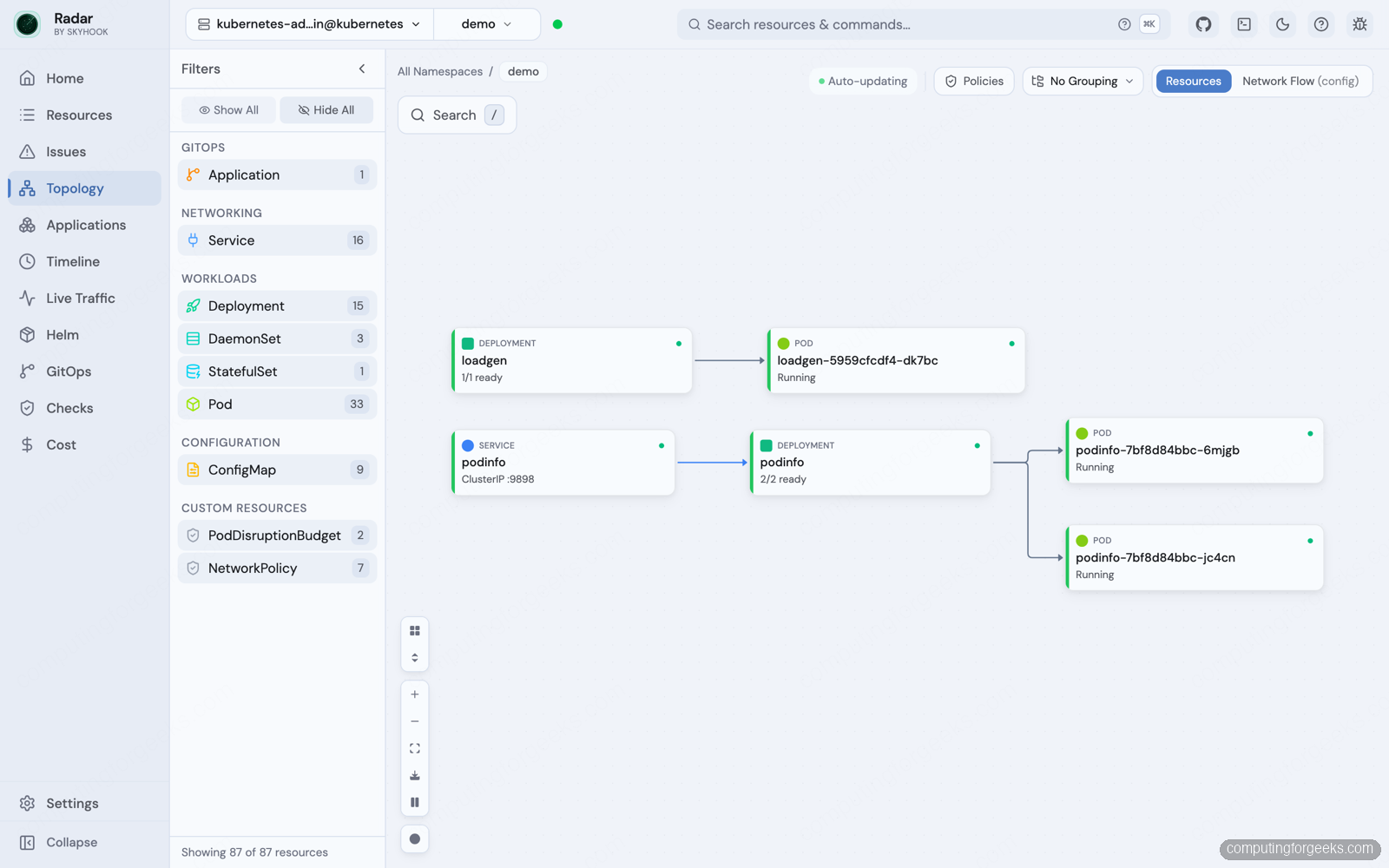
Radar is a newer open-source Kubernetes UI from Skyhook that takes a different angle from the tools above. It ships as a single Go binary that reads your kubeconfig and runs locally, and it leads with a live topology map instead of resource tables. Two things make it stand out in 2026: an event timeline that shows what changed in the cluster and when, and a built-in Model Context Protocol (MCP) server so AI coding tools like Claude Code can query the cluster in plain English. We put it through a full hands-on test in our Radar Kubernetes UI guide, running it against a three-node kubeadm cluster.
Key Features
- Live topology map with real-time updates over a streaming connection
- Event timeline showing recent cluster changes and resource state transitions
- Helm release inspection with revision history, rollback, and value diffs
- GitOps views for Argo CD and Flux applications
- Cluster audit that runs best-practice checks and groups findings by severity
- eBPF-based live traffic map (via a one-click caretta install) showing real service-to-service connections
- Built-in MCP server, on by default, that exposes cluster data to AI assistants like Claude Code
Installation
Install the Radar binary with Homebrew on macOS or Linux, then run it as a kubectl plugin against your current context.
brew install skyhook-io/tap/radar
kubectl radar
That opens the UI on http://localhost:9280 with the MCP server already listening at /mcp. To run it inside the cluster for a whole team instead, Skyhook publishes a Helm chart. The full walkthrough, including wiring the MCP server into Claude Code, is in our hands-on Radar guide.
helm repo add skyhook https://skyhook-io.github.io/helm-charts
helm install radar skyhook/radar -n radar --create-namespace
Pros and Cons
Pros: Apache 2.0 licensed, single binary with no in-cluster agent required in local mode, standout live topology and traffic views, native MCP server for AI workflows, private by design so data stays local.
Cons: Younger project with a smaller community, the eBPF traffic map needs a compatible kernel (stock kernels work, some hardened kernels do not), and cross-cluster aggregation plus long-term event retention are paid Radar Cloud features.
Best for: Teams that want a visual, topology-first view of a cluster, and developers who want to drive Kubernetes from an AI assistant through MCP.
How to Choose the Right Kubernetes UI Tool
Choosing the right Kubernetes UI tool depends on your team size, cluster count, and operational needs. Here are some general guidelines.
Single cluster, small team: Start with the official Kubernetes Dashboard or Skooner. Both are lightweight and get the job done for basic monitoring and management.
Individual developer or DevOps engineer: Lens Desktop or K9s give you the best daily workflow. Lens if you prefer a graphical interface, K9s if you live in the terminal.
Platform team with multiple clusters: Rancher handles fleet-scale operations with provisioning, monitoring, and security built in. Headlamp is a lighter alternative if you want to build a custom internal portal.
Mixed Docker and Kubernetes environments: Portainer manages both from one interface, making the transition easier for teams still running Docker workloads alongside Kubernetes.
Helm-centric workflows: Kubeapps provides the best self-service experience for application deployment from Helm chart catalogs.
Service mesh management: Meshery is purpose-built for managing service mesh infrastructure with visual design and performance benchmarking.
Live topology and AI-assisted workflows: Radar gives you a real-time dependency map and a built-in MCP server, so assistants like Claude Code can inspect and troubleshoot the cluster in plain English.
Budget-conscious teams: FreeLens offers the Lens experience without licensing costs. K9s, Headlamp, Radar, and Skooner are all fully free and open source too.
Conclusion
The best Kubernetes UI management tool depends entirely on your operational context. For simple single-cluster setups, Headlamp is the safe default now that the official Kubernetes Dashboard has been archived. For multi-cluster environments, Lens Desktop and Rancher lead the pack. K9s is unmatched for terminal-based workflows, while Headlamp is also the most extensible platform for custom internal dashboards. Portainer bridges the gap for teams running mixed container platforms, and Radar is the freshest option if you want a live topology view with native AI access.
Whichever tool you choose, pair it with proper RBAC policies, namespace isolation, and monitoring to maintain visibility and control over your cluster resources in production.
Related Guides
- Radar: Open Source Kubernetes UI With Topology and MCP
- Install Kubernetes Dashboard on Any K8s Cluster
- Install and Use KubeSphere on Existing Kubernetes Cluster
- How To Install ArgoCD on Kubernetes / OpenShift
- How To Install Kubernetes Dashboard using Helm
- Scan Docker Container Images for Vulnerabilities with Trivy



This is awesome!!
You can also add kubewall to this list 100% free and open-source.
https://github.com/kubewall/kubewall/
Good list
What about K8studio? (https://k8studio.io/)