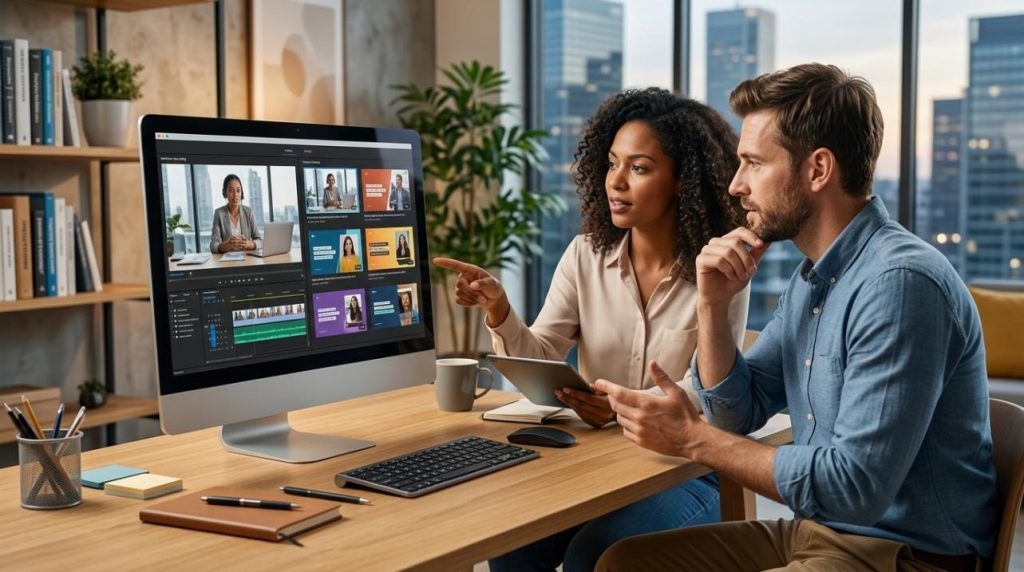
A webinar clip can have a strong message and still fall flat on LinkedIn. That usually happens when a 20-second promo cut feels visually plain, even if the speaker and slides are perfectly fine. That’s why many teams start looking at video-to-video AI tools to give existing footage a sharper look without rebuilding the clip from scratch.
The problem is that speaker-led footage is less forgiving than it seems. Some tools push the restyle too hard and end up warping facial motion, gestures, or slide transitions. For B2B course creators, that makes the clip harder to use, not easier. This guide focuses on the few comparison points that matter most for branded webinar promos rather than running through a long feature list. If you want a category reference first, it helps to look at what a dedicated video to video workflow is meant to handle.
What to Look for Before You Start
For LinkedIn promo snippets, clarity matters more than novelty. The goal is not to turn a webinar into something unrecognizable. The goal is to produce a branded alternate version that still keeps the speaker clear, the motion natural, and the point easy to follow.
A compact comparison table is usually enough:
| Tool | Continuity Preservation | Style Control | Brand-Ready Speed | |
|---|---|---|---|---|
| Media.io | Strong | Strong | Strong | |
| Runway | Strong | Medium | Medium | |
| CapCut desktop workflow | Medium | Medium | Strong | |
| Adobe-heavy manual pipeline | Strong | Very Strong | Low | |
The three criteria that matter most are:
- Continuity preservation: Does the tool keep facial motion, gestures, and slide timing usable after the style change?
- Style control: Can you guide the visual direction without losing the original structure of the clip?
- Ease of producing brand-ready variants: Can a small team make alternate versions quickly, without building a full post-production process around one short promo?
That last point gets missed often. A result can look impressive and still be impractical if it takes too much cleanup before it is ready to publish.
Teams will weigh these trade-offs differently. A solo creator may care most about speed. A small marketing team may want a process they can repeat every week. An editor working in a studio setup may be fine with extra manual work if it gives them tighter control.
How Media.io Fits Those Criteria
For turning webinar highlights into polished LinkedIn promo clips, Media.io is a strong fit because the workflow stays simple. It is browser-based, so you are not juggling a heavier edit-export-restyle-reimport loop just to test a few visual directions. That is useful when you need short promotional cuts on a regular basis.
What stands out here is the balance. You upload an existing clip, choose a style template or visual mode, adjust style strength, and generate a transformed version while aiming to keep motion, detail, and scene continuity intact. For speaker-led footage, that balance matters more than having the most extreme visual effect. The platform also includes an integrated editor and free daily credits, which makes it easier to test a few options before settling on a repeatable format.
This setup tends to work best for:
- B2B course creators repurposing recorded webinars
- Lean marketing teams producing LinkedIn promos without a full editing department
- Creators who want alternate visual versions of the same clip quickly
There is still a limit to where it fits best. If your team needs frame-level adjustments, custom compositing, or a more specialized finishing pipeline, a heavier desktop workflow may suit you better. Media.io makes the most sense when you want polished restyling without turning a short promo into a larger post-production project.
Step-by-Step Workflow
If the goal is to turn one webinar highlight into a branded promo clip, the workflow should stay straightforward.
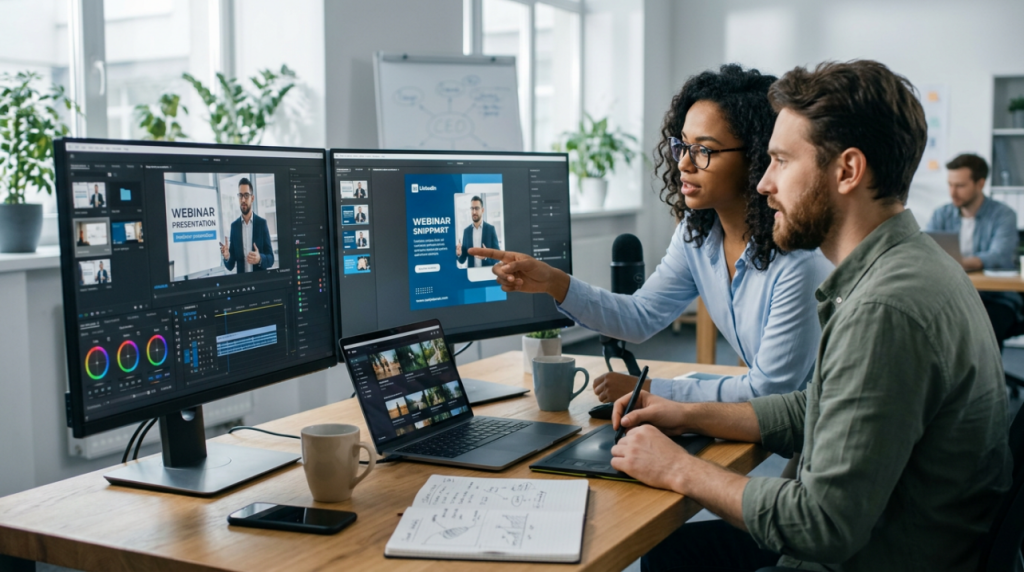
Step 1. Open the tool and upload your webinar snippet
Open Media.io and go to the AI video section, then choose the video-to-video tool. Upload a short webinar segment, usually around 10 to 30 seconds, built around one clear talking point. Short clips are easier to review side by side when you are testing different looks.
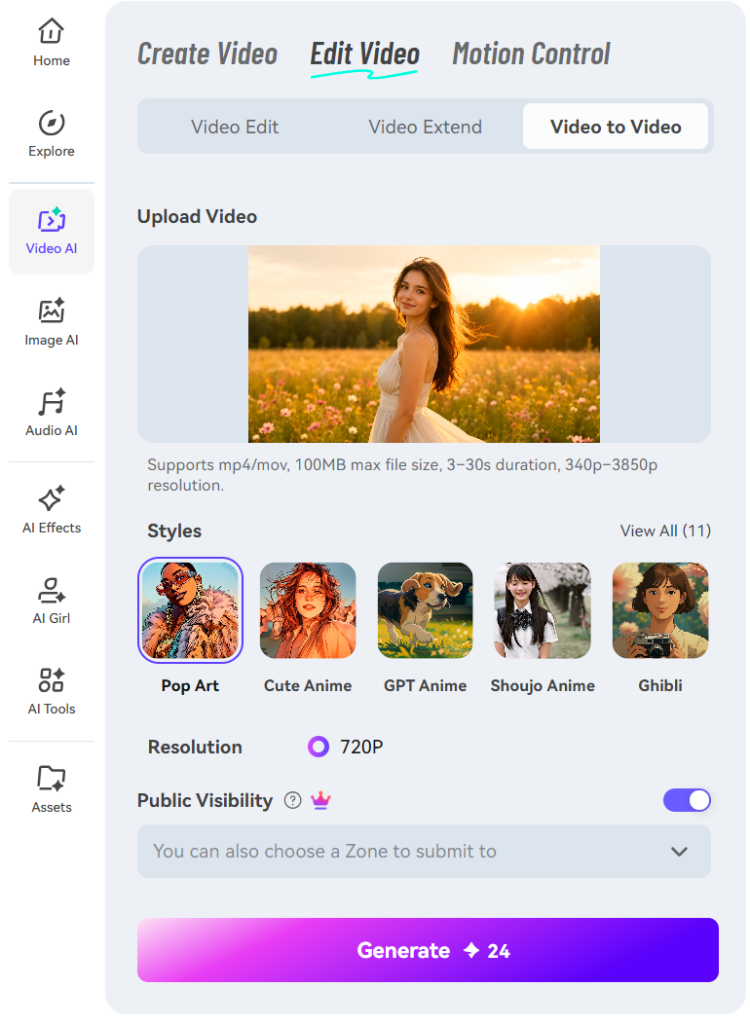
A good first test clip has clear facial movement, steady pacing, and one idea worth promoting. It is usually better to avoid the busiest section of the webinar on the first pass.
Step 2. Choose a visual style and adjust strength carefully
Pick a style template or visual mode that fits your brand direction, then adjust the style strength. This is where restraint helps. For LinkedIn webinar promos, lighter cinematic restyling or a clean artistic treatment usually works better than a heavy transformation, because the speaker and slide motion still need to stay readable.
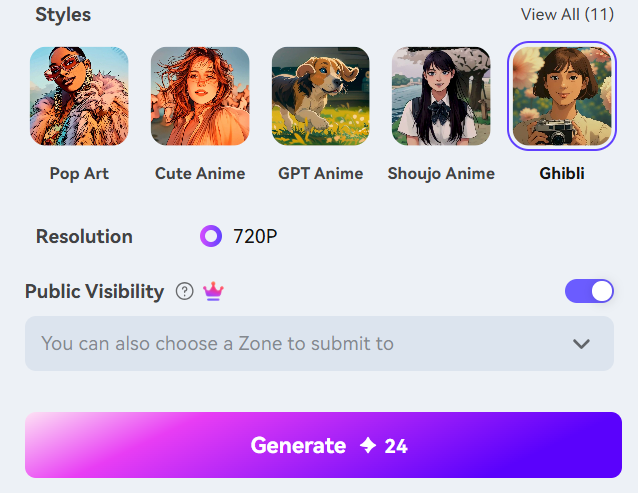
A simple rule works well here: make the change visible enough to feel deliberate, but not so strong that it starts distracting from the message.
Step 3. Generate, preview, and keep the version that stays readable
Generate the clip, preview it, and check whether facial clarity, motion, and overall continuity still hold up. If the speaker looks unnatural or the slide area becomes distracting, try again with a lighter setting. Once you have the version that reads best, download it and move it into your normal publishing flow for captions, copy, or final trimming.
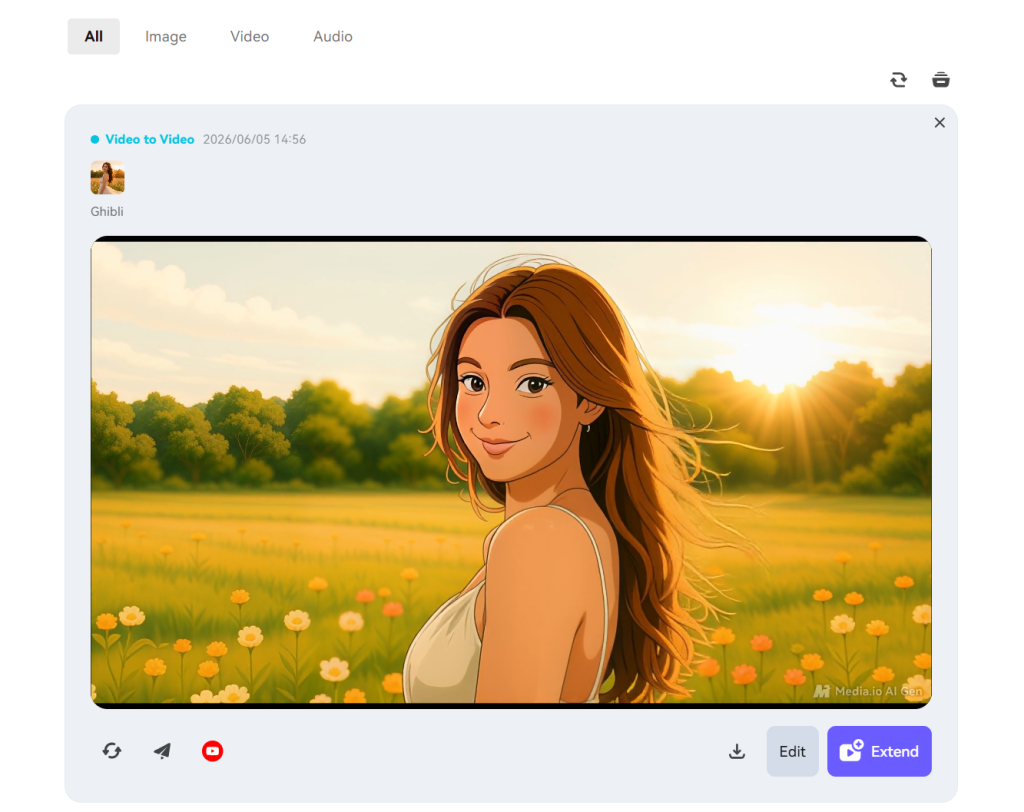
This review step matters more than many teams expect. The best promo version is usually not the boldest one. It is the one that still feels clear, on-brand, and ready to publish.
Final Takeaway
If you are a course creator or part of a small B2B marketing team trying to reuse webinar footage on LinkedIn, the main question is practical: how quickly can you create alternate versions without damaging the original clip’s clarity? Media.io fits that need well because the process stays light: upload, restyle, preview, and move on.
There are trade-offs. A stable internet connection helps, and results will vary depending on the source footage. Dense slides, quick cuts, or busy backgrounds may call for a lighter style setting.
A good next step is to test one webinar highlight first. Start with a clean 15- to 20-second segment, create two or three variants, and see which one still feels readable on LinkedIn. If one version works, you have a repeatable promo format rather than a one-off test.
FAQs
Can video-to-video AI restyle speaker-led clips without ruining facial motion?
Yes, if the tool is designed to preserve motion and scene continuity during the style change. For talking-head webinar clips, moderate style strength is usually the safer choice.
Is this better for short promo snippets than full webinar sessions?
In most cases, yes. Short promo clips are easier to review, regenerate, and adapt for branded social content. Full webinar sessions are harder to keep visually consistent from start to finish.
Which teams benefit most from Media.io compared with heavier desktop tools?
Lean content teams, course creators, and marketers who need fast branded variants tend to get the most value from it. Heavier desktop tools still have a place when advanced manual finishing or specialized studio workflows are the priority.