Maven is the build tool you reach for when a Java project grows beyond a single source file. It compiles your code, runs your tests, resolves third-party JARs, packages the result, and pushes it into a repository, all driven by a small set of commands and one XML file. The same commands work on Ubuntu, Rocky Linux, Fedora, FreeBSD, Windows, and macOS, which is why CI pipelines, Spring Boot projects, and Android libraries still lean on Maven heavily despite Gradle’s rise.
This guide is a tested reference for the Apache Maven commands you actually use day to day: the build lifecycle phases (validate, compile, test, package, verify, install, deploy), dependency inspection (dependency:tree, dependency:analyze), version checks (versions:display-dependency-updates), useful flags (-DskipTests, -o, -T 1C, -P), and the three error messages every Maven user eventually hits. Every command was run on a real project; the output blocks are captured from that run, not invented.
Tested May 2026 on Fedora 44 with Apache Maven 3.9.16 (latest stable) and OpenJDK 25.0.3. Same commands work on Ubuntu 24.04 / 22.04, Rocky Linux 10, Debian 13, and macOS with no changes.
Prerequisites
You need a JDK and Maven on PATH. Maven 3.9 requires JDK 8 or newer to run, but the active LTS release lines are JDK 21 and JDK 25. Pick one and stay on it for the project’s life. If you do not have either installed yet, the install guides for your distro cover both pieces:
- Install OpenJDK on Ubuntu or on Rocky and AlmaLinux
- Set JAVA_HOME on RHEL family
- Install Apache Maven on Ubuntu or on Rocky, AlmaLinux, and Fedora
Confirm both are wired up before going further:
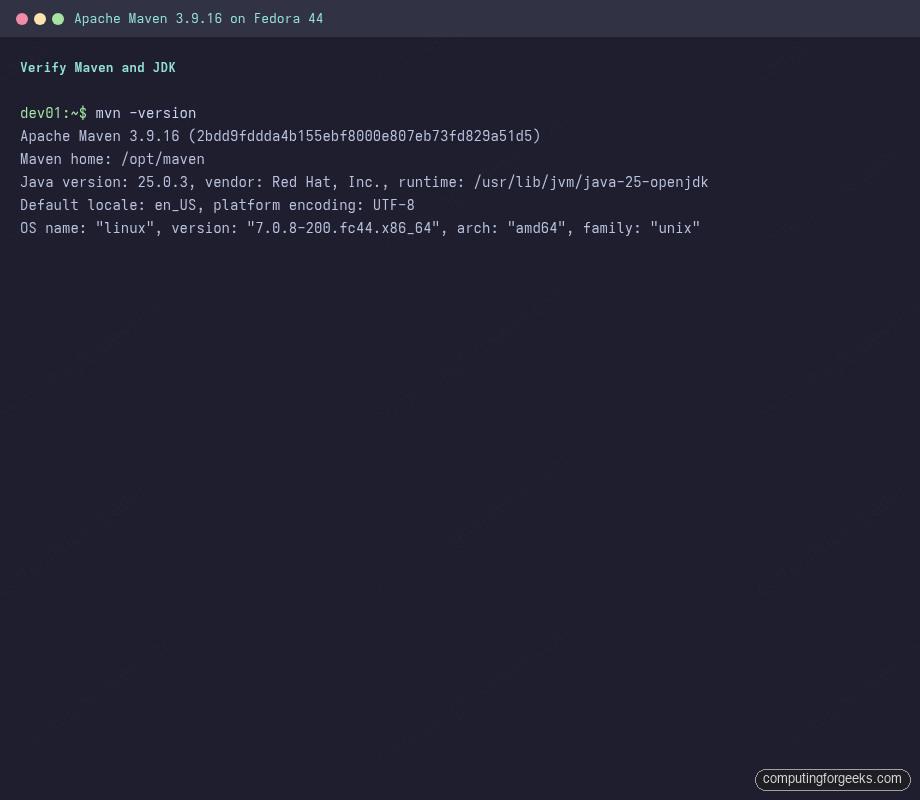
mvn -versionYou should see the Maven version, the resolved Maven home, the active JDK, and the OS string. This is the canonical sanity check for “is my environment correct”:
Apache Maven 3.9.16 (2bdd9fddda4b155ebf8000e807eb73fd829a51d5)
Maven home: /opt/maven
Java version: 25.0.3, vendor: Red Hat, Inc., runtime: /usr/lib/jvm/java-25-openjdk
Default locale: en_US, platform encoding: UTF-8
OS name: "linux", version: "7.0.8-200.fc44.x86_64", arch: "amd64", family: "unix"
The terminal capture below is the exact output from the Fedora 44 lab box this guide was tested on:
If mvn -version errors out with “command not found”, PATH is wrong. If it runs but picks a JDK you did not expect, your JAVA_HOME environment variable is pointing at a different install. Fix that first; everything below depends on a working mvn -version.
Generate a test project with mvn archetype:generate
Every command in the rest of this guide runs against the same starter project. The maven-archetype-quickstart archetype scaffolds a minimal Java app with one source file, one JUnit 5 test, and a sensible pom.xml. Run it from any working directory:
mkdir -p ~/mvn-lab && cd ~/mvn-lab
mvn archetype:generate \
  -DgroupId=com.example.app \
  -DartifactId=cfg-app \
  -DarchetypeArtifactId=maven-archetype-quickstart \
  -DarchetypeVersion=1.5 \
  -DinteractiveMode=false
The archetype prints its parameters back, scaffolds the folder, and finishes with BUILD SUCCESS:
[INFO] Parameter: groupId, Value: com.example.app
[INFO] Parameter: artifactId, Value: cfg-app
[INFO] Parameter: version, Value: 1.0-SNAPSHOT
[INFO] Parameter: package, Value: com.example.app
[INFO] Parameter: junitVersion, Value: 5.11.0
[INFO] Parameter: javaCompilerVersion, Value: 17
[INFO] Project created from Archetype in dir: /home/jmutai/mvn-lab/cfg-app
[INFO] ------------------------------------------------------------------------
[INFO] BUILD SUCCESS
[INFO] ------------------------------------------------------------------------
The generated layout is the canonical Maven structure. Source code goes under src/main/java, tests under src/test/java, and Maven stores compiled output under target/:
cfg-app/
├── pom.xml
└── src
    ├── main
    │   └── java
    │       └── com/example/app/App.java
    └── test
        └── java
            └── com/example/app/AppTest.java
cd cfg-app and stay there. Maven commands are run from the project root because that is where it finds pom.xml. Run one anywhere else and you get The goal you specified requires a project to execute but there is no POM in this directory.
The Maven build lifecycle in one paragraph
Maven does not have a flat list of commands. It has a lifecycle made up of ordered phases. When you run mvn package, Maven also runs every phase before it: validate, initialize, generate-sources, process-sources, generate-resources, process-resources, compile, process-classes, generate-test-sources, process-test-sources, generate-test-resources, process-test-resources, test-compile, process-test-classes, test, prepare-package, and finally package itself. You only ever type the deepest phase you need; Maven walks the chain.
The phases that matter for daily work are the seven shown below. Memorise this table and most Maven confusion evaporates:
| Phase | What runs | Default plugin binding |
|---|---|---|
validate | Checks the project is correct and all required info is available | (none by default) |
compile | Compiles src/main/java to target/classes | maven-compiler-plugin:compile |
test | Compiles tests and runs them with Surefire | maven-surefire-plugin:test |
package | Builds the JAR, WAR, or other archive in target/ | maven-jar-plugin:jar |
verify | Runs integration tests and any post-package checks | maven-failsafe-plugin (if configured) |
install | Copies the artifact into your local ~/.m2 cache | maven-install-plugin:install |
deploy | Uploads the artifact to a remote repository (Nexus, Artifactory) | maven-deploy-plugin:deploy |
You can confirm the bindings yourself with mvn help:describe -Dcmd=compile. That prints the lifecycle and which plugin owns each phase, drawn straight from Maven’s metadata:
* validate: Not defined
* compile: org.apache.maven.plugins:maven-compiler-plugin:3.15.0:compile
* test: org.apache.maven.plugins:maven-surefire-plugin:3.5.4:test
* package: org.apache.maven.plugins:maven-jar-plugin:3.5.0:jar
* verify: Not defined
* install: org.apache.maven.plugins:maven-install-plugin:3.1.4:install
* deploy: org.apache.maven.plugins:maven-deploy-plugin:3.1.4:deploy
mvn validate
The cheapest sanity check. validate reads the POM, confirms the syntax is well-formed, and verifies that every declared dependency can be resolved. It does not compile anything, so it is the fastest way to catch a typo in pom.xml before kicking off a real build:
mvn validateOn a clean POM, you get a one-line BUILD SUCCESS in under a second:
[INFO] ----------------------< com.example.app:cfg-app >-----------------------
[INFO] Building cfg-app 1.0-SNAPSHOT
[INFO]   from pom.xml
[INFO] --------------------------------[ jar ]---------------------------------
[INFO] ------------------------------------------------------------------------
[INFO] BUILD SUCCESS
[INFO] ------------------------------------------------------------------------
[INFO] Total time:  0.792 s
mvn compile
Compiles every .java file under src/main/java and writes the bytecode to target/classes. Test sources are not touched at this phase:
mvn compileThe output shows which plugin version ran, the target release, and where the class files landed:
[INFO] --- compiler:3.13.0:compile (default-compile) @ cfg-app ---
[INFO] Recompiling the module because of changed source code.
[INFO] Compiling 1 source file with javac [debug release 17] to target/classes
[INFO] ------------------------------------------------------------------------
[INFO] BUILD SUCCESS
[INFO] ------------------------------------------------------------------------
The release 17 string comes from <maven.compiler.release>17</maven.compiler.release> in the generated POM. Change that property to 21 or 25 and the next compile retargets to the new bytecode level without any other config.
mvn test
test runs every test class under src/test/java. Maven compiles your test sources first, then hands them to the Surefire plugin, which discovers JUnit Jupiter tests via the JUnit Platform launcher:
mvn testPassing tests show a single Tests run line per test class plus a summary:
[INFO] --- surefire:3.3.0:test (default-test) @ cfg-app ---
[INFO] -------------------------------------------------------
[INFO]  T E S T S
[INFO] -------------------------------------------------------
[INFO] Running com.example.app.AppTest
[INFO] Tests run: 1, Failures: 0, Errors: 0, Skipped: 0, Time elapsed: 0.133 s -- in com.example.app.AppTest
[INFO]
[INFO] Results:
[INFO] Tests run: 1, Failures: 0, Errors: 0, Skipped: 0
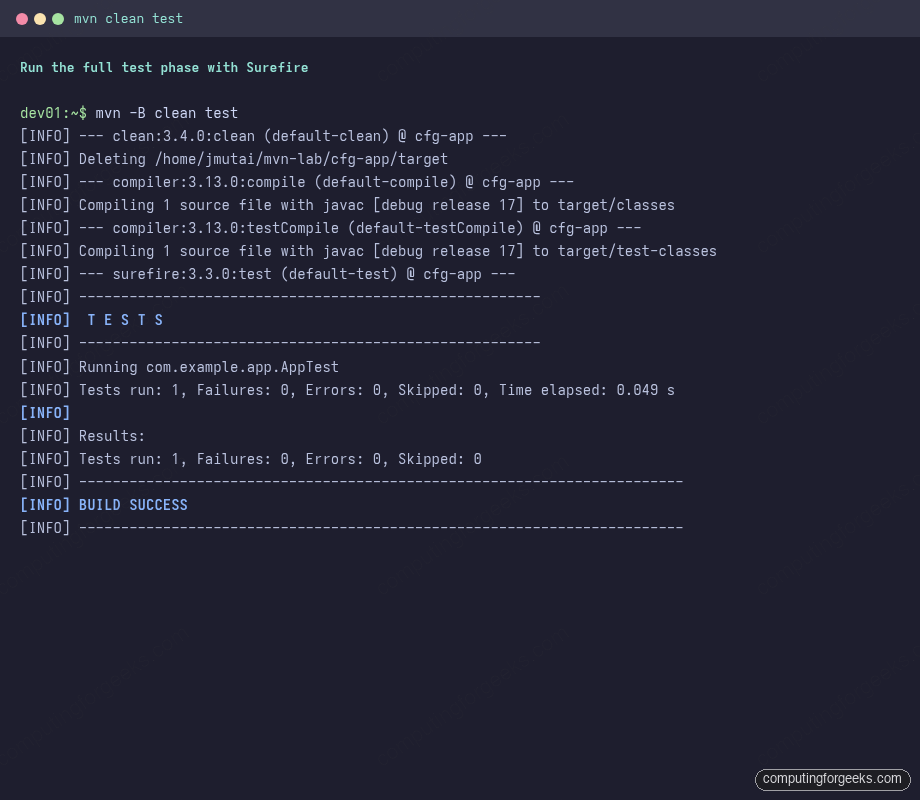
The full pipeline (clean, compile, test-compile, Surefire run) captured on the test box:
A failed assertion produces a useful stack trace plus a summary list of failures. The output below comes from a deliberately broken JUnit test that asserts "hello" equals "world":
[ERROR] Tests run: 1, Failures: 1, Errors: 0, Skipped: 0, Time elapsed: 0.010 s <<< FAILURE! -- in com.example.app.FailingTest
[ERROR] com.example.app.FailingTest.shouldFailToShowOutput -- Time elapsed: 0.005 s <<< FAILURE!
org.opentest4j.AssertionFailedError: intentionally failing for the article ==> expected: <hello> but was: <world>
        at org.junit.jupiter.api.AssertionFailureBuilder.build(AssertionFailureBuilder.java:151)
        at com.example.app.FailingTest.shouldFailToShowOutput(FailingTest.java:9)

[ERROR] Failures:
[ERROR]   FailingTest.shouldFailToShowOutput:9 intentionally failing for the article ==> expected: <hello> but was: <world>
[ERROR] Tests run: 2, Failures: 1, Errors: 0, Skipped: 0
[INFO] BUILD FAILURE
[ERROR] Failed to execute goal org.apache.maven.plugins:maven-surefire-plugin:3.3.0:test (default-test) on project cfg-app: There are test failures.
The exit code is non-zero on any failure, which is what lets CI systems flag a broken build. Full HTML and plain-text reports are also written to target/surefire-reports/ for tooling to ingest.
Run one test class with -Dtest
When you are iterating on a single failing test, running the whole suite is wasteful. Use the Surefire -Dtest= filter to target one class or method:
mvn -Dtest=AppTest test
mvn -Dtest=AppTest#shouldAnswerWithTrue test
mvn -Dtest='*Service*' test
The third form uses glob syntax to match every test class whose name contains “Service”, which is handy when you are working in a single layer of a Spring Boot or DDD codebase.
Skip tests with -DskipTests vs -Dmaven.test.skip
There are two ways to skip tests and they are not the same:
mvn -DskipTests package        # compiles tests, does NOT run them
mvn -Dmaven.test.skip=true package   # does NOT even compile tests
-DskipTests is what you want 99% of the time. It still type-checks the test sources, so you catch compile errors before pushing. -Dmaven.test.skip is faster but skips the safety net. The Surefire output makes the skip explicit:
[INFO] --- surefire:3.3.0:test (default-test) @ cfg-app ---
[INFO] Tests are skipped.
mvn package
Runs everything up to and including test, then bundles the compiled classes into the project’s packaging type (jar by default, war for web apps, pom for parent projects):
mvn clean packageThe clean in front wipes target/ first so you always build from a known-empty state. The relevant tail of the output is the jar-plugin line:
[INFO] --- jar:3.4.2:jar (default-jar) @ cfg-app ---
[INFO] Building jar: /home/jmutai/mvn-lab/cfg-app/target/cfg-app-1.0-SNAPSHOT.jar
[INFO] BUILD SUCCESS
[INFO] Total time:  3.443 s
The artifact name is built from artifactId-version.packaging. The trailing SNAPSHOT marks it as an unreleased version, which has implications later when we get to install and deploy.
Running the built JAR (and the manifest gotcha)
The quickstart archetype does NOT configure an executable manifest. Trying to run the JAR directly produces a short, confusing error:
java -jar target/cfg-app-1.0-SNAPSHOT.jarOutput:
no main manifest attribute, in target/cfg-app-1.0-SNAPSHOT.jarTwo fixes. To run the class directly via classpath, point Java at the class name:
java -cp target/cfg-app-1.0-SNAPSHOT.jar com.example.app.AppThe compiled class prints its single line:
Hello World!To make the JAR self-runnable, configure the jar plugin’s manifest in pom.xml:
<plugin>
  <artifactId>maven-jar-plugin</artifactId>
  <configuration>
    <archive>
      <manifest>
        <mainClass>com.example.app.App</mainClass>
      </manifest>
    </archive>
  </configuration>
</plugin>
If the app pulls in third-party dependencies, the plain jar plugin alone is not enough. You need either the maven-shade-plugin to build a fat JAR, or the Spring Boot Maven plugin if it is a Spring Boot app. Both wrap or repackage the deps into a single launchable artifact.
mvn verify
verify sits between package and install. It is where the Failsafe plugin runs integration tests (classes named *IT.java or IT*.java), as opposed to Surefire’s unit tests. On the quickstart project there is nothing for it to do beyond what package already did, but the phase still runs:
mvn verifyOn a real project with Failsafe configured, this is the phase that drives end-to-end test suites that spin up Docker containers (Testcontainers), embedded databases, or a full Spring context. Surefire keeps the unit suite fast; Failsafe owns the slow suite, and both report into target/.
mvn install
Copies the freshly packaged artifact into your local repository at ~/.m2/repository, indexed by group, artifact, and version. After this runs, other Maven projects on the same machine can declare a dependency on it without a network round-trip:
mvn installThe install-plugin output shows where the POM and JAR landed in the local cache:
[INFO] --- install:3.1.2:install (default-install) @ cfg-app ---
[INFO] Installing /home/jmutai/mvn-lab/cfg-app/pom.xml to /home/jmutai/.m2/repository/com/example/app/cfg-app/1.0-SNAPSHOT/cfg-app-1.0-SNAPSHOT.pom
[INFO] Installing /home/jmutai/mvn-lab/cfg-app/target/cfg-app-1.0-SNAPSHOT.jar to /home/jmutai/.m2/repository/com/example/app/cfg-app/1.0-SNAPSHOT/cfg-app-1.0-SNAPSHOT.jar
[INFO] BUILD SUCCESS
This is the right command for multi-module builds where one module depends on another in the same workspace. After install finishes, the dependent module finds the artifact on the local filesystem instead of trying to reach out to Maven Central or your company’s Nexus.
mvn deploy (and the most common Maven error message)
deploy uploads the artifact to a remote repository so other teams or build pipelines can pull it as a dependency. Run it against a freshly generated project and you hit the textbook Maven error every Java developer eventually sees:
mvn deployThe build fails near the end with:
[INFO] --- deploy:3.1.2:deploy (default-deploy) @ cfg-app ---
[INFO] ------------------------------------------------------------------------
[INFO] BUILD FAILURE
[INFO] ------------------------------------------------------------------------
[ERROR] Failed to execute goal org.apache.maven.plugins:maven-deploy-plugin:3.1.2:deploy (default-deploy) on project cfg-app: Deployment failed: repository element was not specified in the POM inside distributionManagement element or in -DaltDeploymentRepository=id::url parameter -> [Help 1]
The fix is to declare a <distributionManagement> block in pom.xml pointing at a real repository. For an in-house Nexus or Artifactory it looks like this:
<distributionManagement>
  <repository>
    <id>nexus-releases</id>
    <url>https://nexus.example.com/repository/maven-releases/</url>
  </repository>
  <snapshotRepository>
    <id>nexus-snapshots</id>
    <url>https://nexus.example.com/repository/maven-snapshots/</url>
  </snapshotRepository>
</distributionManagement>
Each id must match a <server> entry in ~/.m2/settings.xml that carries the credentials. If you do not have a repository server yet, set up a Sonatype Nexus instance or use a hosted JFrog account; either supports Maven natively.
Maven also routes SNAPSHOT versions to the snapshot repo and release versions (anything without -SNAPSHOT in the version string) to the release repo, automatically. That is why both URLs are usually configured.
mvn clean
Deletes the target/ directory. Always prefix a release build, a benchmark run, or any “why is this broken” debugging session with clean. It costs about a second and removes a whole class of stale-bytecode bugs:
mvn cleanThe clean plugin deletes the build directory and prints one line confirming the path it removed:
[INFO] --- clean:3.4.0:clean (default-clean) @ cfg-app ---
[INFO] Deleting /home/jmutai/mvn-lab/cfg-app/target
You almost never run clean alone. Chain it with the real goal you want: mvn clean install, mvn clean package, mvn clean verify. Maven happily takes multiple goals on one command line and runs them in order.
Inspect dependencies: mvn dependency:tree
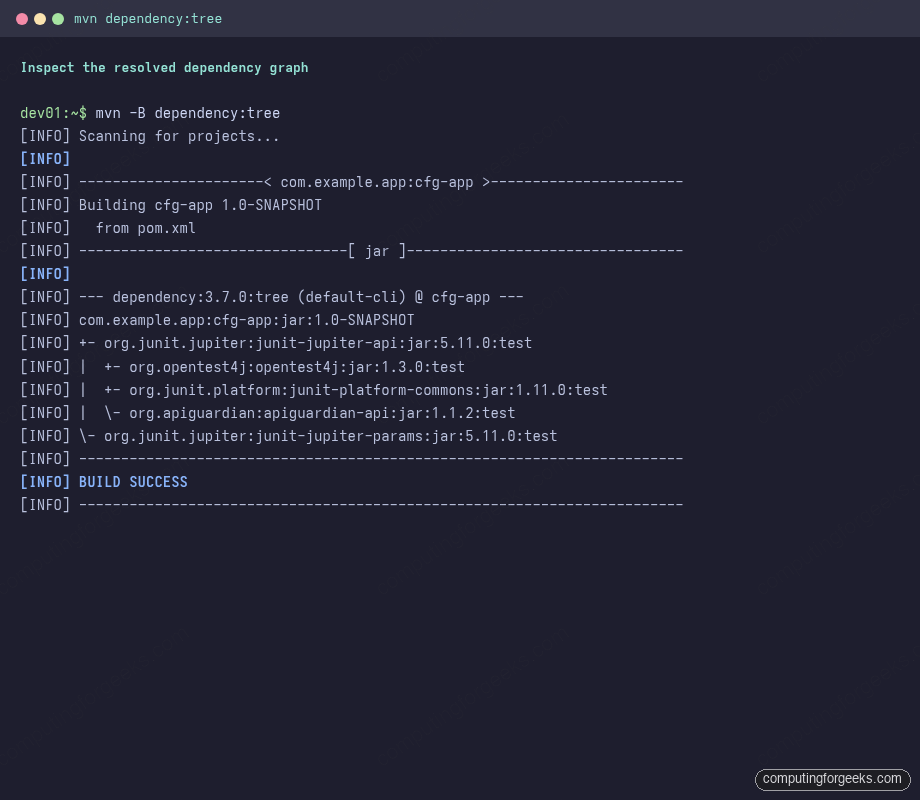
Of every diagnostic command Maven ships, dependency:tree is the one you will run most. It prints the full dependency graph as it was resolved, including transitive deps and the scope each one came in under:
mvn dependency:treeThe output is a textual tree with the project as root and every direct dependency as a top-level branch:
[INFO] --- dependency:3.7.0:tree (default-cli) @ cfg-app ---
[INFO] com.example.app:cfg-app:jar:1.0-SNAPSHOT
[INFO] +- org.junit.jupiter:junit-jupiter-api:jar:5.11.0:test
[INFO] |  +- org.opentest4j:opentest4j:jar:1.3.0:test
[INFO] |  +- org.junit.platform:junit-platform-commons:jar:1.11.0:test
[INFO] |  \- org.apiguardian:apiguardian-api:jar:1.1.2:test
[INFO] \- org.junit.jupiter:junit-jupiter-params:jar:5.11.0:test
The same output rendered as a terminal screenshot, for reference when matching what you see on your own machine:
Use this whenever a “class not found” or “method not found” exception hits at runtime. Filter to a specific group with -Dincludes when the tree is large:
mvn dependency:tree -Dincludes=org.slf4j
mvn dependency:tree -Dincludes=:::test          # all test-scope deps
mvn dependency:tree -Dverbose                   # show conflicts and omitted dups
The -Dverbose flag is gold when you suspect a version conflict, since it shows which transitive request lost out and why (“omitted for conflict with X.Y.Z”).
mvn dependency:analyze and dependency:resolve
dependency:resolve downloads every declared dependency and prints what was fetched, with the JPMS module name where one exists:
mvn dependency:resolveEach line is a fully qualified GAV (group, artifact, version) plus the JPMS module name where one is present:
[INFO] The following files have been resolved:
[INFO]    org.junit.jupiter:junit-jupiter-api:jar:5.11.0:test -- module org.junit.jupiter.api
[INFO]    org.opentest4j:opentest4j:jar:1.3.0:test -- module org.opentest4j
[INFO]    org.junit.platform:junit-platform-commons:jar:1.11.0:test -- module org.junit.platform.commons
[INFO]    org.apiguardian:apiguardian-api:jar:1.1.2:test -- module org.apiguardian.api
[INFO]    org.junit.jupiter:junit-jupiter-params:jar:5.11.0:test -- module org.junit.jupiter.params
dependency:analyze goes one level deeper. It compares what the POM declares against what the bytecode actually imports, and flags two failure modes: declared-but-unused (dead weight in the dep list) and undeclared-but-used (relying on a transitive that could disappear in a future release):
mvn dependency:analyzeOn the quickstart project it surfaces one warning, because the archetype declares junit-jupiter-params but the sample test never uses it:
[INFO] --- dependency:3.7.0:analyze (default-cli) @ cfg-app ---
[WARNING] Unused declared dependencies found:
[WARNING]    org.junit.jupiter:junit-jupiter-params:jar:5.11.0:test
[INFO] BUILD SUCCESS
That warning is accurate: the generated test class only imports jupiter-api, not jupiter-params. The archetype ships params in case you want parameterised tests later. Run dependency:analyze as part of CI on libraries; carrying unused deps blows up the consumers’ classpath.
Check for newer dependency and plugin versions
The versions plugin is not bundled with Maven core, but it works without configuration because Maven pulls plugins from Central on demand. Run it without changing the POM and it reports what could be upgraded:
mvn versions:display-dependency-updatesOutput is a side-by-side list of “what you have” and “what is on Central”:
[INFO] The following dependencies in Dependency Management have newer versions:
[INFO]   org.junit.jupiter:junit-jupiter ...................... 5.11.0 -> 6.1.0
[INFO]   org.junit.jupiter:junit-jupiter-api .................. 5.11.0 -> 6.1.0
[INFO]   org.junit.jupiter:junit-jupiter-engine ............... 5.11.0 -> 6.1.0
[INFO]   org.junit.platform:junit-platform-commons ............ 1.11.0 -> 6.1.0
Pair it with the plugin variant to find stale build-plugin pins as well:
mvn versions:display-plugin-updatesThe plugin variant is more useful than it looks because it also surfaces which Maven version each newer plugin needs, so you can decide whether to bump Maven itself before bumping a plugin. The auto-write companions (versions:use-latest-releases, versions:update-properties) edit the POM in place; review the diff before committing.
See the merged build config with mvn help:effective-pom
The POM you write is only part of the configuration that drives a build. Maven inherits from a Super POM, applies any parent POMs, runs property interpolation, and activates profiles. The result is the effective POM, which is what Maven actually executes against:
mvn help:effective-pomThe output begins with a banner and then the fully merged XML. The snippet below shows how the bare-bones quickstart POM becomes a fully qualified <project> document after inheritance:
Effective POMs, after inheritance, interpolation, and profiles are applied:

<?xml version="1.0" encoding="UTF-8"?>
<project xmlns="http://maven.apache.org/POM/4.0.0">
  <modelVersion>4.0.0</modelVersion>
  <groupId>com.example.app</groupId>
  <artifactId>cfg-app</artifactId>
  <version>1.0-SNAPSHOT</version>
  <properties>
    <maven.compiler.release>17</maven.compiler.release>
    <project.build.sourceEncoding>UTF-8</project.build.sourceEncoding>
  </properties>
The full effective POM on this minimal project is 400+ lines, almost all of it inherited plugin defaults. Pipe it to a file when you actually need to read it: mvn help:effective-pom > effective-pom.xml.
Useful build flags
A handful of CLI flags change Maven’s behaviour enough to be worth memorising. They stack, so you can combine them freely.
Batch mode: -B
Disables the download-progress bar and ANSI colour, which keeps CI logs clean. Every example output in this guide was captured with -B. Always pass it in Jenkins, GitHub Actions, GitLab CI, or any other automation:
mvn -B clean installParallel builds: -T 1C
Maven can build independent modules in parallel. -T 1C means “one thread per CPU core”, which is a sensible default on most machines. On a multi-module project, the wall-clock saving is dramatic. Single-module projects do not benefit, but it does no harm:
mvn -T 1C -B clean packageThe result line includes a “(Wall Clock)” annotation that is unique to parallel mode:
[INFO] BUILD SUCCESS
[INFO] Total time:  1.595 s (Wall Clock)
The “(Wall Clock)” suffix appears whenever parallel mode is active and tells you Maven measured real elapsed time, not the cumulative time across threads.
Offline mode: -o
Disables every network lookup. Maven only resolves what is already cached in ~/.m2/repository. Use it on flights, in airgapped CI runners, or to prove that the build does not rely on a network round-trip:
mvn -o compileIf anything is missing locally, Maven fails loud rather than reaching out for it. The Jenkins worker that runs offline builds typically warms the cache with a normal mvn install first, then switches to -o for the metered build.
Profiles: -P
Profiles let one POM behave differently per environment. Activate them on the CLI with -P followed by a comma-separated list:
mvn -P prod,docker clean package
mvn -P !slow-tests clean verify        # deactivate a profile with !
The exclamation-mark form is shell-sensitive in zsh; quote it (-P '!slow-tests') or escape the bang.
Failure handling: -fae and -fn
By default Maven stops at the first reactor failure. In a 30-module monorepo that is often the wrong behaviour because you would prefer one consolidated failure report:
mvn -fae clean install   # fail-at-end: keep building unaffected modules
mvn -fn  clean install   # fail-never: never fail the build, only report
-fn is rarely the right call outside of “what is the universe of failures right now” diagnostic runs; -fae is the safer default once the project has more than a handful of modules.
Debug logging: -X
Turns on Maven’s full debug output. The volume is enormous (thousands of lines on a real build), but it is the only way to see why a plugin chose one transitive dep over another, or why a profile failed to activate:
mvn -X clean install 2>&1 | tee build-debug.logAlways redirect to a file; scrolling through -X output in a terminal is a lost cause.
Three Maven errors you will see again and again
Error: “repository element was not specified in the POM”
You ran mvn deploy on a project with no <distributionManagement> block. Add it (see the deploy section above) or pass the destination on the command line:
mvn deploy -DaltDeploymentRepository=nexus-snapshots::https://nexus.example.com/repository/maven-snapshots/Error: “There are test failures”
Surefire found at least one failing or erroring test. Read target/surefire-reports/*.txt for the stack trace; the console output lists which assertions broke. To ship the build anyway in an emergency, use -DskipTests and open a follow-up to actually fix the test.
Error: “no main manifest attribute, in target/*.jar”
You tried java -jar on a library JAR. Either run it via classpath (java -cp jar com.example.app.App), or configure the jar plugin’s <mainClass>, or switch to maven-shade-plugin / Spring Boot’s repackage plugin for an executable fat JAR.
Where Maven fits in a CI pipeline
The command that runs on every push from a build agent is almost always mvn -B -ntp -fae clean verify. That is: batch mode (no progress bars), no-transfer-progress (clean logs even more), fail at end (collect all failures), clean verify (run everything except install and deploy). The release job tacks on install deploy after a passing verify.
This command shape works whether the build agent is a Jenkins controller, a GitHub Actions runner, a GitLab CI executor, or Argo Workflows. Pair it with JFrog Artifactory on Kubernetes or Sonatype Nexus as the deploy target and the rest of the toolchain is downstream concerns.
Apache Maven commands cheat sheet
Bookmark this table. Almost every Maven task in a Java workflow is one of these:
| Command | What it does |
|---|---|
mvn -version | Confirm Maven and the JDK in use |
mvn archetype:generate | Scaffold a new project from a template |
mvn validate | Check the POM is correct and deps resolve |
mvn compile | Compile src/main/java only |
mvn test | Compile and run unit tests with Surefire |
mvn package | Build the JAR or WAR in target/ |
mvn verify | Run integration tests with Failsafe |
mvn install | Copy artifact into ~/.m2/repository |
mvn deploy | Upload artifact to Nexus or Artifactory |
mvn clean | Delete target/ |
mvn clean install | The “fresh build” combo most people type |
mvn dependency:tree | Print the resolved dependency graph |
mvn dependency:analyze | Find unused and undeclared deps |
mvn dependency:resolve | Download every declared dep |
mvn versions:display-dependency-updates | List newer dependency versions |
mvn versions:display-plugin-updates | List newer plugin versions |
mvn help:effective-pom | Print the merged POM Maven actually uses |
mvn help:describe -Dcmd=PHASE | Show plugin bindings for a phase |
mvn -DskipTests package | Build without running tests |
mvn -Dtest=ClassName test | Run a single test class |
mvn -T 1C clean install | Parallel build (one thread per core) |
mvn -o compile | Offline mode, no network |
mvn -P prod package | Activate the prod profile |
mvn -B -ntp -fae verify | The CI-friendly verify command |
mvn -X clean install | Full debug logging |
Most days you will hit four of those: mvn clean install for a full local rebuild, mvn -DskipTests package for a quick artifact, mvn dependency:tree when a dependency surprise lands, and mvn test -Dtest=SomeFailingTest while debugging. Everything else is occasional. Keep this page open in a tab the first month you work with Maven and the muscle memory follows quickly after.