

Kali Linux is a rolling release, which means you can upgrade to the latest version at any time without reinstalling. The catch is that skipping several releases and then running a massive upgrade increases the risk of broken dependencies and configuration conflicts. Regular weekly updates keep things smooth, but when you do need to jump across releases, the process takes some care.
This guide covers upgrading Kali Linux to the latest version. We tested the full upgrade path from Kali 2025.4 to Kali 2026.1, which brought kernel 6.18, a refreshed desktop theme, BackTrack mode, and eight new security tools including AdaptixC2, Fluxion, MetasploitMCP, and XSStrike. The same steps apply to any Kali rolling release upgrade.
Tested April 2026 | Upgraded Kali 2025.4 (kernel 6.16.8) to Kali 2026.1 (kernel 6.18.12) on QEMU/KVM
What You Need
- A running Kali Linux installation (any previous version)
- Root or sudo access
- At least 10 GB of free disk space for downloaded packages
- Stable internet connection (the upgrade downloads several gigabytes)
- A full backup of your home directory and any custom tool configurations
Take a VM snapshot before starting if you run Kali in a virtual machine. For bare metal, back up critical data to an external drive or remote server. This upgrade touched over 1,800 packages on our test system, so having a rollback option is worth the few minutes it takes.
Check Your Current Kali Version
Confirm which version you are running before making any changes. This gives you a baseline to verify the upgrade completed successfully.
cat /etc/os-releaseOn our test system running Kali 2025.4:
PRETTY_NAME="Kali GNU/Linux Rolling"
NAME="Kali GNU/Linux"
VERSION_ID="2025.4"
VERSION="2025.4"
VERSION_CODENAME=kali-rolling
ID=kali
ID_LIKE=debian
HOME_URL="https://www.kali.org/"
SUPPORT_URL="https://forums.kali.org/"
BUG_REPORT_URL="https://bugs.kali.org/"
ANSI_COLOR="1;31"
Check the kernel version as well:
uname -rOur system showed kernel 6.16.8:
6.16.8+kali-amd64For a more detailed system overview, install fastfetch (the actively maintained replacement for neofetch, which is no longer developed):
sudo apt install -y fastfetchRun it to see your full system profile at a glance:
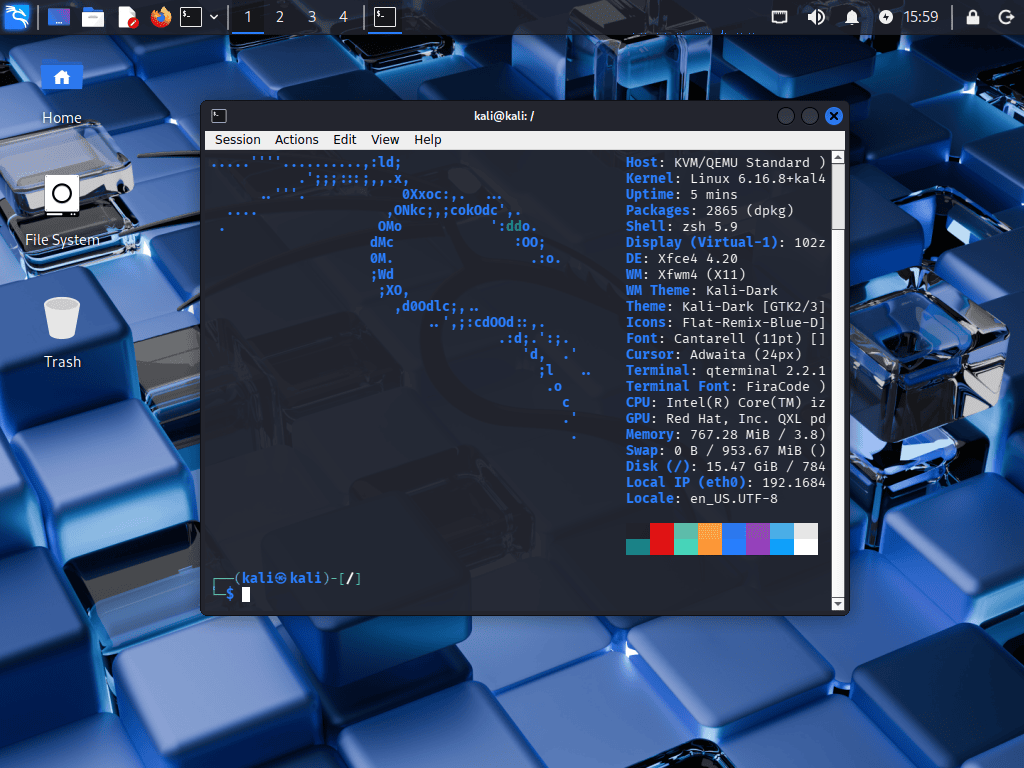
fastfetchHere is the fastfetch output on our Kali 2025.4 system before upgrading:
Verify the APT Sources List
The APT sources list controls where your system fetches packages. It must point to the official Kali rolling repository. Check it:
cat /etc/apt/sources.listThe file should contain this line:
# See https://www.kali.org/docs/general-use/kali-linux-sources-list-repositories/
deb http://http.kali.org/kali kali-rolling main contrib non-free non-free-firmware
If your sources file points to an older codename like kali-last-snapshot, sana, or moto, replace the entire content with the line above. You can do this with:
echo "deb http://http.kali.org/kali kali-rolling main contrib non-free non-free-firmware" | sudo tee /etc/apt/sources.listThe kali-rolling repository always has the latest packages. Older release codenames stop receiving updates and will prevent upgrades.
Update Package Lists
Refresh the local package index to download the latest available package versions from the repository:
sudo apt updateA successful update fetches the package lists and shows how many packages can be upgraded:
Hit:1 http://http.kali.org/kali kali-rolling InRelease
Reading package lists... Done
Building dependency tree... Done
Reading state information... Done
1850 packages can be upgraded. Run 'apt list --upgradable' to see them.
1,850 upgradable packages on our system. If you see GPG key errors like NO_PUBKEY, install the Kali archive keyring first:
sudo apt install -y kali-archive-keyringRun the Full Upgrade
Use full-upgrade instead of upgrade. The difference matters: full-upgrade handles package removals and dependency changes that a regular upgrade skips. For major version transitions, this is required.
sudo apt full-upgrade -yThis downloads and installs all updated packages, including the new kernel, desktop environment changes, and security tools. On our test system with 1,850 packages to upgrade, the process took about 20 minutes on a decent internet connection.
During the upgrade, APT may prompt you about configuration file changes. When a package ships a new config that differs from your modified version, you will see something like:
Configuration file '/etc/samba/smb.conf'
 ==> Modified (by you or by a script) since installation.
 ==> Package distributor has shipped an updated version.
   What would you like to do about it?
    Y or I  : install the package maintainer's version
    N or O  : keep your currently-installed version
      D     : show the differences between the versions
Press D first to review the differences. For most users, accepting the maintainer’s version (Y) is the safest choice. If you have custom tool configurations you care about, keep your version (N) and manually merge the changes later from the .dpkg-new files that APT saves.
Fix Interrupted Package Configuration
If the upgrade was interrupted or some packages failed to configure (this happened on our test system when the QEMU guest agent restarted mid-upgrade), fix them with:
sudo dpkg --configure -aThis finishes configuring any partially installed packages. If dependency issues remain after that:
sudo apt --fix-broken install -yClean Up Obsolete Packages
Remove packages that are no longer needed (old dependencies that no installed package requires):
sudo apt autoremove -yClear the local package cache to free disk space:
sudo apt autocleanThese two commands reclaimed about 2 GB on our system after the upgrade.
Update Shell Configurations
Kali ships updated shell profiles with each release. Copy the new default configurations to your home directory (the -b flag backs up existing files, and -i asks before overwriting):
cp -vrbi /etc/skel/. ~/This picks up new .bashrc, .zshrc, and desktop configuration updates. Your existing files are preserved as backups.
Reboot and Verify
Reboot to load the new kernel and apply all desktop changes:
sudo rebootAfter the system comes back, verify the new version:
cat /etc/os-releaseThe VERSION field now shows 2026.1:
PRETTY_NAME="Kali GNU/Linux Rolling"
NAME="Kali GNU/Linux"
VERSION_ID="2026.1"
VERSION="2026.1"
VERSION_CODENAME=kali-rolling
ID=kali
ID_LIKE=debian
HOME_URL="https://www.kali.org/"
SUPPORT_URL="https://forums.kali.org/"
BUG_REPORT_URL="https://bugs.kali.org/"
ANSI_COLOR="1;31"
Confirm the kernel upgrade:
uname -rThe kernel jumped from 6.16.8 to 6.18.12:
6.18.12+kali-amd64Run fastfetch again to see the full system profile after the upgrade:
fastfetch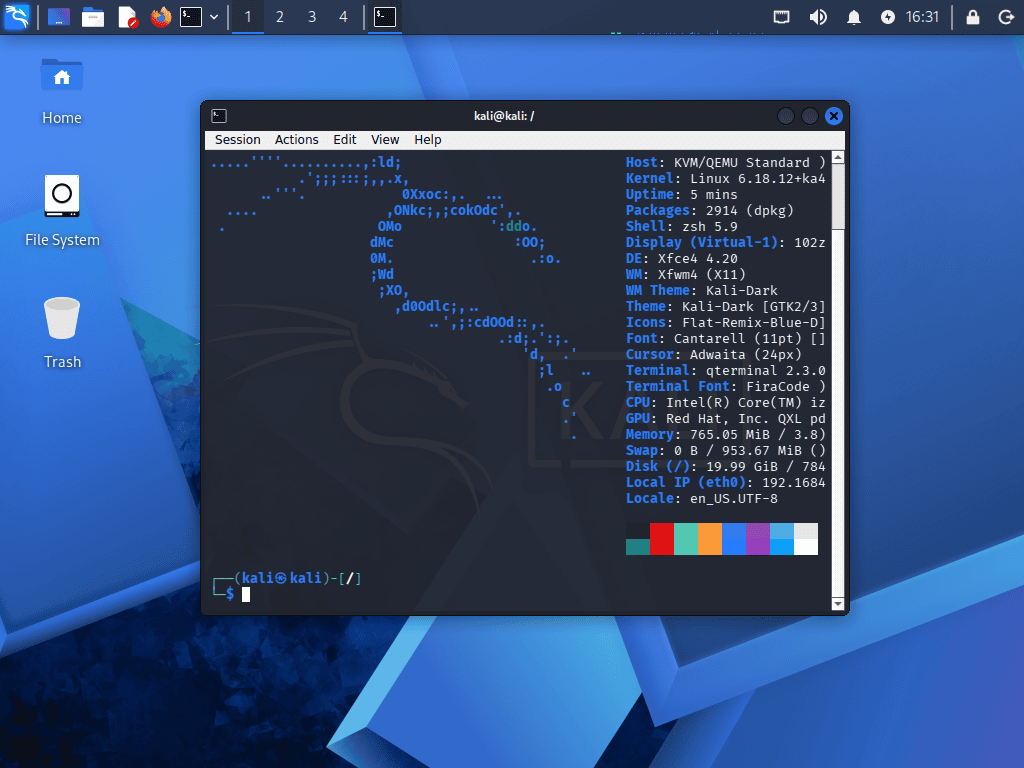
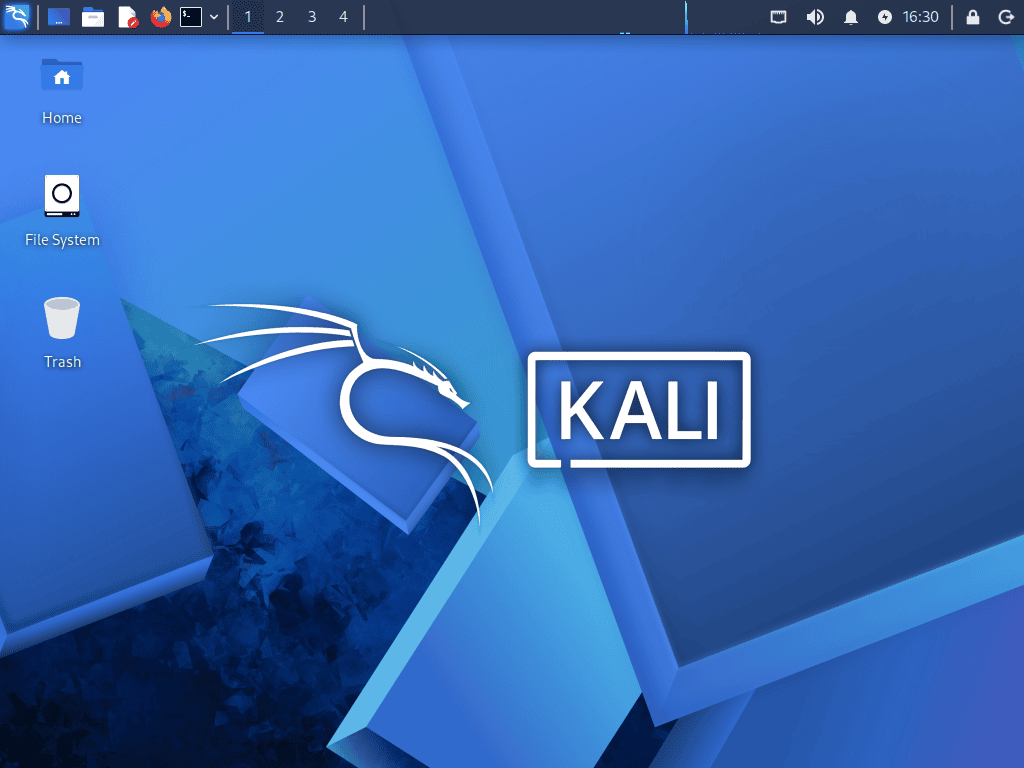
The desktop also gets the new 2026.1 theme with an updated wallpaper and login screen design:
What Changed in Kali 2026.1
For reference, here is what the upgrade from 2025.4 to 2026.1 brings:
| Component | Kali 2025.4 | Kali 2026.1 |
|---|---|---|
| Kernel | 6.16.8 | 6.18.12 |
| Installed packages | 2,865 | 2,914 |
| Desktop (Xfce) | Xfce 4.20 | Xfce 4.20 (new theme) |
| BackTrack mode | Not available | kali-undercover --backtrack |
| Theme | 3D cubes wallpaper | Geometric blue design |
Eight new security tools were added to the repositories:
- AdaptixC2 – Extensible post-exploitation and adversarial emulation framework
- Atomic-Operator – Execute Atomic Red Team tests across multiple operating systems
- Fluxion – Security auditing and social-engineering research tool for Wi-Fi networks
- GEF – GDB Enhanced Features for advanced binary debugging
- MetasploitMCP – MCP server for AI-assisted Metasploit operation
- SSTImap – Automatic Server-Side Template Injection detection tool
- WPProbe – Fast WordPress plugin enumeration tool
- XSStrike – Advanced XSS scanner with fuzzing and payload generation
The BackTrack mode is a nostalgia feature celebrating BackTrack’s 20th anniversary. Activate it with kali-undercover --backtrack to transform the desktop into a BackTrack 5 lookalike. It is purely cosmetic and does not affect any tools or functionality.
Troubleshooting Upgrade Issues
Error: “E: dpkg was interrupted, you must manually run ‘dpkg –configure -a'”
This error appears when the upgrade process was interrupted before all packages finished configuring. We hit this on our test system. Fix it with:
sudo dpkg --configure -a
sudo apt --fix-broken install -y
After that, run sudo apt full-upgrade -y again to finish any remaining packages.
Packages held back after full-upgrade
Sometimes full-upgrade holds back packages when new dependencies need to be installed or old ones removed. Check for held packages:
apt list --upgradableIf packages remain upgradable, run sudo apt full-upgrade -y a second time. On our system, the first pass upgraded 1,850 packages, and a second pass caught the remaining held-back packages including the new kernel and base-files.
System fails to boot after kernel upgrade
Select the previous kernel from the GRUB boot menu. On the GRUB screen, choose “Advanced options for Kali GNU/Linux” and pick the older kernel. Once booted, reinstall the latest kernel:
sudo apt install -y --reinstall linux-image-amd64 linux-headers-amd64
sudo update-grub
sudo reboot
Disk space runs out during upgrade
Clear the APT cache immediately to free space:
sudo apt cleanCheck available space:
df -h /You need at least 5 GB free. Remove old kernels if space is still tight:
sudo apt autoremove --purge -yThen resume with sudo apt full-upgrade -y.
Staying Current
Kali is rolling, so you do not need to wait for major version releases. Run these commands weekly to keep upgrade sizes small and reduce the chance of conflicts:
sudo apt update && sudo apt full-upgrade -ySkipping months of updates and then running a massive upgrade is where most problems come from. Our 2025.4 to 2026.1 jump touched 1,850 packages because the gap was several months. Weekly updates would have been 20 to 50 packages at a time with zero conflicts.
For more details on upgrade options and repository management, see the official Kali updating documentation. If you are setting up Kali for the first time, our Kali Linux installation guide covers the full process with screenshots. For building a proper penetration testing lab with Proxmox and Kali, check our dedicated lab setup guide.
