

Fedora ships with Firefox by default and offers Chromium in the standard repos, but a lot of day-to-day workflows still need Google Chrome itself: the proprietary widevine DRM for streaming, the built-in Google account sync, Cast support to Google devices, and the proprietary media codecs that Chromium has to install separately. Google maintains an official RPM repository for Fedora that makes installation a one-line dnf affair.
This guide walks through both install paths on Fedora 44, 43, and 42: the easy fedora-workstation-repositories route that bundles the Google repo definition with Fedora-signed GPG keys, and the manual .repo file path if you prefer to manage the repo by hand. It also covers the Beta and Canary release channels, default browser configuration, hardware-accelerated video on Wayland, and the clean-uninstall path.
Prerequisites
You need a Fedora 44, 43, or 42 desktop (Workstation, KDE Spin, or any Wayland-capable spin) with sudo access. Internet access to dl.google.com is required for both the repo metadata and the package download itself; Chrome is around 400 MiB on disk after install.
Method A: Install via fedora-workstation-repositories
Fedora maintains a meta-package called fedora-workstation-repositories that bundles repo definitions for several common third-party packages, including Google Chrome. Using it gives you a Fedora-signed wrapper that Red Hat and the Fedora project trust. This is the easiest path for most workstation users.
Step 1: Install the workstation repos package
Install the meta-package. It adds the Google Chrome, Steam, NVIDIA, and a few other third-party repo files to /etc/yum.repos.d/, all disabled by default:
sudo dnf install -y fedora-workstation-repositoriesThe install pulls a handful of supporting packages (the gpg keys, the click Python library used by the helper script):
Installing:
 fedora-workstation-repositories  noarch
Installing dependencies:
 distribution-gpg-keys            noarch
 fedora-third-party               noarch
 python3-click                    noarch
Complete!
Step 2: Enable the Google Chrome repo
The Chrome repo definition is now on disk but disabled. Flip the switch:
sudo dnf config-manager setopt google-chrome.enabled=1Confirm the repo is now in the list of enabled sources:
sudo dnf repolist | grep -i googleA single line confirms the repo is registered and active:
google-chrome google-chromeStep 3: Install Google Chrome
Install the stable channel package:
sudo dnf install -y google-chrome-stableDNF pulls Chrome itself plus the Liberation font set so pages render with sane typography even without other Microsoft fonts installed:
Installing:
 google-chrome-stable    x86_64  0:148.0.7778.178-1   google-chrome
Installing dependencies:
 liberation-fonts        noarch
 liberation-mono-fonts   noarch
 liberation-sans-fonts   noarch
 liberation-serif-fonts  noarch

Complete!
Step 4: Verify the install
Confirm the binary and the version:
/usr/bin/google-chrome --version
rpm -q google-chrome-stable
You should see the Chrome version number printed back, along with the full RPM identifier:
Google Chrome 148.0.7778.178
google-chrome-stable-148.0.7778.178-1.x86_64
Launch Chrome from the application menu and the standard new-tab page comes up, ready to sign in to a Google account or stay anonymous:
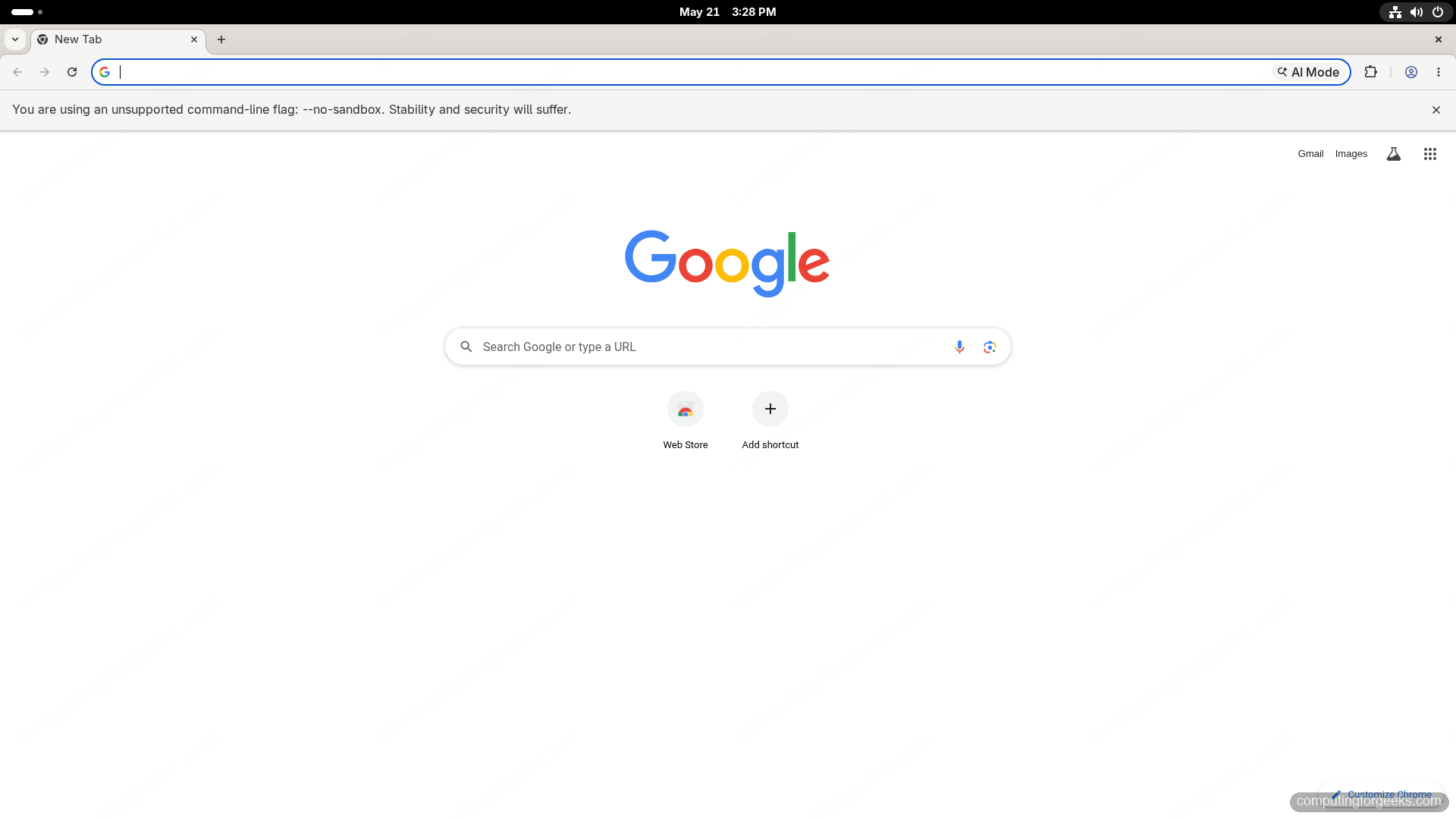
Launch Chrome from the application menu (look under Internet, Network, or All Apps) or from the terminal:
google-chrome &Method B: Install via a manual repo file
If you do not want the Fedora workstation-repositories wrapper (server installs, headless CI hosts, or environments where you manage repo files via a config tool), add the Google Chrome repo definition by hand. The result is identical to Method A.
sudo vi /etc/yum.repos.d/google-chrome.repoAdd the following content and save:
[google-chrome]
name=google-chrome
baseurl=https://dl.google.com/linux/chrome/rpm/stable/x86_64
enabled=1
gpgcheck=1
gpgkey=https://dl.google.com/linux/linux_signing_key.pub
Install with the same DNF command as Method A:
sudo dnf install -y google-chrome-stableDNF prompts you to import Google’s signing key on first install. Accept it. The repo file path and the package version end up the same either way.
Beta, Dev, and Canary channels
Google publishes four channels for Chrome on Linux. The same repo carries all of them; the package name selects the channel. See what is available:
dnf repoquery --available 'google-chrome*'All four channels show up with their current version numbers:
google-chrome-beta-0:149.0.7827.22-1.x86_64
google-chrome-canary-0:150.0.7848.0-1.x86_64
google-chrome-stable-0:148.0.7778.178-1.x86_64
google-chrome-unstable-0:150.0.7838.0-1.x86_64
The channels install side-by-side with separate profiles. To put Beta and Canary on the same machine without touching the stable build:
sudo dnf install -y google-chrome-beta google-chrome-unstableEach channel ships its own binary (google-chrome-beta, google-chrome-unstable, google-chrome-canary) and its own user data directory under ~/.config/, so they cannot collide. Canary tracks the bleeding-edge daily builds and is not recommended for primary browsing.
Set Chrome as the default browser
On the first launch, Chrome offers a “Make Default” button. If you dismiss that dialog and want to set it later, use the freedesktop helper that Chrome registers:
xdg-settings set default-web-browser google-chrome.desktop
xdg-settings get default-web-browser
Alternatively, on GNOME and KDE, the Default Applications panel under Settings has a Web entry that you can switch to Google Chrome.
Enable hardware-accelerated video on Wayland
Chrome 138+ enables Wayland by default on Fedora and uses Vulkan for compositing. For hardware-accelerated H.264 and H.265 decoding (which keeps your CPU cool while streaming), turn on the VA-API flags. Open Chrome and visit:
chrome://flags/#enable-featuresSearch for VaapiVideoDecoder and set it to Enabled. Restart Chrome. Verify acceleration is active at chrome://gpu: the Video Decode and Video Encode rows should both report Hardware accelerated.
For full codec coverage on Fedora (Chrome does not ship H.264 in its repo build to keep the package patent-clean), install the multimedia codecs from RPM Fusion. The RPM Fusion and multimedia codecs guide covers the full setup, including the ffmpeg swap that gives Chrome and Firefox the codec backing they need.
Keep Chrome updated
Google ships a new stable Chrome every four weeks. Because the repo is in your DNF list, updates ride along with the normal system upgrade cycle:
sudo dnf upgrade -y google-chrome-stableTo check whether an update is waiting without applying it:
dnf check-update google-chrome-stableChrome also runs its own background updater that touches the repo every few hours and notifies the running browser via the green “Update” badge on the toolbar. The dnf path and the in-browser updater coexist without conflict: both point at the same RPM source.
Alternative browsers on Fedora
If you want a Chromium-based browser without Google’s services and telemetry, the options on Fedora are:
| Browser | Install command | Notes |
|---|---|---|
| Chromium (Fedora-built) | sudo dnf install -y chromium | Open-source build, no Widevine, no Google sync |
| Chromium (Flatpak) | flatpak install -y flathub org.chromium.Chromium | Sandboxed, slower file dialogs |
| Brave | Add Brave’s repo + dnf install brave-browser | Chromium fork with built-in ad and tracker blocking |
| Vivaldi | Add Vivaldi’s repo + dnf install vivaldi-stable | Chromium fork, heavy customisation, partial open source |
| Microsoft Edge | Add Edge’s RPM repo + dnf install microsoft-edge-stable | Chromium fork, tightly integrated with Microsoft 365 |
| Ungoogled Chromium | flatpak install -y flathub io.github.ungoogled_software.ungoogled_chromium | Chromium with all Google service hooks stripped |
All of these can sit alongside Google Chrome on the same system. They each get their own application menu entry and their own profile directory under ~/.config/.
Flatpak-based installs need Flathub configured first; see the Flatpak and Flathub setup guide.
Uninstall Google Chrome
Remove the package, the repo definition, and the user profile in one pass:
sudo dnf remove -y google-chrome-stable google-chrome-beta google-chrome-unstable
sudo dnf config-manager setopt google-chrome.enabled=0
rm -rf ~/.config/google-chrome ~/.cache/google-chrome
The last line wipes the user profile (bookmarks, history, saved logins, cached pages). Skip it if you plan to reinstall and want to keep your data.
Troubleshooting
Error: nothing provides libgcc_s.so.1(GLIBC_2.34)(64bit)
You are on an older Fedora release (38 or earlier) that ships glibc 2.33 or below. Chrome stable now requires glibc 2.34. Either upgrade to Fedora 44, 43, or 42, or pin Chrome to the last release that supported older glibc (a Chrome version from late 2022).
Error: Failed to install package google-chrome-stable: GPG check FAILED
The Google signing key was not imported. Re-import it manually:
sudo rpm --import https://dl.google.com/linux/linux_signing_key.pub
sudo dnf install -y google-chrome-stable
Chrome window appears as a black or fully transparent rectangle
The Wayland or Vulkan compositor path is misconfigured for your GPU. Force the X11 backend as a temporary workaround:
google-chrome --ozone-platform=x11For a permanent fix, edit /usr/share/applications/google-chrome.desktop and append the flag to the Exec= line. On NVIDIA GPUs, ensure the proprietary driver and the right kernel modules are loaded.
DRM-protected video (Netflix, Spotify) refuses to play
Widevine is the proprietary DRM library Chrome uses for protected content. The RPM install includes it under /opt/google/chrome/WidevineCdm/. Check that the file is present:
ls /opt/google/chrome/WidevineCdm/If it is missing, reinstall the package. Note that Chromium (the open-source build) does not include Widevine; that is one of the main reasons to choose Chrome itself over Chromium when DRM matters.
Useful Chrome flags and shortcuts
A few Chrome internals worth bookmarking:
| URL or flag | What it shows |
|---|---|
chrome://flags | Experimental browser feature toggles |
chrome://gpu | GPU acceleration status, drivers, decoder paths |
chrome://settings | Full settings UI |
chrome://extensions | Installed extensions, dev tools |
chrome://version | Build info and the path to your profile directory |
chrome://policy | Enterprise policies applied to this browser |
chrome://net-export | Network logging for debugging connection issues |
Ctrl+Shift+J | Open the DevTools console |
Ctrl+Shift+N | New incognito window |
--user-data-dir=/path | Launch with an isolated profile (useful for testing) |
--enable-features=<flag> | Turn on an experimental feature from the command line |
Now that the browser is in place, the natural next steps depend on what you build. Install VS Code on Fedora for a paired editor, set up Docker on Fedora for containerised dev work, or layer Distrobox or Toolbox on top for per-project toolchains.
