

Running workloads on Kubernetes means dealing with logs from hundreds of pods, containers, and nodes that are constantly scaling up and down. Checking logs one pod at a time with kubectl logs does not scale. Centralized logging with an external Elasticsearch cluster gives you a single pane of glass for searching, filtering, and alerting on every log line across your entire Kubernetes environment.
This guide covers two methods for shipping Kubernetes logs to an external Elasticsearch 8.x cluster – Filebeat (Elastic’s official DaemonSet) and Fluent Bit (the CNCF lightweight forwarder). We also cover Metricbeat for cluster metrics, Kibana dashboard setup, log filtering, TLS security, and troubleshooting. All instructions target Kubernetes 1.32+ with Elasticsearch 8.x and Kibana 8.x running on a separate server.
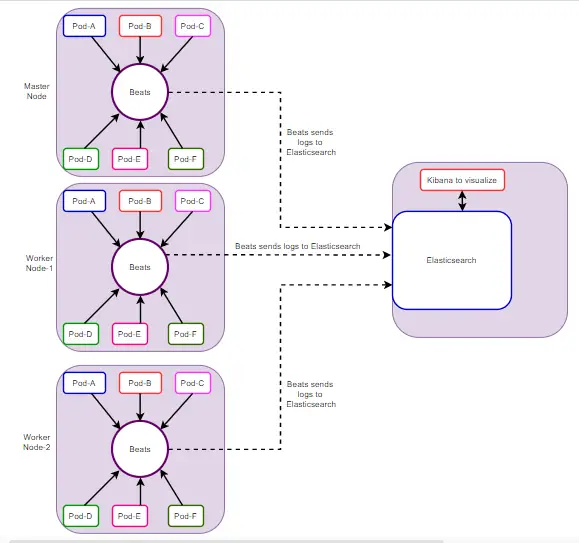
The diagram below shows the architecture. A multi-node Kubernetes cluster ships logs and metrics through DaemonSet collectors (Filebeat or Fluent Bit plus Metricbeat) to an external Elasticsearch and Kibana server.
Prerequisites
Before starting, make sure you have:
- A running Kubernetes cluster (v1.32+) with
kubectlconfigured and cluster-admin access - Helm 3.x installed on your workstation
- An external server running Elasticsearch 8.x and Kibana 8.x – see our guides for installing Elasticsearch on Ubuntu
- Elasticsearch reachable from cluster nodes on port 9200/TCP (and 5601/TCP for Kibana)
- Elasticsearch superuser credentials or an API key with write access to indices
- TLS certificate (CA cert) from your Elasticsearch cluster if using HTTPS (default in 8.x)
Verify Elasticsearch is reachable from one of your cluster nodes.
curl -u elastic:YOUR_PASSWORD --cacert /path/to/http_ca.crt https://10.0.1.50:9200You should see a JSON response with the cluster name, version 8.x, and tagline “You Know, for Search”.
Method 1: Ship Kubernetes Logs with Filebeat DaemonSet
Filebeat is Elastic’s lightweight log shipper. Deploying it as a DaemonSet means one Filebeat pod runs on every node in your cluster, tailing container log files and shipping them to Elasticsearch. This is the recommended approach if your destination is the Elastic stack.
Step 1: Add the Elastic Helm Repository
Add the official Elastic Helm chart repository and update.
helm repo add elastic https://helm.elastic.co
helm repo update
Confirm the Filebeat chart is available.
helm search repo elastic/filebeatStep 2: Create the Elasticsearch CA Secret
Elasticsearch 8.x enables TLS by default. Copy the CA certificate from your Elasticsearch server and create a Kubernetes secret that Filebeat will use to verify the connection.
kubectl create namespace logging

scp [email protected]:/etc/elasticsearch/certs/http_ca.crt ./http_ca.crt

kubectl create secret generic elasticsearch-ca \
  --from-file=ca.crt=./http_ca.crt \
  -n logging
Verify the secret was created.
kubectl get secret elasticsearch-ca -n loggingStep 3: Create Filebeat Values File
Create a custom filebeat-values.yaml that configures Elasticsearch output, autodiscover with the Kubernetes provider, metadata enrichment, and multiline log handling.
cat > filebeat-values.yaml <<'VALUESEOF'
daemonset:
  enabled: true

filebeatConfig:
  filebeat.yml: |
    filebeat.autodiscover:
      providers:
        - type: kubernetes
          node: ${NODE_NAME}
          hints.enabled: true
          hints.default_config:
            type: container
            paths:
              - /var/log/containers/*-${data.kubernetes.container.id}.log
          templates:
            # Parse Java multiline stack traces
            - condition:
                contains:
                  kubernetes.labels.app: "java"
              config:
                - type: container
                  paths:
                    - /var/log/containers/*-${data.kubernetes.container.id}.log
                  multiline:
                    pattern: '^\s+(at|\.{3})\s|^Caused by:'
                    negate: false
                    match: after
            # Parse Python tracebacks
            - condition:
                contains:
                  kubernetes.labels.app: "python"
              config:
                - type: container
                  paths:
                    - /var/log/containers/*-${data.kubernetes.container.id}.log
                  multiline:
                    pattern: '^Traceback|^\s+File|^\s+raise|^\w+Error'
                    negate: false
                    match: after

    processors:
      - add_kubernetes_metadata:
          host: ${NODE_NAME}
          matchers:
            - logs_path:
                logs_path: "/var/log/containers/"
      - add_cloud_metadata: ~
      - add_host_metadata: ~
      - drop_fields:
          fields: ["agent.ephemeral_id", "agent.id", "agent.version", "ecs.version"]
          ignore_missing: true

    output.elasticsearch:
      hosts: ["https://10.0.1.50:9200"]
      username: "elastic"
      password: "YOUR_PASSWORD"
      ssl:
        certificate_authorities: ["/usr/share/filebeat/certs/ca.crt"]
      index: "filebeat-k8s-%{+yyyy.MM.dd}"

    setup.ilm:
      enabled: true
      rollover_alias: "filebeat-k8s"
      pattern: "{now/d}-000001"
      policy_name: "filebeat-k8s-policy"

    setup.template:
      name: "filebeat-k8s"
      pattern: "filebeat-k8s-*"
      settings:
        index.number_of_shards: 1
        index.number_of_replicas: 1

extraVolumes:
  - name: elasticsearch-ca
    secret:
      secretName: elasticsearch-ca

extraVolumeMounts:
  - name: elasticsearch-ca
    mountPath: /usr/share/filebeat/certs
    readOnly: true

extraEnvs:
  - name: NODE_NAME
    valueFrom:
      fieldRef:
        fieldPath: spec.nodeName

resources:
  requests:
    cpu: 100m
    memory: 128Mi
  limits:
    cpu: 500m
    memory: 256Mi

tolerations:
  - key: node-role.kubernetes.io/control-plane
    effect: NoSchedule
  - key: node-role.kubernetes.io/master
    effect: NoSchedule
VALUESEOF
Replace 10.0.1.50 with your Elasticsearch server IP and YOUR_PASSWORD with the actual elastic user password. In production, store credentials in a Kubernetes secret rather than plain text in the values file.
Step 4: Deploy Filebeat with Helm
Install the Filebeat Helm chart into the logging namespace.
helm install filebeat elastic/filebeat \
  -f filebeat-values.yaml \
  -n logging
Wait for the DaemonSet pods to reach Running state.
kubectl get pods -n logging -l app=filebeat-filebeat -wYou should see one Filebeat pod per node in your cluster, all showing 1/1 Running. Check the logs to confirm Elasticsearch connectivity.
kubectl logs -n logging -l app=filebeat-filebeat --tail=20Look for lines like “Connection to backoff(elasticsearch(https://10.0.1.50:9200)) established” and “Index setup finished”.
Step 5: Configure Index Lifecycle Management (ILM)
ILM automates log retention so old indices get deleted or moved to cheaper storage. Create a custom ILM policy in Elasticsearch. Run this on your Elasticsearch server or from any machine with access.
curl -u elastic:YOUR_PASSWORD --cacert /path/to/http_ca.crt \
  -X PUT "https://10.0.1.50:9200/_ilm/policy/filebeat-k8s-policy" \
  -H "Content-Type: application/json" -d '{
  "policy": {
    "phases": {
      "hot": {
        "min_age": "0ms",
        "actions": {
          "rollover": {
            "max_age": "7d",
            "max_primary_shard_size": "50gb"
          }
        }
      },
      "warm": {
        "min_age": "7d",
        "actions": {
          "shrink": { "number_of_shards": 1 },
          "forcemerge": { "max_num_segments": 1 }
        }
      },
      "delete": {
        "min_age": "30d",
        "actions": {
          "delete": {}
        }
      }
    }
  }
}'
This policy keeps hot data for 7 days, moves it to warm for optimization, and deletes indices after 30 days. Adjust the retention periods based on your storage capacity and compliance requirements.
Kubernetes Metadata Enrichment
The autodiscover configuration above automatically adds these metadata fields to every log event:
kubernetes.namespace– the namespace the pod belongs tokubernetes.pod.name– the pod namekubernetes.container.name– the container name within the podkubernetes.labels.*– all pod labels (app, version, team, etc.)kubernetes.node.name– which node the pod runs onkubernetes.deployment.name– the owning deployment
This metadata makes it possible to filter logs in Kibana by namespace, application, or node – which is critical when debugging issues in a multi-tenant cluster.
Method 2: Ship Kubernetes Logs with Fluent Bit
Fluent Bit is a lightweight CNCF log processor that is container-native and uses less memory than Filebeat or Fluentd. It is a good choice if you want a vendor-neutral forwarder or need to ship logs to multiple destinations.
Fluent Bit vs Fluentd Comparison
Both are CNCF projects, but they serve different use cases.
| Feature | Fluent Bit | Fluentd |
|---|---|---|
| Language | C | Ruby + C |
| Memory footprint | ~5 MB | ~40 MB |
| Plugin ecosystem | ~100 built-in plugins | ~1000+ community plugins |
| Best for | Edge/node-level collection | Aggregation and complex routing |
| Kubernetes DaemonSet | Yes (recommended) | Yes (heavier) |
| Elasticsearch output | Built-in | Built-in (fluent-plugin-elasticsearch) |
| Multiline parsing | Built-in parsers | Plugin-based |
| Configuration format | Classic INI or YAML | XML-like tags |
For most Kubernetes log shipping use cases, Fluent Bit as a DaemonSet is the better choice. Use Fluentd only if you need advanced routing, buffering, or a plugin that only exists for Fluentd.
Step 1: Add the Fluent Helm Repository
helm repo add fluent https://fluent.github.io/helm-charts
helm repo update
Step 2: Create Fluent Bit Values File
Create fluentbit-values.yaml with input, filter, and Elasticsearch output configuration.
cat > fluentbit-values.yaml <<'VALUESEOF'
config:
inputs: |
[INPUT]
Name tail
Tag kube.*
Path /var/log/containers/*.log
Parser cri
DB /var/log/flb_kube.db
Mem_Buf_Limit 10MB
Skip_Long_Lines On
Refresh_Interval 5
filters: |
[FILTER]
Name kubernetes
Match kube.*
Kube_URL https://kubernetes.default.svc:443
Kube_CA_File /var/run/secrets/kubernetes.io/serviceaccount/ca.crt
Kube_Token_File /var/run/secrets/kubernetes.io/serviceaccount/token
Kube_Tag_Prefix kube.var.log.containers.
Merge_Log On
Merge_Log_Key log_processed
Keep_Log Off
K8S-Logging.Parser On
K8S-Logging.Exclude On
Labels On
Annotations Off
[FILTER]
Name grep
Match kube.*
Exclude log ^$
outputs: |
[OUTPUT]
Name es
Match kube.*
Host 10.0.1.50
Port 9200
HTTP_User elastic
HTTP_Passwd YOUR_PASSWORD
tls On
tls.verify On
tls.ca_file /fluent-bit/certs/ca.crt
Logstash_Format On
Logstash_Prefix fluentbit-k8s
Retry_Limit 5
Suppress_Type_Name On
Replace_Dots On
Trace_Error On
parsers: |
[PARSER]
Name cri
Format regex
Regex ^(?The same elasticsearch-ca secret created in Method 1 is reused here. If you skipped Method 1, create the secret and logging namespace first (Step 2 from Method 1 above).
Step 3: Deploy Fluent Bit
helm install fluent-bit fluent/fluent-bit \
  -f fluentbit-values.yaml \
  -n logging
Verify the DaemonSet is running on all nodes.
kubectl get pods -n logging -l app.kubernetes.io/name=fluent-bit -wCheck logs for successful Elasticsearch connection.
kubectl logs -n logging -l app.kubernetes.io/name=fluent-bit --tail=20You should see output like “[output:es:es.0] 10.0.1.50:9200, HTTP status=200” confirming logs are being shipped.
Deploy Metricbeat for Kubernetes Cluster Metrics
Logs tell you what happened, but metrics tell you why. Metricbeat collects node CPU/memory, pod resource usage, and Kubernetes state metrics (deployment replicas, pod phases, etc.) and sends them to the same Elasticsearch cluster. This pairs with Filebeat to give you full observability.
Step 1: Create Metricbeat Values File
cat > metricbeat-values.yaml <<'VALUESEOF'
daemonset:
  enabled: true
  metricbeatConfig:
    metricbeat.yml: |
      metricbeat.autodiscover:
        providers:
          - type: kubernetes
            scope: cluster
            node: ${NODE_NAME}
            unique: true
            templates:
              - config:
                  - module: kubernetes
                    metricsets:
                      - state_node
                      - state_deployment
                      - state_daemonset
                      - state_replicaset
                      - state_pod
                      - state_container
                      - state_job
                      - state_cronjob
                      - state_resourcequota
                      - state_statefulset
                      - state_service
                    period: 30s
                    hosts: ["kube-state-metrics.kube-system.svc:8080"]
          - type: kubernetes
            scope: node
            node: ${NODE_NAME}
            templates:
              - config:
                  - module: kubernetes
                    metricsets:
                      - node
                      - system
                      - pod
                      - container
                      - volume
                    period: 30s
                    hosts: ["https://${NODE_NAME}:10250"]
                    bearer_token_file: /var/run/secrets/kubernetes.io/serviceaccount/token
                    ssl.verification_mode: none
                  - module: system
                    metricsets:
                      - cpu
                      - load
                      - memory
                      - network
                      - process
                      - filesystem
                      - diskio
                    period: 30s

      processors:
        - add_kubernetes_metadata:
            host: ${NODE_NAME}
        - add_cloud_metadata: ~

      output.elasticsearch:
        hosts: ["https://10.0.1.50:9200"]
        username: "elastic"
        password: "YOUR_PASSWORD"
        ssl:
          certificate_authorities: ["/usr/share/metricbeat/certs/ca.crt"]
        index: "metricbeat-k8s-%{+yyyy.MM.dd}"

      setup.template:
        name: "metricbeat-k8s"
        pattern: "metricbeat-k8s-*"

extraVolumes:
  - name: elasticsearch-ca
    secret:
      secretName: elasticsearch-ca

extraVolumeMounts:
  - name: elasticsearch-ca
    mountPath: /usr/share/metricbeat/certs
    readOnly: true

extraEnvs:
  - name: NODE_NAME
    valueFrom:
      fieldRef:
        fieldPath: spec.nodeName

tolerations:
  - key: node-role.kubernetes.io/control-plane
    effect: NoSchedule
  - key: node-role.kubernetes.io/master
    effect: NoSchedule
VALUESEOF
The state_* metricsets require kube-state-metrics running in your cluster. Install it if you have not already.
helm repo add prometheus-community https://prometheus-community.github.io/helm-charts
helm install kube-state-metrics prometheus-community/kube-state-metrics -n kube-system
Step 2: Deploy Metricbeat
helm install metricbeat elastic/metricbeat \
  -f metricbeat-values.yaml \
  -n logging
Verify Metricbeat pods are running.
kubectl get pods -n logging -l app=metricbeat-metricbeatKibana Dashboard Setup for Kubernetes Logs
With logs flowing into Elasticsearch, set up Kibana to visualize and search them.
Step 1: Create Data Views (Index Patterns)
Open Kibana at https://10.0.1.50:5601 and navigate to Stack Management – Data Views (previously called Index Patterns). Create two data views:
- filebeat-k8s-* (or fluentbit-k8s-* if using Fluent Bit) – for logs, with
@timestampas the time field - metricbeat-k8s-* – for metrics, with
@timestampas the time field
You can also create the data view via the Kibana API.
curl -u elastic:YOUR_PASSWORD --cacert /path/to/http_ca.crt \
  -X POST "https://10.0.1.50:5601/api/data_views/data_view" \
  -H "kbn-xsrf: true" \
  -H "Content-Type: application/json" -d '{
  "data_view": {
    "title": "filebeat-k8s-*",
    "timeFieldName": "@timestamp",
    "name": "Kubernetes Logs (Filebeat)"
  }
}'
Step 2: Use the Discover View
Go to Discover in Kibana and select the filebeat-k8s-* data view. Add these columns for effective log browsing:
kubernetes.namespacekubernetes.pod.namekubernetes.container.namestream(stdout/stderr)message
Save this as a search named “K8s All Logs” for quick access.
Step 3: Import Pre-built Kubernetes Dashboards
Filebeat and Metricbeat ship with pre-built Kibana dashboards. Load them by running this from your workstation (or any pod with Elasticsearch access).
kubectl exec -n logging $(kubectl get pod -n logging -l app=filebeat-filebeat -o jsonpath='{.items[0].metadata.name}') -- \
  filebeat setup --dashboards \
  -E output.elasticsearch.hosts=["https://10.0.1.50:9200"] \
  -E output.elasticsearch.username=elastic \
  -E output.elasticsearch.password=YOUR_PASSWORD \
  -E output.elasticsearch.ssl.certificate_authorities=["/usr/share/filebeat/certs/ca.crt"] \
  -E setup.kibana.host=https://10.0.1.50:5601 \
  -E setup.kibana.ssl.certificate_authorities=["/usr/share/filebeat/certs/ca.crt"]
After loading, navigate to Kibana – Dashboards and search for “Kubernetes”. You will find dashboards for pod overview, container logs, and cluster health.
Log Filtering and Enrichment
In a production cluster, not all logs are useful. Health check logs, kube-proxy noise, and verbose debug output can overwhelm your Elasticsearch cluster. Here is how to filter and enrich logs before they reach Elasticsearch.
Drop Noisy Logs
Add drop processors to your Filebeat configuration to exclude logs you do not need. Add these under the processors section in filebeat-values.yaml.
processors:
  # Drop health check logs (very noisy in production)
  - drop_event:
      when:
        or:
          - contains:
              message: "GET /healthz"
          - contains:
              message: "GET /readyz"
          - contains:
              message: "GET /livez"

  # Drop logs from kube-system namespace (optional)
  - drop_event:
      when:
        equals:
          kubernetes.namespace: "kube-system"

  # Drop empty log lines
  - drop_event:
      when:
        regexp:
          message: "^\\s*$"
Add Custom Fields
Tag logs with environment and cluster name for multi-cluster setups.
processors:
  - add_fields:
      target: ''
      fields:
        cluster_name: "production-us-east"
        environment: "production"
Namespace-Based Index Routing
Route logs from different namespaces to separate Elasticsearch indices. This is useful when different teams own different namespaces and need separate retention policies or access controls.
For Filebeat, use conditional output in the configuration.
output.elasticsearch:
  hosts: ["https://10.0.1.50:9200"]
  username: "elastic"
  password: "YOUR_PASSWORD"
  ssl:
    certificate_authorities: ["/usr/share/filebeat/certs/ca.crt"]
  indices:
    - index: "filebeat-prod-%{+yyyy.MM.dd}"
      when.equals:
        kubernetes.namespace: "production"
    - index: "filebeat-staging-%{+yyyy.MM.dd}"
      when.equals:
        kubernetes.namespace: "staging"
    - index: "filebeat-k8s-%{+yyyy.MM.dd}"
The last entry without a when clause acts as the default for all other namespaces. For Fluent Bit, use the Logstash_Prefix_Key option combined with a Lua filter to achieve the same routing.
Securing Log Shipping with TLS and RBAC
Shipping logs across the network without encryption exposes sensitive data. Elasticsearch 8.x enables TLS by default, but you need to make sure the entire chain is secured.
TLS Between Filebeat and Elasticsearch
The configuration above already uses TLS with the CA certificate. For mutual TLS (mTLS), generate a client certificate from the Elasticsearch CA and mount it in the Filebeat pods.
# On the Elasticsearch server, generate a client cert
/usr/share/elasticsearch/bin/elasticsearch-certutil cert \
  --ca /etc/elasticsearch/certs/http_ca.crt \
  --ca-key /etc/elasticsearch/certs/http_ca.key \
  --name filebeat-client \
  --out /tmp/filebeat-client.p12 \
  --pass ""

# Convert to PEM for Filebeat
openssl pkcs12 -in /tmp/filebeat-client.p12 -nokeys -out /tmp/filebeat-client.crt -passin pass:
openssl pkcs12 -in /tmp/filebeat-client.p12 -nocerts -nodes -out /tmp/filebeat-client.key -passin pass:
Create a Kubernetes secret with the client cert and key, then reference them in the Filebeat Elasticsearch output configuration.
kubectl create secret generic filebeat-client-cert \
  --from-file=client.crt=/tmp/filebeat-client.crt \
  --from-file=client.key=/tmp/filebeat-client.key \
  -n logging
API Key Authentication
Instead of embedding the elastic superuser password, create a dedicated API key with minimal permissions.
curl -u elastic:YOUR_PASSWORD --cacert /path/to/http_ca.crt \
  -X POST "https://10.0.1.50:9200/_security/api_key" \
  -H "Content-Type: application/json" -d '{
  "name": "filebeat-k8s",
  "role_descriptors": {
    "filebeat_writer": {
      "cluster": ["monitor", "manage_ilm", "manage_index_templates"],
      "index": [
        {
          "names": ["filebeat-k8s-*"],
          "privileges": ["create_index", "create_doc", "auto_configure", "manage"]
        }
      ]
    }
  },
  "expiration": "365d"
}'
The response contains an encoded field. Use it in the Filebeat output configuration instead of username/password.
output.elasticsearch:
  hosts: ["https://10.0.1.50:9200"]
  api_key: "YOUR_ENCODED_API_KEY"
  ssl:
    certificate_authorities: ["/usr/share/filebeat/certs/ca.crt"]
Kubernetes RBAC for Service Accounts
The Helm charts create the necessary ClusterRole and ClusterRoleBinding automatically. If you deploy manually, Filebeat needs these permissions.
apiVersion: rbac.authorization.k8s.io/v1
kind: ClusterRole
metadata:
  name: filebeat
rules:
- apiGroups: [""]
  resources:
    - pods
    - nodes
    - namespaces
    - events
  verbs: ["get", "list", "watch"]
- apiGroups: ["apps"]
  resources:
    - replicasets
    - deployments
    - statefulsets
    - daemonsets
  verbs: ["get", "list", "watch"]
- apiGroups: ["batch"]
  resources:
    - jobs
    - cronjobs
  verbs: ["get", "list", "watch"]
Bind this role to the Filebeat service account in the logging namespace. The Helm chart handles this automatically when you install it.
Troubleshooting Kubernetes Log Shipping
Here are the most common issues when setting up Filebeat or Fluent Bit to ship Kubernetes logs to Elasticsearch, along with their fixes.
Filebeat Pods Not Shipping Logs
Check the Filebeat pod logs first.
kubectl logs -n logging -l app=filebeat-filebeat --tail=50If you see “Harvester started” but no “Publishing” events, the output is failing. Check Elasticsearch connectivity from inside the pod.
kubectl exec -n logging $(kubectl get pod -n logging -l app=filebeat-filebeat -o jsonpath='{.items[0].metadata.name}') -- \
  curl -k https://10.0.1.50:9200 -u elastic:YOUR_PASSWORD
Connection Refused to Elasticsearch
This means the Elasticsearch server is not reachable from the cluster nodes. Verify these:
- Elasticsearch is bound to
0.0.0.0or the server’s external IP (checknetwork.hostin/etc/elasticsearch/elasticsearch.yml) - Port 9200/TCP is open in the firewall on the Elasticsearch server
- No network policy in Kubernetes is blocking egress from the logging namespace
- Security groups (if cloud) allow traffic from the Kubernetes node IPs to the Elasticsearch server
Open the firewall on the Elasticsearch server if needed.
sudo firewall-cmd --permanent --add-port=9200/tcp
sudo firewall-cmd --reload
Index Not Created in Elasticsearch
If no index appears in Kibana, check that the ILM policy exists and that the user or API key has permission to create indices. List existing indices from the Elasticsearch server.
curl -u elastic:YOUR_PASSWORD --cacert /path/to/http_ca.crt \
  "https://10.0.1.50:9200/_cat/indices?v&s=index" | grep filebeat
If the index exists but has zero documents, Filebeat may be filtering out all events. Temporarily disable drop processors and check again.
Too Many Open Files Error
On nodes with many pods, Filebeat may hit the file descriptor limit. Increase it in the DaemonSet spec by adding a security context.
# Add to filebeat-values.yaml under daemonset section
podSecurityContext:
  runAsUser: 0
  privileged: false
securityContext:
  capabilities:
    add:
      - SYS_RESOURCE
Also increase the ulimit on the host nodes if possible.
$ ulimit -n
1024
$ sudo sysctl -w fs.file-max=100000
TLS Certificate Errors
If you see “x509: certificate signed by unknown authority”, the CA cert is not mounted correctly. Verify the secret and mount path.
kubectl exec -n logging $(kubectl get pod -n logging -l app=filebeat-filebeat -o jsonpath='{.items[0].metadata.name}') -- \
  ls -la /usr/share/filebeat/certs/
The ca.crt file should be present and readable. If it is missing, check that the secret name matches in both the secret creation and the volume mount.
Fluent Bit High Memory Usage
If Fluent Bit pods get OOMKilled, increase the Mem_Buf_Limit in the input configuration and raise the resource limits. Also enable backpressure handling.
[INPUT]
    Name              tail
    Tag               kube.*
    Path              /var/log/containers/*.log
    Mem_Buf_Limit     50MB
    storage.type      filesystem

[SERVICE]
    storage.path              /var/log/flb-storage/
    storage.sync              normal
    storage.backlog.mem_limit 50M
Conclusion
We deployed centralized Kubernetes logging using both Filebeat and Fluent Bit as DaemonSets, shipping container logs to an external Elasticsearch 8.x cluster with TLS encryption and Kibana dashboards. Metricbeat adds node and pod metrics for full cluster observability. For production hardening, use API key authentication instead of passwords, set up Elasticsearch clustering with Ansible for high availability, configure ILM retention policies to manage storage, and set up alerting in Kibana for error rate spikes and log shipping failures.
