

Linux Terminal, preferably known as a command line interface or shell, is a text-based interface used to interact with the Linux operating system. It allows users to issue commands to the computer and receive text-based responses. It also provides a robust set of tools and utilities that can be used to manage and customize a Linux system.
The Linux Terminal is highly customizable and can be configured to suit the needs of individual users. It supports a wide range of commands and utilities, which can be used to perform tasks such as file management, networking, software installation, and system administration.
Most Linux users prefer the terminal over the graphical user interface (GUI) because it offers more control and flexibility. However, it does require some knowledge of Linux commands and syntax, which can be challenging for beginners. With practice and experience, users can become proficient in using the Terminal and can leverage its power to efficiently manage their Linux systems.
Linux Terminal Emulators are software applications that allow users to interact with the Linux command line interface (CLI) in a graphical environment. The most popular terminal emulators are GNOME Terminal, Konsole, Terminator, Tilix, Xfce Terminal e.t.c
Today I will demonstrate how you can share your Linux Terminal over the Web using ttyd.
What is ttyd?
ttyd is a web-based terminal emulator and interactive shell that allows users to access a Linux command line interface (CLI) from a web browser. It uses the WebSocket protocol to provide a real-time connection between the browser and the Linux terminal.
This lightweight and easy-to-use tool can be used to access a remote Linux system or to provide remote access to a local Linux system. It supports multiple clients at once, allowing multiple users to connect to the same session. One of the advantages of ttyd is that it does not require any additional software to be installed on the client side, as it runs entirely within a web browser. This makes it a convenient tool for remote system administration and troubleshooting.
The other features and benefits associated with ttyd are:
- SSL support based on OpenSSL / Mbed TLS
- ZMODEM (lrzsz) / trzsz file transfer support
- Fully-featured terminal with CJK and IME support
- Built on top of libuv and WebGL2 for speed
- Sixel image output support (img2sixel / lsix)
- Run any custom command with options
- Basic authentication support and many other custom options
- Open source software that can be installed on Linux, FreeBSD/OpenBSD, OpenWrt, macOS, and Windows systems. It is also available as a command-line tool or as a Docker container.
Let’s dive in!
#1. Install ttyd on Your System
ttyd is a cross-platform application. This means that it can be easily installed on Linux, FreeBSD/OpenBSD, OpenWrt, macOS, and Windows systems. In this guide, I will demonstrate how to install it on:
- macOS
- Linux
- Windows
a. Install ttyd on Linux
There are three methods of installing ttyd on Linux systems.
- Using Binaries
This is the easiest method of them all. It involves pulling the latest binary file from the releases page. As of this guide, the latest version was 1.7.3. So export the version.
VER=$( curl --silent "https://api.github.com/repos/tsl0922/ttyd/releases/latest"| grep '"tag_name"'|sed -E 's/.*"([^"]+)".*/\1/')Now pull the binary file:
##For 64-bit
curl -LO https://github.com/tsl0922/ttyd/releases/download/$VER/ttyd.x86_64

##For aarch64
curl -LO https://github.com/tsl0922/ttyd/releases/download/$VER/ttyd.aarch64

##For arm
curl -LO https://github.com/tsl0922/ttyd/releases/download/$VER/ttyd.arm

##For i686
curl -LO https://github.com/tsl0922/ttyd/releases/download/$VER/ttyd.i686
Once downloaded, move the file to your PATH:
sudo mv ttyd.* /usr/local/bin/ttyd
sudo chmod +x /usr/local/bin/ttyd- Using snap
The other option to install ttyd on Linux is by using snap. Once you have snap installed and running, you can execute the below command to install ttyd:
sudo snap install ttyd --classic- Building from source
The other method to install ttyd on Linux is by building it from source. On Debian/Ubuntu, use the command:
sudo apt-get install build-essential cmake git libjson-c-dev libwebsockets-dev
git clone https://github.com/tsl0922/ttyd.git
cd ttyd && mkdir build && cd build
cmake ..
make && sudo make install
b. Install ttyd on macOS
ttyd can be installed on MacOS using two methods.
- Using HomeBrew
The command for this is:
brew install ttyd- Using MacPorts
Use the below command:
sudo port install ttydc. Install ttyd on Windows
You can install ttyd on Windows using the below methods:
- Using scoop
Once scoop is installed on your Windows system, you can install ttyd with the command:
scoop install ttyd- Using Binaries
You can also download a binary file for Windows. This can be achieved by visiting the releases page. Once the binary file has been downloaded, install it by double-clicking on the .EXE file.
#2. Using ttyd to access the Terminal over the Web
Once installed, there are several commands you can use with ttyd. First, verify the installation with the command:
$ ttyd -v
ttyd version 1.7.3-a8cae75
ttyd starts a web server on port 7681 by default. However, you can set the desired port to use with the -p flag. For example, starting ttyd on port 8080, the command will be:
$ ttyd -p 8080 bash
[2023/03/03 13:27:56:2786] N: ttyd 1.7.3-a8cae75 (libwebsockets 4.3.2-unknown)
[2023/03/03 13:27:56:2786] N: tty configuration:
[2023/03/03 13:27:56:2786] N:   start command: bash
[2023/03/03 13:27:56:2786] N:   close signal: SIGHUP (1)
[2023/03/03 13:27:56:2786] N:   terminal type: xterm-256color
[2023/03/03 13:27:56:2787] N: lws_create_context: LWS: 4.3.2-unknown, NET SRV H1 WS MbedTLS ConMon IPV6-off
[2023/03/03 13:27:56:2787] N: elops_init_pt_uv:  Using foreign event loop...
[2023/03/03 13:27:56:2788] N: __lws_lc_tag:  ++ [wsi|0|pipe] (1)
[2023/03/03 13:27:56:2788] N: __lws_lc_tag:  ++ [vh|0|netlink] (1)
[2023/03/03 13:27:56:2788] N: __lws_lc_tag:  ++ [vh|1|default||8080] (2)
[2023/03/03 13:27:56:2789] N: [vh|1|default||8080]: lws_socket_bind: source ads 0.0.0.0
[2023/03/03 13:27:56:2789] N: __lws_lc_tag:  ++ [wsi|1|listen|default||8080] (2)
[2023/03/03 13:27:56:2789] N:  Listening on port: 8080
[2023/03/03 13:28:23:6599] N: __lws_lc_tag:  ++ [wsisrv|0|adopted] (1)
[2023/03/03 13:28:23:6604] N: HTTP / - 192.168.205.1
[2023/03/03 13:28:24:6584] N: HTTP /token - 192.168.205.1
......
Now access ttyd over the browser with the URL http://IP_Address:8080.
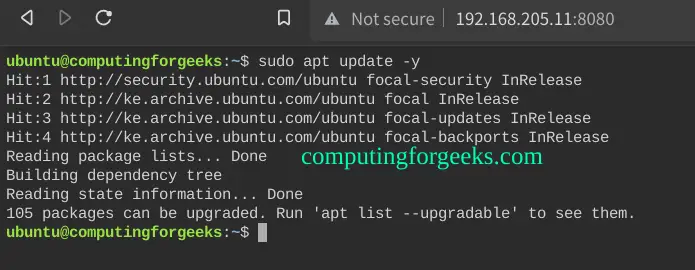
Now to add protection to the terminal, you can allow login with your system accounts on the web browser using the login flag as shown:
$ sudo ttyd login
[2023/03/03 13:44:36:3963] N: ttyd 1.7.3-a8cae75 (libwebsockets 4.3.2-unknown)
[2023/03/03 13:44:36:3965] N: tty configuration:
[2023/03/03 13:44:36:3967] N:   start command: login
[2023/03/03 13:44:36:3971] N:   close signal: SIGHUP (1)
[2023/03/03 13:44:36:3973] N:   terminal type: xterm-256color
[2023/03/03 13:44:36:3974] N: lws_create_context: LWS: 4.3.2-unknown, NET SRV H1 WS MbedTLS ConMon IPV6-off
[2023/03/03 13:44:36:3975] N: elops_init_pt_uv:  Using foreign event loop...
[2023/03/03 13:44:36:3976] N: __lws_lc_tag:  ++ [wsi|0|pipe] (1)
[2023/03/03 13:44:36:3977] N: __lws_lc_tag:  ++ [vh|0|netlink] (1)
[2023/03/03 13:44:36:3977] N: __lws_lc_tag:  ++ [vh|1|default||7681] (2)
[2023/03/03 13:44:36:3978] N: [vh|1|default||7681]: lws_socket_bind: source ads 0.0.0.0
[2023/03/03 13:44:36:3979] N: __lws_lc_tag:  ++ [wsi|1|listen|default||7681] (2)
[2023/03/03 13:44:36:3979] N:  Listening on port: 7681
..
Now access ttyd using the default port http://IP_Address:7681
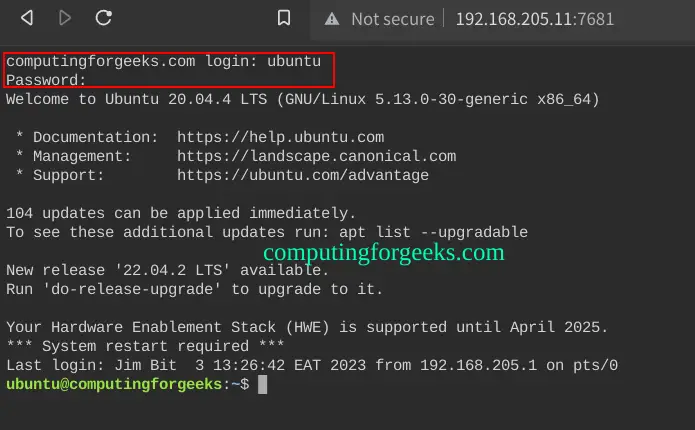
Log in using the system creds on your system to access the terminal. There are several other commands and flags to use. For help, use:
$ ttyd -help
ttyd is a tool for sharing terminal over the web

USAGE:
    ttyd [options] <command> [<arguments...>]

VERSION:
    1.7.3-a8cae75

OPTIONS:
    -p, --port              Port to listen (default: 7681, use `0` for random port)
    -i, --interface         Network interface to bind (eg: eth0), or UNIX domain socket path (eg: /var/run/ttyd.sock)
    -U, --socket-owner      User owner of the UNIX domain socket file, when enabled (eg: user:group)
    -c, --credential        Credential for basic authentication (format: username:password)
    -H, --auth-header       HTTP Header name for auth proxy, this will configure ttyd to let a HTTP reverse proxy handle authentication
    -u, --uid               User id to run with
    -g, --gid               Group id to run with
    -s, --signal            Signal to send to the command when exit it (default: 1, SIGHUP)
    -w, --cwd               Working directory to be set for the child program
    -a, --url-arg           Allow client to send command line arguments in URL (eg: http://localhost:7681?arg=foo&arg=bar)
    -R, --readonly          Do not allow clients to write to the TTY
    -t, --client-option     Send option to client (format: key=value), repeat to add more options
    -T, --terminal-type     Terminal type to report, default: xterm-256color
    -O, --check-origin      Do not allow websocket connection from different origin
    -m, --max-clients       Maximum clients to support (default: 0, no limit)
    -o, --once              Accept only one client and exit on disconnection
    -B, --browser           Open terminal with the default system browser
    -I, --index             Custom index.html path
    -b, --base-path         Expected base path for requests coming from a reverse proxy (eg: /mounted/here, max length: 128)
    -P, --ping-interval     Websocket ping interval(sec) (default: 5)
    -6, --ipv6              Enable IPv6 support
    -S, --ssl               Enable SSL
    -C, --ssl-cert          SSL certificate file path
    -K, --ssl-key           SSL key file path
    -A, --ssl-ca            SSL CA file path for client certificate verification
    -d, --debug             Set log level (default: 7)
    -v, --version           Print the version and exit
    -h, --help              Print this text and exit

Visit https://github.com/tsl0922/ttyd to get more information and report bugs.
#3. Create ttyd Systemd service On Linux
Now you can create a system service that can make it easier to start, enable and stop the service like any other system service.
Create the system service file:
sudo vim /etc/systemd/system/ttyd.serviceAdd the below lines:
[Unit]
Description=ttyd_ComputingforGeeks.com
After=network-online.target

[Service]
Type=simple
ExecStart=/bin/bash -c "ttyd login"
Restart=always
RestartSec=2
TimeoutStopSec=5
SyslogIdentifier=ttyd

[Install]
WantedBy=multi-user.target
Reload the system daemon:
sudo systemctl daemon-reloadNo stop any service running on the default port 7681:
sudo killall -9 ttydOnce stopped, start the service with the command:
sudo systemctl start ttydEnable the service to run on system boot:
sudo systemctl enable ttydCheck the status of the service:
$ systemctl status ttyd
● ttyd.service - ttyd_ComputingforGeeks.com
     Loaded: loaded (/etc/systemd/system/ttyd.service; enabled; vendor preset: enabled)
     Active: active (running) since Fri 2023-03-03 13:57:18 EAT; 23s ago
   Main PID: 125928 (ttyd)
      Tasks: 1 (limit: 4575)
     Memory: 176.0K
     CGroup: /system.slice/ttyd.service
             └─125928 ttyd login

Bit 03 13:57:18 computingforgeeks.com ttyd[125928]: [2023/03/03 13:57:18:2937] N:   close signal: SIGHUP (1)
Bit 03 13:57:18 computingforgeeks.com ttyd[125928]: [2023/03/03 13:57:18:2938] N:   terminal type: xterm-256color
Bit 03 13:57:18 computingforgeeks.com ttyd[125928]: [2023/03/03 13:57:18:2939] N: lws_create_context: LWS: 4.3.2-unknown, NET SRV H1 WS MbedTLS ConMon IPV6-off
Bit 03 13:57:18 computingforgeeks.com ttyd[125928]: [2023/03/03 13:57:18:2940] N: elops_init_pt_uv:  Using foreign event loop...
Bit 03 13:57:18 computingforgeeks.com ttyd[125928]: [2023/03/03 13:57:18:2941] N: __lws_lc_tag:  ++ [wsi|0|pipe] (1)
Bit 03 13:57:18 computingforgeeks.com ttyd[125928]: [2023/03/03 13:57:18:2942] N: __lws_lc_tag:  ++ [vh|0|netlink] (1)
Bit 03 13:57:18 computingforgeeks.com ttyd[125928]: [2023/03/03 13:57:18:2943] N: __lws_lc_tag:  ++ [vh|1|default||7681] (2)
Bit 03 13:57:18 computingforgeeks.com ttyd[125928]: [2023/03/03 13:57:18:2944] N: [vh|1|default||7681]: lws_socket_bind: source ads 0.0.0.0
Bit 03 13:57:18 computingforgeeks.com ttyd[125928]: [2023/03/03 13:57:18:2945] N: __lws_lc_tag:  ++ [wsi|1|listen|default||7681] (2)
Bit 03 13:57:18 computingforgeeks.com ttyd[125928]: [2023/03/03 13:57:18:2946] N:  Listening on port: 7681
You can restart the service with the command:
sudo systemctl restart ttydVerdict
That marks the end of this guide on how to share your Linux Terminal over the Web using ttyd. Now you can access your Linux shell from your browser anywhere within your network. I hope this was helpful.
Related posts:
