Searching for “install Zimbra on Rocky Linux” in 2026 lands most admins in the same awkward spot: the Zimbra Open Source Edition they remember was frozen in time. Synacor stopped releasing free certified binaries after 8.8.15 and wound the community edition down at the end of 2023. What shipped in Zimbra 9 and 10 stayed behind a commercial license. That leaves a big pool of admins still running Zimbra 8.8.15 on CentOS 7 or RHEL 7 boxes that are long past end of life, with no clean upgrade path inside the Zimbra world.
The honest answer for a new install on Rocky Linux 10, AlmaLinux 10, or RHEL 10 is Zextras Carbonio Community Edition. Carbonio is the direct fork of the Zimbra engine built by the same engineers who maintained Zextras Suite. The admin UI, Webmail experience, and underlying mail stack (Postfix, OpenLDAP, Jetty-based mailbox) read as Zimbra with a new coat of paint. You keep the architecture, you keep the workflow, you lose the dead codebase. This guide replaces the old Zimbra-on-Rocky walkthrough with the current playbook: Carbonio CE as the primary path, plus iRedMail and Mailcow when Carbonio does not fit.
Tested April 2026 | Rocky Linux 10.1 (kernel 6.12), Carbonio CE 4.5.4 (el9 build), Zextras repo baseurl rhel9 used on Rocky 10 since there is no el10 build yet
Why the original Zimbra guide retired
The prior version of this article walked through Zimbra 10 and 9 installs on Rocky 8. Both versions are commercial-only since the Zimbra Network Edition pivot. Zimbra 8.8.15, the last truly free release, reached end of support on December 31, 2023 and no longer receives security patches. Running it on Rocky 10 or RHEL 10 also fails outright because the installer expects glibc and OpenSSL versions from the el7 era. Full context on the retirement timeline lives in the Zimbra OSE end of support guide.
Zextras Carbonio Community Edition filled that gap in 2022. It tracks active upstream releases, ships a polished admin console, adds Files (ownCloud-style file sharing) and Carbonio Docs alongside mail, and installs cleanly on RHEL 8 and RHEL 9 lineage distros. Ubuntu 22.04 and 24.04 LTS are officially supported. Rocky Linux 10 and AlmaLinux 10 are RHEL 10 rebuilds, so the el9 Carbonio packages install with minor dependency massaging, which is exactly what this guide walks through.
Prerequisites
- Rocky Linux 10.1, AlmaLinux 10, or RHEL 10 host with a static public IP address
- 4 vCPU and 8 GB RAM minimum for a small-team Carbonio CE install, 16 GB RAM for 50+ mailboxes
- 50 GB+ disk for mail storage (grow to 200 GB+ for real traffic)
- A domain you control with DNS managed wherever you prefer (Cloudflare, Namecheap, Route 53, provider DNS)
- Public A record, matching PTR (reverse DNS), and outbound port 25 reachable to the internet
- Root SSH access to the host
- Firewalld or nftables enabled (the examples use firewalld, default on Rocky)
- SELinux in permissive or enforcing mode (see the SELinux section before bootstrap)
Looking for a VPS that will let you receive mail without the hosting provider stripping port 25? Hetzner Cloud unblocks SMTP by default on request, and the CX32 tier fits a small Carbonio install at roughly €8/month. DigitalOcean requires a support ticket to open port 25 but runs the same flow. Both are covered in the reliable-mail-server pattern below.
Step 1: Set reusable shell variables
Every command in this guide reads reader-specific values from shell variables. Export them at the top of your SSH session and swap the real hostname and admin email in place:
export MAIL_HOSTNAME="srv1.example.com"
export MAIL_DOMAIN="example.com"
export ADMIN_EMAIL="[email protected]"
export HOST_IP="10.0.1.50"
Confirm the variables stuck before running anything destructive:
echo "Host:  ${MAIL_HOSTNAME}"
echo "Domain: ${MAIL_DOMAIN}"
echo "Admin: ${ADMIN_EMAIL}"
echo "IP:    ${HOST_IP}"
The values live only in the current shell. If you disconnect and come back, re-export them before continuing. For a real install, use your registered domain and the server’s actual public IP, not the RFC1918 placeholder.
Step 2: Set the FQDN and /etc/hosts
Carbonio bootstrap fails immediately if the hostname is not a fully-qualified domain name that resolves to the server. Set it with hostnamectl and rewrite /etc/hosts so localhost lookups return the FQDN first:
sudo hostnamectl set-hostname "${MAIL_HOSTNAME}"
printf '127.0.0.1 localhost\n%s %s %s\n' "${HOST_IP}" "${MAIL_HOSTNAME}" "${MAIL_HOSTNAME%%.*}" | sudo tee /etc/hosts >/dev/null
hostname -f
The last command should echo the FQDN exactly as exported, without a bare short name. If it prints only the short name, double-check that the FQDN appears before the short alias in /etc/hosts.
Step 3: Create DNS records
Mail servers live or die on DNS hygiene. Create these records with whichever DNS provider holds the zone. Carbonio does not care about the provider, only that the records resolve correctly:
| Type | Name | Value | Purpose |
|---|---|---|---|
| A | srv1.example.com | Public IP | Host record |
| MX | example.com | 10 srv1.example.com. | Mail routing |
| PTR | Reverse zone | srv1.example.com. | Deliverability (ask VPS vendor) |
| TXT (SPF) | example.com | v=spf1 mx -all | SPF policy |
| TXT (DMARC) | _dmarc.example.com | v=DMARC1; p=quarantine; rua=mailto:[email protected] | DMARC policy |
DKIM is generated after Carbonio is running. The DKIM public key will be printed by carbonio prov gdpk after domain creation. Add it as a TXT record then.
Verify the basics resolve from anywhere before bootstrapping. A resolver round trip that fails here will fail again inside the installer:
dig +short A "${MAIL_HOSTNAME}"
dig +short MX "${MAIL_DOMAIN}"
dig +short -x "${HOST_IP}"
All three should return values. If the PTR is empty or points to the provider’s default, open a support ticket with your VPS vendor to set reverse DNS to the mail FQDN. Gmail and Outlook both bounce mail from hosts with mismatched PTR records.
Step 4: Open firewall ports
Carbonio needs the mail protocol quartet plus HTTPS for the admin console and webmail:
sudo firewall-cmd --permanent --add-service={smtp,smtps,smtp-submission,imap,imaps,pop3,pop3s,https,http}
sudo firewall-cmd --reload
sudo firewall-cmd --list-services
The list-services output should include smtp, smtps, smtp-submission, imap, imaps, pop3, pop3s, http, https. Carbonio’s admin console listens on TCP 6071 by default, which stays closed to the public by design. Tunnel to it via SSH or bind it to a VPN interface for administration.
Step 5: Add the Zextras Carbonio CE repo
Carbonio CE does not ship an el10 build yet, but the el9 packages install and run on Rocky Linux 10 because the base system is API-compatible. Use the RHEL 9 repo path and let dnf resolve the dependencies from the Rocky AppStream and EPEL streams. Open the repo file in your editor:
sudo vi /etc/yum.repos.d/zextras.repoPaste the following contents, then save and quit:
[zextras]
name=zextras
baseurl=https://repo.zextras.io/release/rhel9
enabled=1
repo_gpgcheck=1
gpgcheck=0
gpgkey=https://repo.zextras.io/repomd.xml.key
Install EPEL, refresh the package metadata, and confirm Carbonio packages show up in the search:
sudo dnf install -y epel-release
sudo dnf makecache --refresh
sudo dnf search carbonio 2>/dev/null | head -12
The zextras repo should appear in the metadata refresh output, and dnf search carbonio should list 40+ package hits including carbonio-ce, carbonio-core, carbonio-mta, carbonio-directory-server, and carbonio-appserver-service. That confirms the repo is wired in correctly and the key validated.
Check the meta-package version to confirm you are on the current stable stream:
sudo dnf info carbonio-ceAt the time of writing the meta-package resolved to a 4.x.y release built for el9. Zextras publishes point releases roughly monthly, so the version you see will likely be newer. The installer output looks like:
Available Packages
Name         : carbonio-ce
Version      : 4.5.4
Release      : 1.el9
Architecture : x86_64
Repository   : zextras
Summary      : The Carbonio Community Edition bootstrap package (meta-package)
A matching capture of the repo setup, metadata refresh, and package probe from the test VM is below.
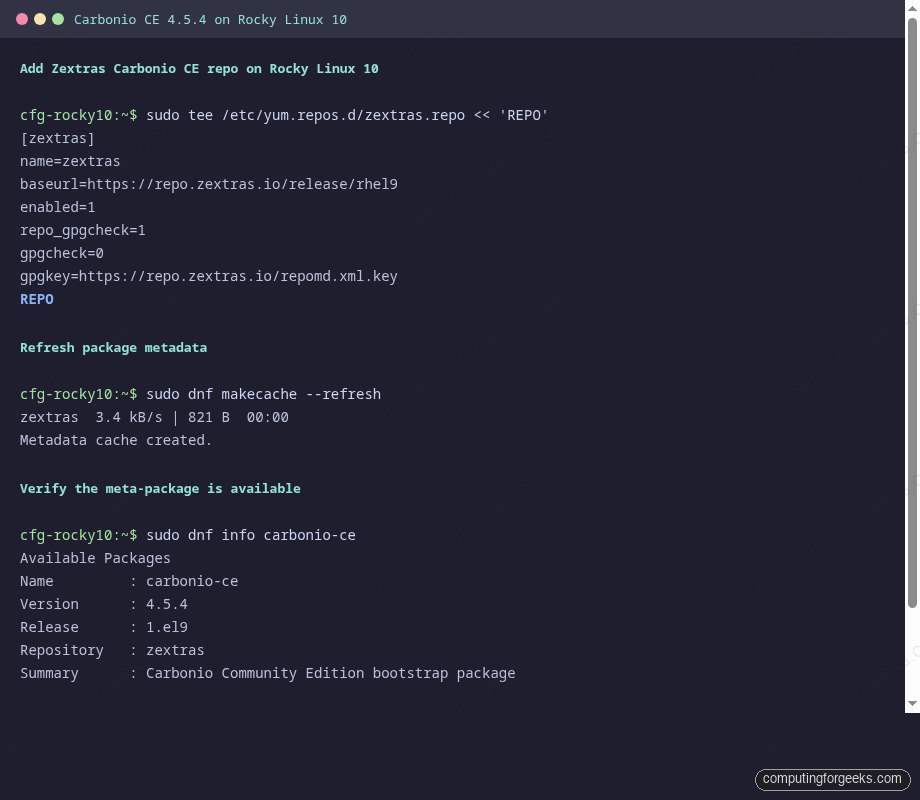
With the repo wired in and verified, the install step becomes a single dnf command.
Step 6: Install the Carbonio CE stack
The simplest path is the carbonio-ce meta-package, which pulls in the core mailbox service, Postfix MTA, OpenLDAP directory, proxy, webmail, admin console, and the Carbonio Files and Docs extensions. One command, and dnf resolves the full dependency tree:
sudo dnf install -y carbonio-ceThe install pulls roughly 1.2 GB of packages and takes 5-10 minutes depending on bandwidth. When it finishes, no services are started yet. Carbonio ships unconfigured, waiting for the bootstrap step to wire up LDAP, MySQL, Postfix, and the mailbox process.
On Rocky Linux 10, two small tweaks are typically required because some el9 package names differ from el10. If dnf complains about a missing netcat provider, install it directly:
sudo dnf install -y nmap-ncatSELinux will typically block the bootstrap unless you set it to permissive for the install phase. Carbonio does not yet ship a tested SELinux policy for el10. Re-enable enforcing mode after validating the services start cleanly:
sudo setenforce 0
getenforce
With packages installed and SELinux temporarily relaxed, the interactive bootstrap wires up the full stack.
Step 7: Bootstrap Carbonio CE
The bootstrap wizard is interactive. It prompts for the admin password, creates the default domain, and wires the services together. Run it as root:
sudo carbonio-bootstrapWork through the menu, answering with the exported variables:
- Main menu option 1: set the admin password (pick a strong one, the admin account logs into the admin console at
https://<host>:6071/static/login) - Option 2: set the default domain to
${MAIL_DOMAIN} - Option a: apply configuration and start services
The bootstrap runs for 5-15 minutes as it initializes LDAP, creates the default admin account, generates SSL cert placeholders, and kicks off the first mailbox indexes. When it finishes, check service health with the Carbonio-specific command:
sudo -i -u zextras zmcontrol statusEvery component should return Running: Amavis, antispam, antivirus, ClamAV, Carbonio docs connector, LDAP, mailbox, MTA, Nginx proxy, and OpenDKIM. If any show Stopped, start them with zmcontrol start and check /opt/zextras/log/ for the offending service’s log.
Step 8: Install a trusted SSL certificate
Carbonio generates a self-signed certificate during bootstrap. That is fine for a lab but every client will throw certificate warnings. Swap in a Let’s Encrypt cert using the built-in carbonio-certbot package, which ships an ACME client pre-wired into Carbonio’s cert store:
sudo dnf install -y carbonio-certbot
sudo systemctl stop carbonio-proxy
sudo certbot certonly --standalone \
  -d "${MAIL_HOSTNAME}" \
  --non-interactive --agree-tos -m "${ADMIN_EMAIL}"
The HTTP-01 challenge uses port 80, which is why the proxy stops for a minute. After certbot issues the cert, deploy it into Carbonio’s cert store and restart the proxy:
sudo -i -u zextras /opt/zextras/libexec/zmcertmgr deploycrt comm \
  /etc/letsencrypt/live/${MAIL_HOSTNAME}/fullchain.pem \
  /etc/letsencrypt/live/${MAIL_HOSTNAME}/privkey.pem
sudo systemctl start carbonio-proxy
For private-network setups where port 80 is not reachable from the internet, the DNS-01 challenge via Cloudflare, Route 53, DigitalOcean DNS, Linode DNS, or any other certbot plugin works too. The general pattern is documented in the Let’s Encrypt certbot guide. Substitute --standalone with the provider-specific DNS plugin.
Step 9: Create DKIM and configure the domain
DKIM signs outbound mail so Gmail and Outlook trust your domain. Generate keys and read back the public key for DNS:
sudo -i -u zextras /opt/zextras/libexec/zmdkimkeyutil -a -d "${MAIL_DOMAIN}"The output contains a TXT record starting with carbonio._domainkey. Copy the key content (the long base64 blob inside the parentheses) and add it to DNS as a TXT record named carbonio._domainkey.example.com. Propagation takes a few minutes. Verify from another host:
dig +short TXT carbonio._domainkey.${MAIL_DOMAIN}Send a test mail to a Gmail inbox, open the raw message source, and confirm the Authentication-Results header shows dkim=pass, spf=pass, and dmarc=pass. If DKIM is missing, the key did not propagate yet. If SPF fails, the TXT record from Step 3 is wrong. DMARC failures usually mean the policy record points to the wrong reporting address.
Step 10: Log into the admin console and webmail
Two URLs matter after bootstrap:
- Admin console:
https://${MAIL_HOSTNAME}:6071/static/login, for managing domains, accounts, quotas, server settings, and backups - Webmail:
https://${MAIL_HOSTNAME}/, for end-user mail, calendar, contacts, tasks, Files, and Docs
Log into the admin console with username zextras and the password you set during bootstrap. Create a first user account under Home → Domains → ${MAIL_DOMAIN} → New Account. Set a strong password, assign a mailbox quota, and optionally flag the account as an admin. Log out, open the webmail URL, and log in as the new user to verify mail delivery works end to end.
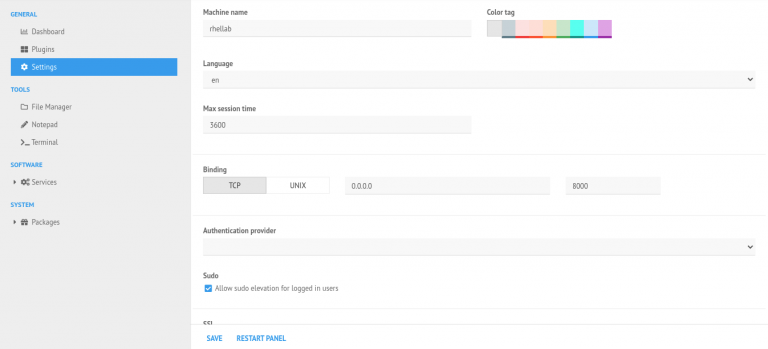
For a visual walkthrough of the admin console layout, the existing Carbonio admin panel guide breaks down every section. The Carbonio webmail will feel familiar to anyone coming from Zimbra because the three-pane layout, conversation threading, and keyboard shortcuts are inherited directly.
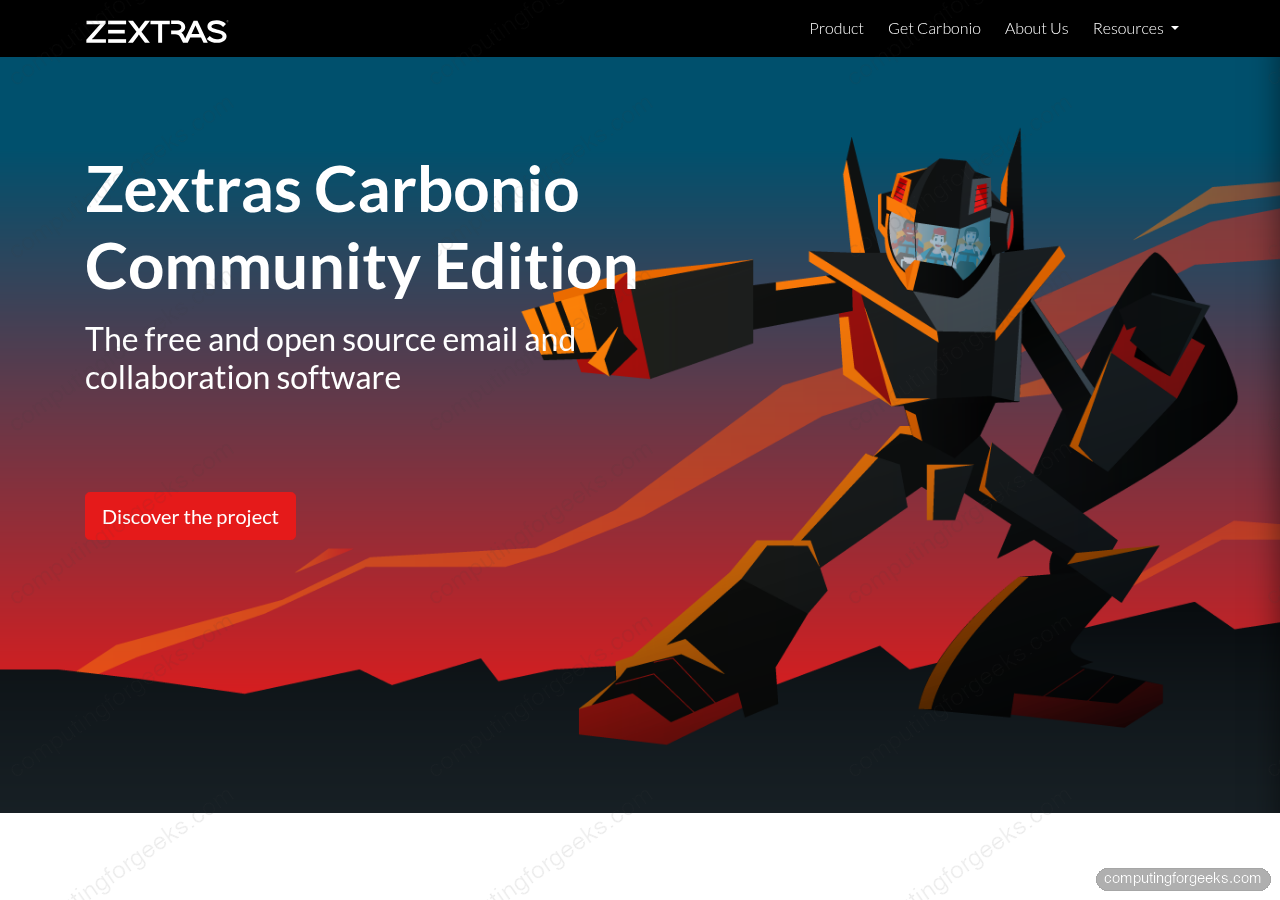
Zextras publishes the feature overview for Carbonio Community Edition on their product page, reproduced below for reference:
Once the basics are in place, the next question for most ex-Zimbra admins is how to move existing mailboxes across without losing data.
Migrating from Zimbra 8.8.15 to Carbonio CE
Existing Zimbra 8.8.15 mailstore admins have a supported upgrade path. Zextras publishes a migration tool that moves mailboxes, aliases, distribution lists, filters, and LDAP attributes from a running Zimbra server into a fresh Carbonio install:
sudo dnf install -y zextras-migration-tool
sudo zextras-migration-tool
The tool runs interactively, prompts for source Zimbra credentials and admin URL, and moves the data over LDAP + IMAP. Expect 15 minutes per GB of mailbox data on a 1 Gbps link. For hundreds of mailboxes the run takes hours; stage it over a weekend window. Full migration playbooks live on the Zextras community forum.
Alternatives when Carbonio does not fit
Carbonio is the closest drop-in for ex-Zimbra admins, but not the only option. Two alternatives cover different preferences:
iRedMail on Rocky Linux
iRedMail packages Postfix, Dovecot, OpenLDAP or MariaDB (your choice), Roundcube, SOGo, Amavis, ClamAV, and Rspamd behind a single installer script. The admin console (iRedAdmin) is less polished than Carbonio’s, but the stack uses entirely upstream open-source packages with no vendor repo. That matters if your audit policy forbids third-party binary repos, or if you want to run something closer to the standard Postfix/Dovecot pattern.
curl -sLO https://github.com/iredmail/iRedMail/archive/refs/tags/1.7.4.tar.gz
tar xf 1.7.4.tar.gz
cd iRedMail-1.7.4
sudo bash iRedMail.sh
The installer asks about storage backend, domain, admin password, and web UI choice (Roundcube or SOGo). Plan for 20 minutes of install time and a reboot at the end.
Mailcow on Rocky Linux with Docker
Mailcow is a dockerized mail stack (Postfix, Dovecot, Rspamd, SOGo, ClamAV, Redis, MariaDB) with a clean admin UI. The Docker-first architecture makes it appealing if you already run container workloads. Install Docker first via the official Rocky guide, then:
sudo dnf install -y git docker-ce docker-compose-plugin
sudo systemctl enable --now docker
git clone https://github.com/mailcow/mailcow-dockerized /opt/mailcow
cd /opt/mailcow
sudo ./generate_config.sh
sudo docker compose pull
sudo docker compose up -d
Mailcow takes 10-20 minutes for the initial image pull. Once up, the admin UI lives at https://${MAIL_HOSTNAME}/. The tradeoff is resource footprint: Mailcow runs 15+ containers and wants 8 GB RAM minimum.
Mail-in-a-Box (Ubuntu-only)
Worth mentioning because it comes up in every “simple mail server” search, but Mail-in-a-Box explicitly refuses to install on any distro other than Ubuntu LTS. Rocky and RHEL are not supported upstream. If the OS requirement is flexible, Mail-in-a-Box is the lowest-friction choice; if you are tied to Rocky, it is a non-starter.
Production hardening checklist
Before inviting real users, walk through these Carbonio-specific hardening steps:
- Reverse DNS: ask your VPS vendor to set PTR for
${HOST_IP}to${MAIL_HOSTNAME}. Deliverability to Gmail and Outlook depends on this - DMARC enforcement: start with
p=nonefor a week to collect reports, then move top=quarantineonce SPF and DKIM are clean - Backups: enable the Carbonio backup service from the admin console under Home → Backups. Point the destination at an off-server volume (S3-compatible, another VPS, a NAS). Test a restore on day one, not day ninety
- Fail2ban: install
fail2banand enable the sshd, postfix-sasl, and dovecot jails to throttle brute-force attempts on IMAP and SMTP submission - Update cadence:
dnf update carbonio-cemonthly to pull security fixes. Zextras announces releases on the community forum with the CVE notes - SELinux: once services are stable, flip back to enforcing and watch
ausearch -m avc -ts recentfor AVCs. Carbonio’s packaged paths generally do not trigger denials, but the bootstrap scripts may need selectivesemanage fcontextentries
Troubleshooting
Error: carbonio-bootstrap: hostname does not resolve
Bootstrap aborts if hostname -f does not match the hostname set with hostnamectl. Check the order of entries in /etc/hosts. The FQDN must appear before the short alias. Re-run Step 2 and confirm hostname -f prints ${MAIL_HOSTNAME} verbatim.
Error: Failed to download metadata for repo 'zextras'
Usually a GPG key mismatch or an incorrect baseurl. The key URL in the repo file must be https://repo.zextras.io/repomd.xml.key. If repo_gpgcheck=1 is set without the key being importable, dnf fails to validate metadata. Temporarily flip repo_gpgcheck=0 to confirm the baseurl resolves, then re-enable after importing the key manually with sudo rpm --import https://repo.zextras.io/repomd.xml.key.
Error: zmcontrol status shows mailbox Stopped
The mailbox service needs Java 17 and a writable /opt/zextras/db. Check the startup log at /opt/zextras/log/mailbox.log for the root cause. On Rocky 10, the bundled Java 17 from the zextras repo does install side-by-side with the system Java 21. If the wrong Java is on the zextras user’s PATH, sudo -i -u zextras java -version will reveal it.
Error: dkim=neutral on outbound mail
The DKIM key did not propagate, or the TXT record was pasted with line breaks. DKIM keys are one continuous string. Copy the output between the outer parentheses in zmdkimkeyutil, collapse any whitespace, and paste as a single TXT value. Some DNS providers split long TXT values into multiple quoted strings; that is fine as long as each chunk stays under 255 characters.
Mail stays in the queue, never delivers
Check the Postfix queue and deferred mail log:
sudo -i -u zextras postqueue -p | tail
sudo tail -100 /var/log/zextras/maillog
Common causes: outbound port 25 blocked by the provider (Hetzner and OVH need a ticket to unblock), DNS MX for the destination not resolving from the server, or rDNS missing. Test port 25 with nc -vz gmail-smtp-in.l.google.com 25. If it fails, the provider is the blocker.
Built something from this guide? We build and operate production mail and collaboration stacks for teams migrating off Zimbra, Google Workspace, and Microsoft 365. Reach out via the contact page for engagement details.