Carbonio Community Edition (Carbonio CE) is a free and open-source alternative to proprietary email and collaboration software like Google Workspace. Besides the FOSS aspect, Carbonio CE has another advantage over many SaaS products as it is deployed on the organization’s premises providing them with absolute control over their data and infrastructure. Speaking of control over data, system administrators are an essential part of the system in self-hosted infrastructures.
Being a sysadmin is certainly difficult, as they have to maintain the most crucial services all the time. They have to find solutions for every IT problem faced by any employee so time management is a big challenge to system administrators as requests arrive at them 24/7. On the other hand, they face challenges in strange and not-so-user-friendly admin panels, which make it all the more complicated and less spontaneous to keep up with the flow of demands.
This highlights the importance of an easy-to-use and intuitive admin panel, and it is what the new release of the Carbonio Community Edition Admin panel has been trying to achieve.
Carbonio CE Admin Panel lets sysadmin use their time more efficiently by gathering all of the most important controls into one simple graphical user interface and skipping the CLI. The centralized nature of the Carbonio CE Admin Panel makes it not only quicker to use, but also quicker to learn. Later in this article, we will look at some of its functionalities.

How to Activate Carbonio CE Admin Panel
If you are following the installation instructions available in the Carbonio CE documentation, there is no need to install something to activate the Admin Panel. However, if you are upgrading from an old version (below 22.10.0) you may need to install two packages manually:
sudo apt update
sudo apt install carbonio-admin-ui
sudo apt install carbonio-admin-console-ui
Now that we have Carbonio CE Admin Panel running, let’s take a look at some of its functionalities.
User Account Management in Admin Panel
User management is one of the key issues that the mail system administrator deals with virtually every day. The list of users needs to be updated often since people quit jobs, get hired, change their information, and more. The user list is accessible via Domains > Accounts. However, you must first select your domain from the top part in order to activate the Accounts option.

Click on the blue plus sign (+) button in the top right corner to add a user. A dialog box called Create Account Wizard for adding a new user will appear when you press it.

You can fill out the form to insert the user’s basic information such as name/surname and password. Then you can continue to the next tab by clicking on NEXT STEP to see a summary of the information you inserted and finish the user creation by pressing CREATE WITH THESE DATA.
Some points about the Create Account Wizard:
- The account name is the first part of the mailbox address that comes before the @.
- The Vied Name is the full account name used in autocomplete feature where a user inserts a part of the account name and the whole address will automatically be filled out.
- Must change password on the next login section can be used when you want the user to create a new password when attempting to log into the Carbonio CE web client for the first time.

Editing users’ information is the same. You need to click on the user you want to edit the information. This will bring up a window where you may modify different user settings. There are three divisions in this window:
- General – which includes general information about the user as defined in the first step of creating the user.
- Configuration – which includes functionalities available to the user. You can decide which functionalities to include or remove for each user separately.
- User Preferences – which includes settings for the user. The settings in this area are identical to those in the web client, allowing the user to reverse changes by simply altering the settings in the Carbonio CE web client.

To delete users the only thing that needs to be done is to click on the specific user and click on the red trash can icon. A good option to remember here is the ability to disable the user instead of deleting it. Deleting a user will permanently erase it while disabling it can preserve the user for later. To do so you need to click on the CLOSE THE ACCOUNT button.
While through this, the user won’t be able to access their account, and neither can send or receive emails, all of the account’s information will be kept and made accessible after it has been unlocked.


Domain Management in Admin Panel
Carbonio CE gives you the ability to create, manage, and monitor different domains on the same server. You can either use the CREATE button on the top bar and select Create New Domain or alternatively go to Domains and click on CREATE NEW DOMAIN +.


In both cases, you will be directed to a new window to insert the new domain’s basic information including
- domain name,
- maximum number of accounts,
- maximum email quota,
- mail server where the domain will be hosted
Click CREATE button after filling out the fields.

Following the creation of the domain, you will be directed to the Domains area of the Admin Panel with the domain automatically selected. However, you can also change the specifications here as well.

Here you can specify more settings for the selected domain including
- Global Address Book
- Authentication
- Virtual host
- Mailbox quotas
By utilizing the Virtualhost name, consumers can access the service through an alternative URL. You can, for example, make the service available for both mail.example.com and webamil.example.com. Virtual hosts must be domain-specific so that the system can determine which domain the user belongs to and we may seed the customized option for the domain.
Mailing Lists Management in Admin Panel
Mailing lists can be also managed through the Domains section. A mailing list is a list of names and addresses that can be used by a person or a business to send materials to multiple recipients. To define a mailing list, simply go to the Domains section and select the domain in which you want to create the mailing list, go to Mailing List and press the + button.

On the window that opens up, insert the name of the mailing list in the Displayed Name field, then insert the address of the mailing list in the List Name before the @. You can configure more options by toggling the Dynamic Mode including adding owners to the list, hiding the list from GAL, or preventing it to receive emails.
Press the NEXT button to go to the next tab and select the members of the mailing list by inserting their email addresses and pressing ADD. You can also use the autofill by inserting a part of the address and selecting the account from the drop-down menu. This also supports external addresses so you can add other address besides the ones that are already in the domain.

Press NEXT and configure more options including adding owners to the list, hiding the list from GAL, or preventing it to receive emails if needed. Press NEXT, check the list for the last time and then CREATE to finish the job.

You can edit or delete existing mailing lists simply by clicking on them like the accounts.
Resource Management in Admin Panel
Resources accounts can be also managed through the Domains section. An item that can be reserved and scheduled for a meeting is referred to as a resource. It can be for instance a piece of equipment or a location like a conference room.
To create a resource account, go to the Domains section and select a domain then click on Resources. Click on the + button to open up a window and insert the name and other characteristics of the resource.

After inserting all the necessary information, click next and create to finish the job. The resource can be seen in the list. You can edit or delete any resource simply by selecting to open its detail window.

Server Management in Admin Panel
Server and storage administration is handled in its own part in the new Carbonio admin panel. In the event of a single server installation, this section only displays a single server. To access these settings you can go to the Mailstores section in the primary pane.

You can select a server from the Server Details section to access and manage available volumes. Multiple volumes can be mounted simultaneously by an administrator, however, only one primary volume, one secondary volume, and one indexer volume can be designated as active.

To configure a volume, you can click on it to open another window where you find the volume’s details. Using this window, you can delete a volume by selecting the DELETE button, or promote or demote the volume based on its storage level i.e. selecting a primary volume and demoting it to a secondary or vice versa.
You need to click on the edit button in the top right corner to be able to change the details of the volume, after changes press SAVE to apply the new setting.

COS Management in Admin Panel
Different classes of service (COS) are basically predefined groups of services and settings. They can be defined during infrastructure configuration by system administrators. This will result in configuring particular settings for various user groups.
Specifying a maximum quota for a set of users or enabling particular services for them would be typical use cases of COS. This may be done using the section’s incredibly straightforward interface. The following features may be managed from this section:
You can either use the CREATE button on the top bar and select Create New COS or alternatively go to COS and click on CREATE NEW COS +.

Simply enter a name for the class of service and click Create button to create it. The COS can be chosen from the Class of Service list once it has been created.
You can edit the class of service you just created by selecting it from the list. You can choose and configure amongst available settings like quotas, mail servers that can host accounts from this COS, and features that are accessible to the Class of Service.
Features that can be set for classes of service include main features like Mail, Calendar, and Contacts. Other general features such as Tagging, Out of Office Reply, Distribution List Folders, etc can be also configured. The below image shows all the features available for configuration.

There are other preferences that can be set for a COS such as Auto-delete duplicate messages, set the time zone, auto-decline if the sender is blacklisted, etc. as seen below.

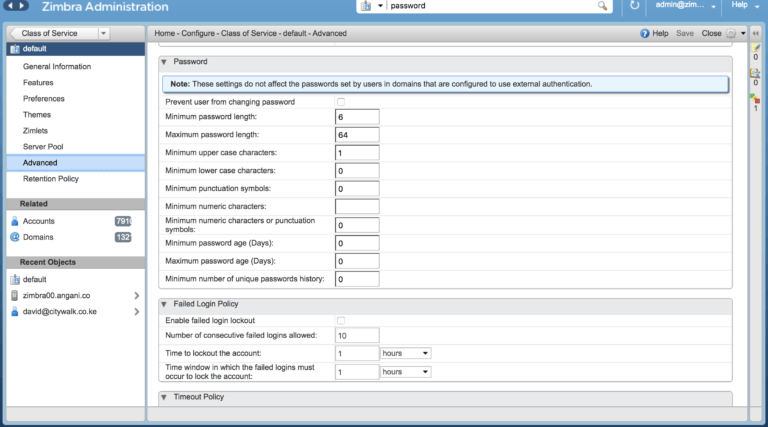
Different types of quotas can be defined in the Advanced section, as seen below. Other more specific settings such as password policies, timeout policies, and polling intervals are available to be set in this section.

To delete a defined Class of Service, you must first select the COS then from the General Information section select the DELETE button. A confirmation window will show up after clicking.
There you have it, you can now perform the majority of what a sysadmin does on a server on a daily basis using only the Carbonio CE Admin Panel.