

Taiga is a free, open-source project management platform built for agile teams. It supports Scrum and Kanban workflows natively, with user stories, sprints, epics, issue tracking, and a wiki, all through a clean web interface. Taiga is developed by Kaleidos INC under the Mozilla Public License 2.0.
This guide walks through installing Taiga on Ubuntu 24.04 using Docker Compose, the officially recommended deployment method. We cover the full stack: PostgreSQL database, RabbitMQ message broker, Nginx reverse proxy with SSL, and firewall configuration.
Tested in June 2026 on a fresh Ubuntu 24.04.4 LTS server with the current Taiga stable release, Docker 29, and a real Let’s Encrypt certificate.
Prerequisites
Before starting, make sure you have the following ready:
- A server running Ubuntu 24.04 LTS with at least 2GB RAM and 2 CPU cores
- Root or sudo access to the server
- A registered domain name pointed to your server IP (for SSL setup)
- Docker and Docker Compose installed on the server
- Ports 80, 443 open on your firewall
Step 1: Install Required Dependencies
Start by updating the package index and installing the packages needed for the rest of this setup.
sudo apt update
sudo apt install -y git curl wget apt-transport-https ca-certificates gnupg lsb-release
Step 2: Install Docker and Docker Compose
Taiga’s official deployment uses Docker Compose to orchestrate all its services. If you already have Docker installed, skip to Step 3. Otherwise, add Docker’s official repository and install the engine.
curl -fsSL https://download.docker.com/linux/ubuntu/gpg | sudo gpg --dearmor -o /usr/share/keyrings/docker-archive-keyring.gpg
echo "deb [arch=$(dpkg --print-architecture) signed-by=/usr/share/keyrings/docker-archive-keyring.gpg] https://download.docker.com/linux/ubuntu $(lsb_release -cs) stable" | sudo tee /etc/apt/sources.list.d/docker.list > /dev/null
sudo apt update
sudo apt install -y docker-ce docker-ce-cli containerd.io docker-compose-plugin
Add your user to the docker group so you can run Docker commands without sudo:
sudo usermod -aG docker $USER
newgrp docker
Verify Docker is running correctly:
docker --versionYou should see the installed Docker version confirmed:
Docker version 29.5.2, build 79eb04cFor a more detailed walkthrough, see our guide on installing Docker Compose on Ubuntu and Debian.
Step 3: Clone the Taiga Docker Repository
Taiga provides an official Docker repository with all the configuration files needed to deploy the full stack. Clone it and switch to the stable branch.
cd /opt
sudo git clone https://github.com/taigaio/taiga-docker.git taiga
cd /opt/taiga
sudo git checkout stable
Step 4: Configure the Environment File
The .env file controls all Taiga settings (database credentials, domain name, email, and security keys). Copy the default file and edit it with your values.
sudo cp .env .env.backup
sudo vi /opt/taiga/.env
Update these settings with your actual values. Replace taiga.example.com with your real domain:
# Taiga URL settings
TAIGA_SCHEME=https
TAIGA_DOMAIN=taiga.example.com
SUBPATH=""
WEBSOCKETS_SCHEME=wss

# Secret key - generate a random string
SECRET_KEY="change-this-to-a-long-random-string"

# Database credentials
POSTGRES_USER=taiga
POSTGRES_PASSWORD=your-strong-db-password-here

# Email settings (SMTP)
EMAIL_BACKEND=smtp
EMAIL_HOST=smtp.example.com
EMAIL_PORT=587
[email protected]
EMAIL_HOST_PASSWORD=your-email-password
[email protected]
EMAIL_USE_TLS=True
EMAIL_USE_SSL=False

# RabbitMQ credentials
RABBITMQ_USER=taiga
RABBITMQ_PASS=your-rabbitmq-password-here
RABBITMQ_VHOST=taiga
RABBITMQ_ERLANG_COOKIE=your-random-erlang-cookie

# Telemetry (set to False to disable)
ENABLE_TELEMETRY=False
Generate a strong secret key with this command:
openssl rand -hex 32Use the output as your SECRET_KEY value. Do the same for the database password and RabbitMQ password.
Step 5: Start Taiga Services with Docker Compose
With the environment configured, launch all Taiga services. The Docker Compose file defines several containers: PostgreSQL, backend API, frontend, async workers, RabbitMQ, events handler, and an Nginx gateway.
cd /opt/taiga
sudo docker compose up -d
The first run pulls all container images, so it takes a few minutes depending on your internet speed. Check that all containers are running:
sudo docker compose ps --format "table {{.Name}}\t{{.Status}}"All nine services should report “Up”, with the database showing “(healthy)” once its init check passes. The container names carry a doubled taiga-taiga- prefix because the Compose project folder and the service names both start with taiga:
NAME                            STATUS
taiga-taiga-async-1             Up 9 minutes
taiga-taiga-async-rabbitmq-1    Up 9 minutes
taiga-taiga-back-1              Up 9 minutes
taiga-taiga-db-1                Up 9 minutes (healthy)
taiga-taiga-events-1            Up 9 minutes
taiga-taiga-events-rabbitmq-1   Up 9 minutes
taiga-taiga-front-1             Up 9 minutes
taiga-taiga-gateway-1           Up 9 minutes
taiga-taiga-protected-1         Up 9 minutes
If any service failed to start, check its logs:
sudo docker compose logs taiga-backStep 6: Seed the Initial Admin User and Templates
The containers come up empty. The default admin / 123123 account and the project templates only exist after you load the seed data into the backend. Skip this step and the login page will reject every credential.
cd /opt/taiga
sudo ./taiga-manage.sh loaddata initial_user
sudo ./taiga-manage.sh loaddata initial_project_templates
The bundled taiga-manage.sh wrapper runs Django management commands inside a throwaway backend container with database access. Each fixture load prints a one-line confirmation:
Installed 1 object(s) from 1 fixture(s)
Installed 2 object(s) from 1 fixture(s)
If you prefer a custom username instead of the default admin account, run sudo ./taiga-manage.sh createsuperuser and skip the initial_user fixture.
Step 7: Access the Taiga Web Interface
By default, the Taiga gateway container listens on port 9000. Open your browser and navigate to your server’s IP or domain on that port:
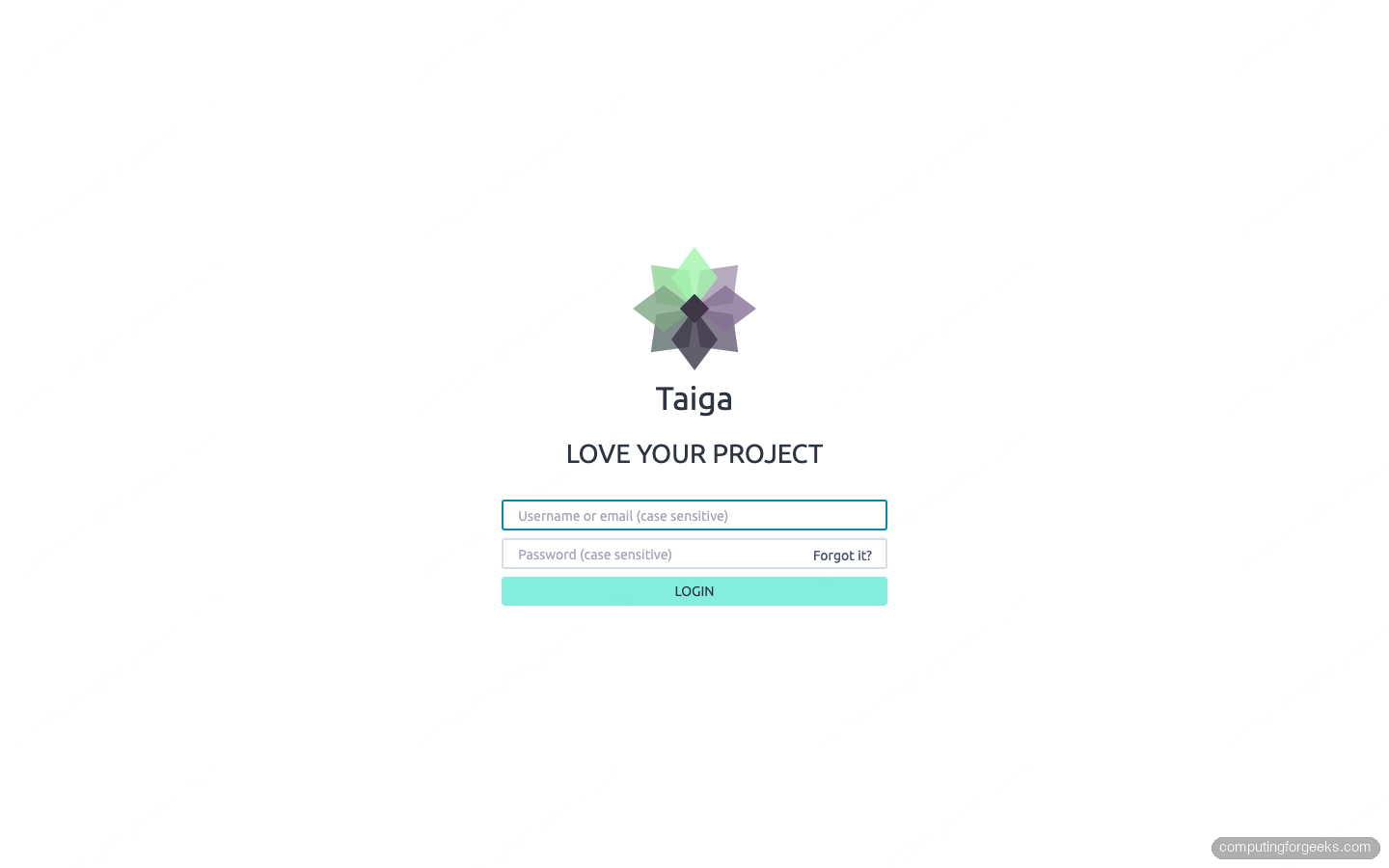
http://10.0.1.50:9000Log in with the default administrator credentials seeded in Step 6:
- Username: admin
- Password: 123123
The login screen looks the same whether you reach it by IP on port 9000 or, once the reverse proxy is in place, by your domain over HTTPS:
Change the admin password immediately after your first login. Open your user settings from the avatar menu and set a strong password.
Step 8: Configure Nginx as a Reverse Proxy
Running Taiga behind Nginx gives you proper domain-based access, SSL termination, and better performance. Install Nginx on the host system (outside Docker).
sudo apt install -y nginxCreate a new Nginx server block for Taiga:
sudo vi /etc/nginx/sites-available/taiga.confAdd the following reverse proxy configuration. Replace taiga.example.com with your actual domain:
server {
    listen 80;
    server_name taiga.example.com;
    client_max_body_size 100M;

    location / {
        proxy_pass http://127.0.0.1:9000;
        proxy_set_header Host $host;
        proxy_set_header X-Real-IP $remote_addr;
        proxy_set_header X-Forwarded-For $proxy_add_x_forwarded_for;
        proxy_set_header X-Forwarded-Proto $scheme;
    }

    # WebSocket support for real-time events
    location /events {
        proxy_pass http://127.0.0.1:9000/events;
        proxy_http_version 1.1;
        proxy_set_header Upgrade $http_upgrade;
        proxy_set_header Connection "upgrade";
        proxy_set_header Host $host;
        proxy_connect_timeout 7d;
        proxy_send_timeout 7d;
        proxy_read_timeout 7d;
    }
}
Enable the site and test the Nginx configuration:
sudo ln -s /etc/nginx/sites-available/taiga.conf /etc/nginx/sites-enabled/
sudo nginx -t
sudo systemctl restart nginx
The configuration test should return “syntax is ok” and “test is successful”. Your Taiga instance is now accessible at http://taiga.example.com.
Step 9: Secure Taiga with Let’s Encrypt SSL
Production deployments must run over HTTPS. Certbot automates Let’s Encrypt certificate issuance and Nginx configuration.
sudo apt install -y certbot python3-certbot-nginxRequest a certificate for your Taiga domain:
sudo certbot --nginx -d taiga.example.comFollow the prompts to enter your email and agree to the terms. Certbot modifies your Nginx config to serve traffic over HTTPS and sets up automatic certificate renewal.
Verify the renewal timer is active:
sudo systemctl status certbot.timerThe timer should show as “active (waiting)”, confirming automatic renewal is scheduled.
Alternative: DNS-01 challenge for private or NAT-ed servers
The certbot --nginx command above uses the HTTP-01 challenge, which needs port 80 reachable from the internet. If your Taiga host sits on a private LAN, lives behind NAT with no port forwarding, or you want a wildcard certificate, use the DNS-01 challenge instead. It proves domain ownership through a DNS TXT record, so no inbound traffic is required. Certbot ships a validation plugin for most providers:
| DNS provider | Certbot plugin package |
|---|---|
| Cloudflare | python3-certbot-dns-cloudflare |
| AWS Route 53 | python3-certbot-dns-route53 |
| DigitalOcean | python3-certbot-dns-digitalocean |
| Google Cloud DNS | python3-certbot-dns-google |
| Linode | python3-certbot-dns-linode |
| RFC2136 (BIND, PowerDNS) | python3-certbot-dns-rfc2136 |
Install your provider’s plugin, store its API credentials in a protected file, then request the certificate with certonly. This Cloudflare example is the exact flow used to issue the certificate for this guide. Substitute your own provider’s plugin and credentials if you are not on Cloudflare:
sudo apt install -y python3-certbot-dns-cloudflare
echo "dns_cloudflare_api_token = YOUR_CLOUDFLARE_TOKEN" | sudo tee /etc/letsencrypt/cloudflare.ini
sudo chmod 600 /etc/letsencrypt/cloudflare.ini
sudo certbot certonly --dns-cloudflare \
  --dns-cloudflare-credentials /etc/letsencrypt/cloudflare.ini \
  -d taiga.example.com --agree-tos -m [email protected]
Because certonly does not edit Nginx, point your server block at the issued files yourself. Add the two ssl_certificate lines and switch the listener to 443 ssl in the Step 8 configuration, then reload Nginx:
ssl_certificate     /etc/letsencrypt/live/taiga.example.com/fullchain.pem;
ssl_certificate_key /etc/letsencrypt/live/taiga.example.com/privkey.pem;
After SSL is enabled, update the .env file to reflect HTTPS:
sudo vi /opt/taiga/.envSet these two values:
TAIGA_SCHEME=https
WEBSOCKETS_SCHEME=wss
Then restart Taiga to pick up the changes:
cd /opt/taiga
sudo docker compose down
sudo docker compose up -d
Step 10: Configure UFW Firewall
Ubuntu 24.04 uses UFW as its default firewall frontend. Open the ports needed for web traffic and SSH access.
sudo ufw allow OpenSSH
sudo ufw allow 80/tcp
sudo ufw allow 443/tcp
sudo ufw enable
Confirm the rules are in place:
sudo ufw statusThe output should list all three rules as ALLOW from Anywhere:
Status: active

To                         Action      From
--                         ------      ----
OpenSSH                    ALLOW       Anywhere
80/tcp                     ALLOW       Anywhere
443/tcp                    ALLOW       Anywhere
OpenSSH (v6)               ALLOW       Anywhere (v6)
80/tcp (v6)                ALLOW       Anywhere (v6)
443/tcp (v6)               ALLOW       Anywhere (v6)
Do not open port 9000 externally. All traffic goes through the Nginx reverse proxy on ports 80 and 443.
Step 11: Taiga Post-Installation Tasks
With Taiga running and secured, handle these essential post-installation tasks.
Create Your First Project
Log into Taiga at your domain and click “New Project”. Taiga first asks which template fits your workflow:
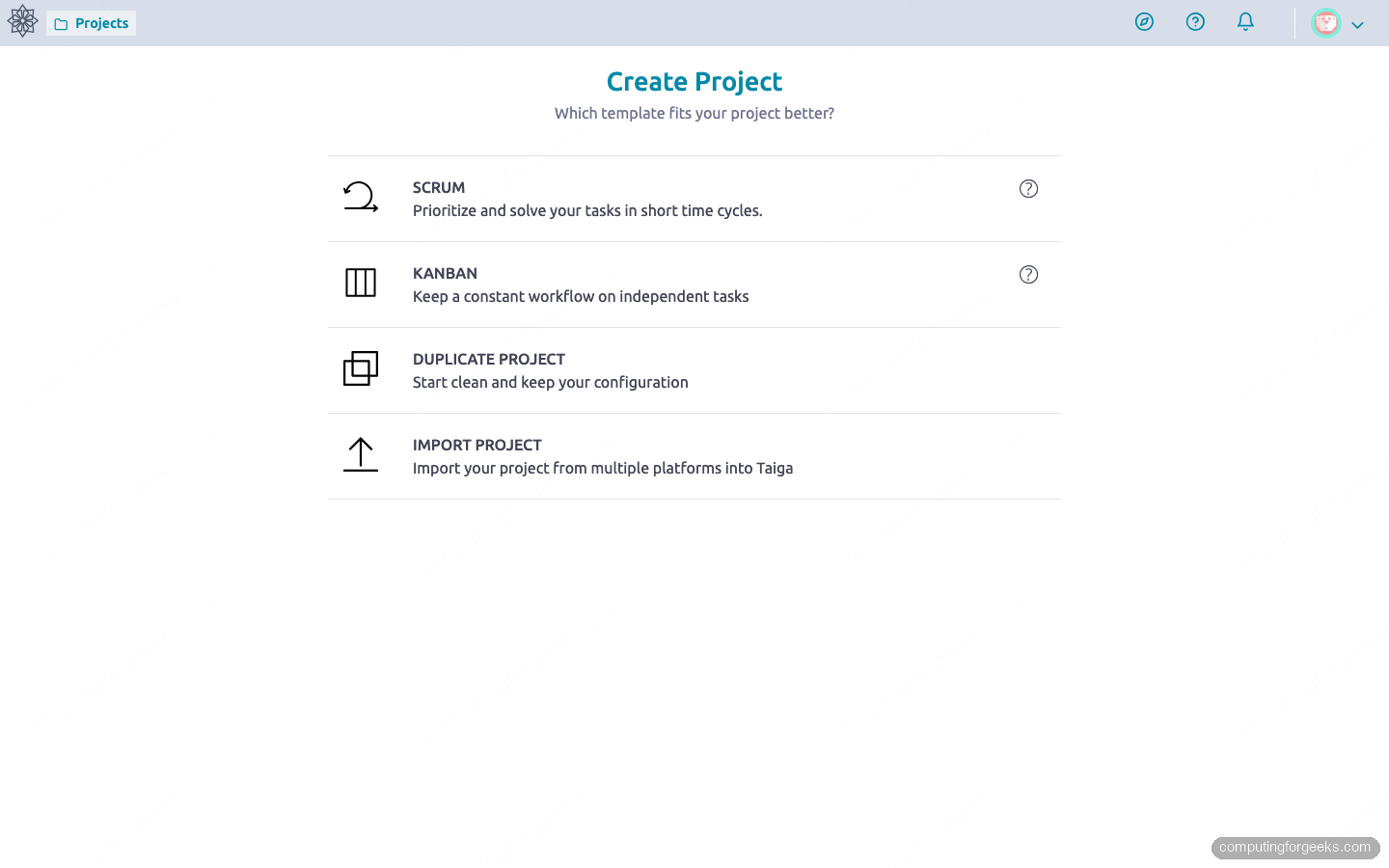
Pick Scrum for sprint-based delivery, Kanban for continuous flow, or duplicate an existing project. Give it a name and description, then create it. Taiga drops you straight into the project timeline, where every story, task, and comment is logged:
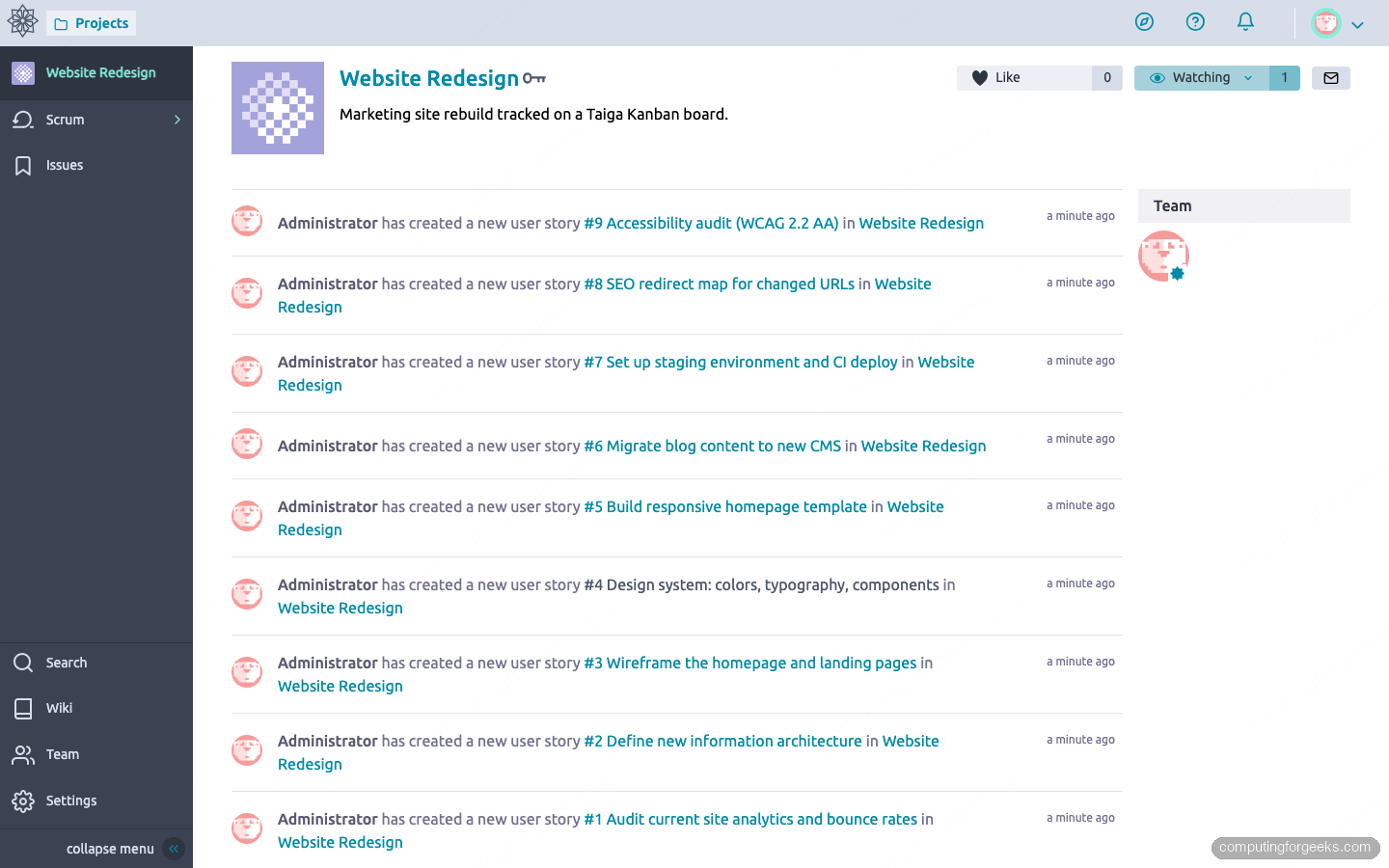
From here you build out user stories, invite team members under the Team panel, and switch between the backlog, board, and issue tracker from the left sidebar.
Backup the Database
Set up regular backups of the PostgreSQL database running inside Docker:
sudo mkdir -p /opt/taiga/backups
sudo docker compose -f /opt/taiga/docker-compose.yml exec taiga-db pg_dump -U taiga taiga > /opt/taiga/backups/taiga-backup-$(date +%Y%m%d).sql
Add a cron job to automate daily backups. This keeps your project data safe in case of container failures or upgrades.
Update Taiga
To update Taiga to a newer version, pull the latest images and recreate the containers:
cd /opt/taiga
sudo docker compose down
sudo docker compose pull
sudo docker compose up -d
Always back up your database before upgrading.
Scrum or Kanban: Which Taiga Board to Start With
The template you choose at project creation decides which board Taiga shows first, though you can switch the other module on later under Settings. Two rules of thumb cover most teams.
Reach for Kanban when work arrives continuously and you care about flow and work-in-progress limits: a support queue, a content pipeline, an ops backlog. Cards move left to right across status columns, and the count badge on each column flags bottlenecks at a glance:
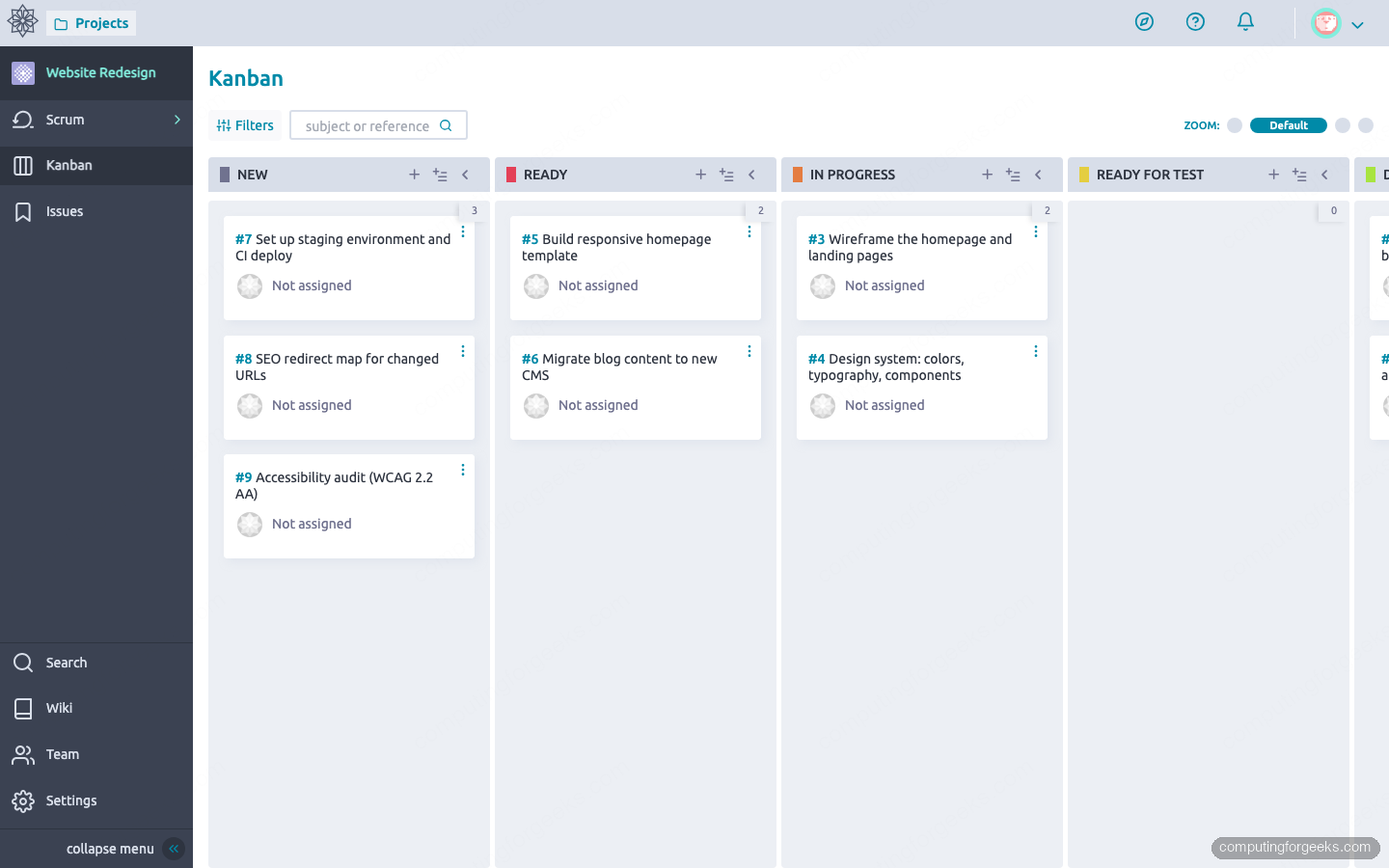
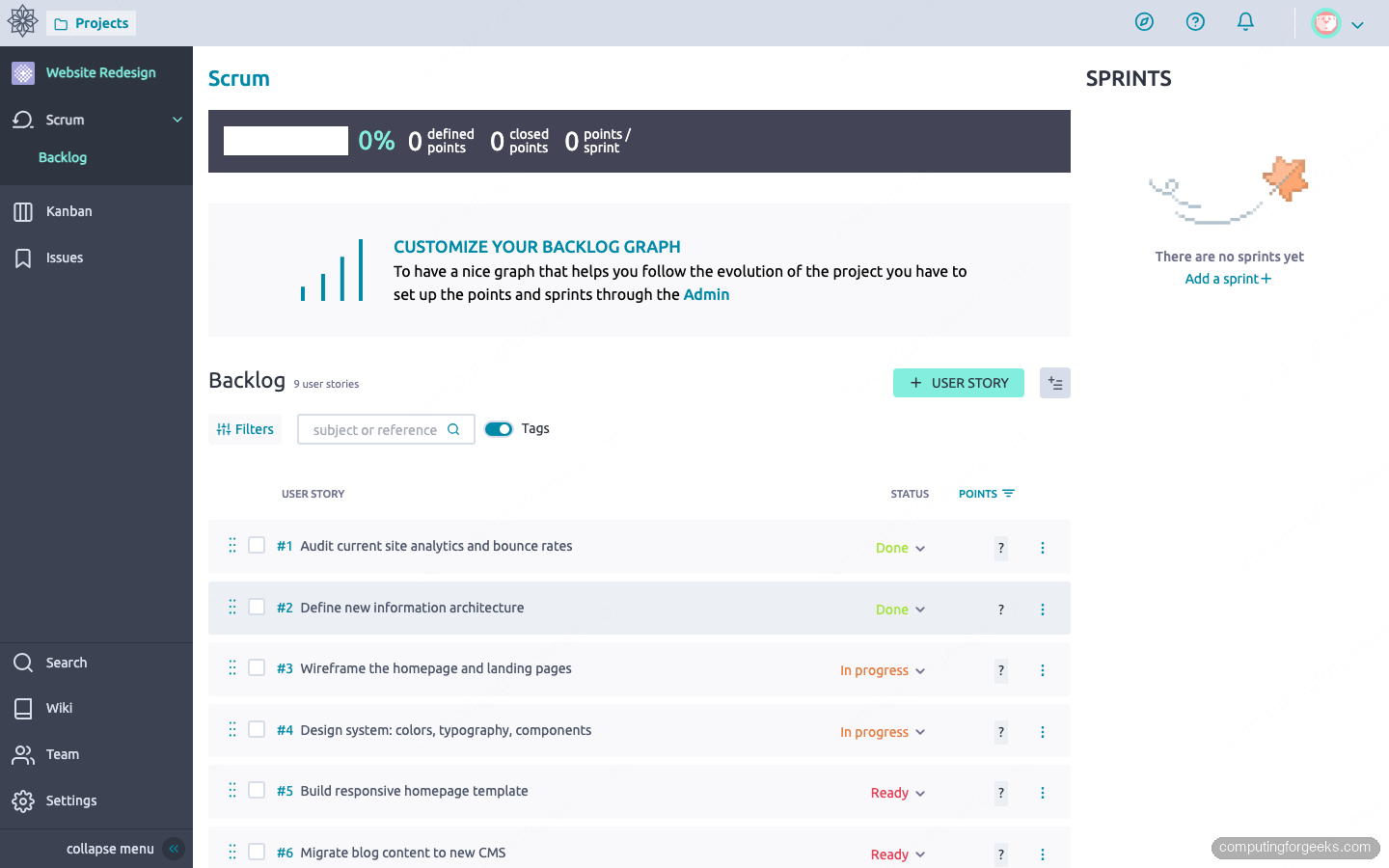
Reach for Scrum when you plan in fixed sprints and want a groomed, estimated backlog feeding each iteration. The backlog view lists every user story with its status and points, ready to drag into a sprint:
Most teams pick one to start and enable the other once they outgrow it. Either way, Taiga now runs on Ubuntu 24.04 behind Nginx with a valid certificate, a self-hosted Jira alternative whose data stays on your own server. Keep nightly database backups running, point the SMTP variables in .env at a real mail server so notifications go out, and you have a project tracker ready for a real team. If you want to weigh other open-source options first, Plane follows the same Docker Compose pattern and makes a fair comparison.






I love how you’ve documented things for installing Taiga. I’m running into and issue at step 6. I’m unable to login using username: admin, password:123123. Any guidance would be helpful.
The article is missing a step: after “docker compose up -d” you need to seed the initial admin user. Without this, no admin/123123 account exists. Run:
cd /opt/taiga
sudo docker compose exec taiga-back python manage.py loaddata initial_user
sudo docker compose exec taiga-back python manage.py loaddata initial_project_templates
Then log in with admin / 123123 and change the password immediately. Adding this step to the article now.