

PowerDNS Authoritative Server is one of the more capable open-source DNS servers available, particularly when you need database-backed zone storage instead of flat zone files. It supports MySQL, PostgreSQL, SQLite, and LDAP backends, which makes it a natural fit for environments where DNS records need to be managed programmatically or through a web interface. Pair it with PowerDNS-Admin and you get a clean web UI for zone management, user access control, and API integration without touching config files for every record change.
This guide walks through a full deployment on Ubuntu 24.04: MariaDB as the backend database, PowerDNS Authoritative Server with the MySQL backend and REST API enabled, and PowerDNS-Admin running in Docker for the web management interface. Everything here was tested on a real system and the commands are copy-paste ready. If you’re replacing BIND or an older PowerDNS setup, the migration path is straightforward since PowerDNS can import BIND zone files directly. For a broader comparison of DNS server options, check our BIND vs dnsmasq vs PowerDNS vs Unbound benchmark.
Tested March 2026 on Ubuntu 24.04.4 LTS with PowerDNS Authoritative 4.8.3, MariaDB 10.11.14, Docker 28.2.2
Prerequisites
You need the following before starting:
- Ubuntu 24.04 server with root or sudo access
- At least 2 GB RAM and 20 GB disk (PowerDNS itself is lightweight, Docker adds overhead)
- A static IP address configured on the server
- Ports 53 (TCP/UDP), 8081 (API), and 9191 (PowerDNS-Admin) available
- Tested on: Ubuntu 24.04.4 LTS, MariaDB 10.11.14, PowerDNS 4.8.3, Docker 28.2.2
Install and Configure MariaDB
PowerDNS needs a database backend to store zones and records. MariaDB ships in the default Ubuntu 24.04 repositories, so no external repo is needed.
Install MariaDB server:
sudo apt update
sudo apt install -y mariadb-server mariadb-client
Start and enable the service so it survives reboots:
sudo systemctl enable --now mariadbConfirm MariaDB is running:
systemctl status mariadb --no-pagerThe output should show active (running):
● mariadb.service - MariaDB 10.11.14 database server
     Loaded: loaded (/usr/lib/systemd/system/mariadb.service; enabled; preset: enabled)
     Active: active (running) since Tue 2026-03-24 14:22:01 UTC; 5s ago
   Main PID: 1823 (mariadbd)
     Status: "Taking your SQL requests now..."
      Tasks: 8 (limit: 4557)
     Memory: 82.3M
        CPU: 312ms
     CGroup: /system.slice/mariadb.service
             └─1823 /usr/sbin/mariadbd
Run the security hardening script. Set a root password and accept the defaults to remove anonymous users, disable remote root login, and drop the test database:
sudo mariadb-secure-installationNow create the PowerDNS database, user, and grant privileges. Connect to MariaDB as root:
sudo mariadb -u rootRun the following SQL statements to set up the database and credentials PowerDNS will use:
CREATE DATABASE powerdns CHARACTER SET utf8mb4 COLLATE utf8mb4_unicode_ci;
GRANT ALL ON powerdns.* TO 'powerdns'@'127.0.0.1' IDENTIFIED BY 'P0werDNS2026!';
FLUSH PRIVILEGES;
EXIT;
The user is bound to 127.0.0.1 rather than localhost because PowerDNS uses TCP connections by default, not Unix sockets.
Install PowerDNS Authoritative Server
Ubuntu 24.04 runs systemd-resolved on port 53 by default, which conflicts with PowerDNS. This must be disabled before PowerDNS can bind to port 53.
Disable systemd-resolved
Stop the service and prevent it from starting on boot:
sudo systemctl disable --now systemd-resolvedRemove the symlinked resolv.conf and create a static one pointing to a working resolver:
sudo rm -f /etc/resolv.conf
echo "nameserver 8.8.8.8" | sudo tee /etc/resolv.conf
Verify DNS resolution still works:
host google.comYou should see an address returned, confirming external resolution is intact:
google.com has address 142.250.80.46
google.com has IPv6 address 2a00:1450:4001:82a::200e
google.com mail is handled by 10 smtp.google.com.
Install PowerDNS and the MySQL Backend
Install the authoritative server and the MySQL/MariaDB backend module:
sudo apt install -y pdns-server pdns-backend-mysqlDuring installation, the package may prompt about database configuration via dbconfig-common. Select No because we already created the database manually and want full control over the schema import.
Import the PowerDNS schema into the database:
sudo mariadb -u root powerdns < /usr/share/pdns-backend-mysql/schema/schema.mysql.sqlVerify the tables were created:
sudo mariadb -u root -e "USE powerdns; SHOW TABLES;"The schema creates several tables including domains, records, supermasters, and others:
+--------------------+
| Tables_in_powerdns |
+--------------------+
| comments           |
| cryptokeys         |
| domainmetadata     |
| domains            |
| records            |
| supermasters       |
| tsigkeys           |
+--------------------+
Configure the MySQL Backend and API
Remove the default BIND backend configuration that ships with Ubuntu:
sudo rm -f /etc/powerdns/pdns.d/bind.confCreate the MySQL backend configuration file:
sudo vi /etc/powerdns/pdns.d/mysql.confAdd the following configuration, which tells PowerDNS to use the MariaDB database we created and enables the REST API on port 8081:
launch=gmysql
gmysql-host=127.0.0.1
gmysql-port=3306
gmysql-dbname=powerdns
gmysql-user=powerdns
gmysql-password=P0werDNS2026!
gmysql-dnssec=yes
Now edit the main PowerDNS configuration to enable the API and webserver. The API is required for PowerDNS-Admin to communicate with the server:
sudo vi /etc/powerdns/pdns.confFind and update (or append) these directives:
api=yes
api-key=pdns-api-key-2026
webserver=yes
webserver-address=0.0.0.0
webserver-port=8081
webserver-allow-from=0.0.0.0/0
The webserver-allow-from setting controls which IPs can reach the API. In production, restrict this to your management network or the specific IP running PowerDNS-Admin. For this guide, we allow all since everything runs on the same host.
Set proper permissions on the config files since they contain credentials:
sudo chown pdns:pdns /etc/powerdns/pdns.d/mysql.conf
sudo chmod 640 /etc/powerdns/pdns.d/mysql.conf
Restart PowerDNS to apply the configuration:
sudo systemctl restart pdnsCheck that it started without errors:
systemctl status pdns --no-pagerYou should see PowerDNS running and listening:
● pdns.service - PowerDNS Authoritative Server
     Loaded: loaded (/usr/lib/systemd/system/pdns.service; enabled; preset: enabled)
     Active: active (running) since Tue 2026-03-24 14:35:12 UTC; 3s ago
       Docs: man:pdns_server(1)
             man:pdns_control(1)
             https://doc.powerdns.com
   Main PID: 2451 (pdns_server)
     Status: "Serving 0 domains, 0 records"
      Tasks: 8 (limit: 4557)
     Memory: 18.2M
        CPU: 89ms
     CGroup: /system.slice/pdns.service
             └─2451 /usr/sbin/pdns_server --guardian=no --daemon=no
Confirm both port 53 and the API port 8081 are bound:
sudo ss -tlnp | grep -E '(:53|:8081)'Both should appear in the output:
LISTEN 0      128          0.0.0.0:53    0.0.0.0:*    users:(("pdns_server",pid=2451,fd=7))
LISTEN 0      128          0.0.0.0:8081  0.0.0.0:*    users:(("pdns_server",pid=2451,fd=10))
Verify PowerDNS with the API
Before setting up the web UI, confirm the API works and test zone management from the command line. This validates the full stack: PowerDNS, the MySQL backend, and the REST API.
Query the server version through the API:
curl -s -H "X-API-Key: pdns-api-key-2026" http://127.0.0.1:8081/api/v1/servers/localhost | python3 -m json.toolThe response confirms PowerDNS 4.8.3 is running with the gmysql backend:
{
    "type": "Server",
    "id": "localhost",
    "daemon_type": "authoritative",
    "version": "4.8.3",
    "url": "/api/v1/servers/localhost",
    "config_url": "/api/v1/servers/localhost/config{/config_setting}",
    "zones_url": "/api/v1/servers/localhost/zones{/zone}"
}
Create a Test Zone via the API
Create a zone for example.com with SOA, NS, A, and MX records in a single API call:
curl -s -X POST http://127.0.0.1:8081/api/v1/servers/localhost/zones \
  -H "X-API-Key: pdns-api-key-2026" \
  -H "Content-Type: application/json" \
  -d '{
    "name": "example.com.",
    "kind": "Native",
    "nameservers": ["ns1.example.com.", "ns2.example.com."],
    "rrsets": [
      {
        "name": "example.com.",
        "type": "A",
        "ttl": 3600,
        "records": [{"content": "192.168.1.10", "disabled": false}]
      },
      {
        "name": "example.com.",
        "type": "MX",
        "ttl": 3600,
        "records": [{"content": "10 mail.example.com.", "disabled": false}]
      },
      {
        "name": "ns1.example.com.",
        "type": "A",
        "ttl": 3600,
        "records": [{"content": "192.168.1.10", "disabled": false}]
      },
      {
        "name": "ns2.example.com.",
        "type": "A",
        "ttl": 3600,
        "records": [{"content": "192.168.1.11", "disabled": false}]
      },
      {
        "name": "mail.example.com.",
        "type": "A",
        "ttl": 3600,
        "records": [{"content": "192.168.1.12", "disabled": false}]
      }
    ]
  }' | python3 -m json.tool
The API returns the full zone object with all records, confirming everything was stored in MariaDB.
Query with dig
Test DNS resolution against the local PowerDNS server:
dig @127.0.0.1 example.com A +shortThis returns the A record we just created:
192.168.1.10Check the MX record:
dig @127.0.0.1 example.com MX +shortThe mail exchanger shows up with priority 10:
10 mail.example.com.Query the NS records:
dig @127.0.0.1 example.com NS +shortBoth nameservers are returned:
ns1.example.com.
ns2.example.com.
The DNS stack is fully operational. PowerDNS is reading records from MariaDB and responding to queries correctly.
Install PowerDNS-Admin with Docker
PowerDNS-Admin provides a web-based interface for managing zones, records, users, and API settings. The simplest deployment method is Docker, which avoids dealing with Python dependencies and virtual environments on the host. If you want an entirely containerized stack (including PowerDNS itself), see our PowerDNS and PowerDNS-Admin in Docker containers guide.
Install Docker
Add the official Docker repository and install the engine:
sudo apt install -y ca-certificates curl gnupg
sudo install -m 0755 -d /etc/apt/keyrings
curl -fsSL https://download.docker.com/linux/ubuntu/gpg | sudo gpg --dearmor -o /etc/apt/keyrings/docker.gpg
sudo chmod a+r /etc/apt/keyrings/docker.gpg
echo "deb [arch=$(dpkg --print-architecture) signed-by=/etc/apt/keyrings/docker.gpg] https://download.docker.com/linux/ubuntu $(lsb_release -cs) stable" | sudo tee /etc/apt/sources.list.d/docker.list
sudo apt update
sudo apt install -y docker-ce docker-ce-cli containerd.io
Confirm Docker is running:
docker --versionThe version output confirms the installation:
Docker version 28.2.2, build e6534b4Run the PowerDNS-Admin Container
Launch the container with the necessary environment variables. The container uses SQLite internally for its own user database (separate from the PowerDNS MariaDB backend), and connects to the PowerDNS API for zone management:
sudo docker run -d \
  --name powerdns-admin \
  --restart always \
  -p 9191:80 \
  -e SECRET_KEY='a-long-random-secret-key-change-this' \
  -e CAPTCHA_ENABLE=False \
  powerdnsadmin/pda-legacy:latest
A few notes on the environment variables:
SECRET_KEY: used for session encryption. Generate a random string for productionCAPTCHA_ENABLE=False: disables CAPTCHA on the login page. Enable it if exposing the UI to the internet- Port 9191 on the host maps to port 80 inside the container
Verify the container is running:
sudo docker ps --filter name=powerdns-adminThe container should show as Up with port 9191 mapped:
CONTAINER ID   IMAGE                             COMMAND                  CREATED          STATUS          PORTS                  NAMES
a3f2b1c9e847   powerdnsadmin/pda-legacy:latest   "entrypoint.sh gunic…"   12 seconds ago   Up 10 seconds   0.0.0.0:9191->80/tcp   powerdns-admin
PowerDNS-Admin is now accessible at http://your-server-ip:9191.
Configure PowerDNS-Admin
Open a browser and navigate to http://your-server-ip:9191. The first screen is the login page.
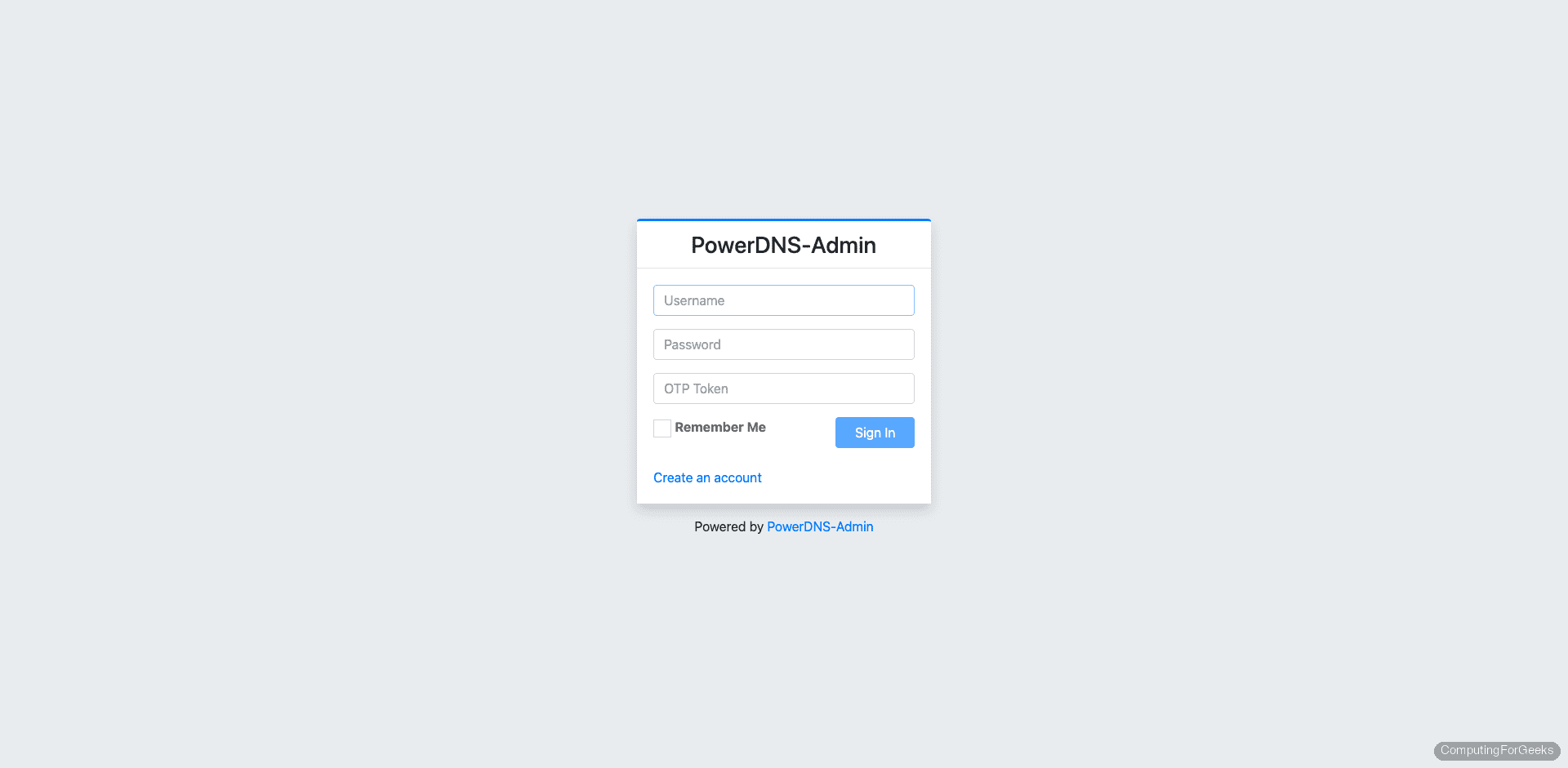
No accounts exist yet, so click Create an account to register the first admin user.
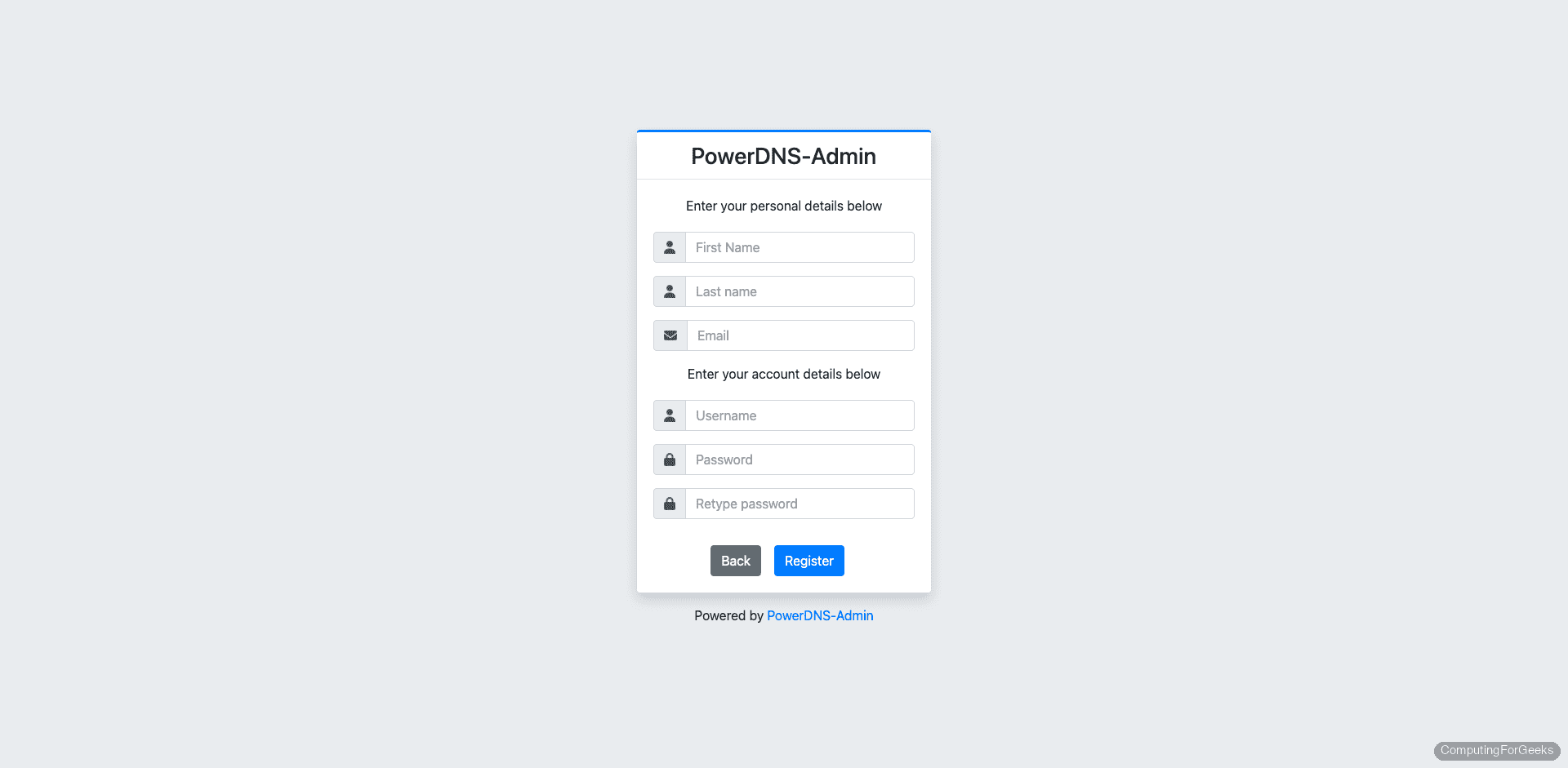
Fill in a username, email, and password, then submit the form. The first registered user automatically gets administrator privileges.
After logging in, PowerDNS-Admin redirects you to the API settings page. This is where you connect the web UI to the PowerDNS server’s REST API.
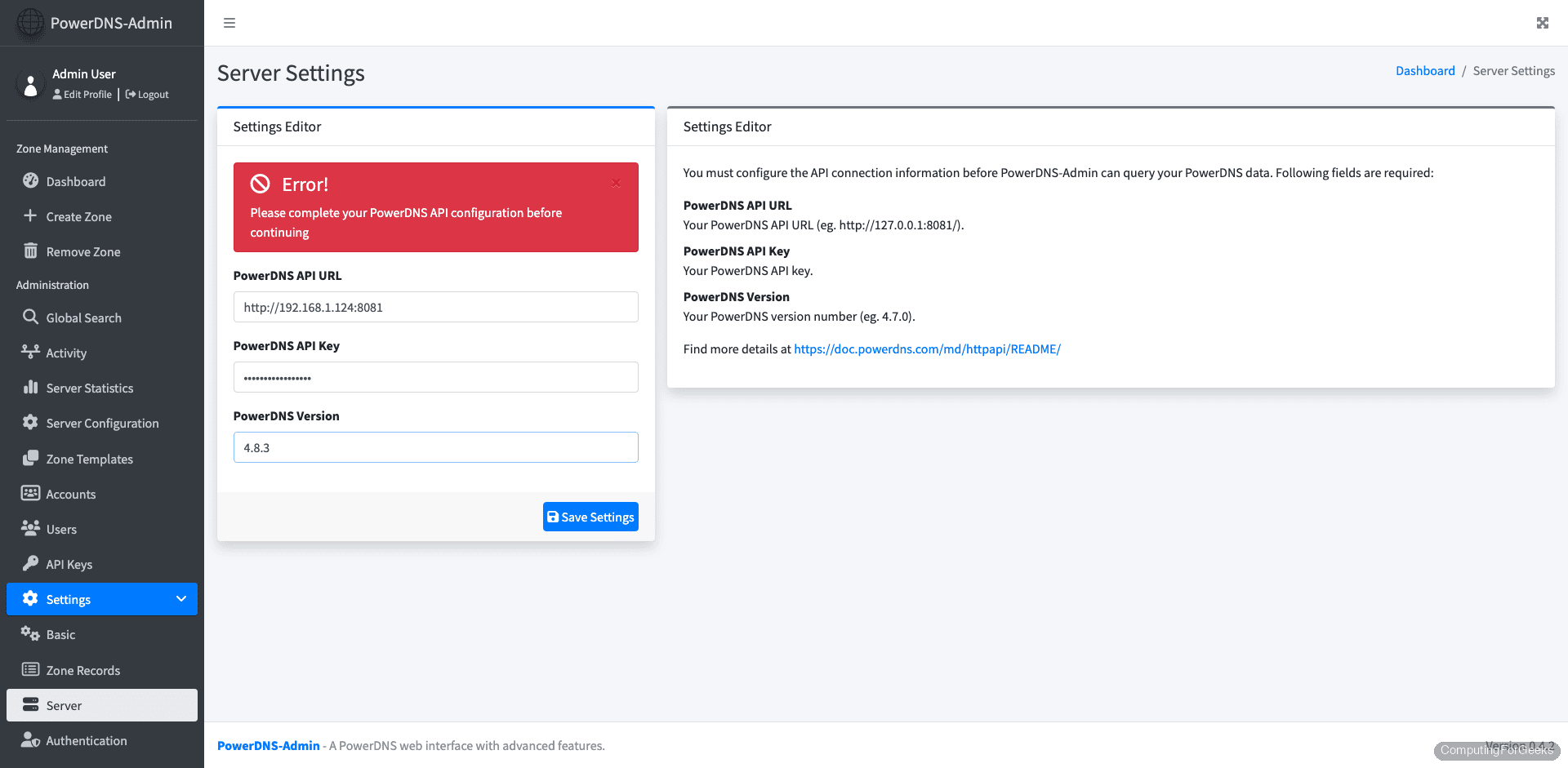
Enter the following values:
- PowerDNS API URL:
http://127.0.0.1:8081 - PowerDNS API Key:
pdns-api-key-2026(the key we set inpdns.conf) - PowerDNS Version:
4.8.3
Since the Docker container runs with --network host behavior through port mapping, the API URL uses 127.0.0.1 from the host perspective. If the container can’t reach the host’s port 8081, use the Docker bridge IP (typically 172.17.0.1) instead.
Save the settings. A green confirmation message appears when the connection is successful.
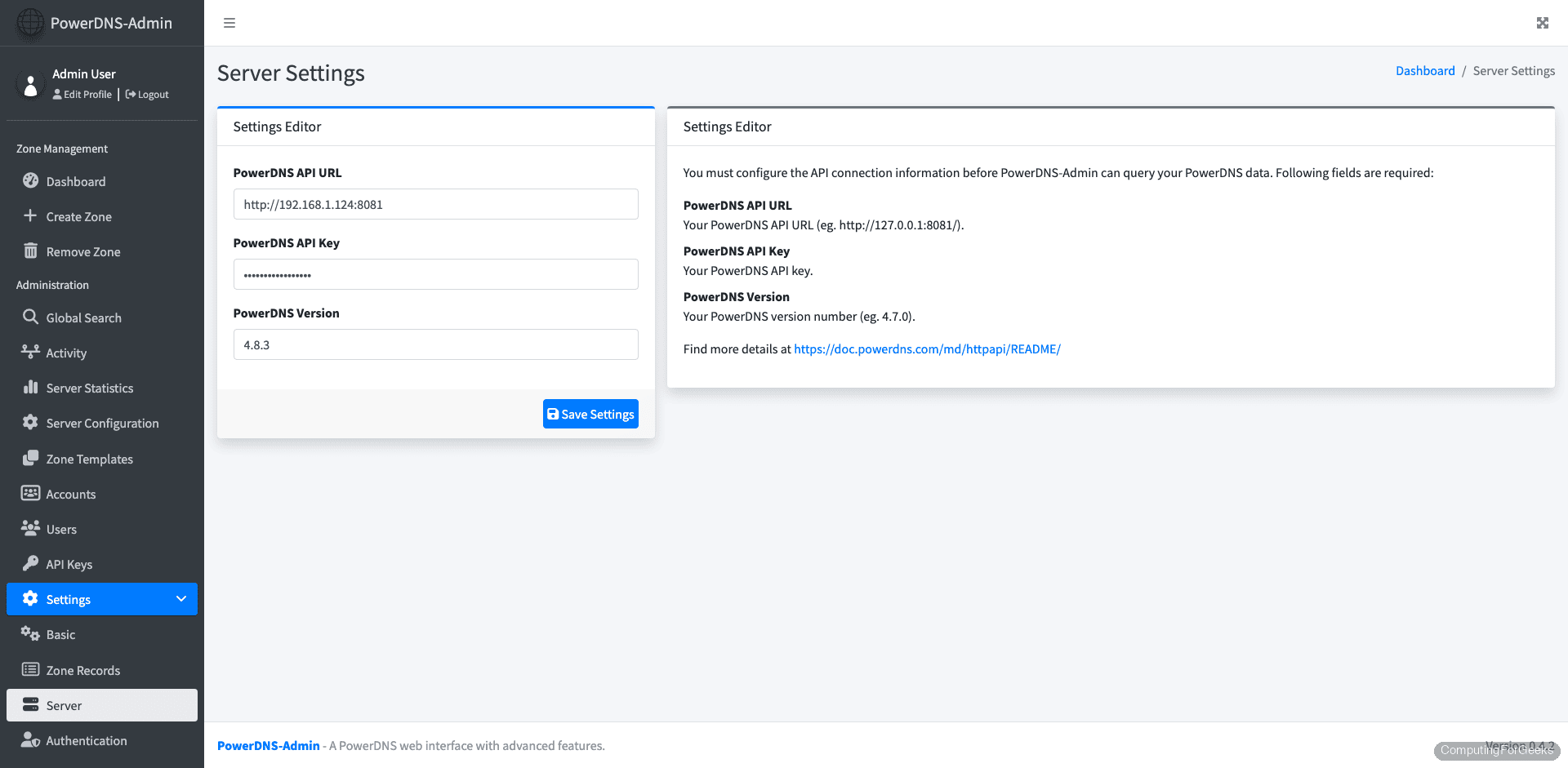
Navigate to the Dashboard. The example.com zone we created earlier via the API should already be visible:
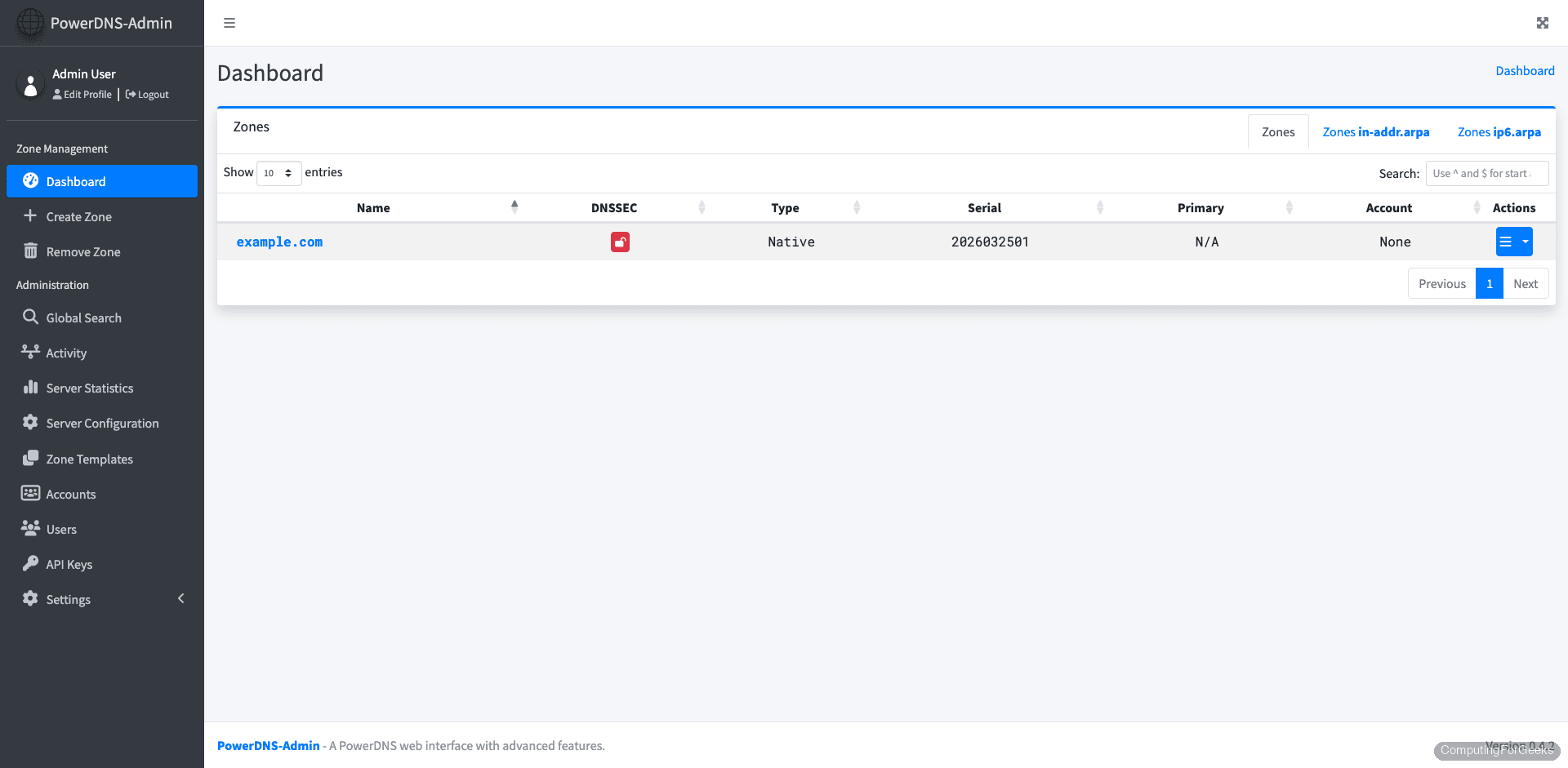
PowerDNS-Admin is now connected and managing zones through the PowerDNS API. Let’s explore zone management.
Manage DNS Zones
Click on the example.com zone to view its records. All the records we created via the API are listed here with their types, values, and TTLs.
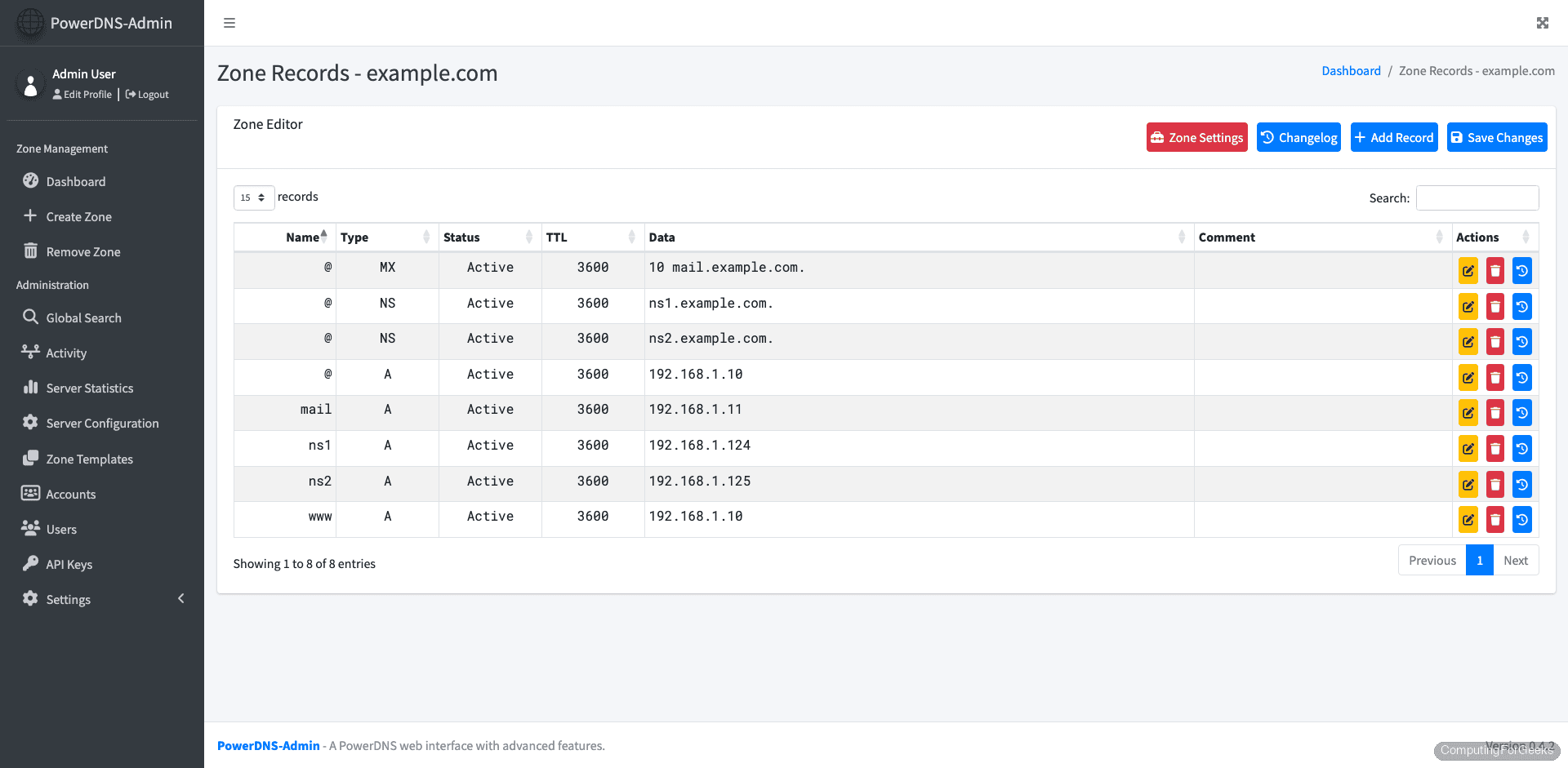
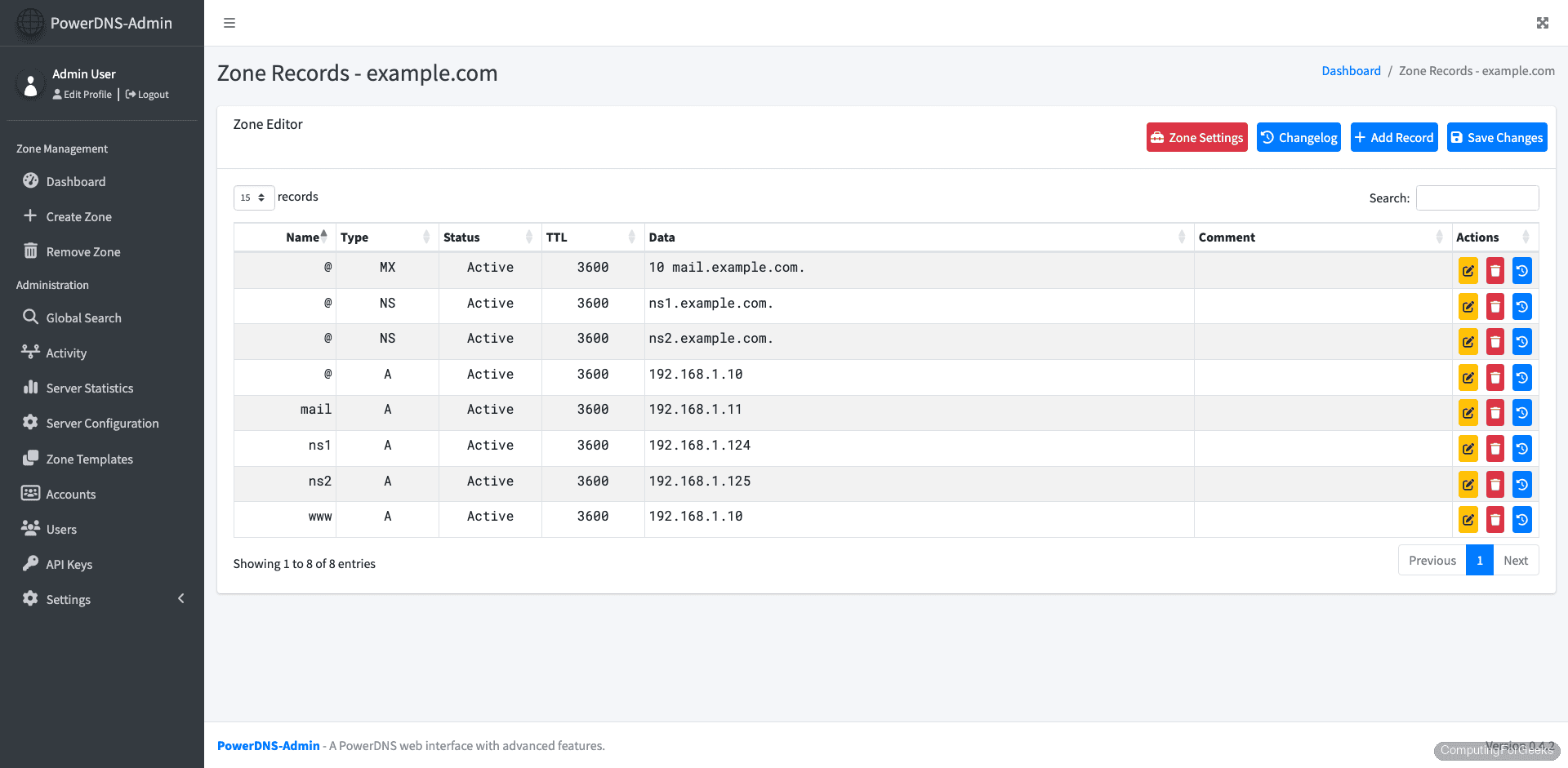
Scroll down to see additional records, including the nameserver glue records and the mail server A record:
Create a New Zone from the Web UI
To create a new zone, click New Domain from the dashboard. Fill in the domain name, select the zone type (Native for single-server setups, Master/Slave for replication), and specify nameservers.
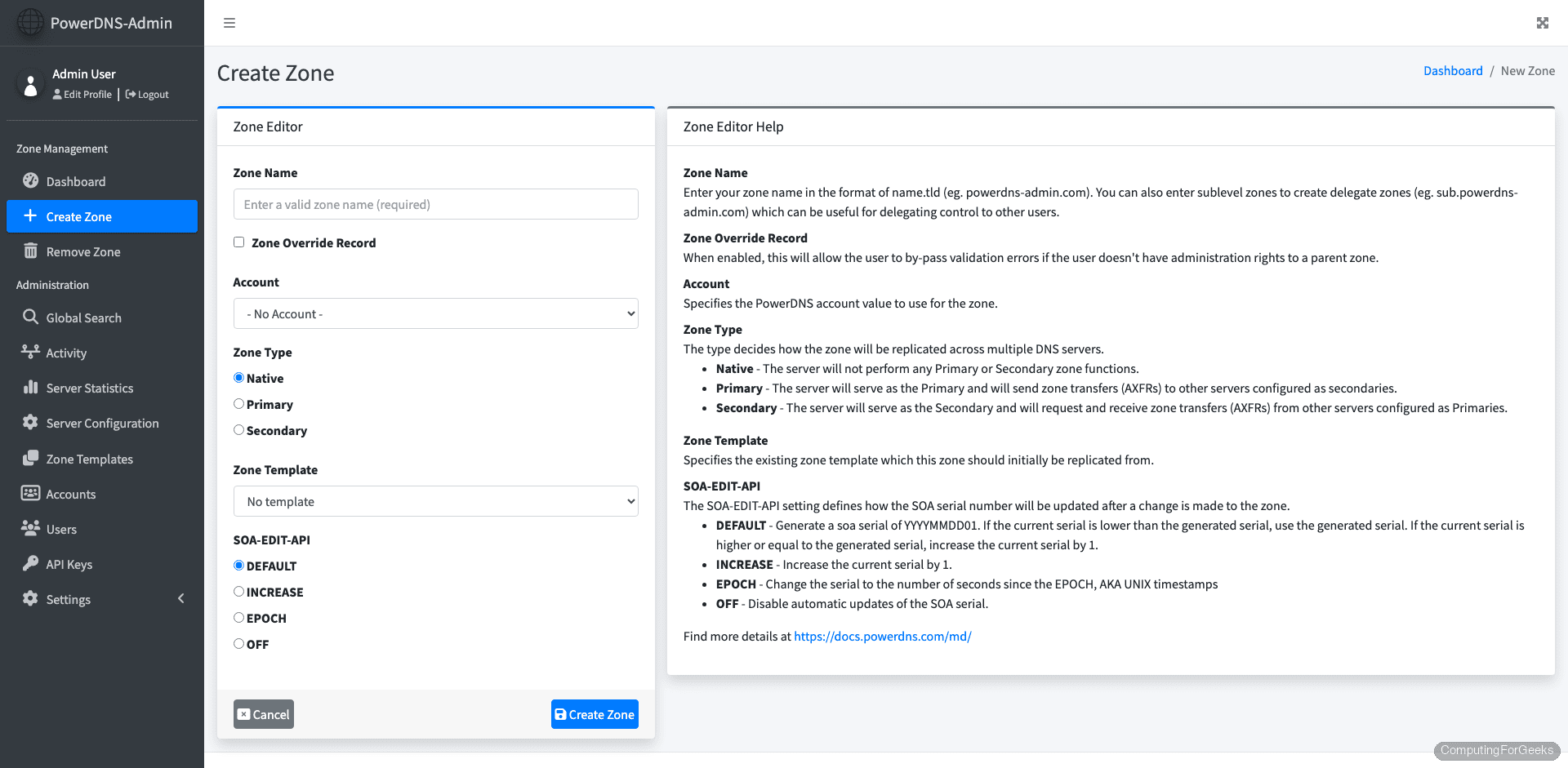
After creating the zone, you can add records directly in the browser by clicking Add Record in the zone view. Select the record type (A, AAAA, CNAME, MX, TXT, SRV, etc.), enter the name, value, and TTL, then apply changes.
Manage Users and Settings
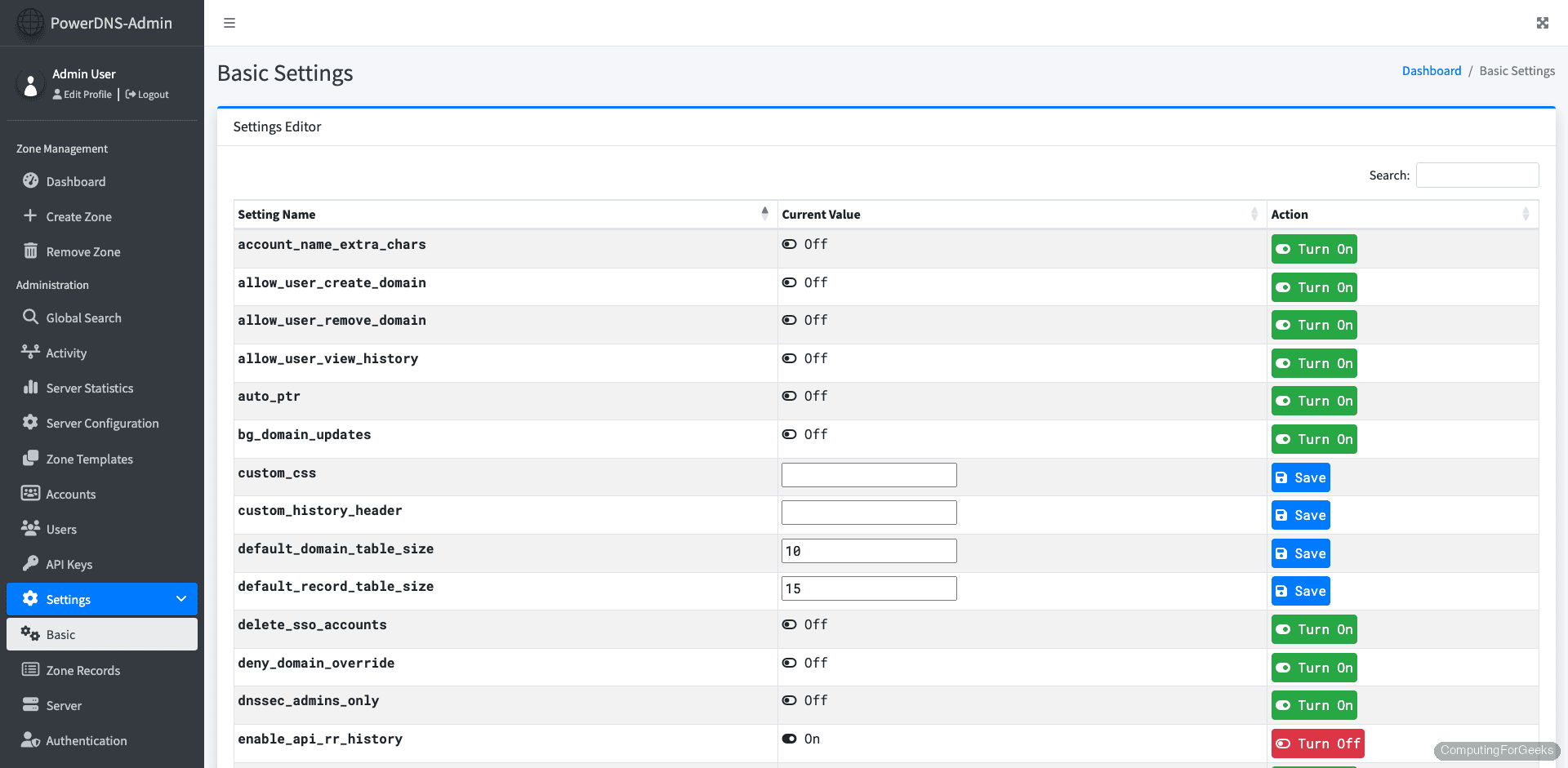
Under Settings, you can configure basic application options, including session timeout, default record TTL, and whether new users can self-register:
The Users page shows all registered accounts and their roles. You can promote users to administrators or restrict them to specific zones, which is useful in multi-team environments:
Test DNS Resolution
With everything configured, run a comprehensive set of dig queries to validate the setup from both the local server and remote clients.
Query the A record:
dig @127.0.0.1 example.com A +shortReturns the expected IP:
192.168.1.10Query the SOA record to verify zone authority:
dig @127.0.0.1 example.com SOA +shortThe SOA shows the primary nameserver and zone serial:
ns1.example.com. hostmaster.example.com. 2026032401 10800 3600 604800 3600A full query with all sections displayed gives more detail:
dig @127.0.0.1 example.com ANYThis shows all record types for the zone in the ANSWER section, along with query time and server info:
;; ANSWER SECTION:
example.com.		3600	IN	A	192.168.1.10
example.com.		3600	IN	NS	ns1.example.com.
example.com.		3600	IN	NS	ns2.example.com.
example.com.		3600	IN	MX	10 mail.example.com.
example.com.		3600	IN	SOA	ns1.example.com. hostmaster.example.com. 2026032401 10800 3600 604800 3600

;; Query time: 1 msec
;; SERVER: 127.0.0.1#53(127.0.0.1) (UDP)
;; WHEN: Tue Mar 24 14:52:33 UTC 2026
;; MSG SIZE  rcvd: 212
From a remote machine, point dig at the server’s IP to confirm it responds to external queries:
dig @10.0.1.50 example.com A +shortReplace 10.0.1.50 with your server’s actual IP. If the query times out, check that port 53 is open in the firewall (covered in the next section).
Production Considerations
The setup above works for testing and internal use. For production, a few additional steps harden the deployment.
Firewall Rules
Open only the ports that need external access. DNS should be available to clients, but the API and admin interface should be restricted:
sudo ufw allow 53/tcp
sudo ufw allow 53/udp
sudo ufw allow from 10.0.1.0/24 to any port 9191 proto tcp comment "PowerDNS-Admin"
sudo ufw allow from 10.0.1.0/24 to any port 8081 proto tcp comment "PowerDNS API"
sudo ufw enable
Replace 10.0.1.0/24 with your management network. Never expose the API or admin UI to the public internet without authentication and encryption.
Nginx Reverse Proxy for PowerDNS-Admin
In production, run PowerDNS-Admin behind Nginx with SSL rather than exposing port 9191 directly. Install Nginx:
sudo apt install -y nginxCreate the site configuration:
sudo vi /etc/nginx/sites-available/pdns-adminAdd the following reverse proxy configuration:
server {
    listen 443 ssl http2;
    server_name pdns.example.com;

    ssl_certificate /etc/letsencrypt/live/pdns.example.com/fullchain.pem;
    ssl_certificate_key /etc/letsencrypt/live/pdns.example.com/privkey.pem;

    location / {
        proxy_pass http://127.0.0.1:9191;
        proxy_set_header Host $host;
        proxy_set_header X-Real-IP $remote_addr;
        proxy_set_header X-Forwarded-For $proxy_add_x_forwarded_for;
        proxy_set_header X-Forwarded-Proto $scheme;
    }
}

server {
    listen 80;
    server_name pdns.example.com;
    return 301 https://$host$request_uri;
}
Enable the site and restart Nginx:
sudo ln -s /etc/nginx/sites-available/pdns-admin /etc/nginx/sites-enabled/
sudo nginx -t
sudo systemctl restart nginx
Obtain a certificate using Let’s Encrypt with certbot. The official PowerDNS documentation covers additional TLS options for securing the API endpoint itself.
Database Backups
All your DNS data lives in MariaDB now, so regular database backups are essential. A simple cron job handles this:
sudo crontab -eAdd a daily backup at 2 AM:
0 2 * * * /usr/bin/mariadb-dump -u root powerdns | gzip > /var/backups/powerdns-$(date +\%Y\%m\%d).sql.gzFor the Docker container’s internal SQLite database (which stores PowerDNS-Admin users and settings), mount a volume or copy it out periodically:
sudo docker cp powerdns-admin:/data/powerdns-admin.db /var/backups/pda-admin.dbMonitoring
PowerDNS exposes metrics through its built-in webserver at http://127.0.0.1:8081/metrics in Prometheus format. If you’re running Prometheus and Grafana, scraping this endpoint gives you query rates, cache hit ratios, backend latency, and error counts. Our DNS monitoring with Prometheus and Grafana guide covers the full setup.
For RHEL-based systems, we also have a guide for installing PowerDNS on Rocky Linux and AlmaLinux.

not complete like https://computingforgeeks.com/install-powerdns-and-powerdns-admin-on-debian/
example
source ./venv/bin/activate
where deactivate ? where ./venv ? where (flask)$? are you ripping your self but totally wrong
Hi, thanks for the great tutorial!
I have used it before on Ubuntu 18.04, but now the updated version of tutorial for Ubuntu 22.04 has error:
flask db upgrade
Traceback (most recent call last):
File “/root/flask/bin/flask”, line 8, in
sys.exit(main())
File “/root/flask/lib/python3.10/site-packages/flask/cli.py”, line 967, in main
cli.main(args=sys.argv[1:], prog_name=”python -m flask” if as_module else None)
File “/root/flask/lib/python3.10/site-packages/flask/cli.py”, line 586, in main
return super(FlaskGroup, self).main(*args, **kwargs)
File “/root/flask/lib/python3.10/site-packages/click/core.py”, line 1055, in main
rv = self.invoke(ctx)
File “/root/flask/lib/python3.10/site-packages/click/core.py”, line 1657, in invoke
return _process_result(sub_ctx.command.invoke(sub_ctx))
File “/root/flask/lib/python3.10/site-packages/click/core.py”, line 1657, in invoke
return _process_result(sub_ctx.command.invoke(sub_ctx))
File “/root/flask/lib/python3.10/site-packages/click/core.py”, line 1404, in invoke
return ctx.invoke(self.callback, **ctx.params)
File “/root/flask/lib/python3.10/site-packages/click/core.py”, line 760, in invoke
return __callback(*args, **kwargs)
File “/root/flask/lib/python3.10/site-packages/click/decorators.py”, line 26, in new_func
return f(get_current_context(), *args, **kwargs)
File “/root/flask/lib/python3.10/site-packages/flask/cli.py”, line 425, in decorator
with __ctx.ensure_object(ScriptInfo).load_app().app_context():
File “/root/flask/lib/python3.10/site-packages/flask/cli.py”, line 388, in load_app
app = locate_app(self, import_name, name)
File “/root/flask/lib/python3.10/site-packages/flask/cli.py”, line 257, in locate_app
return find_best_app(script_info, module)
File “/root/flask/lib/python3.10/site-packages/flask/cli.py”, line 83, in find_best_app
app = call_factory(script_info, app_factory)
File “/root/flask/lib/python3.10/site-packages/flask/cli.py”, line 119, in call_factory
return app_factory()
File “/opt/web/powerdns-admin/powerdnsadmin/__init__.py”, line 44, in create_app
app.config.from_envvar(‘FLASK_CONF’)
File “/root/flask/lib/python3.10/site-packages/flask/config.py”, line 111, in from_envvar
return self.from_pyfile(rv, silent=silent)
File “/root/flask/lib/python3.10/site-packages/flask/config.py”, line 132, in from_pyfile
exec(compile(config_file.read(), filename, “exec”), d.__dict__)
File “/opt/web/powerdns-admin/powerdnsadmin/../configs/production.py”, line 21, in
urllib.parse.quote_plus(SQLA_DB_USER),
NameError: name ‘urllib’ is not defined
I got it:
in /opt/web/powerdns-admin/configs/production.py
uncomment the line #import urllib.parse
Hello thanks for this good job !
If i want to create zone after install, I had this error
Error: GSQLBackend unable to retrieve information about domain ‘example.com’: Could not prepare statement: select id,name,master,last_check,notified_serial,type,options,catalog,account from domains where name=?: Unknown column ‘options’ in ‘field list’
Confirm your domain as configured.
I have followed the provided guide, but unfortunately, I keep encountering an “Internal Server Error” when attempting to browse to the dashboard.
Additionally, during the installation process, I encountered errors related to installing the requirements for psycopg2 version 2.9.5. However, I discovered that changing the requirement to psycopg2-binary version 2.9.5 resolved this issue.
I have made sure to follow the guide carefully, and I’m wondering if anyone else has encountered similar issues or has any suggestions for troubleshooting and resolving the “Internal Server Error” problem.
I have followed the provided guide, but unfortunately, I keep encountering an “Internal Server Error” when attempting to browse to the dashboard.
Additionally, during the installation process, I encountered errors related to installing the requirements for psycopg2 version 2.9.5. However, I discovered that changing the requirement to psycopg2-binary version 2.9.5 resolved this issue.
I have made sure to follow the guide carefully, and I’m wondering if anyone else has encountered similar issues or has any suggestions for troubleshooting and resolving the “Internal Server Error” problem. im using Ubuntu 22.04
I tried on Debian Bookworm and the result is identical to Kareem.
Wonder if anybody is able to shed light on the possible error/mis-configuration.
Hi Kareem, I tried the steps on Debian Bookworm and get the same “Internal Server Error”. Took me a couple of days to trial and error and manage to bypass by turning off the CAPTCHA feature.
Thanks for sharing the feedback.
Am I missing something good people:
dataco@powerdns:~$ flask db upgrade
Error: Could not import ‘powerdnsadmin’.
Usage: flask [OPTIONS] COMMAND [ARGS]…
Try ‘flask –help’ for help.
Error: No such command ‘db’.
dataco@powerdns:~$