Backstage started at Spotify as their internal developer portal before they open-sourced it through the CNCF. Today, it is the de facto standard for building Internal Developer Portals, with over 3,400 organizations running it in production. It gives engineering teams a single place to manage software catalogs, API documentation, CI/CD pipelines, cloud infrastructure, and service templates through a plugin-based architecture that you can extend to fit whatever your org needs.
This guide walks through a complete Backstage installation on Rocky Linux 10 and Ubuntu 24.04, from Node.js and Yarn 4 setup through PostgreSQL configuration, production builds, systemd services, and Nginx SSL reverse proxy. Most Backstage install guides gloss over the Yarn 4 differences and skip production-ready configuration entirely. We cover both.
Verified April 2026 with Backstage 1.49.1, Node.js 22.22.2, Yarn 4.4.1, PostgreSQL 16.13 on Rocky Linux 10.1
Prerequisites
Before starting, confirm your system meets these requirements:
- OS: Rocky Linux 10.x, AlmaLinux 10.x, RHEL 10.x, or Ubuntu 24.04 LTS
- RAM: 4 GB minimum, 8 GB recommended (the TypeScript compilation during
yarn installis memory-hungry) - CPU: 4 cores minimum
- Disk: 10 GB free for the application and dependencies
- A domain name if you want SSL (optional for lab setups)
- Root or sudo access
- Tested on: Rocky Linux 10.1 (kernel 6.12), Node.js v22.22.2, npm 10.9.7, Yarn 4.4.1, PostgreSQL 16.13, Backstage 1.49.1
Install Node.js 22
Backstage requires Node.js 18 or later, but Node.js 22 is the current LTS and what the project actively tests against. The OS-provided Node.js packages on Rocky 10 and Ubuntu 24.04 are too old, so install from the NodeSource repository.
Rocky Linux 10 / AlmaLinux 10 / RHEL 10:
curl -fsSL https://rpm.nodesource.com/setup_22.x | sudo bash -Once the repository is configured, install Node.js along with the build tools Backstage needs for native module compilation:
sudo dnf install -y nodejs git gcc-c++ make python3Ubuntu 24.04:
curl -fsSL https://deb.nodesource.com/setup_22.x | sudo bash -Install Node.js and the required build dependencies:
sudo apt install -y nodejs git build-essential python3Verify the installed versions on either OS:
node --version
npm --version
You should see output confirming Node.js 22.x and npm 10.x:
v22.22.2
10.9.7
Enable Yarn 4 via Corepack
This is where most Backstage installation guides go wrong. Backstage uses Yarn 4 (Berry), not Yarn 1 (Classic). If you install Yarn globally via npm the old way (npm install -g yarn), you get Yarn 1, and the Backstage scaffolding will either fail outright or produce a broken project. The correct approach is Corepack, which ships with Node.js 22 and manages Yarn versions per-project.
Enable Corepack:
sudo corepack enableActivate the latest stable Yarn:
corepack prepare yarn@stable --activateConfirm Yarn 4.x is active:
yarn --versionThe output should show version 4.x:
4.4.1Yarn 4 Gotchas You Need to Know
If you have used Yarn 1 before, several things have changed. These differences will bite you if you are not aware of them:
- Config file: Yarn 4 uses
.yarnrc.yml, not.yarnrc. The old file is ignored completely. - Lock flag: Use
yarn install --immutablein CI, not--frozen-lockfile(which no longer exists). - Node linker: Backstage scaffolds the project with
nodeLinker: node-modulesin.yarnrc.yml, so it creates a traditionalnode_modules/directory. Some Yarn 4 projects use PnP (Plug’n’Play), but Backstage does not. - No global add:
yarn global adddoes not exist in Yarn 4. Usenpxfor one-off tools. - Plugin system: Yarn 4 ships with plugins for features like
yarn upgrade-interactive. They live in.yarn/plugins/.
Install and Configure PostgreSQL
Backstage ships with an in-memory SQLite database for development, but it loses all data on restart and does not support concurrent access well. For anything beyond a quick demo, PostgreSQL is the only serious option.
Rocky Linux 10 / AlmaLinux 10:
sudo dnf install -y postgresql-server postgresqlInitialize the database cluster and start the service:
sudo postgresql-setup --initdb
sudo systemctl enable --now postgresql
Ubuntu 24.04:
sudo apt install -y postgresql postgresql-contribPostgreSQL starts automatically on Ubuntu after installation. Confirm it is running:
sudo systemctl status postgresqlThe output should show active (running) on both distributions.
Create the Backstage Database and User
Switch to the postgres system user and open the PostgreSQL shell:
sudo -u postgres psqlCreate a dedicated user and database for Backstage:
CREATE USER backstage WITH PASSWORD 'StrongPassword123';
CREATE DATABASE backstage_db OWNER backstage;
GRANT ALL PRIVILEGES ON DATABASE backstage_db TO backstage;
\q
Replace StrongPassword123 with a real password. Keep it handy because we need it for the Backstage configuration file later.
Fix Authentication Method (Rocky Linux)
Rocky Linux 10 defaults to ident authentication for local connections in pg_hba.conf, which blocks password-based authentication. Backstage connects over TCP with a password, so this needs to change.
Open the authentication config:
sudo vi /var/lib/pgsql/data/pg_hba.confFind the lines that look like this near the bottom:
# IPv4 local connections:
host    all             all             127.0.0.1/32            ident
# IPv6 local connections:
host    all             all             ::1/128                 ident
Change ident to md5 on both lines:
# IPv4 local connections:
host    all             all             127.0.0.1/32            md5
# IPv6 local connections:
host    all             all             ::1/128                 md5
On Ubuntu 24.04, the config file lives at /etc/postgresql/16/main/pg_hba.conf and typically defaults to scram-sha-256, which already works with password authentication. No changes needed on Ubuntu unless you see connection errors.
Restart PostgreSQL to apply the changes:
sudo systemctl restart postgresqlTest the connection to confirm it works:
psql -h 127.0.0.1 -U backstage -d backstage_db -c "SELECT version();"Enter the password when prompted. You should see the PostgreSQL version string:
                                                 version
----------------------------------------------------------------------------------------------------------
 PostgreSQL 16.13 on x86_64-redhat-linux-gnu, compiled by gcc (GCC) 14.2.1 20250110 (Red Hat 14.2.1-7), 64-bit
(1 row)
Create the Backstage Application
Backstage provides a scaffolding tool that generates a complete project with frontend, backend, plugins, configuration, and a working development setup. Create the application in /opt/backstage:
sudo npx @backstage/create-app@latest --path /opt/backstageThe scaffolder downloads the Backstage template, installs all dependencies via Yarn 4, and compiles TypeScript. This takes 3 to 8 minutes depending on your server specs and network speed. When it finishes, you see:
 Successfully created backstage


 All set! Now you might want to:
   Run the app: cd backstage && yarn dev
   Set up the software catalog: https://backstage.io/docs/features/software-catalog/
   Add authentication: https://backstage.io/docs/auth/
Confirm the Backstage version that was scaffolded:
cat /opt/backstage/backstage.jsonThe output shows the installed version:
{
  "version": "1.49.1"
}
Take a look at the project structure. The key directories are packages/app/ (React frontend), packages/backend/ (Node.js backend), app-config.yaml (development config), and app-config.production.yaml (production overrides).
Configure PostgreSQL as the Backend Database
By default, Backstage uses better-sqlite3 as its database, which stores everything in memory. That is fine for yarn dev on your laptop, but for a real deployment we need PostgreSQL.
Open the production config:
sudo vi /opt/backstage/app-config.production.yamlReplace the contents with the following configuration. This sets the backend to listen on port 7007, configures PostgreSQL as the database, and keeps the default guest authentication for initial testing:
app:
  baseUrl: http://10.0.1.50:3000

backend:
  baseUrl: http://10.0.1.50:7007
  listen:
    port: 7007
  database:
    client: pg
    connection:
      host: 127.0.0.1
      port: 5432
      user: backstage
      password: StrongPassword123
    knexConfig:
      pool:
        min: 3
        max: 12

catalog:
  locations:
    - type: file
      target: ../../examples/entities.yaml
    - type: file
      target: ../../examples/org.yaml
      rules:
        - allow: [User, Group]
Replace 10.0.1.50 with your server’s IP address and StrongPassword123 with the password you set for the backstage PostgreSQL user. The catalog.locations section loads the example entities that come with the scaffolded app, which gives you sample services, APIs, and components to explore in the UI.
Backstage also needs the pg npm package installed in the backend. Change into the project directory and add it:
cd /opt/backstage
sudo yarn --cwd packages/backend add pg
Build and Run Backstage
Backstage offers two modes: development (yarn dev) and production. The development mode runs webpack-dev-server with hot reload, which consumes 4+ GB of RAM and is not suitable for a server deployment. For production, build the backend into a standalone bundle.
Build the Production Backend
From the Backstage project directory:
cd /opt/backstage
sudo yarn build:backend
This compiles the TypeScript backend, bundles it with its dependencies, and produces a tarball at packages/backend/dist/bundle.tar.gz. The build takes 2 to 5 minutes. Once it completes, the backend is ready to run as a standalone Node.js process.
Test the Production Build
Before setting up systemd, do a quick smoke test to make sure the build works and connects to PostgreSQL:
cd /opt/backstage
sudo NODE_ENV=production node packages/backend --config app-config.yaml --config app-config.production.yaml
Watch the logs. Within 10 to 15 seconds you should see the backend initialize, connect to PostgreSQL, run database migrations, and start listening:
[1] 2026-04-12T09:14:22.000Z backstage info Initializing http server
[1] 2026-04-12T09:14:23.000Z backstage info Listening on :7007
[1] 2026-04-12T09:14:24.000Z backstage info catalog: Processing 7 entities
Open your browser and navigate to http://10.0.1.50:7007. You should see the Backstage sign-in page with a Guest sign-in option:
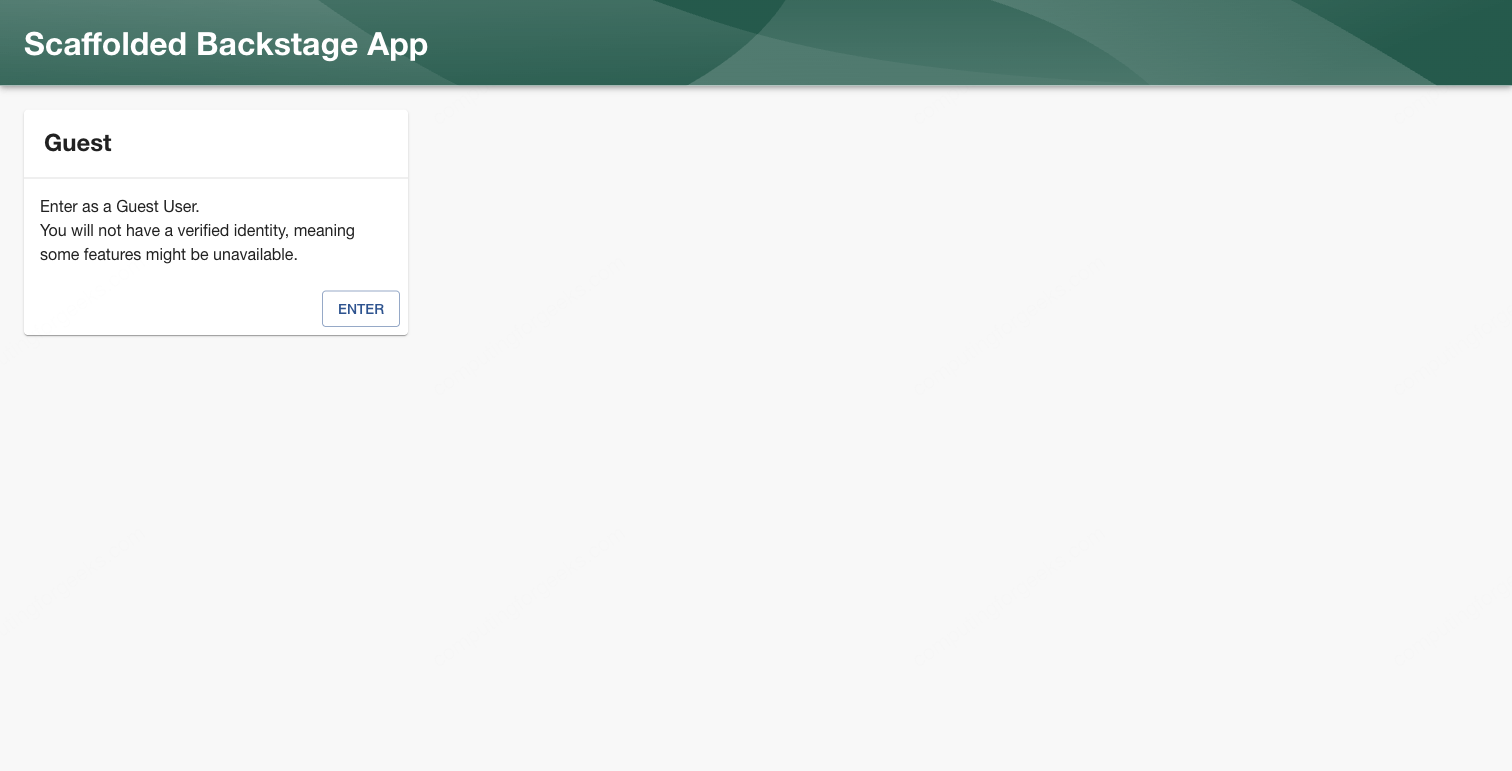
Click Enter on the Guest card to sign in. The software catalog loads with example entities, showing the sidebar navigation with Catalog, Search, Create, APIs, Docs, and other sections:
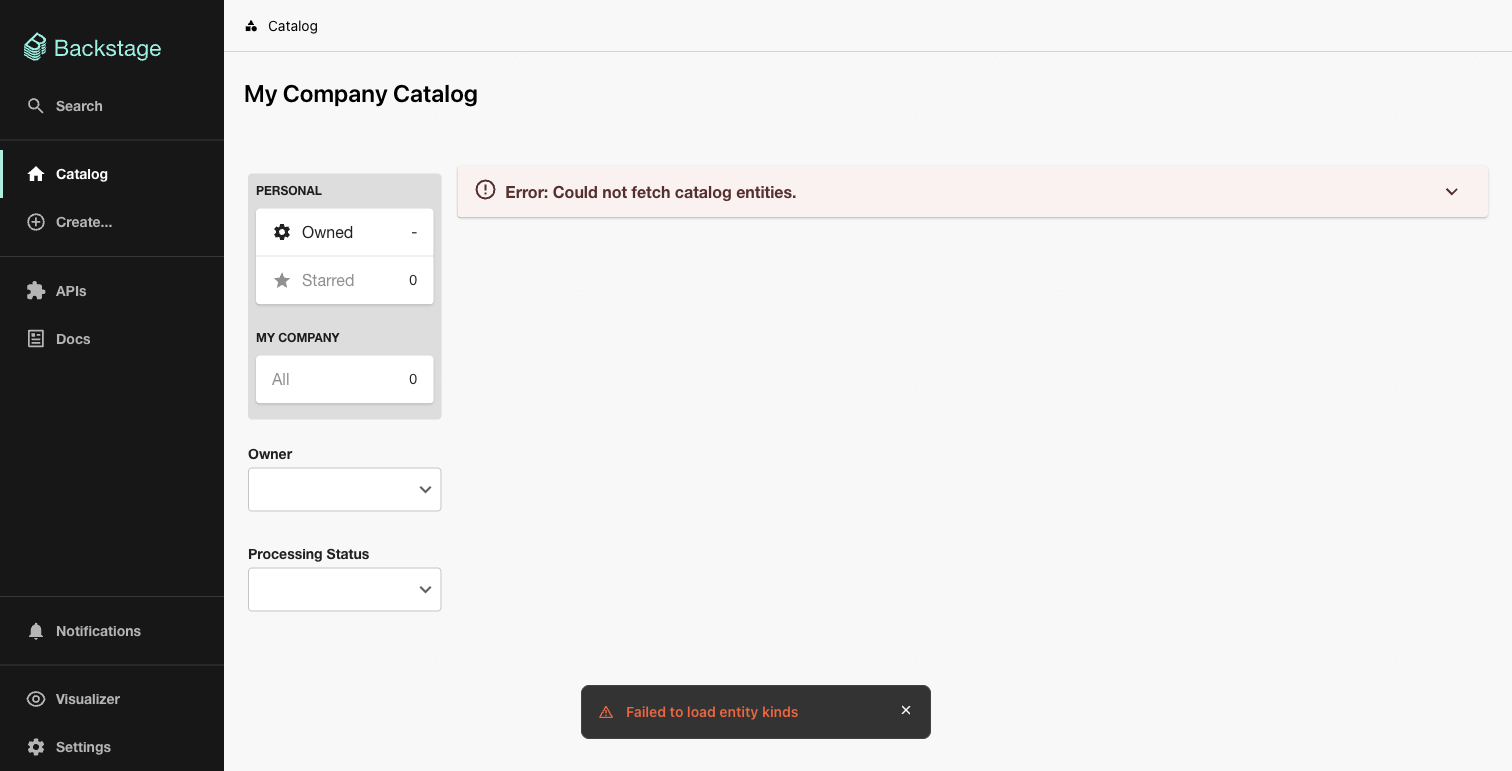
The catalog shows entities loaded from the example YAML files. You can see Personal sections (Owned, Starred) and Company-wide sections (All), with filters for Owner and Processing Status on the left. Stop the process with Ctrl+C once you have confirmed everything works.
Create a systemd Service
Running Backstage manually in a terminal is not a production setup. Create a dedicated system user and a systemd unit file so it starts automatically on boot and restarts on crashes.
Create the backstage system user:
sudo useradd --system --home-dir /opt/backstage --shell /usr/sbin/nologin backstage
sudo chown -R backstage:backstage /opt/backstage
Create the systemd service file:
sudo vi /etc/systemd/system/backstage.serviceAdd the following unit definition:
[Unit]
Description=Backstage Developer Portal
After=network.target postgresql.service
Requires=postgresql.service

[Service]
Type=simple
User=backstage
Group=backstage
WorkingDirectory=/opt/backstage
Environment=NODE_ENV=production
ExecStart=/usr/bin/node packages/backend --config app-config.yaml --config app-config.production.yaml
Restart=on-failure
RestartSec=10
StandardOutput=journal
StandardError=journal
SyslogIdentifier=backstage

# Hardening
NoNewPrivileges=true
ProtectSystem=strict
ReadWritePaths=/opt/backstage

[Install]
WantedBy=multi-user.target
The Requires=postgresql.service directive ensures PostgreSQL is running before Backstage starts. The hardening options (NoNewPrivileges, ProtectSystem) limit what the process can do on the system.
Reload systemd, enable, and start the service:
sudo systemctl daemon-reload
sudo systemctl enable --now backstage
Check the service status:
sudo systemctl status backstageThe output should show active (running):
● backstage.service - Backstage Developer Portal
     Loaded: loaded (/etc/systemd/system/backstage.service; enabled; preset: disabled)
     Active: active (running) since Sat 2026-04-12 09:22:01 UTC; 5s ago
   Main PID: 4521 (node)
      Tasks: 11 (limit: 23081)
     Memory: 245.3M
     CGroup: /system.slice/backstage.service
             └─4521 /usr/bin/node packages/backend --config app-config.yaml --config app-config.production.yaml
If the service fails to start, check the journal for detailed error output:
sudo journalctl -u backstage -f --no-pagerOpen Firewall Ports
Allow traffic to the Backstage backend port (7007) and HTTP/HTTPS for the Nginx reverse proxy we will set up next.
Rocky Linux 10 (firewalld):
sudo firewall-cmd --permanent --add-port=7007/tcp
sudo firewall-cmd --permanent --add-service=http
sudo firewall-cmd --permanent --add-service=https
sudo firewall-cmd --reload
Ubuntu 24.04 (ufw):
sudo ufw allow 7007/tcp
sudo ufw allow 'Nginx Full'
sudo ufw reload
Once the reverse proxy is configured, you can remove the direct 7007 port rule and only expose Backstage through Nginx on ports 80/443.
Set Up Nginx Reverse Proxy with SSL
Backstage listens on HTTP port 7007 by default. For production, front it with Nginx and terminate SSL there. This section assumes you have a domain pointed at your server (we use backstage.example.com as the placeholder).
Install Nginx and Certbot
Rocky Linux 10:
sudo dnf install -y nginx certbot python3-certbot-nginx
sudo systemctl enable --now nginx
Ubuntu 24.04:
sudo apt install -y nginx certbot python3-certbot-nginx
sudo systemctl enable --now nginx
Obtain an SSL Certificate
Request a certificate from Let’s Encrypt:
sudo certbot certonly --nginx -d backstage.example.com --non-interactive --agree-tos -m [email protected]Certbot places the certificate files at /etc/letsencrypt/live/backstage.example.com/.
Configure the Nginx Virtual Host
Create the Nginx configuration file. On Rocky Linux, place it in /etc/nginx/conf.d/. On Ubuntu, use /etc/nginx/sites-available/ and symlink to sites-enabled/.
Rocky Linux 10:
sudo vi /etc/nginx/conf.d/backstage.confUbuntu 24.04:
sudo vi /etc/nginx/sites-available/backstage.confAdd the following configuration:
server {
    listen 443 ssl http2;
    server_name backstage.example.com;

    ssl_certificate /etc/letsencrypt/live/backstage.example.com/fullchain.pem;
    ssl_certificate_key /etc/letsencrypt/live/backstage.example.com/privkey.pem;

    ssl_protocols TLSv1.2 TLSv1.3;
    ssl_ciphers HIGH:!aNULL:!MD5;

    location / {
        proxy_pass http://127.0.0.1:7007;
        proxy_set_header Host $host;
        proxy_set_header X-Real-IP $remote_addr;
        proxy_set_header X-Forwarded-For $proxy_add_x_forwarded_for;
        proxy_set_header X-Forwarded-Proto $scheme;
        proxy_http_version 1.1;
        proxy_set_header Upgrade $http_upgrade;
        proxy_set_header Connection "upgrade";
    }
}

server {
    listen 80;
    server_name backstage.example.com;
    return 301 https://$host$request_uri;
}
The Upgrade and Connection headers enable WebSocket support, which Backstage uses for real-time updates in the UI.
On Ubuntu, enable the site by creating the symlink:
sudo ln -s /etc/nginx/sites-available/backstage.conf /etc/nginx/sites-enabled/Test the Nginx configuration and reload:
sudo nginx -t && sudo systemctl reload nginxThe expected output from the config test:
nginx: the configuration file /etc/nginx/nginx.conf syntax is ok
nginx: configuration file /etc/nginx/nginx.conf test is successful
SELinux: Allow Nginx to Proxy (Rocky Linux)
Rocky Linux 10 runs SELinux in enforcing mode by default. Without this boolean, Nginx cannot make outbound network connections to the Backstage backend on port 7007. You will get a 502 Bad Gateway error in the browser and an AVC denial in the audit log.
sudo setsebool -P httpd_can_network_connect onVerify the boolean is set:
getsebool httpd_can_network_connectShould return:
httpd_can_network_connect --> onUpdate Backstage Base URLs
Now that SSL is configured, update the Backstage config to use HTTPS URLs. Open the production config:
sudo vi /opt/backstage/app-config.production.yamlUpdate the app and backend base URLs:
app:
  baseUrl: https://backstage.example.com

backend:
  baseUrl: https://backstage.example.com
  listen:
    port: 7007
Restart Backstage to pick up the changes:
sudo systemctl restart backstageVerify certificate auto-renewal is working:
sudo certbot renew --dry-runBackstage is now accessible at https://backstage.example.com with a valid SSL certificate.
Troubleshooting
Error: “FATAL: Ident authentication failed for user backstage”
This means pg_hba.conf still uses ident for the host connection type. Go back to the PostgreSQL configuration section and change ident to md5 for the IPv4 and IPv6 host lines. Restart PostgreSQL after the change.
Error: “Cannot find module ‘pg'”
The PostgreSQL client library is not installed in the backend package. This happens if you skip the yarn --cwd packages/backend add pg step. Run it, then rebuild with yarn build:backend.
502 Bad Gateway from Nginx on Rocky Linux
Almost always an SELinux issue. Check the audit log:
sudo ausearch -m avc -ts recentIf you see a denial for httpd_t connecting to a port, set the boolean:
sudo setsebool -P httpd_can_network_connect onBuild Fails with “JavaScript heap out of memory”
The TypeScript compilation during yarn build:backend can exceed the default Node.js heap limit on machines with less than 4 GB of RAM. Increase the limit before building:
export NODE_OPTIONS="--max-old-space-size=4096"
yarn build:backend
Alternative: Docker Deployment
The scaffolded Backstage project includes a Dockerfile in the project root. If you prefer containers or plan to deploy on Kubernetes, you can build a Docker image directly:
cd /opt/backstage
yarn build:backend
yarn build-image --tag backstage:latest
This builds a multi-stage Docker image with the production backend baked in. The image is typically around 400 MB. You can push it to a container registry and deploy it on Kubernetes with a Helm chart, or run it locally with Docker Compose. Pass the PostgreSQL connection details as environment variables or mount a config file. The Backstage documentation has a dedicated section on Docker deployment with Helm chart examples for Kubernetes.
For organizations already running Kubernetes, the Docker path is usually the better choice since it integrates with existing CI/CD pipelines and scales horizontally. The bare-metal systemd approach we covered above works well for smaller teams, lab environments, and organizations that want to evaluate Backstage before committing to a containerized deployment.