On occasion, you will need a Windows machine, and frankly, you can always have it as a VM either on KVM, Proxmox, or your favorite homelab virtualization platform. But guesse what, there’s another option, Docker.
The idea of running Windows in Docker may seem odd, but with the right tools, you will be able to set up a whole Windows environment within your container. Such an environment can be useful for testing programs for Windows, working with old tools, creating a separate development environment, and not having to configure virtual machines every single time.
In this article, I’ll take you through how you can run your Windows environment within Docker with the help of Docker Compose.
How to Run Windows on Docker with Docker Compose
To achieve this, we’ll be using a community project that wraps Windows in a container using virtualization.
Prerequisites
Before starting, ensure you have:
- Hardware virtualization enabled (KVM)
- A Linux host (Ubuntu, Debian, etc.)
- Docker installed
- Docker Compose installed
- At least:
- 4 CPU cores
- 8 GB RAM (16 GB recommended)
- 100+ GB disk space
1. Install Docker & Docker Compose
Install Docker and Compose as follows:
Ubuntu
# Add Docker's official GPG key:
sudo apt update
sudo apt install ca-certificates curl
sudo install -m 0755 -d /etc/apt/keyrings
sudo curl -fsSL https://download.docker.com/linux/ubuntu/gpg -o /etc/apt/keyrings/docker.asc
sudo chmod a+r /etc/apt/keyrings/docker.asc

# Add the repository to Apt sources:
sudo tee /etc/apt/sources.list.d/docker.sources <<EOF
Types: deb
URIs: https://download.docker.com/linux/ubuntu
Suites: $(. /etc/os-release && echo "${UBUNTU_CODENAME:-$VERSION_CODENAME}")
Components: stable
Architectures: $(dpkg --print-architecture)
Signed-By: /etc/apt/keyrings/docker.asc
EOF

# Update system packages:
sudo apt update

# Install Docker Packages:
sudo apt install docker-ce docker-ce-cli containerd.io docker-buildx-plugin docker-compose-plugin
Debian
# Add Docker's official GPG key:
sudo apt update
sudo apt install ca-certificates curl
sudo install -m 0755 -d /etc/apt/keyrings
sudo curl -fsSL https://download.docker.com/linux/debian/gpg -o /etc/apt/keyrings/docker.asc
sudo chmod a+r /etc/apt/keyrings/docker.asc

# Add the repository to Apt sources:
sudo tee /etc/apt/sources.list.d/docker.sources <<EOF
Types: deb
URIs: https://download.docker.com/linux/debian
Suites: $(. /etc/os-release && echo "$VERSION_CODENAME")
Components: stable
Architectures: $(dpkg --print-architecture)
Signed-By: /etc/apt/keyrings/docker.asc
EOF

# Update system packages
sudo apt update

# Install Docker Packages:
sudo apt install docker-ce docker-ce-cli containerd.io docker-buildx-plugin docker-compose-plugin
RHEL 8 | 9 | 10
# Set up the repository:
sudo dnf -y install dnf-plugins-core
sudo dnf config-manager --add-repo https://download.docker.com/linux/rhel/docker-ce.repo

# Install Docker Packages:
sudo dnf install docker-ce docker-ce-cli containerd.io docker-buildx-plugin docker-compose-plugin

# Start Docker Engine
sudo systemctl enable --now docker

# Add user to Docker to docker group:
sudo usermod -aG docker $USER
sudo newgrp docker
Fedora Linux
# Set up the repository:
sudo dnf config-manager addrepo --from-repofile https://download.docker.com/linux/fedora/docker-ce.repo

# Install Docker Packages:
sudo dnf install docker-ce docker-ce-cli containerd.io docker-buildx-plugin docker-compose-plugin

# Start Docker Engine:
sudo systemctl enable --now docker

# Add user to Docker to docker group:
sudo usermod -aG docker $USER
sudo newgrp docker
CentOS Stream 9 | 10
# Set up the repository:
sudo dnf -y install dnf-plugins-core
sudo dnf config-manager --add-repo https://download.docker.com/linux/centos/docker-ce.repo

# Install Docker Packages:
sudo dnf install docker-ce docker-ce-cli containerd.io docker-buildx-plugin docker-compose-plugin

# Start Docker Engine:
sudo systemctl enable --now docker

# Add user to Docker to docker group:
sudo usermod -aG docker $USER
sudo newgrp docker
2. Download Windows ISO
The Windows ISO file is automatically downloaded, but there’s an option to use a pre-downloaded local ISO file to avoid network latencies. You can download your ISO images here.
wget https://archive.org/download/Win11_24H2_English_x64/Win11_24H2_English_x64.iso3. Create a Docker Compose file
Now create a project directory and inside it, a compose.yaml file:
# Create the working directory:
mkdir dockur-windows && cd dockur-windows

# Create docker compose file:
touch compose.yaml
Here’s what we can configure in our compose.yaml file:
Storage Location
You can change the storage location by changing the bind mount path:
volumes:
  - /path/to/storage/folder:/storage
Disk Size
You can expand the default 64GB disk size, by adding the DISK_SIZE environment variable:
environment:
  DISK_SIZE: "100G"
CPU and RAM
By default, Windows will be allowed to use 2 CPU cores and 4 GB of RAM. To adjust this, you need to specify the desired amount using the following environment variables:
environment:
  RAM_SIZE: "8G"
  CPU_CORES: "2"
Username and Password
By default, a user called Docker is created and its password is admin. But you can change this by providing different credentials as environment variables:
environment:
  USERNAME: "your-username"
  PASSWORD: "your-password"
Language
If you are not using a local ISO, by default, the English version of Windows will be downloaded. But you can add the LANGUAGE environment variable, in order to specify an alternative language to be downloaded:
environment:
  LANGUAGE: "French"
Custom ISO Image
If you already downloaded an ISO that you’d like to use, skip the download and use a local file instead, by binding it in your compose as follows:
volumes:
  - /path/to/local/windows/iso:/boot.iso
You can also add multiple storage disks by adding them as environment variables and providing the paths as follows:
environment:
  DISK2_SIZE: "50G"
  DISK3_SIZE: "100G"
volumes:
  - ./example2:/storage2
  - ./example3:/storage3
Here is what our compose file will look like after configuring all the above:
services:
  windows:
    image: dockurr/windows
    container_name: windows
    environment:
      VERSION: "11"
      DISK_SIZE: "80G"
      RAM_SIZE: "8G"
      CPU_CORES: "4"
      USERNAME: "admin"
      PASSWORD: "Password01"
    devices:
      - /dev/kvm
      - /dev/net/tun
    cap_add:
      - NET_ADMIN
    ports:
      - 8006:8006
      - 3389:3389/tcp
      - 3389:3389/udp
    volumes:
      - /var/lib/libvirt/vms/windows:/storage
      - /var/lib/libvirt/images/Win11_24H2_English_x64.iso:/boot.iso
    restart: always
    stop_grace_period: 2m
4. Assign an individual IP address to the container
By default, the container uses bridge networking, which shares the IP address with the host. But you can assign an individual IP address to the container, by creating a macvlan network and attach it to the container.
Create the macvlan network:
docker network create -d macvlan \
    --subnet=192.168.1.0/24 \
    --gateway=192.168.1.1 \
    --ip-range=192.168.1.200/28 \
    -o parent=br0 vlan
Be sure to modify the values to match your local subnet, including the parent interface card. After creating the network, add it to your compose file, as follows:
services:
  windows:
    container_name: windows
    ..<snip>..
    networks:
      vlan:
        ipv4_address: 192.168.1.200

networks:
  vlan:
    external: true
Here is what our final compose.yaml file looks like:
services:
  windows:
    image: dockurr/windows
    container_name: windows
    environment:
      VERSION: "11"
      DISK_SIZE: "100G"
      RAM_SIZE: "8G"
      CPU_CORES: "2"
      USERNAME: "admin"
      PASSWORD: "Password01"
    networks:
      vlan:
        ipv4_address: 192.168.1.200
    devices:
      - /dev/kvm
      - /dev/net/tun
    cap_add:
      - NET_ADMIN
    ports:
      - 8006:8006
      - 3389:3389/tcp
      - 3389:3389/udp
    volumes:
      - /var/lib/libvirt/vms/windows:/storage
      - /var/lib/libvirt/images/Win11_24H2_English_x64.iso:/boot.iso
    restart: always
    stop_grace_period: 2m

networks:
  vlan:
    external: true
Now start the container using docker compose:
docker compose up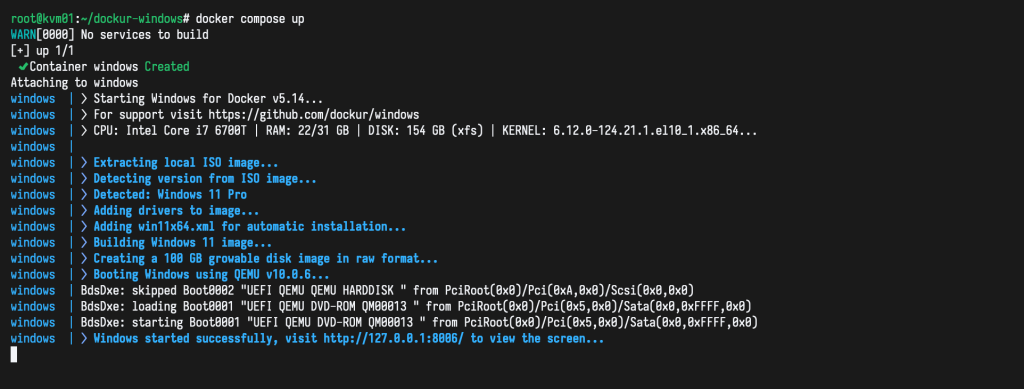
Then you can visit port 8006 of the IP address we assigned, which is http://192.168.1.200:8006 for my case:
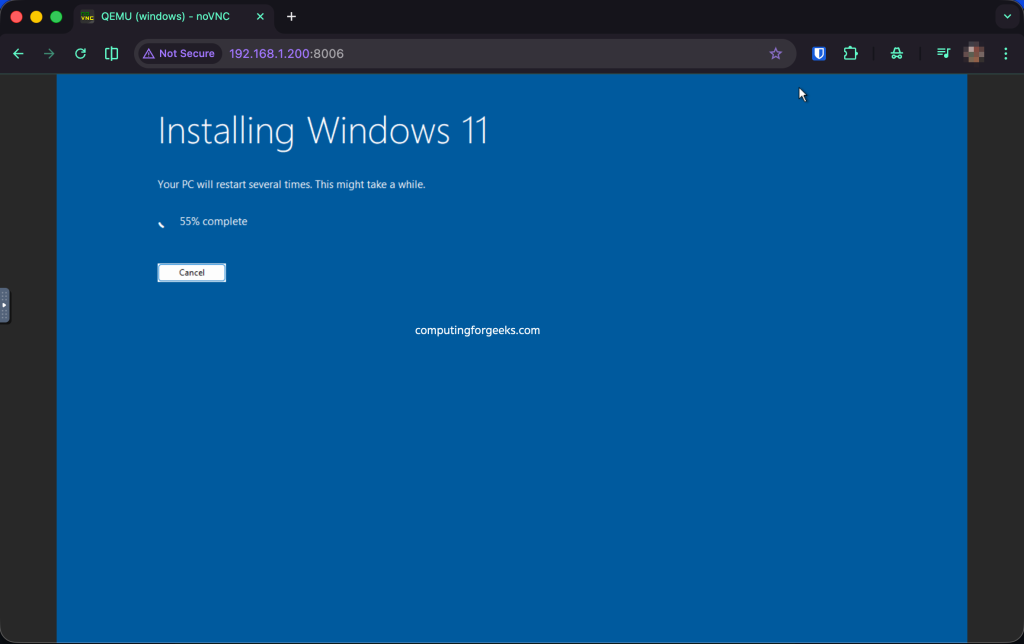
And the automatic installation is underway, give it some time to finish up. Windows will reboot when the initial installation is complete:
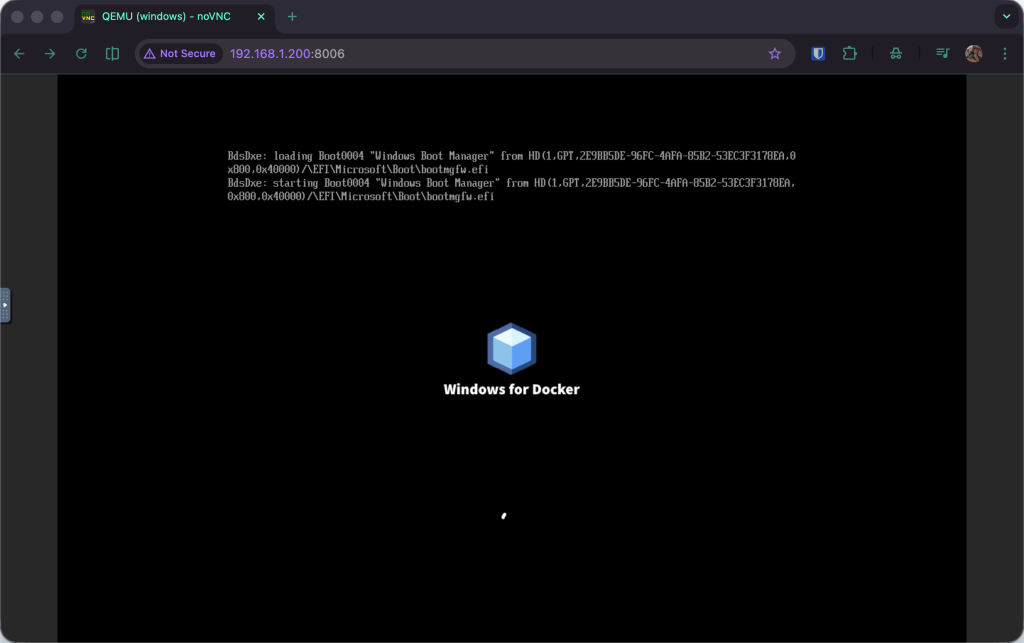
Windows will restart a couple more times, so be patient as the installation completes:
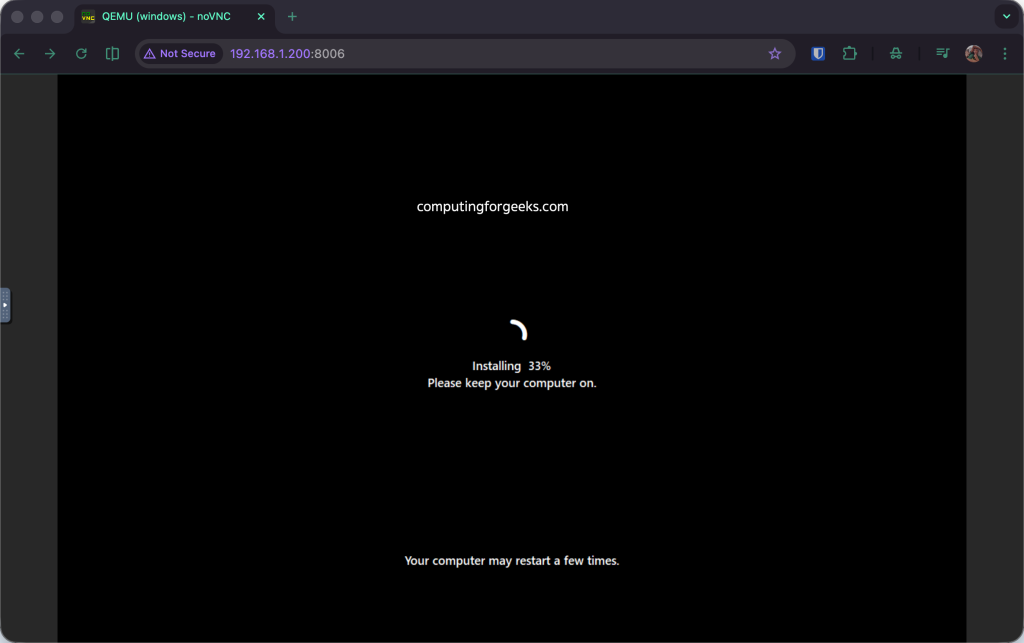
You Windows PC is almost ready, just a few more minutes.
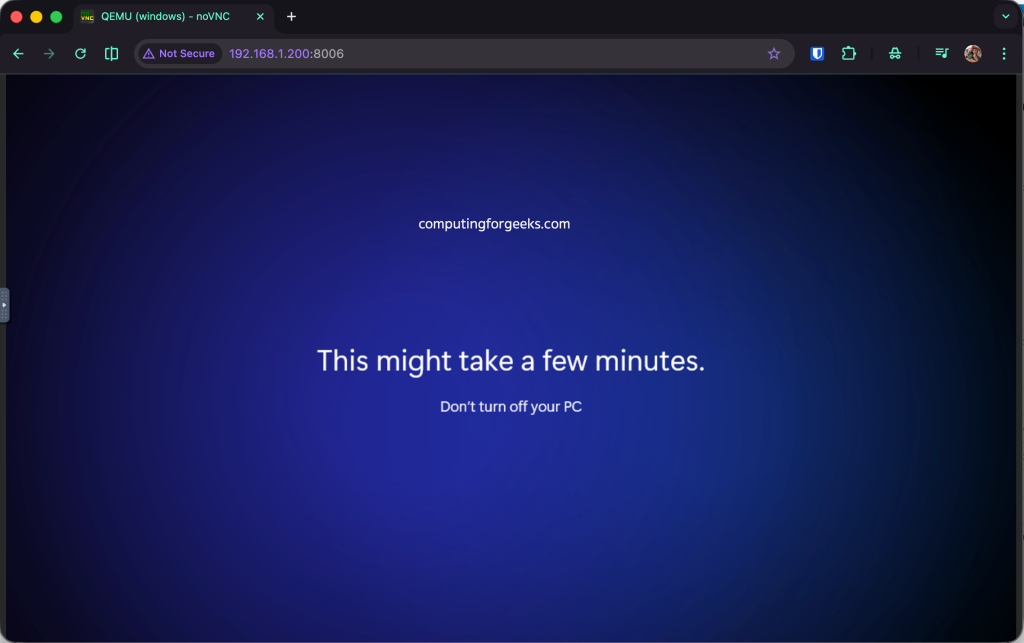
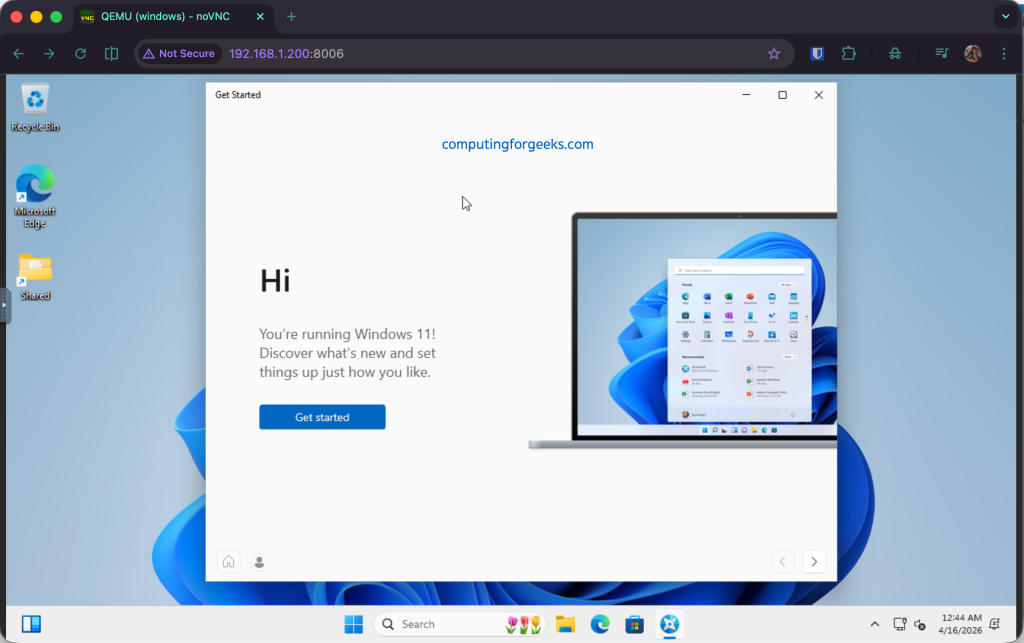
You Windows PC is now ready:
5. Connecting using RDP
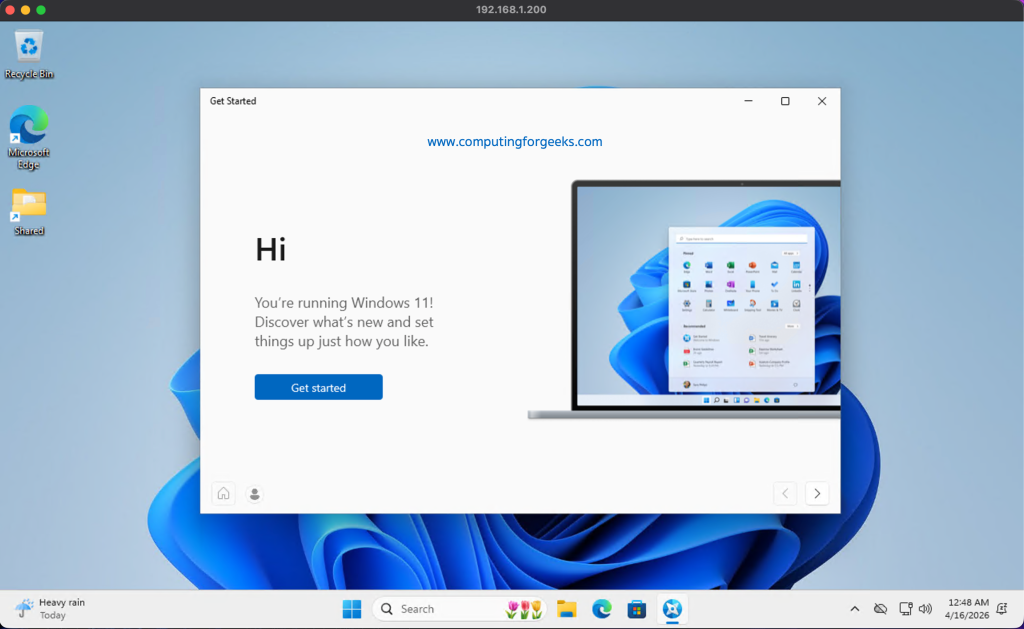
The web-viewer is terrible because of its low picture quality, and it has no audio or clipboard for example. So for a better experience you can connect using any Microsoft Remote Desktop client to the IP of the container, using the username Docker and password admin, or the custom credentials you provided.
- Username:
admin - Password:
Password01
And that’s it, enjoy your new Windows computer and see you folks next time. Adios!