pgAdmin is the leading Open Source feature-rich PostgreSQL administration and development platform that runs on Linux, Unix, Mac OS X, and Windows. pgAdmin can be used to manage PostgreSQL 9.2 and above. With the release of pgAdmin 4, there was migration from Bootstrap 3 to Bootstrap 4. In this article we will be installing pgAdmin 4 on Fedora.
Consider system update before the installation of pgAdmin 4 on Fedora.
sudo dnf -y updateYou need to have PostgreSQL installed on your system before you can install pgAdmin 4. Below are the guides to help you install PostgreSQL:
1 – Add pgAdmin 4 repository
After installing PostgreSQL, you can begin the installation of pgAdmin 4. You need to add pgAdmin 4 RPM:
Fedora:
Download repository file.
source /etc/os-release
sudo tee /etc/yum.repos.d/pgadmin4.repo<<EOF
[pgAdmin4]
name=pgadmin4
baseurl=https://ftp.postgresql.org/pub/pgadmin/pgadmin4/yum/fedora/fedora-$VERSION_ID-x86_64/
enabled=1
repo_gpgcheck=0
gpgcheck=0
gpgkey=file:///etc/pki/rpm-gpg/PGADMIN_PKG_KEY
EOF
You can check the contents of the repository file created using the following command:
$ cat /etc/yum.repos.d/pgadmin4.repo
[pgAdmin4]
name=pgadmin4
baseurl=https://ftp.postgresql.org/pub/pgadmin/pgadmin4/yum/redhat/rhel-$releasever-$basearch
enabled=1
repo_gpgcheck=0
gpgcheck=0
gpgkey=file:///etc/pki/rpm-gpg/PGADMIN_PKG_KEY
2 – Install pgAdmin4 packages
Then install the pgAdmin4 package on Fedora.
Install for web mode only, suitable for server:
sudo dnf install pgadmin4-webInstall for both desktop and web modes.
sudo dnf install pgadmin4Install for desktop mode only, suitable for Desktop:
sudo yum install pgadmin4-desktopReview installation dependency tree then proceed:
....
Transaction Summary
======================================================================================================================================================================================================
Install  3 Packages

Total download size: 77 M
Installed size: 289 M
Is this ok [y/N]: y
3 – Configure pgAdmin 4
Now that we have pgAdmin 4 installed, let’s configure it.
1. Start and enable httpd service to start on boot
sudo systemctl start httpd && sudo systemctl enable httpdYou can confirm service status by running:
$ systemctl status httpd
● httpd.service - The Apache HTTP Server
     Loaded: loaded (/usr/lib/systemd/system/httpd.service; enabled; preset: disabled)
    Drop-In: /usr/lib/systemd/system/service.d
             └─10-timeout-abort.conf
     Active: active (running) since Sat 2024-12-14 08:36:51 UTC; 8s ago
 Invocation: 6803dc86716e4accb025458f65ead6eb
       Docs: man:httpd.service(8)
   Main PID: 3035 (httpd)
     Status: "Started, listening on: port 80"
      Tasks: 205 (limit: 9465)
     Memory: 33.9M (peak: 34.4M)
        CPU: 197ms
     CGroup: /system.slice/httpd.service
             ├─3035 /usr/sbin/httpd -DFOREGROUND
             ├─3036 /usr/sbin/httpd -DFOREGROUND
             ├─3037 /usr/sbin/httpd -DFOREGROUND
             ├─3038 /usr/sbin/httpd -DFOREGROUND
             ├─3041 /usr/sbin/httpd -DFOREGROUND
             └─3042 /usr/sbin/httpd -DFOREGROUND

Dec 14 08:36:50 fed-cloudspinx-com.novalocal systemd[1]: Starting httpd.service - The Apache HTTP Server...
Dec 14 08:36:50 fed-cloudspinx-com.novalocal (httpd)[3035]: httpd.service: Referenced but unset environment variable>
Dec 14 08:36:51 fed-cloudspinx-com.novalocal httpd[3035]: [Sat Dec 14 08:36:51.011955 2024] [so:warn] [pid 3035:tid >
Dec 14 08:36:51 fed-cloudspinx-com.novalocal httpd[3035]: Server configured, listening on: port 80
Dec 14 08:36:51 fed-cloudspinx-com.novalocal systemd[1]: Started httpd.service - The Apache HTTP Server.
Finally, if you have installed pgadmin4 or pgadmin4-web, run the web setup script to configure the system to run in web mode:
sudo /usr/pgadmin4/bin/setup-web.shThis will require you to input pgadmin4 user email address and set the password:
Setting up pgAdmin 4 in web mode on a Redhat based platform...
Creating configuration database...
NOTE: Configuring authentication for SERVER mode.

Enter the email address and password to use for the initial pgAdmin user account:

Email address: <input-email-address>
Password: <input-password>
Retype password: <Reenter-password>
pgAdmin 4 - Application Initialisation
======================================

Creating storage and log directories...
Agree for the configuration of Apache Web server.
Configuring SELinux...
The Apache web server is not running. We can enable and start the web server for you to finish pgAdmin 4 installation. Continue (y/n)? y
Created symlink /etc/systemd/system/multi-user.target.wants/httpd.service → /usr/lib/systemd/system/httpd.service.
Apache successfully enabled.
Apache successfully started.
You can now start using pgAdmin 4 in web mode at http://127.0.0.1/pgadmin4
4 – Access pgAdmin 4 Web Interface
if you have an active firewall service, allow http port
sudo firewall-cmd --permanent --add-service=http
sudo firewall-cmd --reload
Open http://[serverip_or_hostname]/pgadmin4 to log in to the pgAdmin with the credentials created step 6 above.

On the first page of pgAdmin, add a PostgreSQL server to administer with pgAdmin by clicking on “Add New Server”. This can be local or a remote PostgreSQL server.

Under the “General” section, give the server a name & description.

Under “Connection” tab, provide access details – DB host, DB user and Password.

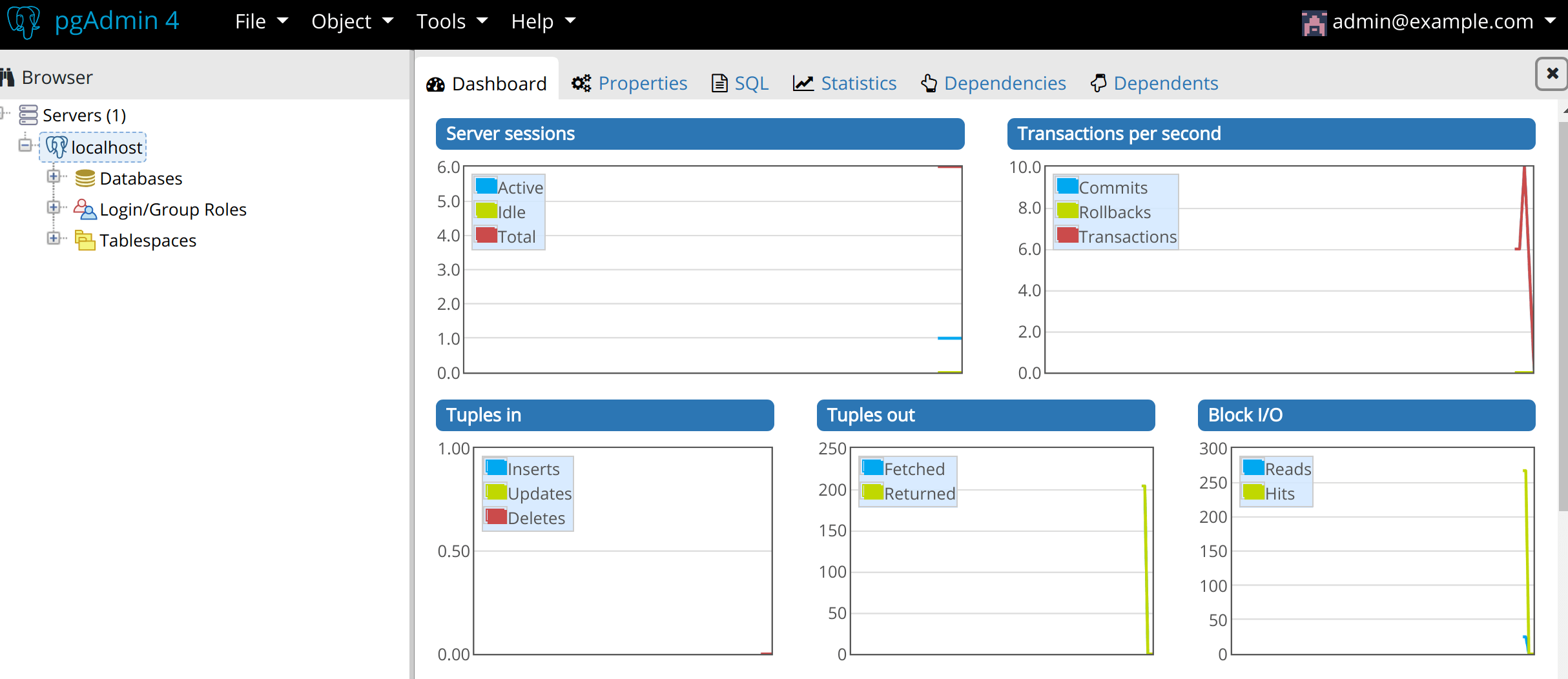
When done, Click Save button to save the configurations. If you were successful adding the server, the name will appear in the left sidebar. Select the server to see database summary information and make changes.
I hope our article was helpful in installing pgAdmin 4 on Fedora server/Desktop.
Books for Learning PostgreSQL database:
Other guides on installing pgAdmin 4: