

In this blog post, we will look at how to install and configure a LAMP Stack on Fedora. LAMP Stack is a collection of open-source tools that are used to host web applications. The LAMP stack acronym comprises of:
- L – Linux host system – Can be VM or physical, or a container
- A – Apache HTTP Server
- M – MySQL / MariaDB database
- P – PHP Programming language
To have a functional LAMP stack, you’ll need to install and configure each component one by one. The steps to install and configure LAMP Stack on Fedora should be straightforward. Apache is the most used web server in web hosting business, with MySQL or MariaDB as the database server. The most common type of web applications hosted on these platforms are coded in PHP Programming language.
1: Install Fedora Linux
The recent release of Fedora as of the writing of this article is Fedora. We have an installation guide which should work for the Physical server, a Virtual Machine and for Vagrant Box deployments:
2: Setup basic dependencies
Install the basic packages like vim, curl, wget, telnet
sudo dnf -y update
sudo dnf -y install vim bash-completion curl wget telnet
If this is your first time to hear about SELinux, I advise you put it in Permissive mode or completely disable it. Check SELinux status by running:
$ sudo sestatus
SELinux status:                 enabled
SELinuxfs mount:                /sys/fs/selinux
SELinux root directory:         /etc/selinux
Loaded policy name:             targeted
Current mode:                   enforcing
Mode from config file:          enforcing
Policy MLS status:              enabled
Policy deny_unknown status:     allowed
Memory protection checking:     actual (secure)
Max kernel policy version:      31
The default mode is enforcing. To put it in Permissive mode, execute:
sudo setenforce 0
sudo sed -i 's/^SELINUX=.*/SELINUX=permissive/g' /etc/selinux/config
To completely disable it:
sudo sed -i 's/^SELINUX=.*/SELINUX=disabled/g' /etc/selinux/configConfirm persistent status configured
$ cat /etc/selinux/config | grep SELINUX=
# SELINUX= can take one of these three values:
SELINUX=permissive
3: Install Apache httpd server
Once you have Fedora OS installed and updated, proceed to install Apache httpd server.
sudo dnf -y install httpdConfigure httpd basic settings:
Edit the configuration file /etc/httpd/conf/httpd.conf and set:
ServerAdmin [email protected]
ServerName  example.com
ServerTokens Prod
You can optionally set Keepalive
KeepAlive On
Enable and start httpd service
$ sudo systemctl enable -now httpd
$ sudo systemctl status httpd
● httpd.service - The Apache HTTP Server
     Loaded: loaded (/usr/lib/systemd/system/httpd.service; enabled; preset: disabled)
    Drop-In: /usr/lib/systemd/system/service.d
             └─10-timeout-abort.conf
     Active: active (running) since Mon 2026-01-12 15:37:16 EAT; 2s ago
 Invocation: 5e513597068746fda8574466c2491814
       Docs: man:httpd.service(8)
   Main PID: 14618 (httpd)
     Status: "Started, listening on: port 80"
      Tasks: 177 (limit: 4617)
     Memory: 13.1M (peak: 13.2M)
        CPU: 70ms
     CGroup: /system.slice/httpd.service
             ├─14618 /usr/sbin/httpd -DFOREGROUND
             ├─14619 /usr/sbin/httpd -DFOREGROUND
             ├─14620 /usr/sbin/httpd -DFOREGROUND
             ├─14621 /usr/sbin/httpd -DFOREGROUND
             └─14622 /usr/sbin/httpd -DFOREGROUND

Jan 12 15:37:16 fedora43-server systemd[1]: Starting httpd.service - The Apache HTTP Server...
Jan 12 15:37:16 fedora43-server (httpd)[14618]: httpd.service: Referenced but unset environment variable evaluates to an empty string: OPTIONS
Jan 12 15:37:16 fedora43-server httpd[14618]: Server configured, listening on: port 80
Jan 12 15:37:16 fedora43-server systemd[1]: Started httpd.service - The Apache HTTP Server.
If you have firewalld running, allow http and https services.
sudo firewall-cmd --add-service={http,https} --permanent
sudo firewall-cmd --reload
4: Install PHP & Extensions
Install PHP and configure httpd to support execution of PHP scripts. Check our article on:
Don’t forget to install common extensions:
sudo dnf -y install php php-cli php-php-gettext php-mbstring php-mcrypt php-mysqlnd php-pear php-curl php-gd php-xml php-bcmath php-zip php-fpmConfirm your installed PHP version:
$ php -v
PHP 8.4.16 (cli) (built: Dec 16 2025 16:03:34) (NTS gcc x86_64)
Copyright (c) The PHP Group
Built by Remi's RPM repository <https://rpms.remirepo.net/> #StandWithUkraine
Zend Engine v4.4.16, Copyright (c) Zend Technologies
    with Zend OPcache v8.4.16, Copyright (c), by Zend Technologies
Loaded extensions can be viewed by passing -m option to the phpcommand
php -mSet PHP timezone on the file /etc/php.ini
date.timezone = Africa/NairobiSee a complete List of Supported Timezones.
5: Install MySQL / MariaDB Database
For installation of MySQL on Fedora, use our guide:
Fedora upstream repositories have MariaDB which can be installed using the dnf command.
$ sudo dnf install mariadb-server
Updating and loading repositories:
Repositories loaded.
Package                                                                    Arch             Version                                                                    Repository                                     Size
Installing:
 mariadb-server                                                            x86_64           3:10.11.15-1.fc43                                                          updates                                    75.9 MiB
Installing dependencies:
 mariadb                                                                   x86_64           3:10.11.15-1.fc43                                                          updates                                    27.1 MiB
 mariadb-common                                                            noarch           3:10.11.15-1.fc43                                                          updates                                   301.7 KiB
 mariadb-connector-c                                                       x86_64           3.4.8-1.fc43                                                               updates                                   516.2 KiB
 mariadb-connector-c-config                                                noarch           3.4.8-1.fc43                                                               updates                                   497.0   B
 mariadb-errmsg                                                            noarch           3:10.11.15-1.fc43                                                          updates                                     3.0 MiB
 mysql-selinux                                                             noarch           1.0.14-2.fc43                                                              fedora                                     49.9 KiB
 perl-DBD-MariaDB                                                          x86_64           1.24-3.fc43                                                                fedora                                    383.0 KiB
 perl-DBI                                                                  x86_64           1.647-4.fc43                                                               fedora                                      2.2 MiB
 perl-Math-BigInt                                                          noarch           1:2.0050.03-3.fc43                                                         fedora                                      1.1 MiB
 perl-Math-Complex                                                         noarch           1.63-520.fc43                                                              fedora                                     85.1 KiB
 perl-Sys-Hostname                                                         x86_64           1.25-520.fc43                                                              fedora                                     15.8 KiB
 policycoreutils-python-utils                                              noarch           3.9-5.fc43                                                                 fedora                                     94.3 KiB
Installing weak dependencies:
 mariadb-backup                                                            x86_64           3:10.11.15-1.fc43                                                          updates                                    21.9 MiB
 mariadb-client-utils                                                      noarch           3:10.11.15-1.fc43                                                          updates                                   189.3 KiB
 mariadb-cracklib-password-check                                           x86_64           3:10.11.15-1.fc43                                                          updates                                    13.0 KiB
 mariadb-gssapi-server                                                     x86_64           3:10.11.15-1.fc43                                                          updates                                    19.9 KiB
 mariadb-server-utils                                                      noarch           3:10.11.15-1.fc43                                                          updates                                    33.9 KiB

Transaction Summary:
 Installing:        18 packages

Total size of inbound packages is 21 MiB. Need to download 21 MiB.
After this operation, 133 MiB extra will be used (install 133 MiB, remove 0 B).
Is this ok [y/N]: y
After the installation, set the character set
sudo vim /etc/my.cnf.d/mariadb-server.cnfSet your character set under [mysqld] section:
[mysqld]
character-set-server=utf8
Then start the mariadb service and enable it to start on boot
$ sudo systemctl enable --now mariadb
$ sudo systemctl status mariadb
● mariadb.service - MariaDB 10.11 database server
     Loaded: loaded (/usr/lib/systemd/system/mariadb.service; enabled; preset: disabled)
    Drop-In: /usr/lib/systemd/system/service.d
             └─10-timeout-abort.conf
     Active: active (running) since Mon 2026-01-12 16:20:23 EAT; 2s ago
 Invocation: bd7543274e474c0db4453dac39916d02
       Docs: man:mariadbd(8)
             https://mariadb.com/kb/en/library/systemd/
    Process: 16613 ExecStartPre=/usr/libexec/mariadb-check-socket (code=exited, status=0/SUCCESS)
    Process: 16636 ExecStartPre=/usr/libexec/mariadb-prepare-db-dir mariadb.service (code=exited, status=0/SUCCESS)
    Process: 16733 ExecStartPost=/usr/libexec/mariadb-check-upgrade (code=exited, status=0/SUCCESS)
   Main PID: 16720 (mariadbd)
     Status: "Taking your SQL requests now..."
      Tasks: 12 (limit: 4617)
     Memory: 116.7M (peak: 119.4M)
        CPU: 641ms
     CGroup: /system.slice/mariadb.service
             └─16720 /usr/libexec/mariadbd --basedir=/usr
...
Perform MariaDB initial settings like setting up a root password, disabling remote root login e.t.c:
$ sudo mariadb-secure-installation
NOTE: RUNNING ALL PARTS OF THIS SCRIPT IS RECOMMENDED FOR ALL MariaDB
      SERVERS IN PRODUCTION USE!  PLEASE READ EACH STEP CAREFULLY!

In order to log into MariaDB to secure it, we'll need the current
password for the root user. If you've just installed MariaDB, and
haven't set the root password yet, you should just press enter here.

Enter current password for root (enter for none):
OK, successfully used password, moving on...

Setting the root password or using the unix_socket ensures that nobody
can log into the MariaDB root user without the proper authorisation.

You already have your root account protected, so you can safely answer 'n'.

Switch to unix_socket authentication [Y/n] n
 ... skipping.

You already have your root account protected, so you can safely answer 'n'.

Change the root password? [Y/n] Y
New password:
Re-enter new password:
Password updated successfully!
Reloading privilege tables..
 ... Success!


By default, a MariaDB installation has an anonymous user, allowing anyone
to log into MariaDB without having to have a user account created for
them.  This is intended only for testing, and to make the installation
go a bit smoother.  You should remove them before moving into a
production environment.

Remove anonymous users? [Y/n] Y
 ... Success!

Normally, root should only be allowed to connect from 'localhost'.  This
ensures that someone cannot guess at the root password from the network.

Disallow root login remotely? [Y/n] Y
 ... Success!

By default, MariaDB comes with a database named 'test' that anyone can
access.  This is also intended only for testing, and should be removed
before moving into a production environment.

Remove test database and access to it? [Y/n] Y
 - Dropping test database...
 ... Success!
 - Removing privileges on test database...
 ... Success!

Reloading the privilege tables will ensure that all changes made so far
will take effect immediately.

Reload privilege tables now? [Y/n] Y
 ... Success!

Cleaning up...

All done!  If you've completed all of the above steps, your MariaDB
installation should now be secure.

Thanks for using MariaDB!
Answer questions like below:
- Enter current password for root (enter for none): <Enter>
- Switch to unix_socket authentication [Y/n] n
- Set root password? [Y/n] y
- Remove anonymous users? [Y/n] y
- Remove test database and access to it? [Y/n] y
- Reload privilege tables now? [Y/n] y
Test login
$ mariadb -u root -p
Enter password:
Welcome to the MariaDB monitor.  Commands end with ; or \g.
Your MariaDB connection id is 11
Server version: 10.11.15-MariaDB MariaDB Server

Copyright (c) 2000, 2018, Oracle, MariaDB Corporation Ab and others.

Type 'help;' or '\h' for help. Type '\c' to clear the current input statement.

MariaDB [(none)]> SELECT VERSION();
+------------------+
| VERSION()        |
+------------------+
| 10.11.15-MariaDB |
+------------------+
1 row in set (0.000 sec)

MariaDB [(none)]>
Create and drop test database:
MariaDB [(none)]> CREATE DATABASE test_db;
Query OK, 1 row affected (0.001 sec)

MariaDB [(none)]> GRANT ALL PRIVILEGES ON test_db.* TO 'test_user'@'localhost' IDENTIFIED BY "StrongPassword";
Query OK, 0 rows affected (0.002 sec)

MariaDB [(none)]> FLUSH PRIVILEGES;
Query OK, 0 rows affected (0.001 sec)
To drop the database and user:
MariaDB [(none)]> DROP DATABASE test_db;
Query OK, 0 rows affected (0.003 sec)

MariaDB [(none)]> DROP USER 'test_user'@'localhost';
Query OK, 0 rows affected (0.001 sec)
We have confirmed that our Database server is working fine. To allow for remote connections, allow port 3306 on the firewall
sudo firewall-cmd --add-service=mysql --permanent
sudo firewall-cmd --reload
You can also limit access from trusted networks
sudo firewall-cmd --permanent --add-rich-rule 'rule family="ipv4" \
service name="mysql" source address="10.1.1.0/24" accept'
6: Test your Lamp Stack
As a test for our Lamp stack installation on Fedora Server / Desktop system, create a PHP test page
sudo vim /var/www/html/phpinfo.phpAdd:
<?php
// Show all information, defaults to INFO_ALL
phpinfo();
?>
Reload httpd service and open page on your browser.
sudo systemctl restart httpdOpen added PHP info page http://[serverIP]/phpinfo.php
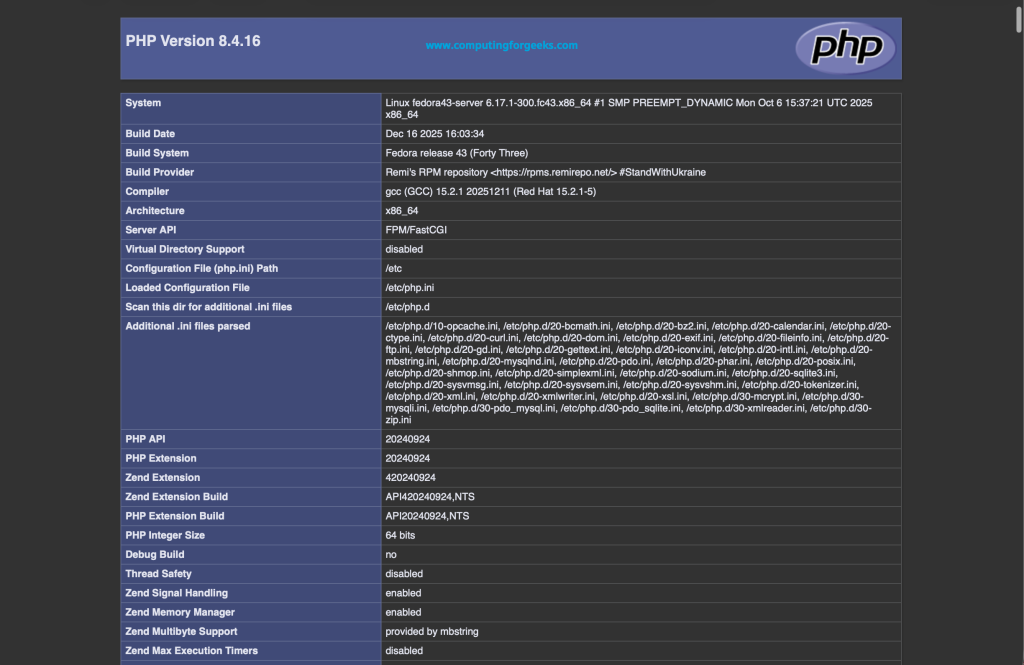
That’s all. You have successfully installed LAMP stack on your Fedora server or Desktop Workstation.
Recommended books to read:
- Best Books to learn Web Development – PHP, HTML, CSS, JavaScript and jQuery
- Best Books To Master Web Design
- Best Books To Learn CSS & CSS3
- Best Books To Learn HTML & HTML5
- Best Apache and Nginx reference Books
Other Fedora Articles available are:

Tried entering Domain Name said I was not Authorized!?
I had the same problem. So I came out of VIM and reopened the file with the SUDO prefix and hey presto.
Spell Check added space in Domain Name
After the phpinfo.php file is created the command “sudo systemctl reload httpd” does not work. The proper command is “sudo systemctl restart httpd”. Then everything works like it should, and without using SUDO before launching the phpinfo.php in the browser.
Thanks for the correction.
Hi Josephat! I noticed someone on Stack Exchange referring to this answer. Rather than the somewhat-long section on disabling SELinux, why not just explain `sudo chcon -R -t httpd_sys_content_t /srv/www/root` (or whatever path to files)? Seems like that’s actually just as easy, and leaves SELinux protection in place for other things.
I agree. I would encourage people to learn how to run LAMP with SELinux protection instead of disabling SELinux.