

GitBucket is a web-based Git platform powered by Scala. In our previous guides, we covered how to install GitLab, Gitea, and SVN. In this post, we will discuss how you can install GitBucket on Ubuntu / Debian Linux system. Here are few
- Provides an intuitive UI
- It is easy to install
- Features can be extended by plugins
- Has API compatibility with GitHub
- Support for GitLFS
- Support for both Public and Private Git repositories.
- Repository viewer including an online file editor
- LDAP integration for
account s and groups management
Install GitBucket on Ubuntu / Debian
The main requirement of GitBucket is Java8. Ensure this is installed on your Ubuntu / Debian Linux.
sudo apt update
sudo apt install -y default-jdk wget curl vim
Once you have Java installed, download the latest gitbucket.war from the releases page.
curl -s https://api.github.com/repos/gitbucket/gitbucket/releases/latest |grep browser_download_url | cut -d '"' -f 4 | grep '\.war$' | wget -i -Create gitbucket user and group.
sudo groupadd -g 555 gitbucket
sudo useradd \
  -g gitbucket --no-user-group \
  --home-dir /opt/gitbucket --no-create-home \
  --shell /usr/sbin/nologin \
  --system --uid 555 gitbucket
Create /opt/gitbucket directory
sudo mkdir /opt/gitbucketMove gitbucket.war file to /opt/gitbucket
sudo mv gitbucket.war /opt/gitbucketMake the owner of the GitBucket to be the gitbucket:gitbucket user:
sudo chown -R gitbucket:gitbucket /opt/gitbucketConfigure Systemd service for GitBucket
You can run Java Applications with Systemd. Read more on How to run Java Jar Application with Systemd on Linux
Create systemd service file.
sudo vim /etc/systemd/system/gitbucket.serviceAdd
# GitBucket Service
[Unit]
Description=Manage Java service

[Service]
WorkingDirectory=/opt/gitbucket
ExecStart=/usr/bin/java -Xms128m -Xmx256m -jar gitbucket.war
User=gitbucket
Group=gitbucket
Type=simple
Restart=on-failure
RestartSec=10

[Install]
WantedBy=multi-user.target
You can specify following options:
--port=[NUMBER]--prefix=[CONTEXTPATH]--host=[HOSTNAME]--gitbucket.home=[DATA_DIR]--temp_dir=[TEMP_DIR]--max_file_size=[MAX_FILE_SIZE]
If your Java is in a different path, locate it with which java and set path in systemd unit file.
Reload Systemd after adding the file
sudo systemctl daemon-reloadStart service and set it to start at boot.
sudo systemctl enable --now gitbucketConfirm service Status
$ systemctl status gitbucket
● gitbucket.service - Manage Java service
     Loaded: loaded (/etc/systemd/system/gitbucket.service; enabled; preset: enabled)
     Active: active (running) since Tue 2023-08-08 07:45:41 UTC; 10s ago
   Main PID: 44254 (java)
      Tasks: 34 (limit: 4531)
     Memory: 351.5M
        CPU: 11.787s
     CGroup: /system.slice/gitbucket.service
             └─44254 /usr/bin/java -Xms128m -Xmx256m -jar gitbucket.war

Aug 08 07:45:47 deb12 java[44254]: 07:45:47.162 [main] INFO  g.core.plugin.PluginRegistry - Initialize gitbucket-gist-plugin-4.22.0.jar
Aug 08 07:45:47 deb12 java[44254]: 07:45:47.485 [main] INFO  g.core.plugin.PluginRegistry - Initialize gitbucket-emoji-plugin-4.6.0.jar
Aug 08 07:45:47 deb12 java[44254]: 07:45:47.498 [main] INFO  g.core.plugin.PluginRegistry - Initialize gitbucket-notifications-plugin-1.11.0.jar
Aug 08 07:45:47 deb12 java[44254]: 07:45:47.582 [main] INFO  g.core.plugin.PluginRegistry - Initialize gitbucket-pages-plugin-1.10.0.jar
Aug 08 07:45:47 deb12 java[44254]: 07:45:47.644 [main] INFO  o.scalatra.servlet.ScalatraListener - The cycle class name from the config: ScalatraBootstrap
Aug 08 07:45:47 deb12 java[44254]: 07:45:47.647 [main] INFO  o.scalatra.servlet.ScalatraListener - Initializing life cycle class: ScalatraBootstrap
Aug 08 07:45:47 deb12 java[44254]: 07:45:47.649 [Thread-9] INFO  g.core.plugin.PluginWatchThread - Start PluginWatchThread: /opt/gitbucket/.gitbucket/plugins
Aug 08 07:45:48 deb12 java[44254]: 2023-08-08 07:45:48.266:INFO:oejsh.ContextHandler:main: Started o.e.j.w.WebAppContext@40bd0f8{/,file:///opt/gitbucket/.gitbucket/tmp/webapp/,AVAILABLE}{file:/op>
Aug 08 07:45:48 deb12 java[44254]: 2023-08-08 07:45:48.287:INFO:oejs.AbstractConnector:main: Started ServerConnector@36aa7bc2{HTTP/1.1, (http/1.1)}{0.0.0.0:8080}
Aug 08 07:45:48 deb12 java[44254]: 2023-08-08 07:45:48.288:INFO:oejs.Server:main: Started @6829ms
Access Gitbucket Web UI
Go to http://[hostname]:8080/to access the Gitbucket web interface.
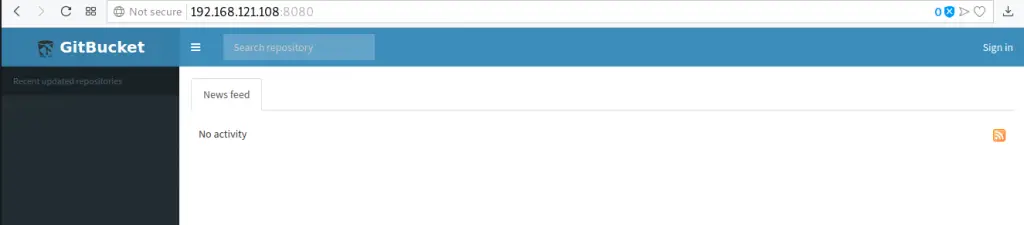
Go to Login section.
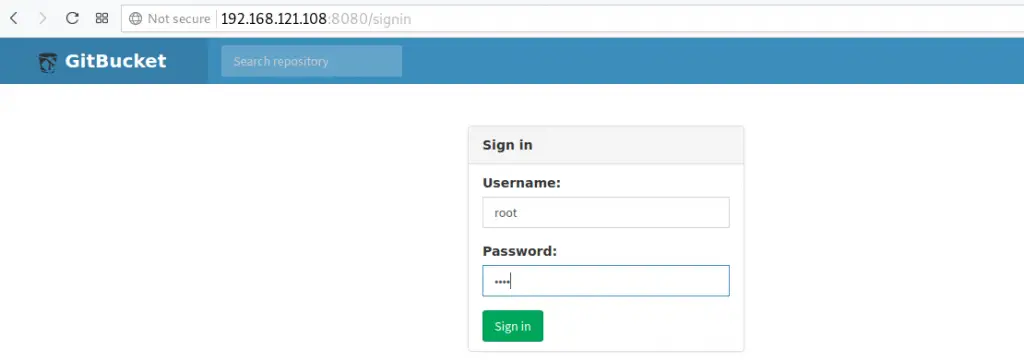
The default logins are:
Username: root
Password: root
Change root password under Account Settings
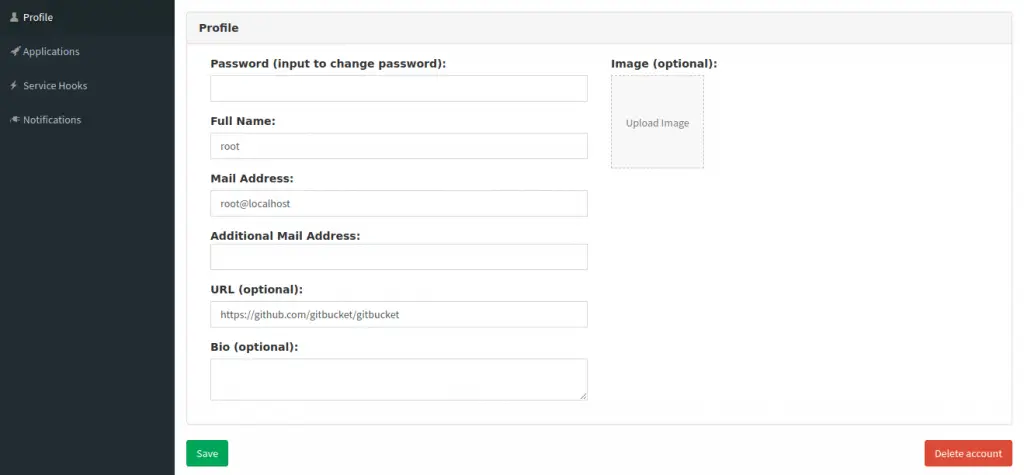
What next?
By default, GitBucket run on embedded H2 database. For Production use, it is recommended to configure to use external database
Also consider to:
1.Configure SMTP for email alerting
2.Configure Additional Plugins
You can find more plugins made by the community at GitBucket community plugins.
3. Enabling SSH access to repository
Performing GitBucket Backup
The backup of a GitBucket installation should be consistent between the database state and the state of the git repositories. There is a backup script available for automating this task. Check GitBucket backup guide for more details.
Related Articles:

Massive thanks!
Welcome and thank you.