

Torrent clients for Linux have thinned out over the years. Half the desktop apps from the CentOS 7 era are unmaintained, and a handful of headless clients now run the show on seedboxes, homelabs, and NAS boxes. This refresh cuts the noise and ranks what actually works in 2026.
Two clients dominate the Linux BitTorrent space: qBittorrent (with its headless qbittorrent-nox variant) and Transmission (with transmission-daemon). Both ship a Web UI you can reach from any browser, both run cleanly under systemd, and both are packaged across Ubuntu, Debian, Kali, Fedora, and Rocky/AlmaLinux. We cover Deluge and WebTorrent Desktop briefly at the end as solid alternatives for specific workflows.
Tested April 2026 on Rocky Linux 10.1 (via Docker images because qBittorrent and Transmission are not in EPEL 10 yet) and on Ubuntu 24.04 LTS / Debian 13 via native apt packages. qBittorrent 5.1.x, Transmission 4.1.x.
A quick note before the commands. BitTorrent is a protocol, not a tool for pirating movies. Linux ISOs, academic datasets, Internet Archive collections, game mods, and Creative Commons content are all distributed over torrents precisely because the protocol is efficient for large files and resilient when the original source goes down. Use it for that. Your ISP may still rate-limit or log torrent traffic regardless of content, so pairing a torrent client with a VPN is common. See our WireGuard VPN on Ubuntu guide if you want to route the client through a tunnel.
Prerequisites
- A Linux server or desktop with root or sudo access
- Inbound BitTorrent ports open (default TCP/UDP 6881 for qBittorrent, TCP/UDP 51413 for Transmission)
- Outbound HTTPS and DHT traffic allowed
- Tested on: Ubuntu 24.04 / 26.04 LTS, Debian 13, Kali Linux 2026.x, Rocky Linux 10.1
For seedboxes specifically, a low-cost VPS with decent bandwidth is the common pattern. DigitalOcean and Hetzner Cloud both work well; the 2 vCPU / 4 GB tier handles several active torrents plus a Web UI without sweating. Pair it with 1Password to store the Web UI admin password.
1. qBittorrent: the current default for Linux
qBittorrent replaced Deluge as the community default somewhere around 2020 and has stayed there. The desktop build looks and behaves like the old uTorrent (before it grew ads), and the headless qbittorrent-nox variant runs the same Qt-less core with a polished Web UI on port 8080. Magnet links, sequential downloading, RSS feeds, a torrent search plugin, and per-torrent throttling all work out of the Debian/Ubuntu package without extra config.
Install qBittorrent on Ubuntu, Debian, and Kali
The qbittorrent-nox headless build is the one you want on a server. The desktop package is fine for a workstation.
sudo apt update
sudo apt install -y qbittorrent-nox
For the desktop GUI instead, swap qbittorrent-nox for qbittorrent. Kali Linux uses the same Debian repositories so the command is identical.
Install qBittorrent on Fedora
Fedora ships the headless package in its default repos, so no extra configuration is needed:
sudo dnf install -y qbittorrent-noxInstall qBittorrent on Rocky Linux, AlmaLinux, and RHEL
This is the awkward case. EPEL 10 has not yet shipped qbittorrent-nox or transmission-daemon as of April 2026. Two practical options:
- Flatpak for a desktop install (adds the GUI app to your applications menu)
- Docker with the linuxserver/qbittorrent image for a headless Web UI, which is what we used for testing this guide
For Flatpak desktop:
sudo dnf install -y flatpak
flatpak remote-add --if-not-exists flathub https://flathub.org/repo/flathub.flatpakrepo
flatpak install -y flathub org.qbittorrent.qBittorrent
The Docker route is cleaner for a headless server. This is the stack used to capture the screenshots in this article. Install Docker first if needed (Docker install on Ubuntu or the equivalent Rocky guide), then:
sudo mkdir -p /srv/qbt/config /srv/qbt/downloads
sudo docker run -d --name=qbittorrent \
  --restart=unless-stopped \
  --network=host \
  -e PUID=1000 -e PGID=1000 -e TZ=UTC \
  -e WEBUI_PORT=8080 \
  -v /srv/qbt/config:/config \
  -v /srv/qbt/downloads:/downloads \
  lscr.io/linuxserver/qbittorrent:latest
Run qbittorrent-nox under systemd
On Debian and Ubuntu the package installs an example unit but does not auto-enable it. Create a dedicated system user so the daemon is not running as your own account, then write a per-user systemd template unit.
sudo useradd -r -m -d /var/lib/qbittorrent -s /usr/sbin/nologin qbtuser
sudo mkdir -p /var/lib/qbittorrent/downloads
sudo chown -R qbtuser:qbtuser /var/lib/qbittorrent
Open the unit file:
sudo vi /etc/systemd/system/[email protected]Paste this minimal template unit. The @ lets you start the daemon as any system user by instance name.
[Unit]
Description=qBittorrent-nox service for %i
Documentation=man:qbittorrent-nox(1)
After=network-online.target
Wants=network-online.target

[Service]
Type=simple
User=%i
ExecStart=/usr/bin/qbittorrent-nox
Restart=on-failure
TimeoutStopSec=30

[Install]
WantedBy=multi-user.target
Enable and start it for the qbtuser account:
sudo systemctl daemon-reload
sudo systemctl enable --now qbittorrent-nox@qbtuser
Verify the service is active and grab the temporary admin password from the journal. qBittorrent prints a one-time password on first boot so you can log in before changing it.
sudo systemctl status qbittorrent-nox@qbtuser --no-pager
sudo journalctl -u qbittorrent-nox@qbtuser --no-pager | grep -i "Web UI"
The journal output shows a line like A temporary password is provided for this session: XXXXXX. Log in at http://10.0.1.50:8080 (swap in the server’s IP) with user admin and that generated password. Change it immediately under Tools, Options, Web UI.
qBittorrent Web UI in action
Once you have added a torrent (paste a magnet link, upload a .torrent file, or use the Add torrent link button in the toolbar), the dashboard looks like this. The screenshot below shows two torrents, one seeding and one actively downloading, with DHT node count and live transfer speeds in the footer.
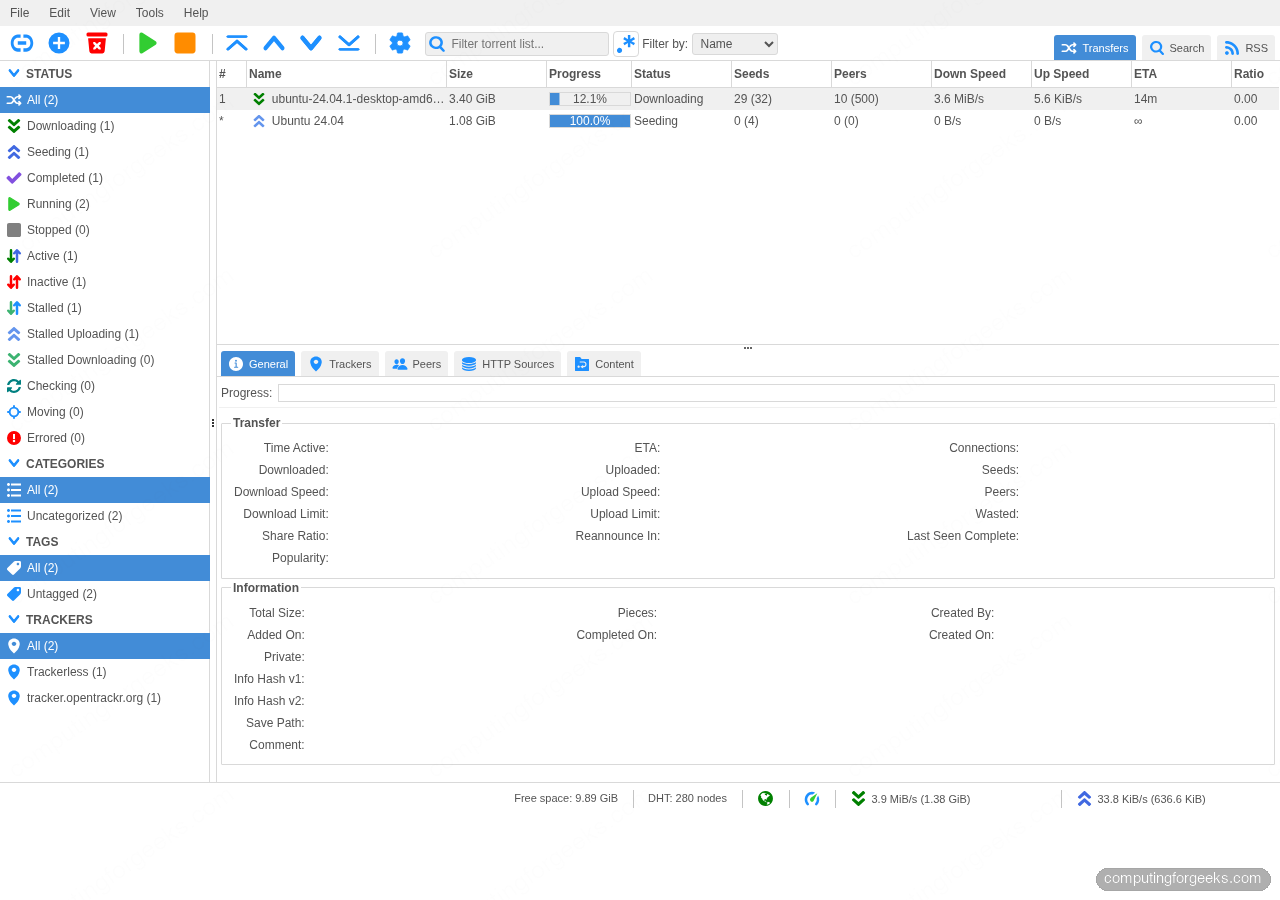
The left sidebar filters by state (Downloading, Seeding, Stopped), by category, by tag, and by tracker. The bottom panel toggles between General, Trackers, Peers, HTTP Sources, and Content for the selected torrent. It is the closest free-and-open-source equivalent to the old uTorrent 2.x feel that a lot of long-time users still prefer.
Open the BitTorrent port on the firewall
Without an open port you end up with slow downloads and no seed ratio growth. The default qBittorrent listen port is 6881 (TCP and UDP). On Ubuntu with UFW:
sudo ufw allow 8080/tcp comment 'qBittorrent Web UI'
sudo ufw allow 6881/tcp comment 'qBittorrent BT'
sudo ufw allow 6881/udp comment 'qBittorrent DHT'
On Rocky Linux with firewalld:
sudo firewall-cmd --permanent --add-port=8080/tcp
sudo firewall-cmd --permanent --add-port=6881/tcp
sudo firewall-cmd --permanent --add-port=6881/udp
sudo firewall-cmd --reload
If the server sits behind NAT (home connection), forward 6881 on the router. For a cloud VPS, also open 6881 in the provider’s security group or cloud firewall. Leave the Web UI port (8080) off the public internet and reach it over SSH tunneling or a WireGuard link.
2. Transmission: the lightweight daemon
Transmission is the opposite design to qBittorrent. No plugins, no search tabs, no RSS bells. Just a tiny Web UI, a powerful CLI (transmission-remote), and a daemon that idles at a few megabytes of RAM. It is the default client on several Linux distributions and the Ubuntu desktop, ships in every base repo (apt, dnf, the lot), and has a well-documented JSON-RPC API that makes it the favourite for scripted seedboxes and NAS boxes. Version 4.x brought BEP-52 v2 torrent support and a reworked Web UI.
Install Transmission on Ubuntu, Debian, Kali
Debian-family repos carry both the daemon and the CLI helpers. One apt command pulls everything:
sudo apt update
sudo apt install -y transmission-daemon transmission-cli
transmission-cli is optional; it gives you transmission-remote for talking to the daemon from the shell.
Install Transmission on Fedora, Rocky, Alma, RHEL
Fedora ships it in the base repos:
sudo dnf install -y transmission-daemon transmission-cliRocky 10 / AlmaLinux 10 / RHEL 10 hit the same EPEL-10 packaging gap as qBittorrent. The practical path is the Docker image. This is what the tested stack looked like on Rocky 10.1:
sudo mkdir -p /opt/transmission/config /opt/transmission/downloads /opt/transmission/watch
sudo docker run -d --name=transmission \
  --restart=unless-stopped \
  --network=host \
  -e PUID=1000 -e PGID=1000 -e TZ=UTC \
  -e USER=admin -e PASS='ChangeMe#Strong2026' \
  -v /opt/transmission/config:/config \
  -v /opt/transmission/downloads:/downloads \
  -v /opt/transmission/watch:/watch \
  lscr.io/linuxserver/transmission:latest
Enable and start the daemon under systemd
Debian and Fedora both install a working systemd unit with the package. Enable it once and Transmission starts at boot.
sudo systemctl enable --now transmission-daemon
sudo systemctl status transmission-daemon --no-pager
The service listens on port 9091 for the Web UI and on 51413 (TCP and UDP) for peer traffic.
Configure remote access and credentials
Transmission will not let you reach the Web UI from a remote browser until you whitelist the source IP and set an RPC password. The config file lives at /etc/transmission-daemon/settings.json on Debian and Ubuntu, and at /var/lib/transmission/.config/transmission-daemon/settings.json on Fedora. Stop the daemon before editing or it will overwrite your changes on shutdown:
sudo systemctl stop transmission-daemon
sudo vi /etc/transmission-daemon/settings.json
Change these keys. Set a strong RPC password (Transmission rewrites it to a hashed form on next start), turn on authentication, and switch off the host whitelist if you plan to reach it from a LAN subnet or a tunnel:
"rpc-authentication-required": true,
"rpc-bind-address": "0.0.0.0",
"rpc-enabled": true,
"rpc-host-whitelist-enabled": false,
"rpc-password": "ChangeMe#Strong2026",
"rpc-port": 9091,
"rpc-username": "admin",
"rpc-whitelist": "127.0.0.1,10.0.1.0/24",
"rpc-whitelist-enabled": true,
Start the daemon back up and verify it is listening:
sudo systemctl start transmission-daemon
ss -tlnp | grep 9091
Open the firewall port next. On UFW:
sudo ufw allow 9091/tcp comment 'Transmission Web UI'
sudo ufw allow 51413/tcp comment 'Transmission BT'
sudo ufw allow 51413/udp comment 'Transmission DHT'
Transmission Web UI in action
Browse to http://10.0.1.50:9091/transmission/web/ (use the server’s LAN IP), log in with the admin credentials you set, and the dashboard looks like the screenshot below. The UI is deliberately spartan. Open, Delete, Start, Stop, Inspector, and a filter bar. No plugin marketplace, no search tabs.
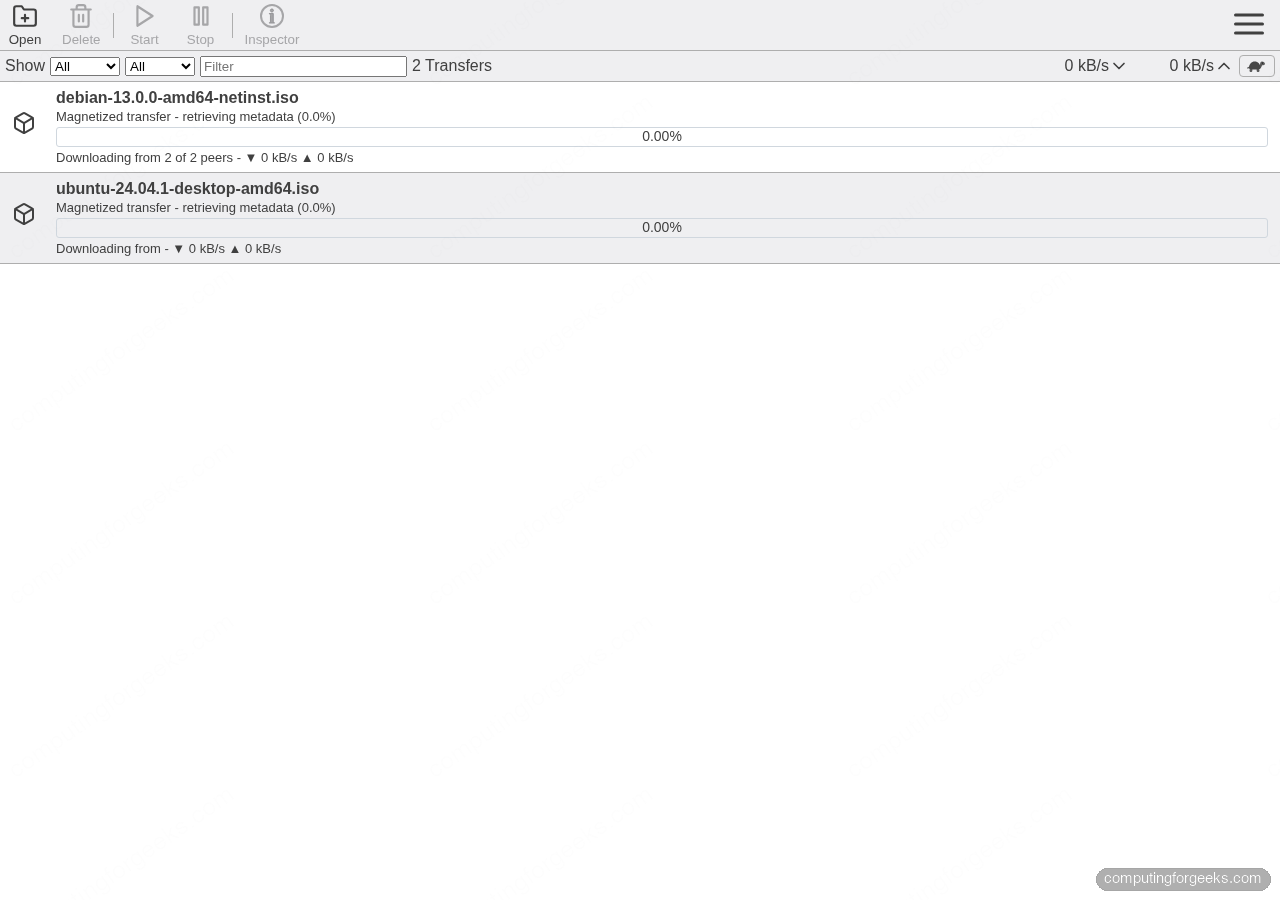
The screenshot shows a fresh install downloading the Debian 13 netinst ISO and the Ubuntu 24.04.1 desktop ISO, each retrieving metadata from the DHT swarm. Once metadata arrives the progress bars fill in.
Driving Transmission from the CLI
This is the piece Transmission has over qBittorrent for scripted workflows. transmission-remote talks the same RPC the Web UI does and is scriptable from day one.
transmission-remote -n admin:ChangeMe#Strong2026 -a 'magnet:?xt=urn:btih:...&dn=ubuntu-24.04.1-desktop-amd64.iso'
transmission-remote -n admin:ChangeMe#Strong2026 -l
transmission-remote -n admin:ChangeMe#Strong2026 -t 1 -i
The three commands add a magnet, list all torrents, and show details on torrent ID 1. A cron job that adds every .torrent dropped into /opt/transmission/watch is the usual seedbox pattern, and the daemon already watches that directory if you set watch-dir in settings.json.
qBittorrent vs Transmission: which should you pick?
Short version: qBittorrent if you want features, Transmission if you want to forget the daemon exists.
| Feature | qBittorrent (nox) | Transmission (daemon) |
|---|---|---|
| RAM idle | ~80 MB | ~25 MB |
| Web UI | Rich, filters, RSS tab | Minimal, just transfers |
| CLI | Via API, no first-class tool | transmission-remote ships with it |
| RSS downloader | Built-in | No (needs third-party) |
| Search plugins | Yes | No |
| RHEL 10 native package | No (Docker or Flatpak) | No (Docker) |
| Ubuntu/Debian native package | Yes | Yes |
| License | GPL-2.0+ | MIT + GPLv2 portions |
Pick qBittorrent if you run one or two machines and want a real UI to browse torrents, filter by tracker, and tune every knob. Pick Transmission on a headless seedbox where a 25 MB daemon with a clean RPC API beats a 90 MB one with a plugin architecture you will never use.
Other clients worth knowing about
Deluge is the longest-running Python torrent client and is still actively maintained. It uses a client-server architecture (the deluged daemon plus a deluge-web UI or the deluge GTK client) and a plugin system. Packaged in Debian, Ubuntu, and Fedora as deluged deluge-web. The ratio-management and labeling features that were unique to Deluge in the 2010s are now matched by qBittorrent and Transmission plugins, so Deluge has become a niche pick rather than a default. Install with sudo apt install -y deluged deluge-web on Debian-family, and configure it similarly to Transmission: stop, edit the JSON config, set a password, start.
WebTorrent Desktop is the one non-obvious entry here. It is an Electron app that streams video torrents as they download and bridges WebTorrent (browser-based peers) with regular BitTorrent. Not a server tool, and not what you want on a NAS, but a slick pick for watching Linux conference talk archives or Creative Commons video without waiting for the full download. Grab the AppImage from the project’s releases page and run it directly.
A few clients that ranked in the 2019 edition of this article are no longer worth recommending. KTorrent has not seen a maintained release in years. Frostwire is effectively abandoned on Linux. Vuse (Azureus) is a Java dinosaur that still works but carries baggage new readers do not need.
Securing the setup
A few defaults catch new users out and are worth fixing before you expose the daemon beyond a single machine.
- Never expose the Web UI directly to the public internet. Put it behind an SSH tunnel (
ssh -L 8080:localhost:8080 user@server), a WireGuard tunnel, or Tailscale. The admin passwords in qBittorrent and Transmission hash their credentials, but brute-forcing a weakly-set Web UI is still a real risk. - Run the daemon as a dedicated system user, not as root and not as your regular desktop account. Both
qbtuserand the Debian package’sdebian-transmissionuser are fine. - Rate-limit uploads when you are on a metered connection. qBittorrent under Tools, Options, Speed. Transmission under the speed limit toggle in the footer.
- Harden the host itself. Start with our Initial Server Setup guide for Ubuntu if this is a fresh VPS.
Verifying downloads
The protocol verifies each piece against the torrent’s hash as it arrives, so a completed torrent is already integrity-checked. That is not the same as provenance. For Linux ISOs always cross-check the finished file against the distribution’s signed checksum file. On Ubuntu:
cd ~/Downloads
sha256sum -c SHA256SUMS 2>&1 | grep ubuntu-24.04.1-desktop-amd64.iso
The output should read ubuntu-24.04.1-desktop-amd64.iso: OK. If it does not, delete the file and re-fetch. BitTorrent can reproduce a bit-perfect corrupt file if someone has seeded a tampered one with the right info-hash, though in practice this is rare on a popular distribution.
Troubleshooting
“Unauthorized” on Transmission Web UI
Transmission rewrites rpc-password to a hashed form every time the daemon shuts down cleanly. If you edited settings.json while the daemon was running, your plaintext password was stamped back over with the last hashed value. Stop the daemon first, edit, save, then start it.
“403 Forbidden” from qBittorrent Web UI over LAN
qBittorrent 4.2+ enforces host header validation by default. Either log in from the exact URL it expects (usually http://localhost:8080) or turn off Options, Web UI, Enable host header validation and add your LAN IP to the allowed domains list. The same panel toggles “Bypass authentication for clients on localhost”, which is what the screenshots in this guide use.
Torrents stuck at “Stalled” or 0 peers
Either the torrent is genuinely dead (no seeders) or your listen port is blocked. Check the announce URLs in the torrent’s Trackers tab, confirm port 6881 (or 51413 for Transmission) is open on the firewall and forwarded on the router, and verify DHT is enabled in the client. A magnet link with no open trackers relies entirely on DHT, so DHT peers being unreachable will stall it permanently.




Hey Kip. I found myself on your blog after doing a search for alternatives to the transmission torrent client. While I have met you personally and knew of this blog before today, I found it interesting that I didn’t notice I was on your blog until i finished reading the article and read your bio. I’m impressed! Keep acing it bro. Your SEO is definitely on point, and so is the blog.
Thanks bro. I’ll keep the fire burning
What do you have to say about rtorrent?
rtorrent is cool but not for newbies. I’ll consider adding it to the list.
I haven’t seen any newbies using Kali Linux too.