This guide will discuss the Installation of Hadoop and HBase on CentOS / RHEL / Rocky Linux system. HBase is an open-source distributed non-relational database developed under the Apache Software Foundation. It is written in Java and runs on top of Hadoop File Systems (HDFS).
Original content from computingforgeeks.com - post 14574
Apache Hadoop is a widely used framework used in distributed processing of large data sets across clusters of computers using simple programming models. Hadoop is created to scale up from single servers to thousands of machines, each offering local computation and storage. It is designed to detect and handle failures at the application layer and to deliver a highly-available service on top of a cluster of computers.
In our last tutorial, we covered the installation of Hadoop & HBase on Ubuntu. This article we be focused on the installation, configuration and usage of Apache Hadoop / HBase on CentOS / Rocky Linux system.
Installing Hadoop on CentOS / RHEL / Rocky Linux
Here are the steps used to install a Single node Hadoop cluster on CentOS / Rocky / AlmaLinux and other RHEL based systems.
Step 1: Update System
Because Hadoop & HBase service ports are so dynamic, I recommend you install them on a Server in secure Private network and disable both SELinux and Firewalld.
Once the user is added, generate SS key pair for the user.
$ sudo su - hadoop
$ ssh-keygen -t rsa
 Generating public/private rsa key pair.
 Enter file in which to save the key (/home/hadoop/.ssh/id_rsa):
 Created directory '/home/hadoop/.ssh'.
 Enter passphrase (empty for no passphrase):
 Enter same passphrase again:
 Your identification has been saved in /home/hadoop/.ssh/id_rsa.
 Your public key has been saved in /home/hadoop/.ssh/id_rsa.pub.
 The key fingerprint is:
 SHA256:mA1b0nzdKcwv/LPktvlA5R9LyNe9UWt+z1z0AjzySt4 hadoop@hbase
 The key's randomart image is:
 +---[RSA 2048]----+
 |                 |
 |       o   + . . |
 |      o + . = o o|
 |       O . o.o.o=|
 |      + S . *ooB=|
 |           o *=.B|
 |          . . *+=|
 |         o o o.O+|
 |          o E.=o=|
 +----[SHA256]-----+
Add this user’s key to list of Authorized ssh keys.
$ ssh localhost
The authenticity of host 'localhost (::1)' can't be established.
ECDSA key fingerprint is SHA256:WTqP642Xijk3xtTb/zt32o0Q7PqYlxzwX+H/B72z4P4.
ECDSA key fingerprint is MD5:47:dc:17:78:63:f7:bc:12:72:70:4b:e3:2f:8a:c3:8d.
Are you sure you want to continue connecting (yes/no)? yes
Last login: Thu Sep 28 19:23:28 2023
Step 4: Download and Install Hadoop
Check for the most recent version of Hadoop before downloading version specified here. As of this writing, this is version 3.2.1.
Save the recent version to a variable.
RELEASE="3.3.6"
Then download Hadoop archive to your local system.
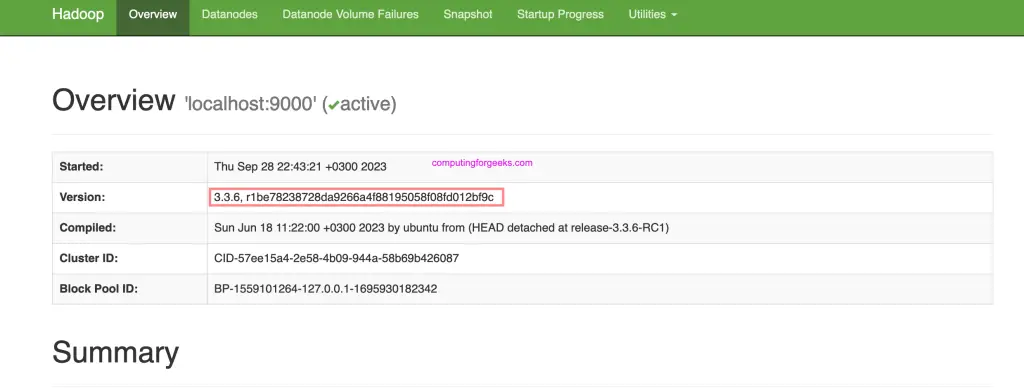
$ hadoop version
Hadoop 3.3.6
Source code repository https://github.com/apache/hadoop.git -r 1be78238728da9266a4f88195058f08fd012bf9c
Compiled by ubuntu on 2023-06-18T08:22Z
Compiled on platform linux-x86_64
Compiled with protoc 3.7.1
From source with checksum 5652179ad55f76cb287d9c633bb53bbd
This command was run using /usr/local/hadoop/share/hadoop/common/hadoop-common-3.3.6.jar
Step 5: Configure Hadoop cluster
All your Hadoop configurations are located under /usr/local/hadoop/etc/hadoop/directory.
A number of configuration files need to be modified to complete Hadoop installation on CentOS 7.
First edit JAVA_HOME in shell script hadoop-env.sh:
$ sudo vim /usr/local/hadoop/etc/hadoop/hadoop-env.sh
# Set JAVA_HOME - Line 54
export JAVA_HOME=$(dirname $(dirname $(readlink $(readlink $(which javac)))))
Then configure:
1. core-site.xml
The core-site.xml file contains Hadoop cluster information used when starting up. These properties include:
The port number used for Hadoop instance
The memory allocated for file system
The memory limit for data storage
The size of Read / Write buffers.
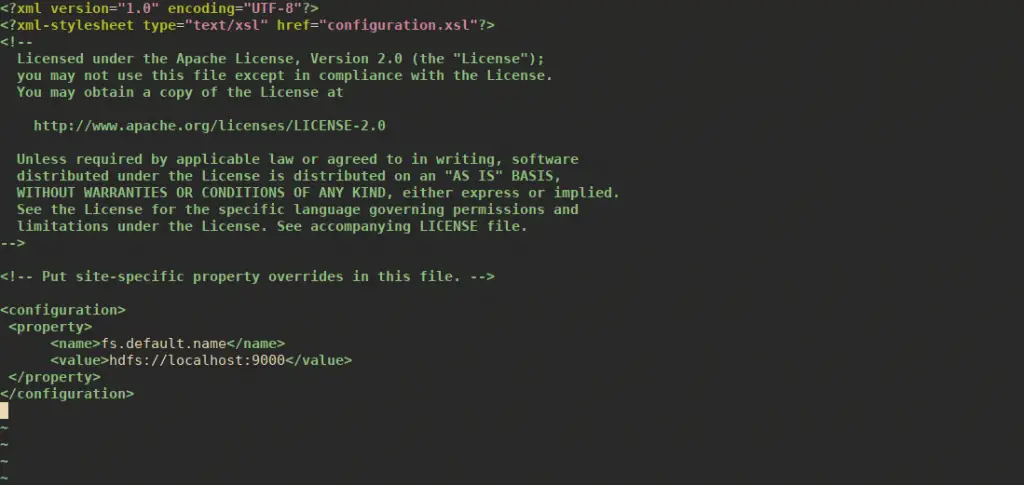
Open core-site.xml
sudo vim /usr/local/hadoop/etc/hadoop/core-site.xml
Add the following properties in between the <configuration> and </configuration> tags.
By default, unless you configure the hbase.rootdir property, your data is still stored in /tmp/.
Now start HBase by using start-hbase.sh script in HBase bin directory.
$ sudo su - hadoop
$ start-hbase.sh
running master, logging to /usr/local/HBase/logs/hbase-hadoop-master-hbase.out
Option 2: Install HBase in Pseudo-Distributed Mode (Recommended)
Our value of hbase.rootdir set earlier will start in Standalone Mode. Pseudo-distributed mode means that HBase still runs completely on a single host, but each HBase daemon (HMaster, HRegionServer, and ZooKeeper) runs as a separate process.
To install HBase in Pseudo-Distributed Mode, set its values to:
The HMaster server controls the HBase cluster. You can start up to 9 backup HMaster servers, which makes 10 total HMasters, counting the primary.
The HRegionServer manages the data in its StoreFiles as directed by the HMaster. Generally, one HRegionServer runs per node in the cluster. Running multiple HRegionServers on the same system can be useful for testing in pseudo-distributed mode.
Master and Region Servers can be started and stopped using the scripts local-master-backup.shandlocal-regionservers.sh respectively.
Each HMaster uses two ports (16000 and 16010 by default). The port offset is added to these ports, so using an offset of 2, the backup HMaster would use ports 16002 and 16012
The following command starts 3 backup servers using ports 16002/16012, 16003/16013, and 16005/16015.
local-master-backup.sh start 2 3 5
Each RegionServer requires two ports, and the default ports are 16020 and 16030
The following command starts four additional RegionServers, running on sequential ports starting at 16022/16032 (base ports 16020/16030 plus 2).
local-regionservers.sh start 2 3 4 5
To stop, replace start parameter with stop for each command followed by the offset of the server to stop. Example.
local-regionservers.sh stop 5
Starting HBase Shell
Hadoop and Hbase should be running before you can use HBase shell. Here the correct order of starting services.
start-all.sh
start-hbase.sh
Then use HBase shell.
hadoop@hbase:~$ hbase shell
....
HBase Shell
Use "help" to get list of supported commands.
Use "exit" to quit this interactive shell.
For Reference, please visit: http://hbase.apache.org/2.0/book.html#shell
Version 2.5.5, r7ebd4381261fefd78fc2acf258a95184f4147cee, Thu Jun 1 17:42:49 PDT 2023
Took 0.0024 seconds
hbase:001:0>
Founder of Computingforgeeks. Senior Systems Engineer with over a decade of hands-on experience building and managing production infrastructure. Core expertise in Linux/UNIX administration, cloud platforms (AWS, GCP, Azure), and Kubernetes ecosystems (EKS, GKE, OpenShift). Deep experience with virtualization (KVM, Proxmox, OpenStack), infrastructure as code (Terraform, Terragrunt, Ansible, Crossplane), GitOps workflows (ArgoCD, FluxCD), Nix/NixOS, and container orchestration at scale. Currently focused on integrating AI and LLMs into DevOps and platform engineering workflows. Every guide on this site is tested on real systems before publishing.