

Windows 11 requires TPM 2.0 and Secure Boot, which means a standard KVM virtual machine will fail the compatibility check unless you configure both. The swtpm package emulates a TPM device that KVM presents to the guest, and OVMF provides the UEFI firmware with Secure Boot support. Together they satisfy every Windows 11 hardware requirement without a physical TPM chip.
This guide covers two methods: the virt-manager GUI and the virt-install CLI. Both produce the same result. The CLI path is easier to script and reproduce, while virt-manager is better for a quick one-off VM. Tested on Ubuntu 24.04, Debian 13, and Rocky Linux 10 with the latest OVMF and swtpm packages.
Updated April 2026 for swtpm in default repos (no PPA needed on Ubuntu 22.04+/Debian 12+), os-variant=win11 support, and current OVMF firmware paths
Prerequisites
- A Windows 11 ISO downloaded from Microsoft
- KVM/QEMU installed and working. If you have not set it up yet, follow one of these guides:
- Install KVM Hypervisor on Ubuntu
- Install KVM Hypervisor on Debian
- Install KVM on Rocky Linux / AlmaLinux / RHEL
- Install KVM on Arch Linux / Manjaro
Install the TPM emulator and UEFI firmware
The two critical packages are swtpm (the software TPM emulator) and ovmf (the UEFI firmware with Secure Boot). On modern distributions, both are in the default repositories. No PPA or third-party repo is needed.
Ubuntu 22.04+ / Debian 12+:
sudo apt update
sudo apt install -y ovmf swtpm swtpm-tools virt-manager virt-viewer
Rocky Linux 10 / AlmaLinux 10 / RHEL 10:
sudo dnf install -y edk2-ovmf swtpm swtpm-tools virt-manager virt-install virt-viewerFedora 42:
sudo dnf install -y edk2-ovmf swtpm swtpm-tools virt-manager virt-installVerify that swtpm is installed and the OVMF firmware files exist:
swtpm --version
ls /usr/share/OVMF/OVMF_CODE*.fd 2>/dev/null || ls /usr/share/edk2/ovmf/OVMF_CODE*.fd 2>/dev/null
Option 1: Create the VM with virt-manager (GUI)
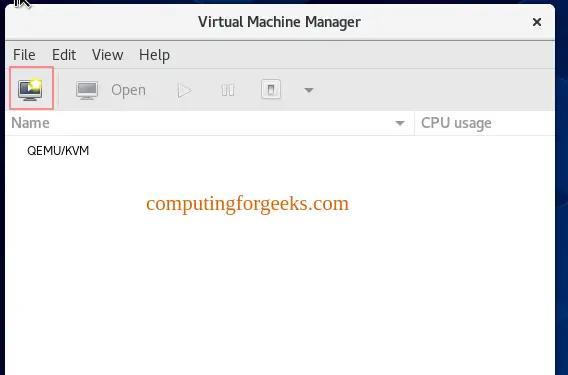
Open virt-manager from the application menu or by running virt-manager in a terminal.
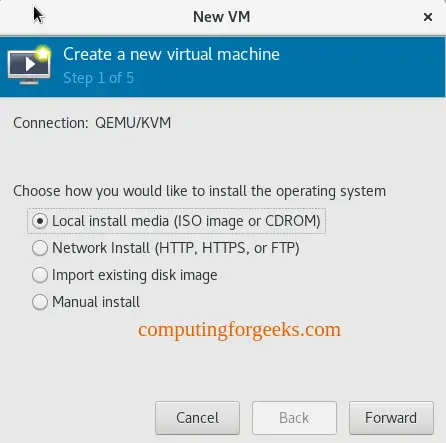
Click Create a new virtual machine and select Local install media (ISO image):
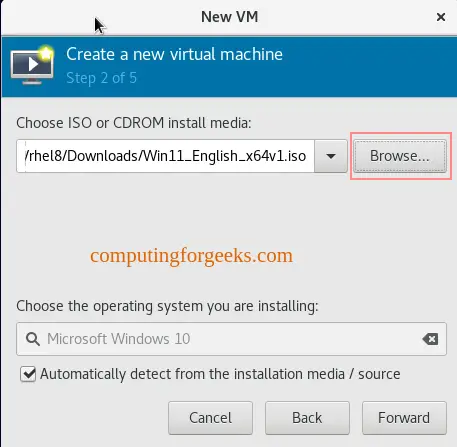
Browse to your Windows 11 ISO. virt-manager should auto-detect it as Microsoft Windows 11. If it does not, manually set the OS to Microsoft Windows 11 in the dropdown:
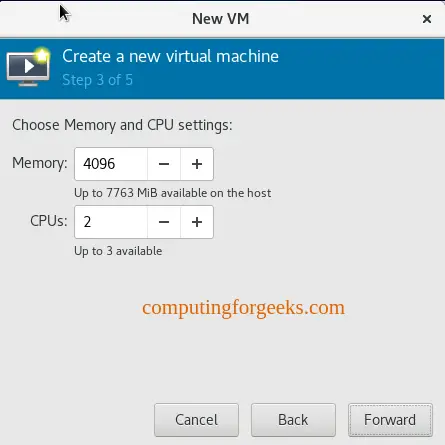
Set the CPU and memory. Windows 11 needs at least 4 GB RAM and 2 vCPUs, but 8 GB and 4 vCPUs will give a much better experience:
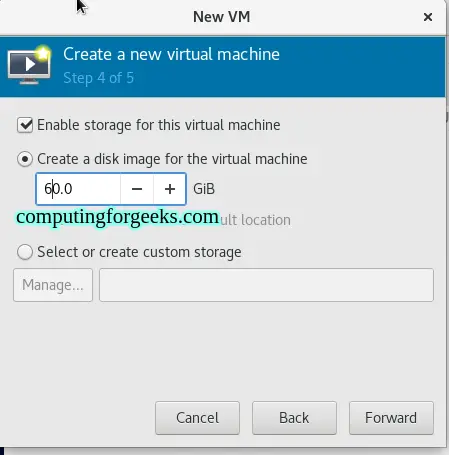
Create the virtual disk. Windows 11 requires a minimum of 64 GB, but 80 GB or more is recommended for comfort:
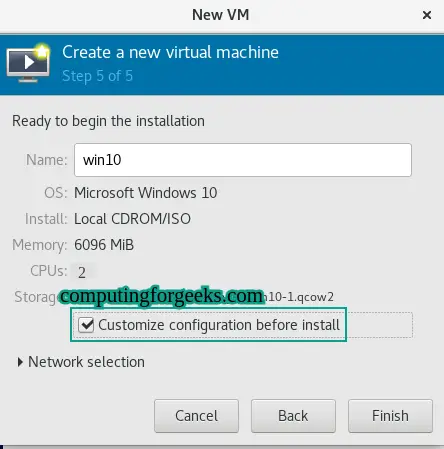
On the final summary page, check Customize configuration before install. This is where you add the TPM device:
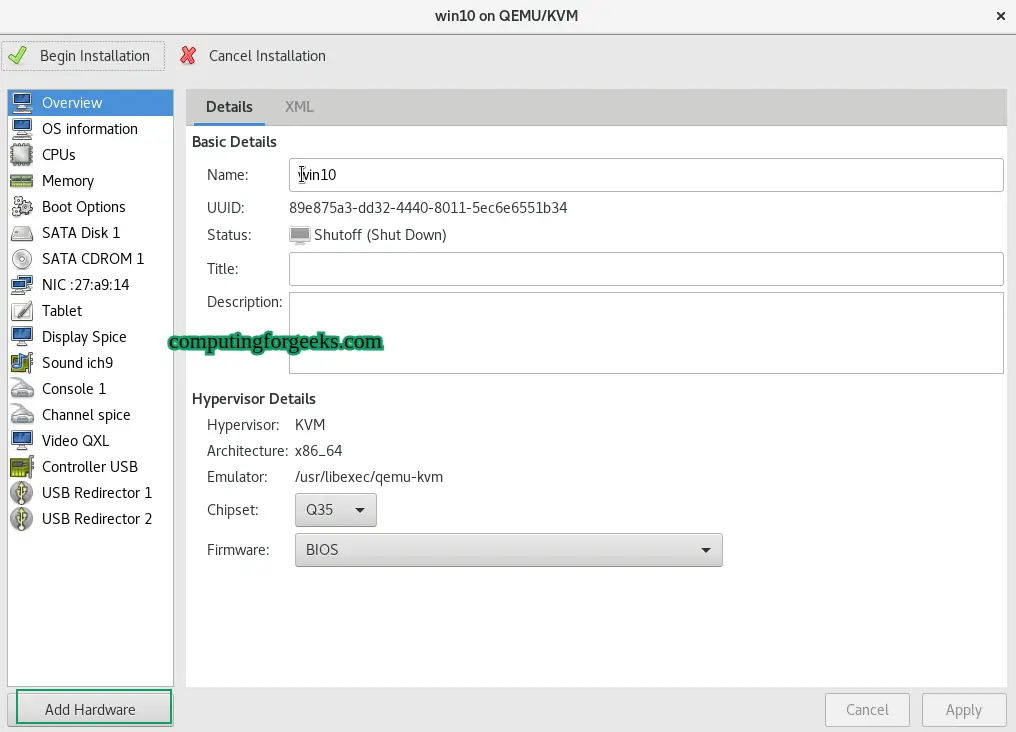
In the customization window, click Add Hardware at the bottom left:
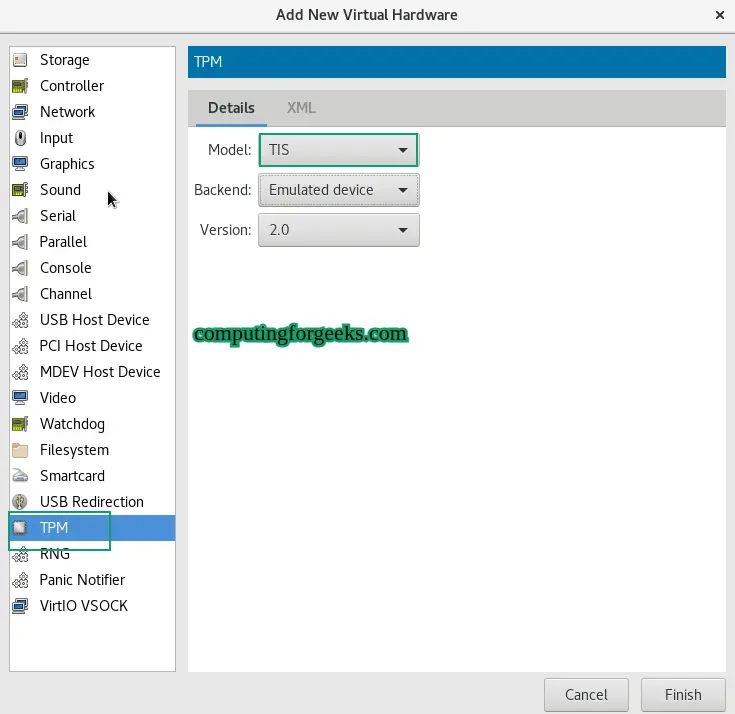
Select TPM from the hardware list. Set the model to TIS, backend to Emulated, and version to 2.0. Click Finish:
Before starting the installation, go to the Overview tab and confirm the firmware is set to UEFI x86_64: OVMF_CODE.secboot.fd (or the 4M variant on newer systems). The chipset should be Q35. These two settings, combined with the TPM device, are what Windows 11 checks during setup:
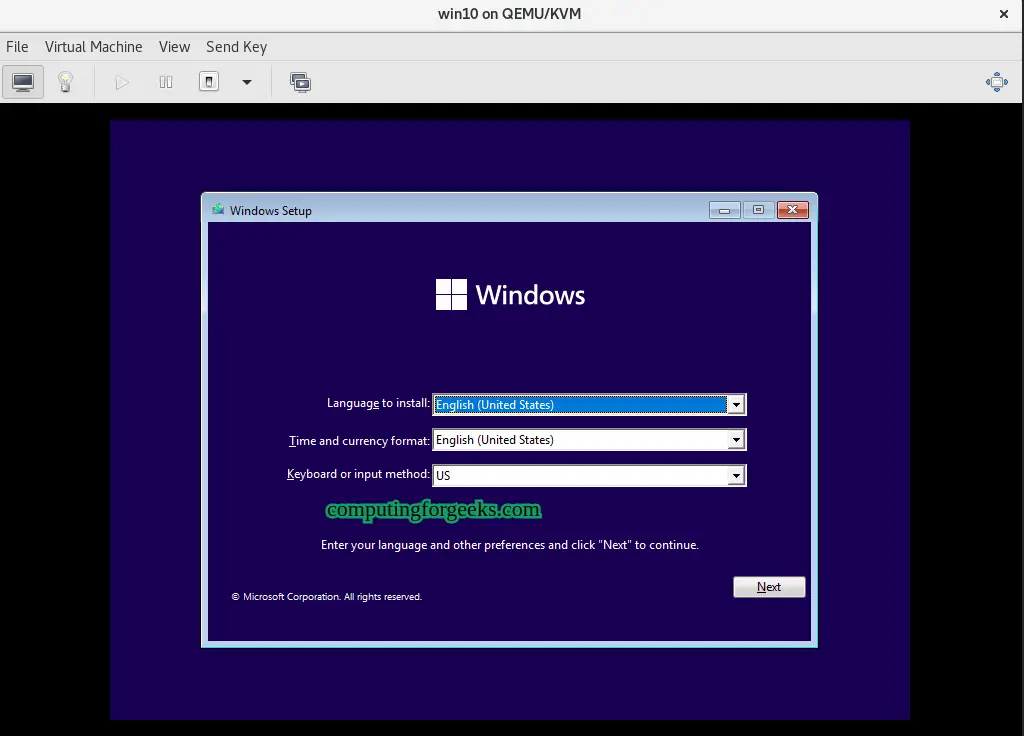
Click Begin Installation. The Windows 11 installer will launch and pass the TPM/Secure Boot check without issues:
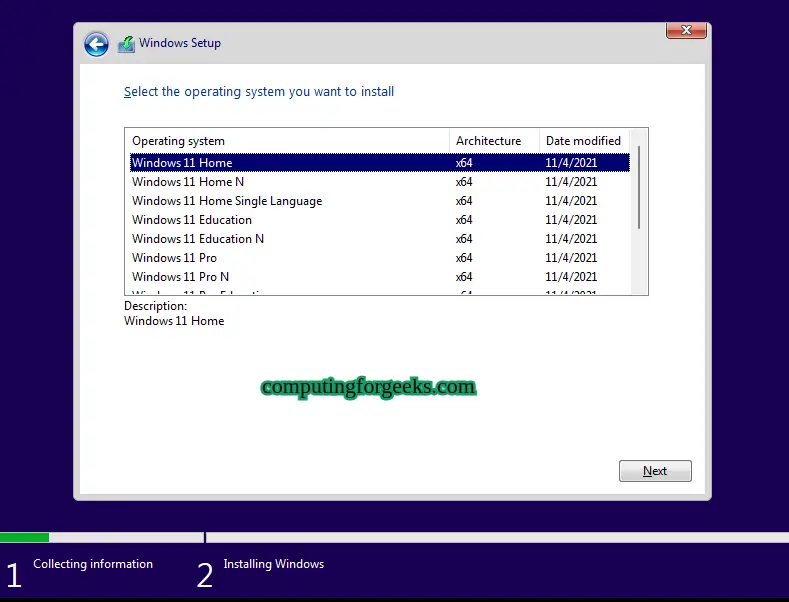
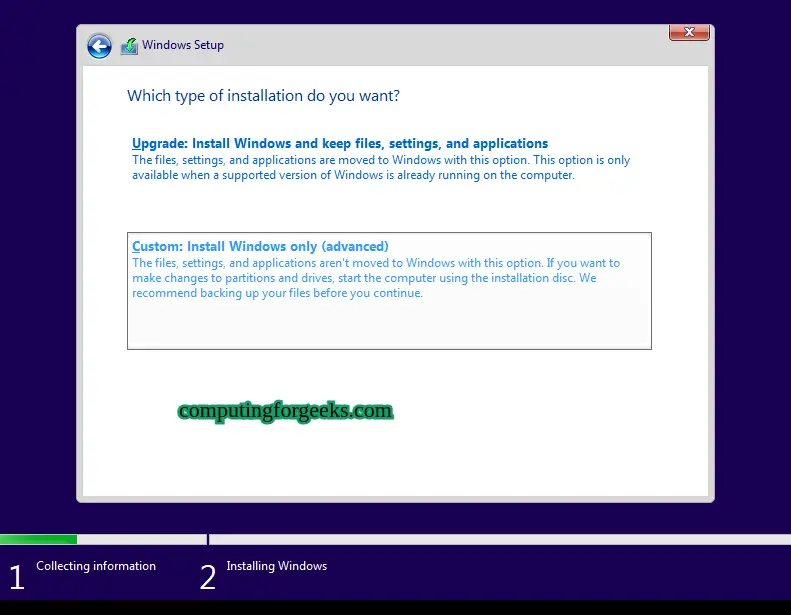
Option 2: Create the VM with virt-install (CLI)
The CLI approach does everything in one command. It is faster to reproduce and easier to automate. The key flags are --tpm for the emulated TPM and --boot for the UEFI firmware with Secure Boot.
Ubuntu 24.04 / Debian 13:
sudo virt-install \
  --name Windows11 \
  --ram 8192 \
  --vcpus 4 \
  --cpu host-passthrough \
  --disk path=/var/lib/libvirt/images/win11.qcow2,size=80,bus=virtio \
  --os-variant win11 \
  --network bridge=virbr0,model=virtio \
  --cdrom /path/to/Win11_English_x64.iso \
  --graphics spice \
  --video qxl \
  --features kvm_hidden=on,smm=on \
  --tpm backend.type=emulator,backend.version=2.0,model=tpm-tis \
  --boot loader=/usr/share/OVMF/OVMF_CODE_4M.secboot.fd,loader_ro=yes,loader_type=pflash,nvram_template=/usr/share/OVMF/OVMF_VARS_4M.ms.fd \
  --machine q35
Rocky Linux 10 / AlmaLinux 10 / RHEL 10:
sudo virt-install \
  --name Windows11 \
  --ram 8192 \
  --vcpus 4 \
  --cpu host-passthrough \
  --disk path=/var/lib/libvirt/images/win11.qcow2,size=80,bus=virtio \
  --os-variant win11 \
  --network bridge=virbr0,model=virtio \
  --cdrom /path/to/Win11_English_x64.iso \
  --graphics spice \
  --video qxl \
  --features kvm_hidden=on,smm=on \
  --tpm backend.type=emulator,backend.version=2.0,model=tpm-tis \
  --boot loader=/usr/share/edk2/ovmf/OVMF_CODE.secboot.fd,loader_ro=yes,loader_type=pflash,nvram_template=/usr/share/edk2/ovmf/OVMF_VARS.secboot.fd \
  --machine q35
Replace /path/to/Win11_English_x64.iso with the actual path to your Windows 11 ISO. The --os-variant win11 flag tells libvirt to apply Windows 11 optimizations automatically. If your osinfo-db is older and does not recognize win11, update it with sudo apt install osinfo-db or fall back to win10.
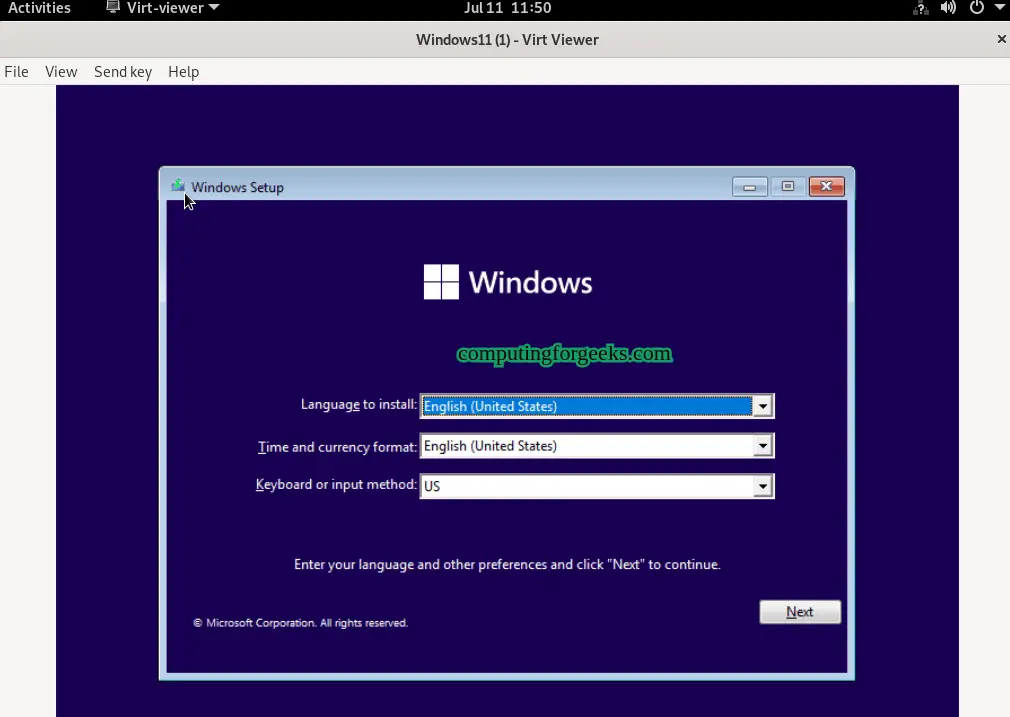
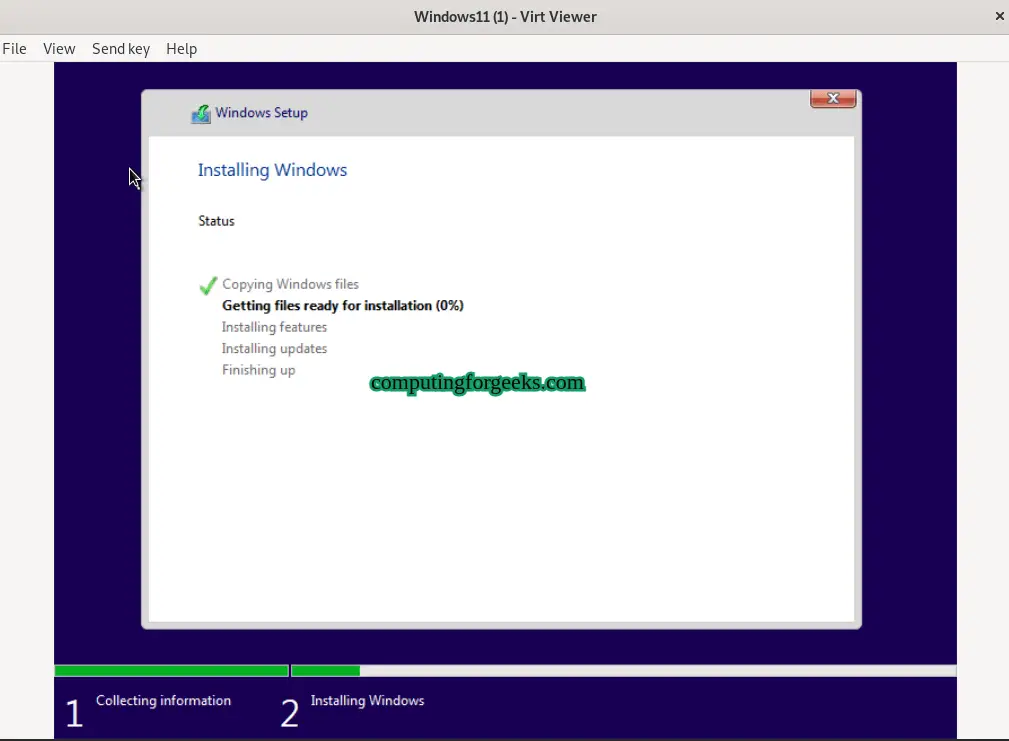
The installer boots into the Windows setup wizard. Since we used bus=virtio for the disk, Windows will not see the disk during installation unless you load the VirtIO drivers. Download the VirtIO drivers ISO and attach it as a second CDROM, then click “Load driver” in the disk selection step to load the viostor driver.

Verify TPM 2.0 inside Windows 11
After the installation completes and Windows boots, press Win+R, type tpm.msc, and press Enter. The TPM Management console should show The TPM is ready for use with Specification Version 2.0:

If the TPM Management console shows “Compatible TPM cannot be found,” go back and verify the --tpm flag was passed correctly and that swtpm is installed on the host.
OVMF firmware paths by distribution
The OVMF firmware file path differs between distributions. If virt-install fails with “loader not found,” check this table for the correct path on your system:
| Distribution | OVMF CODE (Secure Boot) | OVMF VARS | Package |
|---|---|---|---|
| Ubuntu 24.04 / Debian 13 | /usr/share/OVMF/OVMF_CODE_4M.secboot.fd | /usr/share/OVMF/OVMF_VARS_4M.ms.fd | ovmf |
| Ubuntu 22.04 / Debian 12 | /usr/share/OVMF/OVMF_CODE.secboot.fd | /usr/share/OVMF/OVMF_VARS.ms.fd | ovmf |
| Rocky 10 / RHEL 10 / AlmaLinux 10 | /usr/share/edk2/ovmf/OVMF_CODE.secboot.fd | /usr/share/edk2/ovmf/OVMF_VARS.secboot.fd | edk2-ovmf |
| Fedora 42 | /usr/share/edk2/ovmf/OVMF_CODE.secboot.fd | /usr/share/edk2/ovmf/OVMF_VARS.secboot.fd | edk2-ovmf |
| Arch Linux | /usr/share/edk2/x64/OVMF_CODE.secboot.4m.fd | /usr/share/edk2/x64/OVMF_VARS.4m.fd | edk2-ovmf |
Troubleshooting
Error: “this PC doesn’t meet the minimum system requirements”
This means Windows 11 did not detect either TPM or Secure Boot (or both). Check three things: the --tpm flag is present and set to backend.version=2.0, the firmware is OVMF with .secboot in the filename (not the non-secure variant), and smm=on is in the --features flag. SMM (System Management Mode) is required for Secure Boot to function.
Error: “Could not find swtpm” or TPM emulator startup fails
The swtpm package is missing or not in the expected path. On Ubuntu 22.04+ and Debian 12+, install it with sudo apt install swtpm swtpm-tools. On RHEL-family systems use sudo dnf install swtpm swtpm-tools. If you are on Ubuntu 20.04 (which is EOL), you need the Stefan Berger PPA, but upgrading to 22.04 or 24.04 is the better fix.
Windows does not see the disk during installation
When using bus=virtio for the disk (recommended for performance), Windows needs the VirtIO storage driver loaded during setup. Download the virtio-win ISO, attach it as a second CD-ROM, and click Load driver in the disk selection step. Navigate to the viostor\w11\amd64 folder on the VirtIO CD and load the driver. The disk will appear immediately.




How if i installed on arch linux?
Hello Agus,
Try the below commands to install TPM on Arch Linux:
sudo pacman -S qemu virt-manager libvirt ebtables dnsmasq bridge-utils openbsd-netcat

sudo pacman -S trousers tpm2-tools
Another option is swtpm. This worked for me.