

FreeRADIUS is a high performance, open source RADIUS server developed under the GNU General Public License. FreeRADIUS is the most used RADIUS server in the world. FreeRADIUS comes with web-based user administration tool and is modular, very scalable and rich sets of features. This is a how to install FreeRADIUS and Daloradius on CentOS 7 / RHEL 7.
RADIUS, which stands for “Remote Authentication Dial In User Service”, is a network protocol – a system that defines rules and conventions for communication between network devices – for remote user authentication and accounting. RADIUS is normally used to provide AAA services; Authorization. Authentication and Accounting.
FreeRADIUS is the most deployed RADIUS server since it supports all common authentication protocols, being open source and simplified user administration made possible by its dialupadmin web GUI. The server also comes with modules for LDAP and database systems integration like MySQL,PostgreSQL,Oracle e.t.c.
Setup Initialization
Update your CentOS / RHEL System
sudo yum -y update
sudo reboot
Set SELinux to permissive mode if you want seamless installation without touching SELinux management tools.
sudo setenforce 0
sudo sed -i 's/^SELINUX=.*/SELINUX=permissive/g' /etc/selinux/config
Let’s start the installation of FreeRADIUS and Daloradius on CentOS 7 and RHEL 7.
Install required dependencies
Install apache web server and Development tools:
sudo yum -y groupinstall "Development Tools"
sudo yum -y install httpd httpd-devel
Start and enable httpd server
sudo systemctl enable --now httpdCheck status of httpd server to make sure it’s running
[root@freeradius ~]# systemctl status httpd
 ● httpd.service - The Apache HTTP Server
   Loaded: loaded (/usr/lib/systemd/system/httpd.service; enabled; vendor preset: disabled)
   Active: active (running) since Tue 2023-11-21 17:04:13 UTC; 9s ago
     Docs: man:httpd(8)
           man:apachectl(8)
 Main PID: 24096 (httpd)
   Status: "Total requests: 0; Current requests/sec: 0; Current traffic:   0 B/sec"
   CGroup: /system.slice/httpd.service
           ├─24096 /usr/sbin/httpd -DFOREGROUND
           ├─24097 /usr/sbin/httpd -DFOREGROUND
           ├─24098 /usr/sbin/httpd -DFOREGROUND
           ├─24099 /usr/sbin/httpd -DFOREGROUND
           ├─24100 /usr/sbin/httpd -DFOREGROUND
           └─24101 /usr/sbin/httpd -DFOREGROUND

Nov 21 17:04:13 cent7.mylab.io systemd[1]: Starting The Apache HTTP Server...
Nov 21 17:04:13 cent7.mylab.io systemd[1]: Started The Apache HTTP Server.
Installing and Configuring MariaDB
We’ll install and configure MariaDB 10, using steps below:
- Add MariaDB official repo content to CentOS 7 system
curl -LsS https://downloads.mariadb.com/MariaDB/mariadb_repo_setup | sudo bash -s --- Install MariaDB to configure Database server
sudo yum -y install epel-release
sudo yum -y install MariaDB-server MariaDB-client
You’ll be prompted to install MariaDB GPG Signing key. Just press y to allow installation.
- Start and enable MariaDB to run on boot
sudo systemctl start --now mariadbCheck if running and if enabled
$ systemctl status mariadb
● mariadb.service - MariaDB 11.1.3 database server
   Loaded: loaded (/usr/lib/systemd/system/mariadb.service; disabled; vendor preset: disabled)
  Drop-In: /etc/systemd/system/mariadb.service.d
           └─migrated-from-my.cnf-settings.conf
   Active: active (running) since Tue 2023-11-21 17:11:52 UTC; 6s ago
     Docs: man:mariadbd(8)
           https://mariadb.com/kb/en/library/systemd/
  Process: 24673 ExecStartPost=/bin/sh -c systemctl unset-environment _WSREP_START_POSITION (code=exited, status=0/SUCCESS)
  Process: 24650 ExecStartPre=/bin/sh -c [ ! -e /usr/bin/galera_recovery ] && VAR= ||   VAR=`cd /usr/bin/..; /usr/bin/galera_recovery`; [ $? -eq 0 ]   && systemctl set-environment _WSREP_START_POSITION=$VAR || exit 1 (code=exited, status=0/SUCCESS)
  Process: 24647 ExecStartPre=/bin/sh -c systemctl unset-environment _WSREP_START_POSITION (code=exited, status=0/SUCCESS)
 Main PID: 24662 (mariadbd)
   Status: "Taking your SQL requests now..."
   CGroup: /system.slice/mariadb.service
           └─24662 /usr/sbin/mariadbd

Nov 21 17:11:52 cent7.mylab.io mariadbd[24662]: 2023-11-21 17:11:52 0 [Note] Plugin 'FEEDBACK' is disabled.
Nov 21 17:11:52 cent7.mylab.io mariadbd[24662]: 2023-11-21 17:11:52 0 [Note] Plugin 'wsrep-provider' is disabled.
Nov 21 17:11:52 cent7.mylab.io mariadbd[24662]: 2023-11-21 17:11:52 0 [Note] InnoDB: Loading buffer pool(s) from /var/lib/mysql/ib_buffer_pool
Nov 21 17:11:52 cent7.mylab.io mariadbd[24662]: 2023-11-21 17:11:52 0 [Note] InnoDB: Buffer pool(s) load completed at 231121 17:11:52
Nov 21 17:11:52 cent7.mylab.io mariadbd[24662]: 2023-11-21 17:11:52 0 [Note] Server socket created on IP: '0.0.0.0'.
Nov 21 17:11:52 cent7.mylab.io mariadbd[24662]: 2023-11-21 17:11:52 0 [Note] Server socket created on IP: '::'.
Nov 21 17:11:52 cent7.mylab.io mariadbd[24662]: 2023-11-21 17:11:52 0 [Note] mariadbd: Event Scheduler: Loaded 0 events
Nov 21 17:11:52 cent7.mylab.io mariadbd[24662]: 2023-11-21 17:11:52 0 [Note] /usr/sbin/mariadbd: ready for connections.
Nov 21 17:11:52 cent7.mylab.io mariadbd[24662]: Version: '11.1.3-MariaDB'  socket: '/var/lib/mysql/mysql.sock'  port: 3306  MariaDB Server
Nov 21 17:11:52 cent7.mylab.io systemd[1]: Started MariaDB 11.1.3 database server.
Configure initial MariaDB settings to secure it. Here you’ll set root password. For security purposes, consider removing anonymous users and disallowing remote root login. See sample configuration shown below. Key choices are marked with red.
[root@freeradius ~]$ sudo mariadb-secure-installation

NOTE: RUNNING ALL PARTS OF THIS SCRIPT IS RECOMMENDED FOR ALL MariaDB

SERVERS IN PRODUCTION USE! PLEASE READ EACH STEP CAREFULLY!

In order to log into MariaDB to secure it, we'll need the current
 password for the root user. If you've just installed MariaDB, and
 you haven't set the root password yet, the password will be blank,
 so you should just press enter here.

Enter current password for root (enter for none):
 OK, successfully used password, moving on...

Setting the root password ensures that nobody can log into the MariaDB
 root user without the proper authorisation.

Set root password? [Y/n] Y
 New password:
 Re-enter new password:
 Password updated successfully!
 Reloading privilege tables..
 ... Success!

By default, a MariaDB installation has an anonymous user, allowing anyone
 to log into MariaDB without having to have a user account created for
 them. This is intended only for testing, and to make the installation
 go a bit smoother. You should remove them before moving into a
 production environment.

Remove anonymous users? [Y/n] y
 ... Success!

Normally, root should only be allowed to connect from 'localhost'. This
 ensures that someone cannot guess at the root password from the network.

Disallow root login remotely? [Y/n] y
 ... Success!

By default, MariaDB comes with a database named 'test' that anyone can
 access. This is also intended only for testing, and should be removed
 before moving into a production environment.

Remove test database and access to it? [Y/n] y
 - Dropping test database...
 ... Success!
 - Removing privileges on test database...
 ... Success!

Reloading the privilege tables will ensure that all changes made so far
 will take effect immediately.

Reload privilege tables now? [Y/n] y
 ... Success!

Cleaning up...

All done! If you've completed all of the above steps, your MariaDB
 installation should now be secure.

Thanks for using MariaDB!
Configure Database for freeradius
$ sudo mariadb -u root -p
CREATE DATABASE radius;
GRANT ALL ON radius.* TO radius@localhost IDENTIFIED BY "StrongradIusPass";
FLUSH PRIVILEGES;
\q
Install PHP and required modules
Add EPEL and Remi repositories then install PHP and other extensions required for running Daloradius on CentOS 7.
sudo yum -y install http://rpms.remirepo.net/enterprise/remi-release-7.rpm
sudo yum -y install yum-utils
sudo yum-config-manager --disable remi-php54
sudo yum-config-manager --enable remi-php80
sudo yum -y install php php-{cli,curl,mysqlnd,devel,gd,pear,mcrypt,mbstring,xml,pear}
Check PHP version to confirm
$ php -v
PHP 8.0.30 (cli) (built: Aug  3 2023 17:13:08) ( NTS gcc x86_64 )
Copyright (c) The PHP Group
Zend Engine v4.0.30, Copyright (c) Zend Technologies
Installing FreeRADIUS
Now run the following commands in your terminal to install FreeRADIUS on CentOS 7 / RHEL 7.
sudo yum -y install vim freeradius freeradius-utils freeradius-mysqlYou have to start and enable freeradius to start at boot up.
sudo systemctl enable --now radiusd.serviceNow you can check the status:
$ systemctl status radiusd.service
● radiusd.service - FreeRADIUS high performance RADIUS server.
   Loaded: loaded (/usr/lib/systemd/system/radiusd.service; enabled; vendor preset: disabled)
   Active: active (running) since Tue 2023-11-21 17:19:42 UTC; 5s ago
  Process: 25430 ExecStart=/usr/sbin/radiusd -d /etc/raddb (code=exited, status=0/SUCCESS)
  Process: 25425 ExecStartPre=/usr/sbin/radiusd -C (code=exited, status=0/SUCCESS)
  Process: 25423 ExecStartPre=/bin/chown -R radiusd.radiusd /var/run/radiusd (code=exited, status=0/SUCCESS)
 Main PID: 25433 (radiusd)
   CGroup: /system.slice/radiusd.service
           └─25433 /usr/sbin/radiusd -d /etc/raddb

Nov 21 17:19:42 cent7.mylab.io systemd[1]: Starting FreeRADIUS high performance RADIUS server....
Nov 21 17:19:42 cent7.mylab.io systemd[1]: Started FreeRADIUS high performance RADIUS server..
If you have Firewalld service running, allow radius and http traffic in and out. Radius server uses udp ports 1812 and 1813. This can be confirmed by viewing the contents of the file /usr/lib/firewalld/services/radius.xml
sudo firewall-cmd --add-service={http,https,radius} --permanentReload firewalld for changes to take effect
sudo firewall-cmd --reloadTest radius server by running it in debug mode with option -X
$ sudo ss -tunlp | grep radiusd
udp    UNCONN     0      0      127.0.0.1:18120                 *:*                   users:(("radiusd",pid=25433,fd=7))
udp    UNCONN     0      0         *:1812                  *:*                   users:(("radiusd",pid=25433,fd=8))
udp    UNCONN     0      0         *:1813                  *:*                   users:(("radiusd",pid=25433,fd=9))
udp    UNCONN     0      0         *:51108                 *:*                   users:(("radiusd",pid=25433,fd=12))
udp    UNCONN     0      0      [::]:59030              [::]:*                   users:(("radiusd",pid=25433,fd=13))
udp    UNCONN     0      0      [::]:1812               [::]:*                   users:(("radiusd",pid=25433,fd=10))
udp    UNCONN     0      0      [::]:1813               [::]:*                   users:(("radiusd",pid=25433,fd=11))
Configure FreeRADIUS
To Configure FreeRADIUS to use MariaDB, follow steps below.
1 – Import the Radius database scheme to populate radius database
sudo su -
mariadb -u root -p radius < /etc/raddb/mods-config/sql/main/mysql/schema.sql
You can confirm the tables created in the database:
$ sudo  mariadb -u root -p -e "use radius;show tables;"
Enter password:
+------------------+
| Tables_in_radius |
+------------------+
| nas              |
| radacct          |
| radcheck         |
| radgroupcheck    |
| radgroupreply    |
| radpostauth      |
| radreply         |
| radusergroup     |
+------------------+
First you have to create a soft link for SQL under /etc/raddb/mods-enabled
sudo ln -s /etc/raddb/mods-available/sql /etc/raddb/mods-enabled/Configure SQL module /raddb/mods-available/sql and change the database connection parameters to suite your environment:
sudo vi /etc/raddb/mods-available/sql- sql section should look similar to below.
sql {
driver = "rlm_sql_mysql"
dialect = "mysql"

# Connection info:

server = "localhost"
port = 3306
login = "radius"
password = "StrongradIusPass"

# Database table configuration for everything except Oracle

radius_db = "radius"
}

# Set to ‘yes’ to read radius clients from the database (‘nas’ table)
# Clients will ONLY be read on server startup.
read_clients = yes

# Table to keep radius client info
client_table = "nas"
Then change group right of /etc/raddb/mods-enabled/sql to radiusd:
sudo chgrp -h radiusd /etc/raddb/mods-enabled/sqlInstall and Configure Daloradius (Optional)
You can use Daloradius to manage radius server. This is optional and should not be done before install FreeRADIUS.
Download daloradius code from Github.
sudo yum -y install git
git clone https://github.com/lirantal/daloradius.git
Import Daloradius mysql tables
mariadb -u root -p radius < daloradius/contrib/db/fr2-mysql-daloradius-and-freeradius.sql
mariadb -u root -p radius < daloradius/contrib/db/mysql-daloradius.sql
Move daloradius folder to path in /var/www/html
sudo mv daloradius /var/www/Then change permissions for http folder and set the right permissions for daloradius configuration file.
cd /var/www/daloradius/app/common/includes/
sudo cp daloradius.conf.php.sample daloradius.conf.php
sudo chown -R apache:apache /var/www/daloradius/
You should now modify daloradius.conf.php file to adjust the MySQL database information .
sudo vim daloradius.conf.phpSet database name, user and password for connection.
$configValues['CONFIG_DB_HOST'] = 'localhost';
$configValues['CONFIG_DB_PORT'] = '3306';
$configValues['CONFIG_DB_USER'] = 'radius';
$configValues['CONFIG_DB_PASS'] = 'StrongradIusPass';
$configValues['CONFIG_DB_NAME'] = 'radius';
To be sure everything works, restart radiusd and httpd services.
sudo systemctl restart radiusd.service httpd
systemctl status radiusd.service httpd
There should be no error is service status output:
● radiusd.service - FreeRADIUS high performance RADIUS server.
   Loaded: loaded (/usr/lib/systemd/system/radiusd.service; enabled; vendor preset: disabled)
   Active: active (running) since Tue 2023-11-21 18:01:20 UTC; 6s ago
  Process: 26284 ExecStart=/usr/sbin/radiusd -d /etc/raddb (code=exited, status=0/SUCCESS)
  Process: 26279 ExecStartPre=/usr/sbin/radiusd -C (code=exited, status=0/SUCCESS)
  Process: 26278 ExecStartPre=/bin/chown -R radiusd.radiusd /var/run/radiusd (code=exited, status=0/SUCCESS)
 Main PID: 26287 (radiusd)
   CGroup: /system.slice/radiusd.service
           └─26287 /usr/sbin/radiusd -d /etc/raddb

Nov 21 18:01:20 cent7.mylab.io systemd[1]: Starting FreeRADIUS high performance RADIUS server....
Nov 21 18:01:20 cent7.mylab.io systemd[1]: Started FreeRADIUS high performance RADIUS server..

● httpd.service - The Apache HTTP Server
   Loaded: loaded (/usr/lib/systemd/system/httpd.service; enabled; vendor preset: disabled)
   Active: active (running) since Tue 2023-11-21 18:01:21 UTC; 5s ago
     Docs: man:httpd(8)
           man:apachectl(8)
  Process: 26276 ExecStop=/bin/kill -WINCH ${MAINPID} (code=exited, status=0/SUCCESS)
 Main PID: 26301 (httpd)
   Status: "Processing requests..."
   CGroup: /system.slice/httpd.service
           ├─26301 /usr/sbin/httpd -DFOREGROUND
           ├─26302 /usr/sbin/httpd -DFOREGROUND
           ├─26303 /usr/sbin/httpd -DFOREGROUND
           ├─26304 /usr/sbin/httpd -DFOREGROUND
           ├─26305 /usr/sbin/httpd -DFOREGROUND
           └─26306 /usr/sbin/httpd -DFOREGROUND

Nov 21 18:01:21 cent7.mylab.io systemd[1]: Starting The Apache HTTP Server...
Nov 21 18:01:21 cent7.mylab.io systemd[1]: Started The Apache HTTP Server.
Create var directory and its subdirectories, then change their ownership:
cd /var/www/daloradius/
sudo mkdir -p var/{log,backup}
sudo chown -R apache:apache var
Install below modules
sudo pear install DB
sudo pear install MDB2
Configure Apache web server
Configure Apache ports.
$ sudo vim /etc/httpd/conf/httpd.conf
Listen 80
Listen 8000
Configure virtual host for operators:
sudo tee /etc/httpd/conf.d/operators.conf<<EOF
<VirtualHost *:8000>
    ServerAdmin operators@localhost
    DocumentRoot /var/www/daloradius/app/operators

    <Directory /var/www/daloradius/app/operators>
        Options -Indexes +FollowSymLinks
        AllowOverride None
        Require all granted
    </Directory>

    <Directory /var/www/daloradius>
        Require all denied
    </Directory>

    ErrorLog /var/log/httpd/daloradius/operators/error.log
    CustomLog /var/log/httpd/daloradius/operators/access.log combined
</VirtualHost>
EOF
Configure virtual host for users:
sudo tee /etc/httpd/conf.d/users.conf<<EOF
<VirtualHost *:80>
    ServerAdmin users@localhost
    DocumentRoot /var/www/daloradius/app/users

    <Directory /var/www/daloradius/app/users>
        Options -Indexes +FollowSymLinks
        AllowOverride None
        Require all granted
    </Directory>

    <Directory /var/www/daloradius>
        Require all denied
    </Directory>

    ErrorLog /var/log/httpd/daloradius/users/error.log
    CustomLog /var/log/httpd/daloradius/users/access.log combined
</VirtualHost>
EOF
Create logging directories for daloradius.
sudo mkdir -p /var/log/httpd/daloradius/{operators,users}Disable the default virtual host:
sudo rm /etc/httpd/conf.d/welcome.confIf you have SELinux active, label directories accordingly.
sudo yum -y install policycoreutils-python-utils
sudo semanage fcontext -a -t httpd_sys_rw_content_t "/var/www/daloradius(/.*)?"
sudo restorecon -Rv /var/www/daloradius
Also enable port 8000 for use by httpd.
sudo semanage port -m -t http_port_t -p tcp 8000Confirm if this was effected.
# semanage port -l | grep -w http_port_t
http_port_t                    tcp      8000, 80, 81, 443, 488, 8008, 8009, 8443, 9000
Open the ports in the firewall.
sudo firewall-cmd --add-service={http,https,radius} --permanent
sudo firewall-cmd --add-port=8000/tcp --permanent
sudo firewall-cmd --reload
Restart the services to ensure everything is working.
sudo systemctl restart httpd radiusd.serviceThe status of your services can be checked using systemctl:
systemctl status httpd radiusdUp to this point, we’ve covered complete installation and configuration of daloradius and freeradius, to access daloradius, use the following URLs.
- RADIUS management application: http://<ip>:8000/
- RADIUS user portal application: http://<ip>
Example of RADIUS management application portal interface.
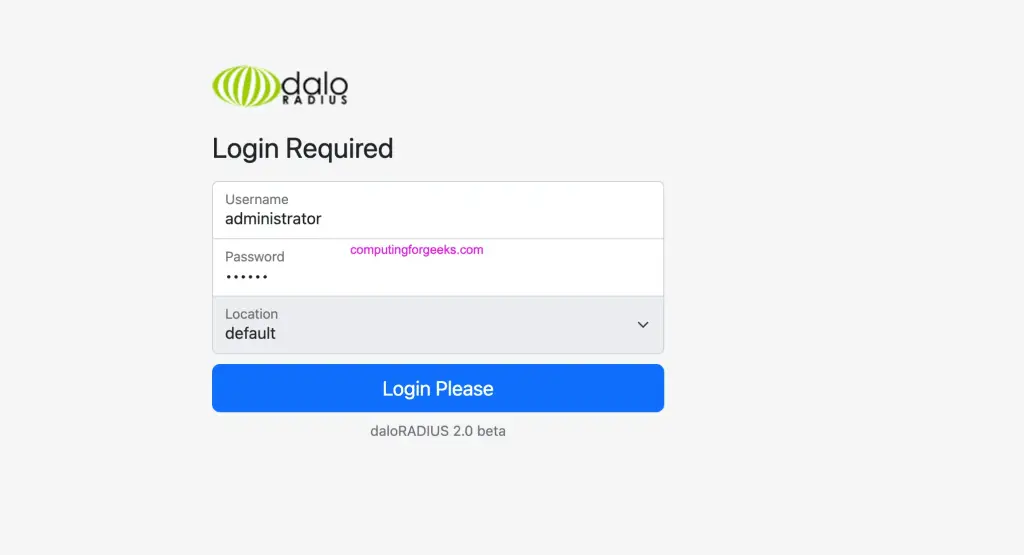
The default login details are:
Username: administrator
Password: radius
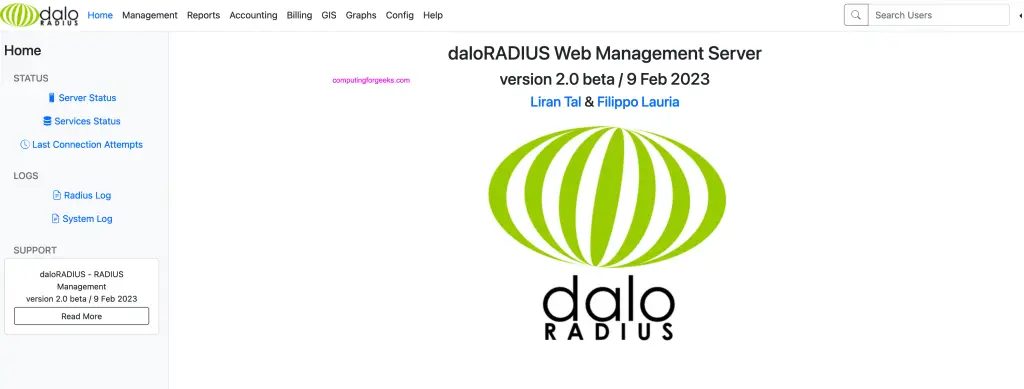
This is how daloRADIUS interface looks like.
Conclusion
You have learned how to Install FreeRADIUS, perform simple essential configurations and Installation of Daloradius which is a web-based tool used to administer FreeRADIUS. You may have to consider further reading to be a guru in FreeRADIUS administration.
Tags:
- install FreeRADIUS on CentOS 7 and RHEL 7
- install and configure FreeRADIUS on CentOS 7 and RHEL 7
- install daloradius on CentOS 7 and RHEL 7
For other Linux systems.

There appears to be an issue with Daloradius and the PHP version installed on this tutorial – installing on CentOS 7 results in getting blank page after a login.
I’m unable to install php-dba as there’s a conflict with the versions installed on an earlier step in the tutorial.
Try to use php 5 and see if it works. There are some bug issues with PHP 7.
Hi
am not so good at linux but i have followed all your procedure successfully to the end but cant log in to daloradius, it says ;
”
Forbidden
You don’t have permission to access /daloradius/
on this server.
”
can you please advise.thank you
I’m happy for you that you did complete installation. That is likely the problem with permissions, make sure apache web user account has read permissions on daloradius folder.
The user should be apache and group is apache as well.
You need to sort out selinux with:
restorecon -Rv /var/www/html/daloradius/*
And then you will probably come across the database error that gets solved with:
yum install php-pear-DB
You can fix this.
yum install epel-release
yum install php-pear-DB
Thanks for sharing
Sure.
Thanks. Worked
I’m Happy it worked for you!
thanks, it done!
I got Error msg like below when run freeradius in debug mod:
rlm_sql_mysql: MySQL error ‘Unknown column ‘acctupdatetime’ in ‘field list”
Please help !
I have no idea why you’re getting such errors.
received an error during when trying to grant privileges..something about syntax near IDE FLUSH PRIVILEGES.. Any ideas???
Remove cracklib plugin
i have service status { radius disabled – myaql disabled }
what may fix these problem
thanks
systemctl enable radiusd.service
systemctl enable mysqld.service
After enable, you can start service with command systemctl start [SERVICE NAME]
i get error following this step by step article “Forbidden… You don’t have permission to access /daloradius/login.php”
all service are running, what give? lol
Please change ownership to apache user- www-data
restorecon -r /var/www/html
Hi Kiplangat Mutai,
Under Service status in Dalo Radius, Radius Status is disabled.
Please advice.
Regards,
Abilash
Share screenshot. Check connectivity between freeradius and daloradius
I have followed your instruction, and ended up with this result.
Please help check the screenshot.
Thank you for your sharing.
https://uploads.disquscdn.com/images/93d55c37c70a0da76be9627eb7c611b1c216d55ddbfb73939b2d77f6c8594f32.jpg
How to enable EAP and PEAP mode in this freeradius?
Please advice.
Regards,
Abilash PR.
I haven’t implemented that yet. I’ll try and share my findings.
thanks.
I had the 404 forbidden error. Just type to console these 2 commands:
find /var/www -type d -exec chmod 755 {} ;
find /var/www -type f -exec chmod 644 {} ;
And now I have this error after unsuccesful login:
Database connection error
Error Message: DB Error: connect failed
DB name,password and db login are not the problem.
Any suggestions ?
Just change the ownership to apache user for /var/www,
chown -R apache:apache /var/www
https://uploads.disquscdn.com/images/3c3398073832385d76424d3acbad806d9b9ca2c29dc01c6587748f2a1c6f14c4.png
I get this error when i type systemctl restart radiusd.service
https://uploads.disquscdn.com/images/d566f5aafcc46a7f311b9a42b98ce5597e7857aa54d34867c4ac1930089e6e5d.png
i get this error when i exec the command systemctl restart radiusd.service
I get after the login page isn’t working (HTTP ERROR 500). I have php 5 loaded not 7. Any ideas?
Disable Selinux
https://uploads.disquscdn.com/images/fe977af3edecbb6000a91c0bbb6ad08baf32b43f228244c8b860e1e6d3cdd205.png Hi can you help me? i got some error
Fantastic thanks
disabled SElinux
Hi, I follow the guide, but got this error after login
Database connection error
Error Message: DB Error: extension not found
I have input these commands already:
FreeRadius:
mysql -u root -p radius < /etc/raddb/mods-config/sql/main/mysql/schema.sql
Dalo:
mysql -u root -p radius < contrib/db/fr2-mysql-daloradius-and-freeradius.sql
mysql -u root -p radius < contrib/db/mysql-daloradius.sql
Would you have any ideas for the problem?
run this: pear install DB
If you have an error when accessing dalo radius regarding permissions, this is likely Seinux, disable Selinux, reboot the server and this should be resolved.
If you have a database error such as extension not found or Uncaught Error: Class ‘DB’ not found. Then run this command: pear install DB
Once done restart httpd. With the above guide and these two changes it worked for me on Centos 7 minimal.
Hi. Please advise what I missed. I got through to all the steps back and I dont know what I missed.
[root@ip-10-100-198-19 ~]# mysql -u root -p radius < /etc/raddb/mods-config/sql/main/mysql/schema.sql
-bash: /etc/raddb/mods-config/sql/main/mysql/schema.sql: No such file or directory
Hi, I received an error when I’m trying to access daloradius web interface : You don’t have permission to access /daloradius/login.php on this server.
Can you help me ?
Thank you
Are you running SELinux? If so you will need to set SELINUX contexts for the daloradius files. Try this:
restorecon -v -R /var/www/html/dolaradius/
Hi, I recived an error when I’m trying to start raiusd.service:
Job for radiusd.service failed because the control process exited with error code. See “systemctl status radiusd.service” and “journalctl -xe” for details.
systemctl status radiusd.service – returns me:
radiusd.service – FreeRADIUS high performance RADIUS server.
Loaded: loaded (/usr/lib/systemd/system/radiusd.service; enabled; vendor preset: disabled)
Active: failed (Result: exit-code) since Thu 2017-09-07 19:12:46 +04; 39s ago
Sep 07 19:12:46 freeradius systemd[1]: Starting FreeRADIUS high performance RADIUS server….
Sep 07 19:12:46 freeradius systemd[1]: radiusd.service: control process exited, code=exited status=1
Sep 07 19:12:46 freeradius systemd[1]: Failed to start FreeRADIUS high performance RADIUS server..
Sep 07 19:12:46 freeradius systemd[1]: Unit radiusd.service entered failed state.
Sep 07 19:12:46 freeradius systemd[1]: radiusd.service failed.
journalctl -xe says:
rlm_sql (sql): Opening additional connection (0)
rlm_sql_mysql: Starting connect to MySQL server
rlm_sql_mysql: Couldn’t connect socket to MySQL server radius@localhost:radius
rlm_sql_mysql: Mysql error ‘Access denied for user ‘radius’@’localhost’ (using password: YES)’
rlm_sql_mysql: Socket destructor called, closing socket
rlm_sql (sql): Opening connection failed (0)
rlm_sql (sql): Removing connection pool
/etc/raddb/mods-enabled/sql[20]: Instantiation failed for module “sql”
May be you can hep me in solving this one.
OK, my mistake…. checked mysql users, was missing ‘radius’ user.
Now I’ve got another problem:
When I open http://192.168.0.192/daloradius/login.php, Daloradius Login page opens. But when I try to login, i get redirected to http://192.168.0.192/daloradius/dologin.php and this page is not opening. I get HTTP ERROR 500.
I
n the httpd error_log I get:
[Fri Sep 08 01:15:09.915663 2017] [:error] [pid 2350] [client 192.168.0.187:2893] PHP Notice: Undefined index: location in /var/www/html/daloradius/dologin.php on line 45
[Fri Sep 08 01:15:09.916505 2017] [:error] [pid 2350] [client 192.168.0.187:2893] PHP Warning: include_once(DB.php): failed to open stream: No such file or directory in /var/www/html/daloradius/library/opendb.php on line 84
[Fri Sep 08 01:15:09.916526 2017] [:error] [pid 2350] [client 192.168.0.187:2893] PHP Warning: include_once(): Failed opening ‘DB.php’ for inclusion (include_path=’.:/usr/share/pear:/usr/share/php’) in /var/www/html/daloradius/library/opendb.php on line 84
[Fri Sep 08 01:15:09.916733 2017] [:error] [pid 2350] [client 192.168.0.187:2893] PHP Fatal error: Uncaught Error: Class ‘DB’ not found in /var/www/html/daloradius/library/opendb.php:86nStack trace:n#0 /var/www/html/daloradius/dologin.php(49): include()n#1 {main}n thrown in /var/www/html/daloradius/library/opendb.php on line 86
[Fri Sep 08 01:15:31.467383 2017] [:error] [pid 2350] [client 192.168.0.187:2904] PHP Warning: include_once(DB.php): failed to open stream: No such file or directory in /var/www/html/daloradius/library/opendb.php on line 84, referer: http://192.168.0.192/daloradius/login.php
[Fri Sep 08 01:15:31.467428 2017] [:error] [pid 2350] [client 192.168.0.187:2904] PHP Warning: include_once(): Failed opening ‘DB.php’ for inclusion (include_path=’.:/usr/share/pear:/usr/share/php’) in /var/www/html/daloradius/library/opendb.php on line 84, referer: http://192.168.0.192/daloradius/login.php
[Fri Sep 08 01:15:31.467471 2017] [:error] [pid 2350] [client 192.168.0.187:2904] PHP Fatal error: Uncaught Error: Class ‘DB’ not found in /var/www/html/daloradius/library/opendb.php:86nStack trace:n#0 /var/www/html/daloradius/dologin.php(49): include()n#1 {main}n thrown in /var/www/html/daloradius/library/opendb.php on line 86, referer: http://192.168.0.192/daloradius/login.php
[Fri Sep 08 01:15:54.221596 2017] [:error] [pid 2355] [client 192.168.0.187:2905] script ‘/var/www/html/daloradius/dalogin.php’ not found or unable to stat
Ok, problem solved needed to run command # pear install DB
how you solve the problem i also getting same issue. please give me a solution.
run commands:
yum install php-pear
and:
pear install DB
i did the same but below error massage come
Database connection error
Error Message: DB Error: extension not found
Article updated. Please redo
If anybody still have problems like:
pear install DB
WARNING: “pear/DB” is deprecated in favor of “pear/MDB2”
pear/DB requires package “pear/PEAR” (version >= 1.10.0), installed version is 1.9.4
No valid packages found
install failed
You can force the installation of DB:
yum -y install php-dba
pear install pear
pear install –force DB
That worked for me on Centos 7 (CentOS Linux release 7.4.1708 (Core))
Cool. Thanks for sharing
Hi, I recived an error when I’m trying to start raiusd.service:
Job for radiusd.service failed because the control process exited with error code. See “systemctl status radiusd.service” and “journalctl -xe” for details.
systemctl status radiusd.service – returns me:
radiusd.service – FreeRADIUS high performance RADIUS server.
Loaded: loaded (/usr/lib/systemd/system/radiusd.service; enabled; vendor preset: disabled)
Active: failed (Result: exit-code) since Wed 2017-09-13 13:38:25 +03; 20s ago
Process: 2297 ExecStartPre=/usr/sbin/radiusd -C (code=exited, status=1/FAILURE)
Process: 2294 ExecStartPre=/bin/chown -R radiusd.radiusd /var/run/radiusd (code=exited, status=0/SUCCESS)
Sep 13 13:38:25 localhost.localdomain systemd[1]: Starting FreeRADIUS high performance RADIUS server….
Sep 13 13:38:25 localhost.localdomain systemd[1]: radiusd.service: control process exited, code=exited status=1
Sep 13 13:38:25 localhost.localdomain systemd[1]: Failed to start FreeRADIUS high performance RADIUS server..
Sep 13 13:38:25 localhost.localdomain systemd[1]: Unit radiusd.service entered failed state.
Sep 13 13:38:25 localhost.localdomain systemd[1]: radiusd.service failed.
Please give me a solution.
Hi,
Please make sure the syntax in your radius configuration file is correct.
Also confirm if database username and password is correct.
Hi , All
After configure all command as above. I start these services , but i see error with radius cannot run .
# systemctl restart radiusd.service
# systemctl restart mariadb.service
# systemctl restart httpd
[root@localhost /]# systemctl restart radiusd.service
Job for radiusd.service failed because the control process exited with error code. See “systemctl status radiusd.service” and “journalctl -xe” for details.
root@localhost /]# radiusd -X
/etc/raddb/mods-enabled/sql[263]: Reference “${dialect}” not found
Errors reading or parsing /etc/raddb/radiusd.conf
This is my file config
# This entry should be used for additional instances (sql foo {})
# of the SQL module.
# group_attribute = “${.:instance}-SQL-Group”
# This entry should be used for the default instance (sql {})
# of the SQL module.
group_attribute = “SQL-Group”
# Read database-specific queries
$INCLUDE ${modconfdir}/${.:name}/main/${dialect}/queries.conf
}
From your radiusd -X output, i can see you have an error: /etc/raddb/mods-enabled/sql[263]: Reference “${dialect}” not found
Make sure you have this setting dialect = “mysql” on your /etc/raddb/mods-enabled/sql file.
Hi,
I still got error:
Forbidden
You don’t have permission to access /daloradius/login.php on this server.
Any advice?
hallo guys solve with this command
restorecon -v -R /var/www/html/dolaradius/
no need custom file config httpd.conf,
I am new to freeradius. I have installed freeradius on centos-7 and planned to manage it using daloradius.
But when I login daloradius I meet error “DATABASE CONNECTION ERROR”.
How to fix this error, please?
Hi,
Please make sure database name and password configured in your configuration file is correct. That’s likely wrong credentials provided.
Pretty good tutorial, thank you for it. I have a suggestion: most mysql servers do not have a GUI and at this point only a root can connect to the database (as per tutorial, root can connect only localy). So accessing the mysql database in this state from a remote GUI client is not possible. So please add instructions how to add a mysql user for radius database able to connect from remote machines, thank you.
Also, if someone has successfully installed php7, command “yum -y install php-pear” is not needed
Thanks.
I’ll add remote mysl support
I am new to freeradius. I have installed freeradius on centos-7.4 and planned to manage it using daloradius.
[root@sys1 ~]# radiusd -X
rlm_sql (sql): Opening additional connection (0), 1 of 32 pending slots used
rlm_sql_mysql: Starting connect to MySQL server
rlm_sql_mysql: Couldn’t connect to MySQL server radius@localhost:radius
rlm_sql_mysql: MySQL error: Access denied for user ‘radius’@’localhost’ (using password: YES)
rlm_sql_mysql: Socket destructor called, closing socket
rlm_sql (sql): Opening connection failed (0)
rlm_sql (sql): Removing connection pool
/etc/raddb/mods-enabled/sql[20]: Instantiation failed for module “sql”
this error is generate so how it is solved..??//
thanks to adv…
Check your db settings, either username or password is wrong.
everythign went well until I tried to login then I got the following
Database connection error
Error Message: DB Error: extension not found
Did you run:
# pear install DB
?
Hello brother i had have this problem also. and i try to check vi library/daloradius.conf.php and verify on ‘CONFIG_DB_PASS’= ‘radius’
.edit the file library/daloradius.conf.php and locate the configuration
variable CONFIG_DB_ENGINE and change it to the value of mysqli to mysql
remove (i)
.editing the file library/opendb.php
At the very end of the file just add this new line of code: $dbSocket->query(“SET GLOBAL sql_mode = ”;”);
Hello there , I’m new to this free radius, I’m just trying this on my AWS instance.. But I’m not able to locate this file ” bash: /etc/raddb/mods-config/sql/main/mysql/schema.sql: No such file or directory” .. I’m not able to copy the schema.sql into the Database.. Can someone , help me here please?
I am having this error when i log in to Daloradius
Database connection error
Error Message: DB Error: extension not found
is anyone able to help please
Check your DB setting on library/daloradius.conf.php
if it is ok
then
1.check pear DB is installed
2.edit the file library/daloradius.conf.php and locate the configuration variable CONFIG_DB_ENGINE and change it to the value of mysqli to mysql remove (i)
3.editing the file library/opendb.php
At the very end of the file just add this new line of code: $dbSocket->query(“SET GLOBAL sql_mode = ”;”);
I am getting sql: ERROR: rlm_sql_mysql: ERROR 1054 (Unknown column ‘acctupdatetime’ in ‘field list’): 42S22
can any body help me?
rlm_sql (sql): Released connection (4)
(2) [sql] = fail
(2) } # accounting = fail
(2) Not sending reply to client.
(2) Finished request
(2) Cleaning up request packet ID 37 with timestamp +8
Waking up in 4.6 seconds.
(3) Received Accounting-Request Id 37 from 192.168.20.20:49006 to 192.168.20.251:1813 length 144
(3) Service-Type = Framed-User
(3) Framed-Protocol = PPP
(3) NAS-Port = 15728652
(3) NAS-Port-Type = Ethernet
(3) User-Name = “nagendra”
(3) Calling-Station-Id = “24:B6:FD:4E:CD:90”
(3) Called-Station-Id = “PPPoE”
(3) NAS-Port-Id = “ether2”
(3) Acct-Session-Id = “8190000c”
(3) Framed-IP-Address = 192.168.100.255
(3) Acct-Authentic = RADIUS
(3) Event-Timestamp = “Feb 11 2018 17:26:40 +0545”
(3) Acct-Status-Type = Start
(3) NAS-Identifier = “MikroTik”
(3) Acct-Delay-Time = 1
(3) NAS-IP-Address = 192.168.20.20
(3) # Executing section preacct from file /etc/raddb/sites-enabled/default
(3) preacct {
(3) [preprocess] = ok
(3) policy acct_unique {
(3) update request {
(3) &Tmp-String-9 := “ai:”
(3) } # update request = noop
(3) if ((“%{hex:&Class}” =~ /^%{hex:&Tmp-String-9}/) && (“%{string:&Class}” =~ /^ai:([0-9a-f]{32})/i)) {
(3) EXPAND %{hex:&Class}
(3) –>
(3) EXPAND ^%{hex:&Tmp-String-9}
(3) –> ^61693a
(3) if ((“%{hex:&Class}” =~ /^%{hex:&Tmp-String-9}/) && (“%{string:&Class}” =~ /^ai:([0-9a-f]{32})/i)) -> FALSE
(3) else {
(3) update request {
(3) EXPAND %{md5:%{User-Name},%{Acct-Session-ID},%{%{NAS-IPv6-Address}:-%{NAS-IP-Address}},%{NAS-Identifier},%{NAS-Port-ID},%{NAS-Port}}
(3) –> 045a026f26d26662a9ab3f0d6d88a680
(3) &Acct-Unique-Session-Id := 045a026f26d26662a9ab3f0d6d88a680
(3) } # update request = noop
(3) } # else = noop
(3) } # policy acct_unique = noop
(3) suffix: Checking for suffix after “@”
(3) suffix: No ‘@’ in User-Name = “nagendra”, looking up realm NULL
(3) suffix: No such realm “NULL”
(3) [suffix] = noop
(3) [files] = noop
(3) } # preacct = ok
(3) # Executing section accounting from file /etc/raddb/sites-enabled/default
(3) accounting {
(3) detail: EXPAND /var/log/radius/radacct/%{%{Packet-Src-IP-Address}:-%{Packet-Src-IPv6-Address}}/detail-%Y%m%d
(3) detail: –> /var/log/radius/radacct/192.168.20.20/detail-20180211
(3) detail: /var/log/radius/radacct/%{%{Packet-Src-IP-Address}:-%{Packet-Src-IPv6-Address}}/detail-%Y%m%d expands to /var/log/radius/radacct/192.168.20.20/detail-20180211
(3) detail: EXPAND %t
(3) detail: –> Sun Feb 11 17:26:41 2018
(3) [detail] = ok
(3) [unix] = ok
(3) sql: EXPAND %{tolower:type.%{Acct-Status-Type}.query}
(3) sql: –> type.start.query
(3) sql: Using query template ‘query’
rlm_sql (sql): Reserved connection (0)
(3) sql: EXPAND %{User-Name}
(3) sql: –> nagendra
(3) sql: SQL-User-Name set to ‘nagendra’
(3) sql: EXPAND INSERT INTO radacct (acctsessionid, acctuniqueid, username, realm, nasipaddress, nasportid, nasporttype, acctstarttime, acctupdatetime, acctstoptime, acctsessiontime, acctauthentic, connectinfo_start, connectinfo_stop, acctinputoctets, acctoutputoctets, calledstationid, callingstationid, acctterminatecause, servicetype, framedprotocol, framedipaddress) VALUES (‘%{Acct-Session-Id}’, ‘%{Acct-Unique-Session-Id}’, ‘%{SQL-User-Name}’, ‘%{Realm}’, ‘%{NAS-IP-Address}’, ‘%{%{NAS-Port-ID}:-%{NAS-Port}}’, ‘%{NAS-Port-Type}’, FROM_UNIXTIME(%{integer:Event-Timestamp}), FROM_UNIXTIME(%{integer:Event-Timestamp}), NULL, ‘0’, ‘%{Acct-Authentic}’, ‘%{Connect-Info}’, ”, ‘0’, ‘0’, ‘%{Called-Station-Id}’, ‘%{Calling-Station-Id}’, ”, ‘%{Service-Type}’, ‘%{Framed-Protocol}’, ‘%{Framed-IP-Address}’)
(3) sql: –> INSERT INTO radacct (acctsessionid, acctuniqueid, username, realm, nasipaddress, nasportid, nasporttype, acctstarttime, acctupdatetime, acctstoptime, acctsessiontime, acctauthentic, connectinfo_start, connectinfo_stop, acctinputoctets, acctoutputoctets, calledstationid, callingstationid, acctterminatecause, servicetype, framedprotocol, framedipaddress) VALUES (‘8190000c’, ‘045a026f26d26662a9ab3f0d6d88a680’, ‘nagendra’, ”, ‘192.168.20.20’, ‘ether2’, ‘Ethernet’, FROM_UNIXTIME(1518349300), FROM_UNIXTIME(1518349300), NULL, ‘0’, ‘RADIUS’, ”, ”, ‘0’, ‘0’, ‘PPPoE’, ’24:B6:FD:4E:CD:90′, ”, ‘Framed-User’, ‘PPP’, ‘192.168.100.255’)
(3) sql: Executing query: INSERT INTO radacct (acctsessionid, acctuniqueid, username, realm, nasipaddress, nasportid, nasporttype, acctstarttime, acctupdatetime, acctstoptime, acctsessiontime, acctauthentic, connectinfo_start, connectinfo_stop, acctinputoctets, acctoutputoctets, calledstationid, callingstationid, acctterminatecause, servicetype, framedprotocol, framedipaddress) VALUES (‘8190000c’, ‘045a026f26d26662a9ab3f0d6d88a680’, ‘nagendra’, ”, ‘192.168.20.20’, ‘ether2’, ‘Ethernet’, FROM_UNIXTIME(1518349300), FROM_UNIXTIME(1518349300), NULL, ‘0’, ‘RADIUS’, ”, ”, ‘0’, ‘0’, ‘PPPoE’, ’24:B6:FD:4E:CD:90′, ”, ‘Framed-User’, ‘PPP’, ‘192.168.100.255’)
(3) sql: ERROR: rlm_sql_mysql: ERROR 1054 (Unknown column ‘acctupdatetime’ in ‘field list’): 42S22
(3) sql: SQL query returned: server error
rlm_sql (sql): Released connection (0)
(3) [sql] = fail
(3) } # accounting = fail
(3) Not sending reply to client.
(3) Finished request
(3) Cleaning up request packet ID 37 with timestamp +8
Waking up in 4.3 seconds.
(0) Cleaning up request packet ID 36 with timestamp +8
Ready to process requests
How to Add APs with daloraidus whenever i clicked to Management or any section i will be redirected to login screen i can not perform any task with daloradius.
Thanks for taking the time to put this together. Very well done.
Thanks Za
Can anyone respond to this?
Hi,
There is no library file inside daloradius after unzipping master.zip