

Fedora ships with Podman as its default container runtime, and for plenty of workloads Podman is enough. The moment you need Docker Compose beyond toy stacks, BuildKit for advanced image builds, Docker Swarm, or full Docker API compatibility for your CI pipelines, Docker CE is the cleaner choice.
This guide installs Docker CE from Docker’s official Fedora repository, then puts it through a real workout: hello-world, a Compose stack with Nginx and Redis, daemon tuning via /etc/docker/daemon.json, SELinux bind-mount labelling, and rootless Docker. Every command was run on a clean Fedora 44 box. The same commands work on Fedora 43 and 42 because the Docker CE repo is shared across the three current Fedora releases.
Prerequisites
You need a running Fedora 44, 43, or 42 system (Workstation, Server, or Cloud Edition all work) with sudo access. SELinux can stay in enforcing mode, which is the default. The Docker packages ship with the right policies, so do not disable SELinux for this.
Step 1: Set reusable shell variables
Several commands reference your username and the Compose test directory. Export them once so you only edit a single block:
export DOCKER_USER="$USER"
export COMPOSE_DIR="$HOME/compose-test"
export DOCKER_REPO_URL="https://download.docker.com/linux/fedora/docker-ce.repo" #https://docs.docker.com/engine/install/fedora/
Confirm the variables hold:
echo "User:  ${DOCKER_USER}"
echo "Stack: ${COMPOSE_DIR}"
echo "Repo:  ${DOCKER_REPO_URL}"
Step 2: Remove conflicting packages
Older Docker packages from third-party COPRs or earlier installs can collide with Docker CE. Clean them up before adding the Docker repo:
sudo dnf remove -y docker docker-client docker-client-latest docker-common \
  docker-latest docker-latest-logrotate docker-logrotate docker-selinux \
  docker-engine-selinux docker-engine
On a fresh Fedora install, DNF reports each package as already absent and exits cleanly:
No packages to remove for argument: docker-selinux
No packages to remove for argument: docker-engine-selinux
No packages to remove for argument: docker-engine

Nothing to do.
Step 3: Add the Docker CE repository
Install the DNF plugins package so the config-manager subcommand is available:
sudo dnf install -y dnf-plugins-coreAdd the Docker CE repository. Fedora 44 and 43 ship DNF5, which uses addrepo --from-repofile=:
sudo dnf config-manager addrepo --from-repofile="${DOCKER_REPO_URL}"If your machine is still on Fedora 42 with DNF4, swap the syntax for --add-repo. Same repo file, different flag spelling:
sudo dnf config-manager --add-repo "${DOCKER_REPO_URL}"Verify the repo is registered. The docker-ce-stable id should appear next to the Fedora base repos:
sudo dnf repolistThe output lists the Docker repo alongside the Fedora base repos:
repo id               repo name
docker-ce-stable      Docker CE Stable - x86_64
fedora                Fedora 44 - x86_64
fedora-cisco-openh264 Fedora 44 openh264 (From Cisco) - x86_64
updates               Fedora 44 - x86_64 - Updates
Step 4: Install Docker CE on Fedora
Install the engine, CLI, containerd, BuildKit plugin, and the Compose v2 plugin in one transaction:
sudo dnf install -y docker-ce docker-ce-cli containerd.io \
  docker-buildx-plugin docker-compose-plugin
DNF resolves the dependency tree, pulls roughly 100 MiB of packages, and imports Docker’s GPG signing key on first install:
Installing:
 containerd.io             x86_64  0:2.2.3-1.fc44   docker-ce-stable
 docker-buildx-plugin      x86_64  0:0.34.0-1.fc44  docker-ce-stable
 docker-ce                 x86_64  3:29.5.2-1.fc44  docker-ce-stable
 docker-ce-cli             x86_64  1:29.5.2-1.fc44  docker-ce-stable
 docker-compose-plugin     x86_64  0:5.1.4-1.fc44   docker-ce-stable
Installing weak dependencies:
 docker-ce-rootless-extras x86_64  0:29.5.2-1.fc44  docker-ce-stable

Transaction Summary:
 Installing: 9 packages

Total size of inbound packages is 100 MiB.
After this operation, 379 MiB extra will be used.

Importing OpenPGP key 0x621E9F35:
 UserID     : "Docker Release (CE rpm) <[email protected]>"
 Fingerprint: 060A61C51B558A7F742B77AAC52FEB6B621E9F35
 From       : https://download.docker.com/linux/fedora/gpg
The key was successfully imported.

Complete!
Step 5: Start and enable Docker
Enable the Docker service so it survives reboots and start it now:
sudo systemctl enable --now dockerConfirm the daemon is running:
sudo systemctl status docker --no-pagerThe service should report active (running) with the docker.socket trigger:
● docker.service - Docker Application Container Engine
     Loaded: loaded (/usr/lib/systemd/system/docker.service; enabled; preset: disabled)
    Drop-In: /usr/lib/systemd/system/service.d
             └─10-timeout-abort.conf
     Active: active (running) since Wed 2026-05-20 22:03:39 UTC; 17ms ago
TriggeredBy: ● docker.socket
       Docs: https://docs.docker.com
   Main PID: 8394 (dockerd)
      Tasks: 10
     Memory: 29.1M
     CGroup: /system.slice/docker.service
             └─8394 /usr/bin/dockerd -H fd:// --containerd=/run/containerd/containerd.sock
Step 6: Verify the install
Check the engine, CLI, Compose plugin, and BuildKit versions:
sudo docker --version
sudo docker compose version
sudo docker buildx version
You should see all three versions printed back:
Docker version 29.5.2, build 79eb04c
Docker Compose version v5.1.4
github.com/docker/buildx v0.34.0 3e73561e39785683b31b05eeab1ef645be44ca42
Pull the key runtime details out of docker info to confirm storage, cgroup, and kernel are wired correctly:
sudo docker info | grep -E 'Server Version|Storage Driver|Cgroup Driver|Cgroup Version|Kernel Version|Operating System|Architecture'On the test box the trimmed output looks like this:
 Server Version: 29.5.2
 Storage Driver: overlayfs
 Cgroup Driver: systemd
 Cgroup Version: 2
 Kernel Version: 7.0.8-200.fc44.x86_64
 Operating System: Fedora Linux 44 (Cloud Edition)
 Architecture: x86_64
The overlayfs storage driver replaced the older overlay2 default in Docker 25 and is faster on modern kernels. Cgroup v2 has been the Fedora default since Fedora 31, and Docker uses it cleanly with no extra configuration.
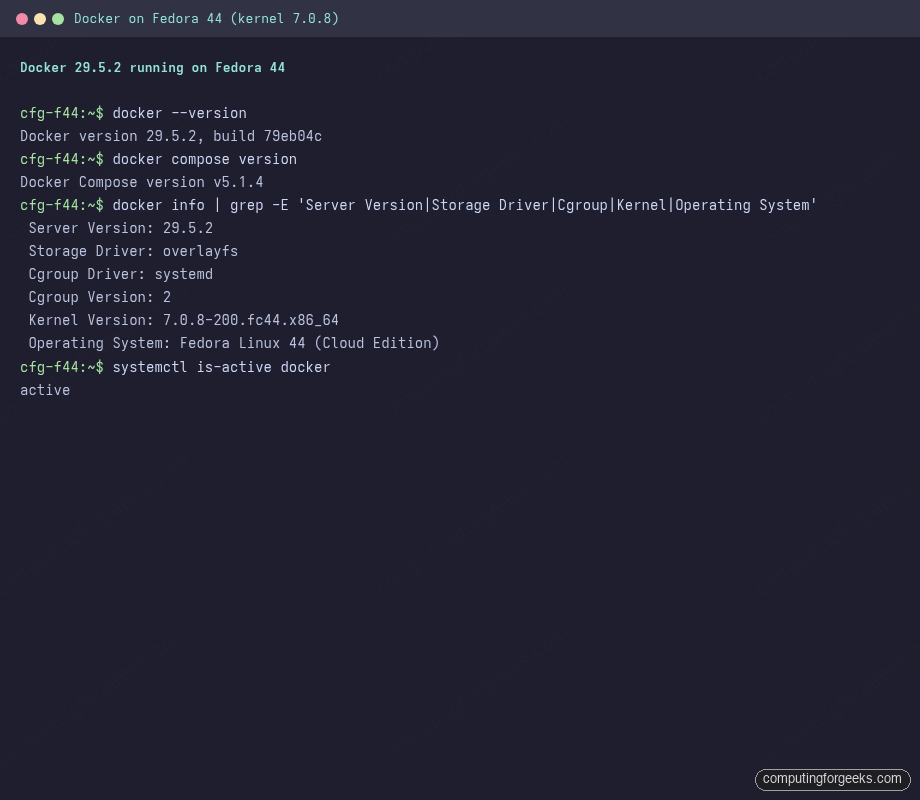
Here is the verification output captured on the test box, with the engine version, storage driver, cgroup driver, and kernel all confirmed in one glance:
Step 7: Run the hello-world container
The sanity check pulls a tiny image from Docker Hub and runs it. If networking, the daemon, and SELinux are all sane, the message prints:
sudo docker run --rm hello-worldThe expected output (after the pull) ends with the Docker hello banner:
Unable to find image 'hello-world:latest' locally
latest: Pulling from library/hello-world
4f55086f7dd0: Pull complete
Digest: sha256:0e760fdfbc48ba8041e7c6db999bb40bfca508b4be580ac75d32c4e29d202ce1
Status: Downloaded newer image for hello-world:latest

Hello from Docker!
This message shows that your installation appears to be working correctly.
Step 8: Run Docker as a non-root user
Typing sudo in front of every Docker command gets old fast. Add yourself to the docker group so the CLI can talk to the daemon socket directly:
sudo usermod -aG docker "${DOCKER_USER}"Log out and back in (or run newgrp docker) so the new group membership takes effect for your shell. Confirm:
groupsThe docker entry should be present at the end of the list:
jmutai adm wheel systemd-journal dockerFrom here on, the same commands run without sudo:
docker run --rm hello-worldOne thing to be honest about: docker group membership is root-equivalent. Anyone in the group can mount the host filesystem inside a privileged container and escape to root. On shared machines, prefer rootless Docker (Step 11 below) or stick with Podman, which runs rootless by default.
Step 9: Run a Compose stack on Fedora
Multi-container apps are where Docker earns its keep over running individual containers. Build a tiny stack with Nginx fronting Redis:
mkdir -p "${COMPOSE_DIR}" && cd "${COMPOSE_DIR}"Create the Compose file:
vi docker-compose.ymlPaste the following service definitions and save:
services:
  web:
    image: nginx:alpine
    ports:
      - "8080:80"
    depends_on:
      - cache
  cache:
    image: redis:alpine
Bring the stack up in detached mode:
docker compose up -dCompose creates the network, builds the dependency order, and starts both containers:
 Network compose-test_default     Created
 Container compose-test-cache-1   Started
 Container compose-test-web-1     Started
Both services should report Up with the published port mapped:
docker compose psThe status table shows both services Up and the host-to-container port mapping on web:
NAME                   IMAGE          COMMAND                  SERVICE   CREATED         STATUS         PORTS
compose-test-cache-1   redis:alpine   "docker-entrypoint.s…"   cache     6 seconds ago   Up 3 seconds   6379/tcp
compose-test-web-1     nginx:alpine   "/docker-entrypoint.…"   web       4 seconds ago   Up 3 seconds   0.0.0.0:8080->80/tcp, [::]:8080->80/tcp
Curl the Nginx default page to prove the network path works end-to-end:
curl -s http://localhost:8080 | head -5The Nginx default page comes back through the published port:
<!DOCTYPE html>
<html>
<head>
<title>Welcome to nginx!</title>
<style>
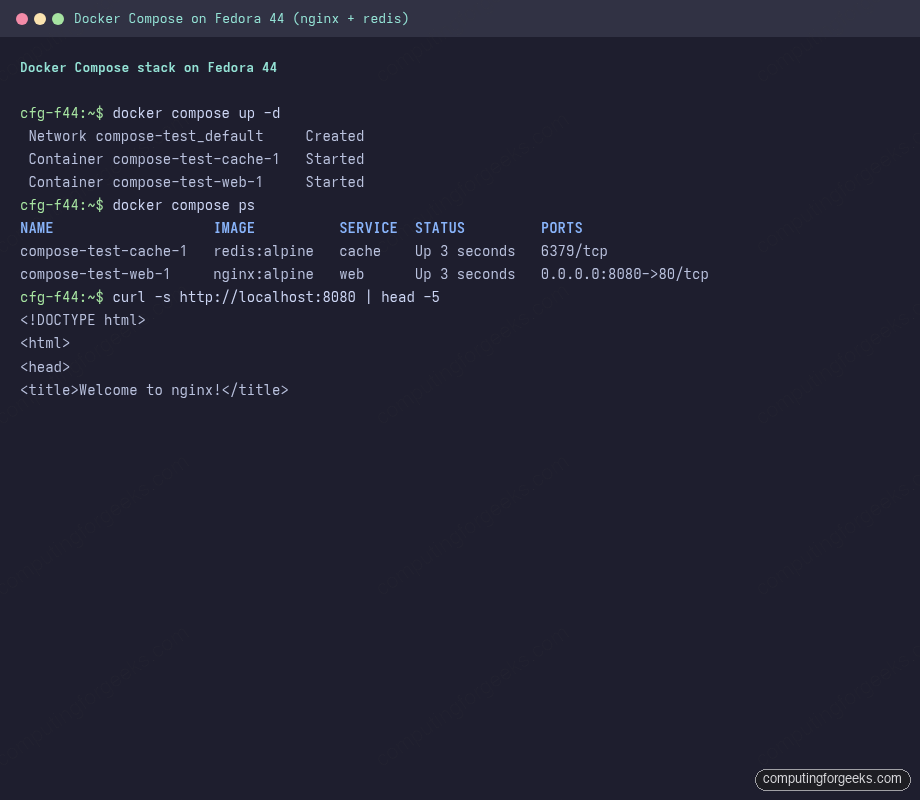
The stack output shows both services starting, the port mapping on web, and the live curl response from the Nginx default page:
Tear the stack down when you are done. The network and containers are removed; named volumes survive unless you add -v:
docker compose downStep 10: SELinux and bind mounts on Fedora
Fedora runs SELinux in enforcing mode by default and Docker CE is shipped with policies that work with that. Confirm SELinux state:
getenforceYou should see Enforcing on every default Fedora install:
EnforcingPlain Docker commands work as-is. The friction shows up with bind mounts: a host directory mounted into a container may not have the right SELinux label for the container process to read or write. Use the :z (shared) or :Z (private) volume flag and Docker relabels the directory on the fly:
mkdir -p ~/selinux-test
echo 'hello from host' > ~/selinux-test/test.txt
docker run --rm -v ~/selinux-test:/data:Z alpine cat /data/test.txt
The container reads the relabelled file without an AVC denial:
hello from hostUse :z (lowercase) when several containers need to share the directory. Use :Z (uppercase) when only this one container should access it. Never disable SELinux to “make Docker work”. If you hit a real AVC denial, check the audit log for what was blocked:
sudo ausearch -m AVC,USER_AVC -ts recent | tailStep 11: Optional – run Docker rootless
The standard Docker setup runs the daemon as root. For desktops and shared hosts, rootless mode runs the daemon under your user account with no privileged group. The docker-ce-rootless-extras package is already installed as part of Step 4:
which dockerd-rootless-setuptool.sh
rpm -q docker-ce-rootless-extras
Both the setup tool and the rootless-extras package are in place:
/usr/bin/dockerd-rootless-setuptool.sh
docker-ce-rootless-extras-29.5.2-1.fc44.x86_64
Stop the system daemon first so the two do not fight over the same socket, then run the rootless setup as the unprivileged user:
sudo systemctl disable --now docker.service docker.socket
dockerd-rootless-setuptool.sh install
The script enables a user-level systemd unit and prints the environment variables to add to your shell rc. Rootless mode has known limits: no privileged ports under 1024 without extra setup, no host networking, slower overlay storage. For a workstation, the tradeoff is usually worth it.
Step 12: Tune the Docker daemon
By default, container logs grow without bound. On a long-running dev box, one chatty container can fill /var/lib/docker overnight. Set up log rotation and pick a private address pool that will not clash with your LAN.
Open the daemon config file (creates it if missing):
sudo mkdir -p /etc/docker
sudo vi /etc/docker/daemon.json
Add the following JSON. Adjust the address pool base if 172.20.x is already routed somewhere on your network:
{
  "log-driver": "json-file",
  "log-opts": {
    "max-size": "10m",
    "max-file": "3"
  },
  "default-address-pools": [
    {"base": "172.20.0.0/16", "size": 24}
  ]
}
Restart Docker for the changes to load:
sudo systemctl restart dockerConfirm the daemon picked up the new values:
sudo docker info | grep -E 'Logging Driver|Default Address Pools' -A 2The grepped slice reflects the new daemon settings:
 Logging Driver: json-file
 Cgroup Driver: systemd
 Cgroup Version: 2
--
 Default Address Pools:
   Base: 172.20.0.0/16, Size: 24
 Firewall Backend: iptables
Step 13: Firewall and published ports
Docker manipulates iptables (or nftables via the iptables compat layer) directly for every published port. A container started with -p 8080:80 reaches the network without any manual firewall rule, because Docker punches the hole itself.
Fedora Cloud Edition ships without firewalld at all. Workstation and Server install it and run it by default. When firewalld is active and you want a non-Docker service on the host to reach a container, allow the port explicitly. For example, to expose port 8080 to other LAN hosts that ignore Docker’s iptables chains:
sudo firewall-cmd --permanent --add-port=8080/tcp
sudo firewall-cmd --reload
The full set of firewalld zone, service, and rich-rule recipes is covered in Configure firewalld on Fedora.
Podman or Docker on Fedora
Fedora’s default container runtime is Podman, and the two coexist without trouble on the same host. Podman runs rootless by default, integrates with systemd via Quadlet, and uses the OCI image format that Docker also speaks. Pick Podman when you want rootless first, no daemon, or want to ship containers as systemd units.
Docker CE remains the better fit when your team already targets the Docker API, your CI scripts depend on the Docker CLI, you rely on BuildKit-only build features, or you orchestrate with Docker Swarm. For Compose specifically, Podman’s compose support is steadily catching up but Docker Compose v2 is still the more polished experience.
Troubleshooting
Error: unrecognized arguments: –add-repo
You used the DNF4 syntax on a DNF5 host. Fedora 43 and 44 ship DNF5, which expects addrepo --from-repofile= as a subcommand (no leading dashes). Re-run the Step 3 command exactly as shown.
Error: permission denied while trying to connect to the Docker daemon socket
Your shell session does not have the docker group membership yet. Run groups to confirm. If docker is missing, run sudo usermod -aG docker "${DOCKER_USER}" and start a fresh login session (full logout, not just a new terminal tab). If you cannot log out right now, newgrp docker spawns a sub-shell with the new group active.
Container cannot read files from a bind-mounted host directory
SELinux blocked the access because the host directory has a label that container processes are not allowed to read. Add :z (shared between containers) or :Z (private to this container) to the volume flag. Step 10 shows the exact pattern. Do not disable SELinux as a fix.
Docker fails to start after a Fedora upgrade
Old Docker packages from the Fedora base repos sometimes survive a system upgrade and conflict with Docker CE. Re-run the Step 2 removal, then reinstall Docker CE from Step 4. Check the failing service with journalctl -u docker -b --no-pager | tail -50 for the specific error.
Common Docker and Compose commands
A quick reference for the commands you will use day to day once Docker is up:
| Command | What it does |
|---|---|
docker ps | List running containers |
docker ps -a | List all containers, including stopped |
docker images | List local images |
docker pull <image> | Pull an image from the registry |
docker run <image> | Create and start a container |
docker exec -it <ctr> bash | Open an interactive shell in a running container |
docker logs -f <ctr> | Follow container logs |
docker stop <ctr> | Stop a container gracefully |
docker rm <ctr> | Remove a stopped container |
docker rmi <image> | Remove an image |
docker system prune | Clean up stopped containers, dangling images, networks |
docker compose up -d | Start a Compose stack in the background |
docker compose ps | Show stack containers and ports |
docker compose logs -f | Tail logs across all services |
docker compose down | Stop and remove the stack |
docker compose down -v | Same, and also remove named volumes |
For the full Compose workflow with files, volumes, and overrides, see Install and Use Docker Compose on Fedora. To run your own container registry on Fedora, follow Install and Use Docker Registry on Fedora. For a web UI to manage containers, the Portainer setup guide takes you from zero to a working dashboard. Running on other distros is covered in our companion guides for Ubuntu, Debian, and Rocky Linux and AlmaLinux.
