

There are various ways of configuring Bridge Networking in Linux for use in KVM. The default network used by a Virtual Machine launched in KVM is NAT network. With NAT networking, a virtual network is created for the guest machines which is then mapped to host network to provide internet connectivity.
When you configure and use Bridged networking, guest operating systems access external network connected directly to the host machine. A bridge can be created either using Virtual Machine Manager, using virsh command line tool, by directly editing network scripts or using Linux Network management tools.
Method 1: Creating Bridge Network with NAT
Follow these steps to create a Linux bridge from Virtual Machine Manager (GUI). You need to have installed KVM on your system. The demonstration done in this method is for NATed bridge setups.
How to install KVM on RHEL/CentOS 8, Fedora, Arch Linux, CentOS, Ubuntu/Debian, SLES
Open Virtual Machine Manager, and go to Edit > Connection Details > Virtual Networks
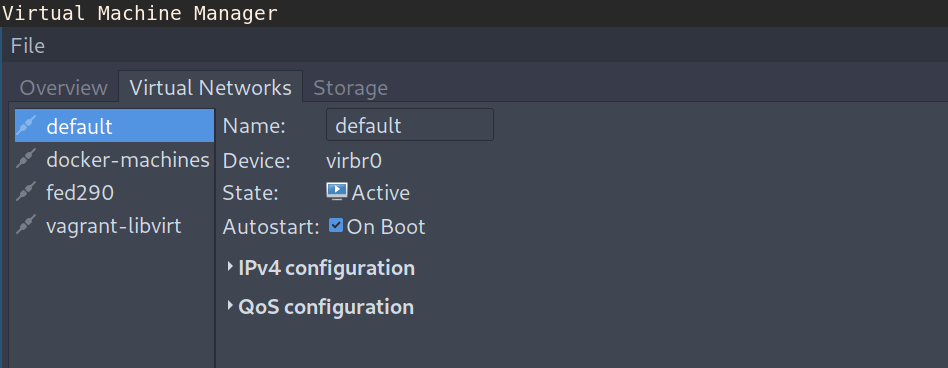
Configure a new network interface by clicking the + at the bottom of the window. Give the virtual network a name.
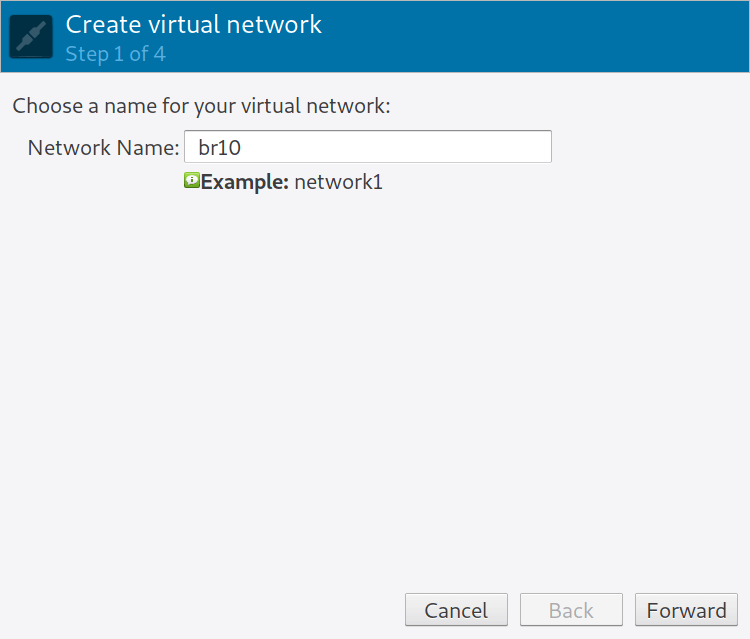
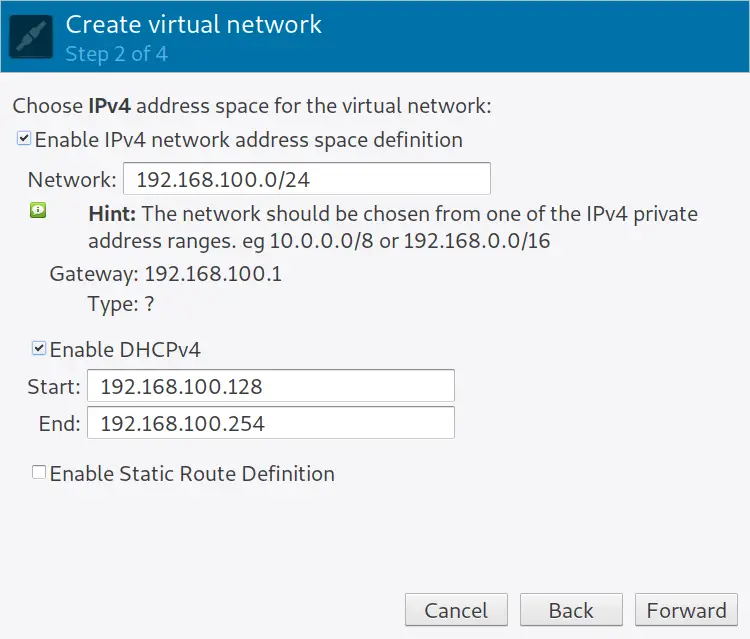
Click the Forward button, on next window, provide virtual network information.
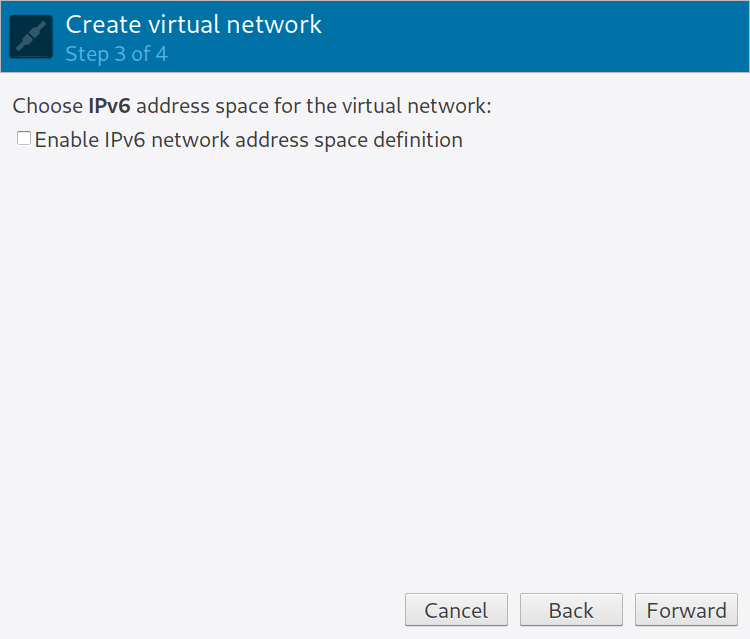
Click forward and choose if to enable IPv6.
Select the network type and forwarding policy.
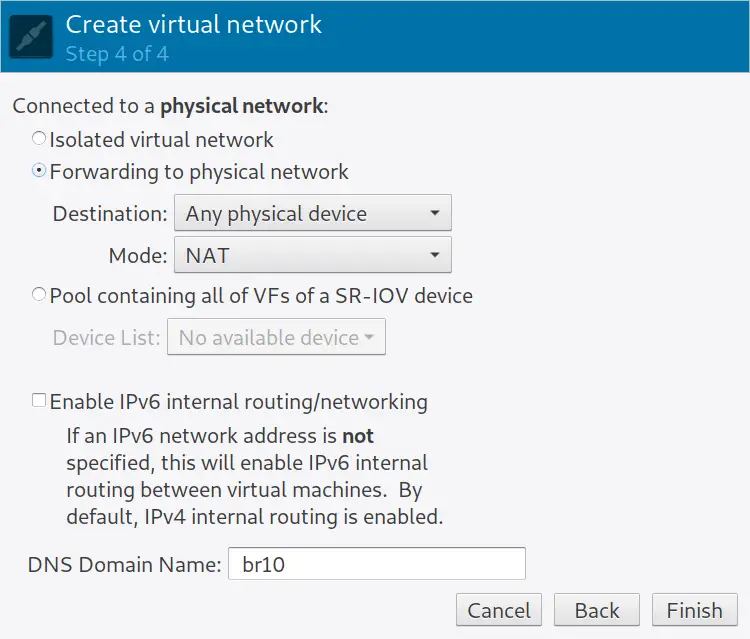
Finish the setting and save your configurations. The new Virtual network should show on the overview page.
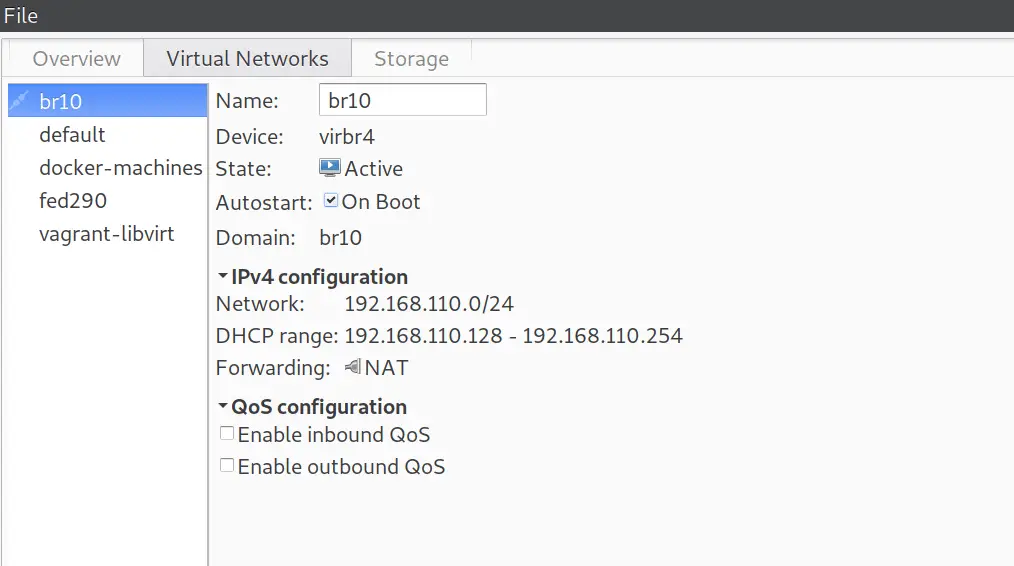
A bridge on the host system is automatically created for the network.
$ brctl show virbr4
bridge name	bridge id		STP enabled	interfaces
virbr4		8000.525400c2410a	yes		virbr4-nic
Method 2: Create KVM bridge with virsh command.
Create a new bridge XML file.
vim br10.xmlAdd bridge details to the file.
<network>
  <name>br10</name>
  <forward mode='nat'>
    <nat>
      <port start='1024' end='65535'/>
    </nat>
  </forward>
  <bridge name='br10' stp='on' delay='0'/>
  <ip address='192.168.30.1' netmask='255.255.255.0'>
    <dhcp>
      <range start='192.168.30.50' end='192.168.30.200'/>
    </dhcp>
  </ip>
</network>
To define a network from an XML file without starting it, use:
$ sudo virsh net-define  br10.xml
Network br1 defined from br10.xml
To start a (previously defined) inactive network, use:
$ sudo virsh net-start br10
Network br10 started
To set network to autostart at service start:
$ sudo virsh net-autostart br10
Network br10 marked as autostarted
Check to Confirm if autostart flag is turned to yes – Persistent should read yes as well.
$ sudo virsh net-list --all
 Name              State    Autostart   Persistent
----------------------------------------------------
 br10              active   yes         yes
 default           active   yes         yes
 docker-machines   active   yes         yes
 fed290            active   no          yes
 vagrant-libvirt   active   no          yes
Confirm bridge creation and IP address.
$ ip addr show dev br10
28: br10: <NO-CARRIER,BROADCAST,MULTICAST,UP> mtu 1500 qdisc noqueue state DOWN group default qlen 1000
    link/ether 52:54:00:94:00:f5 brd ff:ff:ff:ff:ff:ff
    inet 192.168.30.1/24 brd 192.168.30.255 scope global br10
       valid_lft forever preferred_lft forever
Method 3: Create a bridge by editing network scripts
We’ll consider two systems.
1) RHEL based Linux systems
Below script will create a bridge called br10.
sudo vim /etc/sysconfig/network-scripts/ifcfg-br10With:
DEVICE=br10
STP=no
TYPE=Bridge
BOOTPROTO=none
DEFROUTE=yes
NAME=br10
ONBOOT=yes
DNS1=8.8.8.8
DNS2=192.168.30.1
IPADDR=192.168.30.3
PREFIX=24
GATEWAY=192.168.30.1
The configuration of eth0 interface that I’m bridging to will be:
$ cat /etc/sysconfig/network-scripts/ifcfg-eth0
DEVICE=eth0
TYPE=Ethernet
ONBOOT=yes
BRIDGE=br10
Bring up the interfaces:
sudo ifdown br10
sudo ifup br10
2) Debian based Linux systems
Configure Bridging interface:
$ sudo vim  /etc/network/interfaces
auto br10
iface br10 inet static
address 192.168.1.10
network 192.168.1.1
netmask 255.255.255.0
broadcast 192.168.1.255
gateway 192.168.1.1
dns-nameservers 192.168.1.1
bridge_ports eth0
bridge_stp off
Disable all lines on eth0 interface section to look something like below:
auto eth0
iface eth0 inet manual
Restart your networking service.
sudo systemctl restart networking.serviceMethod 5: Using Nmcli tool
Use the nmcli network management command line tool to create a Linux bridge on the desired interface. Let’s first list all available connections.
$ sudo nmcli connection show
NAME                UUID                                  TYPE      DEVICE
enp1s0              498869bb-0d88-4a4c-a83a-c491d1040b0b  ethernet  enp1s0
Wired connection 1  0977f29f-fa2e-3d7f-831c-6f41f8782be3  ethernet  enp7s0
Since my bridge will be created on the second device enp7s0, I’ll delete the existing connection then create a bridge with this device.
$ sudo nmcli connection delete 0977f29f-fa2e-3d7f-831c-6f41f8782be3
Connection 'Wired connection 1' (0977f29f-fa2e-3d7f-831c-6f41f8782be3) successfully deleted.
1. Save bridge related information to variables.
BR_NAME="br10"
BR_INT="enp7s0"
SUBNET_IP="192.168.30.10/24"
GW="192.168.30.1"
DNS1="8.8.8.8"
DNS2="8.8.4.4"
Where:
- BR_NAME: The name of the bridge to be created.
- BR_INT: the physical network device to be used as bridge slave.
- SUBNET_IP: IP address and subnet assigned to the bridge created.
- GW: The IP address of the default gateway
- DNS1 and DNS2: IP addresses of DNS servers to be used.
2. Define new bridge connection.
sudo nmcli connection add type bridge autoconnect yes con-name ${BR_NAME} ifname ${BR_NAME}Output:
Connection 'br0' (be6d4520-0257-49c6-97c2-f515d6554980) successfully added.3. Modify bridge to add IP address, Gateway and DNS
sudo nmcli connection modify ${BR_NAME} ipv4.addresses ${SUBNET_IP} ipv4.method manual
sudo nmcli connection modify ${BR_NAME} ipv4.gateway ${GW}
sudo nmcli connection modify ${BR_NAME} ipv4.dns ${DNS1} +ipv4.dns ${DNS2}
4. Add the network device as bridge slave.
sudo nmcli connection delete ${BR_INT}
sudo nmcli connection add type bridge-slave autoconnect yes con-name ${BR_INT} ifname ${BR_INT} master ${BR_NAME}
Sample output.
Connection 'enp7s0' (f033dbc9-a90e-4d4c-83a9-63fd7ec1cdc1) successfully added.Check connections.
$ sudo nmcli connection show
NAME    UUID                                  TYPE      DEVICE
br0     be6d4520-0257-49c6-97c2-f515d6554980  bridge    br0
enp1s0  498869bb-0d88-4a4c-a83a-c491d1040b0b  ethernet  enp1s0
enp7s0  f033dbc9-a90e-4d4c-83a9-63fd7ec1cdc1  ethernet  enp7s0
Step 2: Bring up network bridge
Once the network bridge connection has been created, bring it up.
$ sudo nmcli connection up br10
Connection successfully activated (master waiting for slaves) (D-Bus active path: /org/freedesktop/NetworkManager/ActiveConnection/5)
View bridge details by running.
sudo nmcli connection show br10The ip addr command should give output similar to below.
$ ip ad
3: enp7s0:  mtu 1500 qdisc fq_codel master br10 state UP group default qlen 1000
     link/ether 52:54:00:a2:f6:a8 brd ff:ff:ff:ff:ff:ff
 4: br10:  mtu 1500 qdisc noqueue state UP group default qlen 1000
     link/ether 52:54:00:a2:f6:a8 brd ff:ff:ff:ff:ff:ff
     inet 192.168.122.10/24 brd 192.168.122.255 scope global noprefixroute br10
        valid_lft forever preferred_lft forever
     inet6 fe80::4f2f:ce6d:dc6b:2101/64 scope link noprefixroute
        valid_lft forever preferred_lft forever
Congratulations!!. You have successfully created and configured Bridge Networking for KVM on a Linux system.
Recommended Linux Books to read;
- Best Linux Books for Beginners & Experts
- Best Linux Kernel Programming Books
- Best Linux Bash Scripting Books
- Top RHCSA / RHCE Certification Study Books
Check KVM related articles below.




Very strange, I’m getting my bridge not working anymore after an upgrade from Fedora30 to Fedora31 !!!
This is NOT bridged networking, this is a NAT network. NAT is standard, you don’t need to set it up. But it is highly limited, I came here to find out how to do bridged, so that guest VMs receive an IP via the same way that the host is via DHCP, you do not define an IP range for that obviously. So the author of this article seems confused what bridging actually means and that it is very much different than NAT.
Bridging refers to layer 2 bridging normally.
Hi,
For your case Method 3, Method 4 and Method 5 should work. It doesn’t use Nat.
I used Method 3 but ran into a problem.
After the command : “sudo systemctl disable NetworkManager && sudo systemctl stop NetworkManager”
When I try the next command (“sudo systemctl restart network.service”), I keep getting the error message : “Failed to restart network.service : Unit network.service not found”
I also lost all connectivity with that interface no matter what I do.
We’ve updated the guide to use
ifupinstead of stopping NetworkManager. In this way NetworkManager service can bring up interfaces on reboot.Hi, I used method 3 and in the step cat /etc/sysconfig/network-scripts/ifcfg-eno1 I get the following error “No such file or directory” I am trying to make a bridge to access virtual machines with Windows, my host operating system is fedora 35 workstation and fedora 35 server, Regards.
Hola, tengo dos máquinas, una con fedora estación de trabajo 35 y otra con fedora servidor 35, el servidor es solo para desarrollo y ambas tienen configurado ip estáticas, luego de hacer el paso para configurar un puente y acceder a una máquina virtual windows en mi estación de trabajo, no puedo acceder a mi servidor usando su ip estática solo puedo acceder desde internet usando “no-ip”, Esto se deberá por el puente que cree en mi estación de trabajo?, use el Method 3, lo único que puedo decir es que el paso “cat /etc/sysconfig/network-scripts/ifcfg-eno1” no me funciona porque no tengo ningún archivo en esa ruta, solo el archivo que cree siguiendo los pasos. En mi servidor fedora también instale KVM utilizando su guía “How To Install KVM on Fedora 36/35/34/33/32/31” intente generar un puente también, pero desinstale todo. Mi servidor ahora está aislado, hice pruebas haciendo escaneos de ip desde otros dispositivos y no logran detectarlo. Alguna sugerencia para que mi servidor pueda ser detectado y accedido localmente.
Server:
enp0s25: connected to enp0s25
“Intel 82579LM”
ethernet (e1000e), 0*:2*:C*:D*:F*:0*, hw, mtu 1500
ip4 default
inet4 192.168.1.100/24
inet4 192.168.1.85/24
route4 192.168.1.0/24
DNS configuration:
servers: 1.1.1.1
domains: 8.8.8.8
interface: enp0s25
Workstation:
wlo1: connected to Ksanchez 5G
“Intel 6 AX201”
wifi (iwlwifi), 0*:6*:5*:F*:F*:1*, hw, mtu 1500
ip4 default
inet4 192.168.1.99/24
route4 192.168.1.0/24
route4 0.0.0.0/0
inet6 fe80::82f5:663e:4a40:2e5a/64
route6 fe80::/64
br10: connected to br10
“br10”
bridge, B*:4*:4*:D*:2*:9*, sw, mtu 1500
inet4 192.168.1.20/24
route4 192.168.1.0/24
DNS configuration:
servers: 8.8.8.8 1.1.1.1
interface: br10
servers: 1.1.1.1 8.8.8.8
interface: wlo1
Note: edit mac adress
Thank you very much for your help!!!
Hi, I recently tried method 3 of this guide on two nodes, Fedora 35 workstation and Fedora 35 server, the only step I could not perform was the one that indicates “cat /etc/sysconfig/network-scripts/ifcfg-eno1” because that file does not exist in that location, it is not clear if I should create it and based on what I should create it. Playing with the IPs in the ifcfg-br10 file I was able to access the Windows 7 virtual machine I use for development, but now I can’t access via IP to my fedora server even though they are on the same network. I have removed KVM on my fedora server, but I still can’t access it via local IP, I only access it via DNS.
Hi,
We had a typo, it should be:
cat /etc/sysconfig/network-scripts/ifcfg-eth0If the interface name is eth0
God bless you
Thanks
I am using a physical server and followed Method 3 to configure the bridge. now the Physical server(Oracle Linux) and host VM(Oralcle Linux) are able to ping/connect to each other and the Physical machine able to access other networks and internet. but the VM is not able to connect to other networks and the internet, and even the VM can’t ping the gateway as well. I reconfigured it multiple times but it never helped.
Is the network up on the VM?, if so validate host and VM network configurations.
I lost my interest the moment you post GUI windows. People who run KVM want in the first place CLI commands. Stop spoiling tutorial with GUI screens or give both ways to configure. Linux is not windows and people have to accept to do a lot of thing using CLI
We have given out multiple methods of doing the configurations, both CLI and GUI. You can just use the one you prefer.